svelte-price-estimate
Version:
An easy way to show and manage your price estimation for your Svelte project
242 lines (213 loc) • 8.51 kB
Markdown
<h1 align="center">Estimate Svelte Module</h1>
<!--div align="center">
[]()
[](https://github.com/kylelobo/The-Documentation-Compendium/issues)
[](https://github.com/kylelobo/The-Documentation-Compendium/pulls)
[](/LICENSE)
</div-->
<p align="justify"> This is a module for those who needs an easy way to show a basic estimate of their services or products. It works with dynamic content, dynamic estimate list, estimate resume and email validator. Just like the price calculator from <a href="https://cloud.google.com/products/calculator">here </a> (kind of 😆). I know there is a lot to work to do.
<br>
</p>
## 🚥 Getting Started <a name = "getting_started"></a>
You have to install this component via npm:
```
npm i svelte-price-estimate
```
And import these js and css in your index.html :
- bootstrap, only for styles and icons
- jquery, we need jquery for slik to work
- slick, carousel for category selector => *js* and *css*
___You can check this sample app <a href="https://github.com/bonillap/price-estimate-test">here</a> and check <a href="https://github.com/bonillap/price-estimate-test/blob/main/public/index.html">index.html</a> for more info___
## ▶️ Running <a name = "running"></a>
Import this component in any of your svelte files:
```javascript
import PriceEstimate from "svelte-price-estimate";
```
Add the component tag inside your html
```html
<PriceEstimate data={data} mailingURL={mail}></PriceEstimate>
```
The "data" attribute is explained below (with example) and the "mailingURL" is the URL of your endpoint or service to process the estimate data with the email that users input in the email field (if mailingURL is set).
Then, you can access it by default in http://localhost:5000 and watch the app running with changes in real time. You can check this <a>sample</a> repository.
## 🛠️ Tools and libraries <a name = "tools"></a>
<ul>
<li><a href="https://svelte.dev/">Svelte</a></li>
<li><a href="https://getbootstrap.com/">Bootstrap</a></li>
<li><a href="https://jquery.com/">JQuery</a></li>
<li><a href="https://kenwheeler.github.io/slick/">Slick</a></li>
</ul>
## 📔 Data definition <a name = "data"></a>
The data field in PriceEstimate is defined as an array. This is an example:
```javascript
let data = [
{
icon: 'assets/icons/clean.png',
name: 'Bathroom',
title: 'Bathroom Renovation ',
category_name: 'Quality',
unique: false,
measure: {name : 'Meters', short_name: 'm²'},
items: [
{
description: 'Toilet, bath, faucets, furnishings and mirrors',
category: {
medium: {
label: 'Medium',
price_ranges: [
{from_quantity:0, to_quantity: 6, price: 1000, step: 6},
{from_quantity:6, price: 100, step: 1}
]
},
high: {
label: 'High',
price_ranges: [
{from_quantity:0, to_quantity: 6, price: 2000, step: 6},
{from_quantity:6, price: 200, step: 1}
]
}
},
selected: 'medium'
},
{
description: 'Instalation, plumbing, electrical wiring and veneer',
category: {
medium: {
label: 'Medium',
price_ranges: [
{from_quantity:0, to_quantity: 6, price: 500, step: 6},
{from_quantity:6, price: 50, step: 1}
]
},
high: {
label: 'High',
price_ranges: [
{from_quantity:0, to_quantity: 6, price: 1000, step: 6},
{from_quantity:6, price: 100, step: 1}
]
}
},
selected: 'medium'
}
]
},
{
icon: 'assets/icons/kitchen.png',
name: 'Kitchen',
title: 'Kitchen Design',
category_name: 'Quality',
unique: false,
measure: {name : 'Meters', short_name: 'm²'},
items: [
{
description: 'Furniture from bottom to top',
category: {
medium: {
label: 'Medium',
price_ranges: [
{ price: 120, step: 1}
]
},
high: {
label: 'High',
price_ranges: [
{ price: 210, step: 1}
]
}
},
selected: 'medium'
},
{
description: 'Installations, plumbing and electrical wiring',
category: {
medium: {
label: 'Medium',
price_ranges: [
{from_quantity:0, to_quantity: 6, price: 1230, step: 6},
{from_quantity:6, price: 200, step: 1}
]
},
high: {
label: 'High',
price_ranges: [
{from_quantity:0, to_quantity: 6, price: 1230, step: 6},
{from_quantity:6, price: 200, step: 1}
]
}
},
selected: 'medium'
}
]
},
{
icon: 'assets/icons/heater.png',
name: 'Heater',
title: 'Heater',
category_name: 'Rank',
unique: true,
measure: {name : 'Unidad', short_name: 'und'},
items: [
{
description: 'Heating circuit, radiators and boiler',
category: {
one_room: {
label: 'One room',
price_ranges: [
{price: 1230}
]
},
full_house: {
label: 'Full house',
price_ranges: [
{price: 1890}
]
}
},
selected: 'full_house'
}
]
}
];
```
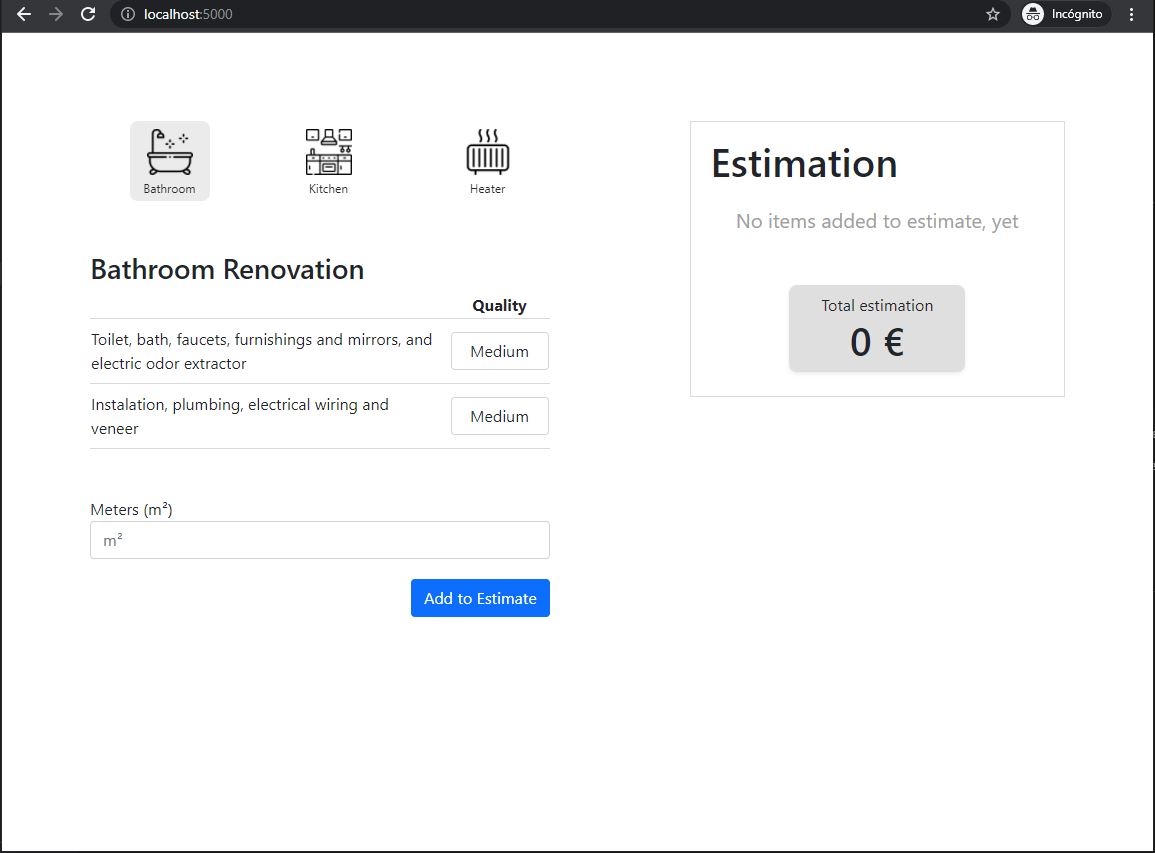
This sample shows something like this:
It looks complex, but is pretty easy to understand:
- Every item in the array is a section.
- Every section has list of items.
- Every item has a category that can be dinamically set as a group of price range.
```yaml
icon: Icon of the section,
name: Short name below icon,
title: Full name of the section,
category_name: Column name for the selectors,
unique: 'true' if only one price applies or 'false' if we need to process the quantity,
measure:
name : Metering name ex=(meters, foot, unit...),
short_name: Short name ex=(m2, ft, ud...)
items:
description: Item name or description (row in table)
category: You can set any identifier for the category
label: Option in the selector
price_ranges: This array has to be in order
from_quantity: Minimum quantity to evaluate
to_quantity: Maximum quantity to evaluate
price: Price of the step
step: Quantity in this range will be multiply by step
```
## 🎓 Considerations <a name = "considerations"></a>
- with unique value set true, we can manage 1 price. That means, a section has no quantity because it is an one life time payment:
```javascript
price_ranges: [
{ price: 120, step: 1}
]
```
- with unique value set false, you can play more.
```javascript
price_ranges: [
{from_quantity:0, to_quantity: 6, price: 1230, step: 6},
{from_quantity:6, price: 200, step: 1}
]
```
With this definition of price ranges, you can set a quantity. This quantity will be distribute. For example, I want 7 of this section. so, 7 fill the first range, because 0 < 7 < 6, so we have actually 6 in this section, then it'll be divide by step (6) = 1. And then multiply by price (1230).
But wait! we have 1 left, because 7 - 6 = 1, so we pass to the next range: 6 to N (because we have no to_quantity). Thus 1 / step (1) = 1, then multiply by price (200).
Finally, total = 1430
__You can play with almost any value and try to fit it into your application__