subhasmitalmg-react-spreadsheet-import
Version:
React spreadsheet import for xlsx and csv files with column matching and validation steps
340 lines (270 loc) • 11.2 kB
Markdown
<h1 align="center">RSI react-spreadsheet-import ⚡️</h1>
<div align="center">

 [](https://www.npmjs.com/package/react-spreadsheet-import)
</div>
<br />
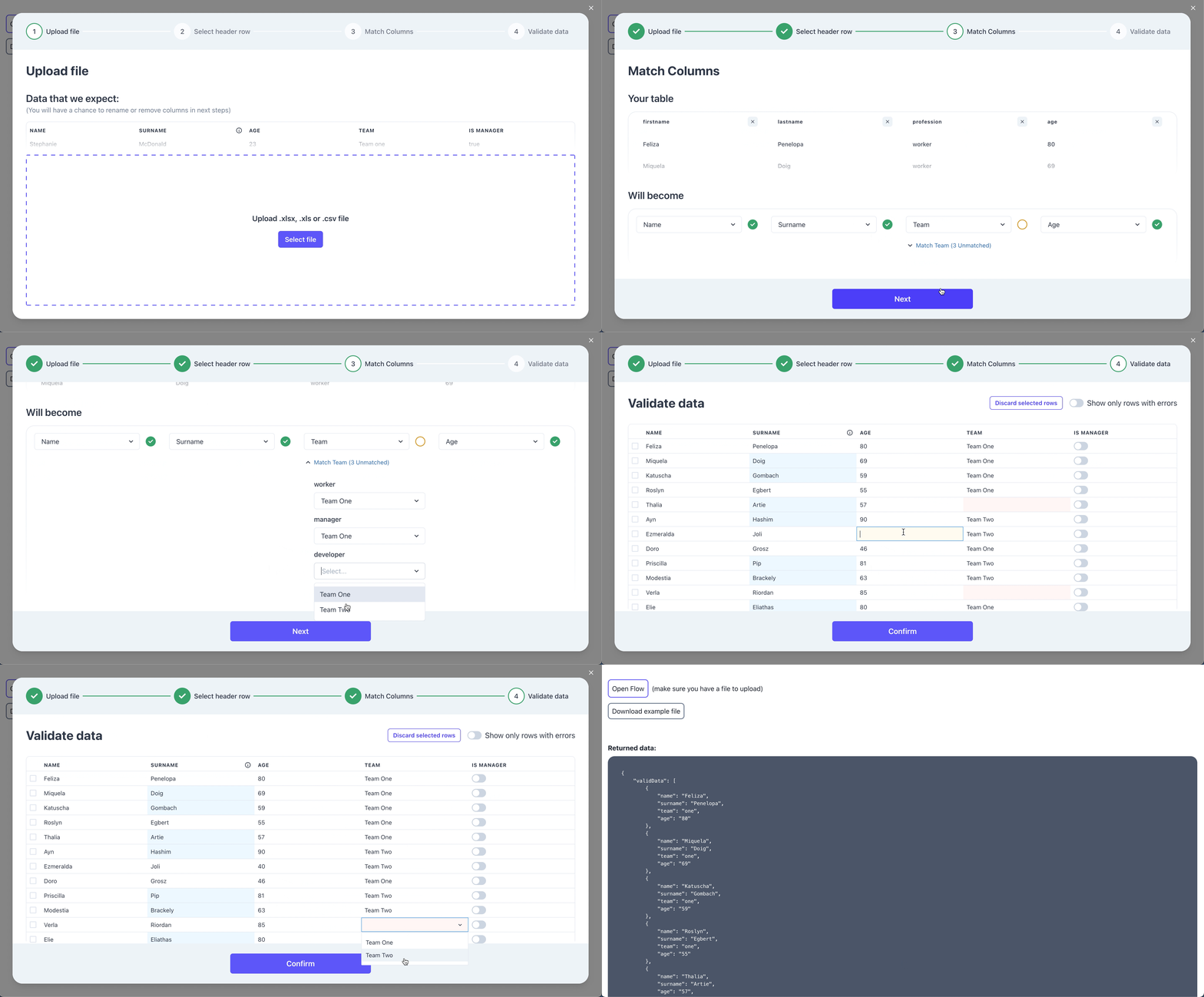
A component used for importing XLS / XLSX / CSV documents built with [**Chakra UI**](https://chakra-ui.com). Import flow combines:
- 📥 Uploader
- ⚙️ Parser
- 📊 File preview
- 🧪 UI for column mapping
- ✏ UI for validating and editing data
✨ [**Demo**](https://ugnissoftware.github.io/react-spreadsheet-import/iframe.html?id=react-spreadsheet-import--basic&args=&viewMode=story) ✨
<br />
## Features
- Custom styles - edit Chakra UI theme to match your project's styles 🎨
- Custom validation rules - make sure valid data is being imported, easily spot and correct errors
- Hooks - alter raw data after upload or make adjustments on data changes
- Auto-mapping columns - automatically map most likely value to your template values, e.g. `name` -> `firstName`
<br />
## Figma
We provide full figma designs. You can copy the designs
[here](https://www.figma.com/community/file/1080776795891439629)
## Getting started
```sh
npm i react-spreadsheet-import
```
Using the component: (it's up to you when the flow is open and what you do on submit with the imported data)
```tsx
import { ReactSpreadsheetImport } from "react-spreadsheet-import";
<ReactSpreadsheetImport isOpen={isOpen} onClose={onClose} onSubmit={onSubmit} fields={fields} />
```
## Required Props
```tsx
// Determines if modal is visible.
isOpen: Boolean
// Called when flow is closed without reaching submit.
onClose: () => void
// Called after user completes the flow. Provides data array, where data keys matches your field keys.
onSubmit: (data, file) => void
```
### Fields
Fields describe what data you are trying to collect.
```tsx
const fields = [
{
// Visible in table header and when matching columns.
label: "Name",
// This is the key used for this field when we call onSubmit.
key: "name",
// Allows for better automatic column matching. Optional.
alternateMatches: ["first name", "first"],
// Used when editing and validating information.
fieldType: {
// There are 3 types - "input" / "checkbox" / "select".
type: "input",
},
// Used in the first step to provide an example of what data is expected in this field. Optional.
example: "Stephanie",
// Can have multiple validations that are visible in Validation Step table.
validations: [
{
// Can be "required" / "unique" / "regex"
rule: "required",
errorMessage: "Name is required",
// There can be "info" / "warning" / "error" levels. Optional. Default "error".
level: "error",
},
],
},
] as const
```
## Optional Props
### Hooks
You can transform and validate data with custom hooks. There are hooks after each step:
- **uploadStepHook** - runs only once after uploading the file.
- **selectHeaderStepHook** - runs only once after selecting the header row in spreadsheet.
- **matchColumnsStepHook** - runs only once after column matching. Operations on data that are expensive should be done here.
The last step - validation step has 2 unique hooks that run only in that step with different performance tradeoffs:
- **tableHook** - runs at the start and on any change. Runs on all rows. Very expensive, but can change rows that depend on other rows.
- **rowHook** - runs at the start and on any row change. Runs only on the rows changed. Fastest, most validations and transformations should be done here.
Example:
```tsx
<ReactSpreadsheetImport
rowHook={(data, addError) => {
// Validation
if (data.name === "John") {
addError("name", { message: "No Johns allowed", level: "info" })
}
// Transformation
return { ...data, name: "Not John" }
// Sorry John
}}
/>
```
### Initial state
In rare case when you need to skip the beginning of the flow, you can start the flow from any of the steps.
- **initialStepState** - initial state of component that will be rendered on load.
```tsx
initialStepState?: StepState
type StepState =
| {
type: StepType.upload
}
| {
type: StepType.selectSheet
workbook: XLSX.WorkBook
}
| {
type: StepType.selectHeader
data: RawData[]
}
| {
type: StepType.matchColumns
data: RawData[]
headerValues: RawData
}
| {
type: StepType.validateData
data: any[]
}
type RawData = Array<string | undefined>
// XLSX.workbook type is native to SheetJS and can be viewed here: https://github.com/SheetJS/sheetjs/blob/83ddb4c1203f6bac052d8c1608b32fead02ea32f/types/index.d.ts#L269
```
Example:
```tsx
import { ReactSpreadsheetImport, StepType } from "react-spreadsheet-import";
<ReactSpreadsheetImport
initialStepState={{
type: StepType.matchColumns,
data: [
["Josh", "2"],
["Charlie", "3"],
["Lena", "50"],
],
headerValues: ["name", "age"],
}}
/>
```
### Dates and time
Excel stores dates and times as numbers - offsets from an epoch. When reading xlsx files SheetJS provides date formatting helpers.
**Default date import format** is `yyyy-mm-dd`. Date parsing with SheetJS sometimes yields unexpected results, therefore thorough date validations are recommended.
- **dateFormat** - sets SheetJS `dateNF` option. Can be used to format dates when importing sheet data.
- **parseRaw** - sets SheetJS `raw` option. If `true`, date formatting will be applied to XLSX date fields only. Default is `true`
Common date-time formats can be viewed [here](https://docs.sheetjs.com/docs/csf/features/dates/#date-and-time-number-formats).
### Other optional props
```tsx
// Allows submitting with errors. Default: true
allowInvalidSubmit?: boolean
// Translations for each text. See customisation bellow
translations?: object
// Theme configuration passed to underlying Chakra-UI. See customisation bellow
customTheme?: object
// Specifies maximum number of rows for a single import
maxRecords?: number
// Maximum upload filesize (in bytes)
maxFileSize?: number
// Automatically map imported headers to specified fields if possible. Default: true
autoMapHeaders?: boolean
// When field type is "select", automatically match values if possible. Default: false
autoMapSelectValues?: boolean
// Headers matching accuracy: 1 for strict and up for more flexible matching. Default: 2
autoMapDistance?: number
```
## Customisation
### Customising styles (colors, fonts)
You can see default theme we use [here](https://github.com/UgnisSoftware/react-spreadsheet-import/blob/master/src/theme.ts). Your override should match this object's structure.
There are 3 ways you can style the component:
1.) Change theme colors globally
```jsx
<ReactSpreadsheetImport
{...mockRsiValues}
isOpen={isOpen}
onClose={onClose}
onSubmit={setData}
customTheme={{
colors: {
background: 'white',
...
rsi: {
// your brand colors should go here
50: '...'
...
500: 'teal',
...
900: "...",
},
},
}}
/>
```
<img width="1189" alt="Screenshot 2022-04-13 at 10 24 34" src="https://user-images.githubusercontent.com/5903616/163123718-15c05ad8-243b-4a81-8141-c47216047468.png">
2.) Change all components of the same type, like all Buttons, at the same time
```jsx
<ReactSpreadsheetImport
{...mockRsiValues}
isOpen={isOpen}
onClose={onClose}
onSubmit={setData}
customTheme={{
components: {
Button: {
baseStyle: {
borderRadius: "none",
},
defaultProps: {
colorScheme: "yellow",
},
},
},
}}
/>
```
<img width="1191" alt="Screenshot 2022-04-13 at 11 04 30" src="https://user-images.githubusercontent.com/5903616/163130213-82f955b4-5081-49e0-8f43-8857d480dacd.png">
3.) Change components specifically in each Step.
```jsx
<ReactSpreadsheetImport
{...mockRsiValues}
isOpen={isOpen}
onClose={onClose}
onSubmit={setData}
customTheme={{
components: {
UploadStep: {
baseStyle: {
dropzoneButton: {
bg: "red",
},
},
},
},
}}
/>
```
<img width="1182" alt="Screenshot 2022-04-13 at 10 21 58" src="https://user-images.githubusercontent.com/5903616/163123694-5b79179e-037e-4f9d-b1a9-6078f758bb7e.png">
Underneath we use Chakra-UI, you can send in a custom theme for us to apply. Read more about themes [here](https://chakra-ui.com/docs/styled-system/theming/theme)
### Changing text (translations)
You can change any text in the flow:
```tsx
<ReactSpreadsheetImport
translations={{
uploadStep: {
title: "Upload Employees",
},
}}
/>
```
You can see all the translation keys [here](https://github.com/UgnisSoftware/react-spreadsheet-import/blob/master/src/translationsRSIProps.ts)
## VS other libraries
Flatfile vs react-spreadsheet-import and Dromo vs react-spreadsheet-import:
| | RSI | Flatfile | Dromo |
| ------------------------------ | -------------- | ----------- | ----------- |
| Licence | MIT | Proprietary | Proprietary |
| Price | Free | Paid | Paid |
| Support | Github Issues | Enterprise | Enterprise |
| Self-host | Yes | Paid | Paid |
| Hosted solution | In development | Yes | Yes |
| On-prem deployment | N/A | Yes | Yes |
| Hooks | Yes | Yes | Yes |
| Automatic header matching | Yes | Yes | Yes |
| Data validation | Yes | Yes | Yes |
| Custom styling | Yes | Yes | Yes |
| Translations | Yes | Yes | Yes |
| Trademarked words `Data Hooks` | No | Yes | No |
React-spreadsheet-import can be used as a free and open-source alternative to Flatfile and Dromo.
## Contributing
Feel free to open issues if you have any questions or notice bugs. If you want different component behaviour, consider forking the project.
## Credits
Created by Ugnis. [Julita Kriauciunaite](https://github.com/JulitorK) and [Karolis Masiulis](https://github.com/masiulis). You can contact us at `info@ugnis.com`