simple-i18n-next
Version:
A CLI to generate TypeScript code from translation files in JSON format and Markdown files for Next.js projects.
815 lines (630 loc) • 26.2 kB
Markdown
# simple-i18n-next
This is a CLI to generate TypeScript code from translation files in JSON format and Markdown files for TypeScript React projects. It's been tested with [Next.js](https://nextjs.org/) and [React Router](https://reactrouter.com/home) projects.
## Why?
Making your Next.js project support multiple languages should be simple. There shouldn't be too much setup involved. The existing solutions for internationalization (i18n) like react-i18next are too complicated for my taste, e.g., you need to instantiate an instance, add middleware, add helpers for the server side and client side, etc. _I just want to provide a dictionary of translations and use it in my components_. That's it. If you're like me, this CLI is for you too.
## Features
- **Type-safe translation**. That means there will be build-time errors if you use a translation key that does not exist in a specific language.
- **Build-time error when missing translations**. Translation keys must cover all languages. As a result, an error message will appear if a translation for a specific language is missing. E.g., if you have 2 languages, and in one of them you have a translation for the key `hello`, but in the other one you don't, an error message will appear.
- **No JS code is sent to the client**. In React Server Components (RSC), the translations are generated inline during build time, so no JS code is sent to the client.
- **Only necessary translations are sent**. When using the generated `useStrings` hook in client components to dynamically get localized strings, only the requested translation strings are downloaded. No useless data transfer!
- **Markdown or MDX files are supported**. You can use Markdown or [MDX](https://mdxjs.com) files for each language.
- **Pluralization support** with a simple syntax.
- **Support for nested keys in the JSON files**.
- **Support for multiple JSON files**.
What this CLI is not or does not do:
- **It does not have language detection**. You need to pass the language code to the generated functions. You can easily get the language code from the URL pathname if you follow the [Internationalization documentation of Next.js](https://nextjs.org/docs/app/guides/internationalization#routing-overview).
- **It does not support various localization sources.** You can only use JSON files and Markdown files.
## Install
Install the CLI globally or locally in your project.
```bash
npm i -g simple-i18n-next
```
Or you can run the command directly:
```bash
npx simple-i18n-next -i ./locales
```
## CLI
```
Usage
$ simple-i18n-next [input]
Options
--input, -i <type> The path to the locales directory. [Default: ./locales]
--default-language, -l <type> The default language to use. [Default: the first directory in the locales directory]
--output, -o <type> The path to the output directory. [Default: ./locales/.generated]
--silent, -s <type> Do not show any output. [Default: false]
Examples
$ simple-i18n-next -i ./locales
```
## Demo
Video demo of using this CLI with a Next.js project:
[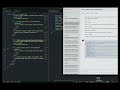](https://www.youtube.com/watch?v=AlDYslqj3Do)
You can check out the sample Next.js project that uses this CLI [in this repository](https://github.com/nicnocquee/simple-i18n-next-example).
You can also check out the sample React Router project that uses this CLI [in this repository](https://github.com/nicnocquee/simple-i18n-next-demo-react-router).
## How it works
1. The CLI will search for all the JSON files in the `locales` directory.
2. It will then create TypeScript functions for each translation key.
3. You use the generated functions in your components.
## How to use the CLI
1. Create a `locales` directory in your Next.js or React Router project. This directory will contain the translation files in JSON format and Markdown files.
2. For each language you want to support, create a new directory in the `locales` directory. The name of the directory must be one of the [valid language codes](https://www.iana.org/assignments/language-subtag-registry/language-subtag-registry). For example, if you want to support English, French, and Italian, you will create the following directories: `en`, `fr`, and `it`.
3. In each language directory, create a `messages.json` file. This file will contain the translations for the language. For example, you can create a `locales/en/messages.json` file that contains the following content:
```json
{
"hello": "Hello",
"welcome": "Welcome to {{name}}",
"about": "About",
"contact": "Contact",
"coming_soon": "Coming soon"
}
```
and a `locales/de/messages.json` file that contains the following content:
```json
{
"hello": "Hallo",
"welcome": "Willkommen bei {{name}}",
"about": "Über",
"contact": "Kontakt",
"coming_soon": "Bald kommen"
}
```
You can also add multiple JSON files in the same directory. For example, you can also have a `locales/en/client.json` file that contains the following content:
```json
{
"hello": "Hello",
"welcome": "Welcome to {{name}}",
"about": "About",
"contact": "Contact",
"coming_soon": "Coming soon"
}
```
If you do, you need to add the corresponding files in the other language directories.
Note that you can have the same keys in different JSON files.
4. Inside each language directory, you can also add several markdown files. For example, you can create a `locales/en/about.mdx` file that contains the following content:
```mdx
# About
This is the about page.
```
and a `locales/de/about.mdx` file that contains the following content:
```mdx
# Über
Diese Seite ist die Übersicht.
```
5. Finally, run the `npx simple-i18n-next` command in your project directory. This command will generate TypeScript code inside the `locales/.generated` directory that you can use in your Next.js project.
6. You might need to add the generated directory to your `tsconfig.json` file:
```json
{
"include": ["locales/.generated/**/*"]
}
```
7. Add the generated directory to your `.gitignore` file:
```gitignore
locales/.generated
```
8. Update the package.json scripts to include the `simple-i18n-next` command and run it before the `dev` and `build` commands:
```json
{
"scripts": {
"generate-locales": "simple-i18n-next -i ./locales -l en",
"dev": "npm run generate-locales && next dev",
"build": "npm run generate-locales && next build",
"start": "next start",
"test": "npm run check && npm run test:vitest"
}
}
```
Note that if you don't specify the default language with the `-l` flag, the first directory in the `locales` directory will be used as the default language.
## How to use the generated code
### Camel case convention
Every key in the JSON files is converted to camel case convention. The table below summarizes how the generated function names are derived:
| Source File | JSON Key | Generated Function Name | Example Function Call |
| ------------------------ | -------------------- | ----------------------- | ----------------------------- |
| messages.json (default) | "hello" | hello | `hello(lang)` |
| client.json (other file) | "hello" | clientHello | `clientHello(lang)` |
| messages.json (default) | "page.title" | pageTitle | `pageTitle(lang)` |
| messages.json (default) | "page.section.title" | pageSectionTitle | `pageSectionTitle(lang)` |
| client.json (other file) | "user.profile.name" | clientUserProfileName | `clientUserProfileName(lang)` |
When the keys are from the default `messages.json` file, they are not prefixed with the file name. For example, if you have the following `locales/en/messages.json` file:
```json
{
"hello": "Hello"
}
```
it will be converted to the following TypeScript code:
```typescript
export const hello = (lang: SupportedLanguage) => {
// content
}
```
Which you can import in your components like this:
```tsx
import { SupportedLanguage } from '@/locales/.generated/types' // adjust the path to the generated directory
import { hello } from '@/locales/.generated/strings'
export default async function HomePage({ params }: Promise<{ lang: SupportedLanguage }>) {
const { lang } = await params
return <div>{hello(lang)}</div>
}
```
When the keys are from other JSON files, the file name is prefixed to the key. For example, if you have the following `locales/en/client.json` file:
```json
{
"hello": "Hello"
}
```
it will be converted to the following TypeScript code:
```typescript
export const clientHello = (lang: SupportedLanguage) => {
// content
}
```
Which you can import in your components like this:
```tsx
import { SupportedLanguage } from '@/locales/.generated/types' // adjust the path to the generated directory
import { clientHello } from '@/locales/.generated/strings'
export default async function HomePage({ params }: Promise<{ lang: SupportedLanguage }>) {
const { lang } = await params
return <div>{clientHello(lang)}</div>
}
```
### Interpolation
In the JSON files, you can use interpolation by using the `{{variable_name}}` syntax. For example, you can create a `locales/en/messages.json` file that contains the following content:
```json
{
"hello": "Hello, {{name}}!"
}
```
In the React components, you can use the interpolated variable like this:
```tsx
// app/[lang]/page.tsx
import { SupportedLanguage } from '@/locales/.generated/types'
import { hello } from 'locales/.generated/strings'
export default function HomePage({ params: { lang } }: { params: { lang: SupportedLanguage } }) {
return <div>{hello(lang, { name: 'Nico' })}</div>
}
```
which will render the following HTML:
```html
<div>Hello, Nico!</div>
```
The generated function is fully typed so you have to pass the correct variable name to the function as shown above.
When you use the `useStrings` hook in a client component to dynamically get the translations, you can use the `stringsWithArgs` object to get the translations functions.
```tsx
'use client'
import { useStrings } from '@/locales/.generated/client/hooks'
export default function ClientComponent() {
// stringsWithArgs is the third element in the array
const [strings, , stringsWithArgs] = useStrings(['bye', 'home']) // the keys are typed!
if (!stringsWithArgs) return null
return (
<div className="flex min-h-screen flex-col items-center justify-between p-24">
<h1>{stringsWithArgs.bye({ name: 'John' })}</h1>
<Link href={`/`}>{strings.home}</Link>
</div>
)
}
```
which will render the following HTML:
```html
<div>
<h1>Bye, John!</h1>
<a href="/">Home</a>
</div>
```
### In React Server Components (RSC)
To use translations in React Server Components (RSC), import the generated function for your translation key and call it with the language parameter.
```tsx
import { SupportedLanguage } from '@/locales/.generated/types'
import { hello } from 'locales/.generated/strings'
export default function HomePage({ params: { lang } }: { params: { lang: SupportedLanguage } }) {
return <div>{hello(lang)}</div>
}
```
### Dynamic translations in client components
The generated code by this CLI can be used in both the server component and client component. But if for some reasons you want to dynamically get the translations in the client component, you can use the `useStrings` hook. This hook is a custom React hook that you can import from the `@/locales/.generated/client/hooks`.
```tsx
'use client'
import { useStrings } from '@/locales/.generated/client/hooks'
export default function HomePage() {
const [{ hello, comingSoon }] = useStrings(['hello', 'comingSoon']) // the keys are typed!
// You cannot pass an invalid key.
// By default, it will return strings from the default language. Pass the language code as a second argument to get the translations from a specific language. E.g., useStrings(['hello'], 'de') to get the German translations.
return (
<div>
<h1>{comingSoon}</h1>
<p>{hello}</p>
</div>
)
}
```
### Markdown/MDX
Let's say you have a `locales/en/index/section1.mdx` file that contains the following English content:
```mdx
# Section 1
This is the first section.
```
And a `locales/de/index/section1.mdx` file that contains the following German content:
```mdx
# Sektion 1
Dies ist die erste Sektion.
```
You can use the generated markdown component in your `page.tsx` file like this:
```tsx
// app/[lang]/page.tsx
import { SupportedLanguage } from '@/locales/.generated/types'
import { IndexSection1 } from 'locales/.generated/locales-markdown'
export default function HomePage({ params: { lang } }: { params: { lang: SupportedLanguage } }) {
return (
<div>
<IndexSection1 lang={lang} />
</div>
)
}
```
#### Markdown Interpolation
In the Markdown files, you can use interpolation by using the `{props.variable_name}` syntax. For example, if you have the following `locales/en/about.mdx` file:
```mdx
# Section 1
This is the first section. My name is {props.name}.
```
The CLI will generate the following prop types:
```typescript
type AboutProps = {
name: string
}
```
And when you use the generated component without passing the `name` prop, you will get a TypeScript error!
```tsx
// app/[lang]/about.tsx
import { SupportedLanguage } from '@/locales/.generated/types'
import { About } from 'locales/.generated/locales-markdown'
export default function AboutPage({ params: { lang } }: { params: { lang: SupportedLanguage } }) {
return (
<div>
<About lang={lang} /> {/* TypeScript error! name prop is missing */}
<About lang={lang} name="John" /> {/* No error! */}
</div>
)
}
```
Please make sure that you have set up your Next.js project to use Markdown and MDX by following the [official documentation](https://nextjs.org/docs/app/building-your-application/configuring/mdx).
Check out the example demo [here](https://simple-i18n-next-example.vercel.app/en/about-markdown) and the code in the [repository](<https://github.com/nicnocquee/simple-i18n-next-example/blob/main/app/(with-lang)/%5Blang%5D/about-markdown/%5BuserId%5D/page.tsx>).
For React Router, you need to install `-js/rollup` and `@mdx-js/react`, then [update the Vite config file](https://mdxjs.com/docs/getting-started/#vite). You can also check the [demo project](https://github.com/nicnocquee/simple-i18n-next-demo-react-router) for more details.
### Plurals
This CLI also generates code for plurals for both [ordinal and cardinal numbers](https://en.wikipedia.org/wiki/Ordinal_numeral). You need to add one of the following suffixes to let the script know that you want to use plurals:
| Type | Suffix | Description |
| ---------------- | ---------------- | ----------------------------------------- |
| Cardinal numbers | `_one` | Used when count equals 1 |
| Cardinal numbers | `_two` | Used when count equals 2 |
| Cardinal numbers | `_few` | Used for small quantities (typically 3-4) |
| Cardinal numbers | `_many` | Used for larger quantities |
| Cardinal numbers | `_other` | Used for most quantities (default case) |
| Cardinal numbers | `_zero` | Used when count equals 0 |
| Ordinal numbers | `_ordinal_one` | Used for 1st position |
| Ordinal numbers | `_ordinal_two` | Used for 2nd position |
| Ordinal numbers | `_ordinal_few` | Used for 3rd position |
| Ordinal numbers | `_ordinal_many` | Used for larger positions |
| Ordinal numbers | `_ordinal_other` | Used for most positions (default case) |
| Ordinal numbers | `_ordinal_zero` | Used for 0th position |
You can read more about these plural rules from the [CLDR website](https://cldr.unicode.org/index/cldr-spec/plural-rules).
For example, you can create a `locales/en/messages.json` file that contains the following English content:
```json:locales/en/messages.json
{
"book_one": "One book",
"book_other": "{{count}} books",
"movie_ordinal_one": "1st movie",
"movie_ordinal_two": "2nd movie",
"movie_ordinal_few": "3rd movie",
"movie_ordinal_other": "{{count}}th movie"
}
```
and a `locales/de/messages.json` file that contains the following German content:
```json:locales/de/messages.json
{
"book_one": "Ein Buch",
"book_other": "{{count}} Bücher",
"movie_ordinal_other": "{{count}}. Film"
}
```
Then in the RSC component like `page.tsx`, you can use the generated function like this:
```tsx:page.tsx
import { SupportedLanguage } from '@/locales/.generated/types'
import {
bookWithCount,
movieWithOrdinalCount,
} from "@/locales/.generated/strings";
export default function Home({
params: { lang },
}: Readonly<{ params: { lang: SupportedLanguage } }>) {
return (
<main>
<div>
<p>{movieWithOrdinalCount(lang, 1)}</p>
<p>{movieWithOrdinalCount(lang, 2)}</p>
<p>{movieWithOrdinalCount(lang, 3)}</p>
<p>{movieWithOrdinalCount(lang, 4)}</p>
<p>{movieWithOrdinalCount(lang, 5)}</p>
</div>
<div>
<p>{bookWithCount(lang, 1)}</p>
<p>{bookWithCount(lang, 2)}</p>
<p>{bookWithCount(lang, 3)}</p>
<p>{bookWithCount(lang, 4)}</p>
<p>{bookWithCount(lang, 5)}</p>
</div>
</main>
)
}
```
which will render the following HTML when the language is German (`de`):
```html
<main>
<div>
<p>1. Film</p>
<p>2. Film</p>
<p>3. Film</p>
<p>4. Film</p>
<p>5. Film</p>
</div>
<div>
<p>1 Buch</p>
<p>2 Bücher</p>
<p>3 Bücher</p>
<p>4 Bücher</p>
<p>5 Bücher</p>
</div>
</main>
```
and when the language is English (`en`):
```html
<main>
<div>
<p>1st movie</p>
<p>2nd movie</p>
<p>3rd movie</p>
<p>4th movie</p>
<p>5th movie</p>
</div>
<div>
<p>One book</p>
<p>2 books</p>
<p>3 books</p>
<p>4 books</p>
<p>5 books</p>
</div>
</main>
```
When using the `useStrings` hook in a client component, you can use the **second element** of the returned array to get the plural functions.
```tsx:client/page.tsx
"use client";
import { useStrings } from "@/locales/.generated/client/hooks";
export default function ClientComponent() {
const lang = useSelectedLanguageFromPathname();
const [, plurals] = useStrings(
[
"bookWithCount",
"movieWithOrdinalCount",
],
lang
);
if (!plurals) return null;
return (
<div>
<div>
<p>{plurals.bookWithCount(1)}</p>
<p>{plurals.bookWithCount(2)}</p>
<p>{plurals.bookWithCount(3)}</p>
<p>{plurals.bookWithCount(4)}</p>
<p>{plurals.bookWithCount(5)}</p>
</div>
<div>
<p>{plurals.movieWithOrdinalCount(1)}</p>
<p>{plurals.movieWithOrdinalCount(2)}</p>
<p>{plurals.movieWithOrdinalCount(3)}</p>
<p>{plurals.movieWithOrdinalCount(4)}</p>
<p>{plurals.movieWithOrdinalCount(5)}</p>
</div>
</div>
)
}
```
**Note that the plural rules for cardinal and ordinal numbers for a given language can be different.** For example, in English, the plural rule for cardinal numbers is `one` and `other`, while the plural rule for ordinal numbers is `one`, `two`, `few`, and `other`. On the other hand, in German, the plural rule for cardinal numbers is `one` and `other`, while the plural rule for ordinal numbers is _only_ `other`. The CLI will warn you if you miss some plural rules.
You can find out the plural rules for a given language by executing the following statement in the Node.js REPL or browser console:
```javascript
// plural rules for ordinal numbers in German
new Intl.PluralRules('de', { type: 'ordinal' }).resolvedOptions().pluralCategories
// plural rules for cardinal numbers in German
new Intl.PluralRules('de').resolvedOptions().pluralCategories
```
### Nested keys
You can use nested keys in your `messages.json` file. The keys are converted to camelCase convention. For example, if you have the following `locales/en/messages.json` file:
```json
{
"page": {
"title": "Page title",
"section": {
"title": "Section title"
}
}
}
```
and a `locales/de/messages.json` file that contains the following content:
```json
{
"page": {
"title": "Seitentitel",
"section": {
"title": "Sektionentitel"
}
}
}
```
Then in your React component, you can use the nested key like this:
```tsx
import { pageTitle, pageSectionTitle } from 'locales/.generated/strings'
export default function HomePage({ params: { lang } }: { params: { lang: SupportedLanguage } }) {
return (
<div>
<h1>{pageTitle(lang)}</h1>
<h2>{pageSectionTitle(lang)}</h2>
</div>
)
}
```
## API
### Generated constants and functions
The generated constants and functions use **camelCase** convention. For example, if you have the following `locales/en/messages.json` file:
```json
{
"hello": "Hello world!",
"greeting": "Hello {{name}}!",
"home": "Home",
"world-cup": "World cup"
}
```
the CLI will generate the following:
```typescript
export type StringKeys = 'hello' | 'greeting' | 'home' | 'worldCup'
export const worldCup = (lang: SupportedLanguage) => {
// content
}
export const hello = (lang: SupportedLanguage) => {
// content
}
type greetingProps = {
name: string
}
export const greeting = (lang: SupportedLanguage, data: greetingProps) => {
// content
}
export const home = (lang: SupportedLanguage) => {
// content
}
```
For the plural keys, the CLI will generate functions with the format: `<key>WithCount` for cardinal numbers and `<key>WithOrdinalCount` for ordinal numbers.
For example, if you have the following `locales/en/messages.json` file:
```json
{
"apple_one": "An apple",
"apple_other": "{{count}} apples",
"cat_ordinal_one": "1st cat",
"cat_ordinal_two": "2nd cat",
"cat_ordinal_few": "3rd cat",
"cat_ordinal_other": "{{count}}th cat"
}
```
Then the CLI will generate the following:
```typescript
export const appleWithCount = (count: number) => {
// content
}
export const catWithOrdinalCount = (count: number) => {
// content
}
```
### useStrings
`useStrings` is a custom React hook to dynamically get the translations in a client component. **Note that you almost never need to use this hook.** You should use the generated functions in your components directly instead.
Parameters:
- `keys`: An array of string keys to be used in the component. The keys can only be those defined in `StringKeys`. If you pass unknown keys, TypeScript will throw an error.
- `lang`: The language code to use for the translations. The value should be one of the supported language codes.
Returns an array of exactly 3 elements:
1. `strings`: An object of translated strings, excluding the plural keys and the keys with arguments.
2. `plurals`: An object of functions that can be used to translate the plural keys.
3. `stringsWithArgs`: An object of functions that can be used to translate the keys with arguments.
Example:
You have `locales/en/messages.json` and `locales/de/messages.json` files that contain the translations for the language like this:
```json
{
"hello": "Hello",
"greeting": "Hello {{name}}!",
"apple_one": "An apple",
"apple_other": "{{count}} apples",
"cat_ordinal_one": "1st cat",
"cat_ordinal_two": "2nd cat",
"cat_ordinal_few": "3rd cat",
"cat_ordinal_other": "{{count}}th cat"
}
```
```json
{
"hello": "Hallo",
"greeting": "Hallo {{name}}!",
"apple_one": "Ein Apfel",
"apple_other": "{{count}} Äpfel",
"cat_ordinal_other": "1. Katze"
}
```
Then in the client component, you can use the `useStrings` hook like this:
```tsx
import { useStrings } from '@/locales/.generated/client/hooks'
export default function ClientComponent() {
const lang = useSelectedLanguageFromPathname()
const [strings, plurals, stringsWithArgs] = useStrings(
[
'hello',
'greeting',
'appleWithCount',
'catWithOrdinalCount',
],
lang
)
if (!strings) return null
if (!plurals) return null
if (!stringsWithArgs) return null
return (
<div>
<h1>{strings.hello}</h1>
<p>{stringsWithArgs.greeting({name: 'John'})}</p>
<p>{plurals.appleWithCount(1)}</p>
<p>{plurals.appleWithCount(2)}</p>
<p>{plurals.appleWithCount(3)}</p>
<p>{plurals.appleWithCount(4)}</p>
<p>{plurals.appleWithCount(5)}</p>
<p>{plurals.catWithOrdinalCount(1)}</p>
<p>{plurals.catWithOrdinalCount(2)}</p>
<p>{plurals.catWithOrdinalCount(3)}</p>
<p>{plurals.catWithOrdinalCount(4)}</p>
<p>{plurals.catWithOrdinalCount(5)}</p>
</div>
)
```
In the example above, since the `greeting` key has arguments, it is only available in the `stringsWithArgs` object as a function that receives the arguments.
### supportedLanguages
You can use the `supportedLanguages` array to get the supported languages in your application. For example:
```tsx
import { supportedLanguages } from '@/locales/.generated/types'
import { useRouter } from 'next/router'
export default function LanguageSelector() {
const router = useRouter()
return (
<div>
{supportedLanguages.map((lang) => (
<button key={lang} onClick={() => router.push(`/${lang}`)}>
{lang}
</button>
))}
</div>
)
}
```
### defaultLanguage
You can use the `defaultLanguage` string to get the default language in your application. For example:
```tsx
import { defaultLanguage } from '@/locales/.generated/types'
import { useRouter } from 'next/router'
export default function LanguageSelector() {
const router = useRouter()
return (
<div>
<button onClick={() => router.push(`/${defaultLanguage}`)}>{defaultLanguage}</button>
</div>
)
}
```
## Development
Run
```bash
npx tsx source/cli.tsx -i "./locales"
```
## License
MIT
## Contact
[Nico Prananta](https://bsky.app/profile/nico.fyi)