segmented-picker-aned
Version:
Selection picker wheel with multi-column support and optional native dependencies.
284 lines (222 loc) • 13.1 kB
Markdown
# React Native Segmented Picker
[](https://github.com/adammcarth/react-native-segmented-picker/actions?query=workflow%3A%22Syntax%2C%20Unit%20%26%20E2E%20Tests%22)
[](https://www.npmjs.com/package/react-native-segmented-picker)
[](https://opensource.org/licenses/MIT)
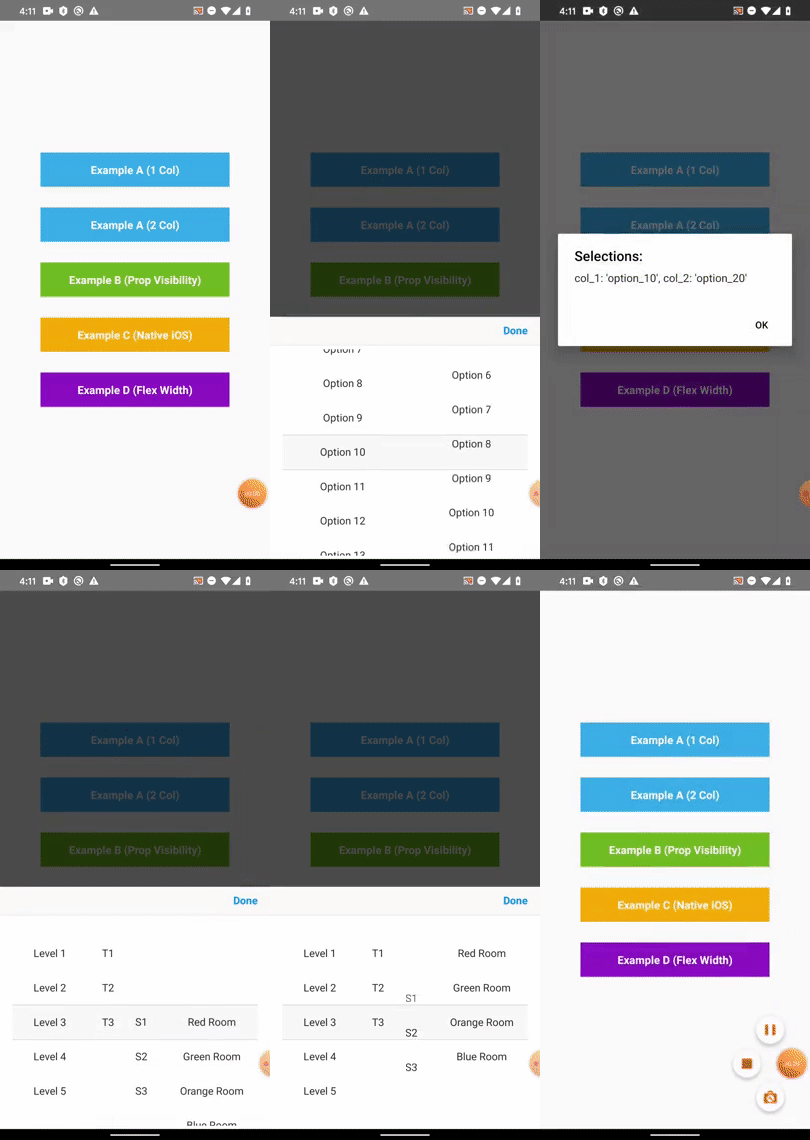
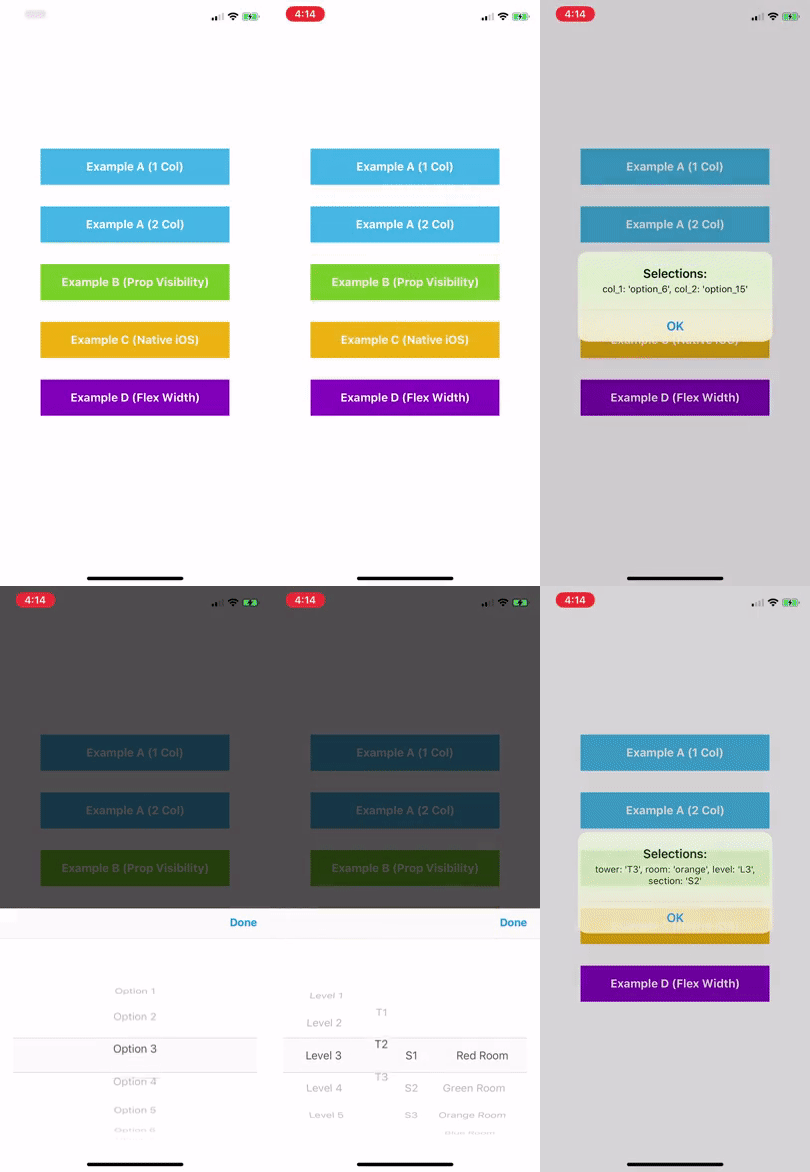
A cross platform implementation of [UIPickerView](https://developer.apple.com/documentation/uikit/uipickerview) for creating dynamic, multi-dimensional picklists.
- Supports multiple columns and sizes.
- Displays any text-based content, not just [dates and times](https://github.com/henninghall/react-native-date-picker).
- Works with apps built for [Expo](https://expo.io).
- Optional native extension available for iOS.
## Installation
```bash
$ yarn add react-native-segmented-picker
# or
# $ npm install --save react-native-segmented-picker
```
You may also setup the [Native iOS Extension](https://github.com/adammcarth/react-native-segmented-picker/tree/master/docs/Native%20iOS.md) at this time, but this is not mandatory.
## Usage
```jsx
import React, { Component } from 'react';
import SegmentedPicker from 'react-native-segmented-picker';
class Example extends Component {
constructor(props) {
super(props);
this.segmentedPicker = React.createRef();
}
componentDidMount() {
// Can alternatively be shown with the `visible` prop for redux etc.
this.segmentedPicker.current.show();
}
onConfirm = (selections) => {
console.info(selections);
// => { col_1: "option_1", col_2: "option_3" }
}
render() {
return (
<SegmentedPicker
ref={this.segmentedPicker}
onConfirm={this.onConfirm}
options={[
{
key: 'col_1',
items: [
{ label: 'Option 1', value: 'option_1' },
{ label: 'Option 2', value: 'option_2' },
],
},
{
key: 'col_2',
items: [
{ label: 'Option 3', value: 'option_3' },
],
},
]}
/>
);
}
}
```
Further examples can be found in [./examples/src](https://github.com/adammcarth/react-native-segmented-picker/tree/master/examples/src).
## Props, Events & Methods Reference
### Props
| Prop | Description | Default |
|----------------------------|--------------------------------------------------------------------------------------------------------------------------------------------------------------------------|-------------|
| `visible` | Not used by default. Set to `true` or `false` to manually handle visibility. | |
| `options` | An array of columns: `[{ key: '', flex?: 1, testID?: '', items: [{ label: '', value: '', key?: '', testID?: '' }] }]` | `[]` |
| `defaultSelections` | Eg: `{column: 'value', ...}` | `{}` |
| `native` | Use the native UIPickerView component on iOS. Requires [additional setup](https://github.com/adammcarth/react-native-segmented-picker/tree/master/docs/Native%20iOS.md). | `false` |
| `nativeTestID` | Accessibility identifier of the native component for E2E testing. | `''` |
| `size` | Floating point between 0 and 1 representing the percentage of screen to take up. | `0.45` |
| `confirmText` | Text displayed in the top right hand corner. | `'Done'` |
| `confirmTextColor` | Color of the `confirmText` button. | `'#0A84FF'` |
| `toolbarBackgroundColor` | Background color of the top container where the `confirmText` is displayed. | `'#FAFAF8'` |
| `toolbarBorderColor` | Bottom border color of the `toolbarContainer`. | `'#E7E7E7'` |
| `pickerItemTextColor` | Color of the text for each item in the picklist. | `'#282828'` |
| `selectionBackgroundColor` | Background color of the box which shows selected items. | `'#F8F8F8'` |
| `selectionBorderColor` | Border color (top and bottom) of the selection mask. | `'#DCDCDC'` |
| `backgroundColor` | Background color of the inner SegmentedPicker container. | `'#FFFFFF'` |
### Event Props
| Event Prop | When and how? |
|----------------------------------------------|-----------------------------------------------------------------------------------------------|
| `onValueChange={({ column, value }) => ...}` | Emitted each time a picklist value is modified by a user. |
| `onCancel={(selections) => ...}` | Emitted when a user touches out of the modal, or presses the hardware back button on Android. |
| `onConfirm={(selections) => ...}` | Emitted when a user presses the confirm text button. | |
### Methods
Remember that you will need to [set a ref](https://reactjs.org/docs/refs-and-the-dom.html#creating-refs) for the `<SegmentedPicker />` component in order to use the methods outlined below.
#### ref.show();
Display the Segmented Picker modal over all other content on the screen. This is the preferred method of showing a `<SegmentedPicker />` so that you don't have to manually hide the component after listening to the `onCancel` and `onConfirm` events.
Note that this method will have no effect if the `visible` prop is set.
#### ref.hide();
Hide the Segmented Picker modal from the screen. Generally should not be required, as this method is automatically called by this library after events where visibility should be toggled off.
#### ref.selectLabel(label, columnId, animated=true, emitEvent=true, zeroFallback=false);
Programmatically select a picker item by it's `label` while the component is displaying.
- `{string} label`: Eg 'Option 1'
- `{string} columnId`: Eg 'column1'
- `{boolean=true} animated`: Scroll or snap to the item?
- `{boolean=true} emitEvent`: Specify whether to emit the `onValueChange` event.
- `{boolean=false} zeroFallback` Select the first list item if not found.
#### ref.selectValue(value, columnId, animated=true, emitEvent=true, zeroFallback=false);
Same as above, except it filters using the `value` of a picker item instead of `label`.
#### ref.selectIndex(index, columnId, animated=true, emitEvent=true);
Programmatically select an array index from a list column while the component is displaying. This method will give you better performance than the above methods if you already know the index of the item that you want to select.
- `{number} index`: Eg 0
- `{string} columnId`: Eg 'column1'
- `{boolean=true} animated`: Scroll or snap to the item?
- `{boolean=true} emitEvent`: Specify whether to emit the `onValueChange` event.
#### ref.getCurrentSelections();
Returns the current selected items as they appear in the UI. This is the same method that's used internally when the `onCancel` and `onConfirm` events are fired.
## Recipes
This section contains some code examples of common requirements and frequently asked questions.
### 1. Dynamically Changing Columns
A common use case is to have one of your columns change it's list options based off the selection in another column. In other words, implementing `Column B` as a function of `Column A`. The below example shows one possible way to achieve this using the `onValueChange()` event.
```js
import React, { Component } from 'react';
import SegmentedPicker from 'react-native-segmented-picker';
const options = {
categories: [{ label: 'Fruits', value: 'fruits' }, { label: 'Vegetables', value: 'vegetables' }],
foods: {
fruits: [{ label: 'Apples', value: 'apples' }, { label: 'Oranges', value: 'oranges' }],
vegetables: [{ label: 'Carrots', value: 'carrots', }, { label: 'Potatoes', value: 'potatoes' }],
},
};
class Demo extends Component {
constructor(props) {
super(props);
this.state = {
selections: {
category: options.categories[0].value,
food: undefined,
},
};
}
onValueChange = ({ column, value }) => {
this.setState((prevState) => ({
selections: {
...prevState.selections,
[column]: value,
},
}));
};
generateOptions = () => {
const { categories, foods } = options;
const { selections } = this.state;
return [
{
key: 'category',
items: categories,
},
{
key: 'food',
items: foods[selections.category],
},
];
};
render() {
return (
<SegmentedPicker
options={this.generateOptions()}
onValueChange={this.onValueChange}
defaultSelections={this.state.selections}
/>
);
}
}
```
### 2. Specifying Column Widths
You can customise the relative width of picker segments by using `flex` notation in your column data. This integer acts as a ratio - the larger the number, the bigger it grows.
```jsx
{/* All widths equal (default): */}
<SegmentedPicker
options={[
{ key: 'col_1', flex: 1, items: [] },
{ key: 'col_2', flex: 1, items: [] },
{ key: 'col_3', flex: 1, items: [] },
]}
/>
{/* Small middle column: */}
<SegmentedPicker
options={[
{ key: 'col_1', flex: 3, items: [] },
{ key: 'col_2', flex: 1, items: [] },
{ key: 'col_3', flex: 3, items: [] },
]}
/>
```
### 3. End-To-End (E2E) Testing
This library fully supports E2E testing (using tools such as [Detox](https://github.com/wix/Detox)).
```jsx
<SegmentedPicker
options=[
{
key: 'col_1',
testID: 'col_1',
items: [
{ label: 'Option 1', value: 'option_1', testID: 'col_1_option_1' },
],
},
]
/>
```
```js
// Detox Example:
await expect(element(by.id('col_1'))).toBeVisible();
await element(by.id('col_1_option_1')).tap();
```
You can see full examples in our own testing suite [here](https://github.com/adammcarth/react-native-segmented-picker/tree/master/__tests__). Keep in mind there are also a small number of `testID` attributes which are automatically set on fixed elements for your convenience.
```js
import { TEST_IDS } from 'react-native-segmented-picker';
```
- `TEST_IDS.PICKER`: The entire segmented picker container (useful to check if visible).
- `TEST_IDS.CONFIRM_BUTTON`: "Done" confirmation button in the top right hand corner.
- `TEST_IDS.CLOSE_AREA`: Darkened area outside of the picker which hides the component when tapped.
## Contributions
This is an open source project. Bug fixes, improvements and the addition of useful new features to this package are greatly appreciated.
1. Fork and clone the [repository from GitHub](https://github.com/adammcarth/react-native-segmented-picker).
2. Setup: `yarn install`.
3. Checkout a new branch, eg: `feature/my-thing` or `bugfix/terrible-thing`.
4. After making any changes, make sure that `yarn test` still passes.
5. Are there new unit test(s) that you could write to capture your changes?
6. Submit a pull request to `master` outlining what your change is and how you tested it.
Made with love in Melbourne by [Adam McArthur](https://github.com/adammcarth).