sam-launchpad
Version:
A simplified interface for automating common tasks for AWS SAM.
340 lines (242 loc) • 8.62 kB
Markdown
#  SAM Launchpad
A simplified interface that automates common tasks for AWS SAM.
You can maintain multiple projects and environments for each.
## Project structure
```
my-serverless-project/
├── package.json
├── README.md
├── sam-launchpad.config.js
└── projects/
├── user-authenticator
│ ├── template.yaml
└── user-file-processor
└── template.yaml
```
### Why? My take on serverless
Serverless projects are often service centered and function oriented. Such modularity calls for a mindful separation of concerns.
Creating a new serverless project for each module of functionality might not be necessary, it could downgrade performance, increase financial costs and time spent on maintainability.
On the other hand if you don't modularize enough you might end up with a monolithic piece of software. This should be self-explanatory, monolithic architectures and serverless are like oil and water. Putting in some examples: Serverless scales with each use, if you need to spin a bunch of modules just to access an specific functionality you'll be unnecessarily incrementing the time required for completing said operation (thus downgrading performance and increasing costs).
For deployment of new features and code, with AWS you update or create stacks using Cloud Formation, having coupled code means that you'll have to deploy everything every time.
### Using sub-projects. Finding the balance is key
How to find the balance when splitting your code into: libraries, lambda functions and sub-projects is up to the developers and the project nature.
The root project works as a wrapper for all the sub-projects, providing automation scripts for recurrent tasks (building, testing, validating templates, packaging projects and deploying with SAM).
## Getting what you'll need
Before you start you'll need to get all this dependencies.
- Node
- AWS CLI
- AWS SAM
If you can run this command
```
sam --version
# SAM CLI, version 0.7.0
```
And you configured your AWS `Access Key ID`, `Secret Access Key` and `Default region name`(recommended).
```
aws configure
# AWS Access Key ID [****************...]:
# AWS Secret Access Key [****************...]:
# Default region name [None]: us-east-1
# ...
```
You are ready to start.
## Quickstart
- Install SAM-Launchpad in your project `npm install sam-launchpad --save-dev`
- Create a configuration file `sam-launchpad.config.js` in your root directory.
```javascript
// sam-launchpad.config.js
const join = require('path').join;
module.exports = {
"project_name" : "my-serverless-app",
"projects" : join( __dirname , "./projects" ),
"commands" : {
/*
This commands will be executed once per project in it's local context.
You're not limited to node and npm commands.
*/
"build" : "npm i && npm run build",
"test" : "npm test"
}
}
```
- If you run `sam-launchpad` it will `build` and `test` each of your projects with the commands you provided on the config. After that it'll continue `validating`, `packaging` and `deploying` using `sam-cli` commands.
- If you installed SAM-Launchpad locally in your project you can run it using `npm` or `/node_modules/bin/sam-launchpad`.
- If you installed it globally in your machine just run `sam-launchpad`.
- There are several options you can provide to skip unwanted parts of the process, you can read more about this below.
## Cheat sheet
```javascript
{
// Run the whole thing
"publish": "sam-launchpad",
// Just build
"build": "sam-launchpad --skip-deploy --skip-package --skip-coverage --skip-validation",
// Just run tests
"test": "sam-launchpad --skip-deploy --skip-package --skip-validation --skip-build",
// Just validate the SAM templates
"validate": "sam-launchpad --skip-deploy --skip-package --skip-coverage --skip-build",
// Just run SAM package
"package": "sam-launchpad --skip-deploy --skip-build --skip-coverage --skip-validation",
//Just deploy to Cloud Formation using SAM
"deploy": "sam-launchpad --skip-package --skip-build --skip-coverage --skip-validation"
}
```
## Creating a sub-project
- Sub-projects should be located directly under the base path directory specified in the configuration file.
- A SAM `template.yaml` file is expected on the proejct root directory.
- Templates should define two basic parameters, `Environment` and `ProjectName`:
```yaml
// /template.yaml
AWSTemplateFormatVersion: ...
Transform: AWS::Serverless-2016-10-31
Description: ...
Parameters:
Environment:
Type: String
ProjectName:
Type: String
Globals: ...
```
- Parameter variables are the recommended way for creating multiple stages.
- The name of said folder will be used as suffix in the Cloud Formation stack name.
- If you plan on using the root automation script for building, you must provide the right context on your project to execute the `build` command you provided on the configuration.
- If you plan on using the root automation script for running tests, you must provide the right context on your project to execute the `test` command you provided on the configuration.
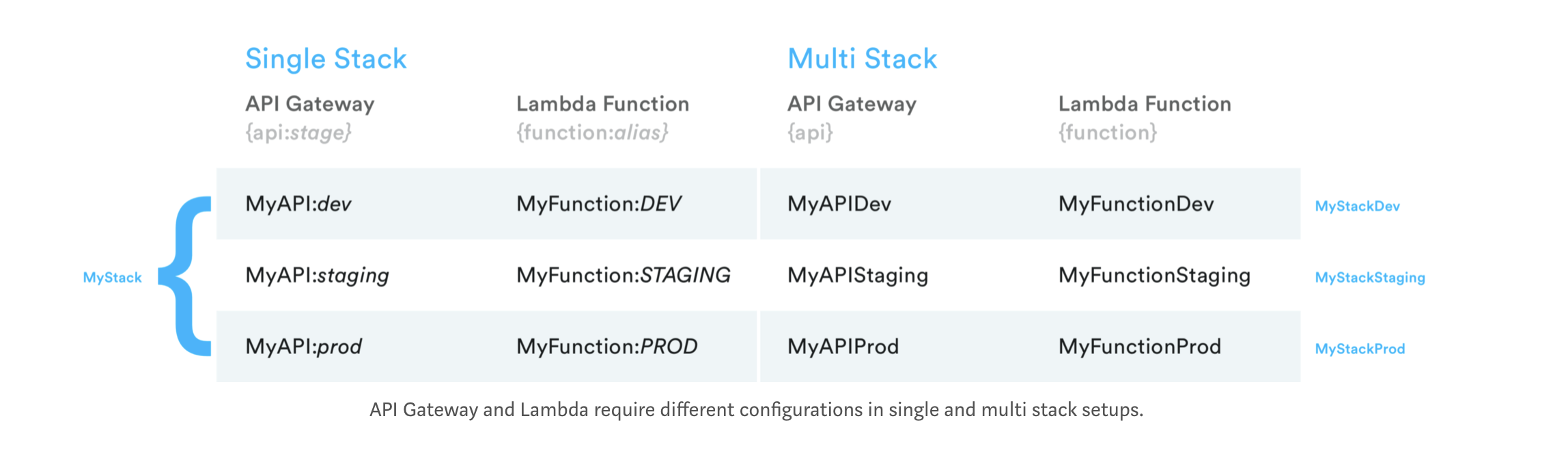
### Multi stack
Using multiple stacks is recommended [multi stack approach](https://hackernoon.com/managing-multi-environment-serverless-architecture-using-aws-an-investigation-6cd6501d261e).
## Configuration
#### project_name
Required `yes`
Required for naming the Cloud Formation. If you deploy `my-test-app` that has a sub project named `core` to `--stage qa` the resulting stack name would be `my-test-app-core-qa`.
#### base_path
Required `yes`
Directory were all your sub projects are stored (even if you only have 1 project). The sub directories of this path will be treated as sub projects.
For example if you define this `base_path`.
```javascript
...
"base_path" : join( __dirname , "./projects" )
...
```
Your structure could look similar to this example:
```
my-serverless-project/
├── ...
└── projects/
├── core
│ ├── template.yaml
└── secondary-project
└── template.yaml
```
#### projects
An alias for `base_path`.
#### single_project
If `true` base_path will be the project directory.
#### Commands
Required `yes`
You should provide both `test` and `build` commands if you plan on using the recursive execution of these tasks.
#### template_parameters
You can provide extra parameters to your SAM templates.
## Options
### stage
Default `dev`
```
sam-launchpad --stage qa
```
### stop-on-error
Default `false`
It will exit project with code 1 if an error is found.
```
sam-launchpad --stop-on-error
```
### skip-build
Default `false`
Skips build process
```
sam-launchpad --skip-build
```
### skip-validation
Default `false`
Skips validation process
```
sam-launchpad --skip-validation
```
### skip-package
Default `false`
Skips packaging process
```
sam-launchpad --skip-package
```
### skip-deploy
Default `false`
Skips deployment process
```
sam-launchpad --skip-deploy
```
### skip-coverage
Default `false`
Skips deployment process
```
sam-launchpad --skip-coverage
```
### app
Default `[]`
```
sam-launchpad --app core
```
```
sam-launchpad --app core --app secondary-apps
```
### all-apps
Default if app is not provided `true`
```
sam-launchpad --all-apps
```
```
sam-launchpad --all-apps false
```
### verbose
Default `false`
```
sam-launchpad --verbose
```
## Hooks
You can provide additional functions to execute before and after each step:
```javascript
// sam-launchpad.config.js
const join = require('path').join;
module.exports = {
"project_name" : "my-serverless-app",
...
"commands" : {
...
},
"hooks" : {
"before-build" : [
"echo before build",
function(opts){
// A promise is expected
return new Promise((resolve,reject)=>{
const {args , apps, config} = opts;
// Do something
// You can either pass on the options after changing or adding
// attributes.
// resolve({args, apps, config});
//or return nothing to maintain the options received.
resolve();
})
}
]
}
}
```
An array of commands and or functions is expected.
### Available hooks
- `before-test`
- `after-test`
- `before-build`
- `after-build`
- `before-validation`
- `after-validation`
- `before-package`
- `after-package`
- `before-deploy`
- `after-deploy`