rn-working-music-control
Version:
Fork of react-native-music-control
303 lines (216 loc) • 11.2 kB
Markdown
⚠️ **NO LONGER MAINTAINED** ⚠️
Please use [react-native-track-player](https://github.com/doublesymmetry/react-native-track-player) instead ✅
---
## react-native-music-control
Display and manage media controls on lock screen and notification center for iOS and Android.


## Project
With Yarn:
```
yarn add react-native-music-control
```
or with NPM:
```
npm install react-native-music-control --save
```
## iOS
1. `pod install --project-directory=ios/`
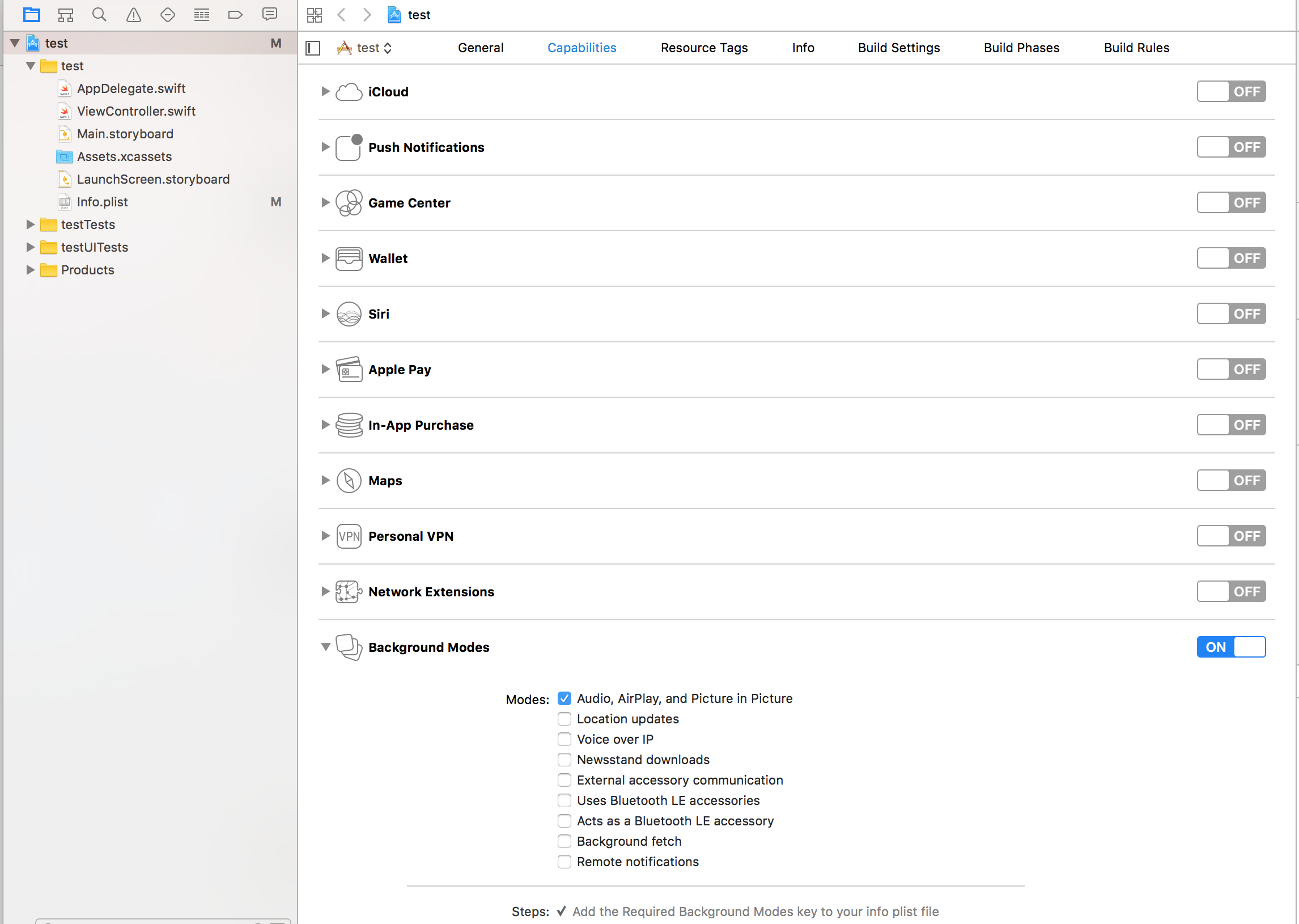
1. Enable Audio Background mode in XCode project settings
## Android
1. Add the `android.permission.FOREGROUND_SERVICE` permission to your `AndroidManifest.xml`:
```
<uses-permission
android:name="android.permission.FOREGROUND_SERVICE" />
```
1. Set the `launchMode` of MainActivity to `singleTask` by adding in `AndroidManifest.xml`:
```
<activity
android:name=".MainActivity"
android:launchMode="singleTask">
```
## For React Native < v0.60
See here: [README-PRE-0.60.md](./README-PRE-0.60.md)
## Troubleshooting
See [TROUBLESHOOTING.md](./TROUBLESHOOTING.md)
---
# Usage
```javascript
import MusicControl from "react-native-music-control";
```
### Now Playing
The `setNowPlaying` method enables the music controls. To disable them, use `resetNowPlaying()`.
You should call this method after a sound is playing.
For Android's rating system, remove the `rating` value for unrated tracks, use a boolean for RATING_HEART or RATING_THUMBS_UP_DOWN and use a number for other types.
**Note**: To use custom types, you have to define the type with `updatePlayback` before calling this function.
```javascript
MusicControl.setNowPlaying({
title: "Billie Jean",
artwork: "https://i.imgur.com/e1cpwdo.png", // URL or RN's image require()
artist: "Michael Jackson",
album: "Thriller",
genre: "Post-disco, Rhythm and Blues, Funk, Dance-pop",
duration: 294, // (Seconds)
description: "", // Android Only
color: 0xffffff, // Android Only - Notification Color
colorized: true, // Android 8+ Only - Notification Color extracted from the artwork. Set to false to use the color property instead
date: "1983-01-02T00:00:00Z", // Release Date (RFC 3339) - Android Only
rating: 84, // Android Only (Boolean or Number depending on the type)
notificationIcon: "my_custom_icon", // Android Only (String), Android Drawable resource name for a custom notification icon
isLiveStream: true, // iOS Only (Boolean), Show or hide Live Indicator instead of seekbar on lock screen for live streams. Default value is false.
});
```
### Enable and Disable controls
**iOS**: Lockscreen
**Android**: Notification and external devices (smartwatches, cars)
```javascript
// Basic Controls
MusicControl.enableControl("play", true);
MusicControl.enableControl("pause", true);
MusicControl.enableControl("stop", false);
MusicControl.enableControl("nextTrack", true);
MusicControl.enableControl("previousTrack", false);
// Changing track position on lockscreen
MusicControl.enableControl("changePlaybackPosition", true);
// Seeking
MusicControl.enableControl("seekForward", false); // iOS only
MusicControl.enableControl("seekBackward", false); // iOS only
MusicControl.enableControl("seek", false); // Android only
MusicControl.enableControl("skipForward", false);
MusicControl.enableControl("skipBackward", false);
// Android Specific Options
MusicControl.enableControl("setRating", false);
MusicControl.enableControl("volume", true); // Only affected when remoteVolume is enabled
MusicControl.enableControl("remoteVolume", false);
// iOS Specific Options
MusicControl.enableControl("enableLanguageOption", false);
MusicControl.enableControl("disableLanguageOption", false);
```
`skipBackward` and `skipForward` controls on accept additional configuration options with `interval` key:
```javascript
MusicControl.enableControl("skipBackward", true, { interval: 15 });
MusicControl.enableControl("skipForward", true, { interval: 30 });
```
For Android, 5, 10 and 30 is fixed
For iOS, it is dynamic so any number is accepted
### Update Playback
You don't need to set all properties when calling the `updatePlayback` method, but you should always set `elapsedTime` for iOS support and better performance on Android.
You don't need to call this method repeatedly to update the `elapsedTime` -- only call it when you need to update any other property.
```javascript
MusicControl.updatePlayback({
state: MusicControl.STATE_PLAYING, // (STATE_ERROR, STATE_STOPPED, STATE_PLAYING, STATE_PAUSED, STATE_BUFFERING)
speed: 1, // Playback Rate
elapsedTime: 103, // (Seconds)
bufferedTime: 200, // Android Only (Seconds)
volume: 10, // Android Only (Number from 0 to maxVolume) - Only used when remoteVolume is enabled
maxVolume: 10, // Android Only (Number) - Only used when remoteVolume is enabled
rating: MusicControl.RATING_PERCENTAGE, // Android Only (RATING_HEART, RATING_THUMBS_UP_DOWN, RATING_3_STARS, RATING_4_STARS, RATING_5_STARS, RATING_PERCENTAGE)
});
```
_Examples_
```javascript
// Changes the state to paused
MusicControl.updatePlayback({
state: MusicControl.STATE_PAUSED,
elapsedTime: 135,
});
// Changes the volume
MusicControl.updatePlayback({
volume: 9, // Android Only
elapsedTime: 167,
});
```
### Reset Now Playing
Resets and hides the music controls.
```javascript
MusicControl.resetNowPlaying();
```
### Stop Controls
Resets, hides the music controls and disables everything.
```javascript
MusicControl.stopControl();
```
### Set notification id and channel id (Android Only).
```javascript
MusicControl.setNotificationId(10, "channel");
```
If you want to change the default notification id and channel name, call this once before displaying any notifications.
---
There is also a `closeNotification` control on Android controls the swipe behavior of the audio playing notification, and accepts additional configuration options with the `when` key:
```javascript
// Always allow user to close notification on swipe
MusicControl.enableControl("closeNotification", true, { when: "always" });
// Default - Allow user to close notification on swipe when audio is paused
MusicControl.enableControl("closeNotification", true, { when: "paused" });
// Never allow user to close notification on swipe
MusicControl.enableControl("closeNotification", true, { when: "never" });
```
### Register to Events
```javascript
import { Command } from 'react-native-music-control'
componentDidMount() {
MusicControl.enableBackgroundMode(true);
// on iOS, pause playback during audio interruptions (incoming calls) and resume afterwards.
// As of {{ INSERT NEXT VERSION HERE}} works for android aswell.
MusicControl.handleAudioInterruptions(true);
MusicControl.on(Command.play, ()=> {
this.props.dispatch(playRemoteControl());
})
// on iOS this event will also be triggered by audio router change events
// happening when headphones are unplugged or a bluetooth audio peripheral disconnects from the device
MusicControl.on(Command.pause, ()=> {
this.props.dispatch(pauseRemoteControl());
})
MusicControl.on(Command.stop, ()=> {
this.props.dispatch(stopRemoteControl());
})
MusicControl.on(Command.nextTrack, ()=> {
this.props.dispatch(nextRemoteControl());
})
MusicControl.on(Command.previousTrack, ()=> {
this.props.dispatch(previousRemoteControl());
})
MusicControl.on(Command.changePlaybackPosition, (playbackPosition)=> {
this.props.dispatch(updateRemoteControl(playbackPosition));
})
MusicControl.on(Command.seekForward, ()=> {});
MusicControl.on(Command.seekBackward, ()=> {});
MusicControl.on(Command.seek, (pos)=> {}); // Android only (Seconds)
MusicControl.on(Command.volume, (volume)=> {}); // Android only (0 to maxVolume) - Only fired when remoteVolume is enabled
// Android Only (Boolean for RATING_HEART or RATING_THUMBS_UP_DOWN, Number for other types)
MusicControl.on(Command.setRating, (rating)=> {});
MusicControl.on(Command.togglePlayPause, ()=> {}); // iOS only
MusicControl.on(Command.enableLanguageOption, ()=> {}); // iOS only
MusicControl.on(Command.disableLanguageOption, ()=> {}); // iOS only
MusicControl.on(Command.skipForward, ()=> {});
MusicControl.on(Command.skipBackward, ()=> {});
// Android Only
MusicControl.on(Command.closeNotification, ()=> {
this.props.dispatch(onAudioEnd());
})
}
```
**Note**: Enabling both the 'play' and 'pause' controls will only show one icon -- either a play or a pause icon. The Music Control notification will switch which one is displayed based on the state set via the `updatePlayback` method. While the state is `MusicControl.STATE_PLAYING` it will show the pause icon, and while the state is `MusicControl.STATE_PAUSED` it will show the play icon.
---
# Important Notes
- Android only supports the intervals 5, 10, & 30, while iOS supports any number
- Make sure when you call `MusicControl.resetNowPlaying()` and `MusicControl.stopControl()` you must have controls enabled otherwise it will create issues
- You can also use `Command` constants in `enableControl`
- The interval value only changes what number displays in the UI, the actual logic to skip forward or backward by a given amount must be implemented in the appropriate callbacks
- Android 10+ does support the seek bar in the notification, but only when meeting specific requirements: setNowPlaying() must be called with a duration value before enabling any controls
- When using [react-native-sound](https://github.com/zmxv/react-native-sound) for audio playback, make sure that on iOS `mixWithOthers` is set to `false` in [`Sound.setCategory(value, mixWithOthers)`](https://github.com/zmxv/react-native-sound#soundsetcategoryvalue-mixwithothers-ios-only). MusicControl will not work on a real device when this is set to `true`.
- For lockscreen controls to appear enabled instead of greyed out, the accompanying listener for each control that you want to display on the lock screen must contain a valid function:
```
MusicControl.on(Command.play, () => {
// A valid funcion must be present
player.play()
})
```
## Customization
It is possible to customize the icon used in the notification on Android. By default you can add a drawable resource to your package with the file name `music_control_icon` and the notification will use your custom icon. If you need to specify a custom icon name, or change your notification icon during runtime, the `setNowPlaying` function accepts a string for an Android drawable resource name in the `notificationIcon` prop. Keep in mind that just like with `music_control_icon` the resource specified has to be in the drawable package of your Android app.
```javascript
MusicControl.setCustomNotificationIcon("my_custom_icon");
```
# Contributing
Of course! We are waiting for your PR :)