reveal.js-copycode
Version:
A simple plugin for Reveal.js that automatically shows a copy button in code blocks
253 lines (185 loc) • 8.41 kB
Markdown
# CopyCode
[](#) [](https://github.com/Martinomagnifico/reveal.js-copycode/archive/refs/heads/master.zip)
A simple plugin for [Reveal.js](https://revealjs.com) that automatically shows a 'copy' button in code blocks.
[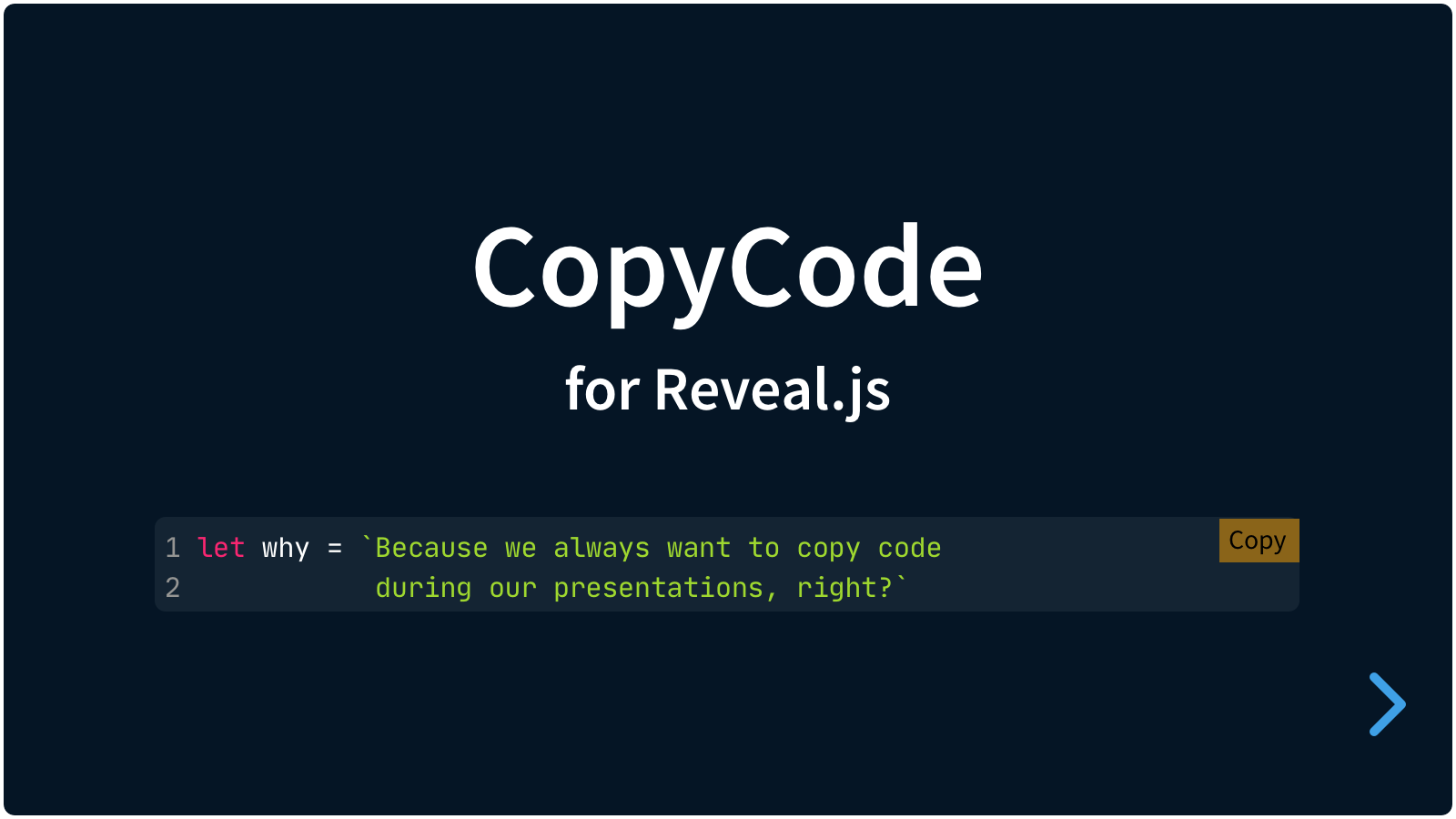](https://martinomagnifico.github.io/reveal.js-copycode/demo/demo.html)
In Reveal.js presentations we can show blocks of code. This plugin for Reveal.js adds a 'copy' button to each of those.
* [Demo](https://martinomagnifico.github.io/reveal.js-copycode/demo/demo.html)
* [Markdown demo](https://martinomagnifico.github.io/reveal.js-copycode/demo/demo-markdown.html)
* [Demo custom design](https://martinomagnifico.github.io/reveal.js-copycode/demo/demo-custom.html)
It's easy to set up. If your code blocks are set up like this:
```html
<pre>
<code>
Here is the code
</code>
</pre>
```
…then install the plugin and a 'Copy' button is automatically added to any `pre` code block.
# Setup
## Basics
There are really only three steps:
1. Install CopyCode
2. Copy your code from a code block
3. Paste your code somewhere
## Installation
### Regular installation
Copy the plugin > copycode folder to the plugins folder of the reveal.js folder, like this: `plugin/copycode`.
### npm installation
This plugin is published to, and can be installed from, npm.
```console
npm install reveal.js-copycode
```
The CopyCode plugin folder can then be referenced from `node_modules/reveal.js-copycode/plugin/copycode`.
## Adding CopyCode to your presentation
### JavaScript
There are two JavaScript files for CopyCode, a regular one, `copycode.js`, and a module one, `copycode.mjs`. You only need one of them:
#### Regular
If you're not using ES modules, for example, to be able to run your presentation from the filesystem, you can add it like this:
```html
<script type="text/javascript" src="dist/reveal.js"></script>
<script src="plugin/copycode/copycode.js"></script>
<script>
Reveal.initialize({
// ...
plugins: [ CopyCode ]
});
</script>
```
#### As a module
If you're using ES modules, you can add it like this:
```html
<script type="module">
// This will need a server
import Reveal from './dist/reveal.mjs';
import CopyCode from './plugin/copycode/copycode';
Reveal.initialize({
// ...
plugins: [ CopyCode ]
});
</script>
```
CopyCode no longer needs Clipboard.js but now uses the native browser implementation to copy to the clipboard.
### Styling
The styling of CopyCode is automatically inserted **when the copycode folder is manually copied** to the Reveal.js plugin folder.
If you **import** reveal.js-copycode from npm, you will need to **import** the CSS file yourself. Depending on your setup this can be something like this:
```
import 'reveal.js-copycode/plugin/copycode/copycode.css';
```
CopyCode will detect if it runs in a module environment and will then not autoload the CSS. You can still set `cssautoload` to `true` if you like, but your bundler (Vite, Webpack) may not like that. In any of these cases, `import` the CSS file yourself.
If you want to change the CopyCode style, you do a lot of that via the Reveal.js options. Or you can simply make your own style and use that stylesheet instead. Linking to your custom styles can be managed through the `csspath` option of CopyCode or through `import` when using modules.
## Now change it
The following per-element changes use data-attributes. See the [markdown demo](https://martinomagnifico.github.io/reveal.js-copycode/demo/demo-markdown.html) for the instructions to add these data-attributes in MarkDown.
#### Change the visibility per element:
```html
<pre data-cc="false">
<code>
Here is the code
</code>
</pre>
```
Or show only on hover:
```html
<pre data-cc="hover">
<code>
Here is the code
</code>
</pre>
```
This can also be set globally. See [Global options](#global-options) below.
#### Change the display of icons per element:
Icons only:
```html
<pre data-cc-display="icons">
<code>
Here is the code
</code>
</pre>
```
Or both text and icons:
```html
<pre data-cc-display="both">
<code>
Here is the code
</code>
</pre>
```
This can also be set globally. See [Global options](#global-options) below.
#### Change the text per element:
```html
<pre data-cc-copy="Copy HTML" data-cc-copied="Yes!">
<code>
Here is the code
</code>
</pre>
```
This can also be set globally. See [Global options](#global-options) below.
## Global options
There are a few options that you can change from the Reveal.js options. The values below are default and do not need to be set if they are not changed. Some of the options were previously not nested; those overrides will continue to work.
```javascript
Reveal.initialize({
// ...
copycode: {
button: "always",
display: "text",
text: {
copy: "Copy",
copied: "Copied!",
},
plaintextonly: true,
timeout: 1000,
style: {
copybg: "orange",
copiedbg: "green",
copycolor: "black",
copiedcolor: "white",
copyborder: "",
copiedborder: "",
scale: 1,
offset: 0,
radius: 0
},
tooltip: true,
iconsvg: {
copy: '',
copied: ''
},
cssautoload: true,
csspath: ""
},
plugins: [ CopyCode ]
});
```
* **`button`**: Set to `always` by default. But can be set to `hover` to only show the button on hover.
* **`display`**: The copy buttons display only text by default, but this setting can be changed to `icons` to only show icons (based on the GitHub icons) or to `both` to show both text and icons.
* **`text`**: This is an object that contains options for text in the buttons
* **`copy`**: The text for each copy button.
* **`copied`**: The text for each copy button when the copy action is successful.
* **`plaintextonly`**: Set this to false to allow copying of rich text and styles.
* **`timeout`**: The time in milliseconds for the "Copied!"-state to revert back to "Copy".
* **`style`**: This is an object that contains options for text in the buttons
* **`copybg`**: The background color.
* **`copiedbg`**: The background color in the Copied state.
* **`copycolor`**: The text color.
* **`copiedcolor`**: The text color in the Copied state.
* **`copyborder`**: A CSS 'border' rule. Can be, for example "1px solid gray".
* **`copiedborder`**: A CSS 'border' rule. Can be, for example "1px solid green".
* **`scale`**: The scale of the buttons.
* **`offset`**: The offset (in em) from the top and the right.
* **`radius`**: The border-radius (in em) of the buttons.
* **`tooltip`**: Show a tooltip at the Copied state, for the icons-only display version.
* **`iconsvg`**: This option is an object with placeholders for SVG icons for the 'copy' and 'copied' state. If left empty, it will use the default icons.
* **`copy`**: An SVG string (`<svg>...</svg>`) can be pasted here.
* **`copied`**: An SVG string (`<svg>...</svg>`) can be pasted here.
* **`cssautoload`**: CopyCode will load the CSS if this is set to `true`. If you import reveal.js-copycode from npm, you will need to import the CSS file yourself. If you use 'import', then `csspath` should be set to `false`. If you know the path to the CSS file, you can use the `csspath` option and keep `cssautoload` set to `true`.
* **`csspath`**: CopyCode will automatically load the styling. If you want to customise the styling, you can link to your own CSS file here.
The global options make CopyCode very customizable. To make the buttons look more like the standard GitHub copy-buttons, you can tweak the above configuration like this:
```
copycode: { timeout: 1200, button: "hover", display: "icons", style: { copybg: "rgba(255,255,255,128)", copiedbg: "white", copyborder: "2px solid gray", copiedborder: "2px solid green", copiedcolor: "green", offset: 0.5, radius: 0.2} }
```
## Manual styling
Just change the provided stylesheet and do not override it from the config.
## Like it?
If you like it, please star this repo.
## License
MIT licensed
Copyright (C) 2023 Martijn De Jongh (Martino)