react-tippy
Version:
237 lines (172 loc) • 9.11 kB
Markdown
## React Tippy
A lightweight tooltip for React. Demo at [Demo page here...](https://tvkhoa.github.io/testlib)
Based on `tippy.js` and powered by `Popper.js`
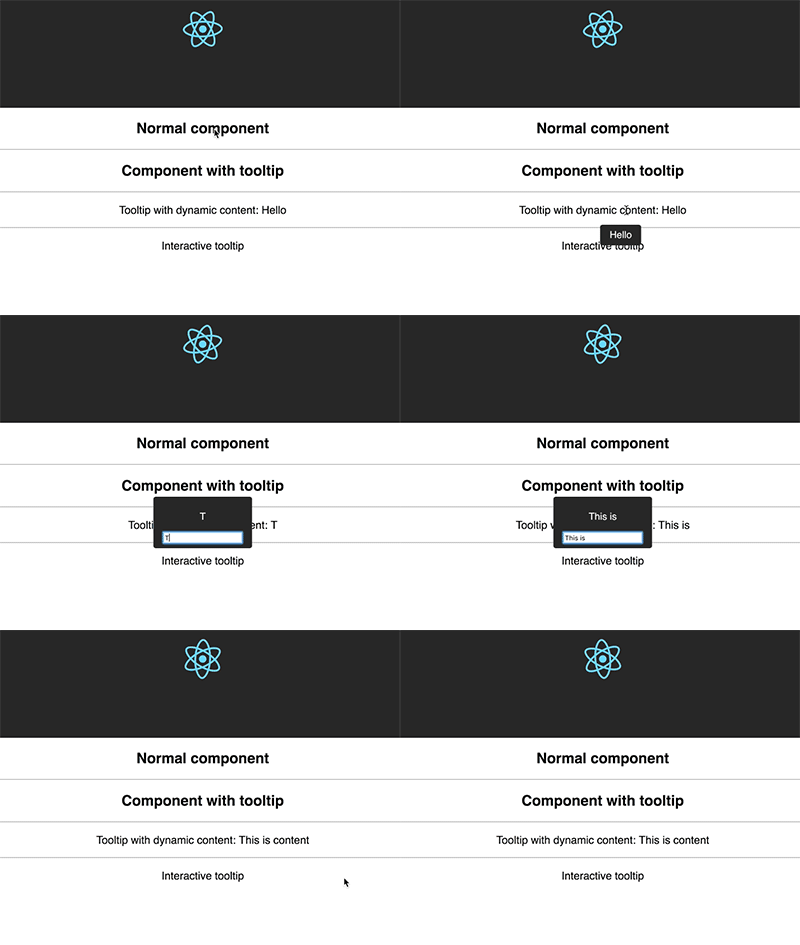
## Why you should use it?
It is designed to work friendly with React, it provides `<Tooltip>` element or a higher-order component
It uses `React DOM` to render tooltip content. Therefore, you can fully use it in your React project without doubt
It is an enhancement of Tippy.js for using in React.
## Getting Started
```
yarn add react-tippy
```
## How to use
First, you need import css
```javascript
import 'react-tippy/dist/tippy.css'
```
There are 2 ways for you to use react Tippy
### Tooltip Component
```javascript
import {
Tooltip,
} from 'react-tippy';
<Tooltip
// options
title="Welcome to React"
position="bottom"
trigger="click"
>
<p>
Click here to show popup
</p>
</Tooltip>
```
### High Order Component
`withTooltip(Component, options)`
```javascript
import {
withTooltip,
} from 'react-tippy';
const Header = () => (
<h2>Header here</h2>
);
const HeaderWithTootip = withTooltip(Header, {
title: 'Welcome to React with tooltip',
});
```
## Props
|Setting|Default|Options|Role|
|--- |--- |--- |--- |
|disabled|`false`|`true` `false`|Show or not show tooltip|
|open|`undefined`|`true` `false`|Just only use it if you want to `show/hide it manually`. Usually, you don't need it|
|useContext|`undefined`|`true` `false`|Define that you're using context in your tooltip content (or `html` props). It's useful when you want your tooltip content can connect to redux store|
|onRequestClose|`noop function`|Function|Just only use it if you want to `show/hide it manually`. This event is fired when you click outside of your tooltip, should be used with the prop `interaction` to keep your tooltip showing|
|position|`top`|`top` `bottom` `left` `right`|Specifies which direction to position the tooltip on the element. Add the suffix `-start` or `-end` to shift the position. `top-end` is an example.|
|trigger|`mouseenter focus`|`mouseenter` `focus` `click` `manual`|Specifies which type of events will trigger a tooltip to show. Separate each by a space. mouseenter is for hovering and touch on mobile, and focus is for keyboard navigation. Use manual if you want to show/hide the tooltip manually/programmatically (see below).|
|tabIndex|`undefined`|number|set tabIndex so element can receive focus|
|interactive|`false`|`true` `false`|Makes a tooltip interactive, i.e. will not close when the user hovers over or clicks on the tooltip. This lets you create a popover (similar to Bootstrap) when used in conjunction with a click trigger.|
|interactiveBorder|2|Any number (pixels)|Specifies the size of the invisible border around an interactive tooltip that will prevent it from closing. Only applies to `mouseenter` triggered tooltips.|
|delay|0|Any integer >= 0 (milliseconds)|Specifies how long it takes after a trigger event is fired for a tooltip to show.|
|hideDelay|0|Any integer >= 0 (milliseconds)|Specifies how long it takes after a leave event is fired for a tooltip to hide. Not applicable when clicking on the document to hide tooltips.|
|animation|`shift`|`shift` `perspective` `fade` `scale` `none`|Specifies the type of transition animation a tooltip has.|
|arrow|`false`|`true` `false`|Adds an arrow pointing to the tooltipped element. Setting this to true disables animateFill.|
|arrowSize|`regular`|`small` `regular` `big`|Specifies how big the tooltip's arrow is.|
|animateFill|`true`|`true` `false`|Adds a material design-esque filling animation. This is disabled if you have arrow set to true.|
|duration|375|Any integer >= 0 (milliseconds)|Specifies how long the transition animation takes to complete when showing a tooltip.|
|distance|10|Any number (pixels)|Specifies how far away the tooltip is from its element.|
|offset|0|Any number (pixels)|Offsets the tooltip on its opposite axis. For position top and bottom, it acts as offsetX. For position left and right, it acts as offsetY.|
|hideOnClick|`true`|`true` `false` `'persistent'`|Specifies whether to hide a tooltip upon clicking its element after hovering over.|
|multiple|`false`|`true` `false`|Specifies whether to allow multiple tooltips open on the page (click trigger only).|
|followCursor|`false`|`true` `false`|Specifies whether to follow the user's mouse cursor (mouse devices only).|
|inertia|`false`|`true` `false`|Modifies the transition-timing-function with a cubic bezier to create a "slingshot" intertial effect.|
|transitionFlip|`true`|`true` `false`|Specifies whether to transition between flips or not. Uses the same transition timing as duration|
|popperOptions|{}|Object|Allows more control over tooltip positioning and behavior. See right below.|
|html|null|react element|Tooltip content. If you don't define html, the title will be used|
|rawTemplate|undefined|`template id` or `dom element`|USED WITH CAUTION. Support creating html templates from tippyjs. But IMO, it's not good to render raw html in React, it's a way to work around if you want to render some complex html generated by 3rd party such as SVG chart(in case you can not find React lib to render chart)|
|unmountHTMLWhenHide|`false`|`true` `false`|By default, html component will be mounted at first show and unmount only when your tooltip component is unmounted. When you set unmountHTMLWhenHide is `true`, it will be unmounted whenever tooltip is hidden.|
|size|`regular`|`small` `regular` `big`|Specifies how big the tooltip is.|
|sticky|`false`|`true` `false`|Specifies whether the tooltip should stick to its element reference when it's showing (for example, if the element is animated/moves).|
|stickyDuration|200|Any number (milliseconds)|Specifies the 'smoothing' transition when the popper's position updates as its element moves.|
|touchHold|false|`true` `false`|Changes the trigger behavior on touch devices. It will change it from a tap to show and tap off to hide, to a tap and hold to show, and a release to hide.|
|onShow|noop|function|Callback when the tooltip has been triggered and has started to transition in|
|onShown|noop|function|Callback when the tooltip has fully transitioned in and is showing|
|onHide|noop|function|Callback when the tooltip has begun to transition out|
|onHidden|noop|function|Callback when the tooltip has fully transitioned out and is hidden|
|theme|`dark`|`dark` `light` `transparent`|The CSS styling theme.|
|className|''|string|className of container|
|style|{}|React inline style (object)|style of container|
## Custom tooltip content
You need to pass element to option `html`
```javascript
import {
Tooltip,
} from 'react-tippy';
<Tooltip
html={(
<div>
<strong>
Hello
</strong>
</div>
)}
>
// ...
</Tooltip>
```
## Interactive html tooltip
You can use `interactive` prop and `html` for your interactive tooltip
```javascript
<Tooltip
trigger="click"
interactive
html={(
<div>
<p>{tooltipContent}</p>
<input
type="text"
value={tooltipContent}
onChange={(e) => {setTooltipContent(e.target.value)}}
/>
</div>
)}
>
...
</Tooltip>
```
## Show/hide your tooltip manually
```javascript
<Tooltip
title={tooltipContent}
open={open}
onRequestClose={() => {console.log('call'); setIsOpen(false)}}
>
<span className="App-intro" onClick={() => { setIsOpen(true) }}>
This will show {tooltipContent}
</span>
</Tooltip>
```
## Browser support
Tippy gracefully degrades on older browsers (and with JavaScript disabled) by using the browser's default title tooltip.
If you want to support older browsers, please add `polyfill` by yourself
### Supported browsers
Browsers which support requestAnimationFrame. See [caniuse](https://caniuse.com/#search=requestAnimationFrame). If your audience has low Opera Mini usage (common in western countries), then support should be >96%.
### Touch devices
Tippy works on touch devices almost the same as on desktop/mouse devices. However on iOS devices, in order for tooltips to close when tapping anywhere on the body and to trigger hover events on non-clickable elements, a .tippy-touch { cursor: pointer ; } class is added to the body.
## Accessibility
Tooltips have ARIA labelling to ensure accessibility.
# Troubleshoot
## I cannot connect html props with redux connect. Or can I use context in tooltip content?
react-tippy provides `useContext` for Tooltip component. It can allow you to use context in tooltip content. Therefore, you can totally connect it to redux.
```javascript
<Tooltip
trigger="click"
useContext
html={(
<TooltipContent />
)}
>
Click here
</Tooltip>
```
## Could I change tooltip style (width, height, ...)?
You can change css to have your tooltip width. If you use `html` props, you can do like this
```javascript
html={(
<div style={{ width: 400 }}>
// content here
</div>
)}
```
# License
MIT. Also check Popper.js' license.