react-pinterest
Version:
Collection of embeddable Pinterest buttons and widgets
167 lines (125 loc) • 5.86 kB
Markdown
As ReactJS continues to increase in popularity for both startups and large-scale technology companies, we wanted to make it as easy as possible to add Pinterest content onto these sites. This helps both you and us. The more content you drive into Pinterest, the more traffic you get in return. React brings widgets to a whole new level, and we are excited to introduce a React component collection of our already popular Pinterest widgets.
``` js
npm install react-pinterest --save
```
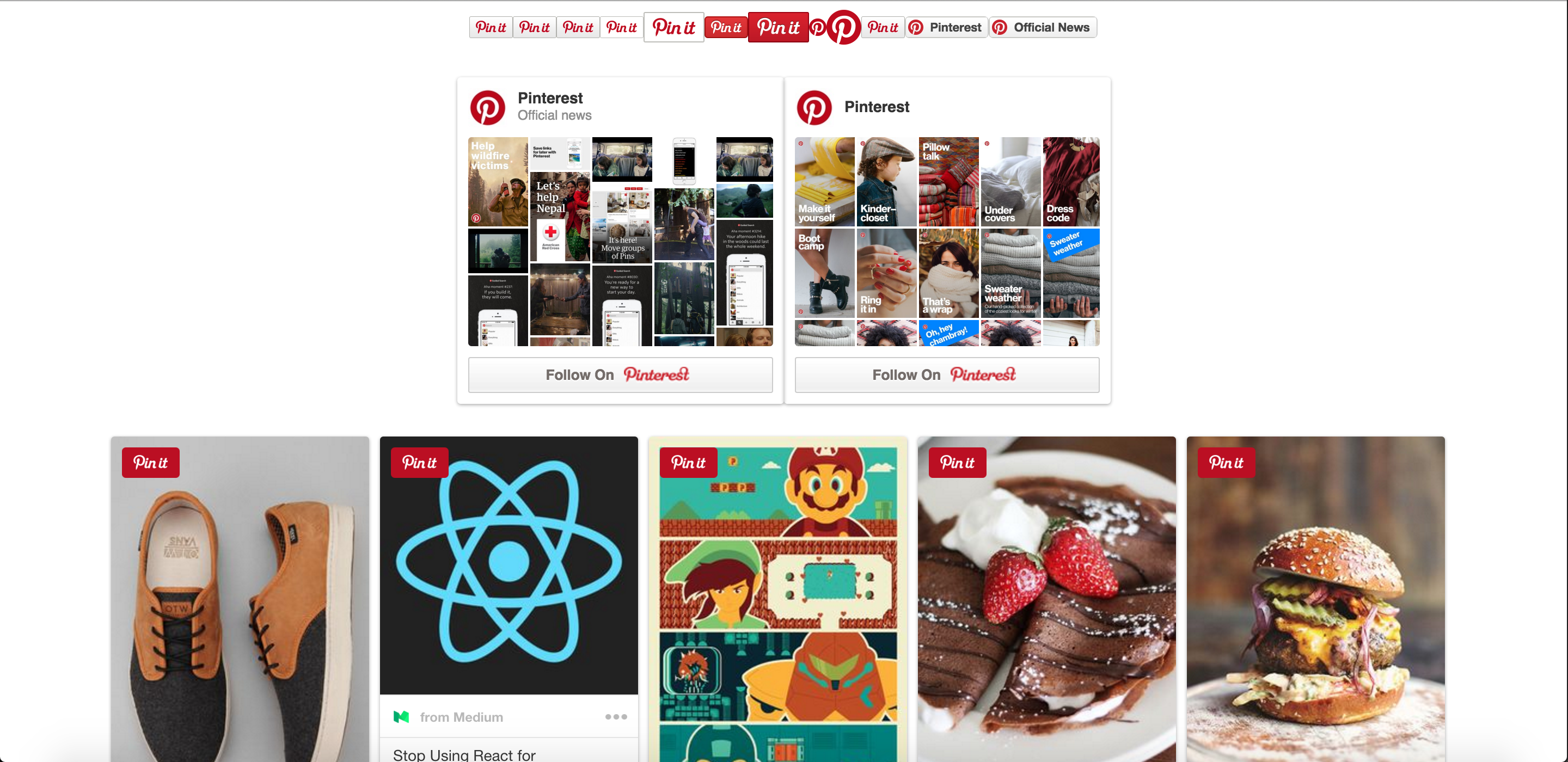
The full list of available widgets are:
- Pin It Button
- Pinterest Follow Button
- Pinterest Pin Widget
- Pinterest Profile Widget
- Pinterest Board Widget
- Pinterest Grid
prop | type | default | notes
------| ------- | ------- | ----------
type | string | 'any' | enum of { 'any', 'one' }
color | string | 'grey' | enum of { 'red', 'white', 'grey' }
large | boolean | false | is large sized button
round | boolean | false | is circular button
The following props are specific for type="one". Each prop refers to the Pin to be pinned on click. If `pin` is specified, it will be a repin, otherwise it will create a new Pin using `media, url, and description`.
prop | type | notes
----------- |------- | ----------
pin | string | the id of the Pin to `repin`
media | string | the image url of the Pin to create
url | string | the link back of the Pin to create
description | string | the description of the Pin to create
Use:
``` js
import { PinItButton } from 'react-pinterest';
// To create a Pin one Pin It button
<PinItButton type="one" media="https://goo.gl/zFFBUK" url="https://goo.gl/hQmcWP" description="Example Stuff"/>
// To Create a repin Pin It button
<PinItButton type="one" pin="356417757988637350" />
// To Create a Pin any Pin It Button: opens the image picker overlay
<PinItButton type="any" />
<PinItButton type="any" color="white" />
<PinItButton type="any" color="white" large={true}/>
<PinItButton type="any" color="red" />
<PinItButton type="any" color="red" large={true} />
<PinItButton type="any" round={true} />
<PinItButton type="any" round={true} large={true} />
```
prop | type | notes
----- | ------ | ----------
board | string | the board slug of the board to follow (`<username>/<board_name>`)
user | string | the username of the user to follow
Choose either a `board` or `user` to follow. If both are specificed, board will be used.
Use:
``` js
import { PinterestFollowButton } from 'react-pinterest';
// To create a board follow button
<PinterestFollowButton board="pinterest/official-news">Official News</PinterestFollowButton>
// To create a profile follow button
<PinterestFollowButton user="pinterest">Pinterest</PinterestFollowButton>
```
prop | type | default | notes
---- | ------ | ---------- | ----------
pin | string | *required* | the id of the Pin to display
size | string | 'small' | enum of { 'small', 'medium', 'large' }
lang | string | 'en' | language code for Pin
Use:
``` js
import { PinterestPinWidget } from 'react-pinterest';
// Pin Widgets default to small
<PinterestPinWidget pin="530158187357124374" />
<PinterestPinWidget size="medium" pin="530158187357124374" />
<PinterestPinWidget size="large" pin="530158187357124374" />
```
prop | type | default | notes
------- | ------ | ---------- | ----------
board | string | *required* | the board slug of the board (`<username>/<board_name>`)
width | number | *required* | the width of the board widget
height | number | *required* | the height of the board widget
columns | number | *required* | the number of columns in the grid
Use:
``` js
import { PinterestBoardWidget } from 'react-pinterest';
<PinterestBoardWidget board="pinterest/official-news" width={300} height={300} columns={5} />
```
prop | type | default | notes
------- | ------ | ---------- | ----------
user | string | *required* | the username of the profile
width | number | *required* | the width of the board widget
height | number | *required* | the height of the board widget
columns | number | *required* | the number of columns in the grid
Use:
``` js
import { PinterestProfileWidget } from 'react-pinterest';
<PinterestProfileWidget user="pinterest" width={300} height={300} columns={5} />
```
prop | type | default | notes
------- | ------ | ------- | ----------
gutter | number | 0 | the margin between grid elements
columns | number | ? | the number of columns to use in the grid, if unspecified it will guess based on the width of the first grid element
Use:
``` js
import { PinterestGrid, PinterestPinWidget } from 'react-pinterest';
<PinterestGrid gutter={gutter}>
<PinterestPinWidget pin="530158187357124374" />
<PinterestPinWidget pin="356417757989339525" />
<PinterestPinWidget pin="356417757986524080" />
<PinterestPinWidget pin="356417757986724718" />
<PinterestPinWidget pin="356417757988564358" />
<PinterestPinWidget pin="356417757988206582" />
<PinterestPinWidget pin="202802789445693269" />
<PinterestPinWidget pin="89438742571585339" />
<PinterestPinWidget pin="232850243203755319" />
<PinterestPinWidget pin="137008013639035297" />
<PinterestPinWidget pin="264797653065817757" />
<PinterestPinWidget pin="144467100519920447" />
</PinterestGrid>
```
npm install; cd examples; node server.js
Then open `http://localhost:3000`
Try adding a query param to change the PinterestPinWidget size `?size=medium` or `?size=large`
[](http://isekivacenz.mit-license.org/)