react-native-web-headroom
Version:
React Native Web Headroom
148 lines (108 loc) • 5.89 kB
Markdown
# react-inspector
[](https://travis-ci.org/xyc/react-inspector)
[](https://www.npmjs.com/package/react-inspector)
[](https://www.npmjs.com/package/react-inspector)
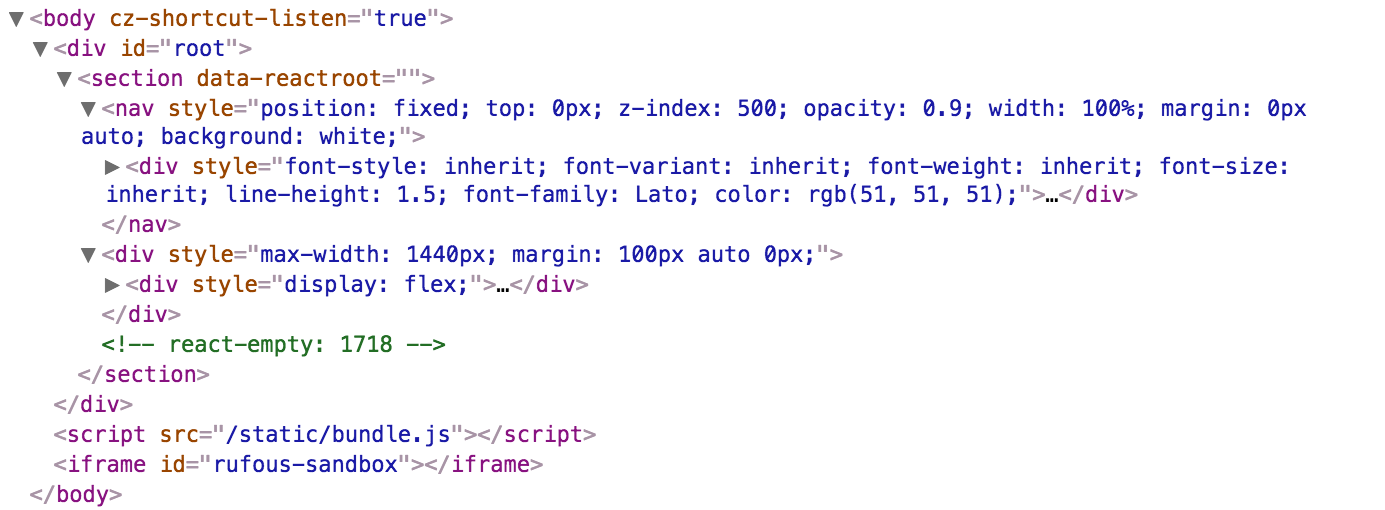
Power of [Browser DevTools](https://developers.google.com/web/tools/chrome-devtools/) inspectors right inside your React app. Check out the [interactive playground](http://xyc.github.io/react-inspector/).


## Install
NPM:
```sh
npm install react-inspector
```
### <Inspector />
A shorthand for the inspectors.
- `<Inspector/>` is equivalent to `<ObjectInspector>` or `<DOMInspector>` if inspecting a DOM Node.
- `<Inspector table/>` is equivalent to `<TableInspector>`.
### <ObjectInspector />
Like `console.log`. Consider this as a glorified version of `<pre>JSON.stringify(data, null, 2)</pre>`.
###### How it works
Tree state is saved at root. If you click to expand some elements in the hierarchy, the state will be preserved after the element is unmounted.
#### API
The component accepts the following props:
#### `data: PropTypes.any`: the Javascript object you would like to inspect
#### `name: PropTypes.string`: specify the optional name of the root node, default to `undefined`
#### `expandLevel: PropTypes.number`: an integer specifying to which level the tree should be initially expanded.
#### `expandPaths: PropTypes.oneOfType([PropTypes.string, PropTypes.array])`: an array containing all the paths that should be expanded when the component is initialized, or a string of just one path
- The path string is similar to [JSONPath](http://goessner.net/articles/JsonPath/).
- It is a dot separated string like `$.foo.bar`. `$.foo.bar` expands the path `$.foo.bar` where `$` refers to the root node. Note that it only expands that single node (but not all its parents and the root node). Instead, you should use `expandPaths={['$', '$.foo', '$.foo.bar']}` to expand all the way to the `$.foo.bar` node.
- You can refer to array index paths using `['$', '$.1']`
- You can use wildcard to expand all paths on a specific level
- For example, to expand all first level and second level nodes, use `['$', '$.*']` (equivalent to `expandLevel={2}`)
- the results are merged with expandLevel
#### `showNonenumerable: PropTypes.bool`: show non-enumerable properties.
#### `sortObjectKeys: PropTypes.oneOfType([PropTypes.bool, PropTypes.func])`: Sort object keys with optional compare function.
#### `nodeRenderer: PropTypes.func`: Use a custom `nodeRenderer` to render the object properties (optional)
- Instead of using the default `nodeRenderer`, you can provide a
custom function for rendering object properties. The _default_
nodeRender looks like this:
```
import { ObjectRootLabel } from 'react-inspector'
import { ObjectLabel } from 'react-inspector'
const defaultNodeRenderer = ({ depth, name, data, isNonenumerable, expanded }) =>
depth === 0
? <ObjectRootLabel name={name} data={data} />
: <ObjectLabel name={name} data={data} isNonenumerable={isNonenumerable} />;
```
### <TableInspector />
Like `console.table`.
#### API
The component accepts the following props:
#### `data: PropTypes.oneOfType([PropTypes.array, PropTypes.object])`: the Javascript object you would like to inspect, either an array or an object
#### `columns: PropTypes.array`: An array of the names of the columns you'd like to display in the table
### <DOMInspector />
#### API
The component accepts the following props:
#### `data: PropTypes.object`: the DOM Node you would like to inspect
### Usage
```js
import {ObjectInspector, TableInspector} from 'react-inspector';
// or use the shorthand
import Inspector from 'react-inspector';
const MyComponent = ({ data }) =>
<div>
<ObjectInspector data={data} />
<TableInspector data={data} />
<Inspector data={data} />
<Inspector table data={data} />
</div>
let data = { /* ... */ };
ReactDOM.render(
<MyComponent data={data} />,
document.getElementById('root')
);
```
Try embedding the inspectors inside a component's render() method to provide a live view for its props/state (Works even better with hot reloading).
### More Examples
Check out the storybook for more examples.
```sh
npm install && npm run storybook
```
Open http://localhost:9001/
## Theme
By specifying the `theme` prop you can customize the inspectors. `theme` prop can be
1. a string referring to a preset theme (`"chromeLight"` or `"chromeDark"`, default to `"chromeLight"`)
2. or a custom object that provides the necessary variables. Checkout `src/styles/themes` for possible theming variables.
Example 1: Using a preset theme:
```js
<Inspector theme="chromeDark" data={{a: 'a', b: 'b'}}/>
```
Example 2: changing the tree node indentation by inheriting the chrome light theme:
```js
import { chromeLight } from 'react-inspector'
<Inspector theme={{...chromeLight, ...({ TREENODE_PADDING_LEFT: 20 })}} data={{a: 'a', b: 'b'}}/>
```
## Roadmap
Type of inspectors:
- [x] Tree style
- [x] common objects
- [x] DOM nodes
- [x] Table style
- [ ] Column resizer
- [ ] Group style
## Contribution
Contribution is welcome. [Past contributors](https://github.com/xyc/react-inspector/graphs/contributors)
## Notes
- `react-object-inspector` package will be deprecated. `<ObjectInspector/>` is now part of the new package `react-inspector`.
- Why inline style? [This document](https://github.com/erikras/react-redux-universal-hot-example/blob/master/docs/InlineStyles.md) summarizes it well.