react-native-surveys
Version:
Build your own forms, surveys and polls for your React Native apps.
204 lines (158 loc) • 6.11 kB
Markdown
# [NativeForms.com](https://nativeforms.com)
## Build **forms, surveys and polls** for React Native apps.
### Why this product was created?
We created NativeForms to save you countless hours of boring development of forms. Our product offers advanced solutions to all your problems and let you focus on things that are really important in your app.
- [Installation](#installation)
- [Basic Usage](#basic-usage)
- [Full Examples](#full-example)
- [Demo](#demo)
- [NativeForms Props](#nativeforms-props)
- [File Upload for React Native](#file-upload-for-react-native)
- [Live Preview](#live-preview)
- [Support](#support)
## Installation
```js
npm install native-forms --save
// or
yarn add native-forms
```
## Basic Usage
1. Import component.
```js
import NativeForms from 'native-forms';
```
2. Use this component in your **render()** method.
```js
<NativeForms
form="https://my.nativeforms.com/vVDct0mcvZWPmZic4JlRvpmNy0Db"
/>
```
This code will display form in your application. Replace **form prop** with your form's address. You can create your own forms [here](https://app.nativeforms.com).
## Full Example
Basic flow of **NativeForms** in your application.
```js
import React, {useState} from 'react';
import { Button, StyleSheet, Text, View } from 'react-native';
import NativeForms from 'native-forms';
const App = () => {
const [hasForm, showForm] = useState(false);
const show = () => showForm(true);
const hide = () => showForm(false);
return (
<View style={styles.container}>
<Text>NativeForms.com</Text>
<Button title="Show Form" onPress={show} color="#20f" />
{hasForm && (
<NativeForms
form="https://my.nativeforms.com/vVDct0mcvZWPmZic4JlRvpmNy0Db"
onClose={hide}
/>
)}
</View>
);
};
const styles = StyleSheet.create({
container: {
flex: 1,
backgroundColor: '#fff',
alignItems: 'center',
justifyContent: 'center',
},
});
export default App;
```
Replace **form prop** with your form's address. You can create your own forms [here](https://app.nativeforms.com).
## Demo
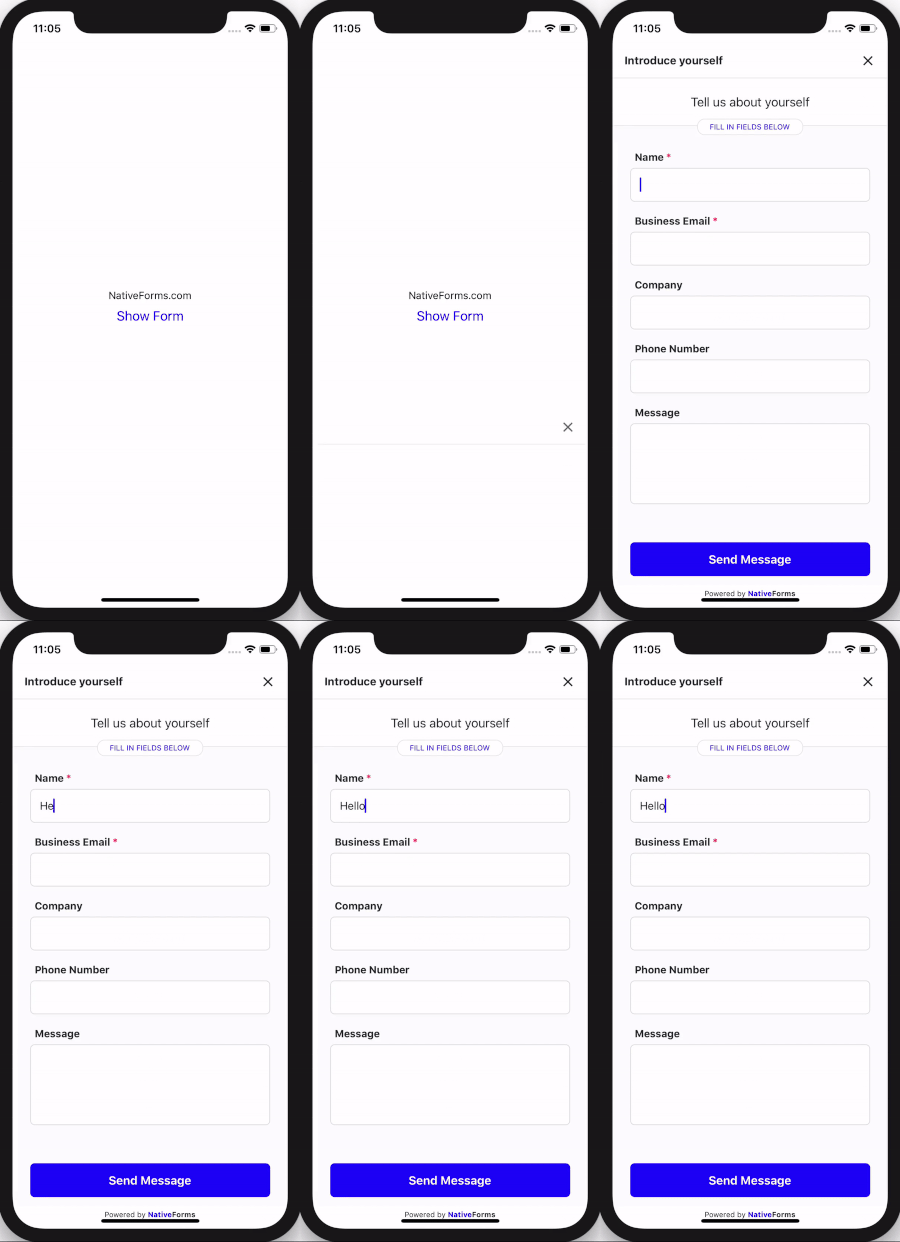
## NativeForms Props
| Name | Type | Required | Note |
|--------------------|--------|---------|----------------------------------------------------------------|
| **form** | String | **Yes** | URL of **form** to display. |
| **onClose** | Function | No | Called when user decides to close the form. |
| **onSend** | Function | No | Called when user **completes** form. |
| **onBeforeSend** | Function | No | Called before sending form. Can be used to provide extra data based on user's input. |
| **email** | String | No | Email of person that will complete form (it will be displayed in admin panel). |
| **name** | String | No | Name of person that will complete form. |
| **extraData** | Object | No | Extra data fields that will be send along with completed form. This data will not be visible by user. |
Example of using props:
```js
<NativeForms
form="https://my.nativeforms.com/vVDct0mcvZWPmZic4JlRvpmNy0Db"
onSend={formData => console.log("Completed form data", formData)}
onClose={() => console.log("User cancels forms")}
onBeforeSend={formData => {
//extra data that will be added to form
return {
"Account Type": "Free"
};
}}
name="John Smith"
email="customer@gmail.com"
extraData={{
"Account Type": "Premium"
}}
/>
```
## File Upload for React Native
Uploading files for React Native is a little bit tricky.
If you are using [Expo](https://expo.io/) you have to add this component: [https://docs.expo.io/versions/latest/sdk/webview/](https://docs.expo.io/versions/latest/sdk/webview/)
**Adding it is as simple as running this command:**
```js
expo install react-native-webview
```
------
If you created your project with [React Native Cli](https://github.com/react-native-community/cli) you need to install this library:
[https://github.com/react-native-community/react-native-webview](https://github.com/react-native-community/react-native-webview)
**It is as simple as running those 2 commands:**
```js
npm install --save react-native-webview
// and
react-native link react-native-webview
```
### Full code example.
```js
import React, { useState } from "react";
import { Button, StyleSheet, Text, View } from "react-native";
import { NativeFormsWebView } from "native-forms";
import { WebView } from "react-native-webview";
const App = () => {
const [hasForm, showForm] = useState(false);
const show = () => showForm(true);
const hide = () => showForm(false);
return (
<View style={styles.container}>
<Text>NativeForms.com</Text>
<Button title="Show Form" onPress={show} color="#20f" />
{hasForm && (
<NativeFormsWebView onClose={hide}>
<WebView
source={{
uri: "https://my.nativeforms.com/AdnJHOt0mcvZWPmZic4JlRvpmNy0Db"
}}
/>
</NativeFormsWebView>
)}
</View>
);
};
const styles = StyleSheet.create({
container: {
flex: 1,
backgroundColor: "#fff",
alignItems: "center",
justifyContent: "center"
}
});
export default App;
```
**That's all :)**
## Live Preview
Full code examples are available here:
1. [Codesandbox](https://codesandbox.io/embed/native-forms-web-p5k7u)
2. [Expo](https://expo.io/@venits/native-forms)
3. [Codepen](https://codepen.io/venits/pen/QWLOmMV)
## Support
In case of any questions or problems, please contact me at:
[hello@nativeforms.com](mailto:hello@nativeforms.com)
### Happy Coding 💖
### [NativeForms.com](https://nativeforms.com)