react-native-button-component-fix
Version:
A Beautiful, Customizable React Native Button component for iOS & Android
210 lines (185 loc) • 6.77 kB
Markdown
[](https://travis-ci.org/jacklam718/react-native-button-component)
[]()
[]()
## React Native Button component
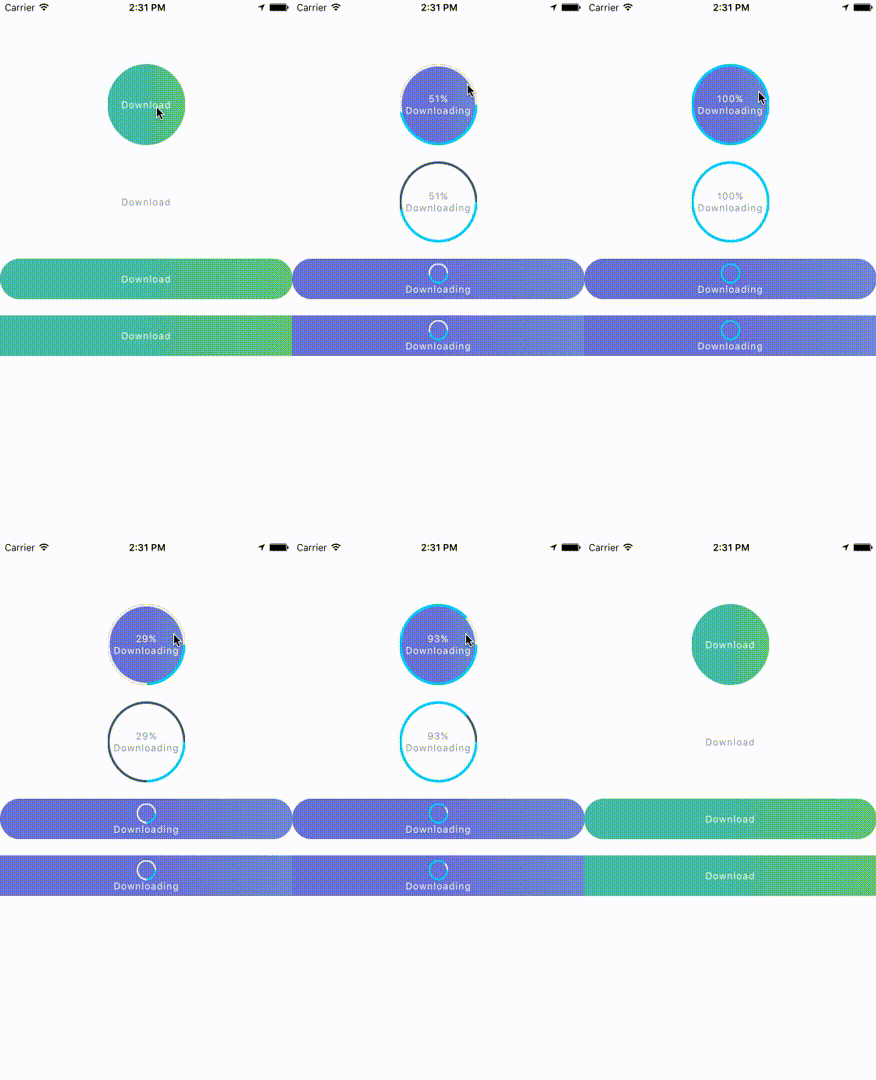
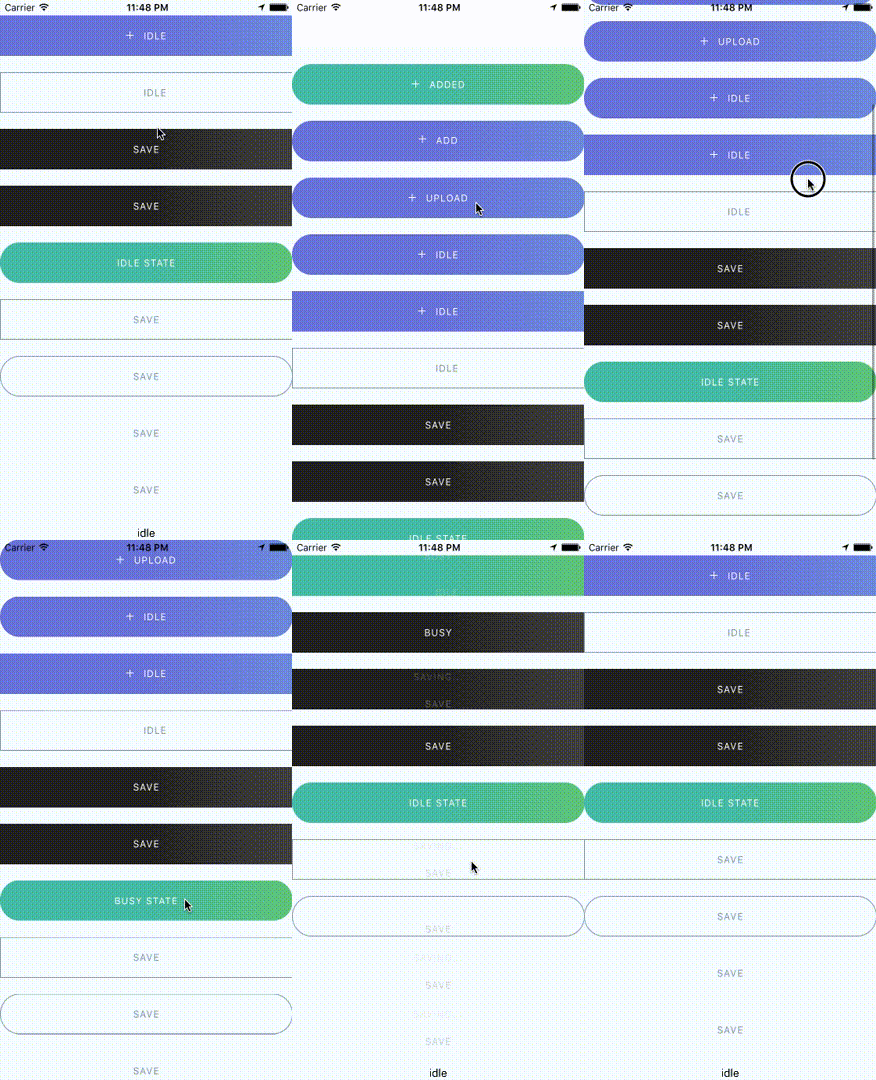
React Native Button component for iOS & Android.
## Provided Components
This library provided the following button components:
```
ButtonComponent
CircleButton
RoundButton
RectangleButton
```
#### Note:
CircleButton, RoundButton, RectangleButton is on top of ButtonComponent.
So I recommend you should use CircleButton, RoundButton, RectangleButton, rather than directly use ButtonComponent because those button components may have preset some options.
## Installation
1. `npm install --save react-native-button-component`
2. `react-native link react-native-button-component`
##### Note
If you didn't see this item `libART.a` under the `Link Binary With Libraries` or you get this error `No component found for view with name "ARTSurfaceView"`
Please open Xcode project and add `libART.a` under `Build Phases -> Link Binary With Libraries`
###### The detailed steps:
1. Open Xcode project
2. Build Phases -> Link Binary With Libraries
3. Click the `+` button and Click `Add Other...`
4. Open with `node_modules/react-native/Libraries/ART/ART.xcodeproj`
5. Click the `+` and select the `libART.a` and click `Add`
<img src="https://jacklam718.github.io/react-native-button-component/build/video/link-libART.gif" width="650" />
## Some Simple Examples
<a href="https://github.com/jacklam718/react-native-button-component/blob/master/button-example/js/containers/OneStateButtons.js" target="_blank">
One State Button
</a>
<br>
<a href="https://github.com/jacklam718/react-native-button-component/blob/master/button-example/js/containers/MultipleStatesButtons.js" target="_blank">
Multiple States Button
</a>
<br>
<a href="https://github.com/jacklam718/react-native-button-component/blob/master/button-example/js/containers/SpinnerButtons.js" target="_blank">
Spinner Button
</a>
<br>
<a href="https://github.com/jacklam718/react-native-button-component/blob/master/button-example/js/containers/ProgressButtons.js" target="_blank">
Progress Button
</a>
<br>
<a href="https://github.com/jacklam718/react-native-button-component/blob/master/button-example/js/containers/CircleButtons.js" target="_blank">
Circle Button
</a>
## Documents
<a href="https://github.com/jacklam718/react-native-button-component/blob/master/docs/props-and-button-state-attributes.md" target="_blank">
Props & Button Options
</a>
<br />
<a href="https://github.com/jacklam718/react-native-button-component/blob/master/docs/progress-button-state-attributes.md" target="_blank">
Options for Progress Button
</a>
<br />
<a href="https://github.com/jacklam718/react-native-button-component/blob/master/docs/spinner-button-state-attributes.md" target="_blank">
Options for Spinner Button
</a>
<br />
<a href="https://github.com/jacklam718/react-native-button-component/blob/master/docs/circle-button-attributes.md" target="_blank">
Options for Circle Button
</a>
## Usage - Basic
#### Button with one state
```javascript
import ButtonComponent, { CircleButton, RoundButton, RectangleButton } from 'react-native-button-component';
// You can use CircleButton, RoundButton, RectangleButton to instead ButtonComponent
<ButtonComponent
onPress={() => {}}
image={require('button-image.png')}
text="Button"
>
</ButtonComponent>
```
#### Button with multiple states
```javascript
import ButtonComponent, { CircleButton, RoundButton, RectangleButton } from 'react-native-button-component';
// You can use CircleButton, RoundButton, RectangleButton to instead ButtonComponent
<ButtonComponent
buttonState={this.state.buttonState} // "upload" or "uploading"
states={{
upload: {
onPress: () => {
this.imageUploader.upload();
this.state.setState({ buttonState: 'uploading' });
},
image: require('upload-image.png'),
text: 'Upload Image',
},
uploading: {
onPress: () => {
this.imageUploader.cancelUpload();
this.state.setState({ buttonState: 'upload' });
},
spinner: true,
text: 'Uploding Image...',
},
}}
>
</ButtonComponent>
```
## Usage - With Your Configurations
#### Button with one state
```javascript
<ButtonComponent
text="Button"
type="primary"
shape="rectangle"
backgroundColors={['#4DC7A4', '#66D37A']}
gradientStart={{ x: 0.5, y: 1 }}
gradientEnd={{ x: 1, y: 1 }}
height={80}
onPress={() => {}}
image={require('button-image.png')}
>
</ButtonComponent>
```
#### Button with multiple states - different config for different states
```javascript
import ButtonComponent, { CircleButton, RoundButton, RectangleButton } from 'react-native-button-component';
// You can use CircleButton, RoundButton, RectangleButton to instead ButtonComponent
<ButtonComponent
buttonState={this.state.buttonState} // "upload" or "uploading"
gradientStart={{ x: 0.5, y: 1 }}
gradientEnd={{ x: 1, y: 1 }}
states={{
upload: {
text: 'Upload Image',
backgroundColors: ['#4DC7A4', '#66D37A'],
image: require('upload-image.png'),
onPress: () => {
this.imageUploader.upload();
this.state.setState({ buttonState: 'uploading' });
},
},
uploading: {
text: 'Uploding Image...',
gradientStart: { x: 0.8, y: 1 },
gradientEnd: { x: 1, y: 1 },
backgroundColors: ['#ff4949', '#fe6060'],
spinner: true,
onPress: () => {
this.imageUploader.cancelUpload();
this.state.setState({ buttonState: 'upload' });
},
},
}}
>
</ButtonComponent>
```
#### Button with multiple states - one config for different states
```javascript
<ButtonComponent
buttonState={this.state.buttonState} // "upload" or "uploading"
gradientStart={{ x: 0.5, y: 1 }}
gradientEnd={{ x: 1, y: 1 }}
backgroundColors={['#4DC7A4', '#66D37A']}
states={{
upload: {
text: 'Upload Image',
image: require('upload-image.png'),
onPress: () => {
this.imageUploader.upload();
this.state.setState({ buttonState: 'uploading' });
},
},
uploading: {
text: 'Uploding Image...',
spinner: true,
onPress: () => {
this.imageUploader.cancelUpload();
this.state.setState({ buttonState: 'upload' });
},
},
}}
>
</ButtonComponent>
```
## License
MIT