react-native-branch
Version:
Branch Metrics React Native SDK
279 lines (185 loc) • 12.2 kB
Markdown
# Selecting the Branch Live or Test environment
If you wish to configure your app to use different Branch environments for different
builds, you can use custom build configurations in Xcode and build types or
product flavors with Gradle. For example, you may want to use the test environment
for debug builds and the live environment for release builds. Or you may choose
to use a different criterion. Everything described here is a matter of one-time project
setup. Afterward, whenever you do a build of a particular kind, it will automatically
use the correct Branch key.
All changes must be made in the native app projects. There is currently no support
for doing this from JavaScript.
## Prerequisites
[Account Settings]: https://dashboard.branch.io/account-settings/app
- Obtain your Branch live and test keys from the Branch Dashboard:
See the [Account Settings] page in the Branch Dashboard to find your Branch live and test keys. Select "Live" or "Test" at the upper left to switch keys.
- Perform basic integration of the react-native-branch SDK in your app.
# Add both live and test keys to your project
First, you must define both the live and test keys within your Android and iOS projects. Once this is done, you'll specify when to use each key.
## Android
Add both keys to the `AndroidManifest.xml` within the `<application>` tag:
```xml
<manifest xmlns:android="http://schemas.android.com/apk/res/android"
package="io.branch.sample"
android:versionCode="1"
android:versionName="1.0" >
<uses-permission android:name="android.permission.INTERNET" />
<application>
<!-- Other existing entries -->
<!-- Branch live and test keys -->
<meta-data android:name="io.branch.sdk.BranchKey" android:value="key_live_xxxxxxx" />
<meta-data android:name="io.branch.sdk.BranchKey.test" android:value="key_test_yyyyyyy" />
</application>
</manifest>
```
## iOS
In the `Info.plist` for your project, make the `branch_key` a dictionary instead of a string, and add entries for keys "live" and "test" with string values. Add your keys from the Branch Dashboard as the values of the corresponding keys.

# Option 1 (basic): Use test key for debug builds and live key for release builds
## Android
Simply add the following file to your Android project as `android/app/src/debug/AndroidManifest.xml`:
```xml
<manifest xmlns:android="http://schemas.android.com/apk/res/android"
package="com.example.mypackage">
<application>
<meta-data android:name="io.branch.sdk.TestMode" android:value="true" /> <!-- Set to true to use Branch_Test_Key -->
</application>
</manifest>
```
Replace `com.example.mypackage` with the package name from your main AndroidManifest.xml.
By default, the Branch SDK uses the live key. If you prefer, you can add a similar file with `android:value="false"` as `android/app/src/release/AndroidManifest.xml`, but this
is not necessary.
Gradle automatically merges the main manifest with the manifest for each build type and product flavor.
### iOS
In your `AppDelegate.m` or `AppDelegate.swift` source file,
add a conditional call to `[RNBranch useTestInstance]` (Obj-C) or `RNBranch.useTestInstance()` (Swift) before calling `initSession`.
_Obj-C_
```Objective-C
#ifdef DEBUG
[RNBranch useTestInstance];
#endif
[RNBranch initSessionWithLaunchOptions:launchOptions isReferrable:YES];
```
_Swift_
```Swift
#if DEBUG
RNBranch.useTestInstance()
#endif
RNBranch.initSession(launchOptions: launchOptions, isReferrable: true)
```
# Option 2 (advanced): Select live or test key based on user-defined criteria
If you want to use different criteria to determine when to use each key, you need to do a little more setup.
For example, you want to build different versions of the app that point to different versions of your
application API, such as production and staging, and you want to select the Branch key based on this
## Android
Define custom `productFlavors` for your app in the `android/app/build.gradle` file:
```gradle
android {
...
defaultConfig { ... }
buildTypes { ... }
productFlavors {
stage {
applicationIdSuffix ".stage"
versionNameSuffix "-stage"
}
}
}
```
Now add the following file as `android/app/src/<productFlavor>/AndroidManifest.xml` for each flavor
that uses the test key, e.g. `android/app/src/stage/AndroidManifest.xml`:
```xml
<manifest xmlns:android="http://schemas.android.com/apk/res/android"
package="com.example.mypackage">
<application>
<meta-data android:name="io.branch.sdk.TestMode" android:value="true" /> <!-- Set to true to use Branch_Test_Key -->
</application>
</manifest>
```
Replace `com.example.mypackage` with the package name from your main AndroidManifest.xml.
By default (for the main product flavor), the Branch SDK uses the live key.
You can also specify settings for combinations of build type and product flavor, e.g. in
`android/app/src/stageDebug/AndroidManifest.xml` or `android/app/src/stageRelease/AndroidManifest.xml`.
See the [Android documentation](https://developer.android.com/studio/build/build-variants.html) for more details on configuring Android build variants.
## iOS
React Native does not directly support custom build configurations automatically
when using `react-native link` to build your app. Supporting this in your React
Native app requires either manual modification of the Xcode projects installed
in `node_modules` or custom automation to update them properly each time you update
your NPM dependencies. This process is not documented here or currently
supported by this SDK.
If instead you are using the React, react-native-branch and Branch-SDK pods in
your Podfile to integrate the SDK, you can add custom build configurations to
your projects.
The following instructions show how to add a new configuration and scheme to your app that can be used to connect to the Branch test environment.
### Step 1: Add a new build configuration
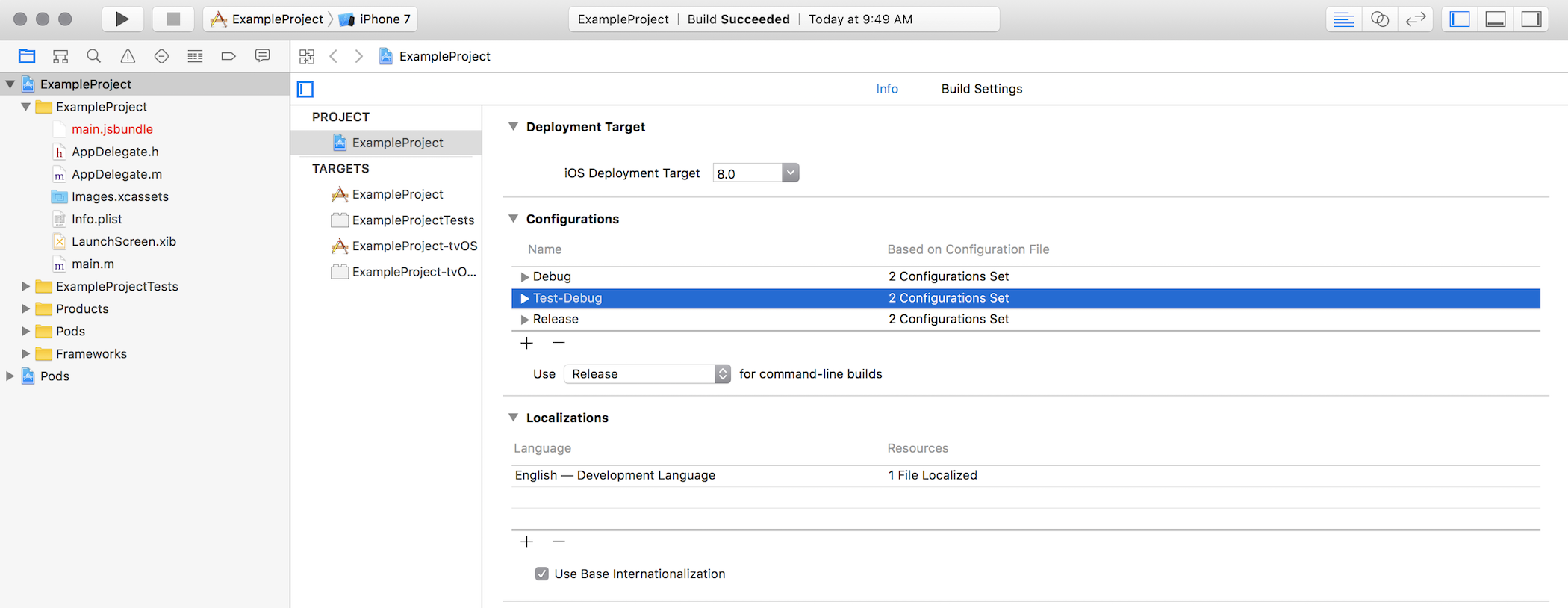
By default, all Xcode projects include Debug and Release configurations. Define a new configuration called Test-Debug by copying the existing Debug configuration.
On the Info tab of the Project settings, click the + button under the list of Configurations. Select `Duplicate "Debug" Configuration`.
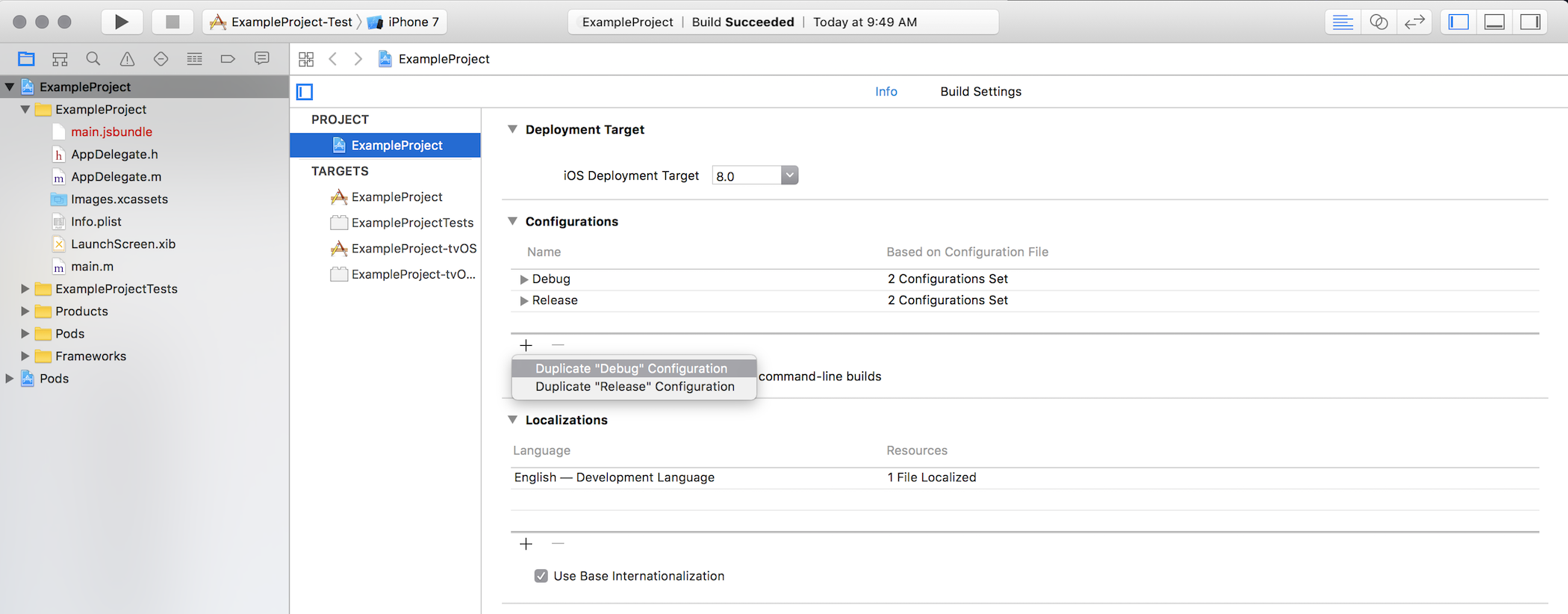
Name the new configuration `Test-Debug`.
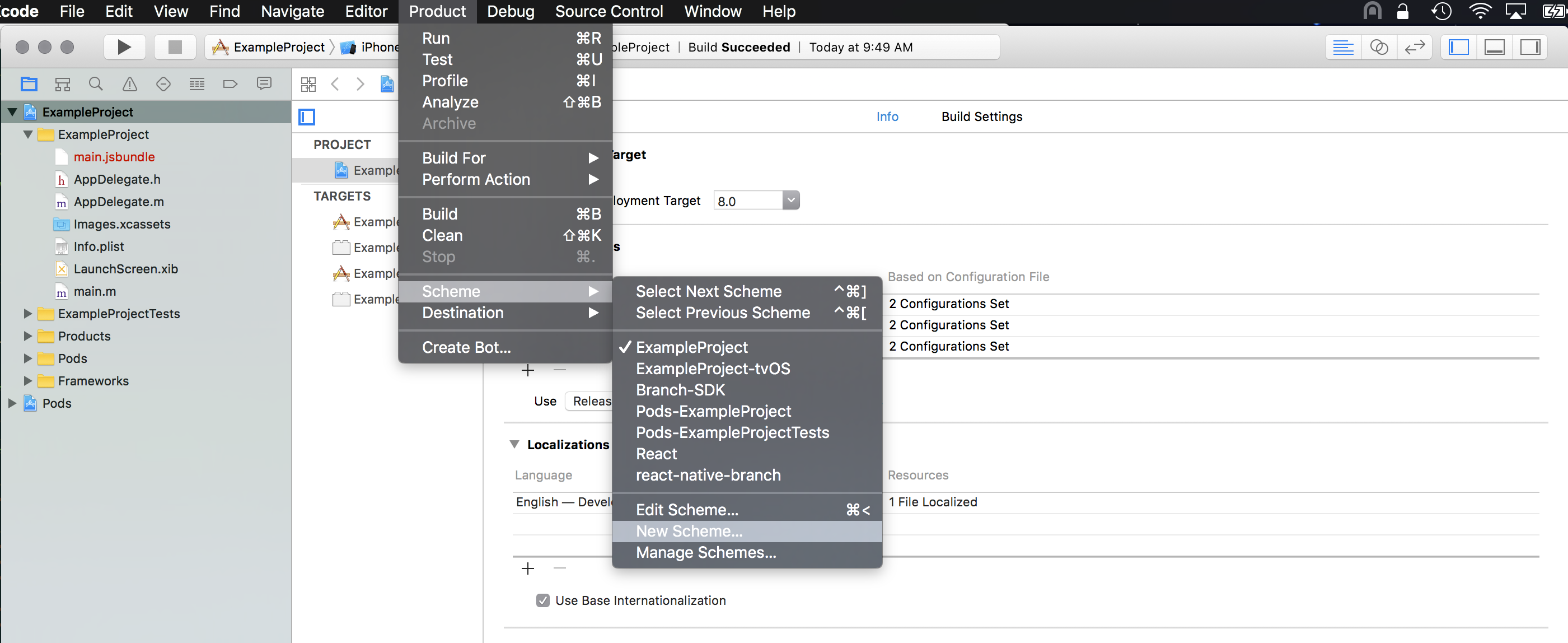
### Step 2: Add a new build scheme to use the new configuration
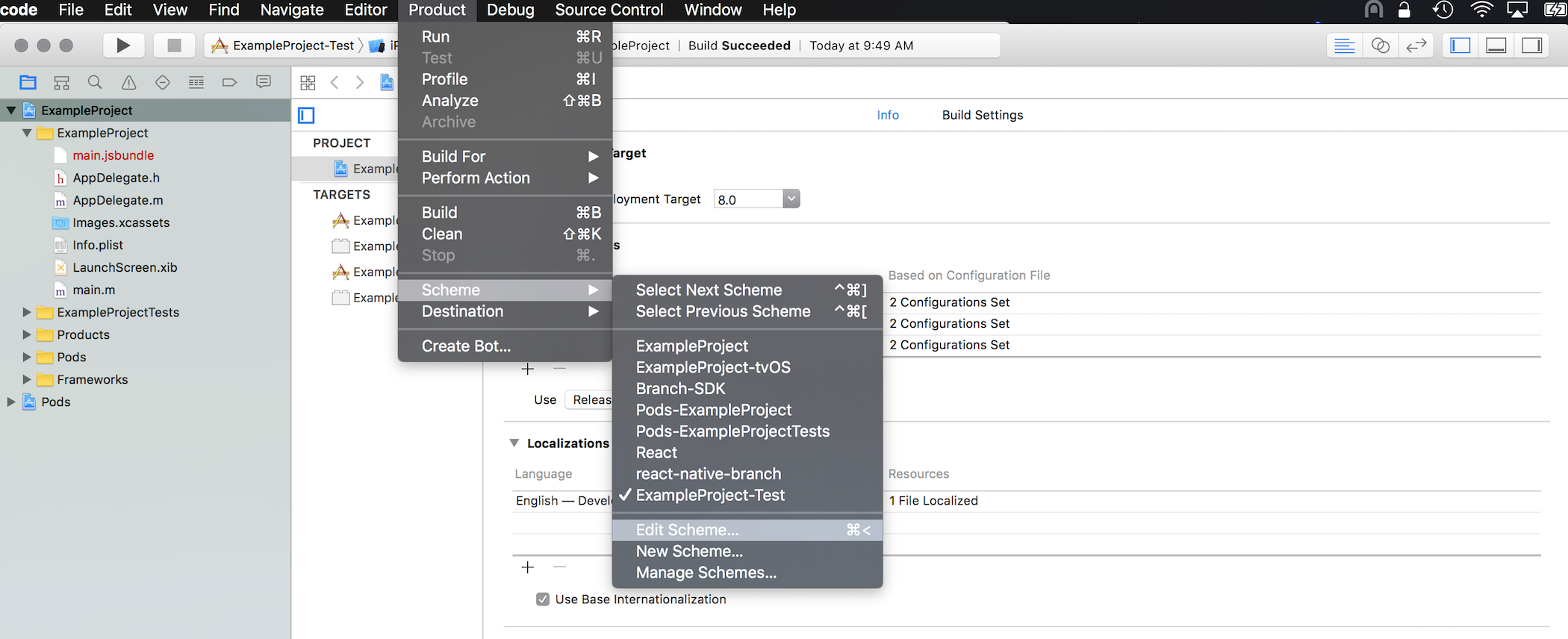
From the Xcode task bar, select Product > Scheme > New Scheme....
Add `-Test` to the end of the scheme name. If your app is named `MyApp`, the default scheme name will be `MyApp`. Change it to `MyApp-Test`.
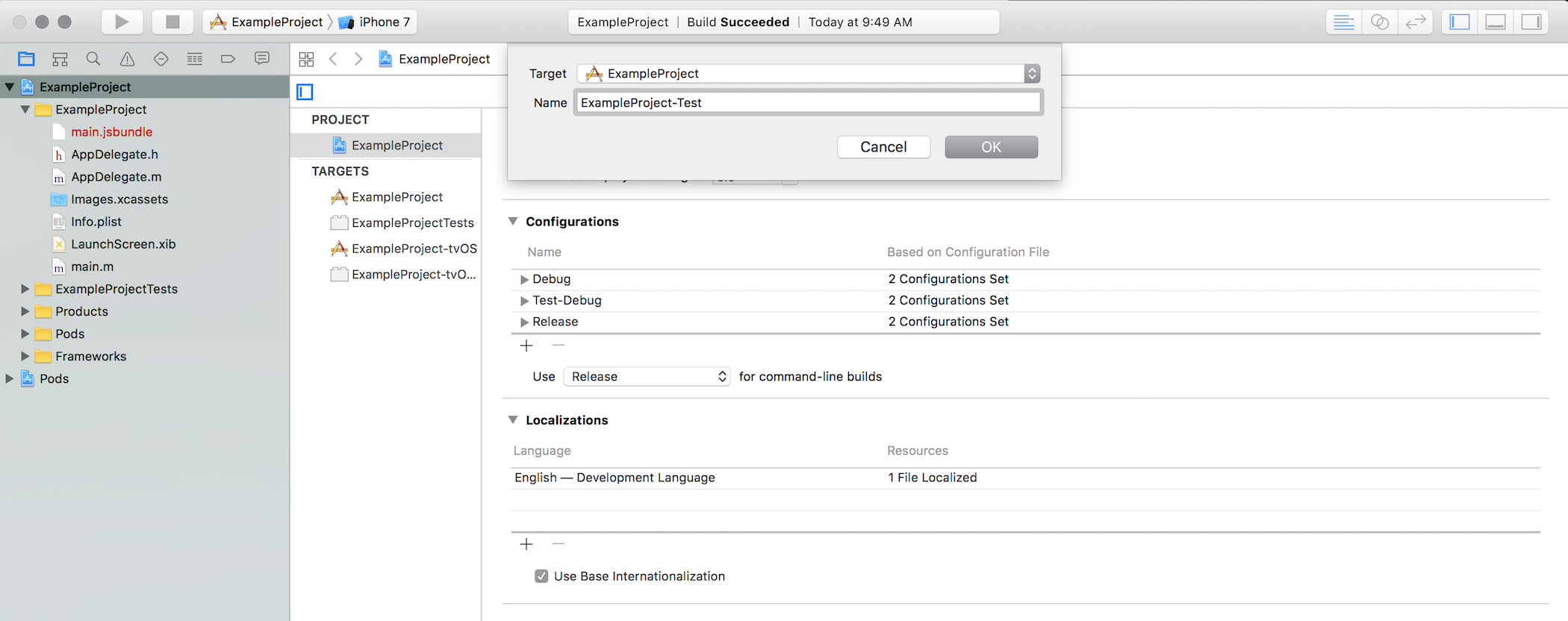
Notice that the scheme pulldown at the upper left of Xcode has changed to show your new scheme.
### Step 3: Configure the new scheme to use the new configuration
From the Xcode task bar, select Product > Scheme > Edit Scheme....
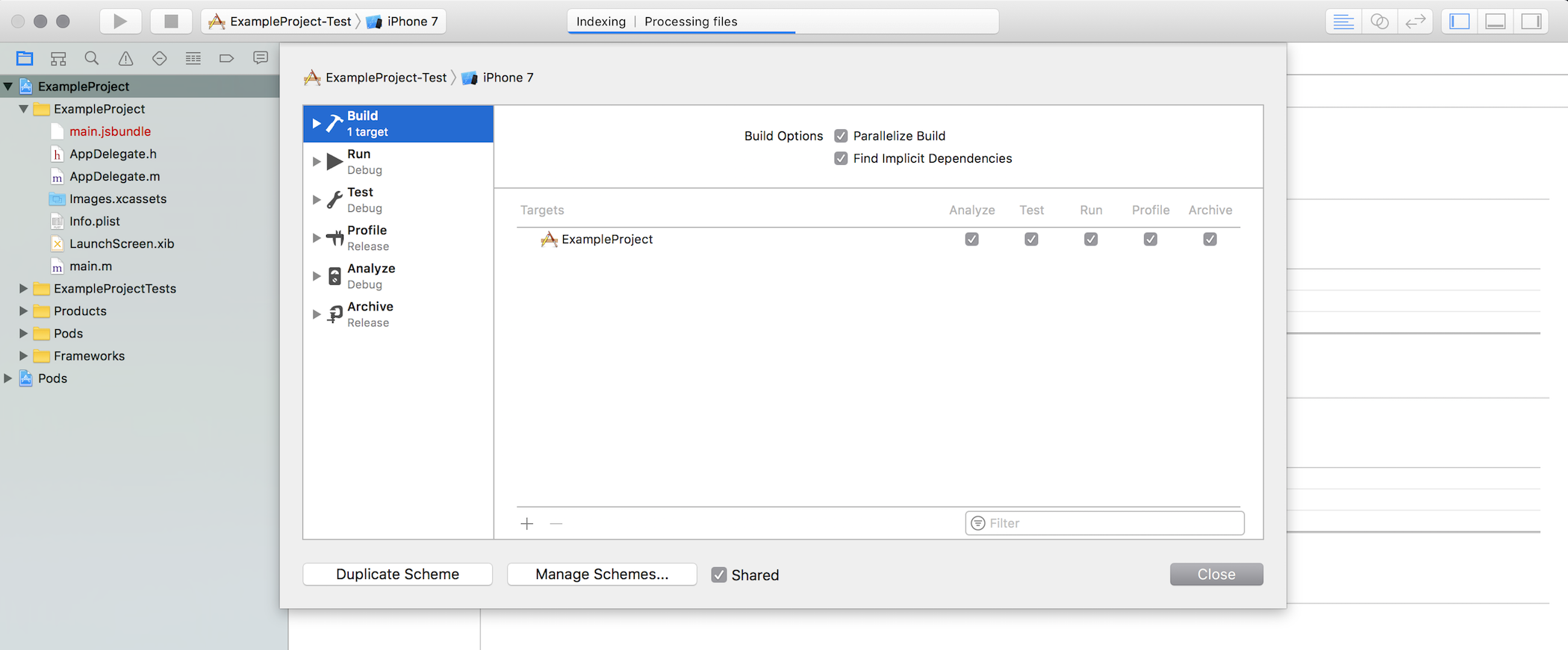
Check the box at the bottom of the dialog marked Shared to make this a shared scheme:
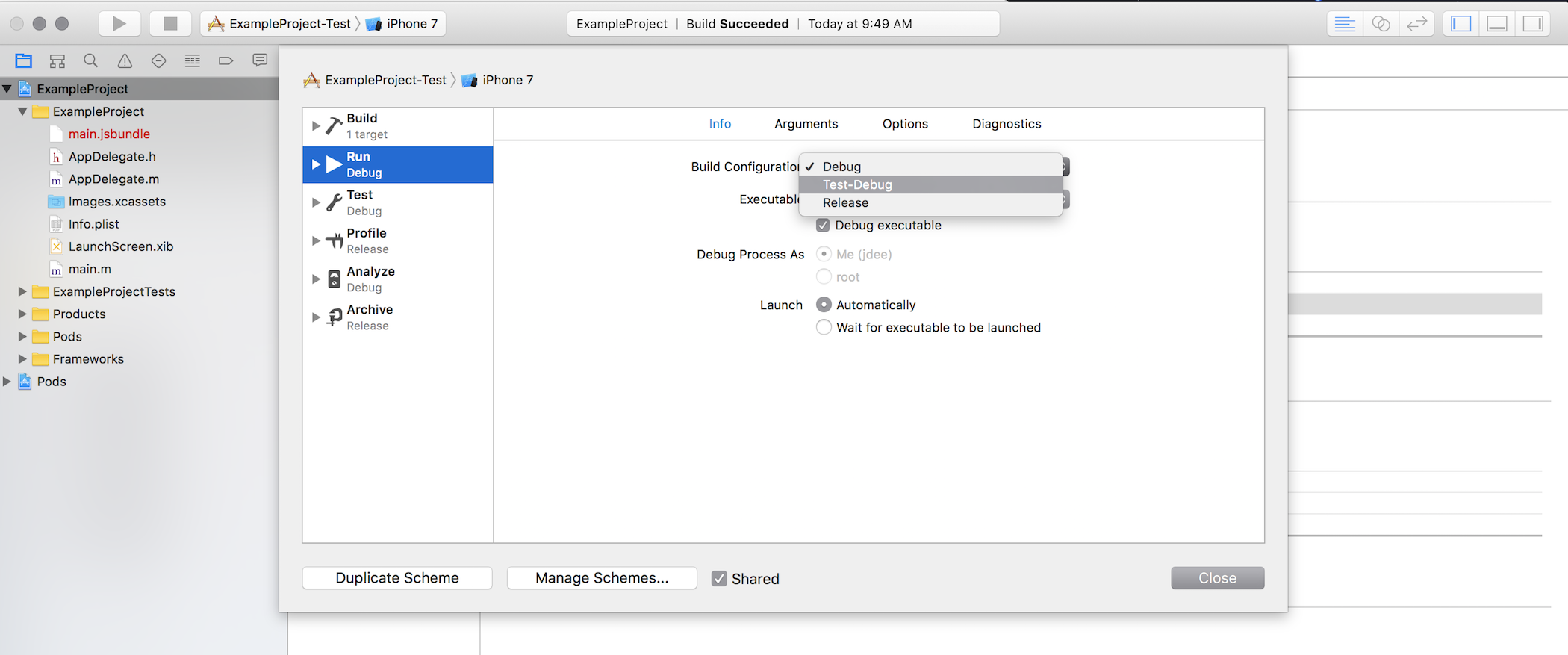
For each task listed in the sidebar of the dialog that currently uses the Debug configuration (Run, Test, Analyze), select the new `Test-Debug` configuration instead.
Once this is complete, click Close to dismiss the scheme dialog.
### Step 4: Add a custom preprocessor macro to the new configuration
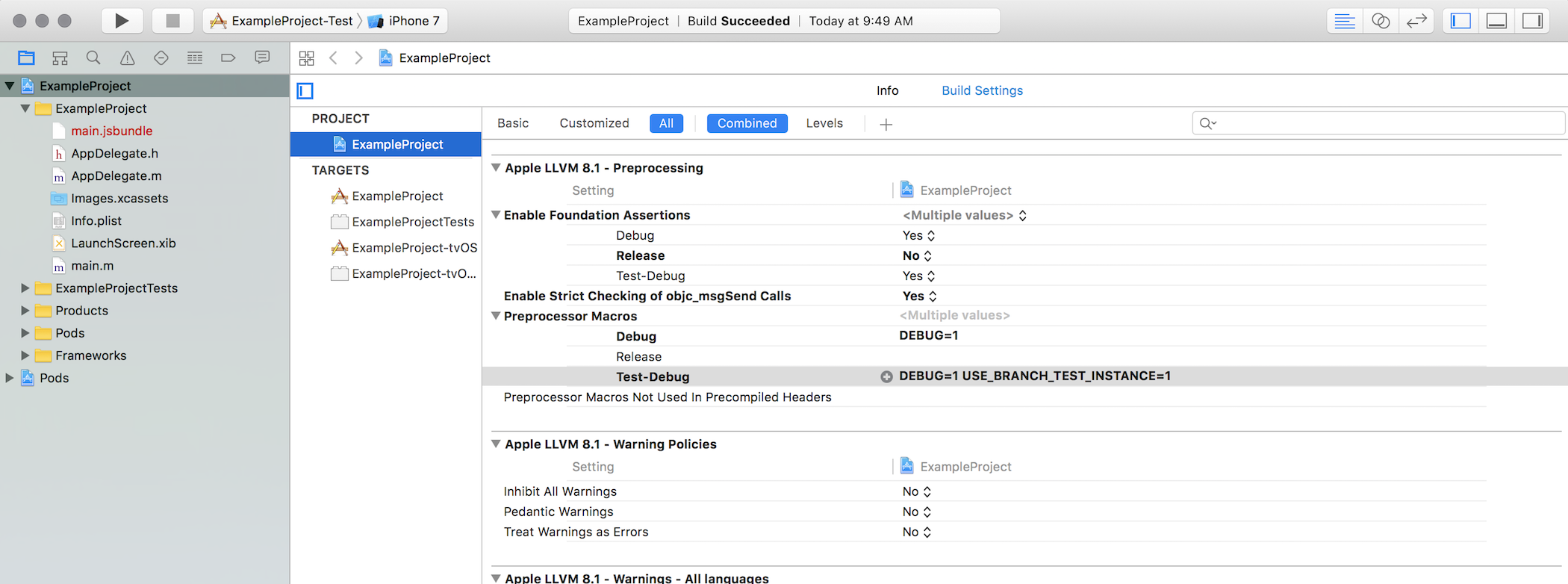
Go to the Build Settings tab in the Project settings. Note that all settings can now be configured separately for the new `Test-Debug` configuration. It is currently configured the same as the `Debug` configuration.
Under Apple LLVM 8.1 - Preprocessing, find the Preprocessor Macros setting. Double-click the value for `Test-Debug`, which should be bold and show `DEBUG=1`. This brings up a dialog. Click the + button at the bottom of the dialog to add a new macro. Type in `USE_BRANCH_TEST_INSTANCE=1`.
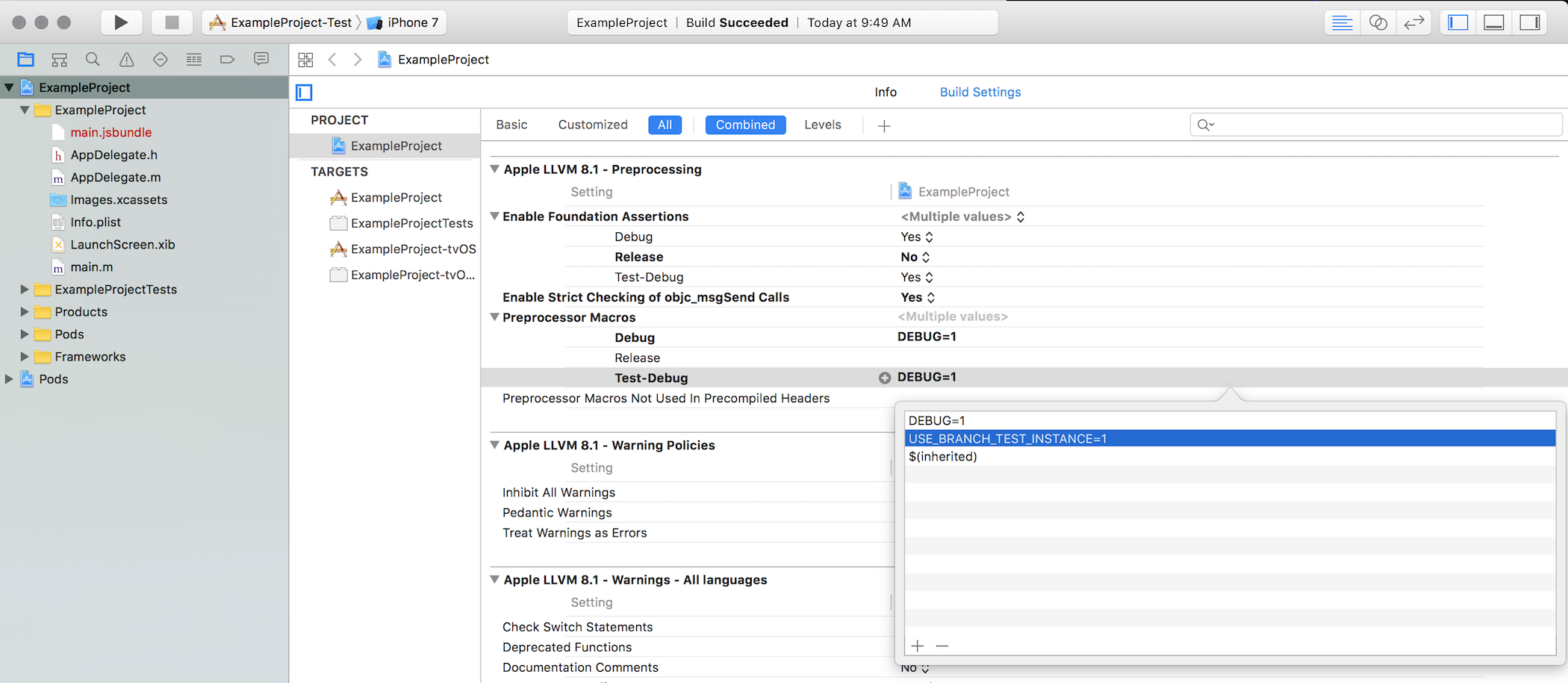
Click outside the dialog to exit. The value of the setting for `Test-Debug` should now read `DEBUG=1 USE_BRANCH_TEST_INSTANCE=1`.
#### (Optional) Add a Swift compilation flag
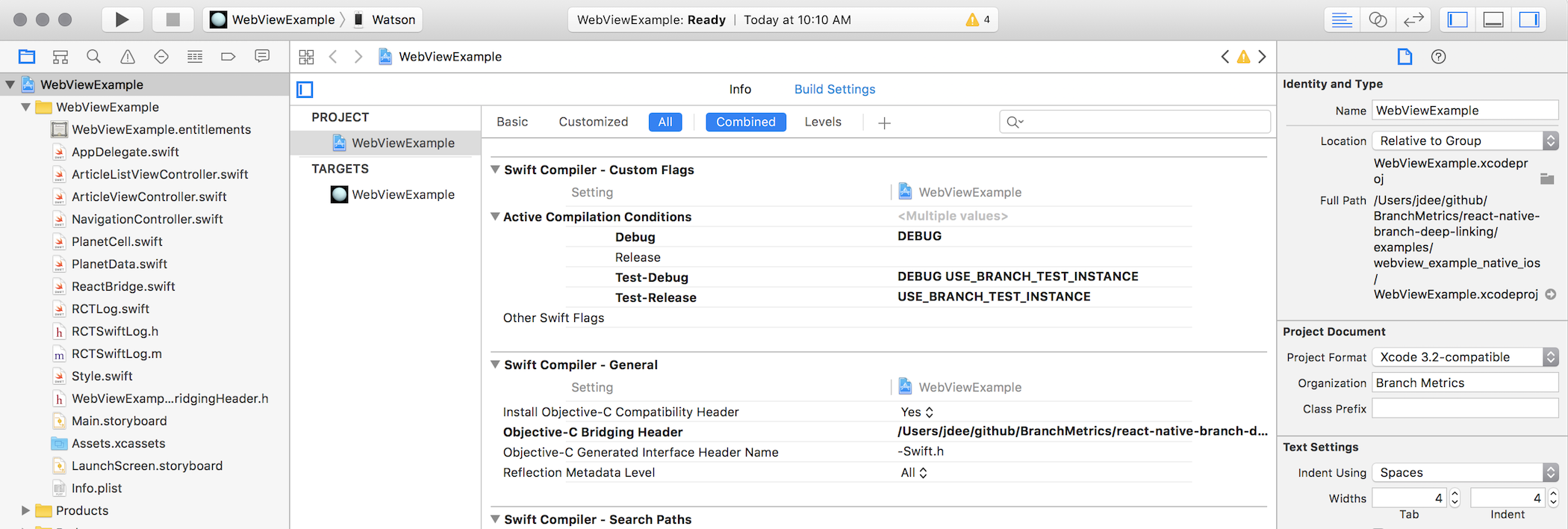
If you are also using Swift in your app, add a similar setting under Swift-Compiler - Custom Flags. Under Active Compilation Conditions, add `USE_BRANCH_TEST_INSTANCE` to the setting for Test-Debug.
### Step 5: Conditional compilation in code
In your AppDelegate, before calling initSession, add a conditional call to useTestInstance using the compiler flag you've specified.
_Objective-C_
```Objective-C
#ifdef USE_BRANCH_TEST_INSTANCE
[RNBranch useTestInstance];
#endif
[RNBranch initSessionWithLaunchOptions:launchOptions isReferrable:YES];
```
_Swift_
```Swift
#if USE_BRANCH_TEST_INSTANCE
RNBranch.useTestInstance()
#endif
RNBranch.initSession(launchOptions: launchOptions, isReferrable: true)
```
### Step 6: Repeat for Release configuration
If you also want to use the same compilation option for release builds (i.e., make release builds that use the Branch test instance), repeat Steps 1, 3 and 4 for the Release configuration:
- Copy the existing `Release` configuration and name it `Test-Release`.
- Use Project > Scheme > Edit Scheme... and assign `Test-Release` to tasks that currently use `Release`: Profile and Archive.
- Add `USE_BRANCH_TEST_INSTANCE` to the compilation flags for Test-Release as well as Test-Debug. **Note:** Do not set the `DEBUG` option in the Test-Release configuration.
### Step 7: Update Podfile
Add your new configurations to your Podfile:
```Ruby
platform :ios, "8.0"
pod "React", path: "../node_modules/react-native"
pod "react-native-branch", path: "../node_modules/react-native-branch"
pod "Branch-SDK", path: "../node_modules/react-native-branch/ios"
target "ExampleProject"
target "ExampleProjectTests"
# Add this line
project "ExampleProject", "Test-Debug" => :debug, "Test-Release" => :release
```
And now run `pod install` after modifying the Podfile. This ensures that when you use Test-Debug,
all pods will be built in debug mode. The default is `:release`, so it's not necessary to specify
the Test-Release configuration, but adding it may make things clearer.
### Step 8: Try it out
Now whenever you use the new scheme for any task, including debugging and archiving, the Branch
test instance will be used. If you use the original scheme, the Branch live instance will be used.
The scheme can also be passed to xcodebuild using the -scheme argument when you build or test, e.g.
`xcodebuild -scheme MyApp-Test`. This is also true for other build tools like Fastlane's `gym` and `scan`
actions.
The `webview_example_native_ios` and `testbed_example_native_ios` examples in this repo are both set up exactly as described here, for reference.