react-native-background-geolocation
Version:
The most sophisticated cross-platform background location-tracking & geofencing module with battery-conscious motion-detection intelligence
492 lines (446 loc) • 18.7 kB
TypeScript
/// <reference path="../types.d.ts" />
///
declare module "react-native-background-geolocation" {
/**
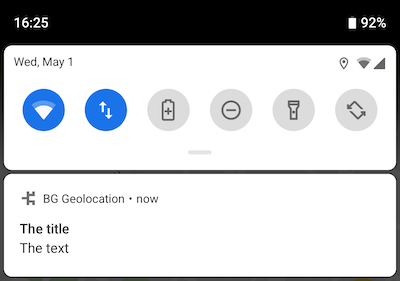
* __[Android only]__ The Android operating system requires a persistent notification when running a foreground service.
*
* 
*
* @example
* ```typescript
* BackgroundGeolocation.ready({
* notification: {
* title: "The Title",
* text: "The Text"
* }
* })
* .
* .
* .
* // To update the notification in real-time, use #setConfig
* // You need only provide *changed* parameters -- initially configured
* // parameters will remain unchanged.
* BackgroundGeolocation.setConfig({
* notification: {
* title: "The New Title"
* }
* })
* ```
*
* ## Custom Notification Layouts
*
* Use the [[layout]] option to provide the name of your own Android Layout XML File. See [Android Custom Notification Layout](github:wiki/Android-Custom-Notification-Layout) for setup instructions.
*/
interface Notification {
/**
* When running the service with [[foregroundService]]: true, Android requires a persistent notification in the Notification Bar. This will control the **priority** of that notification as well as the position of the notificaiton-bar icon.
*
* The following `notificationPriority` values defined as static constants upon the [[BackgroundGeolocation]] object:
*
* | Value | Description |
* |---------------------------------------------------------|---------------------------------------------------------------------------------------------------------|
* | [[BackgroundGeolocation.NOTIFICATION_PRIORITY_DEFAULT]] | Notification weighted to top of list; notification-bar icon weighted left |
* | [[BackgroundGeolocation.NOTIFICATION_PRIORITY_HIGH]] | Notification **strongly** weighted to top of list; notification-bar icon **strongly** weighted to left |
* | [[BackgroundGeolocation.NOTIFICATION_PRIORITY_LOW]] | Notification weighted to bottom of list; notification-bar icon weighted right |
* | [[BackgroundGeolocation.NOTIFICATION_PRIORITY_MAX]] | Same as `NOTIFICATION_PRIORITY_HIGH` |
* | [[BackgroundGeolocation.NOTIFICATION_PRIORITY_MIN]] | Notification **strongly** weighted to bottom of list; notification-bar icon **hidden** |
*
* @example
* ```typescript
* BackgroundGeolocation.ready({
* foregroundService: true,
* notification: {
* priority: BackgroundGeolocation.NOTIFICATION_PRIORITY_MIN
* });
* ```
*/
priority?: NotificationPriority;
/**
* Configure the Android Foreground Service icon and notification to be displayed __always__. Defaults to `false`.
*
* The default behaviour is for the notification to be shown only while the SDK detects the device to be *moving*. Some developers desire to provide full-disclosure to their users when the SDK has been enabled.
*/
sticky?: boolean;
/**
* Configure the *title* of the persistent notification in the Notification Bar when running with [[Config.foregroundService]] __`true`__
* @break
*
* Defaults to the application name from `AndroidManifest`. When running the service with [[foregroundService]]: true, Android requires a persistent notification. This will configure the **title** of that notification.
*/
title?: string;
/**
* Configure the *text* of the persistent notification in the Notification Bar when running with [[Config.foregroundService]] __`true`__
* @break
*
* Defaults to *"Location service activated"*. When running the service with [[Config.foregroundService]]: true, Android requires a persistent notification. This will configure the **text** of that notification.
*/
text?: string;
/**
* Configure the *color* of the persistent notification icon in the Notification Bar when running with [[Config.foregroundService]] __`true`__
* @break
*
* Defaults to `null`. When running the service with [[Config.foregroundService]]: true, Android requires a persistent notification. This will configure the **color** of the notification **icon** (API >= 21).
*
* Supported formats are:
* - `#RRGGBB`
* - `#AARRGGBB`
*/
color?: string;
/**
* Configure the *small icon* of the persistent notification in the Notification Bar when running with [[Config.foregroundService]] __`true`__
* @break
*
* When running the service with [[Config.foregroundService]]: true, Android requires a persistent notification in the Notification Bar. This allows you customize that icon. Defaults to your application icon.
*
* ### ⚠️ Warning:
* - You must specify the **`type`** (`drawable|mipmap`) of resource you wish to use in the following format: `{type}/icon_name`
* - Do not append the file-extension (eg: `.png`)
*
* @example
* ```typescript
* // 1. drawable
* BackgroundGeolocation.ready({
* notification: {
* smallIcon: "drawable/my_custom_notification_small_icon"
* }
* });
*
* // 2. mipmap
* BackgroundGeolocation.ready({
* notification: {
* smallIcon: "mipmap/my_custom_notification_small_icon"
* }
* });
* ```
*
* ### ℹ️ See also:
* - [[largeIcon]]
*/
smallIcon?: string;
/**
* Configure the *large icon* of the persistent notification in the Notification Bar when running with [[Config.foregroundService]] __`true`__
* @break
*
* When running the service with [[Config.foregroundService]]: true, Android requires a persistent notification in the Notification Bar. This allows you customize that icon. Defaults to your application icon.
*
* ### ⚠️ Warning:
* - You must specify the **`type`** (`drawable|mipmap`) of resource you wish to use in the following format: `{type}/icon_name`
* - Do not append the file-extension (eg: `.png`)
*
* @example
* ```typescript
* // 1. drawable
* BackgroundGeolocation.ready({
* notification: {
* smallIcon: "drawable/my_custom_notification_small_icon"
* });
*
* // 2. mipmap
* BackgroundGeolocation.ready({
* notification: {
* smallIcon: "mipmap/my_custom_notification_small_icon"
* }
* });
* ```
*
* ### ℹ️ See also:
* - [[smallIcon]]
*/
largeIcon?: string;
/**
* Specifies the name of your custom Android Layout XML file.
*
ℹ️ See [Android Custom Notification Layout](github:wiki/Android-Custom-Notification-Layout) for setup instructions.
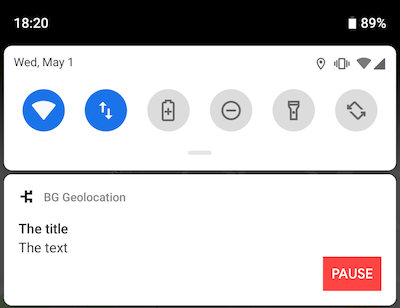
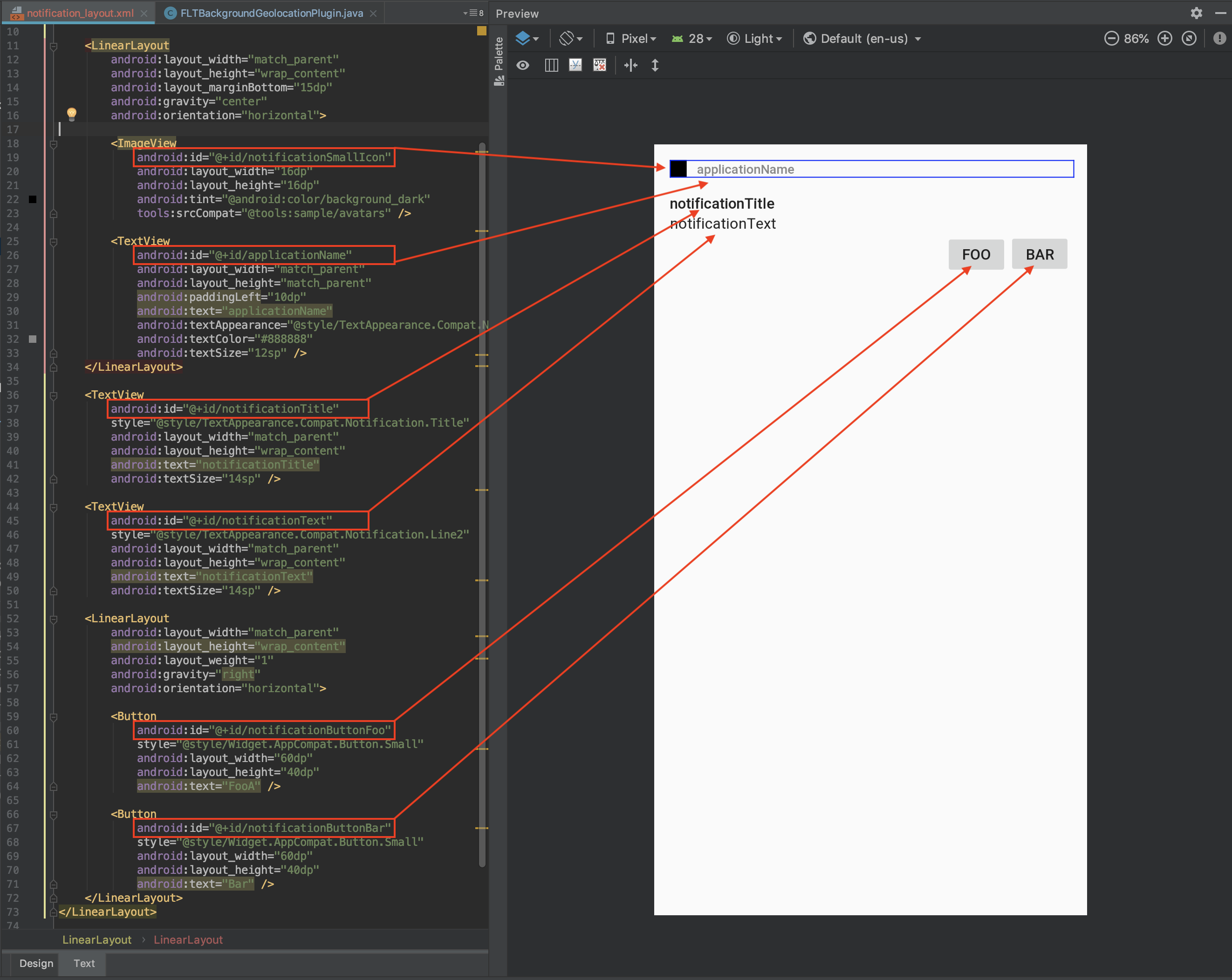
Even if you have no experience with Android Layouts, it doesn't take much to figure out the basics. You'll mostly be adding `<TextView />`, `<ImageView />` and `<Button />` elements. The key thing to be aware of is the `android:id` of these elements and how these are referenced from `BackgroundGeolocation.notification` configuration: your `android:id` **must** be prefixed with the word `notification` (eg: `notificationText`). There is one exception: `applicationName`, which the plugin will automatically render your Android application name.
### Layout Special Elements
When BackgroundGeolocation renders your custom notification layout, it will be querying for the following elements addressed by their `android:id`. When found, their content will be updated from the corresponding "Data-source":
| Layout element `android:id` | Data-source |
|-------------------------------|-------------------------------------------|
| `applicationName` | *Application name* from `AndroidManifest` |
| `notificationTitle` | [[title]] |
| `notificationText` | [[text]] |
| `notificationSmallIcon` | [[smallIcon]] |
| `notificationLargeIcon` | [[largeIcon]] |
@example
* ```typescript
* BackgroundGeolocation.ready({
* notification: {
* layout: "my_notification_layout", // <-- custom layout xml file
* title: "The Notification Title",
* text: "The Notification Text",
* smallIcon: "mipmap/my_small_icon", // <-- defaults to app icon
* largeIcon: "mipmap/my_large_icon"
* }
* });
* ```
### Custom `<TextView />` Elements
You can declare your own custom `<TextView />` elements and render data into them using the [[strings]] parameter.
@example
* ```xml
* <TextView
* android:id="@+id/myCustomElement" // <-- myCustomElement
* android:layout_width="match_parent"
* android:layout_height="wrap_content"
* android:text="notificationTitle" />
* ```
You can provide data to your custom elements using the [[strings]] configuration parameter:
@example
* ```typescript
* BackgroundGeolocation.ready({
* notification: {
* strings: {
* myCustomElement: "My Custom Element Text"
* }
* }
* });
* ```
### Custom `<Button />` Elements:
You can declare your own custom `<Button />` elements and register click-listeners upon them using the [[actions]] parameter:
@example
* ```xml
* <Button
* android:id="@+id/notificationButtonFoo" // <-- notificationButtonFoo
* style="@style/Widget.AppCompat.Button.Small"
* android:layout_width="60dp"
* android:layout_height="40dp"
* android:text="Foo" />
* ```
Register listeners for your button using the [[actions]] parameter:
@example
* ```typescript
* BackgroundGeolocation.ready({
* notification: {
* actions: [ // <-- register button listeners
* "notificationButtonFoo",
* "notificationButtonBar"
* ]
* }
* });
*
* // Listen to custom button clicks:
* BackgroundGeolocation.onNotificationAction((buttonId) => {
* console.log("[onNotificationAction] - ", buttonId);
* switch(buttonId) {
* case "notificationButtonFoo":
* break;
* case "notificationButtonBar':
* break;
* }
* });
* ```
### Sample Layout
As a starting-point for your custom layout, copy the following content into your new file:
@example
* ```xml
* <?xml version="1.0" encoding="utf-8"?>
* <LinearLayout xmlns:android="http://schemas.android.com/apk/res/android"
* xmlns:tools="http://schemas.android.com/tools"
* android:layout_width="match_parent"
* android:layout_height="135dp"
* android:gravity="start"
* android:adjustViewBounds="true"
* android:orientation="vertical"
* android:padding="15dp">
*
* <LinearLayout
* android:layout_width="match_parent"
* android:layout_height="wrap_content"
* android:layout_marginBottom="15dp"
* android:gravity="center"
* android:orientation="horizontal">
*
* <ImageView
* android:id="@+id/notificationSmallIcon"
* android:layout_width="16dp"
* android:layout_height="16dp"
* android:tint="@android:color/background_dark"
* tools:srcCompat="@tools:sample/avatars" />
*
* <TextView
* android:id="@+id/applicationName"
* android:layout_width="match_parent"
* android:layout_height="match_parent"
* android:paddingLeft="10dp"
* android:text="applicationName"
* android:textAppearance="@style/TextAppearance.Compat.Notification.Title"
* android:textColor="#888888"
* android:textSize="12sp" />
* </LinearLayout>
*
* <TextView
* android:id="@+id/notificationTitle"
* style="@style/TextAppearance.Compat.Notification.Title"
* android:layout_width="match_parent"
* android:layout_height="wrap_content"
* android:text="notificationTitle"
* android:textSize="14sp" />
*
* <TextView
* android:id="@+id/notificationText"
* style="@style/TextAppearance.Compat.Notification.Line2"
* android:layout_width="match_parent"
* android:layout_height="wrap_content"
* android:text="notificationText"
* android:textSize="14sp" />
*
* <LinearLayout
* android:layout_width="match_parent"
* android:layout_height="wrap_content"
* android:layout_weight="1"
* android:gravity="right"
* android:orientation="horizontal">
*
* <Button
* android:id="@+id/notificationButtonFoo"
* style="@style/Widget.AppCompat.Button.Small"
* android:layout_width="60dp"
* android:layout_height="40dp"
* android:text="FooA" />
*
* <Button
* android:id="@+id/notificationButtonBar"
* style="@style/Widget.AppCompat.Button.Small"
* android:layout_width="60dp"
* android:layout_height="40dp"
* android:text="Bar" />
* </LinearLayout>
* </LinearLayout>
* ```
### Using your custom layout:
@example
* ```typescript
* BackgroundGeolocation.ready({
* notification: {
* title: "The title",
* text: "The text",
* layout: "notification_layout",
* actions: [
* "notificationButtonFoo", // <-- register button click-listeners
* "notificationButtonBar"
* ],
* strings: {
* "myCustomTextBox1": "custom TextBox element"
* }
* }
* });
*
* // Listen to custom notification button clicks (notification.actions)
* BackgroundGeolocation.onNotificationAction((buttonId) => {
* console.log("[onNotificationAction] - ", buttonId);
* switch(buttonId) {
* case "notificationButtonFoo":
* // Handle button click on [Foo]
* break;
* case "notificationButtonBar":
* // Handle button click on [Bar]
* break;
* }
* });
* ```
*/
layout?: string;
/**
* Custom strings to render into `<TextView />` elements of a custom notification [[layout]].
ℹ️ See [Android Custom Notification Layout](github:wiki/Android-Custom-Notification-Layout) for setup instructions.
You can declare your own custom `<TextView />` elements and render data into them using the `notification.strings` parameter.
@example
* ```xml
* <TextView
* android:id="@+id/myCustomElement" // <-- myCustomElement
* android:layout_width="match_parent"
* android:layout_height="wrap_content"
* android:text="notificationTitle" />
* ```
You can provide data to your custom elements using the [[strings]] configuration parameter:
@example
* ```typescript
* BackgroundGeolocation.ready({
* notification: {
* strings: {
* myCustomElement: "My Custom Element Text"
* }
* }
* });
* ```
*/
strings?: Object;
/**
* Declare click listeners for `<Button />` elements of a custom notification [[layout]].

ℹ️ See [Android Custom Notification Layout](github:wiki/Android-Custom-Notification-Layout) for setup instructions.
You can declare your own custom `<Button />` elements and register click-listeners upon them using the [[actions]] parameter:
@example
* ```xml
* <Button
* android:id="@+id/notificationButtonPause" // <-- notificationButtonPause
* style="@style/Widget.AppCompat.Button.Small"
* android:layout_width="60dp"
* android:layout_height="40dp"
* android:text="Foo" />
* ```
Register listeners for your button using `notification.actions`:
@example
* ```typescript
* BackgroundGeolocation.ready({
* notification: {
* actions: [ // <-- register button listeners
* "notificationButtonPause"
* ]
* }
* });
*
* // Listen to custom button clicks:
* BackgroundGeolocation.onNotificationAction((buttonId) => {
* console.log("[onNotificationAction] - ", buttonId);
* switch(buttonId) {
* case "notificationButtonPause":
* BackgroundGeolocation.changePace(false);
* break;
* .
* .
* .
* }
* });
* ```
*/
actions?: Object;
/**
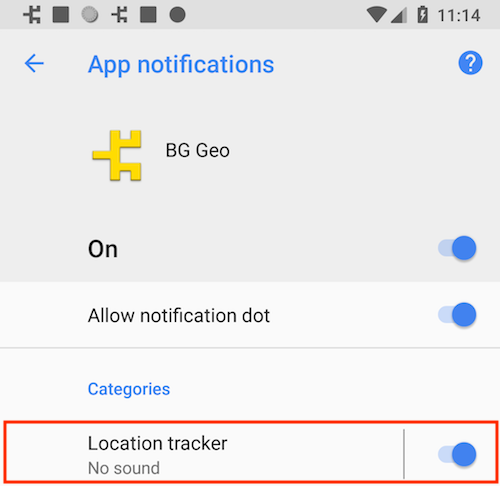
* Configure the name of the plugin's notification-channel used to display the [[Config.foregroundService]] notification.
* @break
*
* On Android O+, the plugin's foreground-service needs to create a "Notification Channel". The name of this channel can be seen in:
* > `Settings->App & Notifications->Your App.`
*
* Defaults to your application's name from `AndroidManifest`.
*
* \
*
*
* @example
* ```typescript
* BackgroundGeolocation.ready({
* notification: {
* channelName: "Location Tracker"
* }
* });
*
* // or with #setConfig
* BackgroundGeolocation.setConfig({
* notification: {
* channelName: "My new channel name"
* }
* });
* ```
*/
channelName?: string;
/**
* Customize the notification channel ID.
* Defaults to `your.package.name.TSLocationManager`
*
* __NOTE__: It is not typically required to change this. Typical use-cases are for users who use an existing Android foreground-service who wish the SDK to share an existing notification and channel.
*/
channelId?: string;
}
}