react-beautiful-dnd
Version:
Beautiful, accessible drag and drop for lists with React.js
1,039 lines (736 loc) • 63.7 kB
Markdown
# react-beautiful-dnd
Beautiful, accessible drag and drop for lists with [`React.js`](https://facebook.github.io/react/)
[](https://travis-ci.org/atlassian/react-beautiful-dnd) [](https://www.npmjs.com/package/react-beautiful-dnd) [](https://david-dm.org/atlassian/react-beautiful-dnd) [](https://greenkeeper.io/) [](http://semver.org/spec/v2.0.0.html)

## Examples 🎉
See how beautiful it is for yourself!
### Viewing on a desktop
[All the examples!](https://react-beautiful-dnd.netlify.com)
### Viewing on a mobile or tablet
- [Simple list](https://react-beautiful-dnd.netlify.com/iframe.html)
- [Board](https://react-beautiful-dnd.netlify.com/iframe.html?selectedKind=board&selectedStory=simple) - best viewed in landscape
> We provide different links for touch devices as currently [storybook](https://github.com/storybooks/storybook) does not have a good mobile menu experience [more information](https://github.com/storybooks/storybook/issues/124)
## Core characteristics
- Beautiful, natural movement of items
- Clean and powerful api which is simple to get started with
- Plays extremely well with standard browser interactions
- Unopinionated styling
- No creation of additional wrapper dom nodes - flexbox and focus management friendly!
## Currently supported feature set
- Vertical lists ↕
- Horizontal lists ↔
- Movement between lists (▤ ↔ ▤)
- Mouse 🐭, keyboard 🎹 and touch 👉📱 (mobile, tablet and so on) support
- Conditional [dragging](https://github.com/atlassian/react-beautiful-dnd#props-1) and [dropping](https://github.com/atlassian/react-beautiful-dnd#conditionally-dropping)
- Multiple independent lists on the one page
- Independent nested lists - a list can be a child of another list, but you cannot drag items from the parent list into a child list
- Flexible item sizes - the draggable items can have different heights (vertical) or widths (horizontal))
- Custom drag handle - you can drag a whole item by just a part of it
- A droppable list can be a scroll container (without a scrollable parent) or be the child of a scroll container (that also does not have a scrollable parent)
- Server side rendering compatible
- Plays well with [nested interactive elements](https://github.com/atlassian/react-beautiful-dnd#interactive-child-elements-within-a-draggable) by default
### Lots more coming soon
You can check out all the features that will be landing soon [on our issue page](https://github.com/atlassian/react-beautiful-dnd/issues).
## Not for everyone
There are a lot of libraries out there that allow for drag and drop interactions within React. Most notable of these is the amazing [`react-dnd`](https://github.com/react-dnd/react-dnd). It does an incredible job at providing a great set of drag and drop primitives which work especially well with the [wildly inconsistent](https://www.quirksmode.org/blog/archives/2009/09/the_html5_drag.html) html5 drag and drop feature. **`react-beautiful-dnd` is a higher level abstraction specifically built for vertical and horizontal lists**. Within that subset of functionality `react-beautiful-dnd` offers a powerful, natural and beautiful drag and drop experience. However, it does not provide the breadth of functionality offered by react-dnd. So this library might not be for you depending on what your use case is.
## Basic usage example
This is a simple reorderable list. [You can play with it on webpackbin](https://www.webpackbin.com/bins/-Kr9aE9jnUeWlphY8wsw)

```js
import React, { Component } from 'react';
import ReactDOM from 'react-dom';
import { DragDropContext, Droppable, Draggable } from 'react-beautiful-dnd';
// fake data generator
const getItems = count =>
Array.from({ length: count }, (v, k) => k).map(k => ({
id: `item-${k}`,
content: `item ${k}`,
}));
// a little function to help us with reordering the result
const reorder = (list, startIndex, endIndex) => {
const result = Array.from(list);
const [removed] = result.splice(startIndex, 1);
result.splice(endIndex, 0, removed);
return result;
};
// using some little inline style helpers to make the app look okay
const grid = 8;
const getItemStyle = (isDragging, draggableStyle) => ({
// some basic styles to make the items look a bit nicer
userSelect: 'none',
padding: grid * 2,
margin: `0 0 ${grid}px 0`,
// change background colour if dragging
background: isDragging ? 'lightgreen' : 'grey',
// styles we need to apply on draggables
...draggableStyle,
});
const getListStyle = isDraggingOver => ({
background: isDraggingOver ? 'lightblue' : 'lightgrey',
padding: grid,
width: 250,
});
class App extends Component {
constructor(props) {
super(props);
this.state = {
items: getItems(10),
};
this.onDragEnd = this.onDragEnd.bind(this);
}
onDragEnd(result) {
// dropped outside the list
if (!result.destination) {
return;
}
const items = reorder(
this.state.items,
result.source.index,
result.destination.index
);
this.setState({
items,
});
}
// Normally you would want to split things out into separate components.
// But in this example everything is just done in one place for simplicity
render() {
return (
<DragDropContext onDragEnd={this.onDragEnd}>
<Droppable droppableId="droppable">
{(provided, snapshot) => (
<div
ref={provided.innerRef}
style={getListStyle(snapshot.isDraggingOver)}
>
{this.state.items.map(item => (
<Draggable key={item.id} draggableId={item.id}>
{(provided, snapshot) => (
<div>
<div
ref={provided.innerRef}
{...provided.droppableProps}
{...provided.dragHandleProps}
style={getItemStyle(
snapshot.isDragging
provided.droppableProps.style,
)}
>
{item.content}
</div>
{provided.placeholder}
</div>
)}
</Draggable>
))}
{provided.placeholder}
</div>
)}
</Droppable>
</DragDropContext>
);
}
}
// Put the thing into the DOM!
ReactDOM.render(<App />, document.getElementById('app'));
```
## Driving philosophy: physicality
The core design idea of `react-beautiful-dnd` is physicality: we want users to feel like they are moving physical objects around
### Application 1: no instant movement
It is a fairly standard drag and drop pattern for things to disappear and reappear in response to the users drag. For a more natural drag we animate the movement of items as they need to move out of the way while dragging to more clearly show a drags effect. We also animate the drop of an item so that it animates into its new home position. At no point is an item instantly moved anywhere — regardless of whether it is dragging or not.
### Application 2: knowing when to move
It is quite common for drag and drop interactions to be based on the position that user started the drag from.
In `react-beautiful-dnd` a dragging items impact is based on its centre of gravity — regardless of where a user grabs an item from. A dragging items impact follows similar rules to a set of scales ⚖️. Here are some rules that are followed to allow for a natural drag experience even with items of flexible height:
- A list is *dragged over* when the centre position of a dragging item goes over one of the boundaries of the list
- A resting drag item will move out of the way of a dragging item when the centre position of the dragging item goes over the edge of the resting item. Put another way: once the centre position of an item (A) goes over the edge of another item (B), B moves out of the way.
### Application 3: no drop shadows
Drop shadows are useful in an environment where items and their destinations snap around. However, with `react-beautiful-dnd` it should be obvious where things will be dropping based on the movement of items. This might be changed in the future - but the experiment is to see how far we can get without any of these affordances.
### Application 4: maximise interactivity
`react-beautiful-dnd` works really hard to avoid as many periods of non-interactivity as possible. The user should feel like they are in control of the interface and not waiting for an animation to finish before they can continue to interact with the interface. However, there is a balance that needs to be made between correctness and power in order to make everybody's lives more sane. Here are the only situations where some things are not interactive:
1. From when a user cancels a drag to when the drop animation completes. On cancel there are lots of things moving back to where they should be. If you grab an item in a location that is not its true home then the following drag will be incorrect.
2. Starting a drag on an item that is animating its own drop. For simplicity this is the case - it is actually quite hard to grab something while it is animating home. It could be coded around - but it seems like an edge case that would add a lot of complexity.
Keep in mind that these periods of inactivity may not always exist.
### Application 5: no drag axis locking
For now, the library does not support drag axis locking (aka drag rails). This is where the user is restricted to only dragging along one axis. The current thinking is this breaks the physical metaphor we are going for and sends a message to the user that they are interacting with a piece of software rather than moving physical objects around. It is possible to ensure that a user can only drop in a single list by using props `type` and `isDropDisabled`. You can also do some visual treatment to the list `onDragStart` to show the user that this is the only place they can interact with.
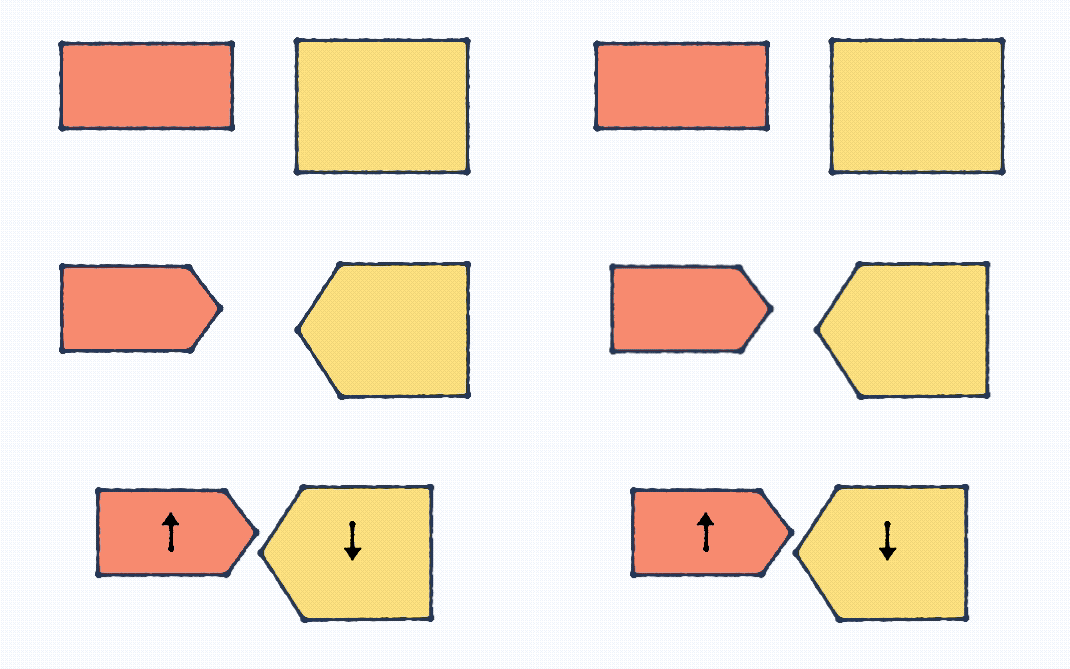
### Application 6: natural cross list movement
Rather than using an index based approach for keyboard movement between lists, `react-beautiful-dnd` performs cross list movement based on **inertia, gravity and collisions**. You can find out more about how this works by reading the blog ["Natural keyboard movement between lists"](https://medium.com/@alexandereardon/friction-gravity-and-collisions-3adac3a94e19).
## Carefully designed animations
With things moving a lot it would be easy for the user to become distracted by the animations or for them to get in the way. We have tweaked the various animations to ensure the right balance of guidance, performance and interactivity.
### Dropping
When you drop a dragging item its movement is based on physics (thanks [`react-motion`](https://github.com/chenglou/react-motion)). This results in the drop feeling more weighted and physical.
### Moving out of the way
Items that are moving out of the way of a dragging item do so with a CSS transition rather than physics. This is to maximise performance by allowing the GPU to handle the movement. The CSS animation curve has been designed to communicate getting out of the way.
How it is composed:
1. A warm up period to mimic a natural response time
2. A small phase to quickly move out of the way
3. A long tail so that people can read any text that is being animated in the second half of the animation
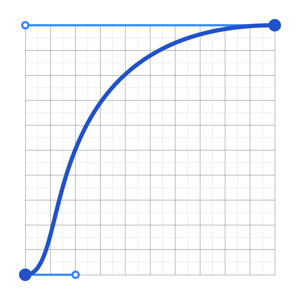
> animation curve used when moving out of the way
## Caring about the interaction details
### Focus management
`react-beautiful-dnd` does not create any wrapper elements. This means that it will not impact the usual tab flow of a document. For example, if you are wrapping an *anchor* tag then the user will tab to the anchor directly and not an element surrounding the *anchor*. Whatever element you wrap will be given a `tab-index` to ensure that users can tab to the element to perform keyboard dragging.
### Accessibility
Traditionally drag and drop interactions have been exclusively a mouse or touch interaction. This library ships with support for drag and drop interactions **using only a keyboard**. This enables power users to drive their experience entirely from the keyboard. As well as opening up these experiences to users who would have been excluded previously.
In addition to supporting keyboard, we have also audited how the keyboard shortcuts interact with standard browser keyboard interactions. When the user is not dragging they can use their keyboard as they normally would. While dragging we override and disable certain browser shortcuts (such as `tab`) to ensure a fluid experience for the user.
## Mouse dragging
### Sloppy clicks and click blocking 🐱🎁
When a user presses the mouse down on an element, we cannot determine if the user was clicking or dragging. Also, sometimes when a user clicks they can move the cursor slightly — a sloppy click. So we only start a drag once the user has moved beyond a certain distance with the mouse down (the drag threshold) — more than they would if they were just making a sloppy click. If the drag threshold is not exceeded then the user interaction behaves just like a regular click. If the drag threshold is exceeded then the interaction will be classified as a drag and the standard click action will not occur.
This allows consumers to wrap interactive elements such as an anchor and have it be both a standard anchor as well as a draggable item in a natural way.
(🐱🎁 is a [schrodinger's cat](https://www.youtube.com/watch?v=IOYyCHGWJq4) joke)
### Keyboard shortcuts: mouse dragging
When a drag **is not occurring** `react-beautiful-dnd` does not impact any of the standard keyboard interactions (it has no listeners bound).
When a drag **is occurring** with a *mouse* the user is able to execute the following keyboard shortcuts:
- **escape** <kbd>esc</kbd> - cancel the drag
During a mouse drag the following standard keyboard events are blocked to prevent a bad experience:
- **tab** <kbd>tab ↹</kbd> - blocking tabbing
- **enter** <kbd>⏎</kbd> - blocking submission
Other than these explicitly blocked keyboard events all standard keyboard events should work as expected.
## Keyboard dragging
`react-beautiful-dnd` supports dragging with only a keyboard
### Keyboard shortcuts: keyboard dragging
When a drag is not occurring, key the user will be able to navigation through the `Draggable`'s on a page using the standard **tab** <kbd>tab ↹</kbd> key to move forward through the tabbable elements and (**shift** + **tab**) (<kbd>shift</kbd> + )<kbd>tab ↹</kbd>) to move backwards. We achieve this by adding a `tab-index` to the `Draggable`. When a `Draggable` has focus the **spacebar** <kbd>space</kbd> will **lift** a `Draggable`. This will start the drag.
Once a drag is started the following keyboard shortcuts can be used:
- **spacebar** <kbd>space</kbd> - drop the `Draggable`
- **escape** <kbd>esc</kbd> - cancel the drag
The following commands are also available but they depend on the `type` of `Droppable` that the `Draggable` is *currently* in:
#### Within a vertical list
- **Up arrow** <kbd>↑</kbd> - move a `Draggable` upwards in a `Droppable`
- **Down arrow** <kbd>↓</kbd> - move a `Draggable` downwards in a `Droppable`
- **Right arrow** <kbd>→</kbd> - move a `Draggable` to a `Droppable` to the *right* of the current `Droppable` (move to new list)
- **Left arrow** <kbd>←</kbd> - move a `Draggable` to a `Droppable` to the *left* of the current `Droppable` (move to new list)
#### Within a horizontal list
- **Up arrow** <kbd>↑</kbd> - move a `Draggable` to a `Droppable` to *above* the current `Droppable` (move to new list)
- **Down arrow** <kbd>↓</kbd> - move a `Draggable` to a `Droppable` to *below* the current `Droppable` (move to new list)
- **Right arrow** <kbd>→</kbd> - move a `Draggable` to the *right* in the current `Droppable`
- **Left arrow** <kbd>←</kbd> - move a `Draggable` to the *left* in the current `Droppable`
During a drag the following standard keyboard events are blocked to prevent a bad experience:
- **tab** <kbd>tab ↹</kbd> - blocking tabbing
- **enter** <kbd>⏎</kbd> - blocking submission
### Limitations of keyboard dragging
There is current limitation of keyboard dragging: **the drag will cancel if the user scrolls the window**. This could be worked around but for now it is the simplest initial approach.
## Touch dragging
`react-beautiful-dnd` supports dragging on touch devices such as mobiles and tablets.
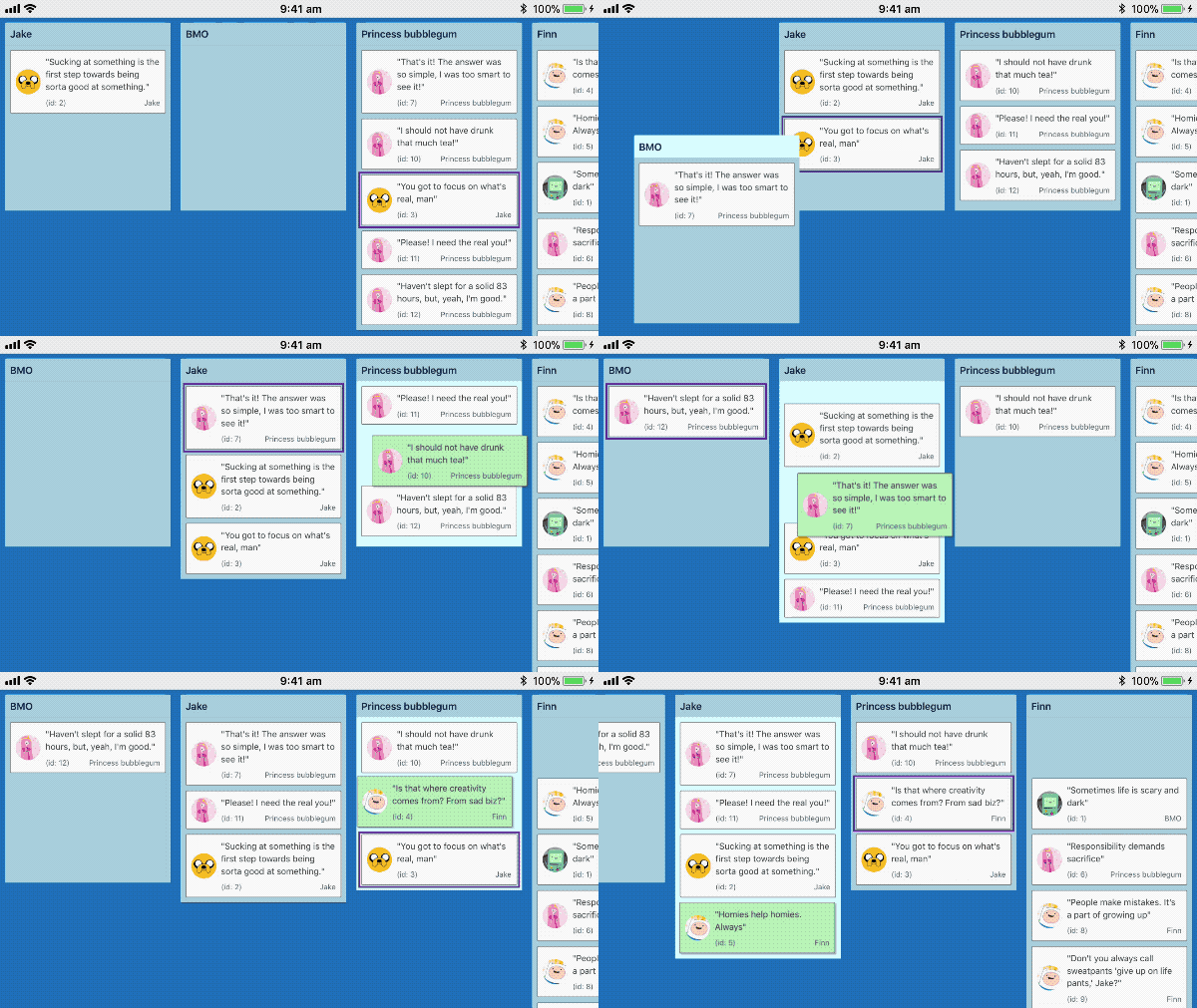
> Recorded on iPhone 6s
### Understanding intention: tap, force press, scroll and drag
When a user presses their finger (or other input) on a `Draggable` we are not sure if they where intending to *tap*, *force press*, *scroll the container* or *drag*. **As much as possible `react-beautiful-dnd` aims to ensure that a users default interaction experience remains unaffected**.
### Starting a drag: long press
A user can start a drag by holding their finger 👇 on an element for a small period of time 🕑 (long press)
### Tap support
If the user lifts their finger before the timer is finished then we release the event to the browser for it to determine whether to perform the standard tap / click action. This allows you to have a `Draggable` that is both clickable such as a anchor as well as draggable. If the item was dragged then we block the tap action from occurring.
### Native scrolling support
If we detect a `touchmove` before the long press timer expires we cancel the pending drag and allow the user to scroll normally. This means that the user needs to be fairly intentional and precise with their grabbing. Once the first `touchmove` occurs we have to either opt in our out of native scrolling.
- If the long press timer **has not** expired: *allow native scrolling and prevent dragging*
- If the long press timer **has** expired: *a drag has started and we prevent native scrolling*
### Force press support
> Safari only
If the user force presses on the element before they have moved the element (even if a drag has already started) then the drag is cancelled and the standard force press action occurs. For an anchor this is a website preview.
### Vibration
> This is merely an idea - it is up to you to add this if you want this behavior.
If you like you could also trigger a [vibration event](https://developer.mozilla.org/en-US/docs/Web/API/Vibration_API) when the user picks up a `Draggable`. This can provide tactile feedback that the user is doing something. It currently is only supported in Chrome on Android.
```js
class App extends React.Component {
onDragStart = () => {
// good times
if (window.navigator.vibrate) {
window.navigator.vibrate(100);
}
};
/*...*/
}
```
## Preset styles
We apply a number of non-visible styles to facilitate the dragging experience. We do this using combination of styling targets and techniques. It is a goal of the library to provide unopinioned styling. However, we do apply some reasonable `cursor` styling on drag handles by default. This is designed to make the library work as simply as possible out of the box. If you want to use your own cursors you are more than welcome to. All you need to do is override our cursor style rules by using a rule with [higher specificity](https://css-tricks.com/specifics-on-css-specificity/).
Here are the styles that are applied at various points in the drag lifecycle:
### In every phase
#### Always: drag handle
Styles applied to: **drag handle element** using the `data-react-beautiful-dnd-drag-handle` attribute.
A long press on anchors usually pops a content menu that has options for the link such as 'Open in new tab'. Because long press is used to start a drag we need to opt out of this behavior
```css
-webkit-touch-callout: none;
```
Webkit based browsers add a grey overlay to anchors when they are active. We remove this tap overlay as it is confusing for users. [more information](https://css-tricks.com/snippets/css/remove-gray-highlight-when-tapping-links-in-mobile-safari/).
```css
-webkit-tap-highlight-color: rgba(0,0,0,0);
```
Avoid the *pull to refresh action* and *delayed anchor focus* on Android Chrome
```css
touch-action: manipulation;
```
### Phase: resting
#### (Phase: resting): drag handle
Styles applied to: **drag handle element** using the `data-react-beautiful-dnd-drag-handle` attribute.
Adding a cursor style to let the user know this element is draggable. You are welcome to override this.
```css
cursor: grab;
```
### Phase: dragging
#### (Phase: dragging): drag handle element
**Styles applied using the `data-react-beautiful-dnd-drag-handle` attribute**
An optimisation to avoid processing `pointer-events` while dragging. Also used to allow scrolling through a drag handle with a track pad or mouse wheel.
```css
point-events: none;
```
#### (Phase: dragging): Draggable element
**Styles applied using the `data-react-beautiful-dnd-draggable` attribute**
This is what we use to control `Draggable`s that need to move out of the way of a dragging `Draggable`.
```css
transition: ${string};
```
**Styles applied using inline styles**
This is described by the type [`DraggableStyle`](https://github.com/atlassian/react-beautiful-dnd#type-information-1).
#### (Phase: dragging): body element
We apply a cursor while dragging to give user feedback that a drag is occurring. You are welcome to override this. A good point to do this is the `onDragStart` event.
```css
cursor: grabbing;
```
To prevent the user selecting text as they drag apply this style
```css
user-select: none;
```
### Phase: dropping
#### (Phase: dropping): drag handle element
**Styles applied using the `data-react-beautiful-dnd-drag-handle` attribute**
We apply the grab cursor to all drag handles except the drag handle for the dropping `Draggable`. At this point the user is able to drag other `Draggable`'s if they like.
```css
cursor: grab;
```
#### (Phase: dropping): draggable
Same as dragging phase
### Phase: user cancel
> When a user explicitly cancels a drag
This is the same as `Phase: dropping`. However we do not apply a `cursor: grab` to the drag handle. During a user initiated cancel we do not allow the dragging of other items until the drop animation is complete.
### Preset styles are vendor prefixed
All styles applied are vendor prefixed correctly to meet the requirements of our [supported browser matrix](https://confluence.atlassian.com/cloud/supported-browsers-744721663.html). This is done by hand to avoid adding to react-beautiful-dnd's size by including a css-in-js library
## Installation
### Package manager
```bash
# yarn
yarn add react-beautiful-dnd
# npm
npm install react-beautiful-dnd --save
```
### Distribution bundle
A [universal module definition](https://github.com/umdjs/umd) bundle is published on `npm` under the `/dist` folder for consumption . We publish the following files:
- `dist/react-beautiful-dnd.js`
- `dist/react-beautiful-dnd.min.js` (minified bundle)
These bundles list `react` as an external which needs to be provided. This is done to reduce the size of the bundle and prevent consumers from loading `react` multiple times. You can provide `react` through your module system or simply by having `react` on the `window`.
You can use the UMD to run `react-beautiful-dnd` directly in the browser.
```html
<!-- peer dependency -->
<script src="https://unpkg.com/react@15.6.0/dist/react.js"></script>
<!-- lib (change x.x.x for the version you would like) -->
<script src="https://unpkg.com/react-beautiful-dnd@x.x.x/dist/react-beautiful-dnd.js"></script>
<!-- needed to mount your react app -->
<script src="https://unpkg.com/react-dom@15.6.0/dist/react-dom.js"></script>
<script>
const React = window.React;
const ReactDOM = window.ReactDOM;
const { DragDropContext, Draggable, Droppable } = window.ReactBeautifulDnd;
class App extends React.Component {
//...
}
// You can use JSX if your environment supports it
ReactDOM.render(React.createElement(App), document.getElementById('app'));
</script>
```
There is also an [example codepen](https://codepen.io/alexreardon/project/editor/ZyNMPo) you can use to play with this technique.
## API
Okay, into the fun stuff - so how do you use the library?
## `DragDropContext`
In order to use drag and drop, you need to have the part of your `React` tree that you want to be able to use drag and drop in wrapped in a `DragDropContext`. It is advised to just wrap your entire application in a `DragDropContext`. Having nested `DragDropContext`'s is *not* supported. You will be able to achieve your desired conditional dragging and dropping using the props of `Droppable` and `Draggable`. You can think of `DragDropContext` as having a similar purpose to the [react-redux Provider component](https://github.com/reactjs/react-redux/blob/master/docs/api.md#provider-store)
### Props
```js
type Hooks = {|
onDragStart?: (initial: DragStart) => void,
onDragEnd: (result: DropResult) => void,
|}
type Props = {|
...Hooks,
children?: ReactElement,
|}
```
### Basic usage
```js
import { DragDropContext } from 'react-beautiful-dnd';
class App extends React.Component {
onDragStart = () => {
/*...*/
};
onDragEnd = () => {
/*...*/
};
render() {
return (
<DragDropContext
onDragStart={this.onDragStart}
onDragEnd={this.onDragEnd}
>
<div>Hello world</div>
</DragDropContext>
);
}
}
```
### `Hook`s
These are top level application events that you can use to perform your own state updates.
### `onDragStart` (optional)
This function will get notified when a drag starts. You are provided with the following details:
### `initial: DragStart`
- `initial.draggableId`: the id of the `Draggable` that is now dragging
- `initial.type`: the `type` of the `Draggable` that is now dragging
- `initial.source`: the location (`droppableId` and `index`) of where the dragging item has started within a `Droppable`.
This function is *optional* and therefore does not need to be provided. It is **highly recommended** that you use this function to block updates to all `Draggable` and `Droppable` components during a drag. (See [*Best practices for `hooks` *](https://github.com/atlassian/react-beautiful-dnd#best-practices-for-hooks))
### `onDragStart` type information
```js
onDragStart?: (initial: DragStart) => void
// supporting types
type DragStart = {|
draggableId: DraggableId,
type: TypeId,
source: DraggableLocation,
|}
type DraggableLocation = {|
droppableId: DroppableId,
// the position of the draggable within a droppable
index: number
|};
type Id = string;
type DraggableId = Id;
type DroppableId = Id;
type TypeId = Id;
```
### `onDragEnd` (required)
This function is *extremely* important and has an critical role to play in the application lifecycle. **This function must result in the *synchronous* reordering of a list of `Draggables`**
It is provided with all the information about a drag:
### `result: DropResult`
- `result.draggableId`: the id of the `Draggable` that was dragging.
- `result.type`: the `type` of the `Draggable` that was dragging.
- `result.source`: the location where the `Draggable` started.
- `result.destination`: the location where the `Draggable` finished. The `destination` will be `null` if the user dropped into no position (such as outside any list) *or* if they dropped the `Draggable` back into the same position in which it started.
### Synchronous reordering
Because this library does not control your state, it is up to you to *synchronously* reorder your lists based on the `result`.
#### Here is what you need to do:
- if the `destination` is `null`: all done!
- if `source.droppableId` equals `destination.droppableId` you need to remove the item from your list and insert it at the correct position.
- if `source.droppableId` does not equal `destination.droppableId`, then you need to remove the `Draggable` from the `source.droppableId` list and add it into the correct position of the `destination.droppableId` list.
### Persisting a reorder
If you need to persist a reorder to a remote data store - update the list synchronously on the client and fire off a request in the background to persist the change. If the remote save fails it is up to you how to communicate that to the user and update, or not update, the list.
### `onDragEnd` type information
```js
onDragEnd: (result: DropResult) => void
// supporting types
type DropResult = {|
draggableId: DraggableId,
type: TypeId,
source: DraggableLocation,
// may not have any destination (drag to nowhere)
destination: ?DraggableLocation
|}
type Id = string;
type DroppableId = Id;
type DraggableId = Id;
type TypeId = Id;
type DraggableLocation = {|
droppableId: DroppableId,
// the position of the droppable within a droppable
index: number
|};
```
### Best practices for `hooks`
#### Block updates during a drag
It is **highly** recommended that while a user is dragging that you block any state updates that might impact the amount of `Draggable`s and `Droppable`s, or their dimensions. Please listen to `onDragStart` and block updates to the `Draggable`s and `Droppable`s until you receive at `onDragEnd`.
When the user starts dragging we take a snapshot of all of the dimensions of the applicable `Draggable` and `Droppable` nodes. If these change during a drag we will not know about it.
Here are a few poor user experiences that can occur if you change things *during a drag*:
- If you increase the amount of nodes, then the library will not know about them and they will not be moved when the user would expect them to be.
- If you decrease the amount of nodes, then there might be gaps and unexpected movements in your lists.
- If you change the dimensions of any node, then it can cause the changed node as well as others to move at incorrect times.
- If you remove the node that the user is dragging, then the drag will instantly end
- If you change the dimension of the dragging node, then other things will not move out of the way at the correct time.
#### Force focus after a transition between lists
When an item is moved from one list to a different list, it loses browser focus if it had it. This is because `React` creates a new node in this situation. It will not lose focus if transitioned within the same list. The dragging item will always have had browser focus if it is dragging with a keyboard. It is highly recommended that you give the item (which is now in a different list) focus again. You can see an example of how to do this in our stories. Here is an example of how you could do it:
- `onDragEnd`: move the item into the new list and record the id of the item that has moved
- When rendering the reordered list, pass down a prop which will tell the newly moved item to obtain focus
- In the `componentDidMount` lifecycle call back check if the item needs to gain focus based on its props (such as an `autoFocus` prop)
- If focus is required - call `.focus` on the node. You can obtain the node by using `ReactDOM.findDOMNode` or monkey patching the `provided.innerRef` callback.
### `onDragStart` and `onDragEnd` pairing
We try very hard to ensure that each `onDragStart` event is paired with a single `onDragEnd` event. However, there maybe a rogue situation where this is not the case. If that occurs - it is a bug. Currently there is no mechanism to tell the library to cancel a current drag externally.
## `Droppable`
`Droppable` components can be **dropped on by a `Draggable`**. They also **contain** `Draggable`s. A `Draggable` must be contained within a `Droppable`.
```js
import { Droppable } from 'react-beautiful-dnd';
<Droppable droppableId="droppable-1" type="PERSON">
{(provided, snapshot) => (
<div
ref={provided.innerRef}
style={{ backgroundColor: snapshot.isDraggingOver ? 'blue' : 'grey' }}
>
<h2>I am a droppable!</h2>
{provided.placeholder}
</div>
)}
</Droppable>;
```
### Droppable props
- `droppableId`: A *required* `DroppableId(string)` that uniquely identifies the droppable for the application. Please do not change this prop - especially during a drag.
- `type`: An *optional* `TypeId(string)` that can be used to simply accept a class of `Draggable`. For example, if you use the type `PERSON` then it will only allow `Draggable`s of type `PERSON` to be dropped on itself. `Draggable`s of type `TASK` would not be able to be dropped on a `Droppable` with type `PERSON`. If no `type` is provided, it will be set to `'DEFAULT'`. Currently the `type` of the `Draggable`s within a `Droppable` **must be** the same. This restriction might be loosened in the future if there is a valid use case.
- `isDropDisabled`: An *optional* flag to control whether or not dropping is currently allowed on the `Droppable`. You can use this to implement your own conditional dropping logic. It will default to `false`.
- `direction`: The direction in which items flow in this droppable. Options are `vertical` (default) and `horizontal`.
- `ignoreContainerClipping`: When a `Droppable` is inside a scrollable container its area is constrained so that you can only drop on the part of the `Droppable` that you can see. Setting this prop opts out of this behavior, allowing you to drop anywhere on a `Droppable` even if it's visually hidden by a scrollable parent. The default behavior is suitable for most cases so odds are you'll never need to use this prop, but it can be useful if you've got very long `Draggable`s inside a short scroll container. Keep in mind that it might cause some unexpected behavior if you have multiple `Droppable`s inside scroll containers on the same page.
### Children function
The `React` children of a `Droppable` must be a function that returns a [`ReactElement`](https://tylermcginnis.com/react-elements-vs-react-components/).
```js
<Droppable droppableId="droppable-1">
{(provided, snapshot) => ({
/*...*/
})}
</Droppable>;
```
The function is provided with two arguments:
#### 1. provided: (DroppableProvided)**
```js
type DroppableProvided = {|
innerRef: (?HTMLElement) => void,
placeholder: ?ReactElement,
|}
```
- `provided.innerRef`: In order for the droppable to function correctly, **you must** bind the `provided.innerRef` to the highest possible DOM node in the `ReactElement`. We do this in order to avoid needing to use `ReactDOM` to look up your DOM node.
- `provided.placeholder`: This is used to create space in the `Droppable` as needed during a drag. This space is needed when a user is dragging over a list that is not the home list. Please be sure to put the placeholder inside of the component for which you have provided the ref. We need to increase the side of the `Droppable` itself. This is different from `Draggable` where the `placeholder` needs to be a *sibling* to the draggable node.
```js
<Droppable droppableId="droppable-1">
{(provided, snapshot) => (
<div ref={provided.innerRef}>
Good to go
{provided.placeholder}
</div>
)}
</Droppable>;
```
#### 2. snapshot: (DroppableStateSnapshot)**
```js
type DroppableStateSnapshot = {|
isDraggingOver: boolean,
|};
```
The `children` function is also provided with a small amount of state relating to the current drag state. This can be optionally used to enhance your component. A common use case is changing the appearance of a `Droppable` while it is being dragged over.
```js
<Droppable droppableId="droppable-1">
{(provided, snapshot) => (
<div
ref={provided.innerRef}
style={{ backgroundColor: snapshot.isDraggingOver ? 'blue' : 'grey' }}
>
I am a droppable!
{provided.placeholder}
</div>
)}
</Droppable>;
```
### Conditionally dropping
- `Droppable`s can only be dropped on by `Draggable`s who share the same `type`. This is a simple way of allowing conditional dropping. If you do not provide a `type` for the `Droppable`, then it will only accept `Draggable`s which also have the default type. `Draggable`s and `Droppable`s both will have their `types` set to `'DEFAULT'` when none is provided. There is currently no way to set multiple `types`, or a `type` wildcard that will accept `Draggable`s of multiple any types. This could be added if there is a valid use case.
- Using the `isDropDisabled` prop you can conditionally allow dropping. This allows you to do arbitrarily complex conditional transitions. This will only be considered if the `type` of the `Droppable` matches the `type` of the currently dragging `Draggable`.
- You can disable dropping on a `Droppable` altogether by always setting `isDropDisabled` to false. You can do this to create a list that is never able to be dropped on, but contains `Draggable`s.
- Technically you do not need to use `type` and do all of your conditional drop logic with the `isDropDisabled` function. The `type` parameter is a convenient shortcut for a common use case.
### Scroll containers
This library supports dragging within scroll containers (DOM elements that have `overflow: auto;` or `overflow: scroll;`). The **only** supported use cases are:
1. The `Droppable` can itself be a scroll container with **no scrollable parents**
2. The `Droppable` has **one scrollable parent**
### Empty `Droppable`s
It is recommended that you put a `min-height` on a vertical `Droppable` or a `min-width` on a horizontal `Droppable`. Otherwise when the `Droppable` is empty there may not be enough of a target for `Draggable` being dragged with touch or mouse inputs to be *over* the `Droppable`.
### Recommended Droppable performance optimisation
When a user drags over, or stops dragging over, a `Droppable` we re-render the `Droppable` with an updated `DroppableStateSnapshot > isDraggingOver` value. This is useful for styling the `Droppable`. However, by default this will cause a render of all of the children of the `Droppable` - which might be 100's of `Draggable`s! This can result in a noticeable frame rate drop. To avoid this problem we recommend that you create a component that is the child of a `Droppable` who's responsibility it is to avoid rendering children if it is not required.
Here is an example of how you could do this:
```js
import React, { Component } from 'react';
class Student extends Component<{ student: Person }> {
render() {
// Renders out a draggable student
}
}
class InnerList extends Component<{ students: Person[] }> {
// do not re-render if the students list has not changed
shouldComponentUpdate(nextProps: Props) {
if(this.props.students === nextProps.students) {
return false;
}
return true;
}
// You could also not do your own shouldComponentUpdate check and just
// extend from React.PureComponent
render() {
return this.props.students.map((student: Person) => (
<Student student={student} />
))
}
}
class Students extends Component {
render() {
return (
<Droppable droppableId="list">
{(provided: DroppableProvided, snapshot: DroppableStateSnapshot) => (
<div
ref={provided.innerRef}
style={{ backgroundColor: provided.isDragging ? 'green' : 'lightblue' }}
>
<InnerList students={this.props.students} />
{provided.placeholder}
</div>
)}
</Droppable>
)
}
}
```
By using the approach you are able to make style changes to a `Droppable` when it is being dragged over, but you avoid re-rendering all of the children unnecessarily. Keep in mind that if you are using `React.PureComponent` that your component will [not respond to changes in the context](https://github.com/facebook/react/issues/2517).
Unfortunately we are [unable to apply this optimisation for you](https://medium.com/merrickchristensen/function-as-child-components-5f3920a9ace9). It is a byproduct of using the function-as-child pattern.
### Auto scrolling is not provided (yet!)
Currently auto scrolling of scroll containers is not part of this library. Auto scrolling is where the container automatically scrolls to make room for the dragging item as you drag near the edge of a scroll container. You are welcome to build your own auto scrolling list, or if you would you really like it as part of this library we could provide a auto scrolling `Droppable`.
Users will be able to scroll a scroll container while dragging by using their trackpad or mouse wheel.
### Keyboard dragging limitation
Getting keyboard dragging to work with scroll containers is quite difficult. Currently there is a limitation: you cannot drag with a keyboard beyond the visible edge of a scroll container. This limitation could be removed if we introduced auto scrolling. Scrolling a container with a mouse during a keyboard drag will cancel the drag.
## `Draggable`
`Draggable` components can be dragged around and dropped onto `Droppable`s. A `Draggable` must always be contained within a `Droppable`. It is **possible** to reorder a `Draggable` within its home `Droppable` or move to another `Droppable`. It is **possible** because a `Droppable` is free to control what it allows to be dropped on it.
```js
import { Draggable } from 'react-beautiful-dnd';
<Draggable draggableId="draggable-1" type="PERSON">
{(provided, snapshot) => (
<div>
<div
ref={provided.innerRef}
{...provided.draggableProps}
{...provided.dragHandleProps}
>
<h4>My draggable</h4>
</div>
{provided.placeholder}
</div>
)}
</Draggable>;
```
> Note: when the library moves to React 16 this will be cleaned up a little bit as we will be able to return the placeholder as a sibling to your child function without you needing to create a wrapping element
### Draggable Props
- `draggableId`: A *required* `DraggableId(string)` that uniquely identifies the `Draggable` for the application. Please do not change this prop - especially during a drag.
- `type`: An *optional* type (`TypeId(string)`) of the `Draggable`. This is used to control what `Droppable`s the `Draggable` is permitted to drop on. `Draggable`s can only drop on `Droppable`s that share the same `type`. If no `type` is provided, then it will be set to `'DEFAULT'`. Currently the `type` of a `Draggable` **must be** the same as its container `Droppable`. This restriction might be loosened in the future if there is a valid use case.
- `isDragDisabled`: An *optional* flag to control whether or not the `Draggable` is permitted to drag. You can use this to implement your own conditional drag logic. It will default to `false`.
- `disableInteractiveElementBlocking`: An *optional* flag to opt out of blocking a drag from interactive elements. For more information refer to the section *Interactive child elements within a `Draggable`*
### Children function
The `React` children of a `Draggable` must be a function that returns a `ReactElement`.
```js
<Draggable draggableId="draggable-1">
{(provided, snapshot) => (
<div>
<div
ref={provided.innerRef}
{...provided.draggableProps}
{...provided.dragHandleProps}
>
Drag me!
</div>
{provided.placeholder}
</div>
)}
</Draggable>;
```
The function is provided with two arguments:
#### 1. provided: (DraggableProvided)**
```js
type DraggableProvided = {|
innerRef: (HTMLElement) => void,
draggableProps: ?DraggableProps,
dragHandleProps: ?DragHandleProps,
placeholder: ?ReactElement,
|}
```
Everything within the *provided* object must be applied for the `Draggable` to function correctly.
- `provided.innerRef (innerRef: (HTMLElement) => void)`: In order for the `Droppable` to function correctly, **you must** bind the `innerRef` function to the `ReactElement` that you want to be considered the `Draggable` node. We do this in order to avoid needing to use `ReactDOM` to look up your DOM node.
```js
<Draggable draggableId="draggable-1">
{(provided, snapshot) => <div ref={provided.innerRef}>Drag me!</div>}
</Draggable>;
```
### Type information
```js
innerRef: (HTMLElement) => void
```
- `provided.draggableProps (?DraggableProps)`: This is an Object that contains a `data` attribute and an inline style. This Object needs to be applied to the same node that you apply `provided.innerRef` to. This controls the movement of the draggable when it is dragging and not dragging. You are welcome to add your own styles to `DraggableProps > style` – but please do not remove or replace any of the properties.
### Type information
```js
// Props that can be spread onto the element directly
export type DraggableProps = {|
// inline style
style: ?DraggableStyle,
// used for shared global styles
'data-react-beautiful-dnd-draggable': string,
|}
```
```js
<Draggable draggableId="draggable-1">
{(provided, snapshot) => (
<div>
<div ref={provided.innerRef} {...provided.draggableProps}>
Drag me!
</div>
</div>
)}
</Draggable>;
```
### Positioning ownership
It is a contract of this library that it owns the positioning logic of the dragging element. This includes properties such as `top`, `right`, `bottom`, `left` and `transform`. The library may change how it positions things and which properties it uses without performing a major version bump. It is also recommended that you do not apply your own `transition` property to the dragging element.
### Warning: `position: fixed`
`react-beautiful-dnd` uses `position: fixed` to position the dragging element. This is quite robust and allows for you to have `position: relative | absolute | fixed` parents. However, unfortunately `position:fixed` is [impacted by `transform`](http://meyerweb.com/eric/thoughts/2011/09/12/un-fixing-fixed-elements-with-css-transforms/) (such as `transform: rotate(10deg);`). This means that if you have a `transform: *` on one of the parents of a `Draggable` then the positioning logic will be incorrect while dragging. Lame! For most consumers this will not be an issue.
This will be changing soon as we move to a [portal solution](https://github.com/atlassian/react-beautiful-dnd/issues/192) where we will be appending the `Draggable` to the end of the body to avoid any parent transforms. If you really need this feature right now we have [created an example](https://www.webpackbin.com/bins/-L-3aZ_bTMiGPl8bqlRB) where we implement a portal on top of the current api. Please note however, this technique is not officially supported and might break in minor / patch releases.
### Extending `DraggableProps > style`
If you are using inline styles you are welcome to extend the `DraggableProps > style` object. You are also welcome to apply the `DraggableProps > style` object using inline styles and use your own styling solution for the component itself - such as [styled-components](https://github.com/styled-components/styled-components).
If you are overriding inline styles be sure to do it after you spread the `provided.draggableProps` or the spread will override your inline style.
```js
<Draggable draggable="draggable-1">
{(provided, snapshot) => {
// extending the DraggableStyle with our own inline styles
const style = {
backgroundColor: snapshot.isDragging ? 'blue' : 'white',
fontSize: 18,
...provided.draggableProps.style,
};
return (
<div>
<div
ref={provided.innerRef}
{...provided.draggableProps}
style={style}
>
Drag me!
</div>
</div>
);
}}
</Draggable>;
```
### Avoid margin collapsing between `Draggable`s
[margin collapsing](https://developer.mozilla.org/en-US/docs/Web/CSS/CSS_Box_Model/Mastering_margin_collapsing) is one of those really hard parts of CSS. For our purposes, if you have one `Draggable` with a `margin-bottom: 10px` and the next `Draggable` has a `margin-top: 12px` these margins will *collapse* and the resulting margin will be the greater of the two: `12px`. When we do our calculations we are currently not accounting for margin collapsing. If you do want to have a margin on the siblings, wrap them both in a `div` and apply the margin to the inner `div` so they are not direct siblings.
### `Draggable`s should be visible siblings
It is an assumption that `Draggable`s and *visible siblings* of one another. There can be other elements in between, but these elements should not take up any additional space. You probably will not do this anyway, but just calling it out to be super clear
```js
// Direct siblings ✅
<Draggable draggableId="draggable-1" >
{() => {}}
</Draggable>
<Draggable draggableId="draggable-2">
{() => {}}
</Draggable>
// Not direct siblings, but are visual siblings ✅
<div>
<Draggable draggableId="draggable-1">
{() => {}}
</Draggable>
</div>
<div>
<Draggable draggableId="draggable-2">
{() => {}}
</Draggable>
</div>
// Spacer elements ❌
<Draggable draggableId="draggable-1">
{() => {}}
</Draggable>
<p>I will break things!<