re-resizable
Version:
Resizable component for React.
315 lines (208 loc) • 14.4 kB
Markdown
<p align="center"><img src ="https://github.com/bokuweb/re-resizable/blob/master/logo.png?raw=true" /></p>
<p align="center">📏 A resizable component for React.</p>
<p align="center"><a href="https://circleci.com/gh/bokuweb/re-resizable/tree/master">
<img src="https://circleci.com/gh/bokuweb/re-resizable/tree/master.svg?style=svg" alt="Build Status" /></a>
<a href="https://www.npmjs.com/package/re-resizable">
<img src="https://img.shields.io/npm/v/re-resizable.svg" alt="Build Status" /></a>
<a href="https://www.npmjs.com/package/re-resizable">
<img src="https://img.shields.io/npm/dm/re-resizable.svg" /></a>
<a href="https://renovatebot.com/">
<img src="https://img.shields.io/badge/renovate-enabled-brightgreen.svg" /></a>
<a href="https://github.com/prettier/prettier">
<img src="https://img.shields.io/badge/styled_with-prettier-ff69b4.svg" /></a>
<a href="https://bokuweb.github.io/re-resizable/">
<img src="https://camo.githubusercontent.com/302badad5b2c7f7fa0929dadc1ca0ca7cdf2e8f0/68747470733a2f2f696d672e736869656c64732e696f2f62616467652f73746f7279626f6f6b2d72656163742d3030643866662e7376673f636f6c6f72413d653136313863266c6f676f3d646174613a696d6167652f706e673b6261736536342c6956424f5277304b47676f414141414e53556845556741414144454141414179434159414141443143444f794141414141584e535230494172733463365141414141526e51553142414143786a777638595155414141414a6345685a6377414144734d41414137444163647671475141414158305355524256476844375a6c7262425256464d66506e6666757a72623067566751553651594c425574425931457742636153535434494349314367676d4b6e345341686a6b6736434a565a517678432f794d694342524979474742494450694a6f524155667142686549744241433561793233334d7a6f7a337a6836774f4a325a75374f376f54482b6d736e39337a76623766336678376c6e707642666747423552646d335a667659786d6d54683971325853744a55723356666736366c7134445652416861356d4e456845367174597666426f2f37714a6b4a72352b634b452b4b464952723956693846656d70796b7571324259356943426b446f6259414439513030793752527461355945555241415a4175676d6e5641486e633969547a7a674a6a2f4a67447231466c494c4632504e5963446c6573574e4b463245576a69777079565937717a36516c525352466f4278706f52796f743236366974356f6b316857415774704a42623949796865466f64777a4272535a64324b7463424e4f4c2f7967552f79524c7175723649692b7159725373375273705a3266517139723657313252616b4231766c514268696b496f6f714849456d364a535848614a72546d6b65504f475568524a7377725936554a594e45744d67732f554c534c3632425a497233734e5766674a4e304431774847585a53472f2b44444937396a7261504e494f79655762484d304c78307a516256746d374b3445716a7832786b44465236434a6a4a6c445651414341574641444b52523961446333517a712f654e6f42476f4761665177495045496671683042496259784a79564330336262734e71494d72454730475a6367734956773341466a66576d533749664c67486a4b392b785a5a41696775784675647149705578694331724257335776623447474f782b5a4e3455694c30344131754b493967455235416c455a56323644455136362f47466a3745686947674c333853612b454a4e474661316b6d556e7167503377374377457173465959777042626b6c6846594330656769616973744b5073453649706f4577616a6256776145394d5268574f51424e5a303054564e394c4e772b6d3638503461746f6d7a4f2f6542656577307472686845617559314350515245633634627370784748652b38424a354a61736866536d585a42386553506b39682f474f32366b6b554e5246553667696147787175395139676d70306c4735796631386a475751574b4d6e3877653755626b52427670484e44384354644463435a5548707666396630637275374d626c5275575034556c384c41374e36744e46346c774161737531476e6a515a3136473962634a462f64444f6168552f6b4b49666b395a4f54417068666b3648347a544c42706166646b584f6c484c346f373749353064374c436333636265333542315465784a544e4175573973766b4b58566d37664957655a73625462504e774f3576457a7a7437784d5242496f496d7832396f53644c6f387a323057665877375145646665335153364b2f4d426e4677445461576c6b41546a4b444d49376e7966565465434858564546737843364c5054334e4f2b464a5345685057795535496239794a4e582b6b35754551587a33667957704c425a634a6b5244636d64356b642b3248314e76627352614d4e764d75694332596a7258694b4d6c4d584d5459657841536939654131584565572f775247362b6c6d652f6a7a72347042693454675764464c3968475479783642314962506e4643615242692f53445148706d41745842776d54424d7377736c4e38626e50304c332f4e5667374436414c64346f394d6d504a5a4a6834544b6853664a504b4e327774655a31305a6c4972646b4250573162615a3031654b506363524f71777546616a4f646e76374752467133353275586f62584d39527a4778614133597159796a685a6f4b30462b66352b692b734537535a50476c793937363961613445357468574e37704f4e46704775317867664c5053304872624464397076592b33556c4e484658683843306e556634657052752f424842774e616f38767338555176674978575843396c6e514c4270356f557875515a5648764b344f6c5273376c5556564f46776d63706233614f642b2b784f564735617852702b62366b5166567371336a7351376269356c756948674d70484d5a547850722b7a483336447147366c6c42476a544a7a716c482b7a454477755869576f3135686c69375751617a4e2f447663322b534f37414833524777372f7935544b527466785058706246737567544270762b6e704e7a2b52386a766e435a4f4a394e6f664b41486d7273685944785a66447066416b614b374b662f67434a5a52766f55313061473850424664645363392f53733662702b596a6147784b50676a792b456551784453445168794369796e536f36466a52344d41696b48576945347a396835776e517259554f536e756633614d39464f7239497956347a4a524a6f6f2f7358764d664f7251582b4579636254374c4e2b5558534734544c527361324e76417672746448435a364f39776d7967696a4a6564516d62433978582f6c6153672f58717364626c6572555467654c4b726f55714e794c716b676d6c626374597952366d43784e364b514e724d3151754558434d4a6f6a4e43686d57316944544e5a6a2b57626466526a385359707244584177726e4442642f5470534c62783961724e646f5561696c3139454c3532366f56714e36584e6259594a426b4c747569304945514352304b516b355872483368586679312f2b6d6e4150774e6e34482f346f436769623841414141415355564f524b35435949493d" /></a>
</p>
- [Screenshot](
- [Live Demo](
- [Storybook](
- [CodeSandbox](
- [Install](
- [Usage](
- [Props](
- [Instance API](
- [updateSize(size: { width: number | string, height: number | string }): void](
- [Test](
- [Related](
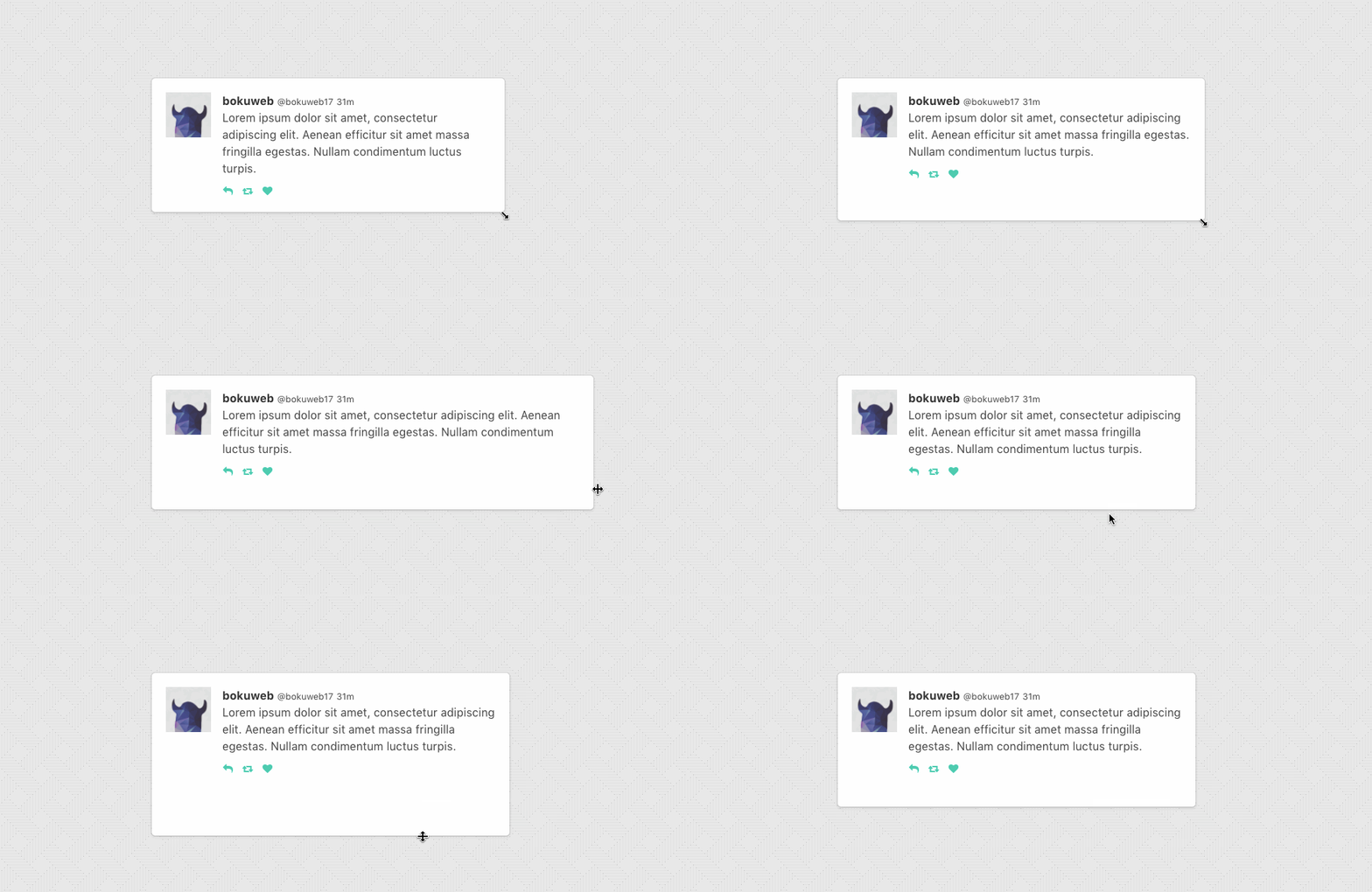
[](http://bokuweb.github.io/re-resizable/)
[](https://codesandbox.io/s/xp9p7272m4)
[](https://codesandbox.io/s/xp9p7272m4)
[](https://codesandbox.io/s/1vwo2p4l64)
[](https://codesandbox.io/s/blissful-joliot-d3unx)
```sh
$ npm install --save re-resizable
```
```javascript
<Resizable
defaultSize={{
width:320,
height:200,
}}
>
Sample with default size
</Resizable>
```
If you use `size` props, please manage state by yourself.
```javascript
<Resizable
size={{ width: this.state.width, height: this.state.height }}
onResizeStop={(e, direction, ref, d) => {
this.setState({
width: this.state.width + d.width,
height: this.state.height + d.height,
});
}}
>
Sample with size
</Resizable>
```
Specifies the `width` and `height` that the dragged item should start at.
For example, you can set `300`, `'300px'`, `50%`.
If both `defaultSize` and `size` omitted, set `'auto'`.
`defaultSize` will be ignored when `size` set.
The `size` property is used to set the size of the component.
For example, you can set `300`, `'300px'`, `50%`.
Use `size` if you need to control size state by yourself.
The `className` property is used to set the custom `className` of a resizable component.
The `style` property is used to set the custom `style` of a resizable component.
The `minWidth` property is used to set the minimum width of a resizable component. Defaults to 10px.
It accepts viewport as well as parent relative units. For example, you can set `300`, `50%`, `50vw` or `50vh`.
Same type of values can be applied to `minHeight`, `maxWidth` and `maxHeight`.
The `minHeight` property is used to set the minimum height of a resizable component. Defaults to 10px.
The `maxWidth` property is used to set the maximum width of a resizable component.
The `maxHeight` property is used to set the maximum height of a resizable component.
The `grid` property is used to specify the increments that resizing should snap to. Defaults to `[1, 1]`.
The `snap` property is used to specify absolute pixel values that resizing should snap to. `x` and `y` are both optional, allowing you to only include the axis you want to define. Defaults to `null`.
The `snapGap` property is used to specify the minimum gap required in order to move to the next snapping target. Defaults to `0` which means that snap targets are always used.
The `resizeRatio` property is used to set the number of pixels the resizable component scales by compared to the number of pixels the mouse/touch moves. Defaults to `1` (for a 1:1 ratio). The number set is the left side of the ratio, `2` will give a 2:1 ratio.
The `lockAspectRatio` property is used to lock aspect ratio.
Set to `true` to lock the aspect ratio based on the initial size.
Set to a numeric value to lock a specific aspect ratio (such as `16/9`).
If set to numeric, make sure to set initial height/width to values with correct aspect ratio.
If omitted, set `false`.
#### `lockAspectRatioExtraWidth?: number;`
The `lockAspectRatioExtraWidth` property enables a resizable component to maintain an aspect ratio plus extra width.
For instance, a video could be displayed 16:9 with a 50px side bar.
If omitted, set `0`.
The `lockAspectRatioExtraHeight` property enables a resizable component to maintain an aspect ratio plus extra height.
For instance, a video could be displayed 16:9 with a 50px header bar.
If omitted, set `0`.
Specifies resize boundaries.
By default max dimensions based on left and top element position.
Width grow to right side, height grow to bottom side.
Set `true` for detect max dimensions by direction.
For example: enable `boundsByDirection` when resizable component stick on right side of screen and you want resize by left handler;
`false` by default.
The `handleStyles` property is used to override the style of one or more resize handles.
Only the axis you specify will have its handle style replaced.
If you specify a value for `right` it will completely replace the styles for the `right` resize handle,
but other handle will still use the default styles.
The `handleClasses` property is used to set the className of one or more resize handles.
The `handleComponent` property is used to pass a React Component to be rendered as one or more resize handle. For example, this could be used to use an arrow icon as a handle..
The `handleWrapperStyle` property is used to override the style of resize handles wrapper.
The `handleWrapperClass` property is used to override the className of resize handles wrapper.
The `enable` property is used to set the resizable permission of a resizable component.
The permission of `top`, `right`, `bottom`, `left`, `topRight`, `bottomRight`, `bottomLeft`, `topLeft` direction resizing.
If omitted, all resizer are enabled.
If you want to permit only right direction resizing, set `{ top:false, right:true, bottom:false, left:false, topRight:false, bottomRight:false, bottomLeft:false, topLeft:false }`.
`ResizeStartCallBack` type is below.
```javascript
type ResizeStartCallback = (
e: SyntheticMouseEvent<HTMLDivElement> | SyntheticTouchEvent<HTMLDivElement>,
dir: ResizableDirection,
refToElement: HTMLDivElement,
) => void;
```
Calls when resizable component resize start.
The `scale` property is used in the scenario where the resizable element is a descendent of an element using css scaling (e.g. - `transform: scale(0.5)`).
#### `as?: string | React.ComponentType`;
By default the `Resizable` component will render a `div` as a wrapper. The `as` property is used to change the element used.
`ResizeCallback` type is below.
```javascript
type ResizeCallback = (
event: MouseEvent | TouchEvent,
direction: ResizableDirection,
refToElement: HTMLDivElement,
delta: NumberSize,
) => void;
```
Calls when resizable component resizing.
`ResizeCallback` type is below.
```javascript
type ResizeCallback = (
event: MouseEvent | TouchEvent,
direction: ResizableDirection,
refToElement: HTMLDivElement,
delta: NumberSize,
) => void;
```
Calls when resizable component resize stop.
Update component size.
`grid`, `snap`, `max/minWidth`, `max/minHeight` props is ignored, when this method called.
- for example
```javascript
class YourComponent extends Component {
// ...
update() {
this.resizable.updateSize({ width: 200, height: 300 });
}
render() {
return (
<Resizable ref={c => { this.resizable = c; }}>
example
</Resizable>
);
}
// ...
}
```
If you have a feature request, please add it as an issue or make a pull request.
If you have a bug to report, please reproduce the bug in [CodeSandbox](https://codesandbox.io/s/ll587k677z) to help us easily isolate it.
``` sh
npm test
```
- [react-rnd](https://github.com/bokuweb/react-rnd)
- [react-sortable-pane](https://github.com/bokuweb/react-sortable-pane)