protractor-beautiful-reporter
Version:
An npm module and which generates your Protractor test reports in HTML (angular) with screenshots
462 lines (349 loc) • 17.4 kB
Markdown
[](https://www.npmjs.com/package/protractor-beautiful-reporter)
[](https://www.npmjs.com/package/protractor-beautiful-reporter)
[](https://travis-ci.com/Evilweed/protractor-beautiful-reporter.svg?branch=master)
Cross-browser Testing <3 Provided by [](https://saucelabs.com)
# Angularized HTML Reporter with Screenshots for Protractor
## IMPORTANT !
* Jasmine 1 is no longer supported
* If you get `Error: TypeError: Cannot set property 'searchSettings' of undefined` use at least version 1.2.7, where this bug has been fixed
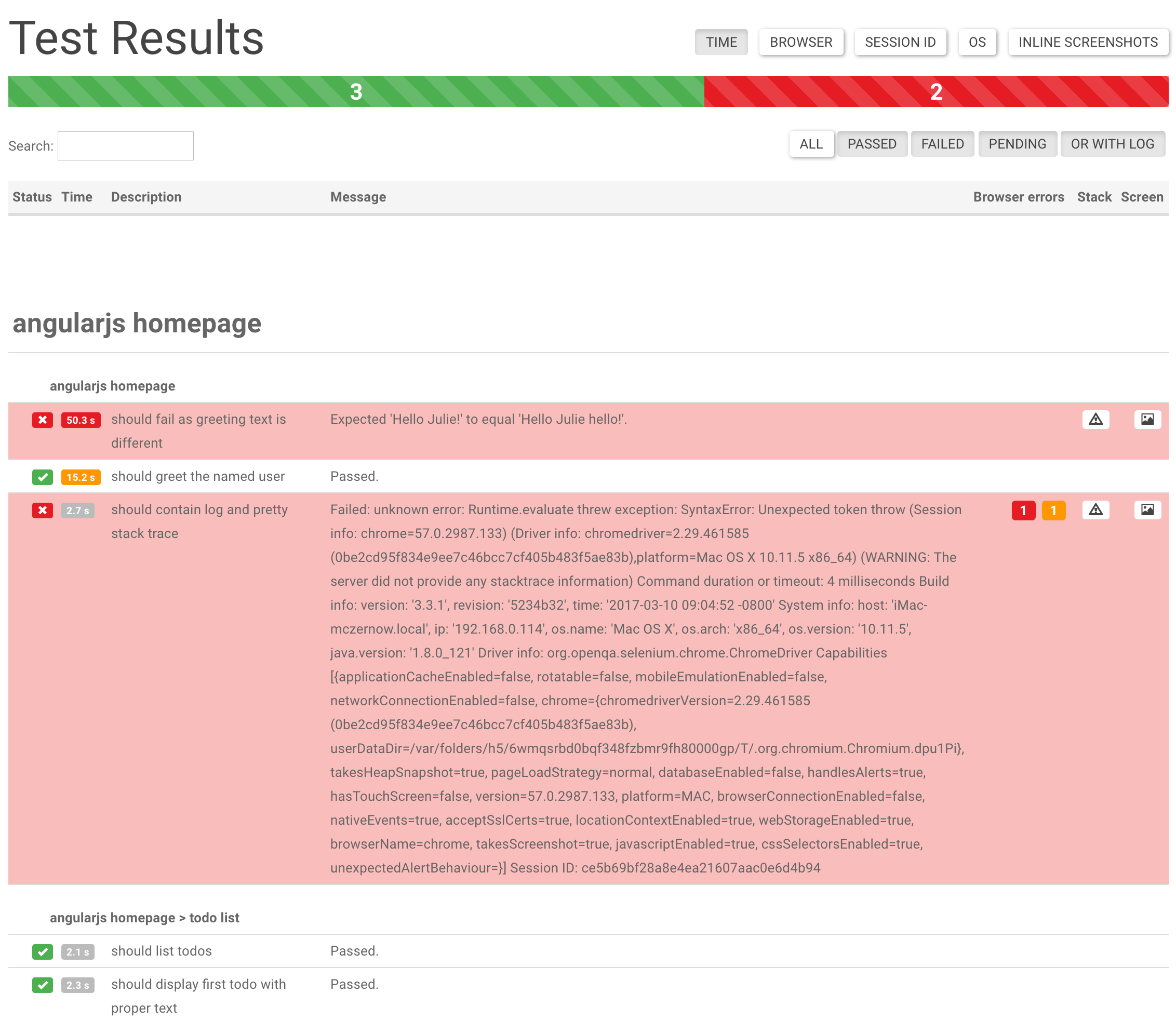
## Features
* Browser's Logs (only for Chrome)
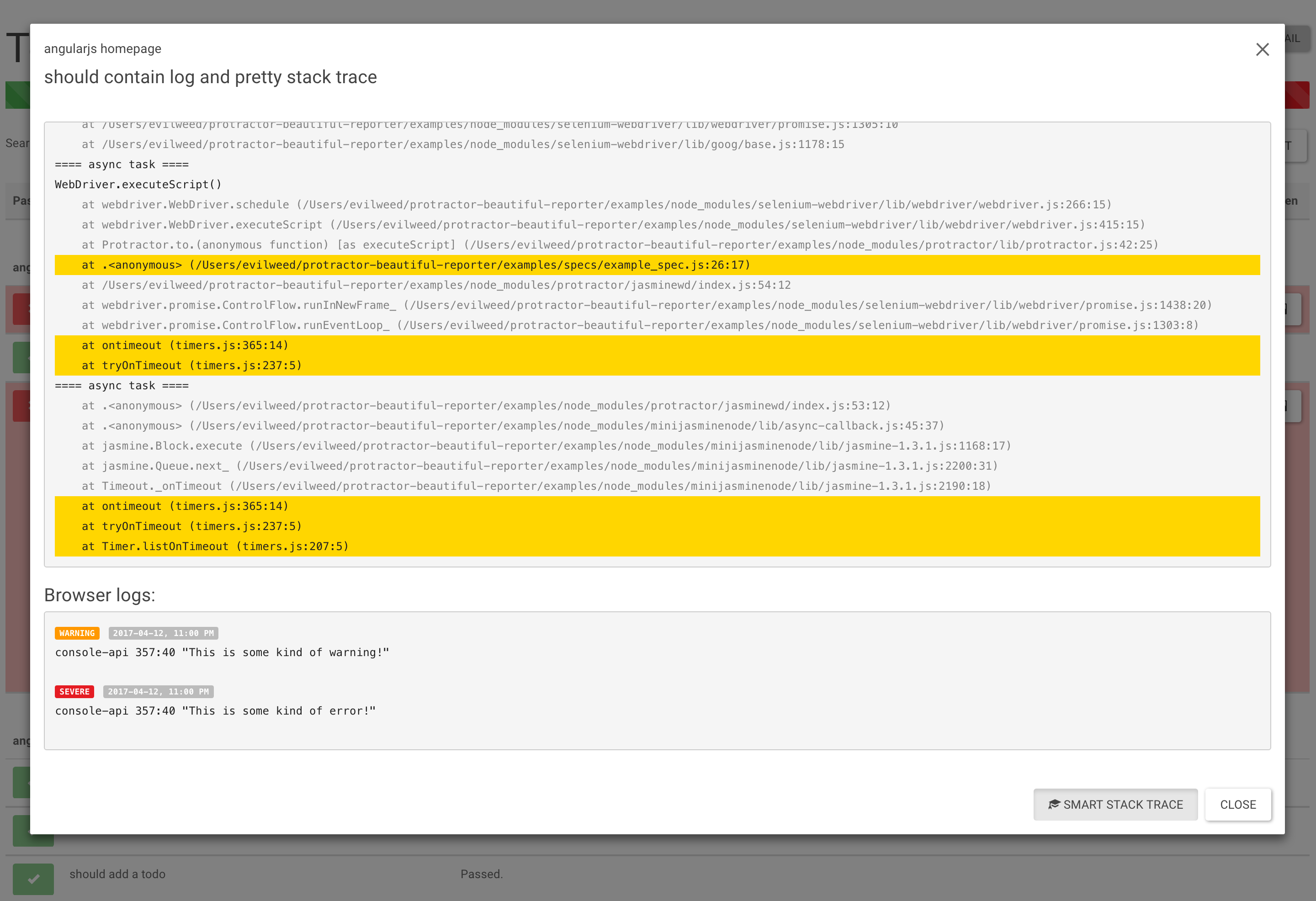
* Stack Trace (with suspected line highlight)
* Screenshot
* Screenshot only on failed spec
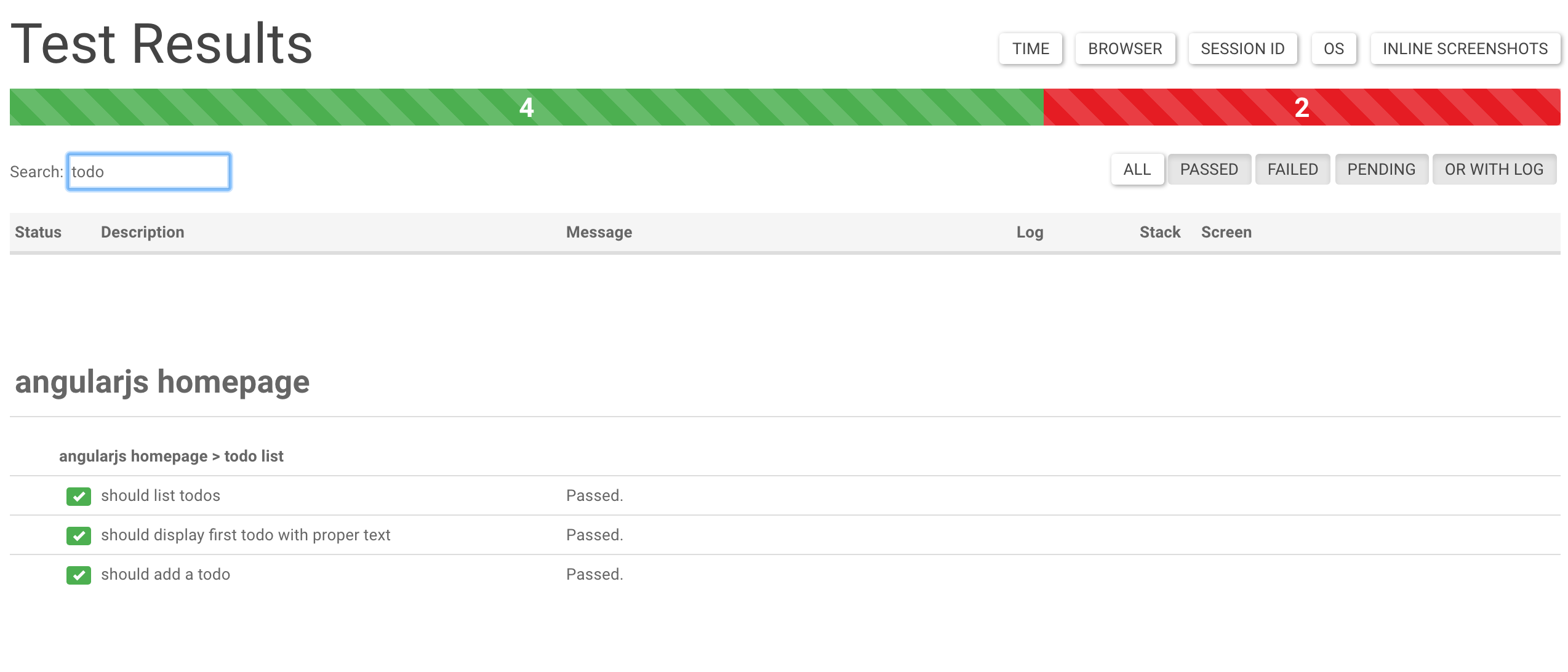
* Search
* Filters (can display only Passed/Failed/Pending/Has Browser Logs)
* Inline Screenshots
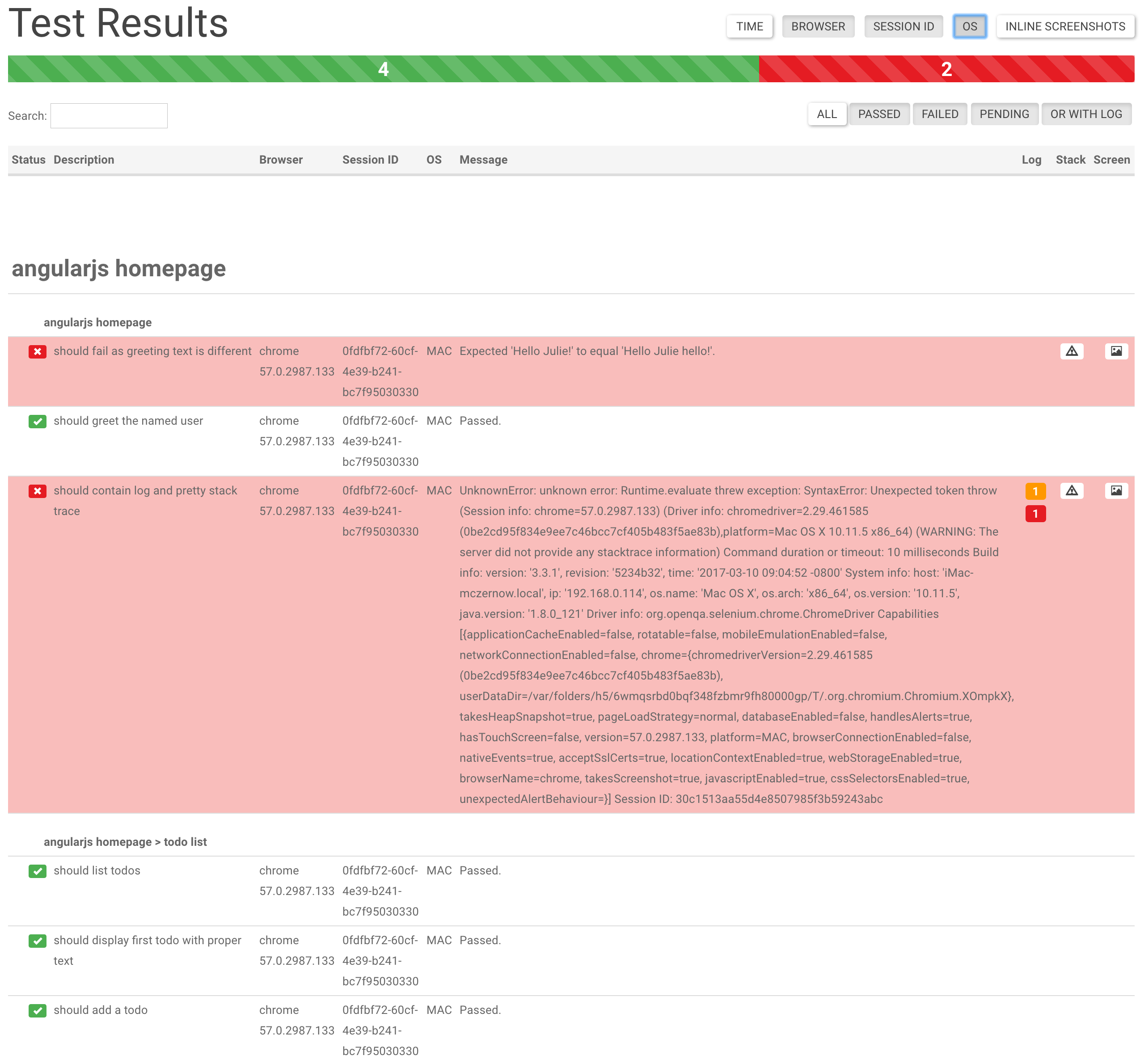
* Details (Browser/Session ID/OS)
* Duration time for test cases (only Jasmine2)
## Wish list
* HTML Dump
Need some feature? Let me know or code it and propose Pull Request :)
But you might also look in our [WIKI](https://github.com/Evilweed/protractor-beautiful-reporter/wiki)/FAQ where we present some solutions how you can enhance the reporter by yourself.
## Known Limits
Does not work with `protractor-retry` or `protractor-flake`. The collection of results currently assumes only one `continuous` run.
## Props
This is built on top of [protractor-angular-screenshot-reporter](https://github.com/bcole/protractor-angular-screenshot-reporter), which is built on top of [protractor-html-screenshot-reporter](https://github.com/jintoppy/protractor-html-screenshot-reporter), which is built on top of [protractor-screenshot-reporter](https://github.com/swissmanu/protractor-screenshot-reporter).
`protractor-beautiful-reporter` still generates a HTML report, but it is Angular-based and improves on the original formatting.
## Usage
The `protractor-beautiful-reporter` module is available via npm:
```bash
$ npm install protractor-beautiful-reporter --save-dev
```
In your Protractor configuration file, register `protractor-beautiful-reporter` in Jasmine.
#### Jasmine 1.x:
```javascript
No longer supported
```
#### Jasmine 2.x:
Jasmine 2.x introduced changes to reporting that are not backwards compatible. To use `protractor-beautiful-reporter` with Jasmine 2, please make sure to use the **`getJasmine2Reporter()`** compatibility method introduced in `protractor-beautiful-reporter@0.1.0`.
```javascript
var HtmlReporter = require('protractor-beautiful-reporter');
exports.config = {
// your config here ...
onPrepare: function() {
// Add a screenshot reporter and store screenshots to `/tmp/screenshots`:
jasmine.getEnv().addReporter(new HtmlReporter({
baseDirectory: 'tmp/screenshots'
}).getJasmine2Reporter());
}
}
```
## Configuration
### Base Directory (mandatory)
You have to pass a directory path as parameter when creating a new instance of
the screenshot reporter:
```javascript
var reporter = new HtmlReporter({
baseDirectory: 'tmp/screenshots'
});
```
If the given directory does not exists, it is created automatically as soon as a screenshot needs to be stored.
### Path Builder (optional)
The function passed as second argument to the constructor is used to build up paths for screenshot files:
```javascript
var path = require('path');
new HtmlReporter({
baseDirectory: 'tmp/screenshots'
, pathBuilder: function pathBuilder(spec, descriptions, results, capabilities) {
// Return '<browser>/<specname>' as path for screenshots:
// Example: 'firefox/list-should work'.
return path.join(capabilities.caps_.browser, descriptions.join('-'));
}
});
```
If you omit the path builder, a [GUID](http://en.wikipedia.org/wiki/Globally_Unique_Identifier) is used by default instead.
Caution: The format/structure of these parameters (spec, descriptions, results, capabilities) differs between Jasmine 2.x and Jasmine 1.x.
### Meta Data Builder (optional)
(removed because was only used in jasmine 1.x)
### Jasmine2 Meta Data Builder (optional)
You can modify the contents of the JSON meta data file by passing a function `jasmine2MetaDataBuilder` as part of the options parameter.
Note: We have to store and call the original jasmine2MetaDataBuilder also, else we break the "whole" reporter.
The example is a workaround for the jasmine quirk https://github.com/angular/jasminewd/issues/32 which reports pending() as failed.
```javascript
var originalJasmine2MetaDataBuilder = new HtmlReporter({'baseDirectory': './'})["jasmine2MetaDataBuilder"];
jasmine.getEnv().addReporter(new HtmlReporter({
baseDirectory: 'tmp/screenshots'
jasmine2MetaDataBuilder: function (spec, descriptions, results, capabilities) {
//filter for pendings with pending() function and "unfail" them
if (results && results.failedExpectations && results.failedExpectations.length>0 && "Failed: => marked Pending" === results.failedExpectations[0].message) {
results.pendingReason = "Marked Pending with pending()";
results.status = "pending";
results.failedExpectations = [];
}
//call the original method after my own mods
return originalJasmine2MetaDataBuilder(spec, descriptions, results, capabilities);
},
preserveDirectory: false
}).getJasmine2Reporter());
```
### Screenshots Subfolder (optional)
You can store all images in subfolder by using `screenshotsSubfolder` option:
```javascript
new HtmlReporter({
baseDirectory: 'tmp/screenshots'
, screenshotsSubfolder: 'images'
});
```
If you omit this, all images will be stored in main folder.
### JSONs Subfolder (optional)
You can store all JSONs in subfolder by using `jsonsSubfolder` option:
```javascript
new HtmlReporter({
baseDirectory: 'tmp/screenshots'
, jsonsSubfolder: 'jsons'
});
```
If you omit this, all images will be stored in main folder.
### Sort function (optional)
You can change default `sortFunction` option:
```javascript
new HtmlReporter({
baseDirectory: 'tmp/screenshots'
, sortFunction: function sortFunction(a, b) {
if (a.cachedBase === undefined) {
var aTemp = a.description.split('|').reverse();
a.cachedBase = aTemp.slice(0).slice(0,-1);
a.cachedName = aTemp.slice(0).join('');
};
if (b.cachedBase === undefined) {
var bTemp = b.description.split('|').reverse();
b.cachedBase = bTemp.slice(0).slice(0,-1);
b.cachedName = bTemp.slice(0).join('');
};
var firstBase = a.cachedBase;
var secondBase = b.cachedBase;
for (var i = 0; i < firstBase.length || i < secondBase.length; i++) {
if (firstBase[i] === undefined) { return -1; }
if (secondBase[i] === undefined) { return 1; }
if (firstBase[i].localeCompare(secondBase[i]) === 0) { continue; }
return firstBase[i].localeCompare(secondBase[i]);
}
var firstTimestamp = a.timestamp;
var secondTimestamp = b.timestamp;
if(firstTimestamp < secondTimestamp) return -1;
else return 1;
}
});
```
If you omit this, all specs will be sorted by timestamp (please be aware that sharded runs look ugly when sorted by default sort).
Alternatively if the result is not good enough in sharded test you can try and sort by instanceId (for now it's process.pid) first:
```javascript
function sortFunction(a, b) {
if (a.instanceId < b.instanceId) return -1;
else if (a.instanceId > b.instanceId) return 1;
if (a.timestamp < b.timestamp) return -1;
else if (a.timestamp > b.timestamp) return 1;
return 0;
}
```
### Exclude report for skipped test cases (optional)
You can set `excludeSkippedSpecs` to `true` to exclude reporting skipped test cases entirely.
```javascript
new HtmlReporter({
baseDirectory: `tmp/screenshots`
, excludeSkippedSpecs: true
});
```
Default is `false`.
### Screenshots for skipped test cases (optional)
You can define if you want report screenshots from skipped test cases using the `takeScreenShotsForSkippedSpecs` option:
```javascript
new HtmlReporter({
baseDirectory: 'tmp/screenshots'
, takeScreenShotsForSkippedSpecs: true
});
```
Default is `false`.
### Screenshots only for failed test cases (optional)
Also you can define if you want capture screenshots only from failed test cases using the `takeScreenShotsOnlyForFailedSpecs:` option:
```javascript
new HtmlReporter({
baseDirectory: 'tmp/screenshots'
, takeScreenShotsOnlyForFailedSpecs: true
});
```
If you set the value to `true`, the reporter for the passed test will still be generated, but, there will be no screenshot.
Default is `false`.
### Disable all screenshots
If you want no screenshots at all, set the `disableScreenshots` option to true.
```javascript
new HtmlReporter({
baseDirectory: 'tmp/reports'
, disableScreenshots: true
});
```
Default is `false`.
### Add title for the html report (optional)
Also you can define a document title for the html report generated using the `docTitle:` option:
```javascript
new HtmlReporter({
baseDirectory: 'tmp/screenshots'
, docTitle: 'my reporter'
});
```
Default is `Test results`.
### Change html report file name (optional)
Also you can change document name for the html report generated using the `docName:` option:
```javascript
new HtmlReporter({
baseDirectory: 'tmp/screenshots'
, docName: 'index.html'
});
```
Default is `report.html`.
### Option to override CSS file used in reporter (optional)
You can change stylesheet used for the html report generated using the `cssOverrideFile:` option:
```javascript
new HtmlReporter({
baseDirectory: 'tmp/screenshots'
, cssOverrideFile: 'css/style.css'
});
```
### Add custom css inline
If you want to add small customizations without replaceing the whole css file:
```javascript
new HtmlReporter({
baseDirectory: 'tmp/screenshots'
customCssInline:`
.mediumColumn:not([ng-class]) {
white-space: pre-wrap;
}
`
});
```
This example will enable line-wrapping if the tests spec contains newline characters
### Preserve base directory (optional)
You can preserve (or clear) the base directory using `preserveDirectory:` option:
```javascript
new HtmlReporter({
baseDirectory: 'tmp/screenshots'
, preserveDirectory: false
});
```
Default is `true`.
### Store Browser logs (optional)
You can gather browser logs using `gatherBrowserLogs:` option:
```javascript
new HtmlReporter({
baseDirectory: 'tmp/screenshots'
, gatherBrowserLogs: false
});
```
Default is `true`.
### Customize default search settings
If you do not want all buttons in the search filter pressed by default you can modify the default state via `searchSettings:` option:
For example: We filter out all passed tests when report page is opened
```javascript
new HtmlReporter({
baseDirectory: 'tmp/screenshots'
, clientDefaults:{
searchSettings:{
allselected: false,
passed: false,
failed: true,
pending: true,
withLog: true
}
}
});
```
Default is every option is set to `true`
### Customize default column settings
If you do not want to show all columns by default you can modify the default choice via `columnSettings:` option:
For example: We only want the time column by default
```javascript
new HtmlReporter({
baseDirectory: 'tmp/screenshots'
, clientDefaults:{
columnSettings:{
displayTime:true,
displayBrowser:false,
displaySessionId:false,
displayOS:false,
inlineScreenshots:false
}
}
});
```
Default is every option except `inlineScreenshots` is set to `true`
Additionally you can customize the time values for coloring the time column.
For example if you want to mark the time orange when the test took longer than 1 second and red when the test took longer than 1.5 seconds
add the following to columnSettings (values are in milliseconds scale):
```javascript
new HtmlReporter({
baseDirectory: 'tmp/screenshots'
, clientDefaults:{
columnSettings:{
warningTime: 1000,
dangerTime: 1500
}
}
});
```
### Show total duration of test execution
If you want to show the total duration in the header or footer area...
```javascript
new HtmlReporter({
baseDirectory: 'reports'
, clientDefaults:{
showTotalDurationIn: "header",
totalDurationFormat: "hms"
}
});
```
For all possible values for `showTotalDurationIn` and `totalDurationFormat` refer to the wiki entry [Options for showing total duration of e2e test](https://github.com/Evilweed/protractor-beautiful-reporter/wiki/Options-for-showing-total-duration-of-e2e-test)
### Load spec results via ajax
By default the raw data of all tests results from the e2e session are embedded in the main javascript file (array results in app.js).
If you add `useAjax:true` to `clientDefaults` the data is not embedded in the app.js but is loaded from the file `combined.json` which contains all the raw test results.
Currently the reason for this feature is a better testability in unit tests. But you could benefit from ajax loading, if you want to polish/postprocess tests results (e.g. filter duplicated test results). This would not be possible if the data is embedded in the app.js file.
## HTML Reporter
Upon running Protractor tests with the above config, the screenshot reporter will generate JSON and PNG files for each test.
In addition, a small HTML/Angular app is copied to the output directory, which cleanly lists the test results, any errors (with stacktraces), and screenshots.

Click More Details to see more information about the test runs.
Use Search Input Field to narrow down test list.
Click View Stacktrace to see details of the error (if the test failed). Suspected line is highlighted.
Click View Browser Log to see Browser Log (collects browser logs also from passed tests)
Click View Screenshot to see an image of the webpage at the end of the test.
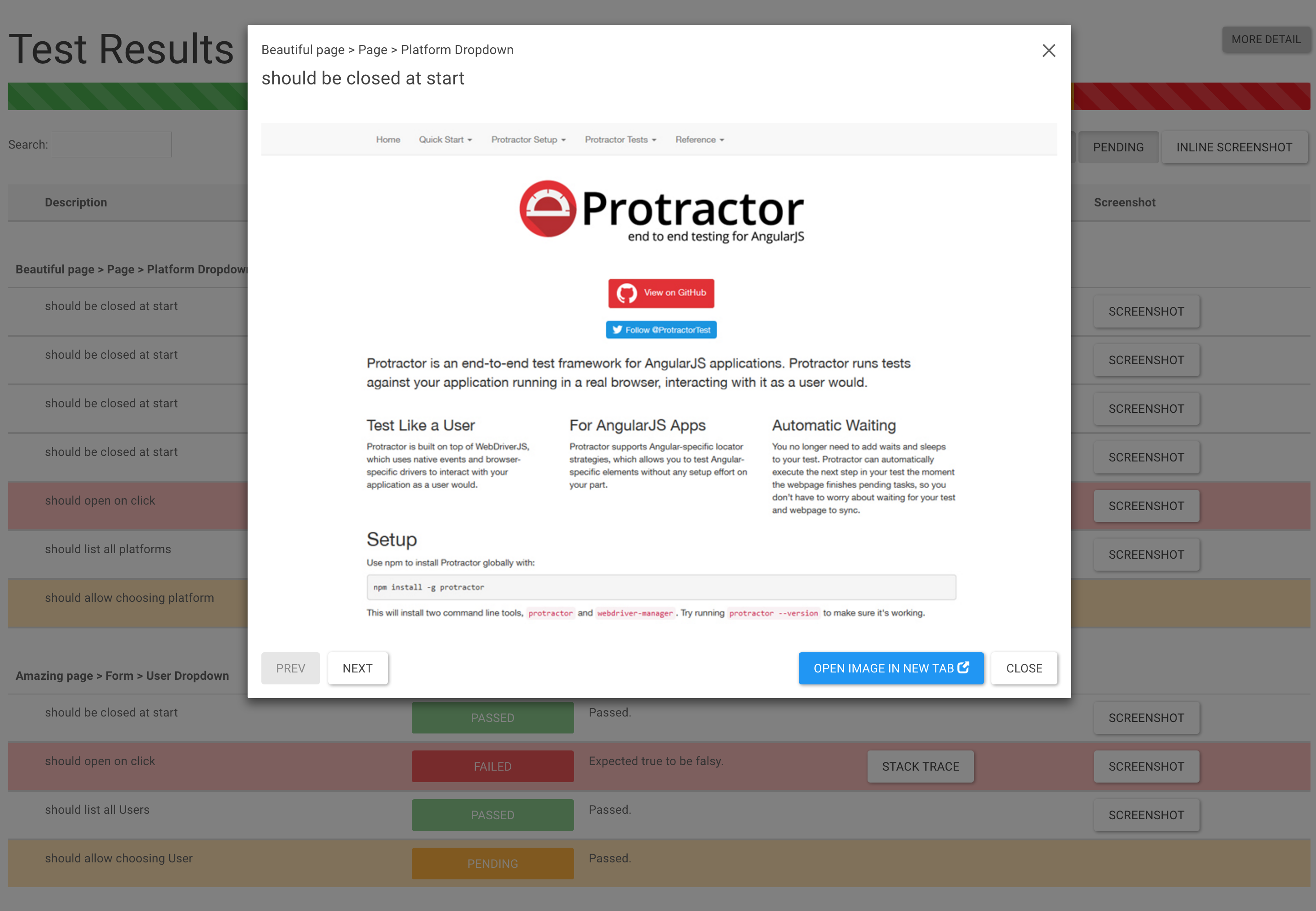
Click Inline Screenshots to see an inline screenshots in HTML report.
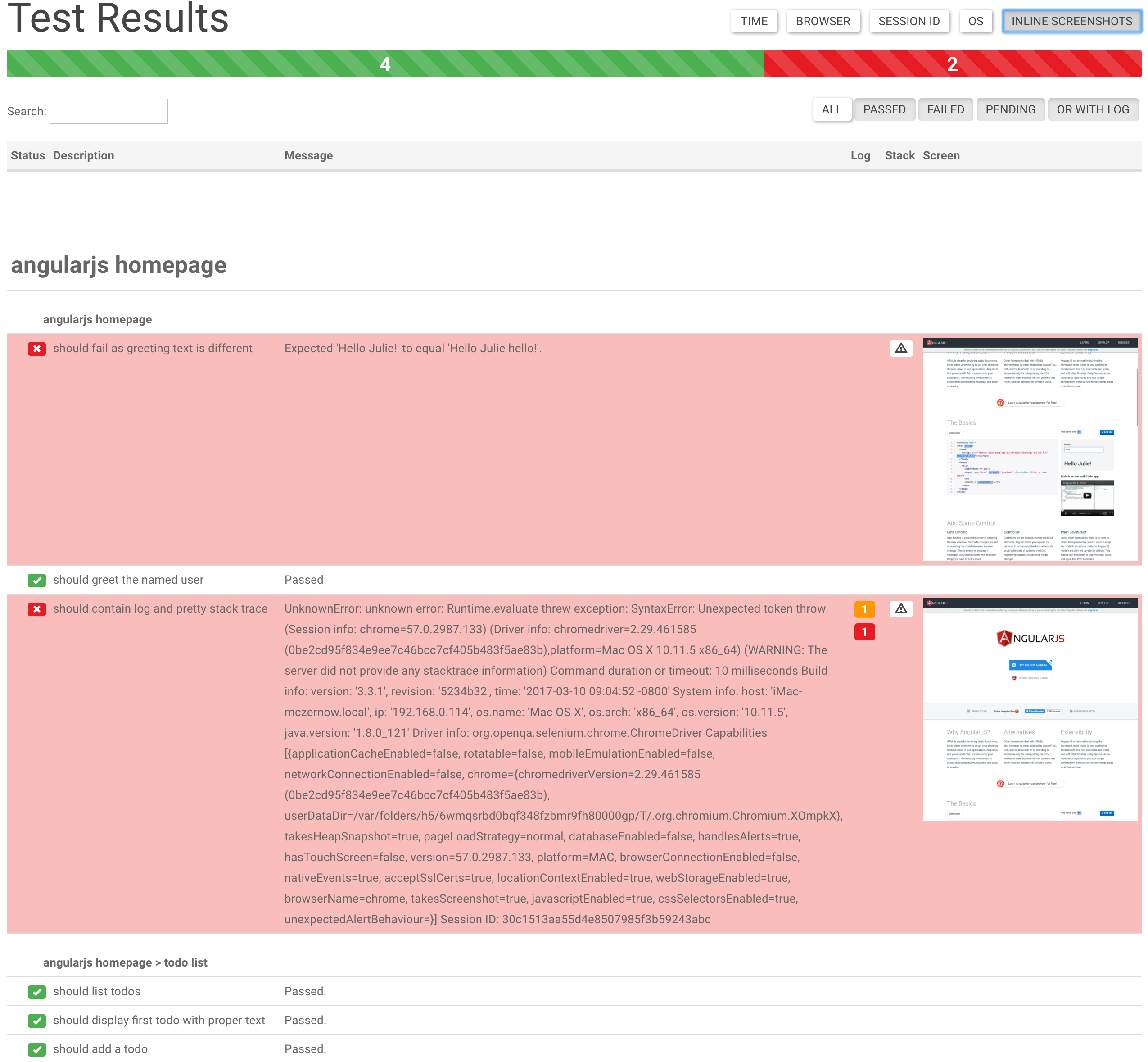
Please see the `examples` folder for sample usage.
To run the sample, execute the following commands in the `examples` folder
```bash
$ npm install
$ protractor protractor.conf.js
```
After the test run, you can see that, a screenshots folder will be created with all the reports generated.
## Donate
You like it? You can buy me a cup of coffee/glass of beer :)
[](https://www.paypal.com/cgi-bin/webscr?cmd=_s-xclick&hosted_button_id=WYR7N9FQL94J6)
## License
Copyright (c) 2017 Marcin Cierpicki <zycienawalizkach@gmail.com>
Permission is hereby granted, free of charge, to any person obtaining a copy of this software and associated documentation files (the "Software"), to deal in the Software without restriction, including without limitation the rights to use, copy, modify, merge, publish, distribute, sublicense, and/or sell copies of the Software, and to permit persons to whom the Software is furnished to do so, subject to the following conditions:
The above copyright notice and this permission notice shall be included in all copies or substantial portions of the Software.