protractor-angular-screenshot-reporter
Version:
An npm module and which generates your Protractor test reports in HTML (angular) with screenshots
220 lines (157 loc) • 7.79 kB
Markdown
This is built on top of [protractor-html-screenshot-reporter](https://github.com/jintoppy/protractor-html-screenshot-reporter), which is built on top of [protractor-screenshot-reporter](https://github.com/swissmanu/protractor-screenshot-reporter).
`protractor-angular-screenshot-reporter` still generates a HTML report, but it is Angular-based and improves on the original formatting.
The `protractor-angular-screenshot-reporter` module is available via npm:
```bash
$ npm install protractor-angular-screenshot-reporter --save-dev
```
In your Protractor configuration file, register `protractor-angular-screenshot-reporter` in Jasmine.
```javascript
var HtmlReporter = require('protractor-angular-screenshot-reporter');
exports.config = {
// your config here ...
onPrepare: function() {
// Add a screenshot reporter and store screenshots to `/tmp/screenshots`:
jasmine.getEnv().addReporter(new HtmlReporter({
baseDirectory: '/tmp/screenshots'
}));
}
}
```
Jasmine 2.x introduced changes to reporting that are not backwards compatible. To use `protractor-angular-screenshot-reporter` with Jasmine 2, please make sure to use the **`getJasmine2Reporter()`** compatibility method introduced in `protractor-angular-screenshot-reporter@0.1.0`.
```javascript
var HtmlReporter = require('protractor-angular-screenshot-reporter');
exports.config = {
// your config here ...
onPrepare: function() {
// Add a screenshot reporter and store screenshots to `/tmp/screenshots`:
jasmine.getEnv().addReporter(new HtmlReporter({
baseDirectory: '/tmp/screenshots'
}).getJasmine2Reporter());
}
}
```
You have to pass a directory path as parameter when creating a new instance of
the screenshot reporter:
```javascript
var reporter = new HtmlReporter({
baseDirectory: '/tmp/screenshots'
});
```
If the given directory does not exists, it is created automatically as soon as a screenshot needs to be stored.
The function passed as second argument to the constructor is used to build up paths for screenshot files:
```javascript
var path = require('path');
new HtmlReporter({
baseDirectory: '/tmp/screenshots'
, pathBuilder: function pathBuilder(spec, descriptions, results, capabilities) {
// Return '<browser>/<specname>' as path for screenshots:
// Example: 'firefox/list-should work'.
return path.join(capabilities.caps_.browser, descriptions.join('-'));
}
});
```
If you omit the path builder, a [GUID](http://en.wikipedia.org/wiki/Globally_Unique_Identifier) is used by default instead.
Caution: The format/structure of these parameters (spec, descriptions, results, capabilities) differs between Jasmine 2.x and Jasmine 1.x.
### Meta Data Builder (optional)
You can modify the contents of the JSON meta data file by passing a function `metaDataBuilder` function as third constructor parameter:
```javascript
new HtmlReporter({
baseDirectory: '/tmp/screenshots'
, metaDataBuilder: function metaDataBuilder(spec, descriptions, results, capabilities) {
// Return the description of the spec and if it has passed or not:
return {
description: descriptions.join(' ')
, passed: results.passed()
};
}
});
```
If you omit the meta data builder, the default implementation is used
You can define if you want report from skipped test cases using the `takeScreenShotsForSkippedSpecs` option:
```javascript
new HtmlReporter({
baseDirectory: '/tmp/screenshots'
, takeScreenShotsForSkippedSpecs: true
});
```
Default is `false`.
Also you can define if you want capture screenshots only from failed test cases using the `takeScreenShotsOnlyForFailedSpecs:` option:
```javascript
new HtmlReporter({
baseDirectory: '/tmp/screenshots'
, takeScreenShotsOnlyForFailedSpecs: true
});
```
If you set the value to `true`, the reporter for the passed test will still be generated, but, there will be no screenshot.
Default is `false`.
Also you can define a document title for the html report generated using the `docTitle:` option:
```javascript
new HtmlReporter({
baseDirectory: '/tmp/screenshots'
, docTitle: 'my reporter'
});
```
Default is `Generated test report`.
Also you can change document name for the html report generated using the `docName:` option:
```javascript
new HtmlReporter({
baseDirectory: '/tmp/screenshots'
, docName: 'index.html'
});
```
Default is `report.html`.
You can change stylesheet used for the html report generated using the `cssOverrideFile:` option:
```javascript
new HtmlReporter({
baseDirectory: '/tmp/screenshots'
, cssOverrideFile: 'css/style.css'
});
```
You can preserve (or clear) the base directory using `preserveDirectory:` option:
```javascript
new HtmlReporter({
baseDirectory: '/tmp/screenshots'
, preserveDirectory: false
});
```
Default is `true`.
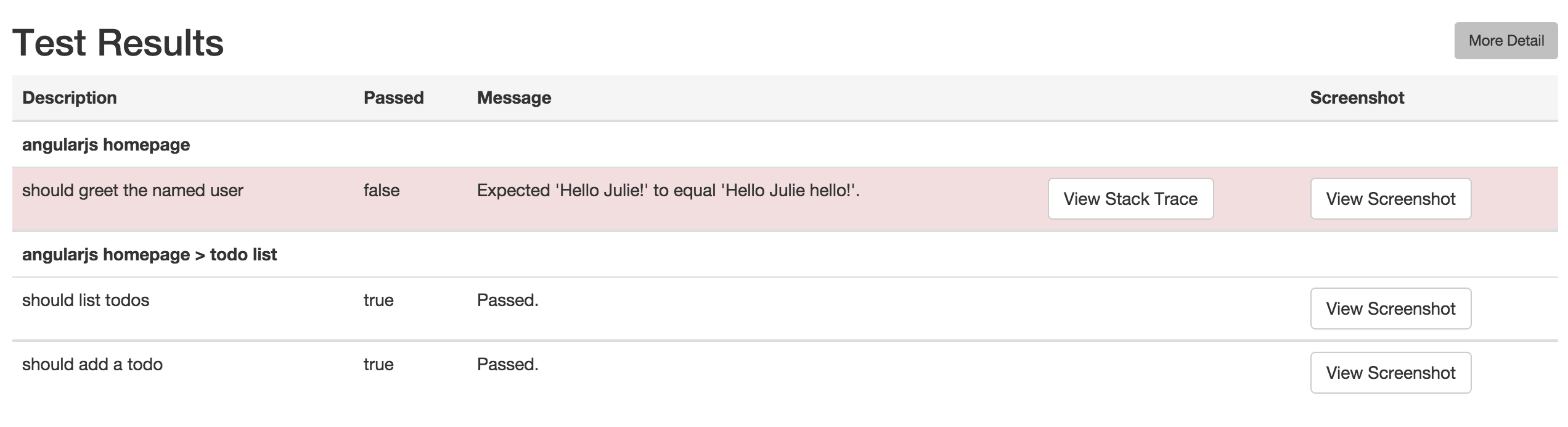
Upon running Protractor tests with the above config, the screenshot reporter will generate JSON and PNG files for each test.
In addition, a small HTML/Angular app is copied to the output directory, which cleanly lists the test results, any errors (with stacktraces), and screenshots.
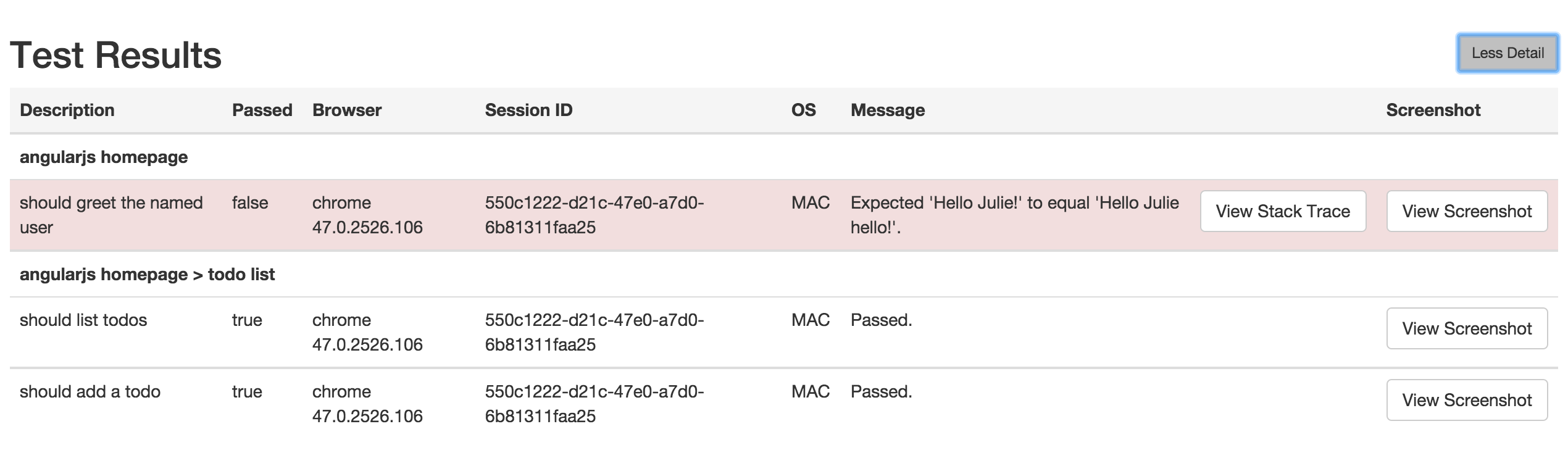
Click More Details to see more information about the test runs.
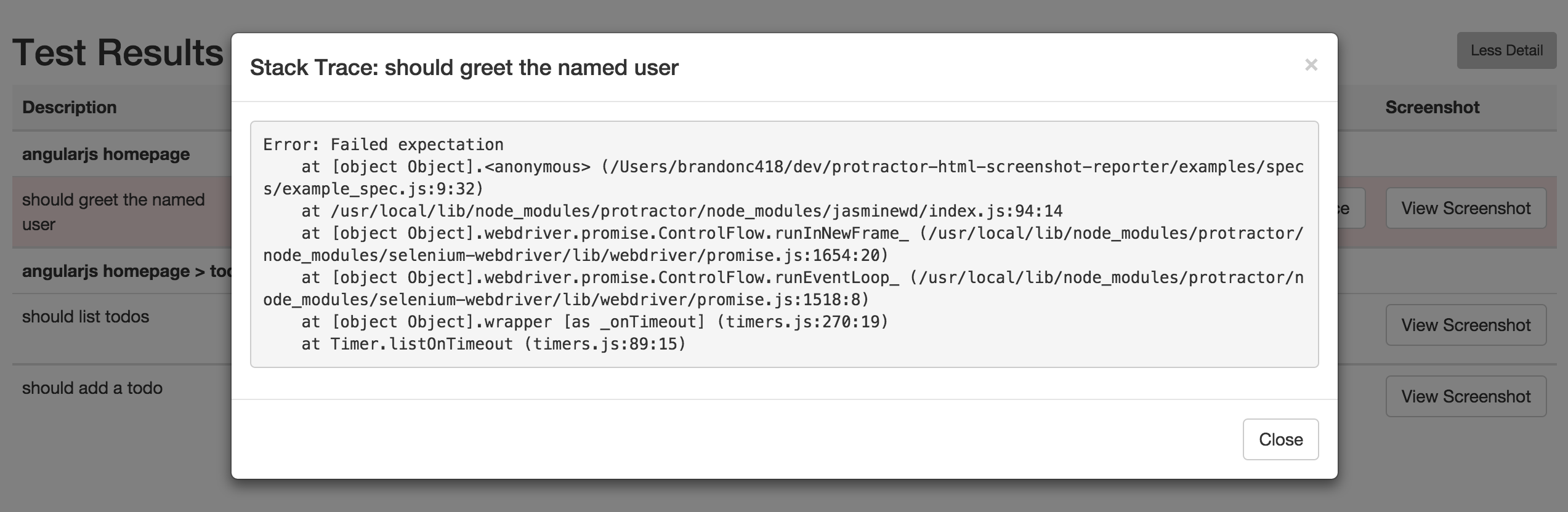
Click View Stacktrace to see details of the error (if the test failed).
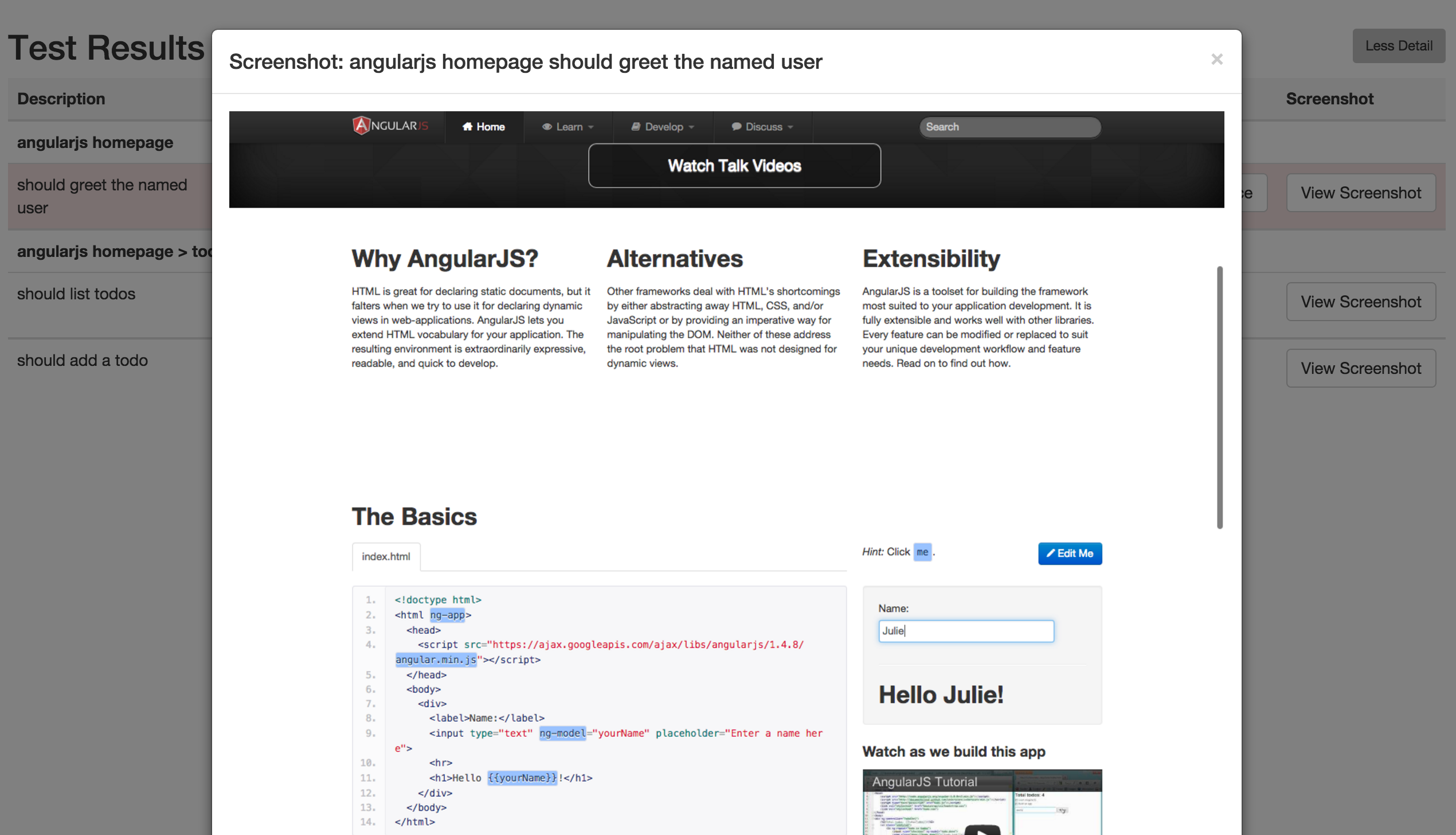
Click View Screenshot to see an image of the webpage at the end of the test.
Please see the `examples` folder for sample usage.
To run the sample, execute the following commands in the `examples` folder
```bash
$ npm install
$ protractor protractor.conf.js
```
After the test run, you can see that, a screenshots folder will be created with all the reports generated.
## Changelog
### v0.1.0
Support for Jasmine 2.x.
Updating `protractor-angular-screenshot-reporter` to conform to the new custom_reporter.js format introduced by Jasmine 2.x, via compatibility method `getJasmine2Reporter`. More details on this format can be found at: http://jasmine.github.io/2.1/custom_reporter.html
### v0.0.x
Support for Jasmine 1.x.
## License
Copyright (c) 2015 Brandon Cole <333qaz333@gmail.com>
Permission is hereby granted, free of charge, to any person obtaining a copy of this software and associated documentation files (the "Software"), to deal in the Software without restriction, including without limitation the rights to use, copy, modify, merge, publish, distribute, sublicense, and/or sell copies of the Software, and to permit persons to whom the Software is furnished to do so, subject to the following conditions:
The above copyright notice and this permission notice shall be included in all copies or substantial portions of the Software.