primevue
Version:
[](https://opensource.org/licenses/MIT) [](https://badge.fury.io/js/primevue) [ • 4.32 kB
Markdown
[](https://opensource.org/licenses/MIT)
[](https://badge.fury.io/js/primevue)
[](https://discord.gg/gzKFYnpmCY)
[](https://www.primefaces.org/primevue-v2/#/)
# PrimeVue
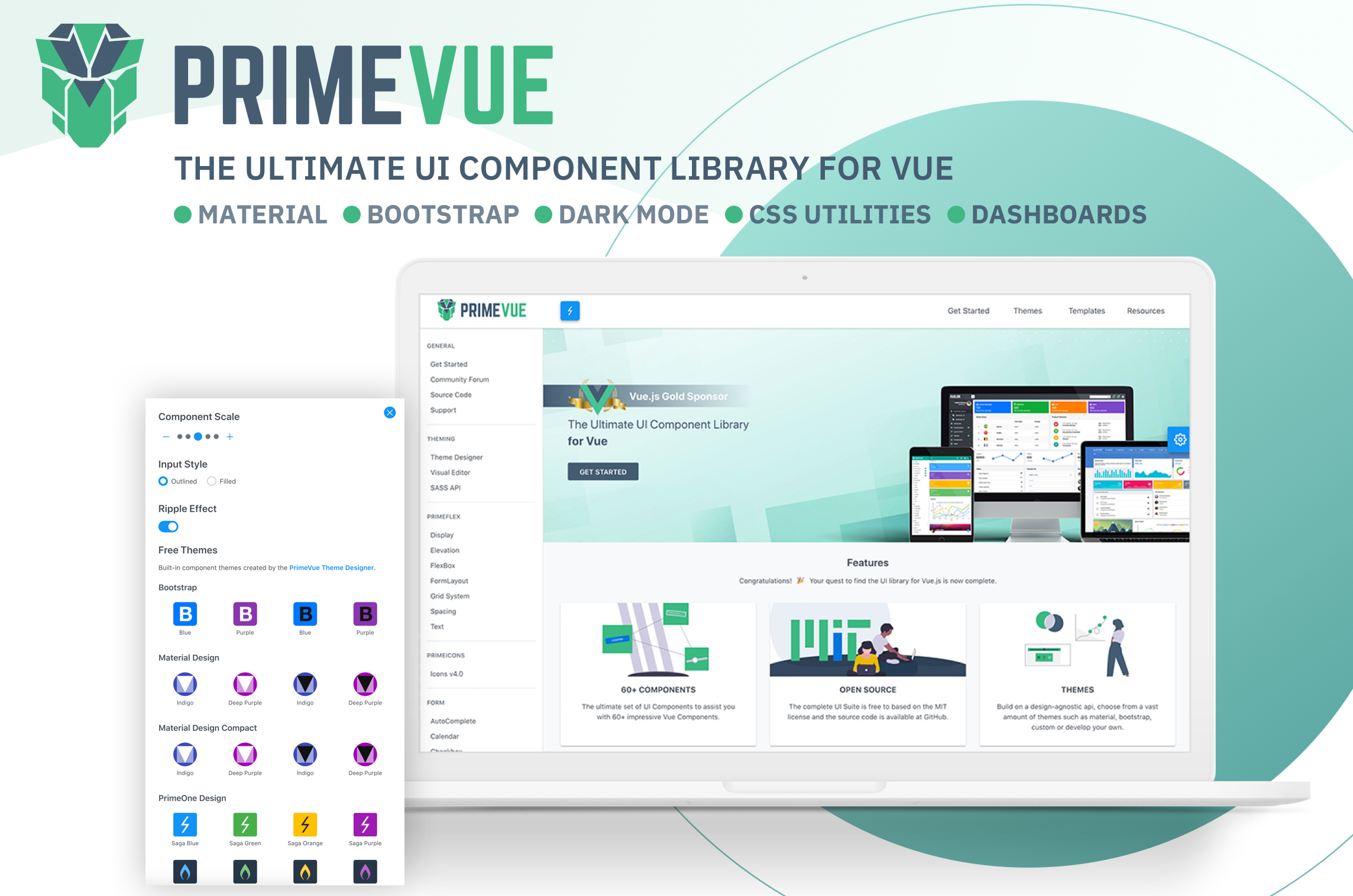
Visit the [PrimeVue Website](https://www.primefaces.org/primevue-v2/#/) for general information, demos and documentation.
## Downloads
PrimeVue is available at npm, if you have an existing application run the following command to download it to your project.
````
npm install primevue@^2 --save
npm install primeicons --save
````
or
```
yarn add primevue@^2
yarn add primeicons
```
## Import
### Module
```javascript
import PrimeVue from 'primevue/config';
import Dialog from 'primevue/dialog';
Vue.component('Dialog', Dialog);
Vue.use(PrimeVue);
```
Finally you'll be able to utilize the component in your application. See the Styles section to apply styling.
```vue
<Dialog></Dialog>
```
## Script Tag
Other alternative is utilizing the components directly within the browser with the ***iife*** build. Note that PrimeVue does not provide a ***umd*** build.
```javascript
<html>
<head>
<meta charset="utf-8">
<title>calendar demo</title>
<link href="https://unpkg.com/primevue^2/resources/themes/saga-blue/theme.css " rel="stylesheet">
<link href="https://unpkg.com/primevue^2/resources/primevue.min.css " rel="stylesheet">
<link href="https://unpkg.com/primeicons/primeicons.css " rel="stylesheet">
<script src="https://unpkg.com/vue"></script>
<script src="https://unpkg.com/primevue^2/calendar/calendar.umd.min.js"></script>
<div id="app">
<p-calendar></p-calendar>
</div>
<script>
new Vue({
components: {
'p-calendar': calendar
}
}).$mount('#app')
</script>
</head>
</html>
```
## Configuration
### Dependencies
Majority of PrimeVue components (95%) are native and there are some exceptions having 3rd party dependencies such as Quill for Editor.
In addition, components require PrimeIcons library for icons.
```javascript
dependencies: {
"vue": "^2.6.10",
"primeicons": "^6.0.0"
}
```
## Styles
The css dependencies are as follows, note that you may change the theme with another one of your choice.
```css
primevue/resources/themes/saga-blue/theme.css //theme
primevue/resources/primevue.min.css //core css
primeicons/primeicons.css //icons
```
If you are using a bundler such as webpack with a css loader you may also import them to your main application component.
```javascript
import 'primevue/resources/themes/lara-light-indigo/theme.css';
import 'primevue/resources/primevue.min.css';
import 'primeicons/primeicons.css';
```
## Nuxt Integration
PrimeVue has a built-in nuxt module. Open ***nuxt.config.js*** and add ***primevue/nuxt*** to the modules section along with your configuration.
**nuxt.config.js**
Open the nuxt configuration file and add the css dependencies.
```javascript
modules: [
[
'primevue/nuxt', {
theme: string, //name of the theme, defaults to saga-blue
ripple: boolean, //whether the ripple animation is enabled, defaults to false
components: [], //an array of components to be registered
directives: [] //an array of directives to be registered
}
]
]
```
Here is an example configuration.
```javascript
modules: [
[
'primevue/nuxt', {
theme: 'md-light-indigo',
ripple: true,
components: ['InputText','Button','DataTable','Dialog'],
directives: ['Tooltip','Badge']
}
]
]
```
An alternative configuration is possible using the ***primevue*** property.
```javascript
modules: ['primevue/nuxt'],
primevue: {
theme: 'md-light-indigo',
ripple: true,
components: ['InputText','Button','DataTable','Dialog'],
directives: ['Tooltip','Badge']
}
```