node-red-contrib-ui-svg
Version:
A Node-RED widget node to show interactive SVG (vector graphics) in the dashboard
97 lines (61 loc) • 19.2 kB
Markdown
# "Settings" tab sheet
## Show coordinates
When this option is selected, a ***tooltip*** will be displayed to show the current mouse location (i.e. X and Y coordinate):
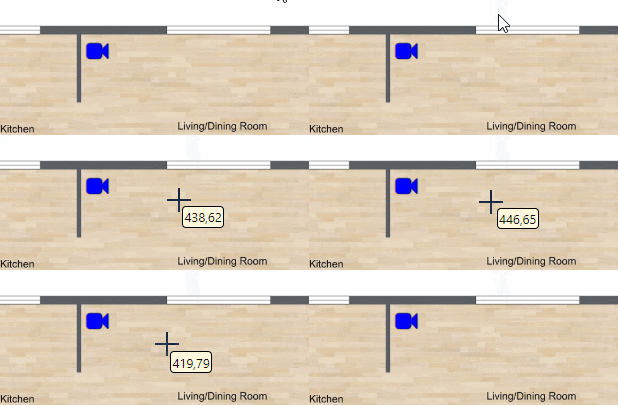
This option has been introduced to simplify lay outing during manual editing of the SVG string (without external SVG drawing tool). Without this option determining the location of your shapes would require a lot of calculations or guessing ...
Remark: The location is measured in the SVG coordinate system, which means the origin (X=Y=0) is in the top left of your drawing.
## Auto format SVG Source after saving edits in SVG Editor
When editing the SVG source via [DrawSvg](#DrawSvg-drawing-editor), the manipulated SVG source is not very pretty: the SVG source will contain empty lines, multiple SVG elements on a single line ... This SVG source can be manually beautified using the "*Format SVG*" button, or automatically (every time the DrawSvg popup dialog window is closed - by activating this checkbox.
## Show browser errors on the server
Unfortunately, not all kind of errors can be validated on the server, but instead they will occur on the client side. For example, when an input message arrives, but no SVG element can be found for the specified selector. As a result, your drawing will not be updated, and in the 1.x.x version you had to figure out yourself what is going wrong... Of course, you can have a look in the browser console log to have a look at the client side errors. However, on some systems (e.g. Android smartphones) it is very difficult to get access to that console log (unless you setup a remote connection via USB with your desktop browser).
To simplify troubleshooting, the client-side errors will appear in the Node-RED debug panel when this checkbox is activated. But keep in mind that if you have N drawings visible simultaneously (when your dashboard is currently displayed in N browsers), then you will get N errors instead of 1 ...
## Show browser events on the server
Rather similar to the previous option (about browser errors), except that here browser events (click, ...) are being logged on the server:

## Enable JS event debugging
When this setting is active (and you have opened your browser's development tools), the browser's debugger will automatically halt when a JS event handler will be executed. This allows you to experiment live with your Javascript code, to troubleshoot problems with that code.
See the wiki [page](https://github.com/bartbutenaers/node-red-contrib-ui-svg/wiki/Troubleshooting-JS-event-handlers) for more information about debugging JS code.
## Send output msg when the client is (re)loaded
When this setting is active, an output message will be send every time the client side widget is (re)loaded. This can be useful to trigger the flow to start ***preloading data*** into the SVG drawing when it is opened. The output msg will look like this:
```
"payload": <the id of the SVG node>,
"topic": "loaded"
```
## Don't send click events in case of a double click event
This settings is useful when both a click and a double-click handler have been added to the same SVG shape, to achieve something like this:
+ If the shape is clicked, you want to perform action A.
+ If the shape is double clicked, you want to perform action B.
The default behaviour of SVG DOM events, is that a double click will result in 3 events. So 3 output messages will sent:

In the current use case we don't want the single click messages, in case a double click has been executed. Otherwise both action A and action B would be executed.
By activating this setting, the single-click messages won't be send in case of a double-click by the user.
## Editor URL
This is the URL where the [DrawSvg](#DrawSvg-drawing-editor) editor instance is being hosted. By default this field contains a link to the official [DrawSvg cloud](http://drawsvg.org/drawsvg.html) system, but it can also contain a link to a local DrawSvg installation (hosted via a [node-red-contrib-drawsvg](https://github.com/bartbutenaers/node-red-contrib-drawsvg) node).
*Be aware that this is a free system, so there is no guarantee about availability of the cloud system!*
## Directory
This directory of your local system (where your Node-RED instance is running) can be used to make your local images available, to both your dashboard and your flow editor.
## Pan and zoom
A series of options are available to allow panning and zooming, which is useful for large drawings (like buildings, process flows, ...):
+ ***"Panning"***: enable panning in X, Y or in both directions.
+ ***"Zooming"***: enable zooming.
+ ***"Pan only when zoomed"***: when this option is activated, the SVG drawing can only be panned when it has been zoomed previously. Indeed, when the drawing is at its original size, it might in some cases be pointless to allow panning.
+ ***"Enable mouse-wheel zooming"***: allow zooming in/out by rotating the mouse wheel.
+ ***"Enable double click/tap zooming"***: the first double mouse click (or double tap on a touch screen) will trigger zooming in. The second double tap will trigger zooming out. And so on ...
The following demo shows how to pan and zoom via the mouse (mouse-wheel and dragging):

When a ***touch device*** has been detected, panning and zoom through touch events is also supported. Thanks to [tkirchm](https://github.com/tkirchm) for getting us started with these new features! The following hand gestures are currently supported:

It is also possible to control panning and zooming via input messages, as explained in the section [Control via messages](#control-via-messages) below.
The following example flow shows how to control panning and zooming from the flow editor (using Inject nodes) and via the dashboard (using dashboard button widgets):

```
[{"id":"a289199.a1714e8","type":"debug","z":"4ae15451.7b2f5c","name":"Floorplan output","active":true,"tosidebar":true,"console":false,"tostatus":false,"complete":"true","targetType":"full","x":2140,"y":380,"wires":[]},{"id":"32dfda30.706666","type":"ui_svg_graphics","z":"4ae15451.7b2f5c","group":"8d1b9121.83b3c","order":1,"width":"14","height":"10","svgString":"<svg xmlns=\"http://www.w3.org/2000/svg\" xmlns:xlink=\"http://www.w3.org/1999/xlink\" xmlns:svg=\"http://www.w3.org/2000/svg\" width=\"600px\" height=\"500px\" preserveAspectRatio=\"xMidYMid meet\"><defs id=\"svgEditorDefs\"><polygon id=\"svgEditorShapeDefs\" style=\"fill:rosybrown;stroke:black;vector-effect:non-scaling-stroke;stroke-width:1px;\"/></defs><rect id=\"svgEditorBackground\" x=\"0\" y=\"0\" width=\"100%\" height=\"100%\" style=\"fill: none; stroke: none;\"/><circle id=\"e1_circle\" cx=\"100\" cy=\"100\" style=\"fill:rosybrown;stroke:black;stroke-width:1px;\" r=\"25.8069758011\"/><text style=\"fill:black;font-family:Arial;font-size:20px;\" x=\"94\" y=\"105\" id=\"e2_texte\">A</text><text style=\"fill:black;font-family:Arial;font-size:20px;\" x=\"104\" y=\"98\" id=\"e3_texte\"/><circle id=\"e2_circle\" cx=\"200\" cy=\"100\" style=\"fill:rosybrown;stroke:black;stroke-width:1px;\" r=\"25.8069758011\"/><text style=\"fill:black;font-family:Arial;font-size:20px;\" x=\"193\" y=\"107\" id=\"e4_texte\">B</text><text style=\"fill:black;font-family:Arial;font-size:20px;\" x=\"195\" y=\"97\" id=\"e5_texte\"/><circle id=\"e3_circle\" cx=\"100\" cy=\"200\" style=\"fill:rosybrown;stroke:black;stroke-width:1px;\" r=\"25.8069758011\"/><text style=\"fill:black;font-family:Arial;font-size:20px;\" x=\"93\" y=\"206\" id=\"e6_texte\">F</text><circle id=\"e4_circle\" cx=\"200\" cy=\"200\" style=\"fill:rosybrown;stroke:black;stroke-width:1px;\" r=\"25.8069758011\"/><circle id=\"e5_circle\" cx=\"100\" cy=\"300\" style=\"fill:rosybrown;stroke:black;stroke-width:1px;\" r=\"25.8069758011\"/><circle id=\"e6_circle\" cx=\"200\" cy=\"300\" style=\"fill:rosybrown;stroke:black;stroke-width:1px;\" r=\"25.8069758011\"/><circle id=\"e7_circle\" cx=\"302\" cy=\"102\" style=\"fill:rosybrown;stroke:black;stroke-width:1px;\" r=\"25.8069758011\"/><text style=\"fill:black;font-family:Arial;font-size:20px;\" x=\"293\" y=\"109\" id=\"e7_texte\">C</text><circle id=\"e8_circle\" cx=\"402\" cy=\"102\" style=\"fill:rosybrown;stroke:black;stroke-width:1px;\" r=\"25.8069758011\"/><text style=\"fill:black;font-family:Arial;font-size:20px;\" x=\"397\" y=\"108\" id=\"e8_texte\">D</text><circle id=\"e9_circle\" cx=\"300\" cy=\"200\" style=\"fill:rosybrown;stroke:black;stroke-width:1px;\" r=\"25.8069758011\"/><text style=\"fill:black;font-family:Arial;font-size:20px;\" x=\"295\" y=\"208\" id=\"e9_texte\">H</text><circle id=\"e10_circle\" cx=\"400\" cy=\"200\" style=\"fill:rosybrown;stroke:black;stroke-width:1px;\" r=\"25.8069758011\"/><circle id=\"e11_circle\" cx=\"300\" cy=\"300\" style=\"fill:rosybrown;stroke:black;stroke-width:1px;\" r=\"25.8069758011\"/><circle id=\"e12_circle\" cx=\"402\" cy=\"302\" style=\"fill:rosybrown;stroke:black;stroke-width:1px;\" r=\"25.8069758011\"/><circle id=\"e13_circle\" cx=\"100\" cy=\"400\" style=\"fill:rosybrown;stroke:black;stroke-width:1px;\" r=\"25.8069758011\"/><circle id=\"e14_circle\" cx=\"200\" cy=\"400\" style=\"fill:rosybrown;stroke:black;stroke-width:1px;\" r=\"25.8069758011\"/><circle id=\"e15_circle\" cx=\"300\" cy=\"400\" style=\"fill:rosybrown;stroke:black;stroke-width:1px;\" r=\"25.8069758011\"/><circle id=\"e16_circle\" cx=\"400\" cy=\"400\" style=\"fill:rosybrown;stroke:black;stroke-width:1px;\" r=\"25.8069758011\"/><circle id=\"e17_circle\" cx=\"500\" cy=\"100\" style=\"fill:rosybrown;stroke:black;stroke-width:1px;\" r=\"25.8069758011\"/><text style=\"fill:black;font-family:Arial;font-size:20px;\" x=\"493\" y=\"106\" id=\"e17_texte\">E</text><circle id=\"e18_circle\" cx=\"500\" cy=\"200\" style=\"fill:rosybrown;stroke:black;stroke-width:1px;\" r=\"25.8069758011\"/><circle id=\"e19_circle\" cx=\"500\" cy=\"300\" style=\"fill:rosybrown;stroke:black;stroke-width:1px;\" r=\"25.8069758011\"/><circle id=\"e20_circle\" cx=\"500\" cy=\"400\" style=\"fill:rosybrown;stroke:black;stroke-width:1px;\" r=\"25.8069758011\"/><text style=\"fill:black;font-family:Arial;font-size:20px;\" x=\"93\" y=\"307\" id=\"e1_texte\">K</text><text style=\"fill:black;font-family:Arial;font-size:20px;\" x=\"93\" y=\"406\" id=\"e10_texte\">P</text><text style=\"fill:black;font-family:Arial;font-size:20px;\" x=\"191\" y=\"208\" id=\"e11_texte\">G</text><text style=\"fill:black;font-family:Arial;font-size:20px;\" x=\"193\" y=\"307\" id=\"e12_texte\">L</text><text style=\"fill:black;font-family:Arial;font-size:20px;\" x=\"193\" y=\"406\" id=\"e13_texte\">Q</text><text style=\"fill:black;font-family:Arial;font-size:20px;\" x=\"494\" y=\"308\" id=\"e14_texte\">O</text><text style=\"fill:black;font-family:Arial;font-size:20px;\" x=\"492\" y=\"406\" id=\"e15_texte\">T</text><text style=\"fill:black;font-family:Arial;font-size:20px;\" x=\"493\" y=\"207\" id=\"e16_texte\">J</text><text style=\"fill:black;font-family:Arial;font-size:20px;\" x=\"392\" y=\"207\" id=\"e18_texte\">I</text><text style=\"fill:black;font-family:Arial;font-size:20px;\" x=\"396\" y=\"309\" id=\"e19_texte\">N</text><text style=\"fill:black;font-family:Arial;font-size:20px;\" x=\"393\" y=\"407\" id=\"e20_texte\">S</text><text style=\"fill:black;font-family:Arial;font-size:20px;\" x=\"293\" y=\"306\" id=\"e21_texte\">M</text><text style=\"fill:black;font-family:Arial;font-size:20px;\" x=\"292\" y=\"407\" id=\"e22_texte\">R</text><text style=\"fill:black;font-family:Arial;font-size:20px;\" x=\"82.55244445800781\" y=\"26.68446922302246\" id=\"e23_texte\">100</text><text style=\"fill:black;font-family:Arial;font-size:20px;\" x=\"182.9540252685547\" y=\"27.42818832397461\" id=\"e24_texte\">200</text><text style=\"fill:black;font-family:Arial;font-size:20px;\" x=\"285.5868225097656\" y=\"27.42818832397461\" id=\"e25_texte\">300</text><text style=\"fill:black;font-family:Arial;font-size:20px;\" x=\"385.2447204589844\" y=\"26.684473037719727\" id=\"e26_texte\">400</text><text style=\"fill:black;font-family:Arial;font-size:20px;\" x=\"484.1588134765625\" y=\"27.428176879882812\" id=\"e27_texte\">500</text><text style=\"fill:black;font-family:Arial;font-size:20px;\" x=\"8.180865287780762\" y=\"106.26204681396484\" id=\"e28_texte\">100</text><text style=\"fill:black;font-family:Arial;font-size:20px;\" x=\"8.92458724975586\" y=\"204.4324493408203\" id=\"e29_texte\">200</text><text style=\"fill:black;font-family:Arial;font-size:20px;\" x=\"6.693431854248047\" y=\"306.3215026855469\" id=\"e30_texte\">300</text><text style=\"fill:black;font-family:Arial;font-size:20px;\" x=\"9.668293952941895\" y=\"405.23565673828125\" id=\"e31_texte\">400</text><text style=\"fill:black;font-family:Arial;font-size:20px;\" x=\"40.160640716552734\" y=\"25.197044372558594\" id=\"e32_texte\"/><path d=\"M4.848484684596244,-1.5151515315403765v-2l4,4l-4,4v-2h-4v-4Z\" style=\"fill:rosybrown; stroke:black; vector-effect:non-scaling-stroke;stroke-width:1px;\" id=\"e37_shape\" transform=\"matrix(3.06783 0 0 3.06783 50.9445 18.8755)\"/><path d=\"M3.000000026913421,2.5000000672835476h2l-4,4l-4,-4h1.9999999999999998v-4h4Z\" style=\"fill:rosybrown; stroke:black; vector-effect:non-scaling-stroke;stroke-width:1px;\" id=\"e38_shape\" transform=\"matrix(2.97486 0 0 2.97486 22.3115 63.1265)\"/><text style=\"fill:black;font-family:Arial;font-size:20px;\" x=\"35.698360443115234\" y=\"28.171905517578125\" id=\"e39_texte\">X</text><text style=\"fill:black;font-family:Arial;font-size:20px;\" x=\"19.336605072021484\" y=\"54.94566345214844\" id=\"e40_texte\">Y</text></svg>","clickableShapes":[{"targetId":"#mycircle","action":"click","payload":"cam living clicked","payloadType":"str","topic":"camera_living"}],"smilAnimations":[],"bindings":[{"selector":"#e26_texte","bindSource":"payload.title","bindType":"text","attribute":""}],"showCoordinates":false,"autoFormatAfterEdit":false,"showBrowserErrors":false,"selectorAsElementId":false,"outputField":"","editorUrl":"https://drawsvg.org/drawsvg.html","directory":"","panning":"both","zooming":"enabled","panOnlyWhenZoomed":false,"doubleClickZoomEnabled":true,"mouseWheelZoomEnabled":true,"name":"","x":1940,"y":380,"wires":[["a289199.a1714e8"]]},{"id":"91163354.31b2f","type":"inject","z":"4ae15451.7b2f5c","name":"Zoom in","topic":"","payload":"{\"command\":\"zoom_in\"}","payloadType":"json","repeat":"","crontab":"","once":false,"onceDelay":0.1,"x":1480,"y":260,"wires":[["32dfda30.706666"]]},{"id":"8c7c165f.dee1a8","type":"inject","z":"4ae15451.7b2f5c","name":"Zoom out","topic":"","payload":"{\"command\":\"zoom_out\"}","payloadType":"json","repeat":"","crontab":"","once":false,"onceDelay":0.1,"x":1480,"y":300,"wires":[["32dfda30.706666"]]},{"id":"d984058a.02d818","type":"inject","z":"4ae15451.7b2f5c","name":"Zoom 200%","topic":"","payload":"{\"command\":\"zoom_by_percentage\",\"percentage\":200}","payloadType":"json","repeat":"","crontab":"","once":false,"onceDelay":0.1,"x":1490,"y":340,"wires":[["32dfda30.706666"]]},{"id":"62277e70.5c676","type":"inject","z":"4ae15451.7b2f5c","name":"Zoom point (x=300, y=300) 200%","topic":"","payload":"{\"command\":\"zoom_by_percentage\",\"percentage\":200,\"x\":300,\"y\":300}","payloadType":"json","repeat":"","crontab":"","once":false,"onceDelay":0.1,"x":1550,"y":380,"wires":[["32dfda30.706666"]]},{"id":"365d5483.fa174c","type":"inject","z":"4ae15451.7b2f5c","name":"Pan to point (x=200 / y= 100)","topic":"","payload":"{\"command\":\"pan_to_point\",\"x\":200,\"y\":100}","payloadType":"json","repeat":"","crontab":"","once":false,"onceDelay":0.1,"x":1540,"y":420,"wires":[["32dfda30.706666"]]},{"id":"4d1e70dd.f51f3","type":"inject","z":"4ae15451.7b2f5c","name":"Pan to direction (x=200, y= 100)","topic":"","payload":"{\"command\":\"pan_to_direction\",\"x\":200,\"y\":100}","payloadType":"json","repeat":"","crontab":"","once":false,"onceDelay":0.1,"x":1550,"y":460,"wires":[["32dfda30.706666"]]},{"id":"79ebf8c1.adadd8","type":"inject","z":"4ae15451.7b2f5c","name":"Reset","topic":"","payload":"{\"command\":\"reset_panzoom\"}","payloadType":"json","repeat":"","crontab":"","once":false,"onceDelay":0.1,"showConfirmation":false,"confirmationLabel":"","x":1470,"y":220,"wires":[["32dfda30.706666"]]},{"id":"61be354.f7175cc","type":"ui_button","z":"4ae15451.7b2f5c","name":"Reset","group":"8d1b9121.83b3c","order":4,"width":"3","height":"1","passthru":false,"label":"Reset","tooltip":"","color":"","bgcolor":"","icon":"","payload":"{\"command\":\"reset_panzoom\"}","payloadType":"json","topic":"","x":1730,"y":140,"wires":[["32dfda30.706666"]]},{"id":"d43dfb27.a0f308","type":"ui_button","z":"4ae15451.7b2f5c","name":"Zoom in","group":"8d1b9121.83b3c","order":4,"width":"3","height":"1","passthru":false,"label":"Zoom in","tooltip":"","color":"","bgcolor":"","icon":"","payload":"{\"command\":\"zoom_in\"}","payloadType":"json","topic":"","x":1740,"y":180,"wires":[["32dfda30.706666"]]},{"id":"ef78f0f5.c44b3","type":"ui_button","z":"4ae15451.7b2f5c","name":"Zoom out","group":"8d1b9121.83b3c","order":4,"width":"3","height":"1","passthru":false,"label":"Zoom out","tooltip":"","color":"","bgcolor":"","icon":"","payload":"{\"command\":\"zoom_out\"}","payloadType":"json","topic":"","x":1740,"y":220,"wires":[["32dfda30.706666"]]},{"id":"8d1b9121.83b3c","type":"ui_group","z":"","name":"Pan/zoom test","tab":"5021fcf2.ee7ac4","order":1,"disp":true,"width":"14","collapse":false},{"id":"5021fcf2.ee7ac4","type":"ui_tab","z":"","name":"SVG","icon":"dashboard","disabled":false,"hidden":false}]
```
Which results in this dashboard behaviour:

Notice the different behaviour between the two types of buttons in this flow:
+ The dashboard buttons will trigger a message that contains the ***socketid***:

Based on that socketid, only that client - where the button has been pressed - will receive the pan/zoom command (which is exactly what we want).
+ The Inject node buttons will trigger a message that contains no socketid (since there is no specific dashboard client involved here), so ALL clients will receive the same pan/zoom command (which is most of the time not useful).
Caution: make sure the panning and zooming is enabled in the Settings tab sheet, otherwise it will not be possible to control panning and zooming via input messages!