node-red-contrib-ui-svg
Version:
A Node-RED widget node to show interactive SVG (vector graphics) in the dashboard
380 lines (332 loc) • 39.8 kB
Markdown
# Control via messages
Most of the SVG information can be manipulated by sending input messages to this node.
## Update/set an attribute value via msg
The SVG elements' attribute values can be added/changed via an input message:
+ Use command ***update_attribute*** to update the value of an *existing* SVG element attribute:
```
"payload": {
"command": "update_attribute",
"selector": "#camera_living",
"attributeName": "fill",
"attributeValue": "green"
}
```
When the specified element does not have the specified attribute, nothing will happen and, in the browser console log an entry will appear (to indicate that the specified element attribute doesn't exist).
+ Use command ***set_attribute*** to update the value of an *existing* SVG element attribute, or create the attribute when it does not exist yet:
```
"payload": {
"command": "set_attribute",
"selector": "#camera_living",
"attributeName": "rotate",
"attributeValue": "90"
}
```
For example, a camera is visualized by a FontAwesome icon (text), which has multiple attributes (x, y, fill ...):
```
<text id="camera_living" x="310" y="45" font-family="FontAwesome" fill="blue" stroke="black" ...>
```
The following flow demonstrates how to change the *'fill'* colour and *'rotation'* attribute values via input messages:
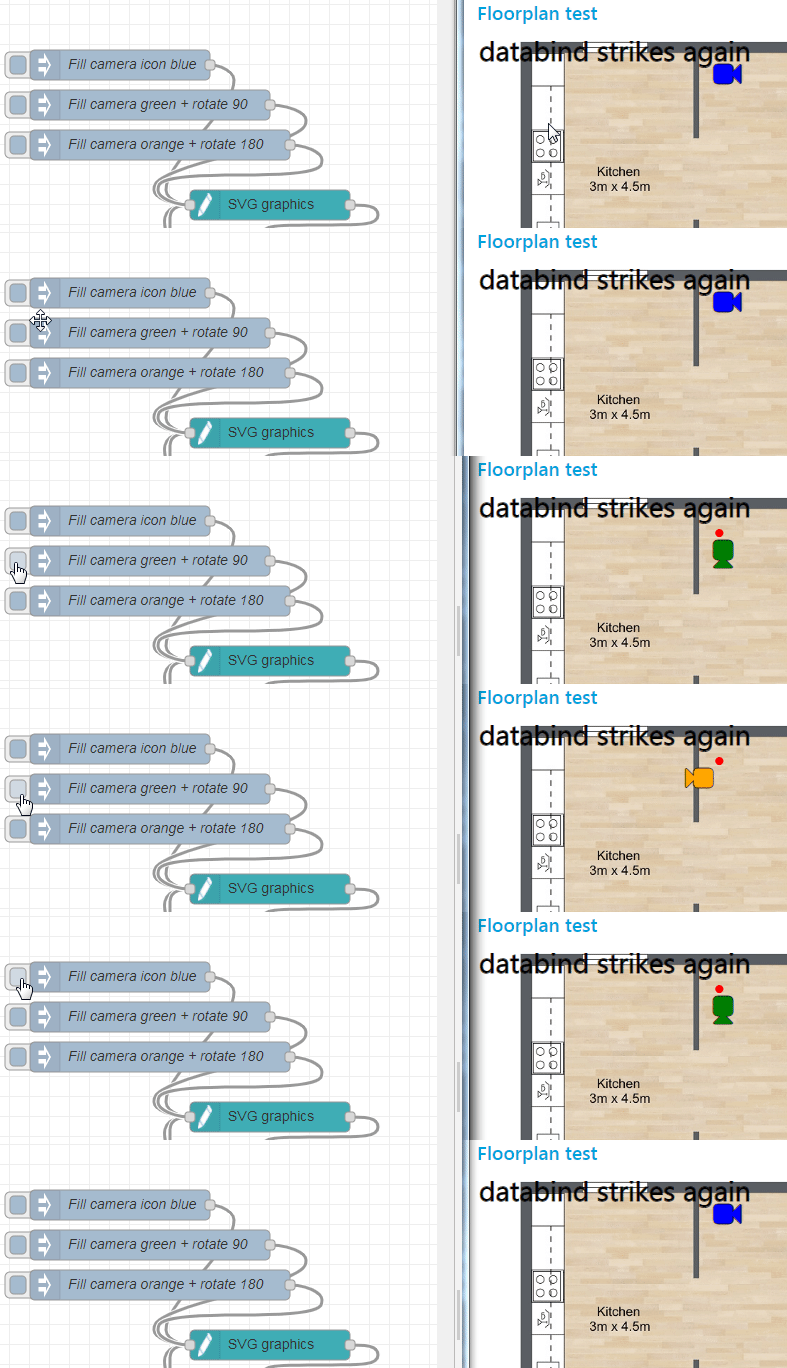
```
[{"id":"4e6e1448.6e2acc","type":"debug","z":"2203d76d.b17558","name":"Floorplan output","active":true,"tosidebar":true,"console":false,"tostatus":false,"complete":"true","x":740,"y":2040,"wires":[]},{"id":"135dd5c9.59cd2a","type":"ui_svg_graphics","z":"2203d76d.b17558","group":"d4b5416a.9c25f","order":1,"width":"14","height":"10","svgString":"<svg preserveAspectRatio=\"none\" x=\"0\" y=\"0\" viewBox=\"0 0 900 710\" xmlns=\"http://www.w3.org/2000/svg\" xmlns:svg=\"http://www.w3.org/2000/svg\" xmlns:xlink=\"http://www.w3.org/1999/xlink\">\n <image width=\"889\" height=\"703\" id=\"background\" xlink:href=\"https://www.roomsketcher.com/wp-content/uploads/2016/10/1-Bedroom-Floor-Plans.jpg\" />\n <text id=\"banner\" x=\"10\" y=\"16\" fill=\"black\" stroke=\"black\" font-size=\"35\" text-anchor=\"left\" alignment-baseline=\"middle\" stroke-width=\"1\">This is the #banner</text>\n <circle id=\"pir_living\" cx=\"310\" cy=\"45\" r=\"5\" stroke-width=\"0\" fill=\"#FF0000\" />\n <text id=\"camera_living\" x=\"310\" y=\"45\" font-family=\"FontAwesome\" fill=\"grey\" stroke=\"black\" font-size=\"35\" text-anchor=\"middle\" alignment-baseline=\"middle\" stroke-width=\"1\"></text>\n</svg> ","clickableShapes":[{"targetId":"#camera_living","action":"click","payload":"camera_living","payloadType":"str","topic":"camera_living"}],"smilAnimations":[],"bindings":[{"selector":"#banner","bindSource":"payload.title","bindType":"text","attribute":""},{"selector":"#camera_living","bindSource":"payload.position.x","bindType":"attr","attribute":"x"},{"selector":"#camera_living","bindSource":"payload.camera.colour","bindType":"attr","attribute":"fill"}],"showCoordinates":false,"autoFormatAfterEdit":false,"outputField":"","editorUrl":"http://drawsvg.org/drawsvg.html","directory":"","name":"","x":540,"y":2040,"wires":[["4e6e1448.6e2acc"]]},{"id":"2fc1c8e6.b48e18","type":"inject","z":"2203d76d.b17558","name":"databind","repeat":"","crontab":"","once":false,"onceDelay":0.1,"topic":"databind","payload":"{\"camera\":{\"colour\":\"yellow\"},\"position\":{\"x\":320},\"title\":\"databind strikes again\"}","payloadType":"json","x":160,"y":2180,"wires":[["135dd5c9.59cd2a"]]},{"id":"3367d220.c43b0e","type":"inject","z":"2203d76d.b17558","name":"databind","props":[{"p":"payload"},{"p":"topic","vt":"str"}],"repeat":"","crontab":"","once":false,"onceDelay":0.1,"topic":"databind","payload":"{\"camera\":{\"colour\":\"green\"},\"position\":{\"x\":250},\"title\":\"New banner title by databind\"}","payloadType":"json","x":160,"y":2140,"wires":[["135dd5c9.59cd2a"]]},{"id":"97fd3117.1e4e3","type":"inject","z":"2203d76d.b17558","name":"Fill camera green + rotate 90","props":[{"p":"payload"}],"repeat":"","crontab":"","once":false,"onceDelay":0.1,"topic":"","payload":"[{\"command\":\"update_attribute\",\"selector\":\"#camera_living\",\"attributeName\":\"fill\",\"attributeValue\":\"green\"},{\"command\":\"set_attribute\",\"selector\":\"#camera_living\",\"attributeName\":\"rotate\",\"attributeValue\":\"90\"}]","payloadType":"json","x":220,"y":2000,"wires":[["135dd5c9.59cd2a"]]},{"id":"5bbcfbfe.f0d834","type":"inject","z":"2203d76d.b17558","name":"Fill camera orange + rotate 180","props":[{"p":"payload"}],"repeat":"","crontab":"","once":false,"onceDelay":0.1,"topic":"","payload":"[{\"command\":\"update_attribute\",\"selector\":\"#camera_living\",\"attributeName\":\"fill\",\"attributeValue\":\"orange\"},{\"command\":\"set_attribute\",\"selector\":\"#camera_living\",\"attributeName\":\"rotate\",\"attributeValue\":\"180\"}]","payloadType":"json","x":230,"y":2040,"wires":[["135dd5c9.59cd2a"]]},{"id":"52db2b3d.e23494","type":"inject","z":"2203d76d.b17558","name":"Fill camera icon blue","props":[{"p":"payload"}],"repeat":"","crontab":"","once":false,"onceDelay":0.1,"topic":"","payload":"[{\"command\":\"update_attribute\",\"selector\":\"#camera_living\",\"attributeName\":\"fill\",\"attributeValue\":\"blue\"},{\"command\":\"set_attribute\",\"selector\":\"#camera_living\",\"attributeName\":\"rotate\",\"attributeValue\":\"0\"}]","payloadType":"json","x":190,"y":1960,"wires":[["135dd5c9.59cd2a"]]},{"id":"d4b5416a.9c25f","type":"ui_group","z":"","name":"Floorplan test","tab":"b9052fac.2b0e9","order":1,"disp":true,"width":"14","collapse":false},{"id":"b9052fac.2b0e9","type":"ui_tab","z":"","name":"SVG","icon":"dashboard","disabled":false,"hidden":false}]
```
## Update/set a style attribute value via msg
The SVG elements' style attribute values can be added/changed via an input message:
```
"payload": {
"command": "update_style",
"selector": ".camera",
"attributeName": "fill",
"attributeValue": "purple"
}
```
Note that both commands ***update_style*** and ***set_style*** will both update the value of an *existing* SVG element style attribute or create the style attribute when it doesn't exist yet. So, there is no difference between both commands (in contradiction to set_attribute and update_attribute). Indeed, because there will be always default SVG styles and optionally inline and external SVG styles, the style attributes will always already exist...
Instead of adding/changing a single style attribute value, it is also possible to add/change the entire style attribute at once. In this case the *"style"* needs to be specified, instead of the *"attributeName"*:
+ Use command ***update_style*** to update the value of the *existing* SVG element style:
```
"payload": {
"command": "update_style",
"selector": ".camera",
"style": { "fill": "blue", "transform": "rotate(5deg)" }
}
```
+ Use command ***set_style*** to update the value of the *existing* SVG element style attribute, or create the style when it does not exist yet:
```
"payload": {
"command": "set_style",
"selector": ".camera",
"style": { "fill": "blue", "transform": "rotate(5deg)" }
}
```
## Remove an attribute via msg
An attribute of an SVG element can be removed via an input message:
+ Use command ***remove_attribute*** to remove an SVG element attribute:
```
"payload": {
"command": "remove_attribute",
"selector": ".camera",
"attributeName": "fill"
}
```
+ Use command ***update_style*** to remove an SVG element attribute by setting the attribute value to an empty string:
```
"payload": {
"command": "update_style",
"selector": ".camera",
"attributeName": "fill",
"attributeValue": ""
}
```
This can also be used to remove SVG element style attributes:
```
"payload": {
"command":"update_style",
"selector":".camera",
"style":{"fill":"", "transform":""}
}
```
The following demo shows to set an attribute *"visibility"* (with value *"hidden"*), and then removing that same attribute via a second Inject button:

```
[{"id":"2399b014.7c6ad","type":"ui_svg_graphics","z":"4ae15451.7b2f5c","group":"2df28529.6748aa","order":2,"width":"12","height":"11","svgString":"<svg width=\"100%\" height=\"100%\" \n xmlns=\"http://www.w3.org/2000/svg\" xmlns:xlink=\"http://www.w3.org/1999/xlink\"> \n <image id=\"my_request\" href=\"https://www.securitymagazine.com/ext/resources/SEC/2016/0216/SEC0216-edu-feature-slide1_900px.jpg\" height=\"100%\" width=\"100%\" preserveAspectRatio=\"xMidYMid meet\"/>\n</svg>","clickableShapes":[],"smilAnimations":[],"bindings":[],"showCoordinates":false,"autoFormatAfterEdit":false,"showBrowserErrors":false,"selectorAsElementId":true,"outputField":"payload","editorUrl":"http://drawsvg.org/drawsvg.html","directory":"","panEnabled":false,"zoomEnabled":false,"controlIconsEnabled":false,"dblClickZoomEnabled":false,"mouseWheelZoomEnabled":false,"name":"","x":1200,"y":720,"wires":[[]]},{"id":"6e24eeff.683db","type":"inject","z":"4ae15451.7b2f5c","name":"Remove attribute","topic":"","payload":"{\"command\":\"remove_attribute\",\"elementId\":\"my_request\",\"attributeName\":\"visibility\"}","payloadType":"json","repeat":"","crontab":"","once":false,"onceDelay":0.1,"showConfirmation":false,"confirmationLabel":"","x":980,"y":760,"wires":[["2399b014.7c6ad"]]},{"id":"196fb554.773beb","type":"inject","z":"4ae15451.7b2f5c","name":"Set attribute","topic":"","payload":"{\"command\":\"set_attribute\",\"elementId\":\"my_request\",\"attributeName\":\"visibility\",\"attributeValue\":\"hidden\"}","payloadType":"json","repeat":"","crontab":"","once":false,"onceDelay":0.1,"showConfirmation":false,"confirmationLabel":"","x":970,"y":720,"wires":[["2399b014.7c6ad"]]},{"id":"2df28529.6748aa","type":"ui_group","z":"","name":"Default","tab":"60e30c13.98a7e4","order":1,"disp":true,"width":"12","collapse":false},{"id":"60e30c13.98a7e4","type":"ui_tab","z":"","name":"Attribute add/remove demo","icon":"dashboard","disabled":false,"hidden":false}]
```
Although of course it would make more sense to achieve the same effect, by keeping the attribute and update its value from *"visible"* to *"hidden"*.
## Replace an attribute value via msg
A part of the SVG elements' attribute values can be replaced by another string via an input message.
```
"payload": {
"command": "replace_attribute",
"selector": "#some_path",
"attributeName": "d",
"regex": "[a-z][^a-z]*",
"replaceValue": "v20"
}
```
The previous command will change `<path d="M256.409,423.964v48" ...>` into `<path d="M256.409,423.964v20" ...>`.
## Set text content via msg
The text content (or inner html) of an SVG element can be set via an input message:
```
"payload": {
"command": "update_text",
"selector": "#myRect > .faultMessage",
"textContent": "Hello from a command message"
}
```
When the command is being specified inside the topic, you can simply send the text in the payload:
```
{
"topic": "update_text|#myRect > .faultMessage",
"payload": "hello"
}
```
There are some different naming conventions possible:
+ The command can be both *"update_text"* or *"update_innerHTML"*.
+ The text can be delivered in *"textContent"* or *"text"* or *"html"*.
+ Beside to plain text, it is also possible to specify text containing HTML or SVG markup! For example "`\<b>Hello\</b> \<i>from a command message\</i>"`.
This can be used for example to show live sensor values, like in this flow:

```
[{"id":"33d2b8c4.d8b238","type":"ui_svg_graphics","z":"2203d76d.b17558","group":"95c5d2ef.84601","order":0,"width":"15","height":"15","svgString":"<svg preserveAspectRatio=\"none\" x=\"0\" y=\"0\" viewBox=\"0 0 900 710\" xmlns=\"http://www.w3.org/2000/svg\" xmlns:svg=\"http://www.w3.org/2000/svg\" xmlns:xlink=\"http://www.w3.org/1999/xlink\">\n <text id=\"my_text\" x=\"100\" y=\"30\" fill=\"blue\" font-size=\"25\" text-anchor=\"middle\" alignment-baseline=\"middle\" font-weight=\"bold\">10°C</text>\n <text id=\"my_icon\" x=\"160\" y=\"50\" font-family=\"FontAwesome\" fill=\"blue\" font-size=\"80\" text-anchor=\"middle\" alignment-baseline=\"middle\" stroke-width=\"1\">fa-thermometer-empty</text>\n</svg>","clickableShapes":[],"smilAnimations":[],"bindings":[],"showCoordinates":true,"autoFormatAfterEdit":false,"showBrowserErrors":false,"outputField":"anotherField","editorUrl":"","directory":"","panning":"disabled","zooming":"disabled","panOnlyWhenZoomed":false,"doubleClickZoomEnabled":false,"mouseWheelZoomEnabled":false,"name":"Thermometer","x":820,"y":1820,"wires":[[]]},{"id":"f5cea410.d11948","type":"function","z":"2203d76d.b17558","name":"Color interpolation","func":"const color1 = [0, 0, 255]; // blude\nconst color2 = [255, 0, 0]; // red\n\nvar temperature = msg.payload;\nvar factor = msg.payload / 100;\n\nvar red = Math.round(color1[0] + factor * (color2[0] - color1[0]));\nvar green = Math.round(color1[1] + factor * (color2[1] - color1[1]));\nvar blue = Math.round(color1[2] + factor * (color2[2] - color1[2]));\n\nvar interpolatedColor = \"rgb(\" + red + \",\" + green + \",\" + blue + \")\"; \n\nmsg.payload = [{\n \"command\": \"update_text\",\n \"selector\": \"#my_text\",\n \"textContent\": temperature + \"°C\"\n},{\n \"command\": \"update_attribute\",\n \"selector\": \"#my_text\",\n \"attributeName\": \"fill\",\n \"attributeValue\": interpolatedColor\n},{\n \"command\": \"update_attribute\",\n \"selector\": \"#my_icon\",\n \"attributeName\": \"fill\",\n \"attributeValue\": interpolatedColor\n}]\n\nreturn msg;","outputs":1,"noerr":0,"initialize":"","finalize":"","x":590,"y":1820,"wires":[["33d2b8c4.d8b238"]]},{"id":"a90255d4.4ac008","type":"ui_slider","z":"2203d76d.b17558","name":"","label":"Temperature","tooltip":"","group":"95c5d2ef.84601","order":3,"width":"6","height":"1","passthru":true,"outs":"all","topic":"","min":0,"max":"100","step":1,"x":370,"y":1820,"wires":[["f5cea410.d11948"]]},{"id":"95c5d2ef.84601","type":"ui_group","z":"","name":"Home Floor Plan","tab":"c411008f.d8abc","order":1,"disp":true,"width":"15","collapse":false},{"id":"c411008f.d8abc","type":"ui_tab","z":"","name":"Home Floor Plan","icon":"dashboard","disabled":false,"hidden":false}]
```
## Get text content via msg
The text content (or inner html) of an SVG element can be get via an input message:
```
"payload": {
"command": "get_text",
"selector": "#myText"
}
```
The text(s) will be sent in the output message payload as an array.
## Start/stop animations via msg
Existing animations can be started/stopped via an input message, by a ***start*** or ***stop*** action value:
```
"payload": {
"command": "trigger_animation",
"selector": "#myAnimation",
"action": "start"
}
```
Note that you need to specify in the *"Animations"* tab sheet which animations will be triggered via input messages:

Such messages allow you to create dynamic effects like in the following demo:
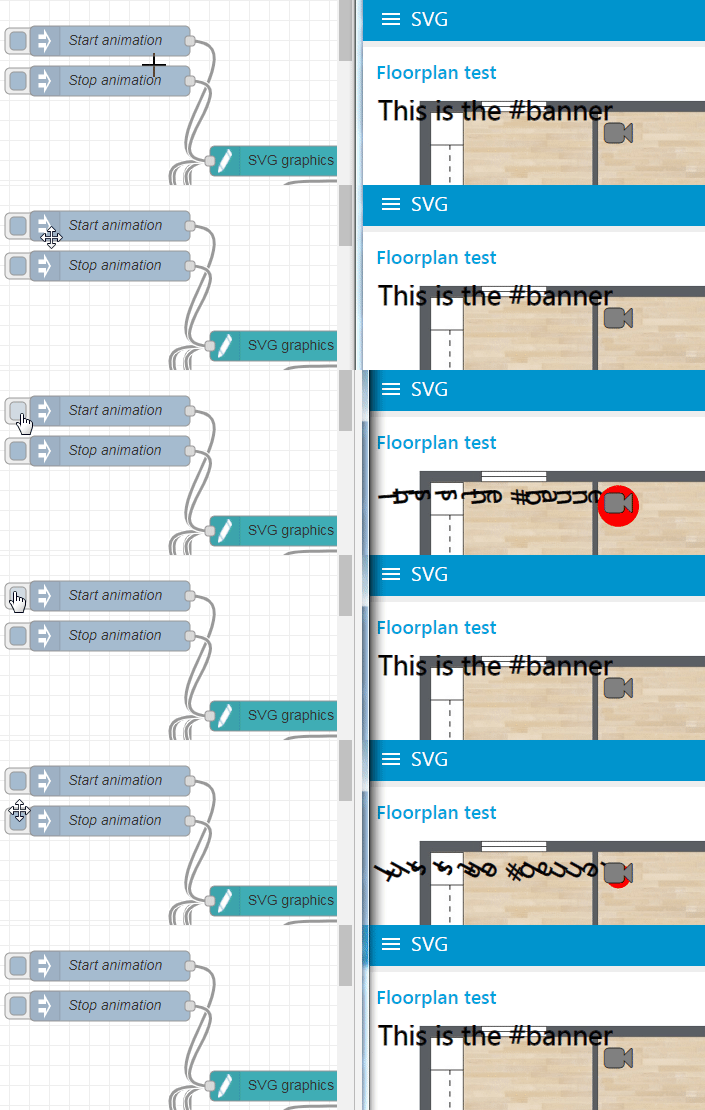
```
[{"id":"c997135f.8035f","type":"debug","z":"f939feb8.8dc6","name":"Floorplan output","active":true,"tosidebar":true,"console":false,"tostatus":false,"complete":"true","x":520,"y":220,"wires":[]},{"id":"bb93fff5.927ba","type":"ui_svg_graphics","z":"f939feb8.8dc6","group":"997e40da.b5acc","order":1,"width":"14","height":"10","svgString":"<svg preserveAspectRatio=\"none\" x=\"0\" y=\"0\" viewBox=\"0 0 900 710\" xmlns=\"http://www.w3.org/2000/svg\" xmlns:svg=\"http://www.w3.org/2000/svg\" xmlns:xlink=\"http://www.w3.org/1999/xlink\">\n <image width=\"889\" height=\"703\" id=\"background\" xlink:href=\"https://www.roomsketcher.com/wp-content/uploads/2016/10/1-Bedroom-Floor-Plans.jpg\" />\n <text id=\"banner\" x=\"10\" y=\"16\" fill=\"black\" stroke=\"black\" font-size=\"35\" text-anchor=\"left\" alignment-baseline=\"middle\" stroke-width=\"1\">This is the #banner</text>\n <circle id=\"pir_living\" cx=\"310\" cy=\"45\" r=\"1\" stroke-width=\"1\" fill=\"#FF0000\" />\n <text id=\"camera_living\" x=\"310\" y=\"45\" font-family=\"FontAwesome\" fill=\"grey\" stroke=\"black\" font-size=\"35\" text-anchor=\"middle\" alignment-baseline=\"middle\" stroke-width=\"1\"></text>\n</svg> ","clickableShapes":[{"targetId":"#camera_living","action":"click","payload":"camera_living","payloadType":"str","topic":"camera_living"}],"smilAnimations":[{"id":"myAnimation","targetId":"pir_living","classValue":"all_animation","attributeName":"r","fromValue":"1","toValue":"30","trigger":"cust","duration":"500","durationUnit":"ms","repeatCount":"5","end":"restore","delay":"1","delayUnit":"s","custom":"camera_living.click; "},{"id":"textRotate","targetId":"banner","classValue":"all_animation","attributeName":"rotate","fromValue":"0","toValue":"360","trigger":"msg","duration":"750","durationUnit":"ms","repeatCount":"3","end":"restore","delay":"1","delayUnit":"s","custom":""}],"bindings":[{"selector":"#banner","bindSource":"payload.title","bindType":"text","attribute":""},{"selector":"#camera_living","bindSource":"payload.position.x","bindType":"attr","attribute":"x"},{"selector":"#camera_living","bindSource":"payload.camera.colour","bindType":"attr","attribute":"fill"}],"showCoordinates":false,"autoFormatAfterEdit":false,"outputField":"","editorUrl":"","directory":"","name":"","x":420,"y":180,"wires":[["c997135f.8035f"]]},{"id":"356e2a8f.a08fe6","type":"inject","z":"f939feb8.8dc6","name":"databind","topic":"databind","payload":"{\"camera\":{\"colour\":\"yellow\"},\"position\":{\"x\":320},\"title\":\"databind strikes again\"}","payloadType":"json","repeat":"","crontab":"","once":false,"onceDelay":0.1,"x":240,"y":260,"wires":[["bb93fff5.927ba"]]},{"id":"4e2e2d82.5950e4","type":"inject","z":"f939feb8.8dc6","name":"databind","topic":"databind","payload":"{\"camera\":{\"colour\":\"green\"},\"position\":{\"x\":250},\"title\":\"New banner title by databind\"}","payloadType":"json","repeat":"","crontab":"","once":false,"onceDelay":0.1,"x":240,"y":220,"wires":[["bb93fff5.927ba"]]},{"id":"97b80c2d.b5c35","type":"inject","z":"f939feb8.8dc6","name":"Fill camera green + rotate 90","topic":"update_attribute","payload":"[{\"command\":\"update_attribute\",\"selector\":\"#camera_living\",\"attributeName\":\"fill\",\"attributeValue\":\"green\"},{\"command\":\"set_attribute\",\"selector\":\"#camera_living\",\"attributeName\":\"rotate\",\"attributeValue\":\"90\"}]","payloadType":"json","repeat":"","crontab":"","once":false,"onceDelay":0.1,"x":300,"y":360,"wires":[["bb93fff5.927ba"]]},{"id":"4be0130f.78b13c","type":"inject","z":"f939feb8.8dc6","name":"Fill camera orange + rotate 180","topic":"update_attribute","payload":"[{\"command\":\"update_attribute\",\"selector\":\"#camera_living\",\"attributeName\":\"fill\",\"attributeValue\":\"orange\"},{\"command\":\"set_attribute\",\"selector\":\"#camera_living\",\"attributeName\":\"rotate\",\"attributeValue\":\"180\"}]","payloadType":"json","repeat":"","crontab":"","once":false,"onceDelay":0.1,"x":310,"y":400,"wires":[["bb93fff5.927ba"]]},{"id":"46128135.4fcdd","type":"inject","z":"f939feb8.8dc6","name":"Fill camera icon blue","topic":"update_attribute","payload":"[{\"command\":\"update_attribute\",\"selector\":\"#camera_living\",\"attributeName\":\"fill\",\"attributeValue\":\"blue\"},{\"command\":\"set_attribute\",\"selector\":\"#camera_living\",\"attributeName\":\"rotate\",\"attributeValue\":\"0\"}]","payloadType":"json","repeat":"","crontab":"","once":false,"onceDelay":0.1,"x":270,"y":320,"wires":[["bb93fff5.927ba"]]},{"id":"735182fa.b0c50c","type":"inject","z":"f939feb8.8dc6","name":"Start animation","topic":"trigger_animation","payload":"[{\"command\":\"trigger_animation\",\"selector\":\".all_animation\",\"action\":\"start\"}]","payloadType":"json","repeat":"","crontab":"","once":false,"onceDelay":0.1,"x":240,"y":60,"wires":[["bb93fff5.927ba"]]},{"id":"7b608d5b.d892a4","type":"inject","z":"f939feb8.8dc6","name":"Stop animation","topic":"","payload":"[{\"command\":\"trigger_animation\",\"selector\":\"#myAnimation\",\"action\":\"stop\"},{\"command\":\"trigger_animation\",\"selector\":\"#textRotate\",\"action\":\"stop\"}]","payloadType":"json","repeat":"","crontab":"","once":false,"onceDelay":0.1,"x":240,"y":100,"wires":[["bb93fff5.927ba"]]},{"id":"997e40da.b5acc","type":"ui_group","z":"","name":"Floorplan test","tab":"95801a22.bd5f18","disp":true,"width":"14","collapse":false},{"id":"95801a22.bd5f18","type":"ui_tab","z":"","name":"SVG","icon":"dashboard","disabled":false,"hidden":false}]
```
## Add events via msg
When SVG elements always need to respond server-side to an event (e.g. click), those elements should be enumerated in the *"Events"* tab sheet. However, in some cases it is required to make SVG elements to respond only temporary to events, which can be achieved by adding events to SVG elements via an input message.
```
"payload": {
"command" : "add_event",
"event" : "click",
"selector" : "#circle_2",
"payload" : "circle 2 has been clicked", // Content of the output message payload
"topic" : "CIRCLE_CLICKED" // Content of the output message topic
}]
```
By sending this input message, the circle will become clickable.
Remarks:
+ The payload of the input message contains both the payload and topic of the output message (which will be sent in when the specified event occurs on the specified SVG element).
+ The following events can be specified: *"click", "dblclick", "change", "contextmenu", "mouseover", "mouseout", "mouseup", "mousedown", "focus", "focusin", "focusout", "blur", "keyup", "keydown", "touchstart", "touchend"*
+ You need to remove the previous event handler (via the center inject node), before you add a new event handler. Otherwise an error will occur.
## Remove events via msg
An event (handler) can be removed from an SVG element via an input message:
```
"payload": {
"command" : "remove_event",
"event" : "click",
"selector" : "#circle_1"
}
```
## Add Javascript events via msg
When SVG elements always need to respond client-side to an event (e.g. click), those elements should be enumerated in the *"JS"* tab sheet. However, in some cases it is required to make SVG elements to respond only temporary via Javascript to events, which can be achieved by adding events to SVG elements via an input message.
```
"payload": {
"command" : "add_js_event",
"event" : "click",
"selector" : "#circle_2",
"script" : "alert('circle 2 has been clicked');" // The Javascript code that needs to be executed
}]
```
By sending this input message, the circle will become clickable. And the specified Javascript code will be executed on the client-side (i.e. inside the dashboard) as soon as the event occurs.
Remarks:
+ The following events can be specified: *"click", "dblclick", "change", "contextmenu", "mouseover", "mouseout", "mouseup", "mousedown", "focus", "focusin", "focusout", "blur", "keyup", "keydown", "touchstart", "touchend"*
+ You need to remove the previous event handler first (e.g. by adding both *remove_js_event* and *add_js_event* commands inside a single message), before you can specify a new event handler. Otherwise an error will occur.
+ When the *"show browser errors on the server"* option is activated, an error will be displayed in the Debug sidebar when the injected Javascript code contains errors. For example we inject the code snippet *"var x=1 var y=2;"*, which doesn't contain a `;` between the two statements. As soon as the event occurs (and the Javascript code is executed), this error will be displayed:

## Remove Javascript events via msg
A Javascript event (handler) can be removed from an SVG element via an input message:
```
"payload": {
"command" : "remove_js_event",
"event" : "click",
"selector" : "#circle_1"
}
```
## Add elements via msg
Normally SVG elements need to exist all the time, by defining them in the *"SVG"* tab sheet. However, it might be required to add SVG elements dynamically, which can be achieved via input messages:
```
"payload": {
"command": "add_element",
"elementType": "circle",
"elementId": "extra_circle",
"elementAttributes": [
"cx": "100",
"cy": "50",
"r": "30"
],
"elementStyleAttributes": [
"fill": "red",
"stroke": "black"
],
"textContent": "my content"
}
```
Some remarks about the input message:
+ A `parentElementId` property can be specified if the new element should be a child of the specified parent element. If not available, the new element will be added directly under the root SVG element.
+ A `parentSelector` property can be specified, if an instance of this element should be added to all the parent elements that match the CSS selector. This way you can create multiple elements at once via a single command. Note that it is not allowed in that case to specify an elementId property, since only one element can have the same id.
+ When an element with the same `elementId` already exists (for the same parent element), then that existing element will be *replaced* by this new element!
+ A `foreignElement` property (with value `true`) can be specified, when a foreign element needs to be created. In other words to create a standard HTML element, which means a non-SVG element (e.g. a `tr` element to add a table row in a foreign html table used inside the SVG drawing).
When the *"Event"* tab sheet already contains a CSS selector that matches this new element, then this new element automatically gets those event handlers.
The following demo shows how to create an icon every time the button is being clicked (and remove them afterwards):

```
[{"id":"2b26f529.49dbfa","type":"ui_svg_graphics","z":"4ae15451.7b2f5c","group":"5a9e7538.2c2fbc","order":2,"width":"6","height":"6","svgString":"<svg x=\"0\" y=\"0\" height=\"300\" viewBox=\"0 0 300 300\" width=\"300\" xmlns=\"http://www.w3.org/2000/svg\" xmlns:svg=\"http://www.w3.org/2000/svg\" xmlns:xlink=\"http://www.w3.org/1999/xlink\">\n</svg>","clickableShapes":[{"targetId":"#circle_1","action":"click","payload":"#circle_1","payloadType":"str","topic":"#circle_1"}],"smilAnimations":[],"bindings":[],"showCoordinates":true,"autoFormatAfterEdit":false,"showBrowserErrors":false,"selectorAsElementId":true,"outputField":"payload","editorUrl":"http://drawsvg.org/drawsvg.html","directory":"","panEnabled":false,"zoomEnabled":false,"controlIconsEnabled":false,"dblClickZoomEnabled":false,"mouseWheelZoomEnabled":false,"name":"","x":1820,"y":160,"wires":[[]]},{"id":"4eaee1f9.e29a","type":"inject","z":"4ae15451.7b2f5c","name":"Add element \"newElement\"","topic":"","payload":"{\"command\":\"add_element\",\"elementType\":\"text\",\"elementId\":\"burglar\",\"elementAttributes\":{\"x\":\"50\",\"y\":\"60\",\"font-family\":\"FontAwesome\",\"font-size\":\"35\",\"text-anchor\":\"middle\",\"alignment-baseline\":\"middle\",\"stroke-width\":\"1\"},\"elementStyleAttributes\":{\"fill\":\"blue\",\"stroke\":\"black\"},\"textContent\":\"fa-video-camera\"}","payloadType":"json","repeat":"","crontab":"","once":false,"onceDelay":0.1,"showConfirmation":false,"confirmationLabel":"","x":1490,"y":160,"wires":[["2b26f529.49dbfa"]]},{"id":"13d4363.22c11ca","type":"inject","z":"4ae15451.7b2f5c","name":"Remove element","topic":"","payload":"{\"command\":\"remove_element\",\"elementId\":\"burglar\"}","payloadType":"json","repeat":"","crontab":"","once":false,"onceDelay":0.1,"showConfirmation":false,"confirmationLabel":"","x":1460,"y":200,"wires":[["2b26f529.49dbfa"]]},{"id":"7b4a624b.97e90c","type":"function","z":"4ae15451.7b2f5c","name":"Set random coordinates","func":"// Generate random coordinates between 0 and 300\nvar x = Math.floor(Math.random() * 300);\nvar y = Math.floor(Math.random() * 300);\nmsg.payload.elementAttributes.x = x;\nmsg.payload.elementAttributes.y = y;\nmsg.payload.elementId = \"burglar_\" + Math.random();\nreturn msg;","outputs":1,"noerr":0,"x":1670,"y":300,"wires":[["2b26f529.49dbfa"]]},{"id":"9b51204a.ea4f9","type":"inject","z":"4ae15451.7b2f5c","name":"Add element","topic":"","payload":"{\"command\":\"add_element\",\"elementType\":\"text\",\"elementAttributes\":{\"font-family\":\"FontAwesome\",\"font-size\":\"35\",\"text-anchor\":\"middle\",\"alignment-baseline\":\"middle\",\"stroke-width\":\"1\"},\"elementStyleAttributes\":{\"fill\":\"blue\",\"stroke\":\"black\"},\"textContent\":\"fa-male\"}","payloadType":"json","repeat":"","crontab":"","once":false,"onceDelay":0.1,"showConfirmation":false,"confirmationLabel":"","x":1450,"y":300,"wires":[["7b4a624b.97e90c"]]},{"id":"7bc4610d.d954c","type":"inject","z":"4ae15451.7b2f5c","name":"Remove all","topic":"","payload":"{\"command\":\"remove_element\",\"selector\":\"[id^=burglar]\"}","payloadType":"json","repeat":"","crontab":"","once":false,"onceDelay":0.1,"showConfirmation":false,"confirmationLabel":"","x":1450,"y":260,"wires":[["2b26f529.49dbfa"]]},{"id":"5a9e7538.2c2fbc","type":"ui_group","z":"","name":"Boundingbox test","tab":"80f0e178.bbf4a","order":2,"disp":true,"width":"12","collapse":false},{"id":"80f0e178.bbf4a","type":"ui_tab","z":"","name":"Home","icon":"dashboard","order":1,"disabled":false,"hidden":false}]
```
## Remove elements via msg
An SVG element can be removed via an input message:
```
"payload": {
"command": "remove_element",
"elementId": "circle_1"
}
```
By specifying a `selector` property (instead of an elementId property), it is possible to remove multiple elements at once via a single command.
## Update (input) value via msg
The value of a (foreign) input element can be update via an input message:
```
"payload": {
"command": "update_value",
"selector": "#temp_living",
"value": 17
}
```
By specifying a `selector` property (instead of an elementId property), it is possible to update the value of multiple (foreign) input elements at once via a single command.
## Set entire SVG via msg
It is possible to set an entire SVG drawing via an input message, to replace the current drawing:
```
"payload": {
"command": "replace_svg",
"svg": "<svg height=\"140\" width=\"140\"><circle id=\"myShape\" cx=\"50\" cy=\"50\" r=\"40\" fill=\"yellow\"/></svg>"
}
```
Note that it is required to ***escape*** all quotation marks (`"`) around the attribute names attributes, by a forward slash `\` in the ***"svg"*** message field. For example replace `width="140"` by `width=\"140\"`. If this isn't sufficient on some browsers, you can find extra tips [here](https://www.thorntech.com/2012/07/4-things-you-must-do-when-putting-html-in-json/). Please report it to me, so I can update this documentation here!
The following example flow demonstrates how the entire SVG can be replaced:

```
[{"id":"16a953b2.21beec","type":"ui_svg_graphics","z":"5598090d.febad8","group":"925439b0.2863c8","order":0,"width":"3","height":"3","svgString":"<svg x=\"0\" y=\"0\" width=\"144\" height=\"144\" viewBox=\"0 0 144 144\" xmlns=\"http://www.w3.org/2000/svg\" xmlns:svg=\"http://www.w3.org/2000/svg\" xmlns:xlink=\"http://www.w3.org/1999/xlink\">\n<circle id=\"myShape\" cx=\"73\" cy=\"72\" r=\"20\" color=\"red\" outline=\"black\"/>\n</svg>","clickableShapes":[{"targetId":"#myShape","action":"click","payload":"myShape clicked","payloadType":"str","topic":"#myShape"}],"smilAnimations":[],"bindings":[],"showCoordinates":false,"autoFormatAfterEdit":false,"showBrowserErrors":true,"outputField":"payload","editorUrl":"//drawsvg.org/drawsvg.html","directory":"","panning":"both","zooming":"disabled","panOnlyWhenZoomed":false,"doubleClickZoomEnabled":false,"mouseWheelZoomEnabled":false,"name":"svg-graphics","x":590,"y":260,"wires":[["4672821a.2f296c"]]},{"id":"e105ccfb.c2849","type":"inject","z":"5598090d.febad8","name":"SVG with yellow circle","props":[{"p":"payload"}],"repeat":"","crontab":"","once":false,"onceDelay":0.1,"topic":"","payload":"{\"command\":\"replace_svg\",\"svg\":\"<svg height=\\\"140\\\" width=\\\"140\\\"><circle id=\\\"myShape\\\" cx=\\\"50\\\" cy=\\\"50\\\" r=\\\"40\\\" fill=\\\"yellow\\\"/></svg>\"}","payloadType":"json","x":380,"y":260,"wires":[["16a953b2.21beec"]]},{"id":"b232e2bf.52efb","type":"inject","z":"5598090d.febad8","name":"SVG with blue rectangle","props":[{"p":"payload"}],"repeat":"","crontab":"","once":false,"onceDelay":0.1,"topic":"","payload":"{\"command\":\"replace_svg\",\"svg\":\"<svg height=\\\"140\\\" width=\\\"140\\\"><rect id=\\\"myShape\\\" x=\\\"20\\\" y=\\\"30\\\" width=\\\"110\\\" height=\\\"70\\\" fill=\\\"blue\\\"/></svg>\"}","payloadType":"json","x":380,"y":320,"wires":[["16a953b2.21beec"]]},{"id":"5f208d4d.047af4","type":"inject","z":"5598090d.febad8","name":"SVG with pink ellipse","props":[{"p":"payload"}],"repeat":"","crontab":"","once":false,"onceDelay":0.1,"topic":"","payload":"{\"command\":\"replace_svg\",\"svg\":\"<svg height=\\\"140\\\" width=\\\"140\\\"><ellipse id=\\\"myShape\\\" cx=\\\"60\\\" cy=\\\"50\\\" rx=\\\"60\\\" ry=\\\"30\\\" fill=\\\"pink\\\"/></svg>\"}","payloadType":"json","x":380,"y":380,"wires":[["16a953b2.21beec"]]},{"id":"4672821a.2f296c","type":"debug","z":"5598090d.febad8","name":"log events","active":true,"tosidebar":true,"console":false,"tostatus":false,"complete":"true","targetType":"full","statusVal":"","statusType":"auto","x":770,"y":260,"wires":[]},{"id":"925439b0.2863c8","type":"ui_group","z":"","name":"svg-panning-test","tab":"5c613937.fe7368","order":4,"disp":true,"width":"3","collapse":false},{"id":"5c613937.fe7368","type":"ui_tab","z":"","name":"Home","icon":"home","order":1,"disabled":false,"hidden":false}]
```
When event handlers or input msg bindings have been specified on the config screen, those will automatically be applied to the new SVG drawing.
## Get entire SVG
It is possible to get the entire SVG drawing via an input message.
Note that the command will be get from the frontend, which means that N output messages will arrive when N drawings are currently simultaneously visible (i.e. one output message per frontend session). Which means it is advised to trigger this feature from the dashboard, e.g. using a button on the dashboard.
The following example flow shows how to update a drawing (e.g. update the circle color to blue), and get the entire SVG (containing the updated color). When the Inject-node is triggered, N output messages will be send (when the drawing is visible in N dashboard sessions). When the dashboard button is used, 1 output message will be send (arriving from the dashboard session where the button is being clicked):

```
[{"id":"37ea8471.28b61c","type":"inject","z":"a03bd3cf.177578","name":"Get SVG","props":[{"p":"payload"}],"repeat":"","crontab":"","once":false,"onceDelay":0.1,"topic":"","payload":"{\"command\":\"get_svg\"}","payloadType":"json","x":520,"y":820,"wires":[["87305ca4.779a6"]]},{"id":"87305ca4.779a6","type":"ui_svg_graphics","z":"a03bd3cf.177578","group":"28a39865.fa3608","order":0,"width":0,"height":0,"svgString":"<svg x=\"0\" y=\"0\" height=\"100\" viewBox=\"0 0 100 100\" width=\"100\" xmlns=\"http://www.w3.org/2000/svg\" xmlns:svg=\"http://www.w3.org/2000/svg\" xmlns:xlink=\"http://www.w3.org/1999/xlink\">\n <circle id=\"my_circle\" cx=\"50\" cy=\"50\" r=\"40\" stroke=\"black\" stroke-width=\"3\" fill=\"red\" />\n</svg>","clickableShapes":[],"javascriptHandlers":[],"smilAnimations":[],"bindings":[],"showCoordinates":false,"autoFormatAfterEdit":false,"showBrowserErrors":true,"showBrowserEvents":false,"enableJsDebugging":false,"sendMsgWhenLoaded":false,"outputField":"payload","editorUrl":"//drawsvg.org/drawsvg.html","directory":"","panning":"disabled","zooming":"disabled","panOnlyWhenZoomed":false,"doubleClickZoomEnabled":false,"mouseWheelZoomEnabled":false,"dblClickZoomPercentage":150,"name":"","x":730,"y":780,"wires":[["fe183d94.7e362"]]},{"id":"3acd9c13.254b54","type":"inject","z":"a03bd3cf.177578","name":"Update SVG","props":[{"p":"payload"}],"repeat":"","crontab":"","once":false,"onceDelay":0.1,"topic":"","payload":"{\"command\":\"set_attribute\",\"selector\":\"#my_circle\",\"attributeName\":\"fill\",\"attributeValue\":\"blue\"}","payloadType":"json","x":510,"y":780,"wires":[["87305ca4.779a6"]]},{"id":"fe183d94.7e362","type":"debug","z":"a03bd3cf.177578","name":"","active":true,"tosidebar":true,"console":false,"tostatus":false,"complete":"true","targetType":"full","statusVal":"","statusType":"auto","x":910,"y":780,"wires":[]},{"id":"109883d2.04e3cc","type":"ui_button","z":"a03bd3cf.177578","name":"Get SVG","group":"28a39865.fa3608","order":1,"width":0,"height":0,"passthru":false,"label":"Get SVG","tooltip":"","color":"","bgcolor":"","icon":"","payload":"","payloadType":"str","topic":"","x":360,"y":740,"wires":[["7ff2e386.cacdac"]]},{"id":"7ff2e386.cacdac","type":"change","z":"a03bd3cf.177578","name":"get_svg","rules":[{"t":"set","p":"payload","pt":"msg","to":"{\"command\":\"get_svg\"}","tot":"json"}],"action":"","property":"","from":"","to":"","reg":false,"x":520,"y":740,"wires":[["87305ca4.779a6"]]},{"id":"28a39865.fa3608","type":"ui_group","name":"Default","tab":"d8520920.0128d8","order":1,"disp":true,"width":"6","collapse":false},{"id":"d8520920.0128d8","type":"ui_tab","name":"Home","icon":"dashboard","disabled":false,"hidden":false}]
```
The output message will contain the SVG as XML in the payload field:

## Zoom in/out via msg
As explained above (in the [Pan and zoom](#pan-and-zoom) section), it is possible to zoom in/out via an input message:
```
"payload": {
"command": "zoom_in"
}
```
Or the reverse is also possible:
```
"payload": {
"command": "zoom_out"
}
```
Or zoom by a percentage, for example 130% (which means a factor 1.3):
```
"payload": {
"command": "zoom_by_percentage",
"percentage": 130
}
```
Optionally coordinates can be specified, to zoom in on that specific point by a specified percentage:
```
"payload": {
"command": "zoom_by_percentage",
"percentage": 130,
"x": 300,
"y": 400
}
```
## Panning via msg
As explained above (in the [Pan and zoom](#pan-and-zoom) section), it is possible to pan absolute to a specified point via an input message:
```
"payload": {
"command": "pan_to_point",
"x": 300,
"y": 400
}
```
Or it is also possible to pan relative in a specified direction:
```
"payload": {
"command": "pan_to_direction",
"x": 300,
"y": 400
}
```
## Reset pan/zoom via msg
Reset the pan to the original x and y position, and reset the zoom to the initial scale via an input message:
```
"payload": {
"command": "reset_panzoom"
}
```