node-red-contrib-huemagic
Version:
Philips Hue node to control bridges, lights, groups, scenes, rules, taps, switches, buttons, motion sensors, temperature sensors and Lux sensors using Node-RED.
35 lines (19 loc) • 2.08 kB
HTML
<script type="text/markdown" data-help-name="hue-scene">
The "Hue Scene" node can resume scenes saved in the bridge and apply them to certain groups.
### Setup
Select the pre-configured Hue Bridge and hit the search button to find all the available scenes. If you already know the ID of the scene, you can also enter it here manually. Alternatively, you can also assign an internal name for the scene or choose the predefined name of the scene.
### Activate scene
You can activate a predefined scene by transferring an object with the following content:
: payload (boolean): Activates a preconfigured scene
### Activate scene in universal mode
If you operate this node in the so-called "universal mode" and have not set a scene in the node configuration, you can also transfer your desired scene to the node as a command. To do this, pass a `msg.payload` object with the following content:
: scene (string): ID of the scene to be activated on the bridge
### Activate scene on certain groups
Connect the output of this node to one or more groups to apply a scene to specific groups. Alternatively, you have the option of doing this "dynamically" by passing an `msg.payload` object with the following content to the node:
: group (string | array [string,…]): ID of the group or an array with the IDs of several groups in order to limit the scene to these groups
### More information about the Node
This node does not issue any status messages. Please also note that you can only apply scenes to groups if these are already linked to the respective scene on the bridge. Otherwise nothing will be applied.
### Examples from HueMagic
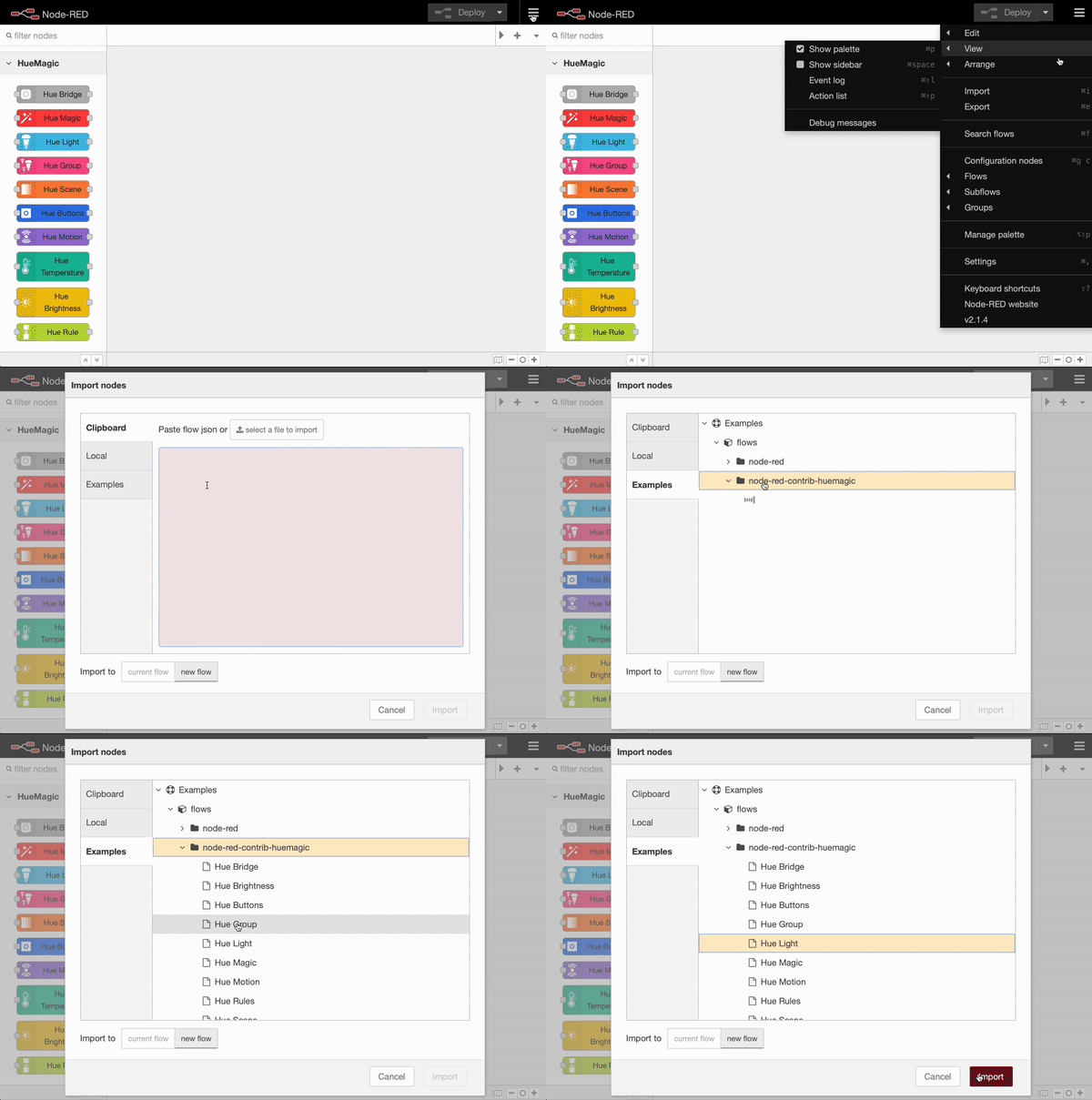
HueMagic provides some sample configurations for this node. To import a full featured example into your Node-RED interface, click on the Node-RED menu icon, then select "Import" and navigate to "Examples" in the sidebar of the popup. Then select the HueMagic folder and your desired node to import a sample flow.
</script>