node-red-contrib-huemagic
Version:
Philips Hue node to control bridges, lights, groups, scenes, rules, taps, switches, buttons, motion sensors, temperature sensors and Lux sensors using Node-RED.
68 lines (45 loc) • 3.91 kB
HTML
<script type="text/markdown" data-help-name="hue-magic">
The "Hue Magic" node can apply complex and custom animations to lights and groups.
First give the node a name in order to clearly classify your animation in the Node-RED interface. You then have the choice between the options "Loop" and "Restore". Select the loop option if you want your animation to run endlessly on a light or group until you manually stop it. If you want to restore the previous state of the target resource (light / group) after the animation has ended, check the "Restore" option. Otherwise the last frame of the animation remains on the respective resource.
Below you can choose from pre-made animations from HueMagic. Click on your desired animation to set it.
### Start / stop animation
To play or stop an animation, pass an object with the following content to the node:
: payload (boolean): `true`, starts the animation, `false`, stops the animation
### Custom animations
If you pass your own animation to the node, the preselected, pre-defined animation (if set) will be temporarily replaced by yours. Own HueMagic animations are a sequence of commands that have been combined in an array. Each array element forms a step - whereby a step can also consist of several frames (transition effects).
Create an `array` with the respective animation steps in the form of an object and transfer it to the HueMagic node under `msg.payload.steps`.
: delay (int): Number of milliseconds to wait until this step is carried out
: animation (object): The object contains the action(s) to be carried out in this step. Identical parameters as for the "Hue Light" & "Hue Group" nodes
### Example of a custom animation
This example shows what a simple animation could look like. In the first step, the delay of 500 milliseconds is waited for. The color of the light is then slowly changed to red over a period of one second. As soon as the light has completely changed to red, the second step is carried out, which also has a delay of 500 milliseconds. Finally the color changes to blue.
If you have set the animation to loop, this process is repeated indefinitely until you manually stop the animation or redeploy the node.
Pass the following object in `msg.payload` to play the example animation.
{
"animate": true,
"steps": [
{
"delay": 500,
"animation": {
"hex": "#FF0000",
"transitionTime": 1
}
},
{
"delay": 500,
"animation": {
"hex": "#0000FF",
"transitionTime": 1
}
}
]
}
Sometimes it makes sense to play an animation in a disorderly manner - e.g. if fire should be imitated more realistically. To play the individual steps randomly, you can pass the following command to `msg.payload.specials`:
: randomOrder (boolean | any): `true`, activates the random playback of the individual animation steps
This node does not output any status messages. Please connect the output of the node with a group instead of individual lights if you want to animate several lights at the same time with the same animation. The previews of the pre-made animations are simulations and may differ slightly (timing, colors) from the actual animation on a resource.
### Examples from HueMagic
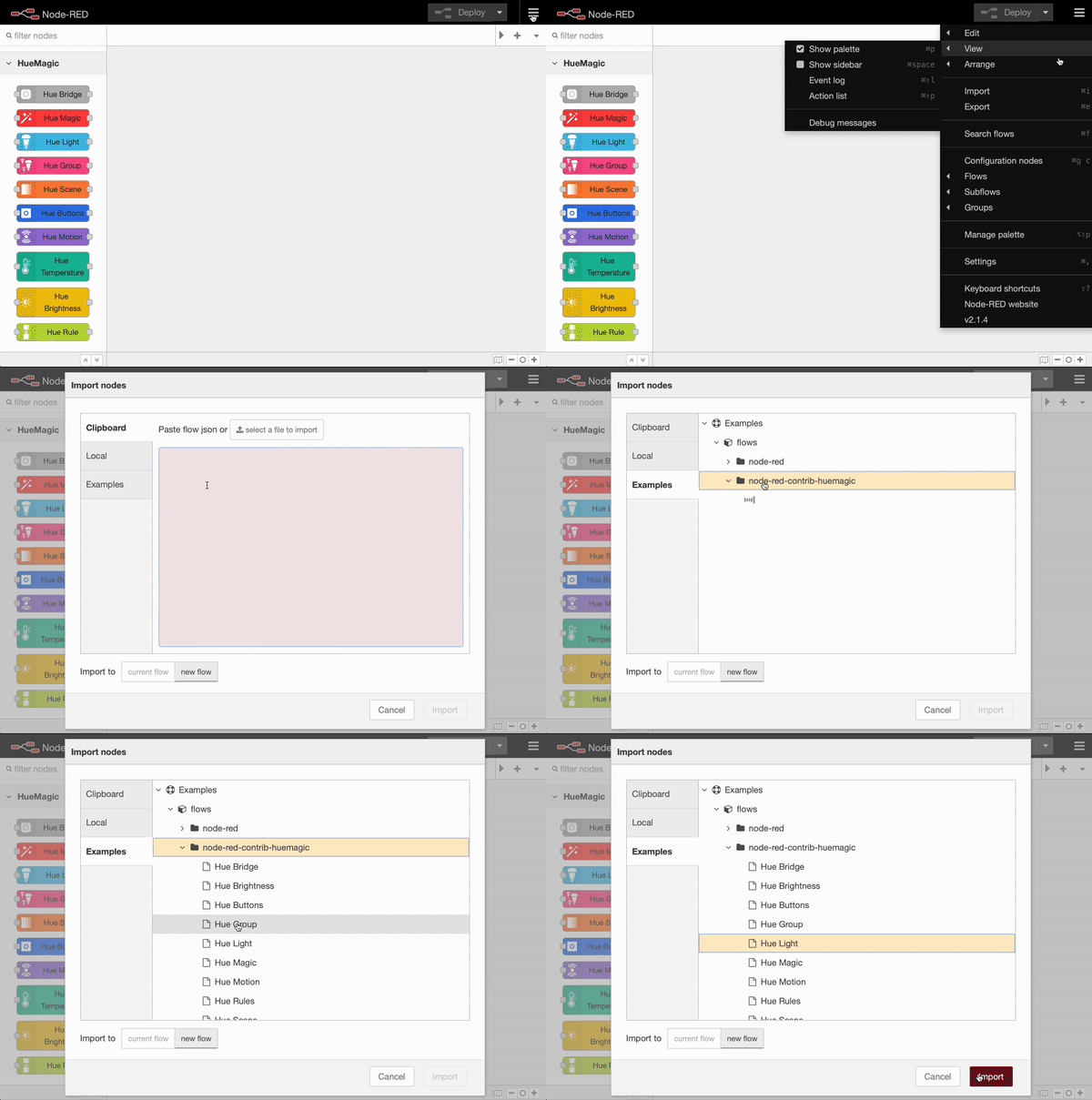
HueMagic provides some sample configurations for this node. To import a full featured example into your Node-RED interface, click on the Node-RED menu icon, then select "Import" and navigate to "Examples" in the sidebar of the popup. Then select the HueMagic folder and your desired node to import a sample flow.
</script>