node-red-contrib-huemagic
Version:
Philips Hue node to control bridges, lights, groups, scenes, rules, taps, switches, buttons, motion sensors, temperature sensors and Lux sensors using Node-RED.
58 lines (37 loc) • 4.4 kB
HTML
<script type="text/markdown" data-help-name="hue-buttons">
The "Hue Buttons" node receives switching events from input devices connected to the bridge.
### Setup
Select the pre-configured Hue Bridge and hit the search button to find all the available switches/buttons. If you already know the ID of the switches/buttons, you can also enter it here manually. You can either assign a new name for the switches/buttons internally or keep the predefined name of the device. Optionally, you can also deactivate all automatic status messages for this node by clicking the setting "Skip events from node". The node will then no longer output any switching events. Alternatively, you can also choose whether the node's initialization message should not be suppressed when Node-RED is started. If you activate this setting, you will receive a status message for the currently selected switches/buttons after each deployment.
If you do not select a switch/button and use the node configuration in this way, the node works in the so-called "universal mode". In this mode, the node receives and outputs all status messages of the same type.
### Get status
Outputs the current status of the switch/button as soon as a `msg.payload` object with the following content has been passed to the node. Alternatively, you can also press the button in the Node-RED interface without having to pass a message to the node beforehand.
: status (boolean): Returns the current status of the switch/button
### Status messages from the node
As soon as a key has been pressed, the following status message is returned by the node:
#### Status object under `msg.payload`
: reachable (boolean | string): `true` if the switch/button is connected to the bridge, `unknown` if the connection status deviates
: connectionStatus (string): The current connection status with the bridge in the form of a string. Can contain `connected`, `disconnected`, `connectivity_issue` or `unidirectional_incoming` as a value
: button (int | boolean): Numeric ID of the key that was last pressed or `false` if no key was pressed
: action (string | boolean): `false` if no key was pressed or `initial_press`, `repeat` , `short_release`, `long_release` or `double_short_release` in the form of a string
: updated (string): Time of the last update of the resource by HueMagic (ISO 8601)
#### Information about the switch/button under `msg.info`
: id (string): Indicates the new ID of the switch/button
: idV1 (string | boolean): Indicates the old ID of the switch/button
: uniqueId (string): The unique ID of the switch/button
: deviceId (string): The unique ID of the device
: name (string): The currently set name of the switch/button
: type (string): The type of the switch/button (always `button`)
: softwareVersion (string): The current firmware of the switch/button
: battery (float | boolean): The current battery level of the switch/button, `false`, if there is no battery
: batteryState (string | boolean): The current status of the battery level. Can contain `normal`, `low` or `critical` as a value, `false`, if there is no battery
: model (object): Contains the model information of the switch/button under `id` , `manufacturer`, `name`, `type` and `certified`
#### Status changes under `msg.updated`
Lists individual parameters in the form of an object that have changed compared to the last state of the switch/button. If no changes have been registered, this object is empty.
#### Last status of the switch/button under `msg.lastState`
Contains the complete status object (see output values above) of the last status before the last registered change. If the last state of HueMagic has not yet been registered, it will output `false`.
#### Last command under `msg.command` (optional)
If the status of the node has changed via a certain command, the entire command that was executed is also output. Otherwise this object will not be output by the node.
### Examples from HueMagic
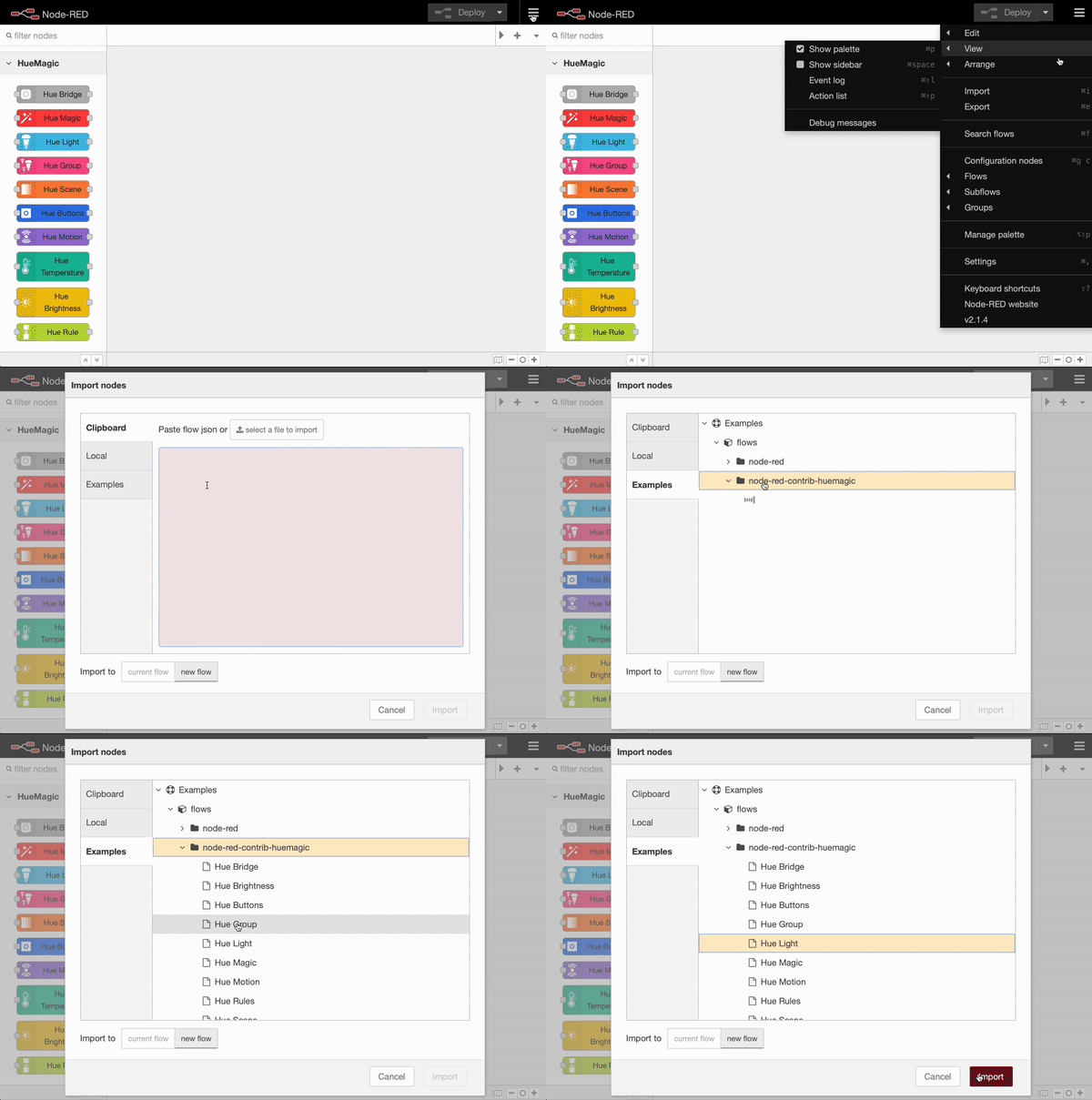
HueMagic provides some sample configurations for this node. To import a full featured example into your Node-RED interface, click on the Node-RED menu icon, then select "Import" and navigate to "Examples" in the sidebar of the popup. Then select the HueMagic folder and your desired node to import a sample flow.
</script>