node-red-contrib-huemagic
Version:
Philips Hue node to control bridges, lights, groups, scenes, rules, taps, switches, buttons, motion sensors, temperature sensors and Lux sensors using Node-RED.
733 lines (504 loc) • 62.6 kB
Markdown
[](https://flows.nodered.org/node/node-red-contrib-huemagic)
# HueMagic - Philips Hue nodes for Node-RED
[](https://github.com/foddy/node-red-contrib-huemagic/) [](https://raw.githubusercontent.com/Foddy/node-red-contrib-huemagic/master/LICENSE) [](https://www.paypal.com/cgi-bin/webscr?cmd=_s-xclick&hosted_button_id=LUQ7CWBWQ3Q4U) [](https://www.npmjs.com/package/node-red-contrib-huemagic)
HueMagic provides several input and output nodes for Node-RED and is the most in-depth and easy to use solution to control Philips Hue bridges, lights, groups, scenes, rules, buttons/switches, motion sensors, temperature sensors and light level sensors.
### Features
* Simple and comprehensive control of the Hue Bridge and connected devices
* Automatic discovery of Philips Hue bridges as well as devices, scenes & groups…
* Output and input of multiple color code definitions *(HEX, RGB & human readable color names)*
* Automatic color temperature & brightness setting based on the current time
* Event-based status messages for all devices connected to the Hue Bridge
* Pairing of new devices without app enforcement (TouchLink)
* Automatic firmware updates to the Hue Bridge and connected devices
* Activating / deactivating of sensors & rules on the Hue Bridge
* Extended alarm and colorloop effects on light bulbs and whole groups
* A large selection of animations and the option to create custom animations
* Additive state settings on all nodes with multiple commands
* Change states even if the corresponding devices are offline or turned off
* Real-time status messages for each node & in the Node-RED UI (SSE)
* Uses the latest CLIP/v2 API version of the Philips Hue Bridge
* Extensively documented in English & German
### Installation
HueMagic was written for **Node.js 14+** and **Node-RED v2.1+**. It supports the square-shaped Hue Bridge with the **firmware 1948086000+** or higher. You can install HueMagic directly via the [Node-RED Palette Manager](https://nodered.org/docs/user-guide/editor/palette/manager) or manually using [npm / yarn](https://nodered.org/docs/user-guide/runtime/adding-nodes).
`npm install node-red-contrib-huemagic`
_Please make sure that you deactivate other Hue-related nodes in Node-RED and meet the minimum requirements of Node.js and the Philips Hue Bridge firmware!_
### Available Nodes
- [Hue Bridge](#hue-bridge)
- [Hue Magic](#hue-magic)
- [Hue Light](#hue-light)
- [Hue Group](#hue-group)
- [Hue Scenes](#hue-scene)
- [Hue Buttons](#hue-buttons)
- [Hue Motion](#hue-motion)
- [Hue Temperature](#hue-temperature)
- [Hue Brightness](#hue-brightness)
- [Hue Rule](#hue-rule)
### Examples
HueMagic provides a large selection of full featured sample flows for all nodes. You can find these examples in the [examples folder on GitHub](https://github.com/Foddy/node-red-contrib-huemagic/tree/master/examples) or directly in Node-RED. To import a full featured example into your Node-RED interface, click on the Node-RED menu icon, then select "Import" and navigate to "Examples" in the sidebar of the popup. Then select the HueMagic folder and your desired node to import a sample flow.
<a href="https://github.com/Foddy/node-red-contrib-huemagic/tree/master/examples"><img alt="Instructions to import examples in Node-RED" src="https://user-images.githubusercontent.com/5302050/148696808-f730ad36-8d0b-4b5b-99b2-1917831f8916.gif" width="100%"></a>
## Hue Bridge
The "Hue Bridge" node is a universal node that can output all settings of the bridge and status messages from other nodes.

### Node-RED Setup Instructions
First select the desired Hue Bridge. You can optionally deactivate all automatic status messages for this node by clicking the setting “Skip global device updates / messages on this node”. The node will then no longer issue device updates.
Alternatively, you can also choose whether the initialization messages of all nodes should not be suppressed when Node-RED is started. If you activate this setting, you will receive a status message from all resources connected to the bridge after each deployment.
### Get settings / status
Outputs the current status / settings of the bridge as soon as the following message has been sent to the node. Alternatively, you can also press the button in the Node-RED interface without having to pass a message to the node beforehand.
|Property|Description|
|--|--|
| payload (boolean) | Returns the current status of the bridge |
### Trigger TouchLink scan
You can couple new or old devices to the bridge using a "TouchLink scan" (e.g. after a reset). To do this, transfer the object `msg.payload` with the following content:
|Property|Description|
|--|--|
| touchLink (boolean) | Couples old or new devices with the bridge |
### Get all devices and resources
With the "fetch" command you can output a list of specific devices that are currently connected to the bridge. To do this, transfer the object `msg.payload` with the following content:
|Property|Description|
|--|--|
| fetch (string / array [string, ...]) | Can accept `light`, `group`, `button`, `motion`, `temperature`, `light_level` or `rule` as value(s) |
### Change Hue Bridge settings
You can use the following command to change specific settings on the bridge. Please note that changing the network settings requires reconfiguring the bridge on HueMagic. Transfer the object `msg.payload.settings` with the following setting options to the node:
|Property|Description|
|--|--|
| name (string) | Changes the name of the bridge and must contain at least 4 to a maximum of 16 characters |
| zigbeeChannel (int) | Changes the current ZigBee channel (either `11`, `15`, `20`, `25` or `0`) |
| ipAddress (string) | Changes the IP address in the network settings |
| dhcpEnabled (boolean) | `true`, activates DHCP in the network settings, `false`, deactivates the setting |
| netmask (string) | Changes the network mask in the network settings |
| gateway (string) | Specifies the gateway in the network settings |
| proxyAddress (string) | Sets a proxy address in the network settings |
| proxyPort (string / int) | Specifies the port of the proxy in the network settings |
| timeZone (string) | Changes the currently set time zone on the bridge |
### Status messages from the node
The status reports of the "Hue Bridge" node are dynamic. Although they follow a certain pattern, their output can vary depending on what action has just been carried out on the node.
#### Status object under `msg.payload`
|Property|Description|
|--|--|
| id (string) | Unique ID of the Hue Bridge |
| name (string) | Currently set name |
| factoryNew (boolean) | Indicator whether the bridge is brand new |
| replacesBridgeId (string / boolean) | Outputs the old bridge ID (if a migration was carried out) or outputs `false` |
| dataStoreVersion (string) | Version of the data store |
| starterKitId (string / boolean) | Name of the starter kit created in the factory or `false` |
| softwareVersion (string) | Software version of the bridge |
| apiVersion (string) | API version of the bridge |
| zigbeeChannel (int) | Currently used ZigBee channel |
| macAddress (string) | MAC address of the bridge |
| ipAddress (string) | IP address of the bridge |
| dhcpEnabled (boolean) | Indicates whether DHCP is enabled |
| netmask (string) | Netmask of the bridge |
| gateway (string) | Gateway of the bridge |
| proxyAddress (string / boolean) | Currently used proxy address or `false` |
| proxyPort (string) | Currently used proxy port |
| utcTime (string) | UTC time on the bridge |
| timeZone (string) | Currently set time zone on the bridge |
| localTime (string) | Local time zone |
| portalServicesEnabled (boolean) | Indicates whether portal services are enabled |
| portalConnected (boolean) | Indicates whether the bridge is connected to the portal |
| linkButtonEnabled (boolean) | Indicates whether the link button is enabled |
| touchlinkEnabled (boolean) | Indicates whether TouchLink is enabled |
| autoUpdatesEnabled (boolean) | Indicates whether the HueMagic will automatically check for updates |
| users (array [object, ...]) | List of all users on the bridge (array with objects) |
| updated (string) | Time of the last update of the resource by HueMagic (ISO 8601) |
| model (object) | Contains the model information of the bridge under `id`, `manufacturer` and `name` |
#### Fetch results under `msg.results` (optional)
If the "fetch" command has been used on the node, the bridge outputs the corresponding results under the `msg.results` object. The object contains the queried resource groups, which in turn contain all the corresponding resources in the form of an array.
#### Global status messages under `msg.updated` (optional)
Unless deactivated, the node outputs an updated status message for each resource on the bridge. The status message under `msg.updated` follows the pattern of the respective resource and varies depending on the type of device that was last updated.
#### Last command under `msg.command` (optional)
If the status of the node has changed via a certain command, the entire command that was executed is also output. Otherwise this object will not be output by the node.
## Hue Magic
The "Hue Magic" node can apply complex and custom animations to lights and groups.

### Node-RED Setup Instructions
First give the node a name in order to clearly classify your animation in the Node-RED interface. You then have the choice between the options "Loop" and "Restore". Select the loop option if you want your animation to run endlessly on a light or group until you manually stop it. If you want to restore the previous state of the target resource (light / group) after the animation has ended, check the "Restore" option. Otherwise the last frame of the animation remains on the respective resource.
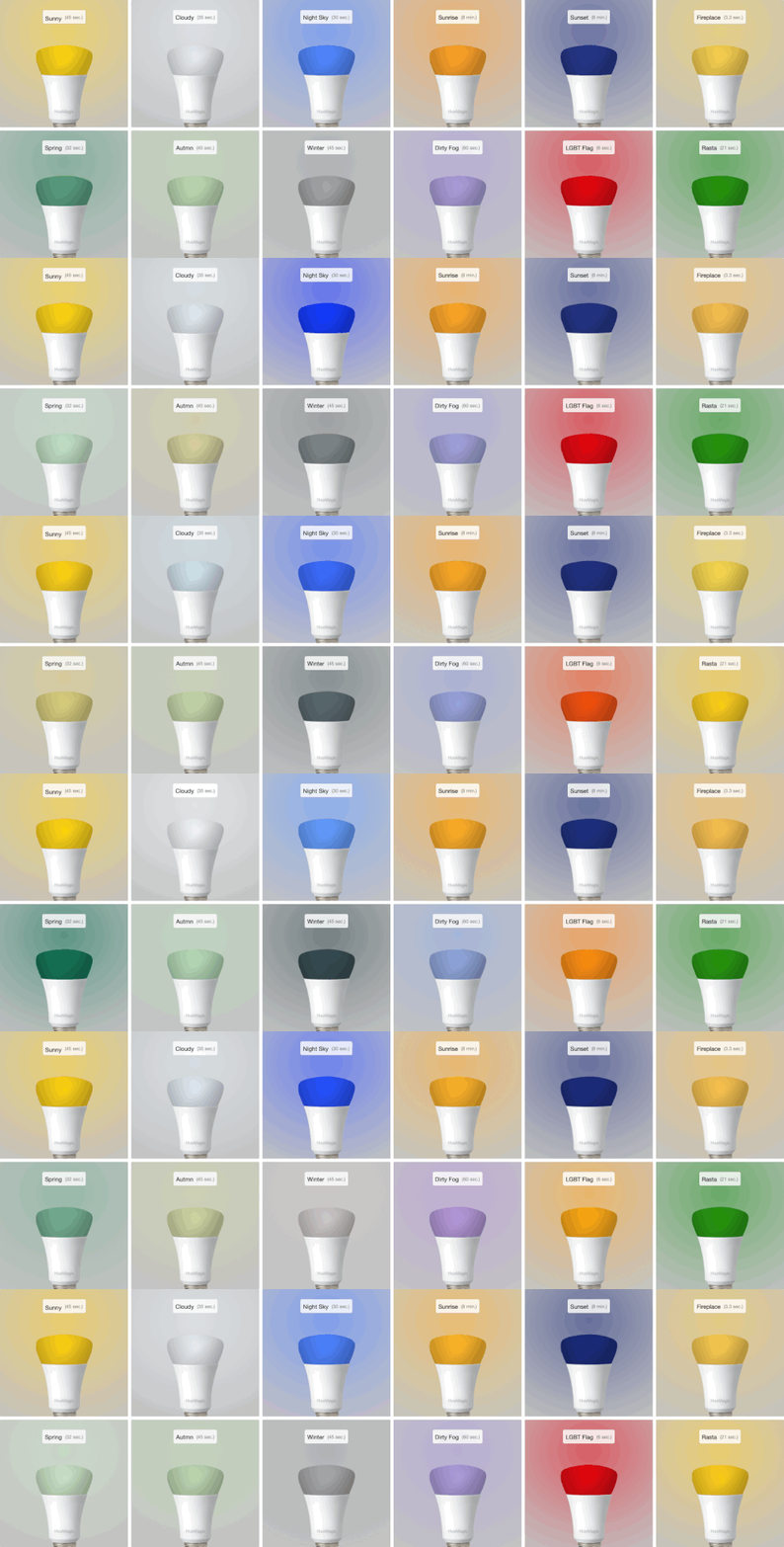
Below you can choose from pre-made animations from HueMagic. Click on your desired animation to set it.
### Included animations
Choose one of the included animations to apply to a Hue Light or Hue Group node.
### Start / stop animation
To play or stop an animation, pass an object with the following content to the node:
|Property|Description|
|--|--|
| payload (boolean) | `true`, starts the animation, `false`, stops the animation |
### Custom animations
If you pass your own animation to the node, the preselected, pre-defined animation (if set) will be temporarily replaced by yours. Own HueMagic animations are a sequence of commands that have been combined in an array. Each array element forms a step - whereby a step can also consist of several frames (transition effects).
Create an `array` with the respective animation steps in the form of an object and transfer it to the HueMagic node under `msg.payload.steps`.
|Property|Description|
|--|--|
| delay (int) | Number of milliseconds to wait until this step is carried out |
| animation (object) | The object contains the action(s) to be carried out in this step. Identical parameters as for the "Hue Light" & "Hue Group" nodes |
If you have created your own animation that you would like to share with others, add it at `/huemagic/animations/XXX-youranimationname.json` and create a pull request. Take a look at [this directory](https://github.com/Foddy/node-red-contrib-huemagic/tree/master/huemagic/animations) for structure help.
### Example of a custom animation
This example shows what a simple animation could look like. In the first step, the delay of 500 milliseconds is waited for. The color of the light is then slowly changed to red over a period of one second. As soon as the light has completely changed to red, the second step is carried out, which also has a delay of 500 milliseconds. Finally the color changes to blue.
If you have set the animation to loop, this process is repeated indefinitely until you manually stop the animation or redeploy the node.
Pass the following object in `msg.payload` to play the example animation.
{
"animate": true,
"steps": [
{
"delay": 500,
"animation": {
"hex": "#FF0000",
"transitionTime": 1
}
},
{
"delay": 500,
"animation": {
"hex": "#0000FF",
"transitionTime": 1
}
}
]
}
### Special commands
Sometimes it makes sense to play an animation in a disorderly manner - e.g. if fire should be imitated more realistically. To play the individual steps randomly, you can pass the following command to `msg.payload.specials`:
|Property|Description|
|--|--|
| randomOrder (boolean / any) | `true`, activates the random playback of the individual animation steps |
### Tips and hints
This node does not output any status messages. Please connect the output of the node with a group instead of individual lights if you want to animate several lights at the same time with the same animation. The previews of the pre-made animations are simulations and may differ slightly (timing, colors) from the actual animation on a resource.
## Hue Light
The "Hue Light" node can control lights connected to the bridge and receive their status messages.

### Node-RED Setup Instructions
Select the pre-configured Hue Bridge and hit the search button to find all the available lights. If you already know the ID of a light, you can also enter it here manually. You can either assign a new name for the light internally or choose the predefined name. Optionally, you can also deactivate all automatic status messages for this node by clicking the setting "Skip events from node". The node will then no longer issue device updates. Alternatively, you can also choose whether the node's initialization message should not be suppressed when Node-RED is started. If you activate this setting, you will receive a status message for the currently selected light after each deployment.
If you activate the setting "Activate color naming", the node will try to describe the currently set light color for each status message. You will then receive an additional parameter with the English description of the currently set color in the output.
If you do not select a light and use the node configuration in this way, the node works in the so-called "universal mode". In this mode, the node receives and outputs all status messages of the same type. You can also apply settings in universal mode to a specific light by transferring the corresponding light ID as a string in `msg.topic` together with your settings.
### Get status
Outputs the current status of the light as soon as a `msg.payload` object with the following content has been passed to the node. Alternatively, you can also press the button in the Node-RED interface without having to pass a message to the node beforehand.
|Property|Description|
|--|--|
| status (boolean) | Returns the current status of the light |
### Turn light on / off (simple)
To quickly switch a light on or off in simple mode, pass an object with the following content to the node:
|Property|Description|
|--|--|
| payload (boolean) | `true` switches the light on, `false` switches it off |
### Light commands (extended)
In addition to simply switching it on and off, there are also many other options available for controlling the light. All nodes in HueMagic can be controlled with additive commands. This means that you can first pass one setting and then another setting in a later command without discarding the previous setting. Transfer the following parameters to a `msg.payload` object to make more extensive settings on the light:
|Property|Description|
|--|--|
| on (boolean) | `true` switches the light on, `false` switches it off |
| toggle (boolean / any) | Toggles between switching on and off, depending on the previous status of the light |
| brightness (int / string) | Percentage value of the light brightness (0-100) or a string with the value `auto` to automatically set the brightness based on the current time |
| brightnessLevel (int) | Numerical value of the light brightness (0-254) |
| incrementBrightness (int / boolean) | Specifies by how many percent the light should be made brighter or `true` to make the light brighter in 10% steps |
| decrementBrightness (int / boolean) | Specifies the percentage by which the light should be made darker or `true` to make the light darker in 10% steps |
| color (string) | `random` to set a random color or an English color name (e.g. `red`) |
| hex (string) | Color value in hexadecimal in the form of a string |
| rgb (array [0,0,0]) | Color value in RGB format in the form of an array |
| xyColor (object {x [float], y [float]}) | Color value in the XY color format in the form of an object |
| gradient (object {hex […]}) | An object with a supported color object (e.g. `hex`,` rgb`, ...) and several colors to set a gradient to supported lights |
| mixColor (object) | A color to be mixed with the current light color. Can accept `color`, `hex`, `rgb` or `xyColor` objects and optionally `amount` (int) to indicate the mixing ratio in percent |
| image (string) | Path of an image (local or on the web) to set the current color of the light to the average color of the image |
| saturation (int) | Percentage of the saturation of the current color (beta) |
| colorTemp (int / string) | Value between 153 and 500 to set the color temperature of the light or the values `cold`, `normal`, `warm`, `hot` and `auto` - where `auto` is the color temperature based on the current time |
| incrementColorTemp (int / boolean) | Value by how much the color temperature should be warmer or `true` to make the color temperature warmer in steps of 50 |
| decrementColorTemp (int / boolean) | Value by how much the color temperature should be colder or `true` to make the color temperature colder in steps of 50 |
| transitionTime (float) | Transition time of the current setting in seconds. If `0` is entered, the light changes to the desired setting immediately. If `3` is entered, the light changes to the desired setting with a slight transition in the next 3 seconds |
| colorloop (float) | Plays a "colorloop" animation for the selected duration in seconds and then switches back to the original state of the light |
| alert (float) | Plays an "alert" animation for the selected duration in seconds and then switches back to the original state of the light |
### Status messages from the node
As soon as a change in the light settings has been detected (regardless of whether via Node-RED or externally), the following status message is returned by the node:
#### Status object under `msg.payload`
|Property|Description|
|--|--|
| on (boolean) | State of the light, where `true` stands for on and `false` for off |
| brightness (int / boolean) | Current brightness in percent or `false`, if the light does not support a brightness setting |
| brightnessLevel (int / boolean) | Current brightness from 0-254 or `false`, if the light does not support a brightness setting |
| reachable (boolean / string) | `true` if the light is connected to the bridge, `unknown` if the connection status deviates |
| connectionStatus (string) | The current connection status with the bridge in the form of a string. Can contain `connected`, `disconnected`, `connectivity_issue` or `unidirectional_incoming` as a value |
| rgb (array [int, int, int] / optional) | Current light color in the form of an RGB value, if the light can display colors |
| hex (string / optional) | Current light color in the form of a hexadecimal value if the light can display colors |
| xyColor (object {x [float], y [float]} / optional) | Current light color in the form of an XY value, if the light can display colors |
| color (string / optional) | Current light name in English, if the light can display colors and the corresponding setting of the node has been activated |
| gradient (object / optional) | Current gradient setting with all available color units in the form of an array, if the light supports gradient settings, where `colors` outputs the colors, `numColors` the number of set colors in the gradient and `totalColors` the maximum possible Number of colors the resource can support in the gradient |
| colorTemp (int / boolean / optional) | Current color temperature of the light, if the light can display color temperatures and a color temperature has been set |
| colorTempName (string / optional) | Current color temperature of the light in the form of a descriptive string with the values `cold`,`normal`, `warm` or `hot`, if the light can display color temperatures and a color temperature has been set. Otherwise `unknown` is output |
| updated (string) | Time of the last update of the resource by HueMagic (ISO 8601) |
#### Information about the light under `msg.info`
|Property|Description|
|--|--|
| id (string) | Indicates the new ID of the light |
| idV1 (string / boolean) | Indicates the old ID of the light |
| uniqueId (string) | The unique ID of the light |
| deviceId (string) | The unique ID of the device |
| name (string) | The currently set name of the light |
| type (string) | The type of light (always `light`) |
| softwareVersion (string) | The current firmware of the light |
| model (object) | Contains the model information of the light under `id`, `manufacturer`, `name`, `type`, `certified`, `friendsOfHue`, `colorGamut` and `colorGamutType` |
#### Status changes under `msg.updated`
Lists individual parameters in the form of an object that have changed compared to the last state of the light. If no changes have been registered, this object is empty.
#### Last status of the light under `msg.lastState`
Contains the complete status object (see output values above) of the last status before the last change. If the last state of HueMagic has not yet been registered, it will output `false`.
#### Last command under `msg.command` (optional)
If the status of the node has changed via a certain command, the entire command that was executed is also output. Otherwise this object will not be output by the node.
## Hue Group
The "Hue Group" node can control several lights behind a group on the bridge at the same time.

### Node-RED Setup Instructions
Select the pre-configured Hue Bridge and hit the search button to find all available groups. If you already know the ID of a group, you can also enter it here manually. You can either assign a new name for the group internally or choose the predefined name. Optionally, you can also deactivate all automatic status messages for this node by clicking the setting "Skip events from node". The node will then no longer issue any updates. Alternatively, you can also choose whether the node's initialization message should not be suppressed when Node-RED is started. If you activate this setting, you will receive a status message for the currently selected group after each deployment.
If you do not select a group and use the node configuration in this way, the node works in the so-called "universal mode". In this mode, the node receives and outputs all status messages of the same type. You can also apply settings in universal mode to a specific group by transferring the corresponding group ID as a string in `msg.topic` together with your settings.
### Get status
Outputs the current status of the group as soon as a `msg.payload` object with the following content has been passed to the node. Alternatively, you can also press the button in the Node-RED interface without having to pass a message to the node beforehand.
|Property|Description|
|--|--|
| status (boolean) | Returns the current status of the group |
### Turn on / off (simple)
To quickly turn an entire group on or off in simple mode, pass an object with the following content to the node. Please note that the command will only be executed if the current status of the group does not match your desired status. This means that all lights have to be switched off before you can switch them on with the `true` command.
|Property|Description|
|--|--|
| payload (boolean) | `true` switches the whole group on, `false` switches them off |
### Group commands (extended)
In addition to simply switching it on and off, there are also many other options available for controlling the group. All nodes in HueMagic can be controlled with additive commands. This means that you can first pass one setting and then another setting in a later command without discarding the previous setting. Transfer the following parameters to an `msg.payload` object to make more extensive settings for the group:
|Property|Description|
|--|--|
| on (boolean) | `true` switches the entire group on, `false` switches it off (please note the note above) |
| toggle (boolean / any) | Toggles between switching on and off, depending on the previous status of the group |
| brightness (int / string) | Percentage value of the light brightness (0-100) or a string with the value `auto` to automatically set the light brightness based on the current time |
| brightnessLevel (int) | Numerical value of the light brightness (0-254) |
| color (string) | `random` to set a random color or an English color name (e.g. `red`) |
| hex (string) | Color value in hexadecimal in the form of a string |
| rgb (array [0,0,0]) | Color value in RGB format in the form of an array |
| xyColor (object {x [float], y [float]}) | Color value in the XY color format in the form of an object |
| image (string) | Path of an image (local or on the web) to set the current color of the group to the average color of the image |
| colorTemp (int / string) | Value between 153 and 500 to set the color temperature of the group or the values `cold`, `normal`, `warm`, `hot` and `auto` - where `auto` is the color temperature based on the current time |
| transitionTime (float) | Transition time of the current setting in seconds. If `0` is passed, the group changes to the desired setting immediately. If you pass it to `3`, the group changes to the desired setting with a slight transition in the next 3 seconds |
| colorloop (float) | Plays a “colorloop” animation for the selected duration in seconds and then changes back to the group's original state |
| alert (float) | Plays an "alert" animation for the selected duration in seconds and then switches back to the original status of the group |
### Status messages from the node
If a change in the group is detected, the following status message is returned from the node. Please note that the group only outputs status messages when either the last light is switched off or when the first light is switched on (if all were switched off beforehand).
In contrast to the "Hue Light" node, you have much less status information available here, as a group can contain many different device types with different values that cannot be combined.
#### Status object under `msg.payload`
|Property|Description|
|--|--|
| on (boolean) | State of the group, where `true` stands for on and `false` for off |
| updated (string) | Time of the last update of the resource by HueMagic (ISO 8601) |
#### Information about the group under `msg.info`
|Property|Description|
|--|--|
| id (string) | Indicates the new ID of the group |
| idV1 (string / boolean) | Indicates the old ID of the group |
| name (string) | The currently set name of the group |
| resources (object) | Contains all devices/resources behind the group
| type (string) | The type of the group (always `group`) |
#### Status changes under `msg.updated`
Lists individual parameters in the form of an object that have changed compared to the last state of the group. If no changes have been registered, this object is empty.
#### Last status of the light under `msg.lastState`
Contains the complete status object (see output values above) of the last status before the last change. If the last state of HueMagic has not yet been registered, it will output `false`.
#### Last command under `msg.command` (optional)
If the status of the node has changed via a certain command, the entire command that was executed is also output. Otherwise this object will not be output by the node.
## Hue Scene
The "Hue Scene" node can resume scenes saved in the bridge and apply them to certain groups.

### Node-RED Setup Instructions
Select the pre-configured Hue Bridge and hit the search button to find all the available scenes. If you already know the ID of the scene, you can also enter it here manually. Alternatively, you can also assign an internal name for the scene or choose the predefined name of the scene.
### Activate scene
You can activate a predefined scene by transferring an object with the following content:
|Property|Description|
|--|--|
| payload (boolean) | Activates a preconfigured scene |
### Activate scene in universal mode
If you operate this node in the so-called "universal mode" and have not set a scene in the node configuration, you can also transfer your desired scene to the node as a command. To do this, pass a `msg.payload` object with the following content:
|Property|Description|
|--|--|
| scene (string) | ID of the scene to be activated on the bridge |
### Activate scene on certain groups
Connect the output of this node to one or more groups to apply a scene to specific groups. Alternatively, you have the option of doing this "dynamically" by passing an `msg.payload` object with the following content to the node:
|Property|Description|
|--|--|
| group (string / array [string,…]) | ID of the group or an array with the IDs of several groups in order to limit the scene to these groups |
### More information about the Node
This node does not issue any status messages. Please also note that you can only apply scenes to groups if these are already linked to the respective scene on the bridge. Otherwise nothing will be applied.
## Hue Buttons
The "Hue Buttons" node receives switching events from input devices connected to the bridge.

### Node-RED Setup Instructions
Select the pre-configured Hue Bridge and hit the search button to find all the available switches/buttons. If you already know the ID of the switches/buttons, you can also enter it here manually. You can either assign a new name for the switches/buttons internally or keep the predefined name of the device. Optionally, you can also deactivate all automatic status messages for this node by clicking the setting "Skip events from node". The node will then no longer output any switching events. Alternatively, you can also choose whether the node's initialization message should not be suppressed when Node-RED is started. If you activate this setting, you will receive a status message for the currently selected switches/buttons after each deployment.
If you do not select a switch/button and use the node configuration in this way, the node works in the so-called "universal mode". In this mode, the node receives and outputs all status messages of the same type.
### Get status
Outputs the current status of the switch/button as soon as a `msg.payload` object with the following content has been passed to the node. Alternatively, you can also press the button in the Node-RED interface without having to pass a message to the node beforehand.
|Property|Description|
|--|--|
| status (boolean) | Returns the current status of the switch/button |
### Status messages from the node
As soon as a key has been pressed, the following status message is returned by the node:
#### Status object under `msg.payload`
|Property|Description|
|--|--|
| reachable (boolean / string) | `true` if the switch/button is connected to the bridge, `unknown` if the connection status deviates |
| connectionStatus (string) | The current connection status with the bridge in the form of a string. Can contain `connected`, `disconnected`, `connectivity_issue` or `unidirectional_incoming` as a value |
| button (int / boolean) | Numeric ID of the key that was last pressed or `false` if no key was pressed |
| action (string / boolean) | `false` if no key was pressed or `initial_press`, `repeat` , `short_release`, `long_release` or `double_short_release` in the form of a string |
| updated (string) | Time of the last update of the resource by HueMagic (ISO 8601) |
#### Information about the switch/button under `msg.info`
|Property|Description|
|--|--|
| id (string) | Indicates the new ID of the switch/button |
| idV1 (string / boolean) | Indicates the old ID of the switch/button |
| uniqueId (string) | The unique ID of the switch/button |
| deviceId (string) | The unique ID of the device |
| name (string) | The currently set name of the switch/button |
| type (string) | The type of the switch/button (always `button`) |
| softwareVersion (string) | The current firmware of the switch/button |
| battery (float / boolean) | The current battery level of the switch/button, `false`, when there is no battery |
| batteryState (string / boolean) | The current status of the battery level. Can contain `normal`, `low` or `critical` as a value, `false`, when there is no battery |
| model (object) | Contains the model information of the switch/button under `id` , `manufacturer`, `name`, `type` and `certified` |
#### Status changes under `msg.updated`
Lists individual parameters in the form of an object that have changed compared to the last state of the switch/button. If no changes have been registered, this object is empty.
#### Last status of the switch/button under `msg.lastState`
Contains the complete status object (see output values above) of the last status before the last registered change. If the last state of HueMagic has not yet been registered, it will output `false`.
#### Last command under `msg.command` (optional)
If the status of the node has changed via a certain command, the entire command that was executed is also output. Otherwise this object will not be output by the node.
## Hue Motion
The "Hue motion" node can register and report movements from a suitable sensor on the bridge.

### Node-RED Setup Instructions
Select the pre-configured Hue Bridge and click the search button to find all the available sensors. If you already know the ID of the sensor, you can also enter it here manually. You can either assign a new name for the sensor internally or choose the predefined name of the sensor. Optionally, you can also deactivate all automatic status messages for this node by clicking the setting "Skip events from node". The node will then no longer issue device updates. Alternatively, you can also choose whether the node's initialization message should not be suppressed when Node-RED is started. If you activate this setting, you will receive a status message for the currently selected sensor after each deployment.
If you do not select a sensor and use the node configuration in this way, the node works in the so-called "universal mode". In this mode, the node receives and outputs all status messages of the same type. You can also apply settings in universal mode to a specific sensor by transferring the corresponding sensor ID as a string in `msg.topic` together with your settings.
### Get status
Outputs the current status of the sensor as soon as a `msg.payload` object with the following content has been transferred to the node. Alternatively, you can also press the button in the Node-RED interface without having to pass a message to the node beforehand.
|Property|Description|
|--|--|
| status (boolean) | Returns the current status of the sensor |
### Turn the sensor on / off
If necessary, the sensor can be turned on and off remotely. If the sensor has been turned off, it no longer registers any movements and accordingly no longer outputs them. To do this, pass an object with the following content:
|Property|Description|
|--|--|
| payload (boolean) | `true` turns the sensor on, `false` turns it off |
### Status messages from the node
As soon as the sensor has registered a movement, the following status message is returned by the node:
#### Status object under `msg.payload`
|Property|Description|
|--|--|
| active (boolean) | Indicates whether the sensor is switched on or off |
| reachable (boolean / string) | `true` if the sensor is connected to the bridge, `unknown` if the connection status deviates |
| connectionStatus (string) | The current connection status with the bridge in the form of a string. Can contain `connected`, `disconnected`, `connectivity_issue` or `unidirectional_incoming` as a value |
| motion (boolean) | Indicates whether a motion has been registered |
| updated (string) | Time of the last update of the resource by HueMagic (ISO 8601) |
#### Information about the sensor under `msg.info`
|Property|Description|
|--|--|
| id (string) | Indicates the new ID of the sensor |
| idV1 (string / boolean) | Indicates the old ID of the sensor |
| uniqueId (string) | The unique ID of the sensor |
| deviceId (string) | The unique ID of the device |
| name (string) | The currently set name of the sensor |
| type (string) | The type of the sensor (always `motion`) |
| softwareVersion (string) | The current firmware of the sensor |
| battery (float) | The current battery level of the sensor |
| batteryState (string) | The current status of the battery level. Can contain `normal`, `low` or `critical` as a value |
| model (object) | Contains the model information of the sensor under `id`, `manufacturer`, `name`, `type` and `certified` |
#### Status changes under `msg.updated`
Lists individual parameters in the form of an object that have changed compared to the last state of the sensor. If no changes have been registered, this object is empty.
#### Last status of the sensor under `msg.lastState`
Contains the complete status object (see output values above) of the last status before the last registered change. If the last state of HueMagic has not yet been registered, it will output `false`.
#### Last command under `msg.command` (optional)
If the status of the node has changed via a certain command, the entire command that was executed is also output. Otherwise this object will not be output by the node.
## Hue Temperature
The "Hue Temperature" node can call up and report the current ambient temperature from a suitable sensor on the bridge.

### Node-RED Setup Instructions
Select the pre-configured Hue Bridge and click the search button to find all the available sensors. If you already know the ID of the sensor, you can also enter it here manually. You can either assign a new name for the sensor internally or choose the predefined name of the sensor. Optionally, you can also deactivate all automatic status messages for this node by clicking the setting "Skip events from node". The node will then no longer issue device updates. Alternatively, you can also choose whether the node's initialization message should not be suppressed when Node-RED is started. If you activate this setting, you will receive a status message for the currently selected sensor after each deployment.
If you do not select a sensor and use the node configuration in this way, the node works in the so-called "universal mode". In this mode, the node receives and outputs all status messages of the same type. You can also apply settings in universal mode to a specific sensor by transferring the corresponding sensor ID as a string in `msg.topic` together with your settings.
### Get status
Outputs the current status of the sensor as soon as a `msg.payload` object with the following content has been transferred to the node. Alternatively, you can also press the button in the Node-RED interface without having to pass a message to the node beforehand.
|Property|Description|
|--|--|
| status (boolean) | Returns the current status of the sensor |
### Switch the sensor on / off
If necessary, the sensor can be switched on and off remotely. If the sensor has been switched off, it no longer registers any temperature changes and accordingly no longer outputs them. To do this, pass an object with the following content:
|Property|Description|
|--|--|
| payload (boolean) | `true` switches the sensor on, `false` switches it off |
### Status messages from the node
As soon as the sensor has registered a temperature change, the following status message is returned by the node:
#### Status object under `msg.payload`
|Property|Description|
|--|--|
| active (boolean) | Indicates whether the sensor is switched on or off |
| reachable (boolean / string) | `true` if the sensor is connected to the bridge, `unknown` if the connection status deviates |
| connectionStatus (string) | The current connection status with the bridge in the form of a string. Can contain `connected`, `disconnected`, `connectivity_issue` or `unidirectional_incoming` as a value |
| celsius (float) | Indicates the current ambient temperature in °C (degrees Celsius) |
| fahrenheit (float) | Indicates the current ambient temperature in °F (degrees Fahrenheit) |
| temperatureIs (string) | Describes the current temperature with the values `very cold`, `cold`, `slightly cold`, `comfortable`, `slightly warm`, `warm`, `hot` or `very hot` |
| deviceValue (float) | The original value of the temperature from the sensor |
| updated (string) | Time of the last update of the resource by HueMagic (ISO 8601) |
#### Information about the sensor under `msg.info`
|Property|Description|
|--|--|
| id (string) | Indicates the new ID of the sensor |
| idV1 (string / boolean) | Indicates the old ID of the sensor |
| uniqueId (string) | The unique ID of the sensor |
| deviceId (string) | The unique ID of the device |
| name (string) | The currently set name of the sensor |
| type (string) | The type of the sensor (always `temperature`) |
| softwareVersion (string) | The current firmware of the sensor |
| battery (float) | The current battery level of the sensor |
| batteryState (string) | The current status of the battery level. Can contain `normal`, `low` or `critical` as a value |
| model (object) | Contains the model information of the sensor under `id`, `manufacturer`, `name`, `type` and `certified` |
#### Status changes under `msg.updated`
Lists individual parameters in the form of an object that have changed compared to the last state of the sensor. If no changes have been registered, this object is empty.
#### Last status of the sensor under `msg.lastState`
Contains the complete status object (see output values above) of the last status before the last registered change. If the last state of HueMagic has not yet been registered, it will output `false`.
#### Last command under `msg.command` (optional)
If the status of the node has changed via a certain command, the entire command that was executed is also output. Otherwise this object will not be output by the node.
## Hue Brightness
The "Hue Brightness" node can read the current light level from a suitable sensor on the bridge.

### Node-RED Setup Instructions
Select the pre-configured Hue Bridge and click the search button to find all the available sensors. If you already know the ID of the sensor, you can also enter it here manually. You can either assign a new name for the sensor internally or choose the predefined name of the sensor. Optionally, you can also deactivate all automatic status messages for this node by clicking the setting "Skip events from node". The node will then no longer issue device updates. Alternatively, you can also choose whether the node's initialization message should not be suppressed when Node-RED is started. If you activate this setting, you will receive a status message for the currently selected sensor after each deployment.
If you do not select a sensor and use the node configuration in this way, the node works in the so-called "universal mode". In this mode, the node receives and outputs all status messages of the same type. You can also apply settings in universal mode to a specific sensor by transferring the corresponding sensor ID as a string in `msg.topic` together with your settings.
### Get status
Outputs the current status of the sensor as soon as a `msg.payload` object with the following content has been transferred to the node. Alternatively, you can also press the button in the Node-RED interface without having to pass a message to the node beforehand.
|Property|Description|
|--|--|
| status (boolean) | Returns the current status of the sensor |
### Turn the sensor on / off
If necessary, the sensor can be turned on and off remotely. If the sensor has been turned off, it no longer registers any changes in light level and accordingly no longer outputs them. To do this, pass an object with the following content:
|Property|Description|
|--|--|
| payload (boolean) | `true` switches the sensor on, `false` switches it off |
### Status messages from the node
As soon as the sensor has detected a change in the light level, the following status message is returned:
#### Status object under `msg.payload`
|Property|Description|
|--|--|
| active (boolean) | Indicates whether the sensor is turned on or off |
| reachable (boolean / string) | `true` if the sensor is connected to the bridge, `unknown` if the connection status deviates |
| connectionStatus (string) | The current connection status with the bridge in the form of a string. Can contain `connected`,` disconnected`, `connectivity_issue` or `unidirectional_incoming` as a value |
| lux (int) | Indicates the real LUX value of the light level |
| lightLevel (int) | Indicates the light intensity of the sensor |
| dark (boolean) | `true`, if darkness was registered |
| daylight (boolean) | `true`, if daylight was registered |
| updated (string) | Time of the last update of the resource by HueMagic (ISO 8601) |
#### Information about the sensor under `msg.info`
|Property|Description|
|--|--|
| id (string) | Indicates the new ID of the sensor |
| idV1 (string / boolean) | Indicates the old ID of the sensor |
| uniqueId (string) | The unique ID of the sensor |
| deviceId (string) | The unique ID of the device |
| name (string) | The currently set name of the sensor |
| type (string) | The type of the sensor (always `light_level`) |
| softwareVersion (string) | The current firmware of the sensor |
| battery (float) | The current battery level of the sensor |
| batteryState (string) | The current status of the battery level. Can contain `normal`, `low` or `critical` as a value |
| model (object) | Contains the model information of the sensor under `id`, `manufacturer`, `name`, `type` and `certified` |
#### Status changes under `msg.updated`
Lists individual parameters in the form of an object that have changed compared to the last state of the sensor. If no changes have been registered, this object is empty.
#### Last status of the sensor under `msg.lastState`
Contains the complete status object (see output values above) of the last status before the last registered change. If the last state of HueMagic has not yet been registered, it will output `false`.
#### Last command under `msg.command` (optional)
If the status of the node has changed via a certain command, the entire command that was executed is also output. Otherwise this object will not be output by the node.
## Hue Rule
The "Hue Rule" node can activate or deactivate rules saved in the bridge and call up their settings.

### Node-RED Setup Instructions
Select the pre-configured Hue Bridge and hit the search button to find all the available rules. If you already know the ID of the rule, you can also enter it here manually. Alternatively, you can also assign a new name or choose the predefined name of the rule.
If you do not select a rule and use the node configuration in this way, the node works in the so-called "universal mode". In this mode, the node receives and outputs all status messages of the same type. You can also apply settings in universal mode to a specific rule by transferring the corresponding rule ID as a string in `msg.topic` together with your settings.
### Get properties / settings
Outputs the current prope