node-gotapi
Version:
The node-gotapi is a Node.js implementation of the Generic Open Terminal API Framework (GotAPI) developed by the Open Mobile Alliance (OMA).
892 lines (644 loc) • 78.2 kB
Markdown
node-gotapi
===============
The node-gotapi is a Node.js implementation of the Generic Open Terminal API Framework (GotAPI) 1.1 standardized by the Open Mobile Alliance (OMA).
The OMA Generic Open Terminal API Framework (GotAPI) 1.1 is literally a programing framework specification. It's fair to say that the GotAPI is a framework based on the microservices architecture. The GotAPI is mainly used for an application which connects external devices such as BLE devices, USB devices, IP-based network devices, and so on.
One of the outstanding characteristics of the GotAPI is shared-nothing MVC (Model–View–Controller) model. An application using the GotAPI consists of a front-end application (View), GotAPI Server (Controller), and Plug-Ins (Models). In the GotAPI architecture, each components communicates using message channels in each other. The OMA GotAPI specification defines the Interfaces between the View ,the Controller, and the Model.
Thanks to the characteristics mentioned above, you can use not only Plug-Ins developed by yourself, but also Plug-Ins developed by third-parties. Or, if you are a manufacture of some kind of devices or an enthusiast, you can develop only a Plug-In controlling the device and release it to the public.
The GotAPI Server (Controller) runs a HTTP(S) server and a WebSocket server inside for the front-end application. The GotAPI Server (Controller) exposes web APIs (REST on HTTP and JSON on WebSocket) for the front-end application (View).
The message channels between the GotAPI Server (Controller) and the Plug-Ins (Models) depends on the GotAPI implementation. The OMA GotAPI specification defines that the Intents for Android OS are used for the channels. The `node-gotapi` provides a messaging mechanism for the channel.
The OMA GotAPI specification is standardized mainly for smartphones (Android, iOS) applications. Actually an implementation for Android and iOS has been open-sourced on GitHub by the name "[DeviceConnect](https://github.com/DeviceConnect)". However, the concept and the architecture specified in the GotAPI specification are useful for not only smartphone but also PCs, home gateways, Linux-based single board computers such as Raspberry Pi, and so on. That's why this `node-gotapi` has been developed. The `node-gotapi` is developed using Node.js, it can be used on a variety of operating systems as long as Node.js can be installed.
---------------------------------------
## Table of Contents
* [Installation](#Installation)
* [Start the GotAPI Server](#Start-the-GotAPI-Server)
* [Architecture](#Architecture)
* [Components](#Architecture-components)
* [Service](#Architecture-service)
* [Communication Flow](#Communication-Flow)
* [Security Considerations](#Security-Considerations)
* [Authorization Mechanism for Plug-Ins](#Authorization-Mechanism-For-Plug-Ins)
* [TLS/SSL Support](#TLS-SSL-Support)
* [HMAC Server Authentication](#HMAC-Server-Authentication)
* [Tutorials](#Tutorials)
* [Creating an one-shot API](#Creating-an-one-shot-API)
* [Creating an asynchronous push API](#Creating-an-asynchronous-push-API)
* [API Reference for Plug-In](#API-Reference-for-Plug-In)
* [Files and Directories](#Files-and-Directories)
* [Template code of the Plug-In](#Template-code-of-the-Plug-In)
* [Defining the services which your Plug-In serves](#Defining-the-services-which-your-Plug-In-serves)
* [`this.util.init()` method](#init-method)
* [`this.util.onservicediscoverry` property](#onservicediscoverry-property)
* [`ServiceDiscoveryRequestMessage` object](#ServiceDiscoveryRequestMessage-object)
* [`this.util.returnServiceDiscovery()` method](#returnServiceDiscovery-method)
* [`this.util.onclinetid` property](#onclinetid-property)
* [`ClientIdRequestMessage` object](#ClientIdRequestMessage-object)
* [`this.util.returnClientIdRequest()` method](#returnClientIdRequest-method)
* [`this.util.onaccesstoken` property](#onaccesstoken-property)
* [`AccessTokenRequestMessage` object](#AccessTokenRequestMessage-object)
* [`this.util.returnAccessTokenRequest` method](#returnAccessTokenRequest-method)
* [`this.util.onmessage` property](#onmessage-property)
* [`RequestMessage` object](#RequestMessage-object)
* [`this.util.returnMessage()` method](#returnMessage-method)
* [`this.util.pushMessage()` method](#pushMessage-method)
* [Prohibited property names for response](#prohibited-property-names-for-response)
* [Returning an Error](#Returning-an-Error)
* [API Reference for Front-End Application](#API-Reference-for-Front-End-Application)
* [`GotapiClient` object](#GotapiClient-object)
* [`connect()` method](#connect-method)
* [`request()` method](#request-method)
* [`Response` object](#response-object)
* [`Error` object](#Error-object)
* [`onmessage` property](#onmessage-property)
* [`requestServiceDiscovery()` method](#requestServiceDiscovery-method)
* [`disconnect()` method](#disconnect-method)
* [Starting the GotAPI Server in the debug mode](#Starting-the-GotAPI-Server-in-the-debug-mode)
* [Changelog](#Changelog)
* [References](#References)
* [License](#License)
---------------------------------------
## <a name="Installation">Installation</a>
### Dependencies
* [Node.js](https://nodejs.org/en/) 6 +
* [fs-extra](https://www.npmjs.com/package/fs-extra) 1.0.0 +
* [pem](https://www.npmjs.com/package/pem) 1.9.4 +
* [websocket](https://www.npmjs.com/package/websocket) 1.0.24 +
### How to install
The simplest way to install the `node-gotapi` is to use the `npm` command:
```
$ cd ~
$ npm install fs-extra
$ npm install pem
$ npm install websocket
$ npm install node-gotapi
$ cp -a ~/node_modules/node-gotapi ~/node-gotapi
```
If you want to install the `node-gotapi` on Windows, use the PowerShell instead of the Command Prompt.
Never install it globally. That is, never use the `-g` option of the `npm` command. The `node-gotapi` creates some files in its root directory when it is started for the first time. If you installed the `node-gotapi` using the `npm` command with the `-g` option, the `node-gotapi` could not create the files, you could not start the `node-gotapi` eventually.
You have to copy the directory of the `node-gotapi` in the `node_modules` directory to another location you want. Never run the `node-gotapi` in the directory where it was installed initially because it will be reset when you update it using the `npm` command.
### Directories
If you install the `node-gotapi` successfully, you can find files and directories in the root directory of the `node-gotapi`. If you installed the `node-gotapi` using the `npm` command, you can find the root directory at `~/node_modules/node-gotapi`.
The `node-gotapi` consists of the files and directories as follows:
Path | Description
:-----------------------|:-----------
`html/` | This directory is newly created when the `node-gotapi` is started for the first time. This directory is the document root of the web server for front-end applications. Some sample front-end applications are saved initially.
`lib/` | The relevant JS libraries are saved in this directory
`plugins/` | This directory is newly created when the `node-gotapi` is started for the first time. The `node-gotapi` adds this directory into the node.js module search path list. The node modules whose root directory name starts with `node-gotapi-plugin-` are recognized as Plug-In for the `node-gotapi`. Some sample Plug-Ins are saved initially.
`ssl/` | A self-signed certificate file and a key file for TLS/SSL are saved in this directory.
`config.js` | This file is newly created when the `node-gotapi` is started for the first time. This file is a configuration file.
`start-gotapi.js` | This script starts the `node-gotapi`.
`start-gotapi-debug.js` | This script starts the `node-gotapi`. Besides, this script shows all messages on the GotAPI-1 Interface on the shell in real time. This script is used for debugging.
---------------------------------------
## <a name="Start-the-GotAPI-Server">Start the GotAPI Server</a>
To start the `node-gotapi`, run the `start-gotapi.js`:
```
$ cd ~/node-gotapi
$ node ./start-gotapi.js
```
It shows anything on your shell. This mode is used for productions. You can specify some command line options for debugging.
```
$ node ./start-gotapi.js --enable-debug
```
It shows all messages on the GotAPI-1 Interface on the shell. If the GotAPI Server was successfully started, you can see the message in the shell as follows:
```
- The GotAPI Interface-1 has been woken up.
- The GotAPI Interface-4 has been woken up.
- 3 Plug-Ins were found:
- Hello World (D:\GitHub\node-gotapi\plugins\node-gotapi-plugin-helloworld)
- Light Emulator (D:\GitHub\node-gotapi\plugins\node-gotapi-plugin-lightemulator)
- Simple Clock (D:\GitHub\node-gotapi\plugins\node-gotapi-plugin-simpleclock)
- The GotAPI Interface-5 has been woken up.
- The HTTP server has been woken up.
The GotAPI Server has been started successfully.
Your web application can be accessed at https://localhost:10443
```
See the section "[Starting the GotAPI Server in the debug mode](#Starting-the-GotAPI-Server-in-the-debug-mode)" for details about the command line options for debugging.
Access to `https://localhost:10443` using a web browser. You will find a list of the sample applications.
Use the latest version of web browser. Chrome is strongly recommended because you can try the `node-gotapi` without changing any configurations. Firefox, Safari, and Edge are also supported but you have to disable the TLS/SSL support of the `node-gotapi`. Internet Explorer is not supported, and it will be never supported in the future.
If you want to shut down the GotAPI Server, press `Ctrl + C` on your keyboard.
## Configurations
You may need to change the some configurations in the `config.js`. In this configuration file, you can change the security configurations, the TCP port numbers, TLS/SSL configurations, and so on. It is recommended to check the all items in the configuration file.
---------------------------------------
## <a name="Architecture">Architecture</a>
Before developing an application using the `node-gotapi`, you have to understand the architecture of the GotAPI. This section describes what you should know about the architecture of the GotAPI. There are 3 things you should know: the components which the GotAPI consists of, the concept of service, and the communication flows.
## <a name="Architecture-components">Components</a>
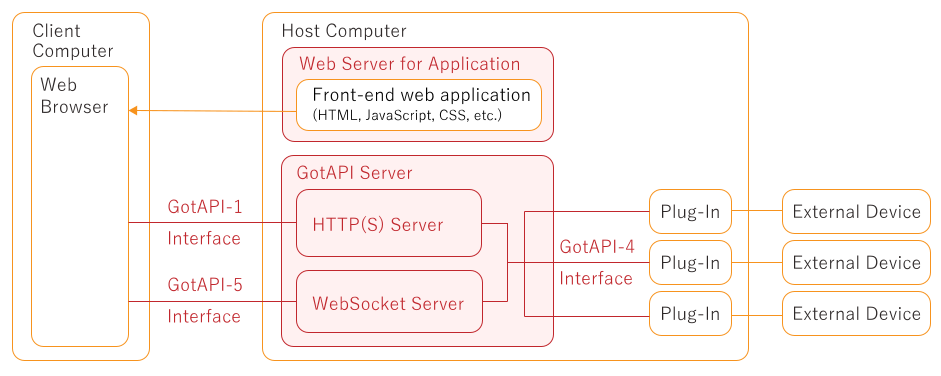
The `node-gotapi` consists of three servers:
* Web Server For Application
* This server hosts front-end web applications and serves them to a client computer through HTTP(S).
* GotAPI Server
* The GotAPI Server consists of a HTTP(S) Server and a WebSocket Server. The HTTP(S) Server provides a front-end web application with the GotAPI-1 Interface. The WebSocket Server provides a front-end web application with the GotAPI-5 Interface.
* The GotAPI Server provides Plug-Ins with the GotAPI-4 Interface.
The GotAPI-1, GotAPI-5, GotAPI-4 Interfaces are specified in the OMA GotAPI 1.1 specification. The `node-gotoapi` is developed based on the specification.
First of all, the web browser on the client computer requests the front-end application and runs it. The application sends a request to the GotAPI Server using the GotAPI-1 Interface. The GotAPI Server passes the request to the relevant Plug-In using the GotAPI-4 Interface.
When the Plug-In receives the request, it returns the response for the request using the GotAPI-4 Interface, then the GotAPI Server passes it to the originated front-end application using the GotAPI-1 Interface.
The communication flow above is used for one-shot requests. Some Plug-Ins support asynchronous push notification. When the Plug-In pushes a notification, the GotAPI Server passes the notification using the GotAPI-5 Interface (WebSocket connection).
The components colored in red in the figure above represents the `node-gotapi`. In order to use the `node-gotapi`, you have to develop a front-end application and Plug-Ins.
### What do the numbers assigned to the interfaces mean?
In the figure above, there are 3 interfaces: GotAPI-1, GotAPI-4, and GotAPI-5. The numbers assigned to the interfaces are defined in the OMA GotAPI 1.1 specification. You might wonder why the numbers are not sequential. The number 2 and 3 are missing in the figure above. Actually, the OMA GotAPI specification defines the GotAPI-2 and GotAPI-3.
The GotAPI-2 Interface is a channel connected to the GotAPI Auth Server which authorizes front-end applications. The GotAPI Auth Server is a HTTP Server. In the `node-gotapi`, the HTTP(S) Server plays the roll of the GotAPI Auth Server too. That is, the GotAPI-1 Interface in the `node-gotapi` plays the roll of the GotAPI-2 Interface.
The GotAPI-3 Interface is a channel between the GotAPI Auth Server and the Policy Management Server. The Policy Management Server is optional and is not described what it is in the OMA GotAPI 1.1 specification in detail. It is just a concept. The `node-gotapi` does not implement the Policy Management Server, so the GotAPI-3 Interface is not shown in the figure above.
The numbering of the interfaces is just the order in which the interface was added in the specification in the process of standardization. In fact, the GotAPI 1.0 specification define the GotAPI-1, 2, 3, and 4 Interfaces. The GotAPI-5 Interface was newly added in the GotAPI 1.1. Therefore, the number of the interface is 5.
## <a name="Architecture-service">Service</a>
In the GotAPI architecture, a Plug-In has services. A service represents an external device or a set of functionalities grouped for a certain purpose. A service has profiles. A profile represents a functionality. A profile has attributes. An attribute represents a method or a property related the parent profile.
For example, if a service represents a smart sensor with a battery and a temperature sensor, one of the profiles could represent a set of methods related the battery named as `battery`, the `battery` profile could have an attribute named as `level` and an attribute named as `charging`. The `level` attribute could return the percent representing the charge level of the battery, the `charging` attribute could return whether the smart sensor is now being charged or not.
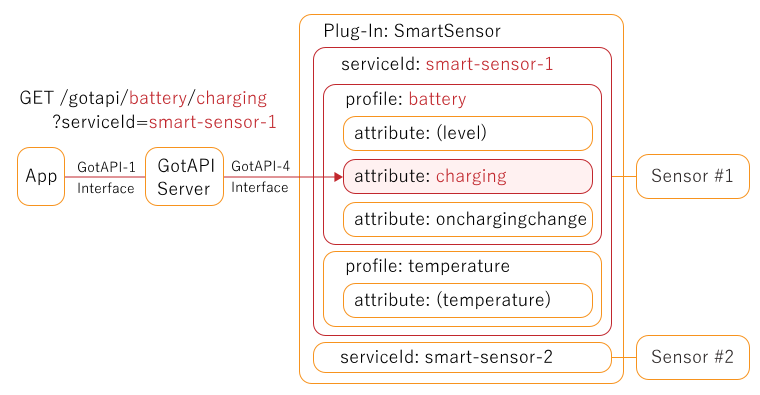
An front-end application sends a request on the GotAPI-1 Interface, the request URL contains the service ID, the profile, and the attribute. If a front-end application sends a request with the URL `/gotapi/battery/charging/serviceId=smart-sensor-1` using HTTP method `GET`, the Plug-In could return the percentage of charge level of the battery of the smart sensor corresponded to the service ID `smart-sensor-1`.
The Plug-In may have a default attribute so that the front-end application omits the name of attribute in the request URL. For example, if the request URL is `/gotapi/battery?serviceId=smart-sensor-1`, the Plug-In could assume that the attribute was set to `level` and return the percent representing the charge level of the battery.
The HTTP method is also an important parameter as one of the request parameters. The behavior of an attribute can depend on the HTTP method of request from the front-end application. For example, if the front-end application sends a request to the `onchargingchange` attribute using `PUT` method, the Plug-In could start to monitor charge level and return the events asynchronously each time when the charge level changes. If the HTTP method is `DELETE`, the Plug-In could stop to monitor the charge level.
As describe above, you can define the behavior for a combination of the profile, attribute, and the HTTP method by yourself. Basically, the GotAPI Server is parameter-agnostic as long as the request is for a Plug-In. The GotAPI Server just passes the parameters to the Plug-In. The API design is up to you.
## <a name="Communication-Flow">Communication Flow</a>
### Establishing a connection with the GotAPI Server
When the front-end web application connects to the GotAPI Server, it needs to send several requests as follows:
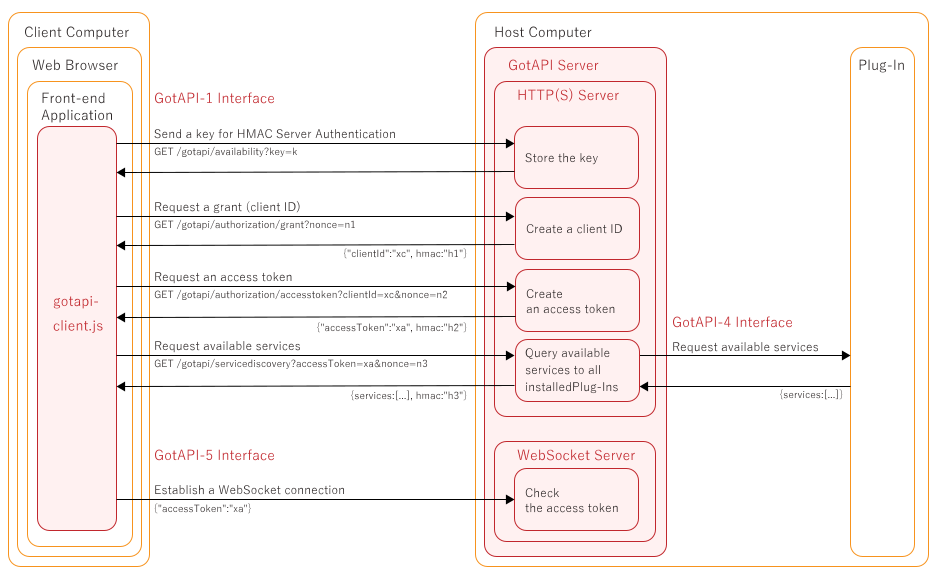
At first, the front-end application generates a key (a random string) for the HMAC Server Authentication specified in the OMA GotAPI 1.1 specification. The GotAPI Server uses the key to generate a HMAC digest for each request from the front-end application.
The front-end application generate a nonce (a random string) for each request, send a request with it. The GotAPI Server calculates a HMAC digest using the key and the nonce, then returns it with the response. The front-end application calculates a HMAC digest using the key and the nonce. Comparing the HMAC digest came from the GotAPI Server and the HMAC digest generated by the front-end application, the front-end application can know whether the GotAPI Server has been spoofed or not after the key was sent to the genuine GotAPI Server.
After the key was sent to the GotAPI Server, the front-end application requests a client ID, then requests an access token with the obtained client ID. Thereafter, the front-end application sends requests with the access token every time.
After that, the front-end application requests available services. The GotAPI Server queries available services to all the installed Plug-Ins, then returns all the available services to the front-end application.
Lastly, the front-end application establishes a WebSocket connection with the GotAPI Server, then it sends the access token to the GotAPI Server. If the access token is valid, the WebSocket connection can be used for the GotAPI-5 Interface.
You don't need to know the details of the transactions described above because the `gotapi-clients.js` automatically handles these transactions. You just need to call the `connect()` method exposed in the object created by the `gotapi-clients.js`.
### Calling a Plug-In API
After the front-end application establishes a connection with the GotAPI Server, it can send requests to the Plug-In. When the front-end application send a request to the Plug-In at the first time, the GotAPI Server negotiates the request with the Plug-In.
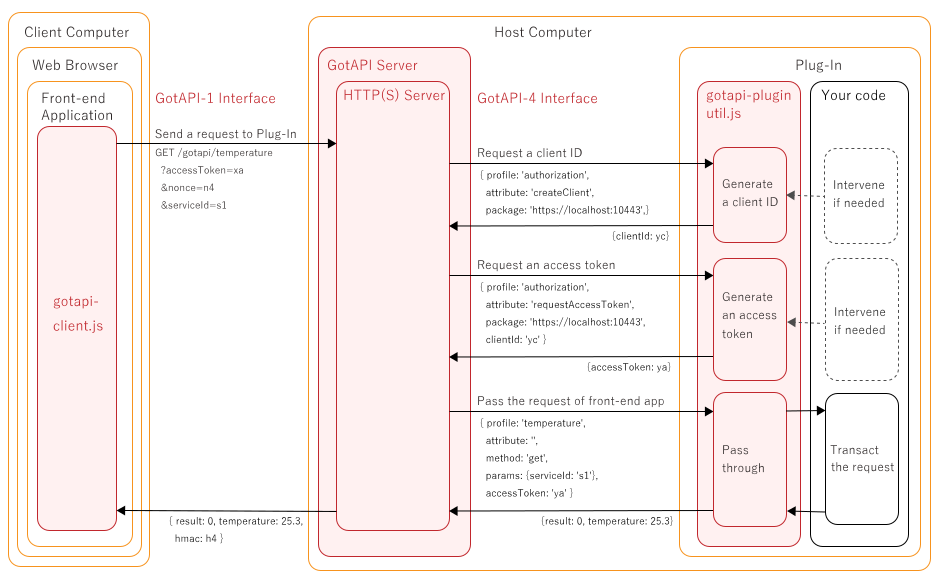
The negotiation can be separated in two parts. At first, the GotAPI Server requests a client ID to the Plug-In. The Plug-In can check the origin of the front-end application (package). If the origin is acceptable, the Plug-In creates a client ID for the front-end application. Note that this client ID is used among the Plug-In and the GotAPI Server. This client ID is different from the client ID used between the front-end application and the GotAPI Server.
After that, the GotAPI Server requests an access token to the Plug-In. This transaction is supposed to be used by the Plug-In to check the scope (profiles which the front-end application wants to use) and ask permission from the user showing a dialog on the screen in the OMA GotAPI specification. But the `node-gotapi` is not developed for smartphones. Therefore, the `node-gotapi` does not support the concept of the "scope". But the `node-gotapi` implements this transaction for future use.
The negotiation is automatically handled by the `gotapi-plugin-utils.js` which is a helper node module and whose instance is passed to the Plug-In module. You don't need to write codes for the transactions in your Plug-In module. But you can intervene in the transactions if needed. The helper module exposes the event handlers for the transactions. You can check the origin of the front-end application and deny the request from the front-end application.
After the negotiation described above, the first request from the front-end application is passed to the Plug-In. After that, requests from the front-end application will be passed to the Plug-In without the negotiation described above.
### Requesting notifications
The `node-gotapi` implements the notification mechanism. If you want to add a notification feature in your Plug-In, you can push notifications to the front-end application using the method exposed in the object of the `gotapi-plugin-util.js`.
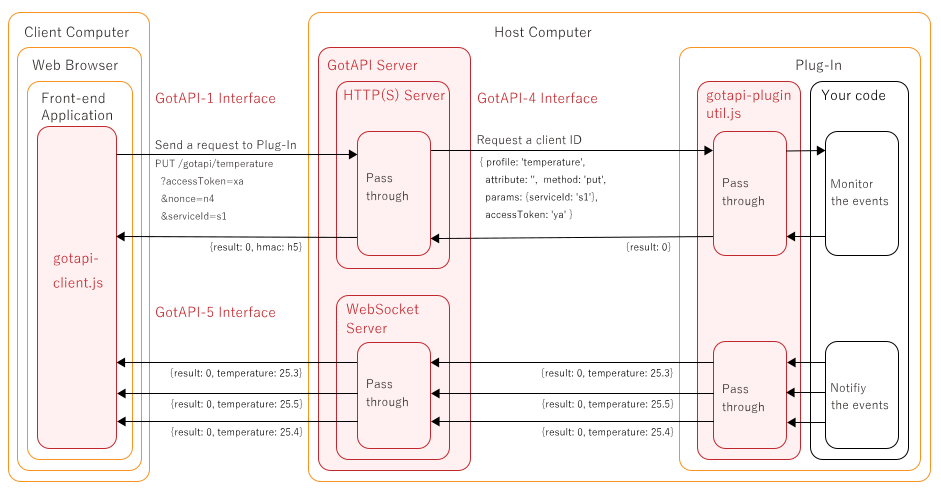
Basically, if the front-end application want the Plug-In to start notification, the HTTP method should be `PUT`. The HTTP method, the profile, and the attribute are passed to the Plug-In. If the Plug-In determines that the combination of the parameters means a trigger of notification, it returns a response meaning the request was accepted immediately. Then the Plug-In starts to notification process. The notifications are sent using the GotAPI-5 Interface (WebSocket channel). If the front-end application want the Plug-In to stop notification, the HTTP method should be `DELETE`.
As mentioned before the `node-gotapi` is parameter-agnostic. What combination of parameters corresponds to what the Plug-In do, is up to you.
---------------------------------------
## <a name="Security-Considerations">Security Considerations</a>
The `node-gotapi` is intended to be used in a local network such as home, office, and so on. Nonetheless, there are threats to be considered.
### <a name="Authorization-Mechanism-For-Plug-Ins">Authorization Mechanism for Plug-Ins</a>
The OMA GotAPI specifies a mechanism which a Plug-Ins authorizes a front-end application. The `node-gotapi` implements the mechanism. The `node-gotapi` sends the origin of the front-end application, Plug-Ins can determine whether the front-end application should be permitted to use the requested profiles.
### <a name="TLS-SSL-Support">TLS/SSL Support</a>
For Confidentiality and Integrity, the `node-gotapi` supports TLS/SSL for the GotAPI-1 Interface, the GotAPI-5 Interface, and the web server for front-end web applications. The TLS/SSL support is enabled by default. When the `node-gotapi` is started for the first time, a private key and a self-signed certificate are generated automatically.
Though web browsers show an alert to the user for the first time, the TLS/SSL support is meaningful for confidentiality and integrity nevertheless
It is strongly recommended to use the latest version of Chrome. Firefox, Safari, and Edge don't support AJAX and WebSockts on TLS/SSL with a self-signed certificate in a local network. If you want to use such browsers, the TLS/SSL support has to be disabled.
You can also use your own private key and certificate.
### <a hname="MAC-Server-Authentication">HMAC Server Authentication</a>
The `node-gotapi` supports the "HMAC server authentication" specified in the OMA GotAPI 1.1 specification. The mechanism provides front-end applications with a way to check if the GotAPI Server is spoofed by a malicious attacker.
The front-end application developer don't need to consider this mechanism because the JavaScript library `gotapi-cliend.js` handles this mechanism automatically.
---------------------------------------
## <a name="Tutorials">Tutorials</a>
This section describes how to develop a Plug-In and how to develop a front-end application.
### <a name="Creating-an-one-shot-API">Creating an one-shot API</a>
In this section, we will develop a simplest application named as "hello world". The "hello world" just echoes the message the front-end application sends. Let's see the code of the Plug-In.
#### Creating a directory for the Plug-In
First of all, you have to create a directory for this Plug-In in the `plugins` directory. You can find the `plugins` directory here by default:
```
~/node_modules/node-gotapi/plugins
```
The name of the root directory of the Plug-In must start with `node-gotapi-plugin-`. The directory name of this sample Plug-In is `node-gotapi-plugin-helloworld`.
```
$ cd ~/node_module/node-gotapi/plugins
$ mkdir ./node-gotapi-plugin-helloworld
$ cd ./node-gotapi-plugin-helloworld
```
#### Creating a `package.json`
In this directory, you must create a JSON file `package.json` specified by npmjs.com. Read the [npmjs.com](https://docs.npmjs.com/files/package.json) for details. The minimal `package.json` for this Plug-In is as follows:
```JSON
{
"name": "node-gotapi-plugin-helloworld",
"version": "0.0.1",
"main": "./index.js",
}
```
The `main` property is the primary entry point. So the file name of your JavaScript file must be `index.js` here. Let's see the `index.js`.
#### Creating an `index.js`
```JavaScript
'use strict';
let GotapiPlugin = function(util) {
this.util = util;
this.info = {
name: 'Hello World',
services: [
{
serviceId : 'com.github.futomi.hello-world.hello',
name : 'hello world',
online : true,
scopes : ['echo']
}
]
};
};
GotapiPlugin.prototype.init = function(callback) {
this.util.init(this.info);
this.util.onmessage = this.receiveMessage.bind(this);
callback(this.info);
};
GotapiPlugin.prototype.receiveMessage = function(message) {
if(message['profile'] === 'echo') {
message['result'] = 0;
message['data'] = message['params']['msg'];
} else {
message['result'] = 1001;
message['errorMessage'] = 'Unknow profile was requested.';
}
this.util.returnMessage(message);
};
module.exports = GotapiPlugin;
```
As you can see, you don't need to write the codes for the transactions required by the GotAPI because the helper module do that instead you. You can focus on the logic related to the role of the Plug-In. Let's see the codes in detail step by step.
```JavaScript
let GotapiPlugin = function(util) {
this.util = util;
...
};
```
This is a constructor of this module. The `node-gotapi` creates an instance from the constructor when the GotAPI Server starts to run. At that time, the `node-gotapi` passes a `GotapiPluginUtil` object which helps you to develop the Plug-In. In the code above, the variable `util` represents the `GotapiPluginUtil` object. Using the methods exposed by the `GotapiPluginUtil` object, you are subject to develop the Plug-In.
```JavaScript
let GotapiPlugin = function(util) {
...
this.info = {
name: 'Hello World',
services: [
{
serviceId : 'com.github.futomi.hello-world.hello',
name : 'hello world',
online : true,
scopes : ['echo']
}
]
};
});
```
The variable `this.info` represents the information of this Plug-In. You have to define the information of the Plug-In here. The `name` property represents the name of this Plug-In. It is just metadeta. You can define the name as you like. The `servies` property represents the services this module serves. It must be an `Array`. In this sample, a service is defined.
The `serviceId` property represents the identifier of the service. Though the `node-gotapi` does not restrict the naming, it should be universally unique. It is recommended to use the Java-style package name.
The `name` property represents the name of the service. It is just metadata. You can define the name as you like.
The `online` property represents the current availability. If the service is always available, it must be `true`.
The `scopes` property represents a list of profiles this module provides. It must be an `Array`. In this sample, a profile is defined.
```JavaScript
GotapiPlugin.prototype.init = function(callback) {
this.util.init(this.info);
this.util.onmessage = this.receiveMessage.bind(this);
callback(this.info);
};
```
This method `init()` is called by the `node-gotapi` immediately after the GotAPI Server loads this Plug-In. In this method, you have to do two things:
```JavaScript
this.util.init(this.info);
```
This code initializes the `GotapiPluginUtil` object. The valiable `this.info` representing the information of this Plug-In must be passed.
```JavaScript
this.util.onmessage = this.receiveMessage.bind(this);
```
This code attaches an event handler called when a request comes from a front-end application. You have to write the `receiveMessage()` method as follows:
```JavaScript
GotapiPlugin.prototype.receiveMessage = function(message) {
if(message['profile'] === 'echo') {
message['result'] = 0;
message['data'] = message['params']['msg'];
} else {
message['result'] = 1001;
message['errorMessage'] = 'Unknow profile was requested.';
}
this.util.returnMessage(message);
};
```
This method is passed an object (the variable `message` in the code above) representing the request message from an front-end application. You have to evaluate the value of `message['profile']`. This value is the attribute which the front-end application requests.
You can also obtain the attribute from the `message['attribute']` and evaluate it, though the value is not used in this sample.
You can obtain additional parameters from `message['params']` as appropriate. The parameters are set in the request URL by the front-end application.
Lastly, you have to return the result to the GotAPI Server using the `this.util.returnMessage()` method. You have to append some properties to the message object as follows and execute the `this.util.returnMessage()` method with the message object as the first argument:
Property | Type | Required | Description
:--------------|:-------|:---------|:-----------
`result` | Number | Required | An integer representing the result of the method. If the method was executed successfully, this value must be 0. Otherwise, the value must be an integer grater than 0.
`errorMessage` | String | Optional | If the method was failed, you can set a custom error message.
(any) | (any) | You can set any data representing the result. You can use any property name except the [prohibited property names for response](#prohibited-property-names-for-response). In the sample code above, the `data` property is set for the response.
You have developed the sample Plug-In now. Let's go to the next step.
#### Creating the front-end application
The assets of the front-end application must be placed in the document root of the web server for front-end applications provided by the `node-gotapi`. By default, the document root is the `html` directory immediately under the root directory of the `node-gotapi`.
For example, if the HTML file is saved at:
```
~/node_modules/node-gotapi/html/tutorials/helloworld.html
```
then the URL is:
```
https://localhost:10443/tutorials/helloworld.html
```
by default.
The JavaScript code for `helloworld.html` is as follows:
```HTML
<p id="res"></p>
<script src="/gotapi-client.js"></script>
<script>
'use strict';
let gotapi = new GotapiClient();
gotapi.connect().then((services) => {
return gotapi.request({
method : 'get',
serviceId : 'com.github.futomi.hello-world.echo',
profile : 'echo',
attribute : '',
msg : 'hello!'
});
}).then((res) => {
document.querySelector('#res').textContent = res['data'];
}).catch((error) => {
document.querySelector('#res').textContent = error.message;
});
</script>
```
The `node-gotapi` provides the JavaScript library `gotapi-client.js` to help you to develop front-end applications. Though the `gotapi-client.js` is saved in the document root, you can move it to anywhere as long as the location is in the document root.
In your script, you need to create an instances of the `GotapiClient` object from the Constructor. In order to communicate with the GotAPI Server and the Plug-In, you have to use the methods exposed by the `GotapiClient` object. In the code above, the variable `gotapi` represents the `GotapiClient` object.
The `gotapi.connect()` method establishes a connection with the GotAPI Server and returns a `Promise` object. If the connection was established successfully, an `Array` representing a list of the available services serviced by the installed Plug-In is passed to the resolve function.
After the connection was established, you can send a request to the Plug-In using the `gotapi.request()` method. This method takes an object representing the request message. The `method`, `serviceId`, `profile` property are mandatory always. The `attribute` property and the other properties are optional depending the target Plug-In.
The `gotapi.request()` method returns a `Promise` object. An object representing the response is passed to the resolve function. Though the `data` property of the object represents the response data in this case, it depends on the target Plug-In.
### <a name="Creating-an-asynchronous-push-API">Creating an asynchronous push API</a>
In this section, we will develop "the Simple Clock application". The Plug-In for this application sends notifications with the current time every second. Reading this section, you can learn how to start and the stop the notifications.
#### Creating the Plug-In
You can find the Plug-in for this application in the directory blow:
```
~/node_modules/node-gotapi/plugins/node-gotapi-plugin-simpleclock
```
The `package.json` is as follows:
```JavaScript
{
"name": "node-gotapi-plugin-simpleclock",
"version": "0.0.1",
"main": "./index.js"
}
```
The `index.js` is a little bit more complex than the previous one. The Plug-In exposes two APIs: the API to start the notification and the API stop it.
At first, let's look at the constructor:
```JavaScript
let GotapiPlugin = function(util) {
this.util = util;
this.info = {
name: 'Simple Clock',
services: [
{
serviceId : 'com.github.futomi.hello-clock.clock',
name : 'Simple Clock',
online : true,
scopes : ['clock']
}
]
};
this.ticktack_timer_id = 0;
};
```
The constructor is pretty much as same as the previous one. The difference is that the `this.ticktack_timer_id` is declared. This property is used later.
The `init()` method is as follows:
```JavaScript
GotapiPlugin.prototype.init = function(callback) {
this.util.init(this.info);
this.util.onmessage = this.receiveMessage.bind(this);
callback(this.info);
};
```
The code above is completely as same as the previous one. Basically, the `init()` method is always same.
The `receiveMessage()` method is as follows:
```JavaScript
GotapiPlugin.prototype.receiveMessage = function(message) {
if(message['profile'] === 'clock' && message['attribute'] === 'ticktack') {
this.ticktack(message);
} else {
message['result'] = 1001;
message['errorMessage'] = 'Unknow profile was requested.';
this.util.returnMessage(message);
}
};
```
In this method, the profile and the attribute in the request message are evaluated. If they are valid, the `ticktack()` method is called.
The `ticktack()` method is as follows:
```JavaScript
GotapiPlugin.prototype.ticktack = function(message) {
if(message['method'] === 'put') {
this.startTicktack(message);
} else if(message['method'] === 'delete') {
this.stopTicktack(message);
} else {
message['result'] = 1001;
message['errorMessage'] = 'The HTTP Method `' + message['method'] + '` is not supported.';
this.util.returnMessage(message);
}
};
```
What you should pay attention is that the value of the `method` property is evaluated. The method represents the HTTP method which the front-end application uses for the request. If the method is `put`, the `startTicktack()` method is called. Otherwise, if the method is `delete`, the `stopTicktack()` method is called. That is, this Plug-In behaves differently depending on the method even if the attribute is same.
The `startTicktack()` method is as follows:
```JavaScript
GotapiPlugin.prototype.startTicktack = function(message) {
message['result'] = 0;
this.util.returnMessage(message);
this.ticktack_timer_id = setInterval(() => {
message['result'] = 0;
message['data'] = (new Date()).toLocaleString();
this.util.pushMessage(message);
}, 1000);
};
```
This method returns the response using the `this.util.returnMessage()` method immediately. After that, a timer is set. What you should pay attention is that the `this.util.pushMessage()` method is called every second instead of the `this.util.returnMessage()` method.
While the `this.util.returnMessage()` method returns a response to the front-end application through the GotAPI-1 Interface (HTTP channel), the `this.util.pushMessage()` method returns a response to the front-end application through the GotAPI-5 Interface (WebSocket channel).
#### Creating the front-end application
You can find the front-end application for this application in the directory blow:
```
~/node_modules/node-gotapi/html/tutorials/simpleclock.html
```
You can access it at the URL by default as follows:
```
https://localhost:10443/tutorials/helloworld.html
```
The HTML code of the front-end application is as follows:
```HTML
<button id="btn" type="button">Start</button>
<span id="res"></span>
```
A button is placed in the front-end application. Pressing the button causes to start the notification, then the time reported from the Plug-In is shown in the `span` element with the `id` attribute whose value is `res`. Pressing the button again causes to stop the notification.
The JavaScript code is as follows:
```JavaScript
<script>
'use strict';
let gotapi = new GotapiClient();
gotapi.connect().then((services) => {
let btn_el = document.querySelector('#btn');
btn_el.addEventListener('click', clickedButton, false);
}).catch((error) => {
document.querySelector('#res').textContent = error.message;
});
function clickedButton(event) {
let btn_el = event.target;
gotapi.request({
method : (btn_el.textContent === 'Start') ? 'put' : 'delete',
serviceId : 'com.github.futomi.hello-clock.clock',
profile : 'clock',
attribute : 'ticktack'
}).then((res) => {
gotapi.onmessage = (message) => {
document.querySelector('#res').textContent = message['data'];
};
btn_el.textContent = (btn_el.textContent === 'Start') ? 'Stop' : 'Start';
}).catch((error) => {
window.alert(error.message);
});
}
</script>
```
---------------------------------------
## <a name="API-Reference-for-Plug-In">API Reference for Plug-In</a>
This section describes the APIs to help you to develop Plug-Ins.
### <a name="Files-and-Directories">Files and Directories</a>
The Plug-In must be developed as a node module. There are some restrictions for the Plug-In:
* The name of the root directory of the Plug-In (node module) must start with `node-gotapi-plugin-`. For example, you want to develop a Plug-In named `sample`, the name of the root directory must be `node-gotapi-plugin-sample`.
* The Plug-In must be a [npm](#https://www.npmjs.com/) package. Especially, the `package.json` is important. It is recommended to read [the description of the `package.json`](https://docs.npmjs.com/files/package.json).
The simplest `package.json` is as follows:
```JavaScript
{
"name": "node-gotapi-plugin-sample",
"version": "0.0.1",
"main": "./index.js"
}
```
In this section, it is assumed that the `main` property of `package.json` is set to `./index.js`.
The Plug-In module is detected by the `node-gotapi` under conditions as follows:
* The root directory name starts with `node-gotapi-plugin-`.
* The Plug-In module is placed in the `plugins` directory of the `node-gotapi` or in the module search path of your node environment.
You can publish your Plug-In module at the npmjs.com. The `node-gotapi` detects your Plug-In module as long as the conditions described above are satisfied.
### <a name="Template-code-of-the-Plug-In">Template code of the Plug-In</a>
Your Plug-In must be developed based on the code below:
```JavaScript
'use strict';
// Constructor
let GotapiPlugin = function(util) {
this.util = util;
// Define the information for your Plug-In
this.info = {
name: 'The name of your Plug-In',
services: [...]
]
};
};
// Basically this method don't need to be modified.
GotapiPlugin.prototype.init = function(callback) {
this.util.init(this.info);
this.util.onmessage = this.receiveMessage.bind(this);
callback(this.info);
};
// This method is called when a request comes from the front-end application
GotapiPlugin.prototype.receiveMessage = function(message) {
// Do something depending on the parameters as follows:
// - message['params']['serviceId']
// - message['profile`]
// - message['attribute']
// - message['method'].
// return a response
this.util.returnMessage(message);
};
module.exports = GotapiPlugin;
```
### <a name="Defining-the-services-which-your-Plug-In-serves">Defining the services which your Plug-In serves</a>
As described the previous section, the information of your Plug-In must be defined in the constructor:
```JavaScript
let GotapiPlugin = function(util) {
...
this.info = {
name: 'The name of your Plug-In',
services: [...]
]
};
};
```
The `this.info` must have the properties as follows:
Property | Type | Required | Description
:------------|:-------|:---------|:-----------
`name` | String | Required | The name of your Plug-In.
`services` | Array | Required | The list of objects representing the services which your Plug-In serves.
If the services could not be confirmed at the moment when the Plug-In module is initialized, the `this.info['services'] may be an empty string.
```JavaScript
this.info = {
name: 'Sample',
services: []
};
```
In this case, you have to attach a callback to the `this.util.onservicediscoverry` property and return the available services in the callback. See the section `this.util.onservicediscoverry` for details.
The object representing a service in the `this.info['services'] must have the properties as follows:
Property | Type | Required | Description
:--------------|:-------|:---------|:-----------
`serviceId` | String | Required | This property represents the identifier of the service. Though the `node-gotapi` does not restrict the naming, it should be universally unique. It is recommended to use the Java-style package name.
`name` | String | Required | This property represents the name of the service. It is just metadata. You can define the name as you like.
`online` | String | Required | This property represents the current availability. If the service is available when the Plug-In initialized, it must be `true`. Otherwise, it must be `false`.
`scopes` | Array | Required | This property represents a list of profiles this module provides. It must be an `Array`.
`manufacturer` | String | Optional | If this service represents the external device which is connected through this Plug-In, this value must be the manufacturer of the external device. Otherwise, this value must be the name of the provider or the developer of this Plug-In.
`version` | String | Optional | If this service represents the external device which is connected through this Plug-In, this value must be the version of the external device. Otherwise, this value must be the version of this Plug-In.
`type` | String | Optional | If this service represents the external device which is connected through this Plug-In, this value represents the type of the network used to connect to the external device. The value must be either "WiFi", "BLE", "NFC", "USB", or "Bluetooth". If the network type is not one of them, the value of this property must be an empty string.
The object representing a service described above is sent to the front-end application as-is when the Network Service Discovery is processed. You can add some custom property. The code blow shows an example of declaration of the Plug-In information in the constructor:
```JavaScript
this.info = {
name: 'Home Gateway Resource Monitor',
services: [
{
serviceId : 'com.github.futomi.resource',
name : 'CPU Monitor',
online : true,
scopes : ['cpu', 'mem', 'disk'],
version : '1.0.0',
copyright : 'Copyright (c) 2017 Futomi Hatano',
license : 'MIT'
}
]
};
```
In the code above, two custom properties `copyright` and `license` are added.
### <a name="init-method">`this.util.init()` method</a>
This method initializes the `this.util` object. This method takes the `this.info` object as an argument. This method must be called in the `GotapiPlugin.prototype.init()` method at first.
```JavaScript
GotapiPlugin.prototype.init = function(callback) {
this.util.init(this.info);
...
};
```
### <a name="onservicediscoverry-property">`this.util.onservicediscoverry` property</a>
This property is an event handler called when the service discovery process started. If no callback function is attached to this property, the `this.info.services` property is returned to the GotAPI Server automatically. But if you want to generate the services to be returned on the fly, you can use this property. A callback function must be attach to this property in the the `GotapiPlugin.prototype.init()` method.
```JavaScript
GotapiPlugin.prototype.init = function(callback) {
this.util.init(this.info);
...
this.util.onservicediscoverry = (message) => {
message['services'] = [...]; // Define the services on the fly
this.util.returnServiceDiscovery(message);
}
...
callback(this.info);
};
```
A [`ServiceDiscoveryRequestMessage`](#ServiceDiscoveryRequestMessage-object) object is passed to the callback function. In the code above, the variable `message` represents a [`ServiceDiscoveryRequestMessage`](#ServiceDiscoveryRequestMessage) object.
In the callback function attached to the `this.util.onservicediscoverry` property, an Array object representing the list of the services must be set to the `services` property in the [`ServiceDiscoveryRequestMessage`](#ServiceDiscoveryRequestMessage-object) object.
Lastly, the [`this.util.returnServiceDiscovery()`](#returnServiceDiscovery-method) method must be called with the [`ServiceDiscoveryRequestMessage`](#ServiceDiscoveryRequestMessage-object) object as the 1st argument.
### <a name="ServiceDiscoveryRequestMessage-object">`ServiceDiscoveryRequestMessage` object</a>
This object is passed to the callback function attached to the [`this.util.onservicediscoverry`](#onservicediscoverry-property) property. This object represents the request of the service discovery. This object consists of the properties as follows:
Property | Type | Description
:-------------|:-------|:-----------
`package` | String | The origin of the front-end application (e.g. "https://localhost:10443")
`profile` | String | `networkServiceDiscovery`
`attribute` | String | `getNetworkServices`
`receiver` | String | The application ID of the `node-gotapi` (e.g. "com.github.futomi.node-gotapi")
`services` | Array | an empty Array object
### <a name="returnServiceDiscovery-method">`this.util.returnServiceDiscovery()` method</a>
This method responds to the service discovery. See the previous section "[The `this.util.onservicediscoverry` property](#onservicediscoverry-property)" for details.
### <a name="onclinetid-property">`this.util.onclinetid` property</a>
This property is an event handler called when the request for a client ID comes from the GotAPI Server. If no callback function is attached to this property, a client ID is automatically generated and returned it to the GotAPI Server. That is, the front-end application is unconditionally accepted by default. But if you want to check if the front-end application should be accepted or not, you can use this property. A callback function must be attached to this property in the the `GotapiPlugin.prototype.init()` method.
```JavaScript
GotapiPlugin.prototype.init = function(callback) {
this.util.init(this.info);
...
this.util.onclinetid = (message) => {
if(message['package'] !== 'https://localhost:10443') {
message['accept'] = false;
message['errorMessage'] = 'I dislike you.';
}
this.util.returnClientIdRequest(message);
}
...
callback(this.info);
};
```
A [`ClientIdRequestMessage`](#ClientIdRequestMessage-object) object is passed to the callback function. In the code above, the variable `message` represents a [`ClientIdRequestMessage`](#ClientIdRequestMessage-object) object.
In the callback function attached to the `this.util.onclinetid` property, the `accept` property must be set in the [`ClientIdRequestMessage`](#ClientIdRequestMessage-object) object. By default, the value of the `accept` property is set to `true` which means the Plug-In accepts the front-end application. If you want to deny, assign `false` to the `accept` property;
If you deny the request, you can also define your custom error message setting the `errorMessage` property of the [`ClientIdRequestMessage`](#ClientIdRequestMessage-object) object to your custome message.
Lastly, the [`this.util.returnClientIdRequest()`](#returnClientIdRequest-method) method must be called with the [`ClientIdRequestMessage`](#ClientIdRequestMessage-object) object as the 1st argument.
### <a name="ClientIdRequestMessage-object">`ClientIdRequestMessage` object</a>
This object is passed to the callback function attached to the [`this.util.onclinetid`](#onclinetid-property) property. This object represents the request for a client ID. This object consists of the properties as follows:
Property | Type | Description
:-