ngx-daterange
Version:
Date-Range Selector for Angular
268 lines (151 loc) • 8.28 kB
Markdown
# Ngx Date Range
Current version: 1.0.49
Here's a minimal example of ngx-daterange in action, showing positioning on the left, right and using custom templating: https://ngx-daterange.netlify.app/
## External Dependencies
- [Moment](https://momentjs.com)
- [Moment-Range](https://github.com/rotaready/moment-range)
## Required Angular Modules
- FormsModule
- ReactiveFormsModule
## Polyfills
If you are targeting older browsers, you may need to polyfill es7 arrays, specifically [.some()](https://developer.mozilla.org/en-US/docs/Web/JavaScript/Reference/Global_Objects/Array/some)
## Usage
Install from npm:
- `npm install ngx-daterange --save`
Import and add the `NgxDateRangeModule` to your main module, or wherever applicable. Example:
```TypeScript
import { FormsModule, ReactiveFormsModule } from '@angular/forms';
import { NgxDateRangeModule } from 'ngx-daterange';
@NgModule({
declarations: [
...
],
imports: [
...
FormsModule,
NgxDateRangeModule,
ReactiveFormsModule,
],
providers: [],
bootstrap: [AppComponent]
})
export class AppModule { }
```
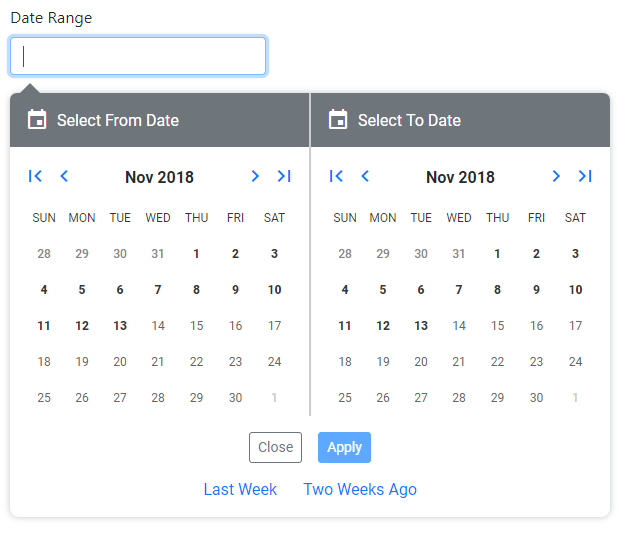
ngx-daterange is implemented as a single text input that displays one, or two calendars depending on your options. It may be implemented with, or without options in your component as such:
```HTML
<date-range-picker [options]="options" [parentFormGroup]="form" [controlName]="'myDateRange'"></date-range-picker>
```
By default, ngx-daterange will assign a control name of "dateRange", however you may override this with the `[controlName]` input.
ngx-daterange assumes that you have a `FormGroup` instance that you are adding it to, and as such expects you to pass in the FormGroup via the `[parentFormGroup]` input.
### Populating Existing Dates
You may pass in Moment instances via the `[fromDate]` and `[toDate]` inputs.
## Using Custom Templating
A content slot is provided to override the default text input. Here's an example using a Bootstrap input group:
```HTML
<date-range-picker [instanceId]="'secondDateRange'" [options]="secondFieldOptions" [parentFormGroup]="form"
[controlName]="'secondDateRange'" #dateRangePicker>
<div class="form-group">
<label for="secondDateRange">Your Custom Label</label>
<div class="input-group">
<div class="input-group-prepend">
<span class="input-group-text" id="date-range-icon">
<i class="material-icons">event</i>
</span>
</div>
<input id="secondDateRange" class="form-control" type="text" name="dateRange"
[value]="dateRangePicker.range" placeholder="From - To" formControlName="secondDateRange" />
</div>
</div>
</date-range-picker>
```
You must supply one additional input: `[instanceId]`, which must correspond to the `id` of the input. Otherwise, the calendar(s) won't be displayed when the input is clicked.
To access the ngx-daterange instance, assign a template variable (`#dateRangePicker` in the sample code) so that you may access the `range` value to bind to your input's `[value]`.
The value you use for the `[controlName]` must correspond to the `name` property of the input, or use "dateRange" as the name of the input to match the default value in the component. Otherwise, the control won't be able to be added to your FormGroup instance.
## Styling
ngx-daterange's default templating and styling is *dependent* on Bootstrap 4.x
- Manual date inputs are hidden for mobile devices. Specifically, these are User Agents matching: Android, webOS, iPhone, iPod, Blackberry and Windows Phone.
- Mobile styling is applied via JavaScript, not media queries.
## Date Range Picker Options
Most settings are optional and an interface, [IDateRangePickerOptions](https://github.com/alsoicode/ngx-daterange/blob/master/src/modules/ngx-daterange/src/interfaces/IDateRangePickerOptions.ts) is provided for your convenience. Here are all of the settings currently enabled:
### autoApply
Automatically sets the `range` value when both dates are selected and hides the calendars. If using a single calendar, the `range` is set and the calendar is closed when the date is selected. If `false`, the Apply button will be displayed.
Type: `boolean`
Default value: `true`
<hr/>
### clickOutsideAllowed
Set this to `false` if you want a click outside the boundary of the DatePicker component to automatically close it.
Type: `boolean`
Default value: `true`
<hr/>
### disableInputDisplay
Set this to `true` if you want to apply the `disabled` attribute to the `input` element that renders the selected range (or single date value) of the DatePicker component. Unlike the `fromDate` or `toDate` `input` elements displayed above the calendars, which are _not_ affect by this option, enabling this option prevents the user from editing the displayed range/value, which can cause confusion as the edited value will not reflect the actual range/value of the component.
Type: `boolean`
Default value: `false`
<hr/>
### format
The format of the `range` value as displayed in the UI.
Type: `string`
Default value: `'YYYY-MM-DD'`
Accepted value: Any format string supported by [Moment.js](https://momentjs.com/docs/#/displaying/format/)
<hr/>
### icons
Icons displayed for the next/previous and month/year buttons. By default, inlined base64 images are used. If you're using Font Awesome 5, or Google Material Icons, you may specify one or the other. You are expected to apply the CSS for those libraries independent of this module.
Type: `string`
Default value: `'default'`
Accepted values: `'default'`, `'font-awesome'` or `'material'`
<hr />
### labelText
The text of the form label when using the default templating.
Type: `string`
Default value: `'Date Range'`
Accepted value: Any
<hr />
### maxDate
The maximum selectable date in the future.
Type: `Moment`
Default value: `null`
Accepted value: Any valid Moment instance that comes after `minDate`.
<hr />
### minDate
The maximum selectable date in the past.
Type: `Moment`
Default value: `null`
Accepted value: Any valid Moment instance that comes before `maxDate`.
<hr />
### position
The side on which you would like the date picker to open.
Type: `string`
Default value: `'left'`
Accepted values: `'left'` or `'right'`
<hr />
### preDefinedRanges
An array of pre-defined date ranges can be displayed to the user using a friendly "name". The array will appear below the Cancel / Reset / Apply buttons.
Type: `IDefinedDateRange[]`
Default value: not specified
<hr />
### showResetButton
Show or hide the reset button.
Type: `boolean`
Default value: `true`
<hr />
### singleCalendar
Display a single calendar instance instead of a range. Useful when you don't want to add another dependency and need to select a single date.
Type: `boolean`
Default value: `false`
<hr />
### validators
One or more ValidatorFn instances may be supplied to suit your needs.
Type: `ValidatorFn[] | ValidatorFn`
Default value: not specified
## Event Emitters
When a date is specified, an [IDateRange](https://github.com/alsoicode/ngx-daterange/blob/master/src/modules/ngx-daterange/src/interfaces/IDateRange.ts) object is emitted via the `rangeSelected` function.
When the datepicker is reset, a `datepickerReset` event is emitted.
## Running the Angular Sample Project
### Development server
Run `ng serve` for a dev server. Navigate to `http://localhost:4200/`. The app will automatically reload if you change any of the source files.
### Build Sample App
Run `ng build` to build the sample app. The build artifacts will be stored in the `dist/` directory. Use the `--prod` flag for a production build.
## Rationale
This project is heavily refactored from: [angular-2-daterangepicker](https://github.com/technikhil314/angular-2-daterangepicker)
I needed to be able to use custom templating and reactive forms, which were the primary features of developing this module which were missing in the original project. It is intended to allow the user to quickly pick a from and to date with reasonable default settings and just enough customization to allow you to accomplish your use case without being overly burdensome.