mobile-select
Version:
A multi-function mobile phone scrolling selector, support single to multi-select, support multi-level cascade, provide custom callback function, provide update function redraw, relocation function, compatible pc drag and so on.
570 lines (485 loc) • 20.9 kB
Markdown
<p align="center"><img width="130" src="https://github.com/onlyhom/img-folder/blob/master/png/m_logo_orange.png?raw=true"></p>
<h1 align="center" >Mobile Select</h1>
<p align="center">
<a href="https://www.npmjs.com/package/mobile-select"><img src="https://img.shields.io/npm/v/mobile-select?color=cb0303&logo=npm&label=version" alt="Package version" /></a>
<a href="https://github.com/onlyhom/mobile-select/network"><img src="https://img.shields.io/github/stars/onlyhom/mobile-select.svg?logo=apachespark&logoColor=white&color=blueviolet" alt="GitHub stars" /></a>
<a href="https://github.com/onlyhom/mobile-select/network"><img src="https://img.shields.io/github/forks/onlyhom/mobile-select.svg?logo=github&color=blue" alt="GitHub forks" /></a>
<img src="https://img.shields.io/badge/dependencies-none-success.svg" alt="dependencies" />
<a href="https://github.com/onlyhom/mobile-select/issues"><img src="https://img.shields.io/github/issues/onlyhom/mobile-select.svg?logo=codeigniter&logoColor=FFFFFF" alt="GitHub issues" /></a>
<img src="https://img.shields.io/npm/dm/mobile-select.svg" alt="size" />
<img src="https://img.shields.io/bundlephobia/min/mobile-select" alt="size" />
<a href="https://github.com/onlyhom/mobile-select/blob/master/LICENSE" title="LICENSE"><img src="https://img.shields.io/github/license/onlyhom/mobile-select.svg?logo=creative%20commons&color=8FBFA9&logoColor=FFFFFF" alt="MIT license" /></a>
</p>
一款多功能的移动端滚动选择器,支持单选到多选、支持多级级联、提供回调函数、提供 update 函数二次渲染、重定位函数、兼容 pc 端拖拽等等..
[English Docs](https://github.com/onlyhom/mobile-select) | 中文文档
## 🎨 特性
- 原生 js 移动端选择控件,不依赖任何库
- 可传入普通数组或者 json 数组
- 可根据传入的参数长度,自动渲染出对应的列数,支持单项到多项选择
- 自动识别是否级联
- 提供回调函数 onChange() 返回当前选择索引位置、以及选择的数据
- 每次手势滑动结束后,也提供一个回调函数 onTransitionEnd() 返回当前选择索引位置、以及选择的数据
- 能够在已经实例化控件后,提供 update 函数再次渲染,可用于异步获取数据或点击交互后需要改变所选数据的场景
- 提供initValue支持回显场景
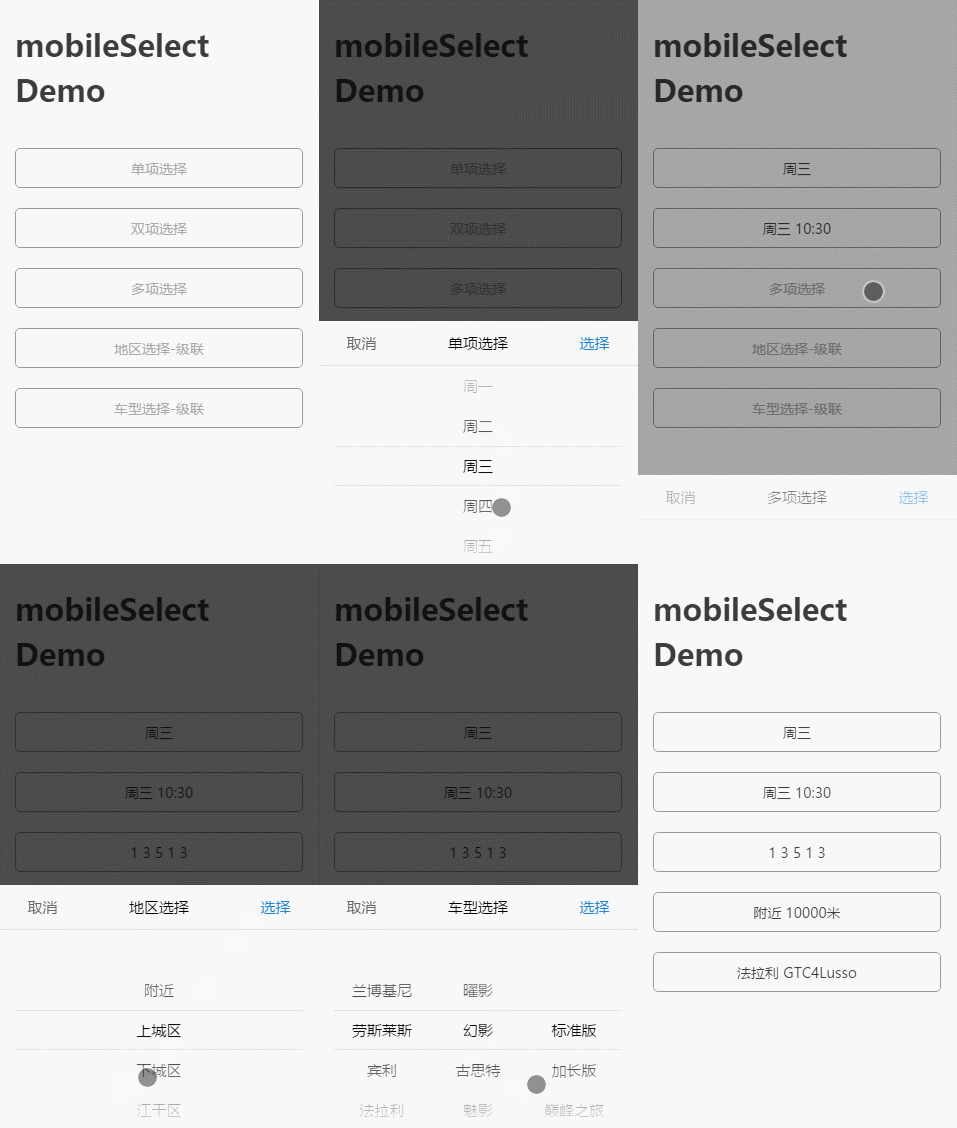
## 📺 演示
#### 手机扫描二维码预览:
<img src="https://github.com/onlyhom/img-folder/blob/master/png/ms_code_url_480.png_io.png?raw=true" width="230">
#### 动态图预览:
## 🗂 包结构
```text
dist/
├── mobile-select.umd.js (UMD, default)
├── mobile-select.esm.js (ECMAScript Module)
├── mobile-select.iife.js (Immediately-invoked Function Expression)
├── mobile-select.iife.min.js (Immediately-invoked Function Expression, compressed)
├── mobile-select.d.ts (TypeScript Declaration File)
├── style/
├── mobile-select.css
└── mobile-select.less
```
## 🥤 安装
#### 方式一 标签引入:
```html
<link rel="stylesheet" type="text/css" href="https://unpkg.com/mobile-select@latest/dist/style/mobile-select.css" />
<script type="text/javascript" src="https://unpkg.com/mobile-select@latest/dist/mobile-select.iife.min.js" ></script>
```
CDN Path:
> https://unpkg.com/mobile-select@latest/dist/
> https://cdn.jsdelivr.net/npm/mobile-select@latest/dist/
#### 方式二 npm / pnpm / yarn 引入:
Using npm:
```shell
npm install mobile-select
```
Using pnpm:
```shell
pnpm add mobile-select
```
Using Yarn:
```shell
yarn add mobile-select
```
在你的js文件中 import:
```javascript
import MobileSelect from "mobile-select";
```
## 🧩 在线使用Demo
<table align="center">
<tr>
<td align="center" width="100">
<img src="https://raw.githubusercontent.com/gilbarbara/logos/master/logos/w3c.svg" width="85" title="Web Components"> <br/>
<strong>VanillaJS</strong> <br/>
<sub>
<a href="https://codesandbox.io/s/mobile-select-vanilla-l7gnb3" target="_blank">📦Sandbox</a>
</sub>
</td>
<td align="center" width="100">
<img src="https://raw.githubusercontent.com/gilbarbara/logos/master/logos/angular-icon.svg" width="40" title="Angular"> <br/>
<strong>Angular</strong> <br/>
<sub>
<a href="https://codesandbox.io/s/mobile-select-angular-esgkil" target="_blank">📦Sandbox</a>
</sub>
</td>
<td align="center" width="100">
<img src="https://raw.githubusercontent.com/gilbarbara/logos/master/logos/react.svg" width="50" title="React"> <br/>
<strong>React-ts</strong> <br/>
<sub>
<a href="https://codesandbox.io/s/mobile-select-react-ts-woc5f8" target="_blank">📦Sandbox</a>
</sub>
</td>
<td align="center" width="100">
<img src="https://raw.githubusercontent.com/gilbarbara/logos/master/logos/vue.svg" width="50" title="Vue"> <br/>
<strong>Vue</strong> <br/>
<sub>
<a href="https://codesandbox.io/s/mobile-select-vue-el5o6r" target="_blank">📦Sandbox</a>
</sub>
</td>
<td align="center" width="100">
<img src="https://raw.githubusercontent.com/gilbarbara/logos/master/logos/svelte-icon.svg" width="40" title="Svelte"> <br/>
<strong>Svelte</strong> <br/>
<sub>
<a href="https://codesandbox.io/s/mobile-select-svelte-2m4wz2" target="_blank">📦Sandbox</a>
</sub>
</td>
<td align="center" width="100">
<img src="https://raw.githubusercontent.com/gilbarbara/logos/master/logos/solidjs-icon.svg" width="50" title="Solid"> <br/>
<strong>Solid</strong> <br/>
<sub>
<a href="https://codesandbox.io/s/mobile-select-solid-pcd560" target="_blank">📦Sandbox</a>
</sub>
</td>
</tr>
</table>
## 📗快速使用
#### ① 普通数组格式-非联动
```html
<div id="trigger1"></div>
<script type="text/javascript">
let mobileSelect1 = new MobileSelect({
trigger: document.querySelector("#trigger1"),
title: "单项选择",
wheels: [
{ data: ["周日", "周一", "周二", "周三", "周四", "周五", "周六"] },
],
initValue: "周二", // 初始化值
});
</script>
```
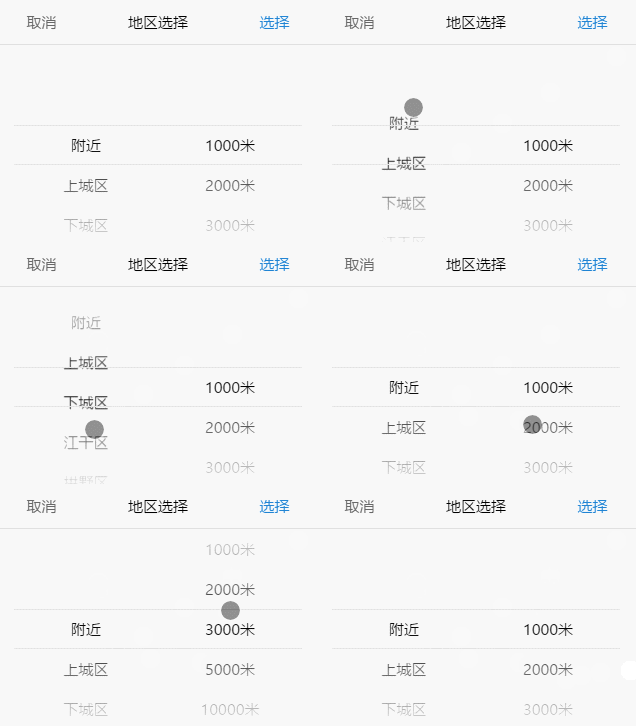
#### ②json 格式-非联动
```html
<div id="trigger2"></div>
<script type="text/javascript">
let mobileSelect2 = new MobileSelect({
trigger: "#trigger2",
title: "地区选择",
wheels: [
{
data: [
{ id: "1", value: "附近" },
{ id: "2", value: "上城区" },
{ id: "3", value: "下城区" },
{ id: "4", value: "江干区" },
{ id: "5", value: "拱墅区" },
{ id: "6", value: "西湖区" },
],
},
{
data: [
{ id: "1", value: "1000米" },
{ id: "2", value: "2000米" },
{ id: "3", value: "3000米" },
{ id: "4", value: "5000米" },
{ id: "5", value: "10000米" },
],
},
],
onChange: function (data, indexArr, msInstance) {
console.log(data);
},
});
</script>
```
##### 效果图:
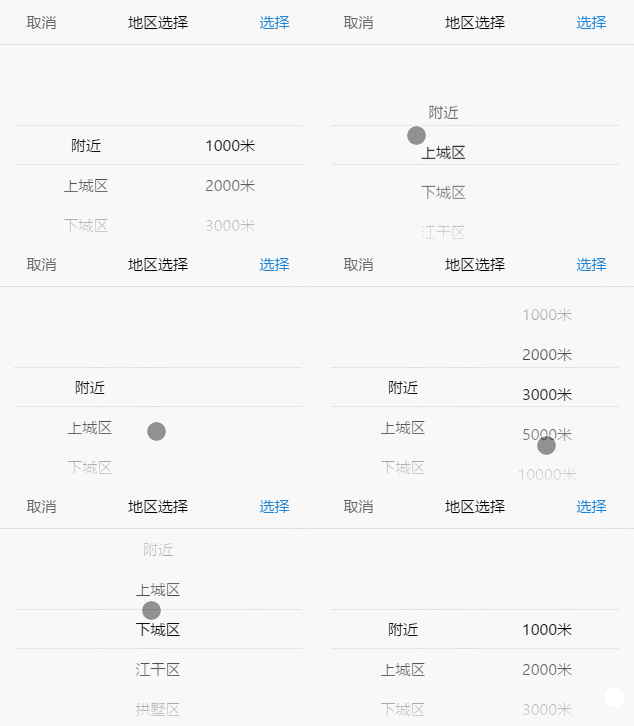
#### ③json 格式-联动
```html
<div id="trigger3"></div>
<script type="text/javascript">
let mobileSelect3 = new MobileSelect({
trigger: "#trigger3",
title: "地区选择-联动",
wheels: [
{
data: [
{
id: "1",
value: "附近",
childs: [
{ id: "1", value: "1000米" },
{ id: "2", value: "2000米" },
{ id: "3", value: "3000米" },
{ id: "4", value: "5000米" },
{ id: "5", value: "10000米" },
],
},
{ id: "2", value: "上城区" },
{ id: "3", value: "下城区" },
{ id: "4", value: "江干区" },
{ id: "5", value: "拱墅区" },
{ id: "6", value: "西湖区" },
],
},
],
initValue: "附近 2000米", // 初始化值
onChange: function (data, indexArr, msInstance) {
console.log(data);
},
});
</script>
```
##### 效果图:
#### ④在 react、vue 中使用
##### 在React中的基本使用
```tsx
import { useState, useRef, useEffect } from "react";
import MobileSelect from "mobile-select";
export default function MsComponent(props) {
const tirggerRef = useRef(null);
const [selectedVal, setSelectedVal] = useState('');
let msInstance = null;
useEffect(() => {
if(!msInstance){
msInstance = new MobileSelect({
wheels: [
{ data: ["周日", "周一", "周二", "周三", "周四", "周五", "周六"] },
],
trigger: tirggerRef.current,
triggerDisplayValue: false, // 如果不想覆盖trigger内的html 这里需要设置为false
onChange: (data) => {
setSelectedVal(JSON.stringify(data));
},
});
}
return () => {
msInstance?.destroy();
msInstance = null;
};
}, []);
return (
<div>
<div className="ms-default-trigger" ref={ tirggerRef }>
<div className="your-classname">请输入</div>
</div>
</div>
);
}
```
##### 在Vue中的基本使用
```html
<template>
<div>
<div ref="tirggerRef">
<div class="your-classname">{{ selectedVal || "请选择" }}</div>
</div>
</div>
</template>
<script>
import MobileSelect from "mobile-select";
export default {
name: "mobile-select",
data: () => ({
msInstance: null,
selectedVal: "",
}),
mounted() {
this.msInstance = new MobileSelect({
trigger: this.$refs.tirggerRef,
wheels: [
{ data: ["周日", "周一", "周二", "周三", "周四", "周五", "周六"] },
],
triggerDisplayValue: false, // 如果不想覆盖trigger内的html 这里需要设置为false
onChange: (data) => {
this.selectedVal = JSON.stringify(data);
},
});
},
unmounted() {
this.msInstance.destroy(); // 销毁组件实例
},
};
</script>
```
#### ⑤ 数据字段名映射
```html
<div id="trigger5"></div>
<script type="text/javascript">
/**
* 假如你的数据的字段名为id,title,children
* 与mobileSelect的id,value,childs字段名不匹配
* 可以用keyMap属性进行字段名映射
*/
let mobileSelect5 = new MobileSelect({
trigger: "#trigger5",
title: "数据字段名映射",
wheels: [
{
data: [
{
id: "1",
title: "A",
children: [
{ id: "A1", title: "A-a" },
{ id: "A2", title: "A-b" },
{ id: "A3", title: "A-c" },
],
},
{
id: "1",
title: "B",
children: [
{ id: "B1", title: "B-a" },
{ id: "B2", title: "B-b" },
{ id: "B3", title: "B-c" },
],
},
],
},
],
keyMap: {
id: "id",
value: "title",
childs: "children",
},
onChange: function (data) {
console.log(data);
},
});
</script>
```
## 配置参数
| 选项 | 默认值 | 类型 | 版本 | 描述 |
| --------------- | ------------------------------------------- | -------------------- | --------- | ---------------|
| trigger | 必填参数 | String 或 HTMLElement| | DOM的选择器字符串 或 HTMLElement元素 <br/>如:'#my-trigger' 或 document.querySelector('#my-trigger') |
| wheels | 必填参数 | Array | | 选项数据源, 需要显示的数据 |
| onChange | function(data, indexArr, instance){} | function | ≥1.2.0 | 选择成功后触发的回调函数|
| onTransitionEnd | function(data, indexArr, instance){} | function | ≥1.2.0 | 每一次手势滑动结束后触发的回调函数|
| onCancel | function(data, indexArr, instance){} | function | |点击取消的回调函数 返回的data和inderArr 是上一次点击确认按钮时的值 |
| onShow | function(instance){} | function | |显示控件后触发的回调函数, 返回参数为对象本身 |
| onHide | function(instance){} | function | | 隐藏控件后触发的回调函数, 返回参数为对象本身 |
| title | `''` | String | | 组件标题 |
| connector | `' '` | String | | 多项选择的值连接符号,默认是空格(例:如果设为'-', 那返回的多列数据则为'A-B') |
| initValue | `'1 2'` | String | ≥1.2.0 | 初始化值, 一般使用在数据回显的场景。<br/>(如果设置了connector, 那么initValue也需要用对应的connector符号连接) |
| autoFocus | `false` | Boolean | ≥1.2.0 | 初始化后自动弹出选择面板 |
| position | [0,0,0,…] | Array | | 初始化定位 |
| colWidth | [1,1,2,…] | Array | | 列宽度设置 |
| ensureBtnText | `'确认'` | String | | 确认按钮的文本内容 |
| cancelBtnText | `'取消'` | String | | 取消按钮的文本内容 |
| ensureBtnColor | `'#1e83d3'` | String | | 确认按钮的文本颜色 |
| cancelBtnColor | `'#666666'` | String | | 取消按钮的文本颜色 |
| titleColor | `'#000000'` | String | | 组件标题的文本颜色 |
| titleBgColor | `'#ffffff'` | String | | 组件标题的背景颜色 |
| textColor | `'#000000'` | String | | 轮子内文本的颜色 |
| bgColor | `'#ffffff'` | String | | 轮子背景颜色 |
| maskOpacity | `0.7` | Number | | 遮罩透明度 |
| keyMap | `{id:'id', value:'value', childs:'childs'`} | Object | | 字段名映射,适用于字段名不匹配 id,value,childs 的数据格式 |
| triggerDisplayValue | `true` | Boolean | ≥1.2.0 | 在点击确认时,trigger 的 innerHtml 是否变为选择的数据。<br>(如果 trigger 里面还有其他元素,不想覆盖,则可以设置为 false;如果需要在别的地方显示数据,则可用 'onChange()' 回调返回的数据自行拼接)
| scrollSpeed | `1` | Number | ≥1.2.0 | 滑轮滚动的速度 |
## 实例方法:
| 函数名 | 参数 | 版本 | 描述 |
| ---------------- | ---------------------| ----| --------------- |
| show() | 无参 | | 手动显示弹窗组件 |
| hide() | 无参 | | 手动隐藏弹窗组件 |
| setTitle() | string | | 设置控件的标题 |
| locatePosition() | sliderIndex, posIndex | | 传入位置数组,重新定位轮子选中的位置 |
| updateWheel() | sliderIndex, data | | 重新渲染指定的轮子 |
| updateWheels() | data | | 重新渲染所有轮子(仅限级联数据格式使用) |
| getValue() | 无参 | | 获取组件选择的值 |
| setValue() | data (参数格式需与`getValue()`返回的格式相同) | | 设置组件选择的值 |
| destroy() | 无参 | ≥1.2.0 | 销毁组件实例 |
#### 注:功能函数中需要传递的参数含义如下
- sliderIndex 代表的是要修改的轮子的索引
- posIndex 代表位置索引
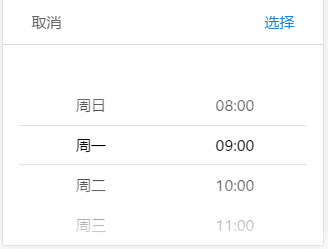
#### ① 功能函数 demo:
```html
<div id="day"></div>
<script type="text/javascript">
let mySelect = new MobileSelect({
trigger: '#day',
wheels: [
{data:['周日','周一','周二','周三','周四','周五','周六']},
{data:['08:00','09:00','10:00','11:00','12:00','13:00','14:00']}
],
initValue: "周一 09:00",
colWidth: [1, 2] // 初始化列宽度设置,数字代表每列宽度比例
});
//----------------------------------------------
// 实例化之后,对实例用功能函数操作
/** 设置控件的标题 */
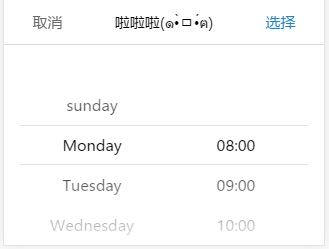
mySelect.setTitle('啦啦啦(๑•̀ㅁ•́ฅ)');
/** 更新第0个轮子的数据,数据变为英文的星期几 */
mySelect.updateWheel(0,['sunday','Monday','Tuesday','Wednesday','Thursday','Friday','Saturday']);
/** 重新定位第1个轮子的位置,将第1个轮子的第0个数据改为当前选中。*/
mySelect.locatePosition(1,0);
/** 销毁组件 */
mySelect.destroy();
</script>
```
基础实例 → 功能函数操作后
#### ②ajax 异步填充数据 demo
```html
<!-- ************ 非级联格式 ************ -->
<div id="trigger6"></div>
<script type="text/javascript">
let mobileSelect6 = new MobileSelect({
trigger: '#trigger6',
title: 'ajax填充数据-非级联',
wheels: [
{data:[
{id:'1',value:'请选择地区'},
]},
{data:[
{id:'1',value:'请选择距离'},
]}
],
onChange:function(data, indexArr){
console.log(data);
}
});
$.ajax({
type: "POST",
url: "xxxx",
data: {},
dataType: "json",
success: function(res){
//这里假设获取到的res.data.area为:
// [
// {id:'1',value:'附近'},
// {id:'2',value:'福田区'},
// {id:'3',value:'罗湖区'},
// {id:'4',value:'南山区'}
// ]
//这里假设获取到的res.data.distance为:
// [
// {id:'1',value:'200米'},
// {id:'2',value:'300米'},
// {id:'3',value:'400米'}
// ]
mobileSelect6.updateWheel(0, res.data.area); // 更改第0个轮子
mobileSelect6.updateWheel(1, res.data.distance); // 更改第1个轮子
}
});
</script>
<!-- ************ 级联格式 ************ -->
<div id="trigger7"></div>
<script type="text/javascript">
let mobileSelect7 = new MobileSelect({
trigger: '#trigger7',
title: 'ajax填充数据-级联',
wheels: [
{data:[
{
id:'1',
value:'',
childs:[
{id:'A1',value:''},
]
}
]}
],
callback:function(indexArr, data){
console.log(data);
}
});
$.ajax({
type: "POST",
url: "xxxx",
data: {},
dataType: "json",
success: function(res){
//这里假设获取到的res.data为:
// [{
// id:'1',
// value:'更新后数据',
// childs:[
// {id:'A1',value:'apple'},
// {id:'A2',value:'banana'},
// {id:'A3',value:'orange'}
// ]
// }]
mobileSelect7.updateWheels(res.data);
}
});
</script>
```
## 使用场景 Demo
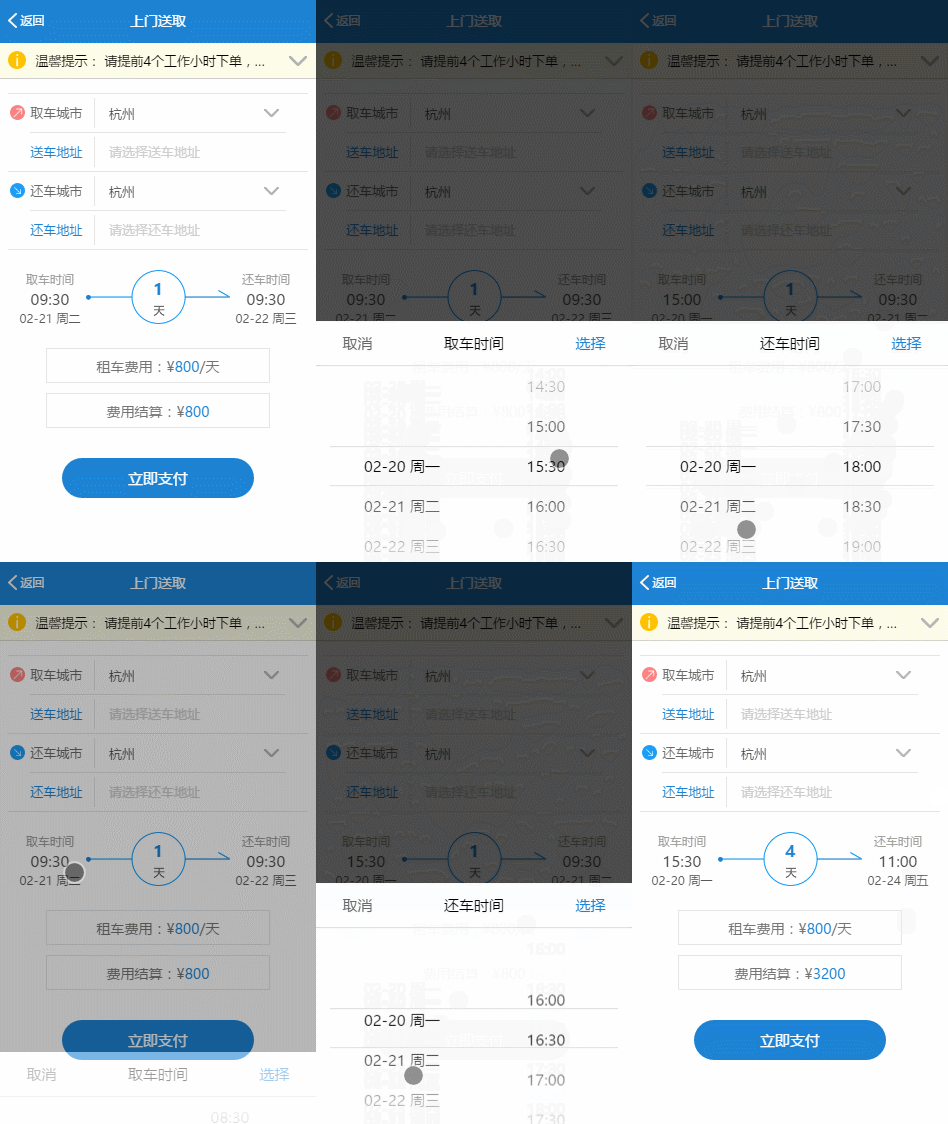
使用 onTransitionEnd()、onChange()、updateWheel()、locatePosition()函数实现如下功能:
- 选择当天日期时,不得超过今天已过时辰。
- 选择取车时间后,还车时间不得超过取车时间(包括日期和时间)。
## 📘 许可证
[MIT LICENSE](https://github.com/onlyhom/mobileSelect.js/blob/master/LICENSE)
Copyright (c) 2017-present, LIHONG OU(onlyhom)