medium-button
Version:
MediumButton extends Medium Editor with your custom buttons.
130 lines (95 loc) • 3.74 kB
Markdown
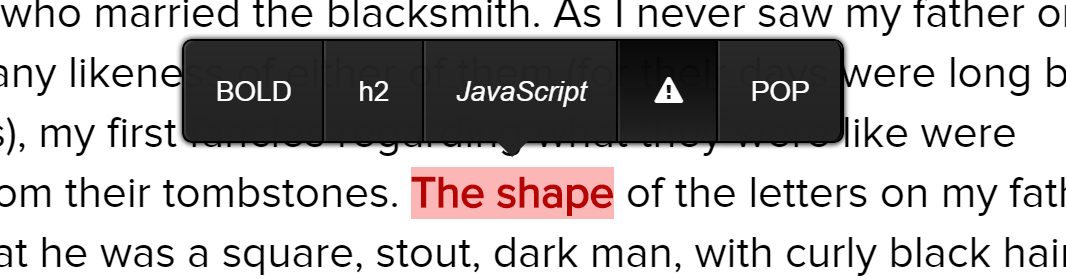
# MediumButton
MediumButton extends MediumEditor with your custom buttons.
You can still use the default ones, MediumButton just gives you the ability to add custom buttons.
> I need your support to further develop this package. :)
[Demo](http://stillhart.biz/project/MediumButton/)
## Installation
- Download the [latest MediumEditor release](https://github.com/daviferreira/medium-editor/releases)
- Download the [latest MediumButton release](https://github.com/arcs-/medium-button/releases)
Next copy and reference the scripts (located in the dist folder)
```html
<script src="js/medium-editor.min.js"></script>
<script src="js/medium-button.min.js"></script>
```
## Usage
Follow the steps on the [MediumEditor Page](https://github.com/daviferreira/medium-editor)
Then you can then setup your custom buttons
### HTML buttons
```javascript
// This creates a buttons which make text bold
'b': new MediumButton({label:'<b>B</b>', start:'<b>', end:'</b>'})
label: '<b>B</b>', // Button Label: HTML and Font-Awesome is possible
start: '<b>', // Beginning of the selection
end: '</b>' // End of the selection
```
### JavaScript buttons
```javascript
// This creates a buttons which makes a popup
'pop': new MediumButton({label:'<b>Hello</b>', action: function(html, mark){alert('hello');return html}})
// Explanation
label: '<b>Hello</b>', // Button Label -> same as in HTML button
// Action can be any javascript function
action: function(html, mark, parent){
// HTML(String) is the selected Text
alert('hello') // MARK(Boolean) true if marked
console.log(parent) // PARENT(node) the elements parent ndoe
return html // don't forget return the new HTML!
}
```
(you can combine the two)
### Add them to MediumEditor
```javascript
// Remember the name for the button infront of each
// add it to your 'toolbar buttons' just like a normal button
toolbar: {
buttons: ['b', 'h2', 'JS', 'warning', 'pop']
},
// add the code for the button as an extensions
// seperatet with a " , "
extensions: {
'b': new MediumButton({label:'BOLD', start:'<b>', end:'</b>'}),
// ...
}
```
and you're done.
## Example
```javascript
var editor = new MediumEditor('.editor', {
toolbar: {
buttons: ['b', 'h2', 'warning', 'pop']
},
extensions: {
// compact
'b': new MediumButton({label:'BOLD', start:'<b>', end:'</b>'}),
'h2': new MediumButton({label:'h2', start:'<h2>', end:'</h2>'}),
// expanded
'warning': new MediumButton({
label: '<i class="fa fa-exclamation-triangle"></i>',
start: '<div class="warning">',
end: '</div>'
}),
// with JavaScript
'pop': new MediumButton({
label:'POP',
action: function(html, mark, parent){
alert('hello :)')
return html
}
})
}
})
```
### Syntax highlighting
Syntax highlighting is possible but not that easy(for now). You need to add an other Script like Prism or highlight.js. Here is an example for JavaScript with highlight.js.
```javascript
'JS': new MediumButton({
label: '<i>JavaScript</i>',
start: '<pre><code>',
end: '</code></pre>',
action: function(html, mark, parent){
if(mark) return '<!--'+html+'-->' + hljs.highlight('javascript', html.substring(3, html.length - 4).replace(/<\/p><p>/g, "\n").replace(/</g, "<").replace(/>/g, ">")).value;
return html.split('-->')[0].split('<!--').join('');
}
})
```