json-table-editor
Version:
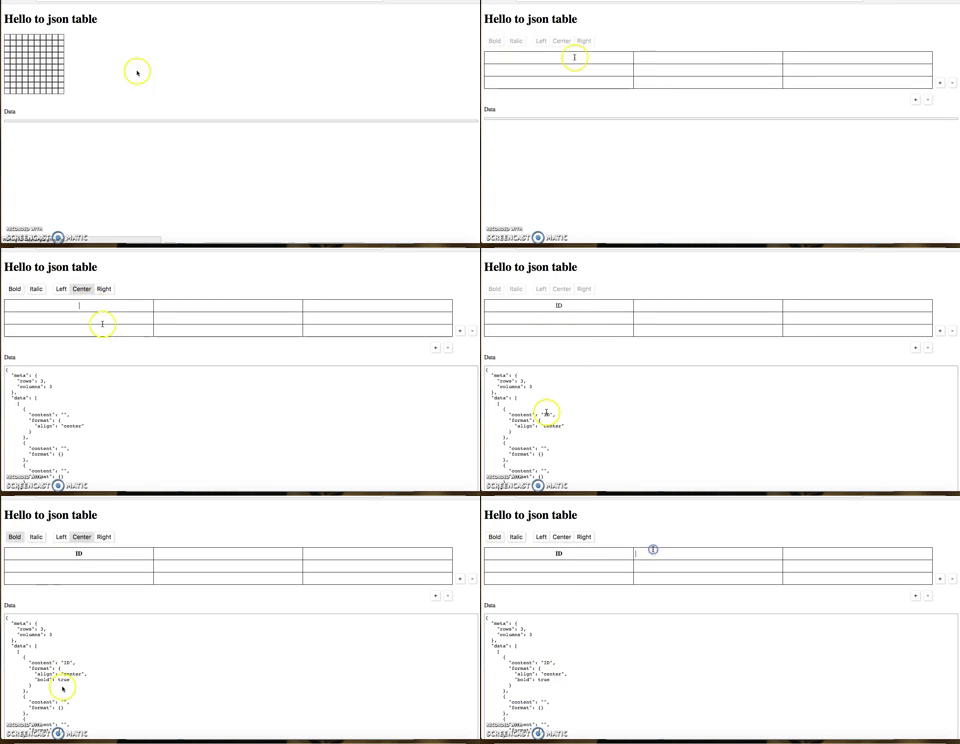
JSON table editor is a minimal, yet flexible HTML table editor, where you can attach formatting to each cell and it gives you JSON output.
247 lines (204 loc) • 6.75 kB
Markdown
## JSON Editable Table
JSON table editor is a minimal, yet flexible tabular data editor, where you can attach formatting to each cell and it gives you JSON output.
## Build status
[](https://travis-ci.org/rajatsingla/JSON-table-editor)
## Code style
Using Standard code style.
[](https://github.com/feross/standard)
## Demo
[https://rajatsingla.github.io/JSON-table-editor/](https://rajatsingla.github.io/JSON-table-editor/)
## Screenshot
## Features
It is **not** meant to be a viewer for large spreadsheet data.
It is intended to maintain tablular data and save JSON data which you can use anywhere.
You can -
1. Edit content of each cell.
2. Attach formatting to each cell like bold, right align, Italic etc.
3. Initialize with JSON data.
4. Subscribe to content-change callback.
5. Keyboard shortcuts up, down, left, right keys, tab, reverse tab.
6. Paste table data from another website or excel sheet.
7. Insert rows and columns in between table.
**USE CASE-** Just to attach formatting information to each cell and content of each cell.
Then you can use this JSON data to show table anywhere be it web, andriod, ios, shell etc.
## Tech/framework used
Built With vanillaJS (ES5)
## Quick Start
#### Bower
The easiest way to use JSONTableEditor in your project is via the Bower package manager.
```js
bower install json-table-editor
<script type="text/javascript" src="bower_components/json-table-editor/dist/json-table-editor.min.js"></script>
<link rel="stylesheet" href="bower_components/json-table-editor/dist/json-table-editor.min.css" />
```
#### NPM
Also, you can download it using npm.
```js
npm install json-table-editor --save
import JSONTableEditor from 'json-table-editor'
@import '../../node_modules/json-table-editor/dist/json-table-editor.min.css'
```
Otherwise, download the zip folder from [here](https://github.com/rajatsingla/JSON-table-editor), extract it, and copy dist/json-table-editor.min.js and dist/json-table-editor.min.css into your project’s folder.
#### Initialize the table
```js
table = new JSONTableEditor(<selector for container>, <Options Object (optional)>, <JSON data (optional)>);
```
## Examples
```js
<div id="foobar"></div>
table = new JSONTableEditor("#foobar")
```
```js
table = new JSONTableEditor("#foobar", {
defaultRows: 3,
defaultColumns: 3
})
```
```js
table = new JSONTableEditor("#foobar", {
maxColumns: 5,
maxRows: 20,
formatOptions: [
{
type: 'button',
name: 'bold',
innerHTML: 'Bold'
},
]
})
```
## Get Data
```js
table.model.tableData
```
#### Attach a callback to dataChange
```js
table.view.container.addEventListener('dataChanged',function(){
console.log('table.model.tableData')
})
```
## Options Object
Options Object can have following keys
* **defaultRows**
Default number of rows in table to start with.
Default value is 3
* **defaultColumns**
Default number of columns in table to start with.
Default value is 3
* **maxRows**
For limiting number of rows in table.
Default value is 1000
* **maxColumns**
For limiting number of columns in table.
Default value is 1000
* **formatOptions**
For defining format buttons on editor, like bold, underline etc.
More info on [formatOptions](https://github.com/rajatsingla/JSON-table-editor#more-info-on-formatOptions)
Default value is
```js
[
{
type: 'button',
name: 'bold',
innerHTML: 'Bold'
},
{
type: 'button',
name: 'italic',
innerHTML: 'Italic'
},
{
type: 'radio',
name: 'align',
options: ['left', 'center', 'right']
}
]
```
## More info on formatOptions
`formatOptions` is an object which determines the buttons for formatting each cell.
There can be two types of formatOptions
1. `button`
```js
{
type: 'button',
name: 'bold',
innerHTML: 'Bold'
}
```
This will add a button named `bold` in format buttons.
Button click will add `true` to active cell's format data under key `bold`.
You can add multiple button types and any name based on your format need, use your imagination.
Button click will also add a class named `jt-cell-bold` to active cell.
CSS for some of the classes is written, if you use some other name you may have to write css for that class.
innerHTML is for button's innerHTML.
2. `radio`
```js
{
type: 'radio',
name: 'align',
options: ['left', 'center', 'right']
}
```
This will add three buttons `left`, `center`, `right` in format buttons.
These will behave like radio buttons and only one will be active at a time.
If `center` is active it will add `center` to active cell's format data under key 'align'.
You can add multiple radio types and any number of options based on your format need, use your imagination.
If `center` is active it will also add a class named `jt-cell-center` to active cell.
CSS for some of the classes is written, if you use some other options you may have to write css for that class.
[How to pass formatOptions](https://github.com/rajatsingla/JSON-table-editor#examples)
## Format of table JSON data
```js
{
"meta": {
"rows": 2,
"columns": 2
},
"data": [
[
{
"content": "Narendra Modi",
"format": {
"align": "right",
"italic": true
}
},
{
"content": "Manmohan Singh",
"format": {
"align": "right",
"italic": true
}
}
],
[
{
"content": "55",
"format": {}
},
{
"content": "65",
"format": {}
}
]
]
}
```
## Keyboard shortcuts
* <kbd>tab</kbd> or <kbd>right arrow</kbd> - Move to right cell by pressing tab.
* <kbd>shift + tab</kbd> or <kbd>left arrow</kbd> - Move to left cell by shift + tab.
* <kbd>top arrow</kbd> - Move to upper cell by pressing upper arrow.
* <kbd>down arrow</kbd> - Move to upper cell by pressing down arrow.
## Test
`npm test`
## Contribute
* Fork this project
* Make changes in src/.js or src/.css
* Run `gulp build`
* Generate a PR
## TODOs
* Implement undo/redo functionality
* Write tests
## License
LICENSE (MIT)
Made while working at [scroll.in](https://scroll.in)