jira-web-components
Version:
A web component library for JiRa
306 lines (214 loc) • 7.24 kB
Markdown
# Jira web component library
Web component library for JIRA.
Currently under development. Please keep in mind that it will change later.
## Teaser
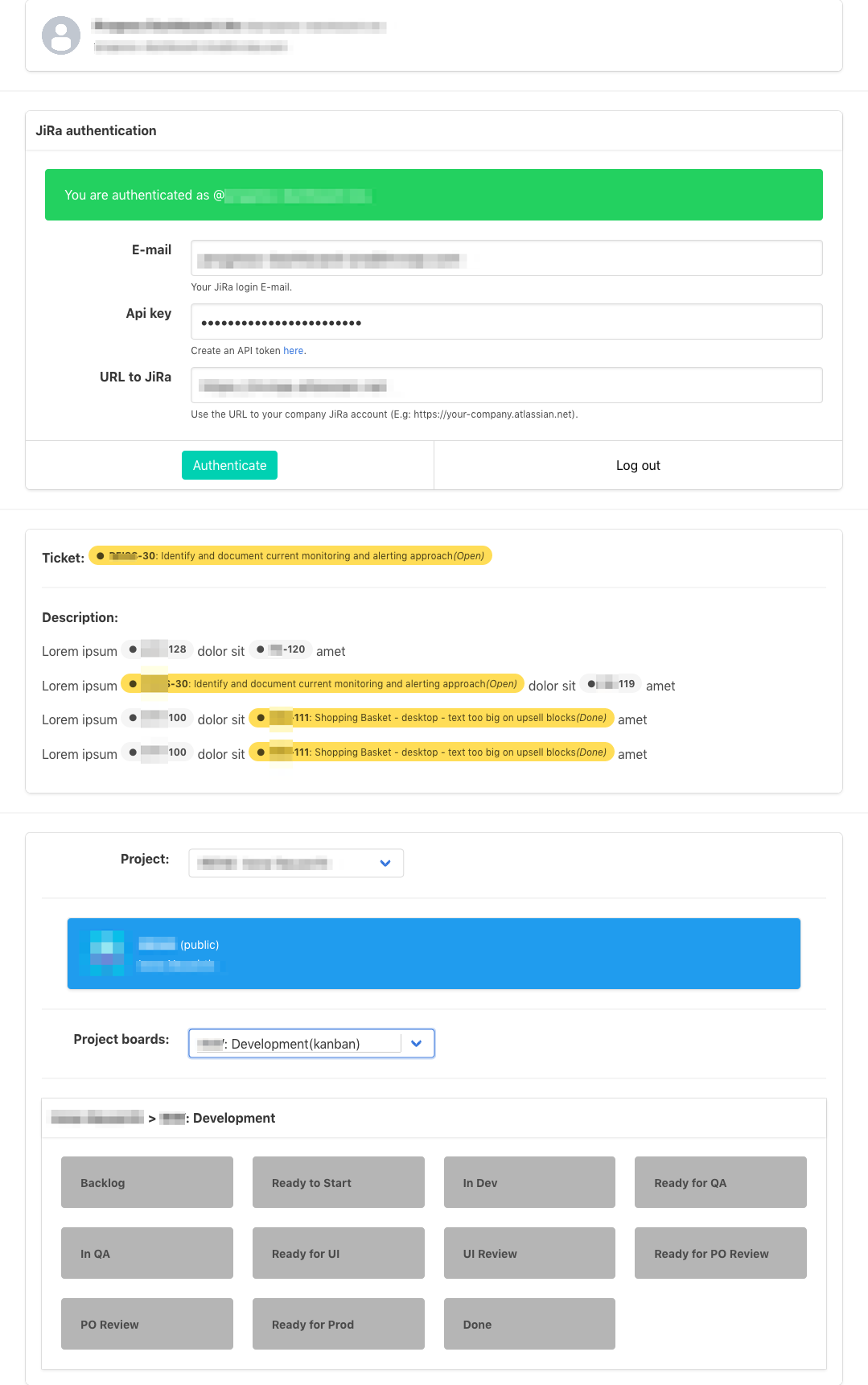
## Getting started
Install package...
```bash
npm install jira-web-components --save
```
```js
import "jira-web-components";
```
Or use a `script` tag...
```html
<script src="https://unpkg.com/jira-web-components@0.8.0/public/bundle.js"></script>
```
In order to be able to communicate with JIRA you need a CORS proxy server.
Please go to [cors-anywhere](https://www.npmjs.com/package/cors-anywhere) for more information.
Example server (optimised for hosting on heroku):
```js
// server.js
const host = process.env.HOST || '127.0.0.1';
const port = process.env.PORT || 4444;
const originBlacklist = parseEnvList(process.env.CORSANYWHERE_BLACKLIST);
const originWhitelist = parseEnvList(process.env.CORSANYWHERE_WHITELIST);
function parseEnvList(env) {
if (!env) {
return [];
}
return env.split(',');
}
const corsAnywhere = require('cors-anywhere');
corsAnywhere.createServer({
originBlacklist,
originWhitelist,
removeHeaders: [
'cookie',
'cookie2',
// Strip Heroku-specific headers
'x-heroku-queue-wait-time',
'x-heroku-queue-depth',
'x-heroku-dynos-in-use',
'x-request-start',
],
redirectSameOrigin: true,
httpProxyOptions: {
xfwd: false,
},
}).listen(port, host, function() {
console.log('Running CORS proxy on ' + host + ':' + port);
});
```
Or clone this repo, and look for the `server.js` in the project root.
Once you have the server script:
```bash
#!/bin/bash
export HOST=cors.my-website.com
export PORT=8080
export CORSANYWHERE_WHITELIST=https://my-website.com,http://my-website.com,http://test.my-website.com
node server.js
```
For testing only you can also use: `https://cors-anywhere.herokuapp.com`
## Using the Components
### Config
You have to have it somewhere on the top of the HTML code.
```html
<jira-global-config cors="http://localhost:4444" safe="true"></jira-global-config>
```
Parameters:
* `cors`: the cors server URL (see details above)
* `safe`: If `false` it saves the email, api key, and url in the local storage. It's only recommended to use it if you have only one user. A safer way is to set it true and store this information on a server. You can use the `<jira-auth>` components public methods to authenticate.
### Visual Components
These components render actual content (see functional components later).
#### Authentication form
```html
<jira-auth-form></jira-auth-form>
```
#### Auth user card
```html
<jira-auth-user-card></jira-auth-user-card>
```
#### Inline issue tag
```html
<jira-issue-tag key="EX-123"></jira-issue-tag>
```
#### Project Card
```html
<jira-project-card key="EX"></jira-project-card>
```
#### Project Dropdown
```html
<jira-project-select key="EX"></jira-project-select>
```
Methods:
* `getProject` = () => `object`;
Events:
* `'jira-project-selected'`: {detail: `object`}
#### Project Board Dropdown
```html
<jira-board-select project="EX" selected="123"></jira-board-select>
```
Methods:
* `getBoard` = () => `object`;
Events:
* `'jira-board-selected'`: {detail: `object`}
#### Project Board Panel
Shows board info with the given board id, and columns. (Recommended to use it in combination with the board select component)
```html
<jira-board-panel bid="123"></jira-board-panel>
```
#### Text wrapper
Replaces the `[JIRA:EX-123]` issue ticket codes with `<jira-issue>` components.
```html
<jira-text-wrapper>
<p>Lorem ipsum [JIRA:EX-123] dolor sit [JIRA:EX-456] amet.</p>
Lorem ipsum [JIRA:EX-123] dolor sit [JIRA:EX-456] amet.
<p>Lorem ipsum [JIRA:EX-123] dolor sit [JIRA:EX-456] amet.</p>
</jira-text-wrapper>
```
### Combining Components
Some of the components can be combined. You can see a full example of these combinations here.
```html
<jira-project-select>
<hr>
<jira-project-card></jira-project-card> <!-- the project card will always show the selected project -->
<hr>
<jira-board-select> <!-- the board select will always list the boards for the selected project -->
<hr>
<jira-board-panel></jira-board-panel> <!-- the board panel will always show the details for the selected board -->
</jira-board-select>
</jira-project-select>
```
### Functional Components
These components only serve functional purpose by exposing public methods and emitting events. You can use them for you own componment implementations.
Example:
```html
<!-- index.html -->
<jira-auth id="jira-auth"></jira-auth>
<!-- ... -->
<script>
var auth = document.getElementById('jira-auth');
addEventListener('DOMContentLoaded', function() {
auth.$on('jira-auth-status-changed', function(e){
console.log(e.detail === true ? 'You are logged in.' : 'You are logged out');
});
auth.setEmail('me@my-company.com');
auth.setApiKey('[MY_API_KEY_FOR_JIRA]');
auth.setUrl('https://my-company.atlassian.net');
auth.authenticate();
});
</script>
```
#### Auth
You can handle the authentication using this component.
```html
<jira-auth></jira-auth>
```
Methods:
* `setEmail` = (v: `string`) => `void`;
* `setApiKey` = (v: `string`) => `void`;
* `setUrl` = (v: `string`) => `void`;
* `getUserData` = () => `object`;
* `getEmail` = () => `string`;
* `getApiKey` = () => `string`;
* `getUrl` = () => `string`;
* `authenticate` = async () => `void`;
* `isAuthenticated` = () => `boolean`;
* `reset` = () => `void`;
Events:
* `'jira-auth-user-changed'`: {detail: `object`}
* `'jira-auth-user-fetching-changed'`: {detail: `boolean`} - It's true when the data is being fetched from the API.
* `'jira-auth-status-changed'`: {detail: `boolean`}
* `'jira-auth-email-changed'`: {detail: `string`}
* `'jira-auth-apikey-changed'`: {detail: `string`}
* `'jira-auth-url-changed'`: {detail: `string`}
#### Issue
You can get info about an issue by using this component.
```html
<jira-issue key="EX-123"></jira-issue>
```
Methods:
* `getIssue` = () => `object`;
Events:
* `'jira-issue-loaded'`: {detail: `boolean`}
#### Projects
You can get the all available projects.
```html
<jira-projects></jira-projects>
```
Methods:
* `fetchProjects` = async () => Promise<`array`>;
* `getProjects` = () => `array`;
Events:
* `'jira-projects-loaded'`: {detail: `boolean`}
* `'jira-projects-fetching-changed'`: {detail: `boolean`}
#### Project Boards
You can get the all available boards for a project.
```html
<jira-boards project="EX"></jira-projects>
```
Methods:
* `serProject` = () => void;
* `fetchBoards` = async () => Promise<`array`>;
* `getBoards` = () => `array`;
Events:
* `'jira-boards-loaded'`: {detail: `boolean`}
* `'jira-boards-fetching-changed'`: {detail: `boolean`}
## Styleguide, examples and detailed documentation:
Click here for the [documentation and examples](https://zsotyooo.github.io/jira-web-components/)!
---
Made with :heart: and [](https://svelte.dev/).
## License
[MIT](https://opensource.org/licenses/MIT)