homebridge-philips-tv6
Version:
Homebridge Plugin for Philips Android TV API v6+
127 lines (113 loc) • 4.55 kB
Markdown
Homebridge module for Philips TV (with JointSpace). Power, Sound Level, Ambilight and input control.
## Description
This plugin has additional support for Volume control, Ambilight brightness control and custom input selection (application or tv channel). Works on televisions with JointSpace support produced in 2016 and later.
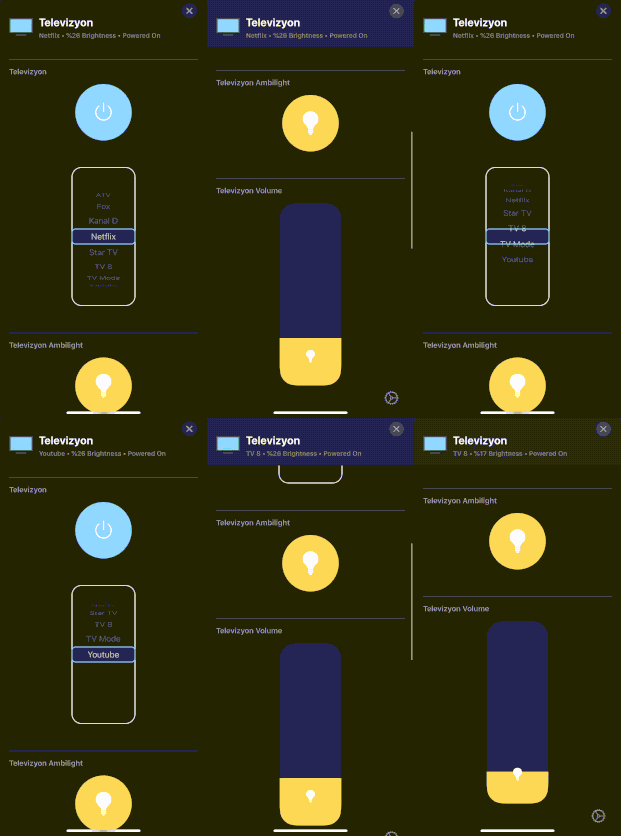
## Installation
- Install homebridge: ```npm install -g homebridge```
- Install this plugin: ```npm install -g homebridge-philips-tv6```
- Update your configuration file. See the sample below.
## Configuration
Example accessory config (needs to be added to the homebridge config.json):
```
"accessories": [
{
"accessory": "PhilipsTV",
"name": "Television",
"ip_address": "192.168.0.12",
"poll_status_interval": "30",
"model_year": 2016,
"has_ambilight": true,
"username": "5l6n66UK7PYBVKAU",
"password": "de8d0d1911a6d3662540114e1b3a5f29a473cc413bf6b38afb97820facdcb1fb",
"inputs": [
{ "name": "Fox", "channel": 9 },
{ "name": "TV 8", "channel": 8 },
{ "name": "Kanal D", "channel": 3 },
{ "name": "ATV", "channel": 2 },
{ "name": "Star TV", "channel": 4 }
]
}
]
```
To be able to power on the TV with Wake On Lan option (WOL://YOUR:TV:MAC:ADDRESS). In this option, the TV must be connected to your modem with a LAN cable.
```
"accessories": [
{
...
"wol_url": "wol://18:8e:d5:a2:8c:66"
...
}
]
```
Application launch option for Android TVs
```
"accessories": [
{
...
"inputs": [
{ "name": "TV Mode" },
{ "name": "Youtube",
"launch": {
"intent": {
"component": {
"packageName": "com.google.android.youtube.tv",
"className": "com.google.android.apps.youtube.tv.activity.ShellActivity"
},
"action": "android.intent.action.MAIN"
}
}
},
{ "name": "Netflix",
"launch": {
"intent": {
"component": {
"packageName": "com.netflix.ninja",
"className": "com.netflix.ninja.MainActivity"
},
"action": "android.intent.action.MAIN"
}
}
},
{"name": "Kodi",
"launch": {
"intent": {
"component": {
"packageName": "org.xbmc.kodi",
"className": "org.xbmc.kodi.Splash"
},
"action": "android.intent.action.MAIN"
}
}
}
]
}
]
```
_The: ```{ "name": "TV Mode" }``` input default launch is "Watch Tv" command._
As per [this project](https://github.com/suborb/philips_android_tv) the Android TV 2016 models Philips use an authenticated HTTPS [JointSpace](http://jointspace.sourceforge.net/) API version 6.
Every control- or status-call needs [digest authentification](https://en.wikipedia.org/wiki/Digest_access_authentication) which contains of a pre generated username and password. You have to do this once for your TV. We recommend to use the python script [philips\_android\_tv](https://github.com/suborb/philips_android_tv).
Here is an example pairing call for philips\_android\_tv :
```
python ./philips.py --host 192.168.0.12 pair
```
As a fresh alternative for python3 you can use [pylips](https://github.com/eslavnov/pylips#setting-up-pylips):
```
python3 pylips.py
```
Username and password will be located in `settings.ini`
You can then add username and password key in your homebridge config, example:
```
"accessories": [
{
"accessory": "PhilipsTV",
...
"username": "5l6n66UK7PYBVKAU",
"password": "de8d0d1911a6d3662540114e1b3a5f29a473cc413bf6b38afb97820facdcb1fb",
}
]
```
---
You can expand the application run list. You can send GET request the JointSpace Philips "[/applications](https://github.com/eslavnov/pylips/wiki/Applications-(GET))" (click for usage) endpoint. You can learn the details from here. [Philips TV (2015+) Unofficial API Reference](https://github.com/eslavnov/pylips/wiki)