hexo-next-darkmode
Version:
141 lines (107 loc) • 3.8 kB
Markdown
## Hexo NexT Darkmode

[![lic-image]](LICENSE)
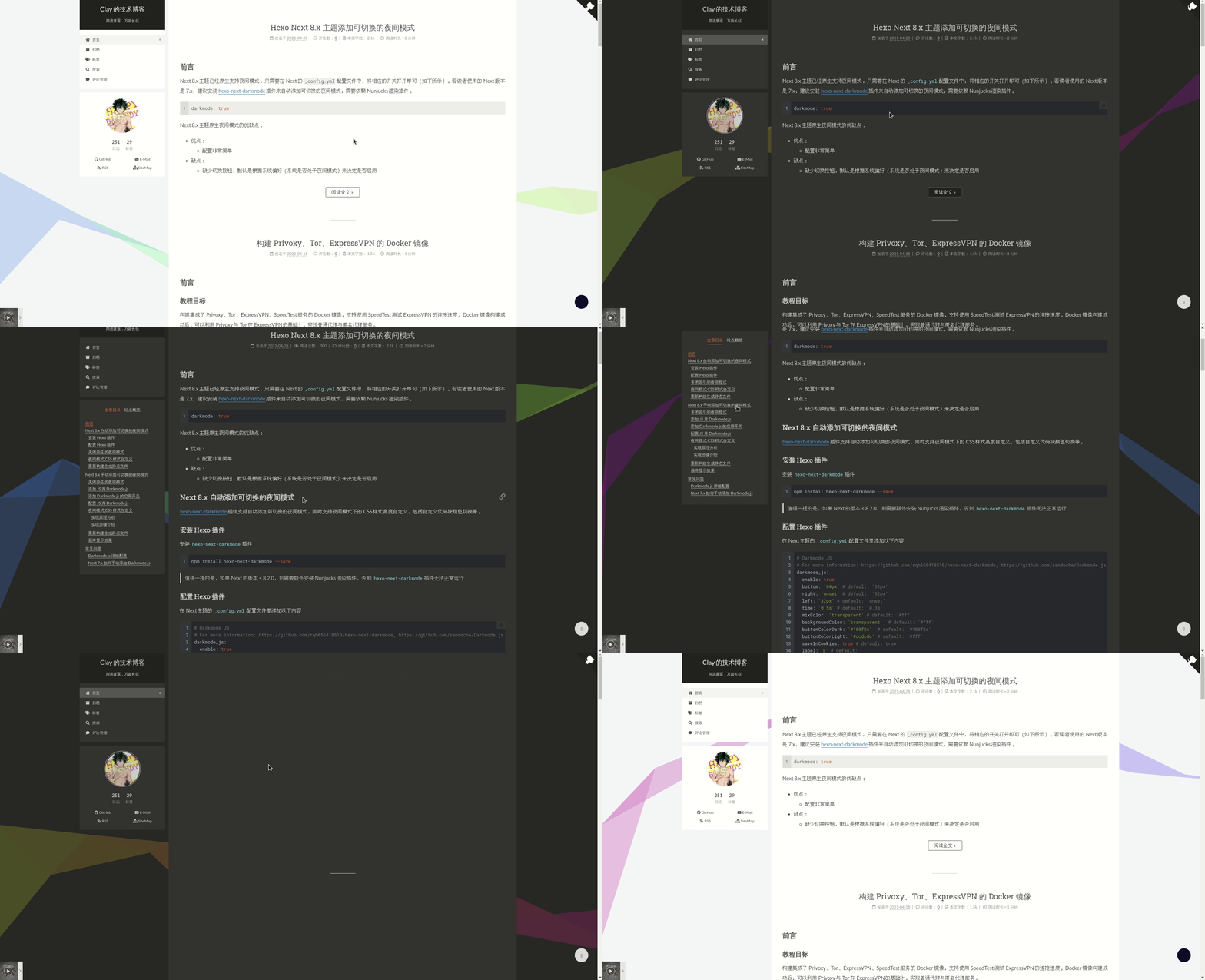
Add Dark Mode support for NexT.
English | [中文](https://github.com/rqh656418510/hexo-next-darkmode/blob/main/README_CN.md)
## Install
![size-image]
[![dm-image]][npm-url]
[![dt-image]][npm-url]
``` bash
npm install hexo-next-darkmode --save
```
## Configure
First, make sure that the native `darkmode` option of NexT theme is set to `false`:
``` yml
# Close NexT's darkmode
darkmode: false
```
To NexT theme's `_config.yml` add the following content:
``` yml
# Darkmode JS
# For more information: https://github.com/rqh656418510/hexo-next-darkmode, https://github.com/sandoche/Darkmode.js
darkmode_js:
enable: true
bottom: '64px' # default: '32px'
right: 'unset' # default: '32px'
left: '32px' # default: 'unset'
time: '0.5s' # default: '0.3s'
mixColor: 'transparent' # default: '#fff'
backgroundColor: 'transparent' # default: '#fff'
buttonColorDark: '#100f2c' # default: '#100f2c'
buttonColorLight: '#fff' # default: '#fff'
isActivated: false # default false
saveInCookies: true # default: true
label: '🌓' # default: ''
autoMatchOsTheme: true # default: true
libUrl: # Set custom library cdn url for Darkmode.js
```
- `isActivated: true`: Default to activate darkmode, always use with `saveInCookies: false` and `autoMatchOsTheme: false`. At the same time, you need to set `pjax: true` in the configuration file of NexT theme, that is enable Pjax.
## Override style
- A CSS class `darkmode--activated` is added to the body tag when the darkmode is activated. You can take advantage of it to override the style and have a custom style. Follow options is plugin's default CSS class.
``` css
.darkmode--activated {
--body-bg-color: #282828;
--content-bg-color: #333;
--card-bg-color: #555;
--text-color: #ccc;
--blockquote-color: #bbb;
--link-color: #ccc;
--link-hover-color: #eee;
--brand-color: #ddd;
--brand-hover-color: #ddd;
--table-row-odd-bg-color: #282828;
--table-row-hover-bg-color: #363636;
--menu-item-bg-color: #555;
--btn-default-bg: #222;
--btn-default-color: #ccc;
--btn-default-border-color: #555;
--btn-default-hover-bg: #666;
--btn-default-hover-color: #ccc;
--btn-default-hover-border-color: #666;
--highlight-background: #282b2e;
--highlight-foreground: #a9b7c6;
--highlight-gutter-background: #34393d;
--highlight-gutter-foreground: #9ca9b6;
}
.darkmode--activated img {
opacity: 0.75;
}
.darkmode--activated img:hover {
opacity: 0.9;
}
.darkmode--activated code {
color: #69dbdc;
background: transparent;
}
```
## Cancel dark mode
- Use the class `darkmode-ignore` where you don't want to apply darkmode.
``` html
<span class="darkmode-ignore">😬<span>
```
- You can also add this style `isolation: isolate;` in your CSS, this will also ignore the darkmode.
``` css
.button {
isolation: isolate;
}
```
- It is also possible to revert the Dark Mode with this style `mix-blend-mode: difference;`.
``` css
.button {
mix-blend-mode: difference;
}
```
## Blog tutorial
- [NexT how to add dark mode](https://www.techgrow.cn/posts/abf4aee1.html)
## Demo
- https://www.techgrow.cn
## Thanks
- [Darkmode.js](https://github.com/sandoche/Darkmode.js)
[npm-url]: https://www.npmjs.com/package/hexo-next-darkmode
[lic-image]: https://img.shields.io/npm/l/hexo-next-darkmode?style=flat-square
[dm-image]: https://img.shields.io/npm/dm/hexo-next-darkmode?style=flat-square
[dt-image]: https://img.shields.io/npm/dt/hexo-next-darkmode?style=flat-square
[size-image]: https://img.shields.io/github/languages/code-size/rqh656418510/hexo-next-darkmode?style=flat-square