gwitter
Version:
Turn GitHub Issues into your personal microblog platform
382 lines (291 loc) • 12.6 kB
Markdown
# Gwitter
[English Version](README.md)
## 🎮 在线体验
- **🌐 在线演示**: [https://simonaking.com/Gwitter](https://simonaking.com/Gwitter) - 体验 Gwitter 的完整功能
- **💭 分享想法**: [创建 Issue](https://github.com/SimonAKing/Gwitter/issues) 参与讨论交流
- **📚 浏览讨论**: 在演示站点上探索现有的思考和见解
## ✨ 项目介绍
✨ **"Gwitter" 背后的故事**
你有没有想过,当世界上最强大的“笔记”应用遇到全球最受欢迎的微博平台,会碰撞出什么火花?🤔
**GitHub Issues** 📝 = 被低估的笔记神器(认真的,它超棒!)
**Twitter** 🐦 = 世界上最大的微博平台
**Gwitter** 🚀 = 将 GitHub Issues 转化为个人微博平台!
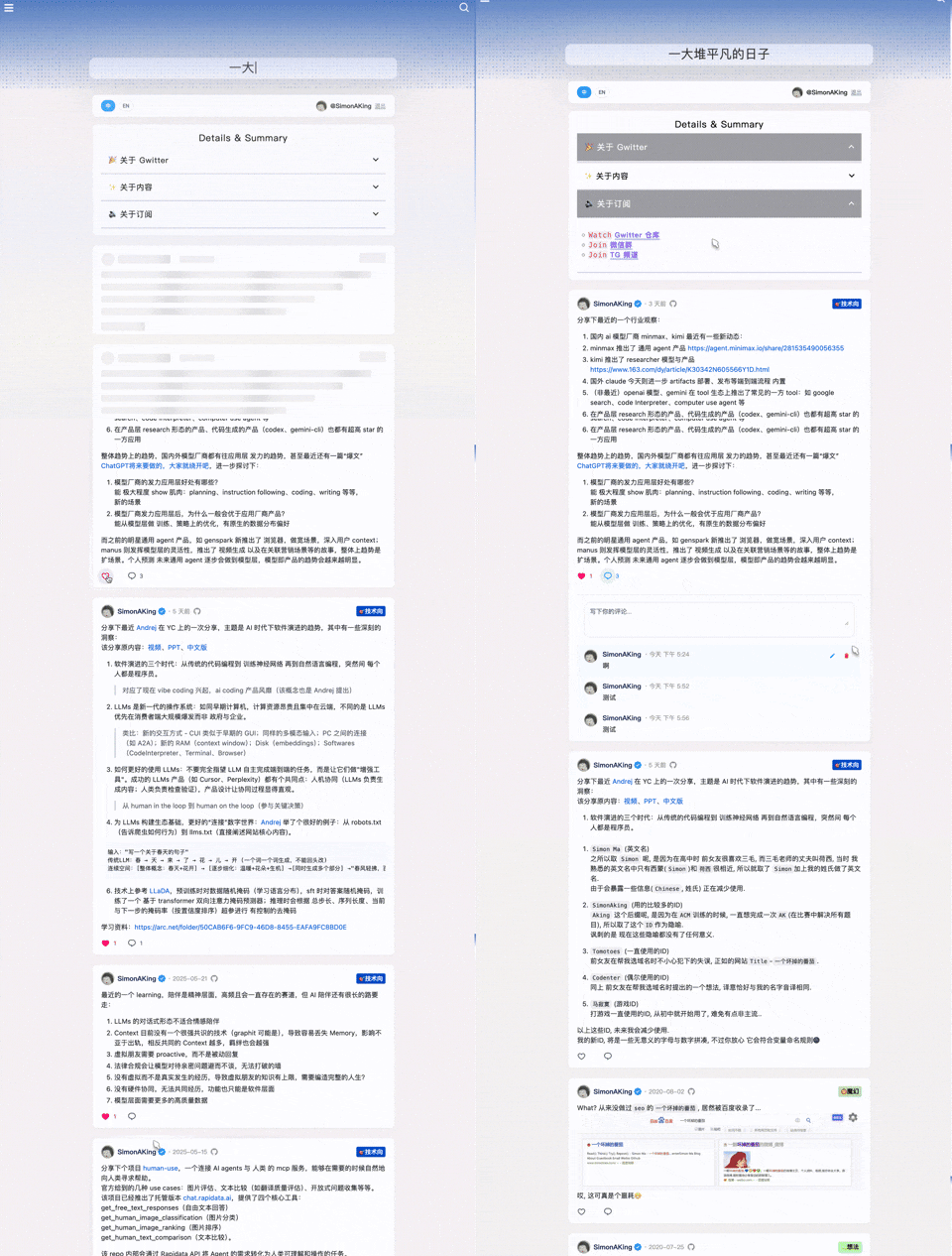
> **📱 作者的 Gwitter**: [https://simonaking.com/blog/weibo/](https://simonaking.com/blog/weibo/) - 看看 Gwitter 在实际中的应用
Gwitter 是一个基于 GitHub Issues 构建的轻量级微博应用。这里记录着我对技术的思考、对生活的感悟,以及一些有趣的发现,欢迎一起交流探讨。
## 🚀 亮点功能
1. 📝 基于 GitHub Issues
- 利用 GitHub Issues 作为内容存储,支持 GitHub 的标签系统进行内容分类
2. 👍 社交互动
- 点赞功能:支持 GitHub Reactions(👍 ❤️ 😄 😮 😢 😡 🚀 👀)
- 评论系统:完整的评论功能,支持嵌套回复
3. ✨ 视觉体验
- 精美动效:使用 Framer Motion 实现流畅的页面动画
- 响应式设计:完美适配桌面端、平板和移动设备
- 骨架屏:优雅的加载状态展示
4. 🌐 用户体验
- 国际化支持:内置中英文双语支持
- 无限滚动:智能分页加载,流畅浏览体验
5. 🤖 自动化同步
- 多平台同步:通过 GitHub Actions 自动将新发布的 Issue 同步到其他平台
## 📝 使用说明
### 发布内容
1. 在配置的 GitHub 仓库中创建新的 Issue
2. 使用 Markdown 格式编写内容
3. 添加合适的标签进行分类
4. 发布后内容会自动同步到 Gwitter 应用
<img src="./docs/issue.png" alt="创建 Issue 示例" width="500">
### 内容管理
- **编辑**:直接在 GitHub Issues 中编辑
- **删除**:关闭对应的 Issue
- **分类**:使用 GitHub Labels 进行内容分类
- **置顶**:通过 Issue 的创建顺序控制显示顺序
### 🤖 自动化同步配置
Gwitter 支持通过 GitHub Actions 自动将新发布的 Issue 同步到 Telegram 和 GitHub Gist。
1. **创建同步脚本**
- 参考 [sync.js](https://github.com/SimonAKing/weibo/blob/master/sync.js) 实现
- 在仓库中创建 `.github/workflows/sync.yml`
2. **配置环境变量**
在 GitHub 仓库的 Settings > Secrets and variables
3. **Telegram 配置**
- 创建 Telegram Bot(通过 @BotFather)
- 获取 Bot Token 和目标频道/群组的 Chat ID
- 将 Bot 添加到目标频道并授予管理员权限
## 🛠️ 技术栈
- **前端框架**:React 18 + TypeScript
- **构建工具**:Rsbuild(基于 Rspack 的快速构建工具)
- **样式方案**:Emotion (CSS-in-JS)
- **动画库**:Framer Motion + React Flip Move
- **状态管理**:React Hooks
- **网络请求**:Axios + GitHub GraphQL API
- **国际化**:i18next
- **代码规范**:ESLint + Prettier
```
Gwitter/
├── src/ # 主要源代码
│ ├── components/ # React 组件
│ │ ├── common/ # 共享 UI 组件
│ │ ├── About.tsx # 关于页面组件
│ │ ├── CommentInput.tsx # 评论输入组件
│ │ └── ...
│ ├── hooks/ # 自定义 React hooks
│ │ └── useAuth.tsx # 身份验证 hook
│ ├── utils/ # 工具函数
│ │ ├── cache.ts # 缓存工具
│ │ ├── request.ts # API 请求工具
│ │ └── index.ts # 通用工具
│ ├── config/ # 配置文件
│ │ └── index.ts # 主要配置
│ ├── i18n/ # 国际化
│ │ ├── index.ts # i18n 设置
│ │ └── locales/ # 语言文件
│ ├── types/ # TypeScript 类型定义
│ │ └── global.d.ts # 全局类型
│ └── lib/ # 外部库
│ └── collapse.js # UI 折叠功能
├── demo/ # 演示示例
│ ├── npm-demo/ # NPM/React 演示
│ │ ├── src/ # React 源文件
│ │ │ ├── App.tsx # 主演示组件
│ │ │ ├── config/ # 演示配置
│ │ │ └── ...
│ │ ├── package.json # 依赖项
│ │ └── vite.config.ts # 构建配置
│ ├── umd-demo/ # UMD/浏览器演示
│ │ └── index.html # 完整 HTML 演示
│ └── README.md # 演示文档
├── docs/ # 文档资源
│ └── *.png # 设置截图
└── dist/ # 构建输出文件
├── gwitter.min.js # UMD 打包文件
└── gwitter.min.css # 样式文件
```
## 📦 安装与使用
> 🎯 **快速开始**:查看我们的[在线演示](./demo/),看看 Gwitter 的实际效果!
### 📖 演示示例
两个演示示例帮助您快速上手:
#### 🔧 [NPM 演示](./demo/npm-demo/) - React 开发
适用于使用构建工具的 React 应用。
```bash
cd demo/npm-demo
npm install
npm run dev
```
#### 🌐 [UMD 演示](./demo/umd-demo/) - 浏览器集成
适用于不使用构建工具的现有网站。
```html
<!-- 只需在浏览器中打开 index.html -->
<script src="https://unpkg.com/gwitter/dist/gwitter.min.js"></script>
<link rel="stylesheet" href="https://unpkg.com/gwitter/dist/gwitter.min.css">
```
#### 📋 设置要求
两个演示都需要 GitHub 配置:
1. 创建 GitHub 仓库用于存储内容
2. 生成具有 `repo` 和 `read:user` 权限的个人访问令牌
3. 创建 GitHub OAuth 应用
4. 在演示配置文件中更新您的详细信息
详细设置说明请参见[配置设置](#3-配置设置)部分。
### 方式 1:NPM 安装(推荐)
适用于使用模块打包器的现代 JavaScript 项目:
#### 环境要求
- **React**: ^18.0.0 或更高版本
- **React DOM**: ^18.0.0 或更高版本
#### 安装
```bash
npm install gwitter react react-dom
# 或
yarn add gwitter react react-dom
```
#### 使用
```javascript
import gwitter from 'gwitter';
import 'gwitter/dist/gwitter.min.css';
gwitter({
container: document.getElementById('comments'),
config: {
request: {
// GitHub Personal Access Token
token: ['your_token_part1', 'your_token_part2'],
// OAuth 配置
clientID: 'your_github_oauth_client_id',
clientSecret: 'your_github_oauth_client_secret',
// GitHub 仓库配置
owner: 'your_github_username',
repo: 'your_repo_name',
// 分页配置
pageSize: 6,
// CORS 代理(可选)
autoProxy: 'https://cors-anywhere.azm.workers.dev/https://github.com/login/oauth/access_token',
},
app: {
// 应用功能开关
onlyShowOwner: false,
enableRepoSwitcher: false,
enableAbout: false,
enableEgg: false,
},
}
});
```
### 方式 2:UMD(浏览器)
适用于不使用构建工具的直接浏览器使用:
```html
<!-- 引入 React 和 ReactDOM -->
<script crossorigin src="https://unpkg.com/react@18/umd/react.production.min.js"></script>
<script crossorigin src="https://unpkg.com/react-dom@18/umd/react-dom.production.min.js"></script>
<!-- 引入 Gwitter -->
<script src="https://unpkg.com/gwitter/dist/gwitter.min.js"></script>
<link rel="stylesheet" href="https://unpkg.com/gwitter/dist/gwitter.min.css">
<script>
gwitter({
container: document.getElementById('comments'),
config: {
request: {
// GitHub Personal Access Token
token: ['your_token_part1', 'your_token_part2'],
// OAuth 配置
clientID: 'your_github_oauth_client_id',
clientSecret: 'your_github_oauth_client_secret',
// GitHub 仓库配置
owner: 'your_github_username',
repo: 'your_repo_name',
// 分页配置
pageSize: 6,
// CORS 代理(可选)
autoProxy: 'https://cors-anywhere.azm.workers.dev/https://github.com/login/oauth/access_token',
},
app: {
// 应用功能开关
onlyShowOwner: false,
enableRepoSwitcher: false,
enableAbout: false,
enableEgg: false,
},
}
});
</script>
```
### 3. 配置设置
在使用 Gwitter 之前,您需要进行 GitHub 配置:
#### 3.1 创建 GitHub Repository
1. 在 GitHub 上创建一个新的仓库用于存储你的 Gwitter 内容
2. 记录仓库的 `owner`(用户名)和 `repo`(仓库名)
> 类似于 https://github.com/SimonAKing/weibo/issues
<img src="./docs/repo.png" alt="GitHub 仓库示例" width="500">
#### 3.2 申请 GitHub Personal Access Token
1. 访问 [GitHub Settings > Developer settings > Personal access tokens](https://github.com/settings/tokens)
2. 点击 "Generate new token (classic)"
<img src="./docs/token.png" alt="生成新 token" width="500">
3. 选择以下权限:
- `repo` (完整仓库访问权限)
- `read:user` (读取用户信息)
4. 生成并保存 token
<img src="./docs/token_premission.png" alt="Token 权限设置" width="500">
#### 3.3 创建 GitHub OAuth 应用
1. 访问 [GitHub Settings > Developer settings > OAuth Apps](https://github.com/settings/developers)
2. 点击 "New OAuth App"
<img src="./docs/oauth.png" alt="OAuth 应用" width="500">
3. 填写应用信息:
- **Application name**: Gwitter
- **Homepage URL**: 你的部署域名
- **Authorization callback URL**: 你的部署域名
4. 创建后获得 `Client ID` 和 `Client Secret`
### 4. API 参考
#### `gwitter(options)`
初始化并渲染 Gwitter 的主函数。
**参数:**
- `options` (Object): Gwitter 的配置选项
**options.container** (HTMLElement | string) - **必需**
- 渲染 Gwitter 的 DOM 元素或 CSS 选择器
- 示例:`document.getElementById('comments')` 或 `'#comments'`
**options.config** (Object) - **必需**
- 包含请求和应用设置的配置对象
**options.config.request** (Object) - **必需**
- GitHub API 和身份验证配置
| 属性 | 类型 | 必需 | 说明 | 示例 |
|------|------|------|------|------|
| `token` | `string[]` | ✅ | GitHub Personal Access Token 分割为两部分以提高安全性 | `['ghp_xxxx', 'xxxx']` |
| `clientID` | `string` | ✅ | GitHub OAuth 应用的 Client ID | `'your_client_id'` |
| `clientSecret` | `string` | ✅ | GitHub OAuth 应用的 Client Secret | `'your_client_secret'` |
| `owner` | `string` | ✅ | GitHub 仓库所有者(用户名) | `'your_username'` |
| `repo` | `string` | ✅ | GitHub 仓库名称 | `'your_repo_name'` |
| `pageSize` | `number` | ❌ | 每页加载的 issue 数量(默认:6) | `6` |
| `autoProxy` | `string` | ❌ | OAuth 请求的 CORS 代理 URL | `'https://cors-anywhere.azm.workers.dev/https://github.com/login/oauth/access_token'` |
**options.config.app** (Object) - **可选**
- 应用行为配置
| 属性 | 类型 | 默认值 | 说明 | 示例 |
|------|------|--------|------|------|
| `onlyShowOwner` | `boolean` | `false` | 只显示仓库所有者的 issues | `false` |
| `enableRepoSwitcher` | `boolean` | `false` | 启用仓库切换功能 | `false` |
| `enableAbout` | `boolean` | `false` | 显示关于页面/部分 | `false` |
| `enableEgg` | `boolean` | `false` | 启用彩蛋功能 | `false` |
**返回值:**
- `Promise<void>` - 当 Gwitter 成功初始化时解决
**示例:**
```javascript
gwitter({
container: '#comments',
config: {
request: {
token: ['ghp_xxxx', 'xxxx'],
clientID: 'your_client_id',
clientSecret: 'your_client_secret',
owner: 'your_username',
repo: 'your_repo_name',
pageSize: 10,
},
app: {
onlyShowOwner: true,
enableAbout: true,
}
}
});
```
## 🤝 贡献
欢迎提交 Issue 和 Pull Request!
---
<div align="center">
**感谢你的关注与支持!**
如果你喜欢这个项目,别忘了点个 ⭐ 哦~
Made with ❤️ by [SimonAKing](https://github.com/SimonAKing)
</div>