grapesjs-tui-image-editor
Version:
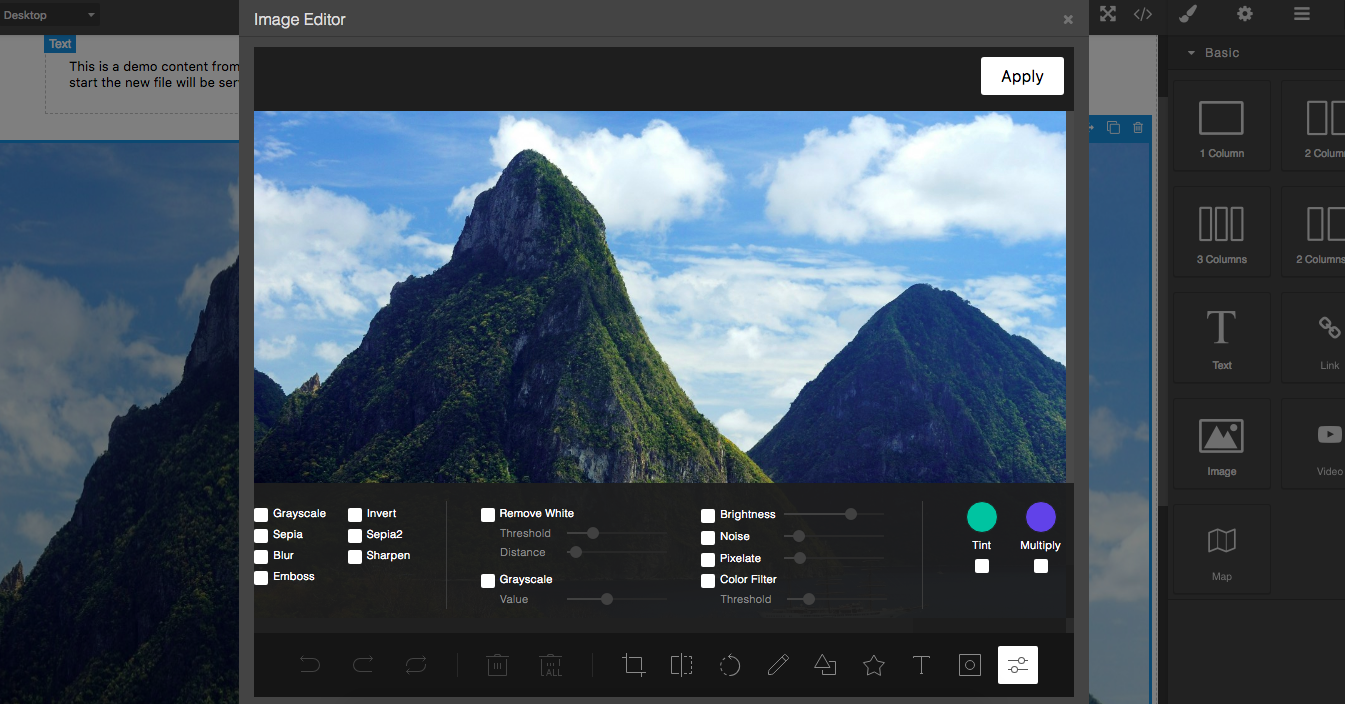
GrapesJS TOAST UI Image Editor
138 lines (92 loc) • 3.72 kB
Markdown
# GrapesJS TOAST UI Image Editor
Add the [TOAST UI Image Editor](https://ui.toast.com/tui-image-editor/) on Image Components in GrapesJS
[Demo](http://grapesjs.com/demo.html)
## Summary
* Plugin name: `grapesjs-tui-image-editor`
* Commands
* `tui-image-editor` - Open the modal with the image editor.
Options:
* `target` - component from which to get and update the image
## Options
|Option|Description|Default|
|-|-|-
|`config`|TOAST UI's configuration [object](http://nhnent.github.io/tui.image-editor/latest/ImageEditor.html)|`{}`|
|`constructor`|Pass the editor constructor. By default, the `tui.ImageEditor` will be called|``|
|`labelImageEditor`|Label for the image editor (used in the modal)|`Image Editor`|
|`labelApply`|Label used on the apply button|`Apply`|
|`height`|Default editor height|`650px`|
|`width`|Default editor width|`100%`|
|`commandId`|Id to use to create the image editor command|`tui-image-editor`|
|`toolbarIcon`|Icon used in the image component toolbar. Pass an empty string to avoid adding the icon.|`<svg ....`|
|`hideHeader`|Hide the default editor header|`true`|
|`onApply`|By default, GrapesJS takes the modified image, adds it to the Asset Manager and update the target. If you need some custom logic you can use this custom 'onApply' function. `onApply: (imageEditor, imageModel) => {...}`|`null`|
|`addToAssets`|If no custom `onApply` is passed and this option is `true`, the result image will be added to assets|`true`|
|`upload`|If no custom `onApply` is passed, on confirm, the edited image, will be passed to the AssetManager's uploader and the result (eg. instead of having the dataURL you'll have the URL) will be passed to the default `onApply` process (update target, etc.)|`false`|
|`onApplyButton`|The apply button (HTMLElement) will be passed as an argument to this function, once created. This will allow you a higher customization.|`null`|
|`script`|Scripts to load dynamically in case no TOAST UI editor constructor is found|`['...tui-code-snippet.js', '...tui-color-picker.js', '...tui-image-editor.min.js']`|
|`style`|In case the `script` is loaded this style will be loaded too|`['...tui-color-picker.css', '...tui-image-editor.css']`|
## Download
* CDN
* `https://unpkg.com/grapesjs-tui-image-editor`
* NPM
* `npm i grapesjs-tui-image-editor`
* GIT
* `git clone https://github.com/GrapesJS/tui-image-editor.git`
## Usage
Directly in the browser
```html
<link href="https://unpkg.com/grapesjs/dist/css/grapes.min.css" rel="stylesheet"/>
<script src="https://unpkg.com/grapesjs"></script>
<script src="path/to/grapesjs-tui-image-editor.min.js"></script>
<div id="gjs"></div>
<script type="text/javascript">
var editor = grapesjs.init({
container : '#gjs',
// ...
plugins: ['grapesjs-tui-image-editor'],
pluginsOpts: {
'grapesjs-tui-image-editor': {
config: {
includeUI: {
initMenu: 'filter',
},
},
}
}
});
</script>
```
Modern javascript
```js
import grapesjs from 'grapesjs';
import plugin from 'grapesjs-tui-image-editor';
const editor = grapesjs.init({
container : '#gjs',
// ...
plugins: [plugin],
pluginsOpts: {
[plugin]: { /* options */ }
}
// or
plugins: [
editor => plugin(editor, { /* options */ }),
],
});
```
## Development
Clone the repository
```sh
$ git clone https://github.com/GrapesJS/tui-image-editor.git
$ cd grapesjs-tui-image-editor
```
Install dependencies
```sh
$ npm i
```
Start the dev server
```sh
$ npm start
```
## License
BSD 3-Clause