generator-craftskeleton
Version:
Starterkit for Craft CMS 2.x (Multi-Environment Configs with HeartyConfig, Gulp, and Bower for Dependencie-Management) made by interpunkt. ag
661 lines (453 loc) • 119 kB
Markdown
# SEOmatic plugin for Craft
A turnkey SEO implementation for Craft CMS that is comprehensive, powerful, and flexible.

## Installation
To install SEOmatic, follow these steps:
1. Download & unzip the file and place the `seomatic` directory into your `craft/plugins` directory
2. -OR- do a `git clone https://github.com/nystudio107/seomatic.git` directly into your `craft/plugins` folder. You can then update it with `git pull`
3. -OR- install with Composer via `composer require nystudio107/seomatic`
4. Install plugin in the Craft Control Panel under Settings > Plugins
5. The plugin folder should be named `seomatic` for Craft to see it. GitHub recently started appending `-master` (the branch name) to the name of the folder for zip file downloads.
SEOmatic works on Craft 2.4.x, Craft 2.5.x, and Craft 2.6.x.
## Overview
### Video overview of SEOmatic:
[](https://www.youtube.com/watch?v=f1149YVEF_0)
SEOmatic allows you to quickly get a website up and running with a robust, comprehensive SEO strategy. It is also implemented in a Craft-y way, in that it is also flexible and customizable. The SEOmetrics feature scans your content for focus keywords, and offers analysis on how to improve your SEO.
It implements [JSON-LD](https://developers.google.com/schemas/formats/json-ld?hl=en) microdata, [Dublin Core](http://dublincore.org) core metadata, [Twitter Cards](https://dev.twitter.com/cards/overview) tags, [Facebook OpenGraph](https://developers.facebook.com/docs/sharing/opengraph) tags, [Humans.txt](http://humanstxt.org) authorship accreditation, and as well as HTML meta tags.
To better understand how all of this metadata benefits your website, please read: [Promote Your Content with Structured Data Markup](https://developers.google.com/structured-data/)
The general philosophy is that SEO Site Meta can be overridden by SEO Template Meta, which can be overridden by SEO Entry Meta, which can be overridden by dynamic SEO Twig tags.
In this way, the SEO Meta tags on your site cascade, so that they are globally available, but also can be customized in a very granular way.
SEOmatic populates your templates with SEO Meta in the same way that Craft populates your templates with `entry` variables, with a similar level of freedom and flexibility in terms of how you utilize them.
SEOmatic also caches each unique SEO Meta request so that your website performance is minimally impacted by the rich SEO Meta tags provided.
## Rendering your SEO Meta tags
All you need to do in order to output the SEOmatic SEO Meta tags is in the `<head>` tag of your main `layout.twig` (or whatever template all of your other templates `extends`), place this tag:
{% hook 'seomaticRender' %}
That's it. It'll render all of that SEO goodness for you.
SEOmatic uses its own internal template for rendering; but you can provide it with one of your own as well, just use this Twig code instead:
{% set seomaticTemplatePath = 'path/template' %} {% hook 'seomaticRender' %}
...and it'll use your custom template instead.
If the [Minify](https://github.com/nystudio107/minify) plugin is installed, SEOmatic will minify the SEO Meta tags & JSON-LD.
## Configuring SEOmatic
When you first install SEOmatic you'll see a welcome screen, click on the **Get Started** to, well, get started configuring SEOmatic.
All of the SEOmatic settings are fully localizable, so you can have SEO in as many languages as your website supports. If any field is left blank for a setting in a particular locale, it will fall back on the primary locale.
### SEO Site Meta
These SEO Site Meta settings are used to globally define the Meta for the website. When no SEO Template Meta is found for a webpage, these settings are used by default.
They are used in combination with the SEO Template Meta settings to generate [JSON-LD](https://developers.google.com/schemas/formats/json-ld?hl=en) microdata, [Dublin Core](http://dublincore.org) core metadata, [Twitter Cards](https://dev.twitter.com/cards/overview), [Facebook OpenGraph](https://developers.facebook.com/docs/sharing/opengraph), and as well as HTML meta tags.
If no Template Meta exists for a template, the SEO Site Meta is used.
If any fields are left blank in a Template Meta, those fields are pulled from the SEO Site Meta.
You can also dynamically change any of these SEO Meta fields in your Twig templates, and they will appear in the rendered SEO Meta.
* **Site SEO Name** - This field is used wherever the name of the site is referenced, both at the trailing end of the `<title>` tag, and in other meta tags on the site. It is initially set to your Craft `{{ siteName }}`.
* **Site SEO Title** - This should be between 10 and 70 characters (spaces included). Make sure your title tag is explicit and contains your most important keywords. Be sure that each page has a unique title tag.
* **Site SEO Name Placement** - Where the Site SEO Name is placed relative to the Title in the `<title>` tag
* **Site SEO Name Separator** - The character that should be used to separate the Site SEO Name and Title in the `<title>` tag
* **Site SEO Description** - This should be between 70 and 160 characters (spaces included). Meta descriptions allow you to influence how your web pages are described and displayed in search results. Ensure that all of your web pages have a unique meta description that is explicit and contains your most important keywords.
* **Site SEO Keywords** - Google ignores this tag; though other search engines do look at it. Utilize it carefully, as improper or spammy use most likely will hurt you, or even have your site marked as spam. Avoid overstuffing the keywords and do not include keywords that are not related to the specific page you place them on.
* **Site SEO Image** - This is the image that will be used for display as the global website brand, as well as on Twitter Cards and Facebook OpenGraph that link to the website, if they are not specified. The image must be in JPG, PNG, or GIF format.
* **Site SEO Image Transform** - The image transform to apply to the Site SEO Image.
* **Site Twitter Card Type** - With Twitter Cards, you can attach rich photos and information to Tweets that drive traffic to your website. Users who Tweet links to your content will have a “Card” added to the Tweet that’s visible to all of their followers.
* **Site Twitter Card Image** - This is the image that will be used for display on Twitter Cards in tweets that link to the website. If no image is specified here, the Site SEO Image will be used for Twitter Cards instead. The image must be in JPG, PNG, or GIF format.
* **Site Twitter Card Image Transform** - The image transform to apply to the Twitter SEO Image. Twitter recommends: 120 x 120 pixels minimum size, 1:1 aspect ratio, 1mb max size for Summary Card images, and 280x150 pixels minimum size, 1.86:1 aspect ratio, 1mb max size for Summary Card with Large Image images.
* **Site Facebook OpenGraph Type** - Adding OpenGraph tags to your website influences the performance of your links on social media by allowing you to control what appears when a user posts a link to your content on Facebook.
* **Site Facebook OpenGraph Image** - This is the image that will be used for display on Facebook posts that link to the website. If no image is specified here, the Site SEO Image will be used for Facebook posts instead. The image must be in JPG, PNG, or GIF format.
* **Site Facebook OpenGraph Image Transform** - The image transform to apply to the Facebook SEO Image. Facebook recommends: 1200 x 630 pixels minimum size, 1.9:1 aspect ratio, 8mb max size.
* **Site Robots** - The [robots meta tag](https://developers.google.com/webmasters/control-crawl-index/docs/robots_meta_tag?hl=en) lets you utilize a granular, page-specific approach to controlling how an individual page should be indexed and served to users in search results. Setting it to a blank value means 'no change'.
#### SiteLinks Search Box
With [Google Sitelinks search box](https://developers.google.com/structured-data/slsb-overview), from search results. Search users sometimes use navigational queries, typing in the brand name or URL of a known site or app, only to do a more detailed search once they reach their destination.
* **Search Targets** - This property specifies a search URL pattern for sending queries to your site's search engine. It must include a string enclosed in curly braces that is a placeholder for the user's search query (e.g., `{search_term_string}`). The string inside the curly braces must also appear in the name attribute of the query-input property.
* **Search Query Input** - The value for the name attribute of query-input must match the string enclosed inside curly braces in the target property of potentialAction, e.g.: `searchtermstring`
#### robots.txt
* **robots.txt Template** - A `robots.txt` file is a file at the root of your site that indicates those parts of your site you don’t want accessed by search engine crawlers. The file uses the [Robots Exclusion Standard](http://en.wikipedia.org/wiki/Robots_exclusion_standard#About_the_standard), which is a protocol with a small set of commands that can be used to indicate access to your site by section and by specific kinds of web crawlers (such as mobile crawlers vs desktop crawlers).
SEOmatic automatically handles requests for `/robots.txt`. For this to work, make sure that you do not have an actual `robots.txt` file in your `public/` folder (because that will take precedence).
If you are running Nginx, make sure that you don't have a line like:
location = /robots.txt { access_log off; log_not_found off; }
...in your config file. A directive like this will prevent SEOmatic from being able to service the request for `/robots.txt`. If you do have a line like this in your config file, just comment it out, and restart Nginx with `sudo nginx -s reload`.
The **Preview Robots.txt** button lets you preview what your rendered robots.txt file will look like.
You can use any Craft `environmentVariables` in these fields in addition to static text, e.g.:
This is my {baseUrl}
### Site Identity
These Site Identity settings are used to globally define the identity and ownership of the website.
They are used in combination with the SEO Template Meta settings to generate [JSON-LD](https://developers.google.com/schemas/formats/json-ld?hl=en) microdata, [Dublin Core](http://dublincore.org) core metadata, [Twitter Cards](https://dev.twitter.com/cards/overview), [Facebook OpenGraph](https://developers.facebook.com/docs/sharing/opengraph), and as well as HTML meta tags.
The Site Owner type determines the JSON-LD schema that will be used to identity the website to search engines.
Leave any fields blank that aren't applicable or which you do not want as part of the SEO schema.
#### Site Ownership
* **Google Site Verification** - For the `<meta name='google-site-verification'>` tag. Only enter the code in the `content=''`, not the entire tag. [Here's how to get it.](https://www.google.com/webmasters/verification/).
* **Bing Site Verification** - For the `<meta name='msvalidate.01'>` tag. Only enter the code in the `content=''`, not the entire tag. [Here's how to get it.](https://www.bing.com/webmaster/help/how-to-verify-ownership-of-your-site-afcfefc6).
* **Google Tag Manager ID** - If you enter your Google Tag Manager ID here, the Google Tag Manager script tags will be included in your `<head>` (the script is not included during Live Preview). Only enter the ID, e.g.: `GTM-XXXXXX`, not the entire script code. [Here's how to get it.](https://support.google.com/tagmanager/answer/6102821?hl=en)
* **Google Analytics Tracking ID** - If you enter your Google Analytics Tracking ID here, the Google Analytics script tags will be included in your `<head>` (the script is not included if `devMode` is on or during Live Preview). Only enter the ID, e.g.: `UA-XXXXXX-XX`, not the entire script code. [Here's how to get it.](https://support.google.com/analytics/answer/1032385?hl=en)
* **Automatically send Google Analytics PageView** - Controls whether the Google Analytics script automatically sends a PageView to Google Analytics when your pages are loaded
* **Google Analytics Plugins** - Select which Google Analytics plugins to enable. [Learn More](https://developers.google.com/analytics/devguides/collection/analyticsjs/)
* **Site Owner Entity Type** - The type of entity that owns this website. Choose as general or specific of a type as you like. Any entity sub-type left blank is ignored.
More fields will also appear depending on the selected **Site Owner Entity Type**. For instance, any `LocalBusiness` sub-type will receive a field for **Opening Hours**, so that the hours that the business is open will be rendered in the Identity and Place JSON-LD microdata.
##### Google Tag Manager
Note that the Google Tag Manager implementation supports the `dataLayer` property. You can set it like any other Twig array:
{% set dataLayer = {
'pageCategory': entry.category,
'visitorType': 'high-value'
} %}
You can set the `dataLayer` Twig variable either in your templates that extend your `layout.twig` or in your `layout.twig` itself. The usual rules on Twig variable scoping apply, you just need to set the `dataLayer` array before the `{% hook seomaticRender %}` is called. [Learn More](https://developers.google.com/tag-manager/devguide)
There is also a `gtmDataLayerVariableName` variable in `config.php` which allows you to control the name of the Javascript `dataLayer` variable.
#### General Info
* **Entity Name** - The name of the entity that owns the website
* **Alternate Entity Name** - An alternate or nickname for the entity that owns the website
* **Entity Description** - A description of the entity that owns the website
* **Entity URL** - A URL for the entity that owns the website
* **Entity Brand** - An image or logo that represents the entity that owns the website. The image must be in JPG, PNG, or GIF format.
* **Entity Telephone** - The primary contact telephone number for the entity that owns the website
* **Entity Email** - The primary contact email address for the entity that owns the website
#### Location Info
* **Entity Latitude** - The latitude of the location of the entity that owns the website, e.g.: -120.5436367
* **Entity Longitude** - The longitude of the location of the entity that owns the website, e.g.: 80.6033588
* **Entity Street Address** - The street address of the entity that owns the website, e.g.: 123 Main Street
* **Entity Locality** - The locality of the entity that owns the website, e.g.: Portchester
* **Entity Region** - The region of the entity that owns the website, e.g.: New York or NY
* **Entity Postal Code** - The postal code of the entity that owns the website, e.g.: 14580
* **Entity Country** - The country in which the entity that owns the website is located, e.g.: US
#### Organization Info
* **Organization DUNS Number** - The DUNS (Dun & Bradstreet) number of the organization/company/restaurant that owns the website
* **Organization Founder** - The name of the founder of the organization/company/restaurant
* **Organization Founding Date** - The date the organization/company/restaurant was founded
* **Organization Founding Location** - The location where the organization/company/restaurant was founded
* **Organization Contact Points** - Use [organization contact points](https://developers.google.com/structured-data/customize/contact-points) to add your organizations's contact information to the Google Knowledge panel in some searches. The Telephone Number must be an internationalized version of the phone number, starting with the '+' symbol and country code (+1 in the US and Canada). e.g.: +1-800-555-1212 or +44-2078225951
#### Local Business Info
* **Opening Hours** - The opening hours for this local business. If the business is closed on a given day, just leave the hours for that day blank.
#### Corporation Info
* **Corporation Ticker Symbol** - The exchange ticker symbol of the corporation
#### Food Establishment Info
* **Food Establishment Cuisine** - The primary type of cuisine that the food establishment serves
* **Food Establishment Menu URL** - URL to the food establishment's menu
* **Food Establishment Reservations URL** - URL to the food establishment's reservations page
#### Person Info
* **Person Gender** - The gender of the person
* **Person Birth Place** - The place where the person was born
You can use any Craft `environmentVariables` in these fields in addition to static text, e.g.:
This is my {baseUrl}
### Social Media
These Social Media settings are used to globally define the social media accounts associated with your website.
They are used in combination with the SEO Template Meta settings to generate [JSON-LD](https://developers.google.com/schemas/formats/json-ld?hl=en) microdata, [Dublin Core](http://dublincore.org) core metadata, [Twitter Cards](https://dev.twitter.com/cards/overview), [Facebook OpenGraph](https://developers.facebook.com/docs/sharing/opengraph), and as well as HTML meta tags.
None of these fields are mandatory; if you don't have a given social media account, just leave it blank.
* **Twitter Handle** - Your Twitter Handle, without the preceding @
* **Facebook Handle** - Your Facebook company/fan page handle (the part after `https://www.Facebook.com/`
* **Facebook Profile ID** - Your Facebook Profile/Page ID. Click on the 'About' tab on your Facebook company/fan page, click on 'Page Info', then scroll to the bottom to find your 'Facebook Page ID'
* **Facebook App ID** - Your Facebook App ID. Providing a Facebook Application ID for use with the Social Media Sharing feature is recommended, but optional. [Learn More](https://developers.facebook.com/docs/apps/register)
* **LinkedIn Handle** - Your LinkedIn page handle (the part after `https://www.linkedin.com/in/` or `https://www.linkedin.com/company/`)
* **Google+ Handle** - Your Google+ page handle, without the preceding +. If you have a numeric Google+ account still, just enter that.
* **YouTube User Handle** - Your YouTube handle (the part after `https://www.youtube.com/user/`)
* **YouTube Channel Handle** - Your YouTube handle (the part after `https://www.youtube.com/c/`)
* **Instagram Handle** - Your Instagram handle
* **Pinterest Handle** - Your Pinterest page handle (the part after `https://www.pinterest.com/`)
* **Github Handle** - Your Github page handle (the part after `https://github.com/`)
You must have a **Twitter Handle** for SEOmatic to generate Twitter Card tags for you. Similarly, you should have a **Facebook Profile ID** for the Facebook Open Graph tags, but it's not required.
You can use any Craft `environmentVariables` in these fields in addition to static text, e.g.:
This is my {baseUrl}
### Site Creator
These Site Creator settings are used to globally define & attribute the creator of the website. The creator is the company/individual that developed the website.
They are used in combination with the SEO Template Meta settings to generate [JSON-LD](https://developers.google.com/schemas/formats/json-ld?hl=en) microdata, [Dublin Core](http://dublincore.org) core metadata, [Twitter Cards](https://dev.twitter.com/cards/overview), [Facebook OpenGraph](https://developers.facebook.com/docs/sharing/opengraph), and as well as HTML meta tags.
The Site Creator information is referenced in the Identity JSON-LD schema that is used to identity the website to search engines.
Leave any fields blank that aren't applicable or which you do not want as part of the SEO schema.
#### Site Creator
* **Site Creator Entity Type** - The type of entity that created this website.
#### General Info
* **Entity Name** - The name of the entity that created the website
* **Alternate Entity Name** - An alternate or nickname for the entity that created the website
* **Entity Description** - A description of the entity that created the website
* **Entity URL** - A URL for the entity that created the website
* **Entity Brand** - An image or logo that represents the entity that created the website. The image must be in JPG, PNG, or GIF format.
* **Entity Telephone** - The primary contact telephone number for the entity that created the website
* **Entity Email** - The primary contact email address for the entity that created the website
#### Location Info
* **Entity Latitude** - The latitude of the location of the entity that created the website, e.g.: -120.5436367
* **Entity Longitude** - The longitude of the location of the entity that created the website, e.g.: 80.6033588
* **Entity Street Address** - The street address of the entity that created the website, e.g.: 575 Dunfrey Road
* **Entity Locality** - The locality of the entity that created the website, e.g.: Lansing
* **Entity Region** - The region of the entity that created the website, e.g.: Michigan or MI
* **Entity Postal Code** - The postal code of the entity that created the website, e.g.: 11360
* **Entity Country** - The country in which the entity that created the website is located, e.g.: US
#### Organization Info
* **Organization DUNS Number** - The DUNS (Dun & Bradstreet) number of the organization/company/restaurant that created the website
* **Organization Founder** - The name of the founder of the organization/company
* **Organization Founding Date** - The date the organization/company was founded
* **Organization Founding Location** - The location where the organization/company was founded
* **Organization Contact Points** - Use [organization contact points](https://developers.google.com/structured-data/customize/contact-points) to add your organizations's contact information to the Google Knowledge panel in some searches. The Telephone Number must be an internationalized version of the phone number, starting with the '+' symbol and country code (+1 in the US and Canada). e.g.: +1-800-555-1212 or +44-2078225951
#### Corporation Info
* **Corporation Ticker Symbol** - The exchange ticker symbol of the corporation
#### Person Info
* **Person Gender** - The gender of the person
* **Person Birth Place** - The place where the person was born
#### Humans.txt
* **Humans.txt Template** - [Humans.txt](http://humanstxt.org) is an initiative for knowing the people behind a website. It's a TXT file that contains information about the different people who have contributed to building the website. This is the template used to render it; you have access to all of the SEOmatic variables. This is the template used to render it; you have access to all of the SEOmatic variables.
The **Preview Humans.txt** button lets you preview what your rendered Humans.txt file will look like.
You can use any Craft `environmentVariables` in these fields in addition to static text, e.g.:
This is my {baseUrl}
### SEO Template Meta
This list of Template Metas will initially be empty; click on the **New Template Meta** button to create one.
These SEO Meta settings are used to render the SEO Meta for your website. You can create any number of SEO Template Metas associated with your Twig templates on your website.
They are used in combination with the SEO Template Meta settings to generate [JSON-LD](https://developers.google.com/schemas/formats/json-ld?hl=en) microdata, [Dublin Core](http://dublincore.org) core metadata, [Twitter Cards](https://dev.twitter.com/cards/overview), [Facebook OpenGraph](https://developers.facebook.com/docs/sharing/opengraph), and as well as HTML meta tags.
If no Template Meta exists for a template, the SEO Site Meta is used.
If any fields are left blank in a Template Meta, those fields are pulled from the SEO Site Meta.
You can also dynamically change any of these SEO Meta fields in your Twig templates, and they will appear in the rendered SEO Meta.
* **Title** - The human readable title for this SEO Template Meta
* **Template Path** - Enter the path to the template to associate this meta with (just as you would on the Section settings). It will override the SEO Site Meta for this template. Leave any field blank if you want it to fall back on the default global settings for that field.
* **Main Entity of Page** - The Main Entity of Page is a more specific, additional type that describes this page. This additional JSON-LD structured data entity will be added to your page, more specifically describing the page's content. It is accessible via the `seomaticMainEntityOfPage` Twig variable, should you wish to modify or add to it
* **SEO Title** - This should be between 10 and 70 characters (spaces included). Make sure your title tag is explicit and contains your most important keywords. Be sure that each page has a unique title tag.
* **SEO Description** - This should be between 70 and 160 characters (spaces included). Meta descriptions allow you to influence how your web pages are described and displayed in search results. Ensure that all of your web pages have a unique meta description that is explicit and contains your most important keywords.
* **SEO Keywords** - Google ignores this tag; though other search engines do look at it. Utilize it carefully, as improper or spammy use most likely will hurt you, or even have your site marked as spam. Avoid overstuffing the keywords and do not include keywords that are not related to the specific page you place them on.
* **SEO Image** - This is the image that will be used for display as the webpage brand for this template, as well as on Twitter Cards and Facebook OpenGraph that link to this page, if they are not specified. The image must be in JPG, PNG, or GIF format.
* **SEO Image Transform** - The image transform to apply to the Site SEO Image.
* **Twitter Card Type** - With Twitter Cards, you can attach rich photos and information to Tweets that drive traffic to your website. Users who Tweet links to your content will have a “Card” added to the Tweet that’s visible to all of their followers.
* **Twitter Card Image** - This is the image that will be used for Twitter Cards that link to this page. If no image is specified here, the Site SEO Image will be used for Twitter Cards instead. The image must be in JPG, PNG, or GIF format.
* **Twitter Card Image Transform** - The image transform to apply to the Twitter Card Image. Twitter recommends: 120 x 120 pixels minimum size, 1:1 aspect ratio, 1mb max size for Summary Card images, and 280x150 pixels minimum size, 1.86:1 aspect ratio, 1mb max size for Summary Card with Large Image images.
* **Facebook OpenGraph Type** - Adding OpenGraph tags to your website influences the performance of your links on social media by allowing you to control what appears when a user posts a link to your content on Facebook.
* **Facebook OpenGraph Image** - This is the image that will be used for Facebook posts that link to this page. If no image is specified here, the Site SEO Image will be used for Facebook posts instead. The image must be in JPG, PNG, or GIF format.
* **Facebook OpenGraph Image Transform** - The image transform to apply to the Facebook OpenGraph Image. Facebook recommends: 1200 x 630 pixels minimum size, 1.9:1 aspect ratio, 8mb max size.
* **Robots** - The [robots meta tag](https://developers.google.com/webmasters/control-crawl-index/docs/robots_meta_tag?hl=en) lets you utilize a granular, page-specific approach to controlling how an individual page should be indexed and served to users in search results. Setting it to a blank value means 'no change'.
The **SEO Title**, **SEO Description**, and **SEO Keywords** fields can include tags that output entry properties, such as `{title}` or `{myCustomField}` in them.
You can use any Craft `environmentVariables` in these fields in addition to static text, e.g.:
This is my {baseUrl}
## SEO Entry Meta

SEOmatic provides a FieldType called `SEOmatic Meta` that you can add to your Sections. It allows you to provide meta information on a per-entry basis. SEOmatic will automatically override any Site Meta or Tempalate Meta with Entry Meta if an `entry` that has an SEOmatic Meta field is auto-populated by Craft into a template.
This also works with Categories and Craft Commerce Products that have an SEOmatic Meta field attached to them.
If you add an SEOmatic FieldType to an existing Section that already has entries in it, you'll need to re-save the Section to populate the newly added SEOmatic FieldType with data. You can do this via Settings → Edit My Section → hit Save.
If any fields are left blank in an Entry Meta, those fields are pulled from the SEO Site Meta / SEO Template Meta.
You can also dynamically change any of these SEO Meta fields in your Twig templates, and they will appear in the rendered SEO Meta.
* **Main Entity of Page** - The Main Entity of Page is a more specific, additional type that describes this entry. This additional JSON-LD structured data entity will be added to your page, more specifically describing the page's content. It is accessible via the `seomaticMainEntityOfPage` Twig variable, should you wish to modify or add to it.
* **SEO Title** - This should be between 10 and 70 characters (spaces included). Make sure your title tag is explicit and contains your most important keywords. Be sure that each page has a unique title tag.
* **SEO Description** - This should be between 70 and 160 characters (spaces included). Meta descriptions allow you to influence how your web pages are described and displayed in search results. Ensure that all of your web pages have a unique meta description that is explicit and contains your most important keywords.
* **SEO Keywords** - Google ignores this tag; though other search engines do look at it. Utilize it carefully, as improper or spammy use most likely will hurt you, or even have your site marked as spam. Avoid overstuffing the keywords and do not include keywords that are not related to the specific page you place them on.
* **SEO Image** - This is the image that will be used for display as the webpage brand for this entry, as well as on Twitter Cards and Facebook OpenGraph that link to this page, if they are not specified. The image must be in JPG, PNG, or GIF format.
* **SEO Image Transform** - The image transform to apply to the Site SEO Image.
* **Twitter Card Type** - With Twitter Cards, you can attach rich photos and information to Tweets that drive traffic to your website. Users who Tweet links to your content will have a “Card” added to the Tweet that’s visible to all of their followers.
* **Twitter Card Image** - This is the image that will be used for display on Twitter Cards for tweets that link to this entry. If no image is specified here, the Site SEO Image will be used for Twitter Cards instead. The image must be in JPG, PNG, or GIF format.
* **Twitter Card Image Transform** - The image transform to apply to the Twitter Card Image. Twitter recommends: 120 x 120 pixels minimum size, 1:1 aspect ratio, 1mb max size for Summary Card images, and 280x150 pixels minimum size, 1.86:1 aspect ratio, 1mb max size for Summary Card with Large Image images.
* **Facebook OpenGraph Type** - Adding OpenGraph tags to your website influences the performance of your links on social media by allowing you to control what appears when a user posts a link to your content on Facebook.
* **Facebook OpenGraph Image** - This is the image that will be used for display on Facebook posts that link to this entry. If no image is specified here, the Site SEO Image will be used for Facebook posts instead. The image must be in JPG, PNG, or GIF format.
* **Facebook OpenGraph Image Transform** - The image transform to apply to the Facebook SEO Image. Facebook recommends: 1200 x 630 pixels minimum size, 1.9:1 aspect ratio, 8mb max size.
* **Robots** - The [robots meta tag](https://developers.google.com/webmasters/control-crawl-index/docs/robots_meta_tag?hl=en) lets you utilize a granular, page-specific approach to controlling how an individual page should be indexed and served to users in search results. Setting it to a blank value means 'no change'.
The **SEO Title**, **SEO Description**, and **SEO Keywords** fields can include tags that output entry properties, such as `{title}` or `{myCustomField}` in them.
You can use any Craft `environmentVariables` in these fields in addition to static text, e.g.:
This is my {baseUrl}
In addition to being able to hold custom data that you enter manually, you can also set the Source that **SEO Title**, **SEO Description**, **SEO Keywords**, and **SEO Image** SEOmatic Meta fields to pull data from to an existing field in your Entry.
**SEO Image** only can pull from an existing Assets field, while **SEO Title**, **SEO Description**, and **SEO Keywords** can pull from Text, Rich Text, Tags, and Matrix fields. If you pull from a Matrix field, SEOmatic goes through and concatenates all of the Text & Rich Text fields together (this is useful for **SEO Keywords** generation).
The **SEO Keywords** field also allows you to extract keywords automatically from an existing field in your Entry via the `Keywords From Field` Source option.
SEOmatic Meta FieldTypes also have default settings that allow you to control what the default settings should be for each meta field, and whether they can be changed by the person editing the entry.
### Entry Meta Properties in your Templates
If you're using an `SEOmatic Meta` FieldType in your entries, you can also access the properties of it in your templates. This is useful, for instance, if you're iterating through `craft.entries` and want to be able to access the meta properties of each entry in the loop.
Assume that we have an `SEOmatic Meta` FieldType with the handle `seoMeta` in our template, we can do things like:
{% for newsItem in craft.entries.section('news').limit(10) %}
{{ newsItem.seoMeta.seoTitle }}
{{ newsItem.seoMeta.seoDescription }}
{{ newsItem.seoMeta.seoKeywords }}
{{ newsItem.seoMeta.seoImage }}
{% endfor %}
In addition, you can do:
{% set assetID = newsItem.seoMeta.seoImageId %}
...to get the seoImage's AssetID, and you can also do:
{% set newsJsonLD = newsItem.seoMeta.getJsonLD(newsItem) %}
...to get the Main Entity of Page JSON-LD array for the entry, which you can then manipulate, or output via SEOmatic's Twig function:
{{ newsJsonLD | renderJSONLD }}
## SEOmetrics Content Analysis
The SEOmetrics feature in SEOmatic allows you to analyze your pages to measure the effectiveness of the SEO on them. It can be accessed in two different places, either analyzing arbitrary URLs via the Admin CP, or analyzing specific Entries/Sections via Live Preview.
### SEOmetrics in the Admin CP

SEOmetrics Content Analysis will run a variety of tests on your web page, and offer you analysis with helpful tips on how to correct any problems it finds. For each test, there is a `Learn More` link that will offer details on the thing being tested.
You can enter any arbitrary URL in the **URL to Analyze** field, even URLs to external websites, should you wish to.
You can enter **Focus Keyworks**, comma separated, for an additional analysis of how well optimized your page is for those specific SEO keywords.
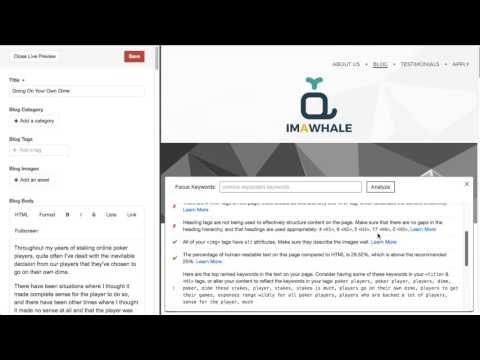
### SEOmetrics during Live Preview

During Live Preview, a small SEOmatic icon is displayed in the lower-left corner of the Live Preview screen. If you click on it, it will run a variety of tests on your web page, and offer you analysis with helpful tips on how to correct any problems it finds.
You can enter **Focus Keyworks**, comma separated, for an additional analysis of how well optimized your page is for those specific SEO keywords.
### Video SEOmetrics in Action:
[](https://www.youtube.com/watch?v=y7swBbGwEJE)
You can disable this feature by setting `displaySeoMetrics` to `false` in the `config.php`, should you wish to not have it displayed.
SEOmetrics during Live Preview only works if System Status is set to "on".
## Craft Commerce Product Microdata

If an SEOmatic FieldType is attached to a Craft Commerce Product, in addition to rendering the page SEO Meta, it will also generate [Product JSON-LD microdata](https://developers.google.com/structured-data/rich-snippets/products) that describes the product.
It does this by pulling values from the `seomaticMeta` settings from the SEOmatic FieldType, as well as by pulling data from the Craft Commerce Product. If you have an SEOmatic FieldType attached to a Craft Commerce Product, `seomaticMainEntityOfPage` array is injected into your page template:
{% set seomaticMainEntityOfPage = [
{
type: "Product",
name: "Romper for a Red Eye",
description: "Irresistible to women. Establishes dominance over men. Brad's for Men will release your inner beast with its musky essence.",
image: "http://bradsformen.dev/img/site/site_logo.png",
logo: "http://bradsformen.dev/img/site/site_logo.png",
url: "http://bradsformen.dev/commerce/products/romper-for-a-red-eye",
sku: "Romper for a Red Eye",
offers: {
type: "Offer",
url: "http://bradsformen.dev/commerce/products/romper-for-a-red-eye",
price: "30.00",
priceCurrency: "USD",
offeredBy: seomaticIdenity,
seller: seomaticIdenity,
}
}
] %}
Since this is just a Twig array, you can alter it as you see fit, and whatever changes you make will be reflected in the JSON-LD that SEOmatic renders via the `{% hook 'seomaticRender' %}` Because of the way that Twig handles arrays, you **must** include every field in the array when doing a `set` or `merge`, otherwise the fields you exclude will not exist.
Or if you want to set just one variable in the array, you can use the Twig function [merge](http://twig.sensiolabs.org/doc/filters/merge.html). Because this is an _array_ of Products, you need to do something like this to add to each Product in the array:
{% if seomaticMainEntityOfPage is defined %}
{% set productBrand = {
'type': 'thing',
'name': product.title
}
%}
{% set tempMainEntityOfPage = [] %}
{% for productJsonLd in seomaticMainEntityOfPage %}
{% set productJsonLd = productJsonLd | merge({"brand": productBrand }) %}
{% set tempMainEntityOfPage = tempMainEntityOfPage |merge([productJsonLd]) %}
{% endfor %}
{% set seomaticMainEntityOfPage = tempMainEntityOfPage %}
{% endif %}
You can change these `seomaticMainEntityOfPage` variables in your templates that `extends` your main `layout.twig` template, and due to the Twig rendering order, when `{% hook 'seomaticRender' %}` is called, they'll be populated in your rendered SEO Meta tags.
See the section **Dynamic Twig SEO Meta** for more information on how to manipulate SEOmatic variables via Twig.
SEOmatic also automatically strips HTML/PHP tags from the variables, and translates HTML entities to ensure that they are properly encoded.
## Main Entity of Page Microdata

SEOmatic will automatically generate [Main Entity of Page](http://www.seoskeptic.com/how-to-use-schema-org-v2-0s-mainentityofpage-property/) JSON-LD microdata for Template and Entry SEO Meta.
The Main Entity of Page is a more specific, additional type of information that describes the page. This additional JSON-LD structured data entity will be added to your page, more specifically describing the page's content. It is accessible via the `seomaticMainEntityOfPage` Twig variable.
If an SEOmatic FieldType is attached to a Craft Commerce Product, SEOmatic will automatically extrapolate information from the Product. Otherwise, you can choose your own Main Entity of Page in the SEOmatic FieldType.
SEOmatic fills in the basic information for whatever schema type you set as the Main Entity of Page, but since this is just a Twig array, you can alter it as you see fit, and whatever changes you make will be reflected in the JSON-LD that SEOmatic renders via the `{% hook 'seomaticRender' %}` Because of the way that Twig handles arrays, you **must** include every field in the array when doing a `set` or `merge`, otherwise the fields you exclude will not exist.
Here's an example of how you might add a `startDate` to an `Event` schema type:
{% if seomaticMainEntityOfPage is defined %}
{% set eventStartDate = entry.eventDate %}
{% set seomaticMainEntityOfPage = seomaticMainEntityOfPage | merge({'startDate': eventStartDate }) %}
{% endif %}
Note that `Event` schema types require `startDate` and `location` to be set, which SEOmatic is unable to automatically fill in for you. Additionally, you may want to add more information to any of the schema types used for Main Entity of Page to give search engines more information to add to their knowledge graph.
## Breadcrumbs Microdata

SEOmatic will automatically generate [Breadcrumbs](https://developers.google.com/search/docs/data-types/breadcrumbs) JSON-LD microdata that is used by Google to display breadcrumbs on the SERP rich cards.
By default, SEOmatic will generate breadcrumbs automatically for `Home` (the name is configurable via `breadcrumbsHomeName` in `config.json`), and every element (category, entry, product, whatever) that has a URI matches the current URL segments.
### Changing Breadcrumbs
If you want to do your own custom breadcrumbs, you can set them yourself in the `breadcrumbs` array in the `seomaticMeta` variable like this:
{% set myBreadcrumbs = {
"Home": "http://nystudio107.dev/",
"Books": "http://nystudio107.dev/books/",
"Candide": "http://nystudio107.dev/books/candide",
} %}
{% set seomaticMeta = seomaticMeta | merge({'breadcrumbs': myBreadcrumbs }) %}
{% if seomaticMainEntityOfPage is defined and seomaticMainEntityOfPage.type == "WebPage" %}
{% set seomaticMainEntityOfPage = seomaticMainEntityOfPage | merge({'breadcrumbs': myBreadcrumbs }) %}
{% endif %}
Since this is just a Twig array, you can alter it as you see fit, and whatever changes you make will be reflected in the JSON-LD that SEOmatic renders via the `{% hook 'seomaticRender' %}` Because of the way that Twig handles arrays, you **must** include every field in the array when doing a `set` or `merge`, otherwise the fields you exclude will not exist.
You can change these `breadcrumbs` variables in your templates that `extends` your main `layout.twig` template, and due to the Twig rendering order, when `{% hook 'seomaticRender' %}` is called, they'll be populated in your rendered SEO Meta tags.
See the section **Dynamic Twig SEO Meta** for more information on how to manipulate SEOmatic variables via Twig.
SEOmatic also automatically strips HTML/PHP tags from the variables, and translates HTML entities to ensure that they are properly encoded.
### Displaying Breadcrumbs on the Frontend
Should you wish to display the breadcrumbs in your front-end templates so that they are visible to the user, you can do that with code like this:
<ul class="crumbs">
{% for crumbName, crumbUrl in seomaticMeta.breadcrumbs %}
<li class="crumbs"><a href="{{ crumbUrl }}">{{ crumbName }}</a></li>
{% endfor %}
</ul>
## Dynamic Twig SEO Meta
All this SEO is great, but what if you want to generate dynamic SEO in an Twig template, with custom or specific requirements that the SEOmatic FieldType can't handle? SEOmatic makes it easy.
SEOmatic populates your templates with the following global variables for SEO Meta:
seomaticMeta.seoTitle
seomaticMeta.seoDescription
seomaticMeta.seoKeywords
seomaticMeta.seoImage
seomaticMeta.canonicalUrl
By default, `seomaticMeta.canonicalUrl` is set to `craft.request.url`.
All of the variables are set by a combination of your SEO Site Meta settings, and the SEO Template Meta settings linked to the currently rendered template (if any). These are the primary SEOmatic variables that you will be manipulating in your templates.
By the time the various SEOmatic variables are populated into your template, SEOmatic has applied all of the cascading meta from your Site Meta, Template Meta, and Entry Meta. The variables are all set, and will not be manipulated further by SEOmatic, only output.
So you can change the variables as you see fit; but it also means that if you change your `seoImage`, for example, it will not change the `og:image`. This is so that you can manipulate them independently.
**Important:** Due to the way Twig scoping works, if you `{% include %}` a template, it's given a copy of the current Twig context (variables, etc.), which means that any changes made there are not propagated back to the parent template.
So for instance if you `{% include %}` a template that changes some SEOmatic variables, they will **not** be changed in the parent context's scope, so they will not be rendered by SEOmatic.
You'll need to modify the SEOmatic variables in a template that `{% extends %}` the main `layout.twig` template or via Twig `embeds`.
These work like any other Twig variables; you can output them by doing:
{{ seomaticMeta.seoTitle }}
If you have a **Twitter Handle**, you'll also get variables that are used to generate your Twitter Card tags:
seomaticMeta.twitter.card
seomaticMeta.twitter.site
seomaticMeta.twitter.creator
seomaticMeta.twitter.title
seomaticMeta.twitter.description
seomaticMeta.twitter.image
You'll also get variables that are used to generate your Facebook Open Graph tags:
seomaticMeta.og.type
seomaticMeta.og.locale
seomaticMeta.og.url
seomaticMeta.og.title
seomaticMeta.og.description
seomaticMeta.og.image
seomaticMeta.og.site_name
seomaticMeta.og.see_also
When SEOmatic goes to render the `twitter`, `og` and `article` namespace tags, it iterates through the respective arrays, so you can add, remove, or change any of the key-value pairs in the array, and they will be rendered. Just ensure that the `key` is a valid schema type for the respective meta tags.
You can even do fun things like:
{% set seomaticMeta = seomaticMeta | merge({
og: {
type: seomaticMeta.og.type,
locale: seomaticMeta.og.locale,
url: entry.url,
title: "Some Title",
description: entry.summary,
image: ['one.jpg', 'two.jpg', 'three.jpg'],
site_name: seomaticMeta.og.site_name,
see_also: seomaticMeta.og.see_also
}
}) %}
...and SEOmatic will output 3 `og:image` tags, one for each image in the array. Because of the way that Twig handles arrays, you **must** include every field in the array when doing a `set` or `merge`, otherwise the fields you exclude will not exist.
You can also change them all at once like this using the Twig [set](http://twig.sensiolabs.org/doc/tags/set.html) syntax:
{% set seomaticMeta = {
seoTitle: "Some Title",
seoDescription: entry.summary,
seoKeywords: "Some,Key,Words",
seoImage: seomaticMeta.seoImage,
canonicalUrl: entry.url,
twitter: {
card: seomaticMeta.twitter.card,
site: seomaticMeta.twitter.site,
creator: seomaticMeta.twitter.creator,
title: "Some Title",
description: entry.summary,
image: seomaticMeta.twitter.image
},
og: {
type: seomaticMeta.og.type,
locale: seomaticMeta.og.locale,
url: entry.url,
title: "Some Title",
description: entry.summary,
image: seomaticMeta.og.image,
site_name: seomaticMeta.og.site_name,
see_also: seomaticMeta.og.see_also
}
} %}
Anywhere we are setting a field to `seomaticMeta.*`, we're setting it to what it already is, essentially saying to leave it unchanged. We do this because Twig requires that you pass in the entire array to the `set` operator.
If you're using the `article` OpenGraph type, you'll see an additional `article` namespace array in your `seomaticMeta`:
{% set seomaticMeta = {
seoTitle: "Some Title",
seoDescription: entry.summary,
seoKeywords: "Some,Key,Words",
seoImage: seomaticMeta.seoImage,
canonicalUrl: entry.url,
twitter: {
card: seomaticMeta.twitter.card,
site: seomaticMeta.twitter.site,
creator: seomaticMeta.twitter.creator,
title: "Some Title",
description: entry.summary,
image: seomaticMeta.twitter.image
},
og: {
type: seomaticMeta.og.type,
locale: seomaticMeta.og.locale,
url: entry.url,
title: "Some Title",
description: entry.summary,
image: seomaticMeta.og.image,
site_name: seomaticMeta.og.site_name,
see_also: seomaticMeta.og.see_also
},
article: {
author: "Some Author",
publisher: "Some publisher",
tag: "some,tags"
}
} %}
Or if you want to set just one variable in the array, you can use the Twig function [merge](http://twig.sensiolabs.org/doc/filters/merge.html):
{% set seomaticMeta = seomaticMeta | merge({'seoDescription': entry.summary }) %}
Here's an example of how to change just the `image` in Twitter:
{% set twitter = seomaticMeta.twitter %}
{% set twitter = twitter | merge({'image': someiImage}) %}
{% set seomaticMeta = seomaticMeta | merg