exam-guard
Version:
AI proctoring tool
1 lines • 5.5 kB
JavaScript
"use strict";(this.webpackChunkProctor=this.webpackChunkProctor||[]).push([[65],{2065:(e,t,a)=>{a.r(t),a.d(t,{default:()=>s});const s="### 📍 [Step 1: Check the Camera LED Indicator](#step-1-check-the-camera-led-indicator) \n### 📍 [Step 2: Close Other Apps Using the Camera](#step-2-close-other-apps-using-the-camera) \n### 📍 [Step 3: Check Browser Camera Permissions](#step-3-check-browser-camera-permissions) \n### 📍 [Step 4: Verify System-Level Camera Permissions](#step-4-verify-system-level-camera-permissions) \n### 📍 [Step 5: Check for Camera Block Shortcuts](#step-5-check-for-camera-block-shortcuts) \n### 📍 [Step 6: Test Camera Preview](#step-6-test-camera-preview) \n### 📍 [Step 7: Additional Troubleshooting](#step-7-additional-troubleshooting) \n\n---\n\n## **Step 1: Check the Camera LED Indicator** \n**Is the camera light ON, but the camera is not visible?** \n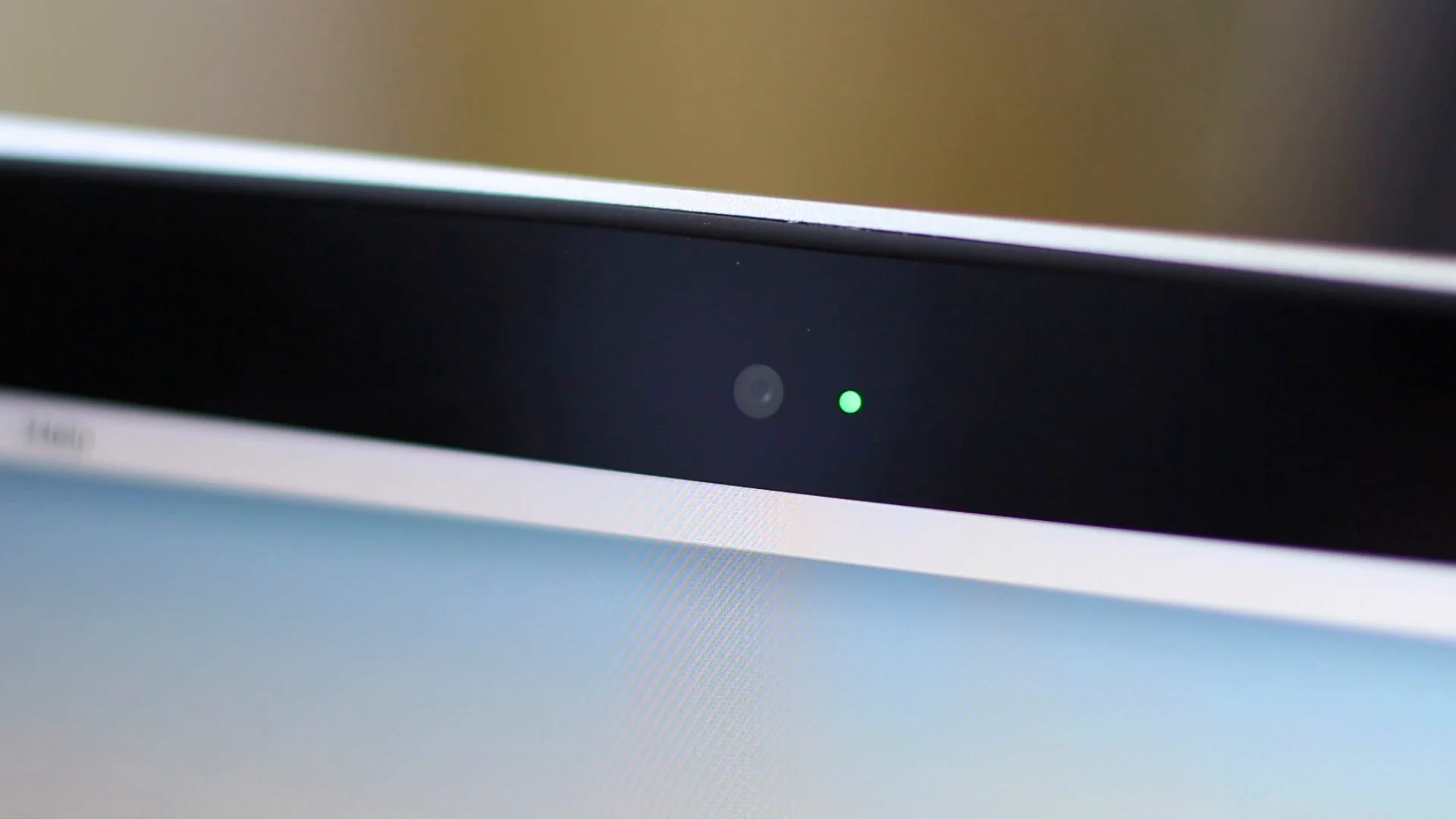\n - ✅ **Yes** → [Go to Step 2](#step-2-close-other-apps-using-the-camera) \n - ❌ **No** → [Go to Step 3](#step-3-check-browser-camera-permissions) \n\n---\n\n## **Step 2: Close Other Apps Using the Camera** \n🧐 **Check for background apps with camera access: Follow these steps -** \n- **Windows:** `Start > Settings > Privacy & Security > Camera` \n- **Mac:** `Apple Menu > System Settings > Privacy & Security > Camera` \n\n- 🔄 **Close all such apps** and restart your browser and try again\n\n📵 **Disable phone-based camera apps** that may interfere: \n - Samsung Flow, Dell Mobile Connect, Apple Continuity Camera etc may interfere with your camera feed\n - Disconnect phone from **Bluetooth or USB tethering** before starting the test. \n\n---\n\n## **Step 3: Check Browser Camera Permissions** \n🔍 Ensure camera access is **allowed** for your browser: \n\n💻 **For Chrome (Windows & Mac)** \n\n 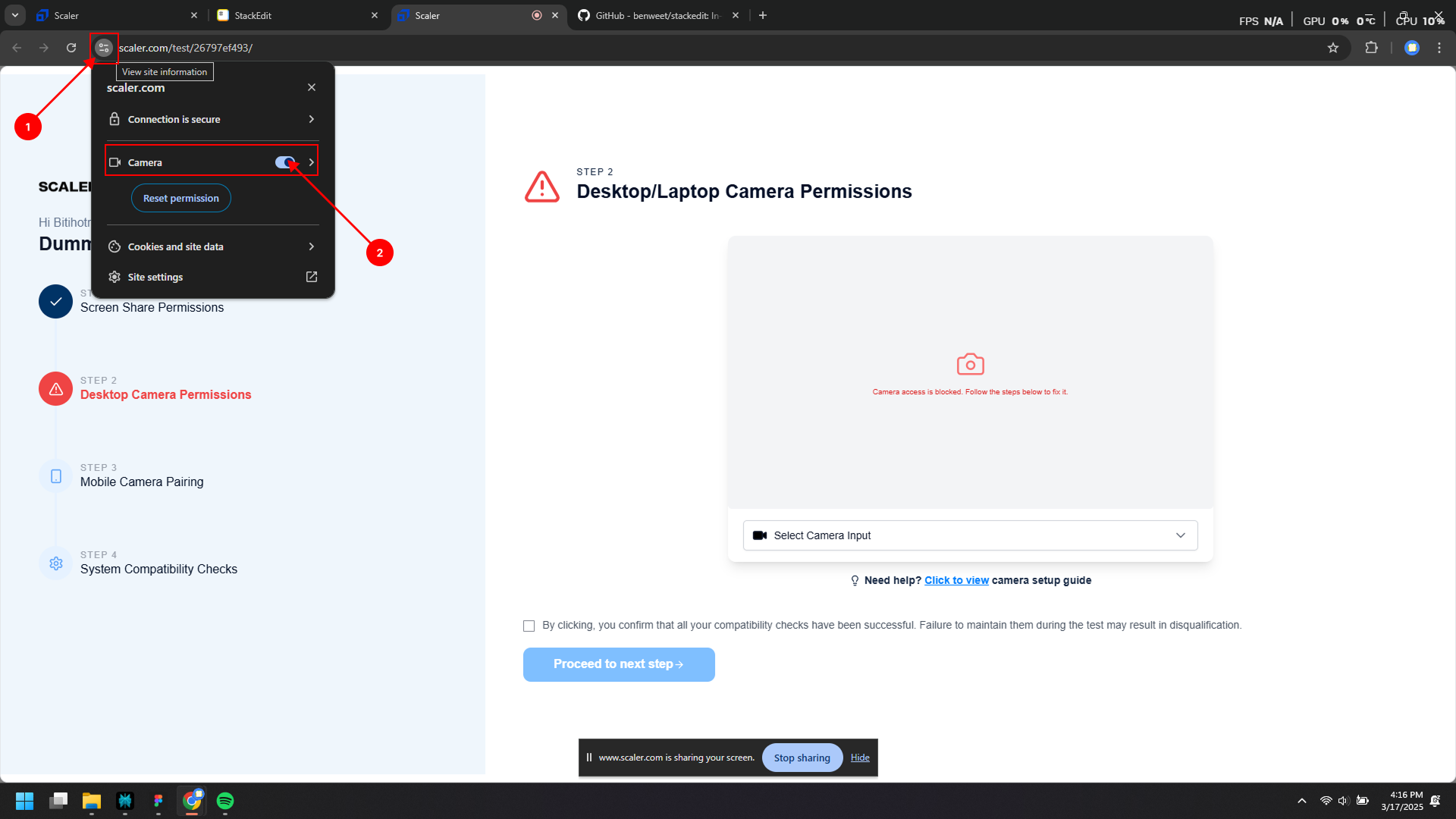\n - Click the **camera icon** in the address bar → **Site settings** → Set **Camera** to **Allow**. \n - Under **Default Behavior,** select **Sites can ask to use your camera**. \n - Disable **Ask before accessing**\n - If present, under **Allowed to use your camera,** next to `https://proctoring.scaler/`, click **Delete**. \n - Refresh the Scaler proctoring page and grant camera access when prompted. \n\n💻 **For Safari (Mac)** \n\n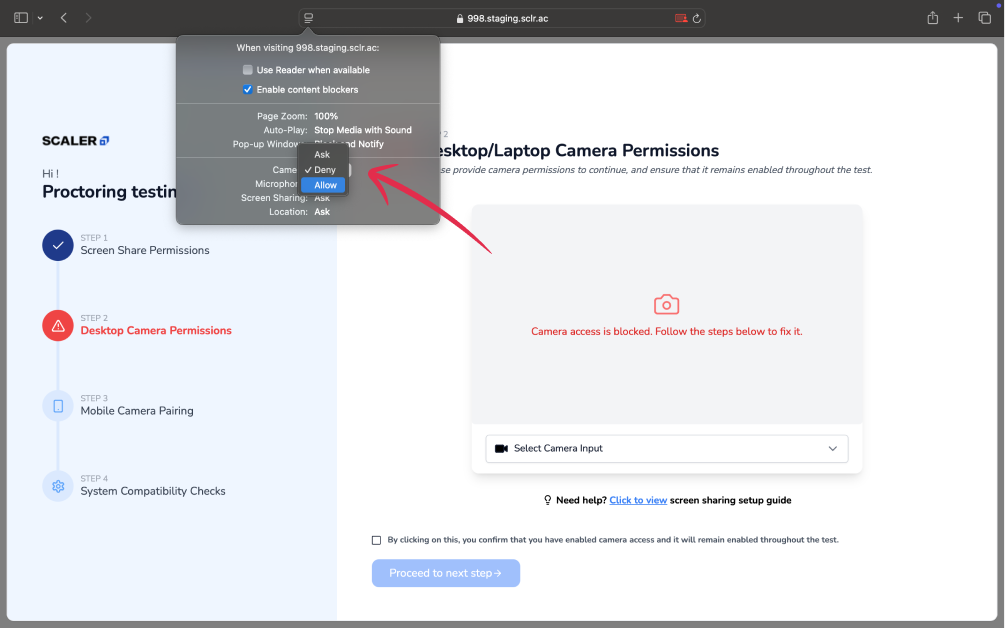 \n - `Safari > Settings > Websites > Camera` → Ensure the website has access. \n - Choose **Apple Menu > System Settings > Privacy & Security**. \n - Click **Camera** and ensure access is turned **ON** for the browser. \n - If **Camera** is not visible, upgrade to macOS Mojave or later. \n - The camera turns on automatically when used by an app, indicated by a green light. \n\n- **ForFirefox** \n - Refer to [this article](https://support.mozilla.org/en-US/kb/how-manage-your-camera-and-microphone-permissions#:~:text=If%20you've%20turned%20off,submenu%20for%20the%20Firefox%20app) for detailed steps. \n\n🔄 **Refresh the page** after adjusting settings. \n\n---\n\n## **Step 4: Verify System-Level Camera Permissions** \n🖥️ **Windows:** \n\n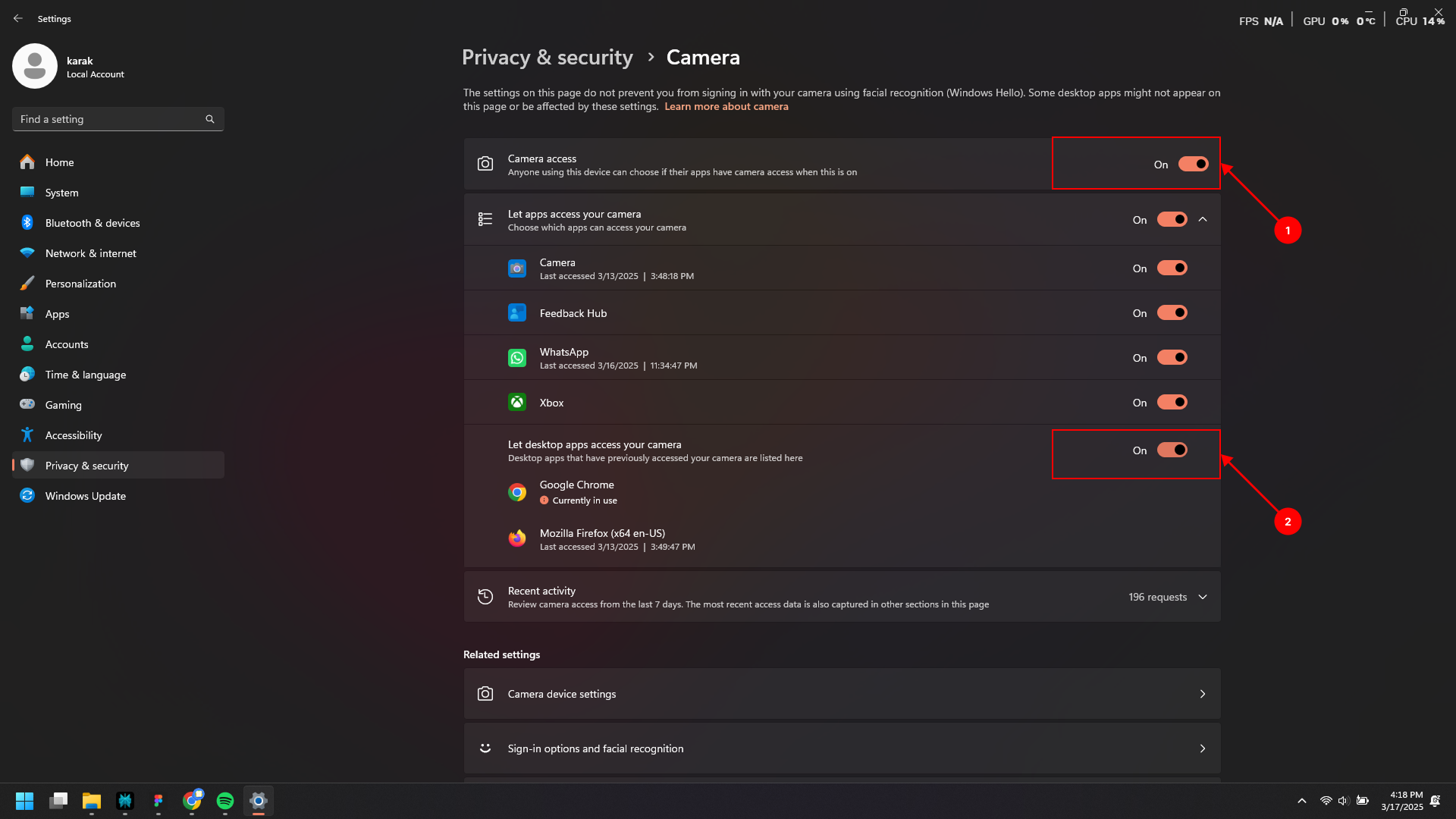\n - `Start > Settings > Privacy & Security > Camera` (Windows 11) \n - Ensure **Camera access for this device** and **Let apps access your camera** are **ON**. \n\n💻 **Mac:** \n\n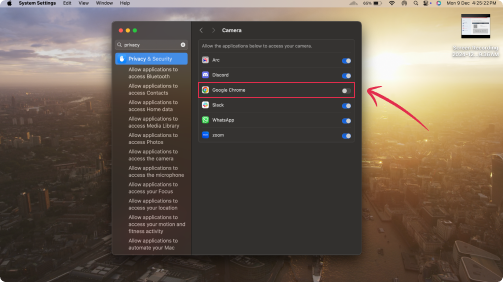\n - `Apple Menu > System Settings > Privacy & Security > Camera` \n - Ensure the checkbox next to your browser is **enabled**. \n - The list shows apps that have requested camera access; ensure the browser is checked. \n\n⚙️ If using non-Microsoft Store apps, ensure **desktop app access is enabled**. \n\n---\n\n## **Step 5: Check for Camera Block Shortcuts** \n⌨️ **Physical Camera Switch:** Some laptops have a physical toggle/button for the webcam. Ensure it is **ON**. (Below image is an example of the same)\n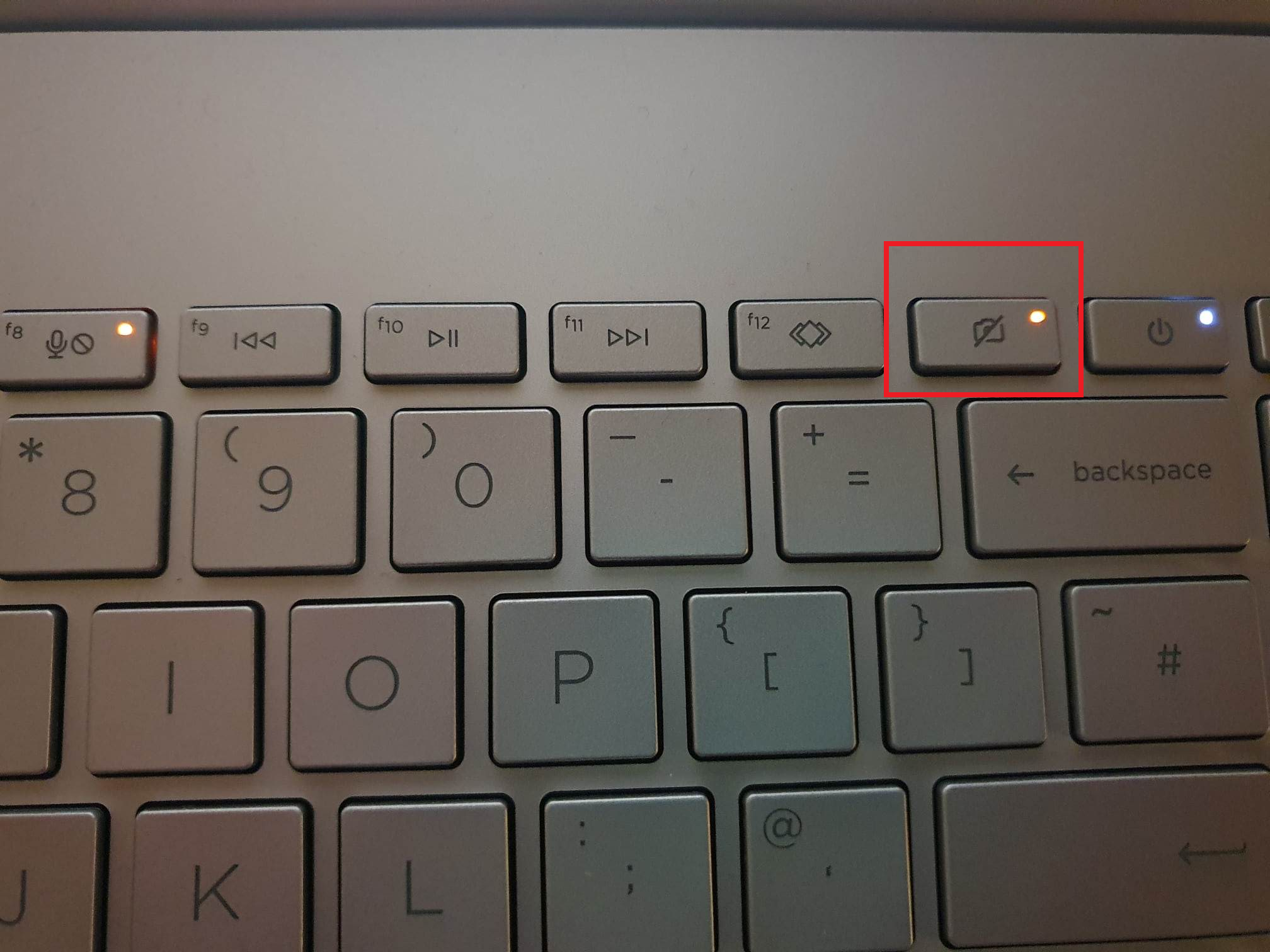\n⌨️ **Function Key Lock:** Press `Fn + Camera (F8/F10)` to toggle camera access. \n⚙️ **BIOS Settings:** Restart your laptop → Enter **BIOS settings** → Check for **camera-related options**. \n\n---\n\n## **Step 6: Test Camera Preview** \n🔄 **Reload the Scaler proctoring page**. \n📷 **Test the camera using:** \n - **Windows:** Open the **Camera** app. \n - **Mac:** Use **FaceTime** or **Photo Booth**. \n\n---\n\n## **Step 7: Additional Troubleshooting** \n🔄 **Update camera drivers** via `Device Manager` (Windows) or `Software Update` (Mac). \n🛠️ **Run the Windows Camera Troubleshooter** to detect and fix common issues. \n🔐 **Check antivirus/firewall settings** that may be blocking camera access. \n\n---\n\n✅ **If the issue persists, contact Scaler support for further assistance.** \n"}}]);