exam-guard
Version:
AI proctoring tool
1 lines • 1.25 kB
JavaScript
"use strict";(this.webpackChunkProctor=this.webpackChunkProctor||[]).push([[107],{9107:(e,t,s)=>{s.r(t),s.d(t,{default:()=>n});const n="### For Edge Users\n\n#### Step 1:\nIn the top-left search bar of your browser, click the settings icon and tap on site settings\n\n\n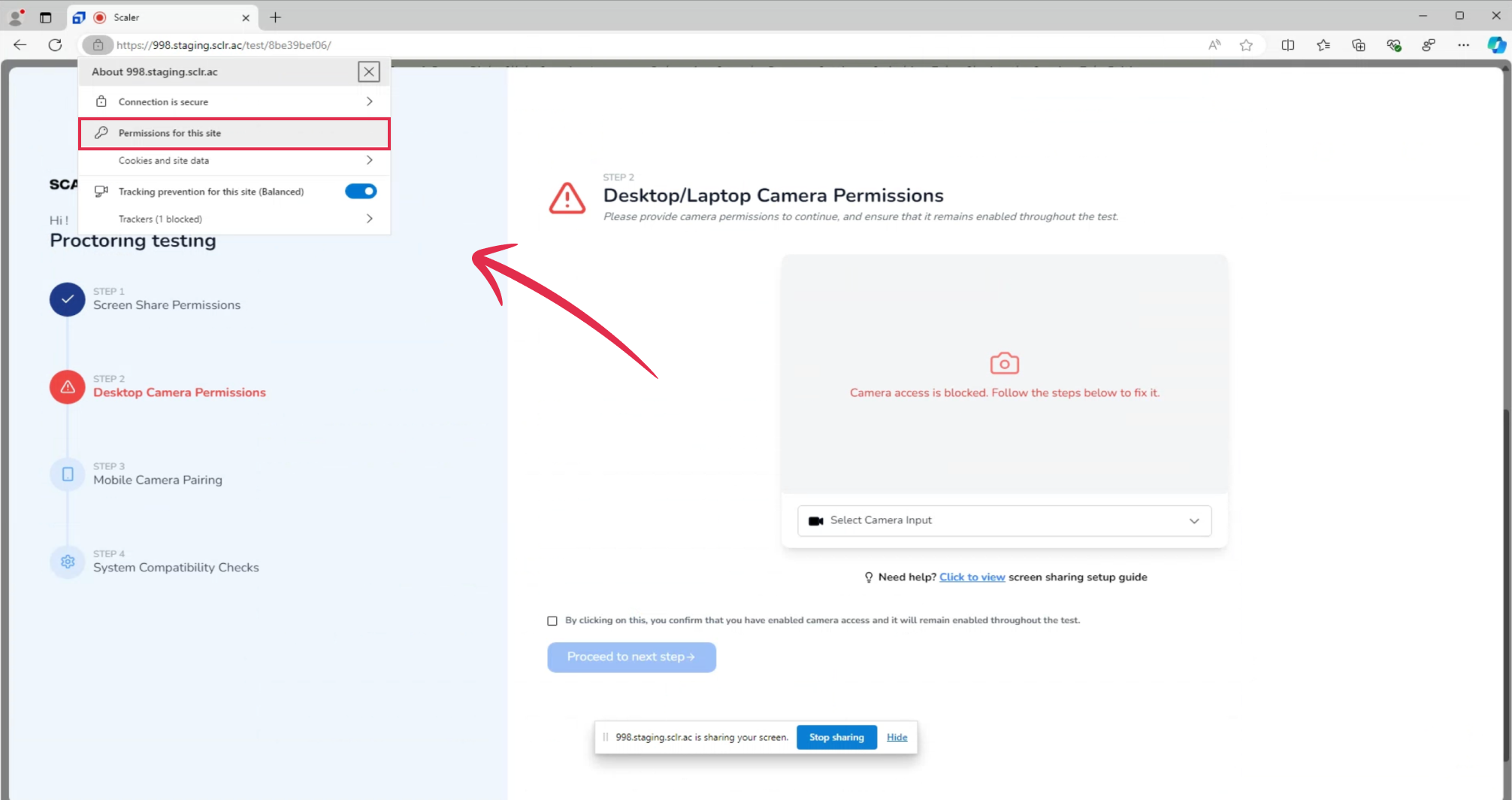\n\n\n\n#### Step 2:\nLocate the Camera option and set it to Allow\n\n\n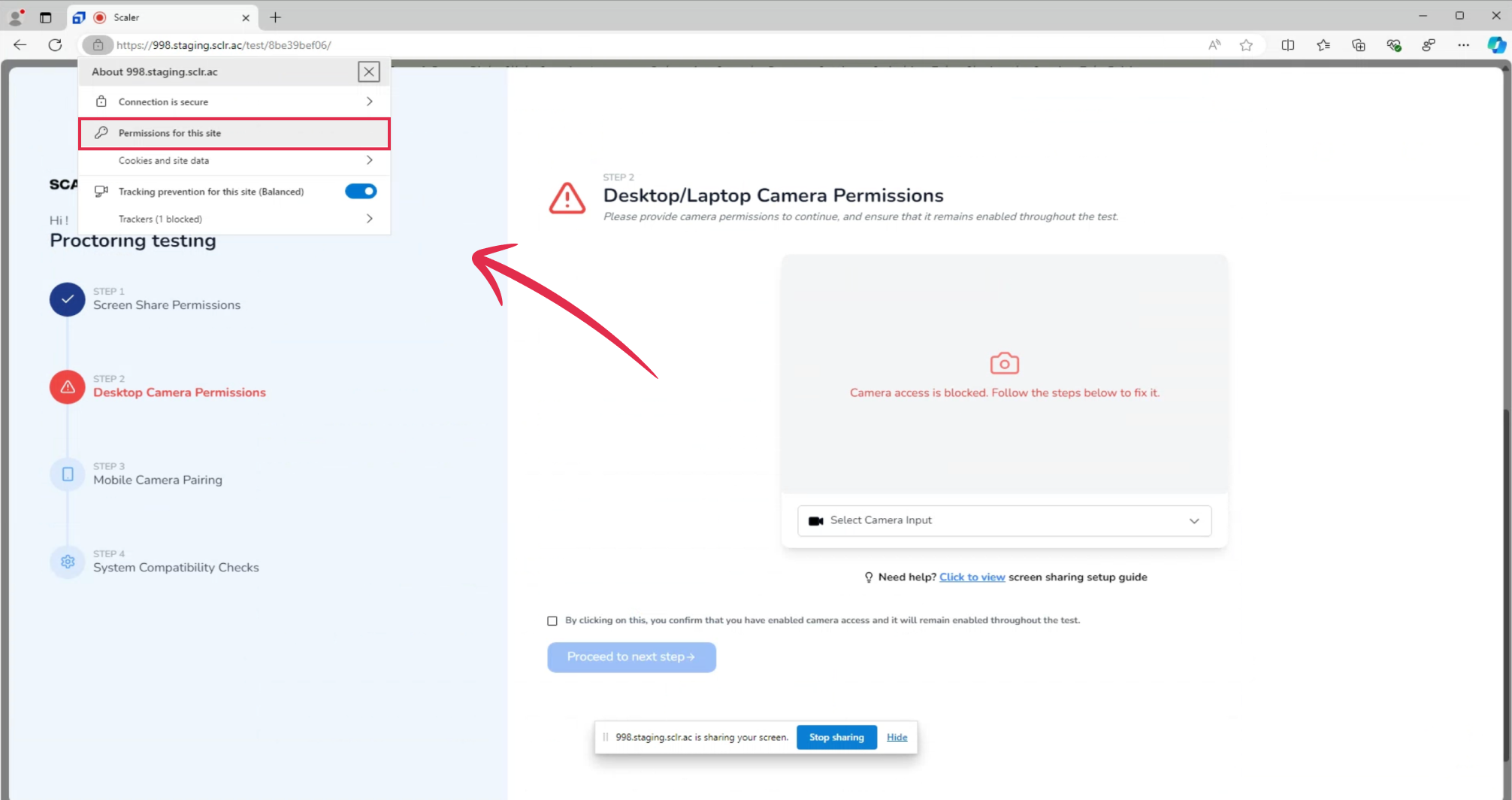\n\n--\n\n#### Still facing problem??\nPlease follow the steps mentioned below to enable system-level permissions\n\n\n### System Level Fixes\n\n#### Step 1:\nSelect the Apple menu and select System Settings\n\n\n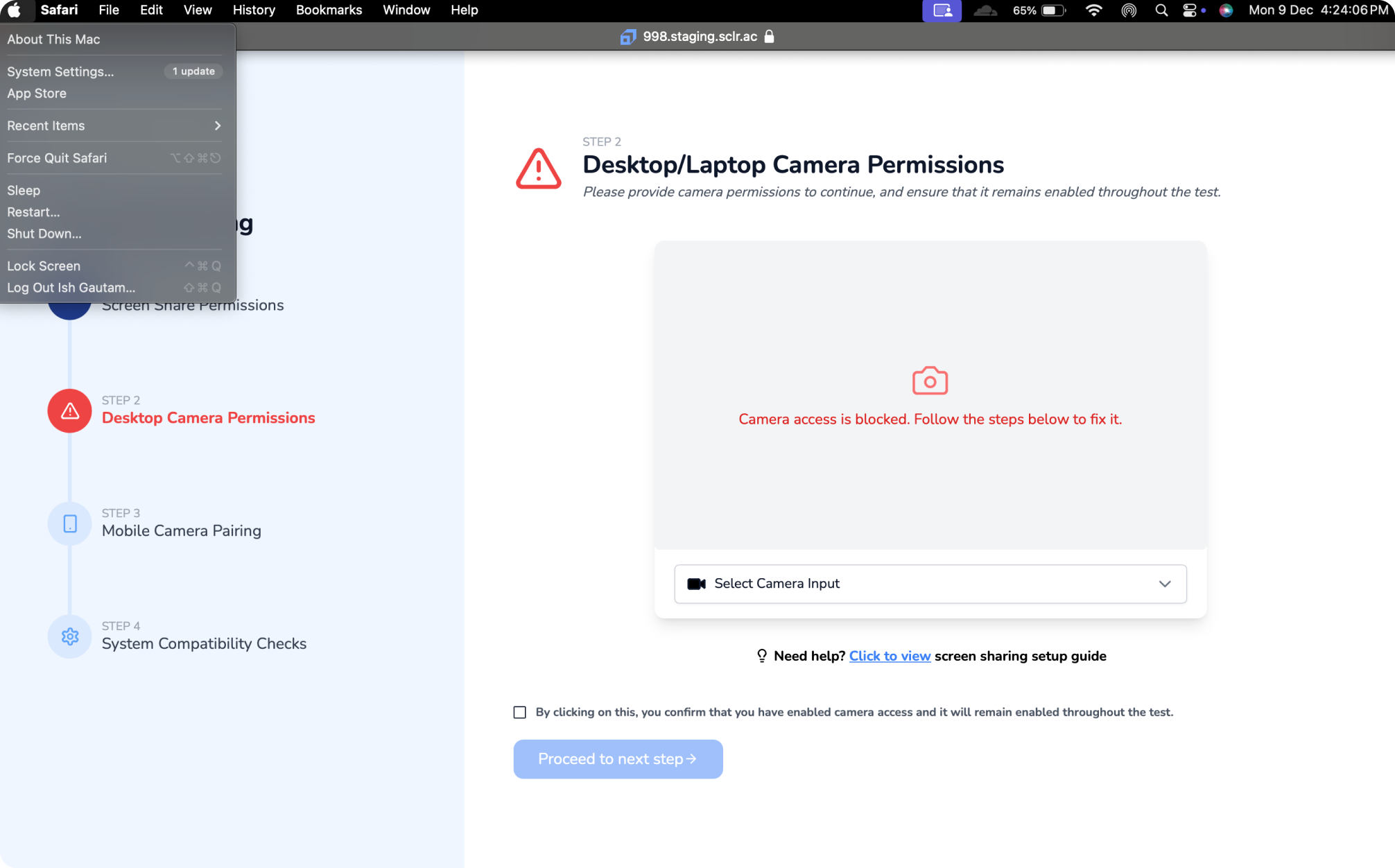\n\n\n\n#### Step 2:\nSelect Privacy & Security in the sidebar. Select Camera on the right and enable access to camera for your browser in the list\n\n\n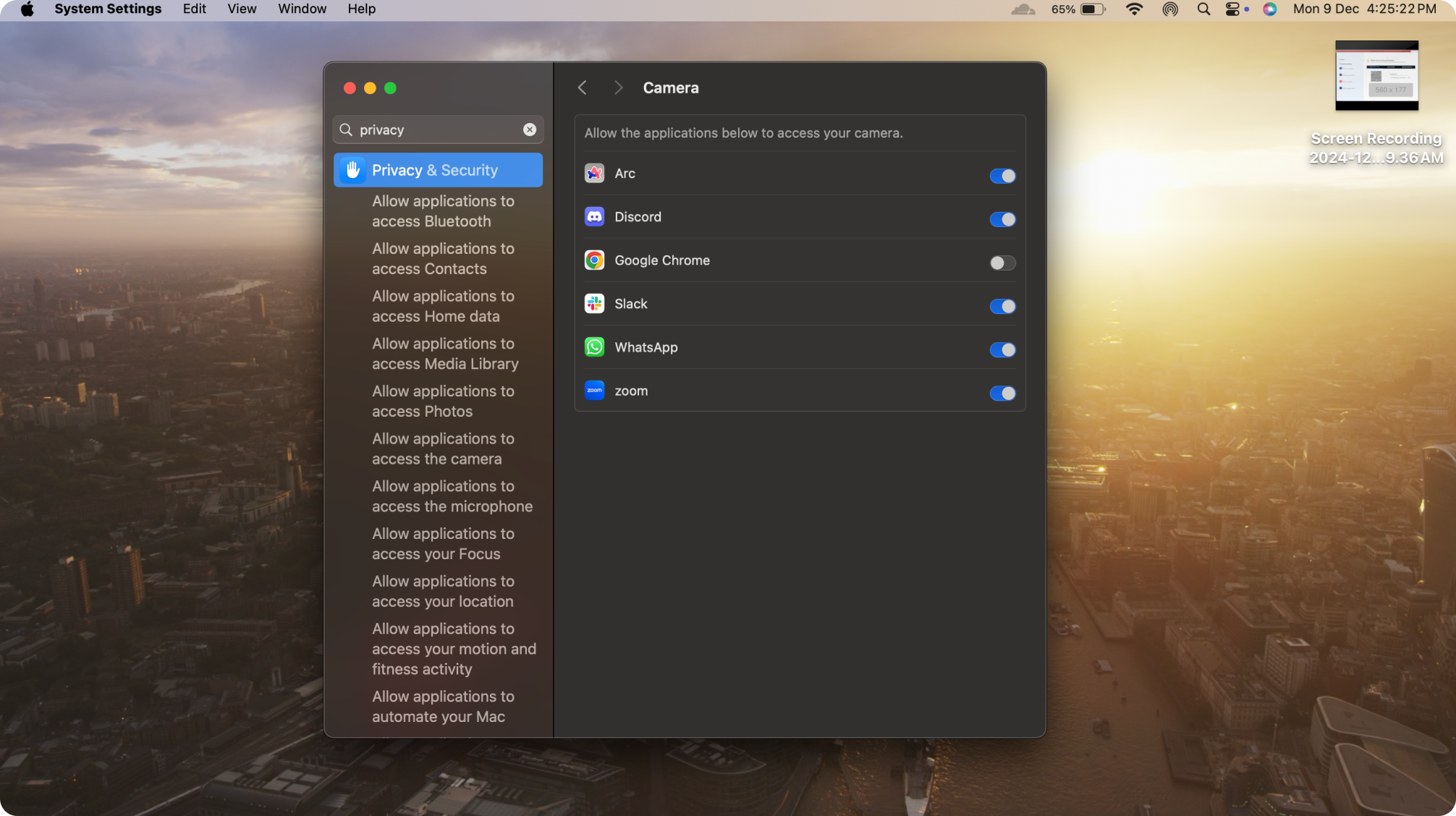\n"}}]);