drag-drop-tool
Version:
Drag and drop tool
113 lines (84 loc) • 2.52 kB
Markdown
# drag-drop-tool
### Draggable Elements Demo
To demonstrate the usage of the `drag-container` and `drag-box` elements, follow these steps:
1. Create an HTML file (e.g., `index.html`) and a CSS file (e.g., `styles.css`) in your project.
2. initialise your project for npm with
```
npm init
```
3. install drag-drop-tool with:
```
npm i drag-drop-tool
```
4. Add the following script tag at the end of the body in your html file:
**index.html**:
```html
<script src="./node_modules/drag-drop-tool/src/index.js"></script>
```
**Alternatively**
You can skip installing with NPM and include it directly from a CDN such as unpkg like so, e,g:
**index.html**:
```html
<script src="https://unpkg.com/drag-drop-tool@*LATEST VERSION*/src/index.js"></script>
```
replacing _LATEST VERSION_ with the latest release
5. Congrats, you now have access to the drag-container and drag-box custom elements so you can utilise them by adding a `<drag-container>` element and populating it with some `<drag-box>` elements like so:
**index.html**:
```html
<html lang="en">
<head>
<meta charset="UTF-8" />
<meta name="viewport" content="width=device-width, initial-scale=1.0" />
<title>Draggable Elements Demo</title>
<link rel="stylesheet" href="styles.css" />
</head>
<body>
<drag-container>
<drag-box>1</drag-box>
<drag-box>2</drag-box>
<drag-box>3</drag-box>
<drag-box>4</drag-box>
<drag-box>5</drag-box>
<drag-box>6</drag-box>
</drag-container>
<script src="./node_modules/drag-drop-tool/src/index.js"></script>
</body>
</html>
```
6. Add some basic styling:
**styles.css**
```css
body {
display: grid;
place-items: center;
width: 100vw;
height: 100vh;
margin: 0;
padding: 0;
box-sizing: border-box;
}
drag-container {
width: 50vw;
display: flex; /* this is already set by default */
flex-flow: row wrap;
border: 1px solid;
justify-content: space-evenly;
gap: 20px;
padding: 20px;
}
drag-box {
width: 200px;
height: 200px;
border: 1px solid black;
background-color: rgb(255 0 0 /70%);
display: grid;
place-items: center;
color: white;
font-size: 4rem;
}
```
And that's it, your page should now look a little something like this:
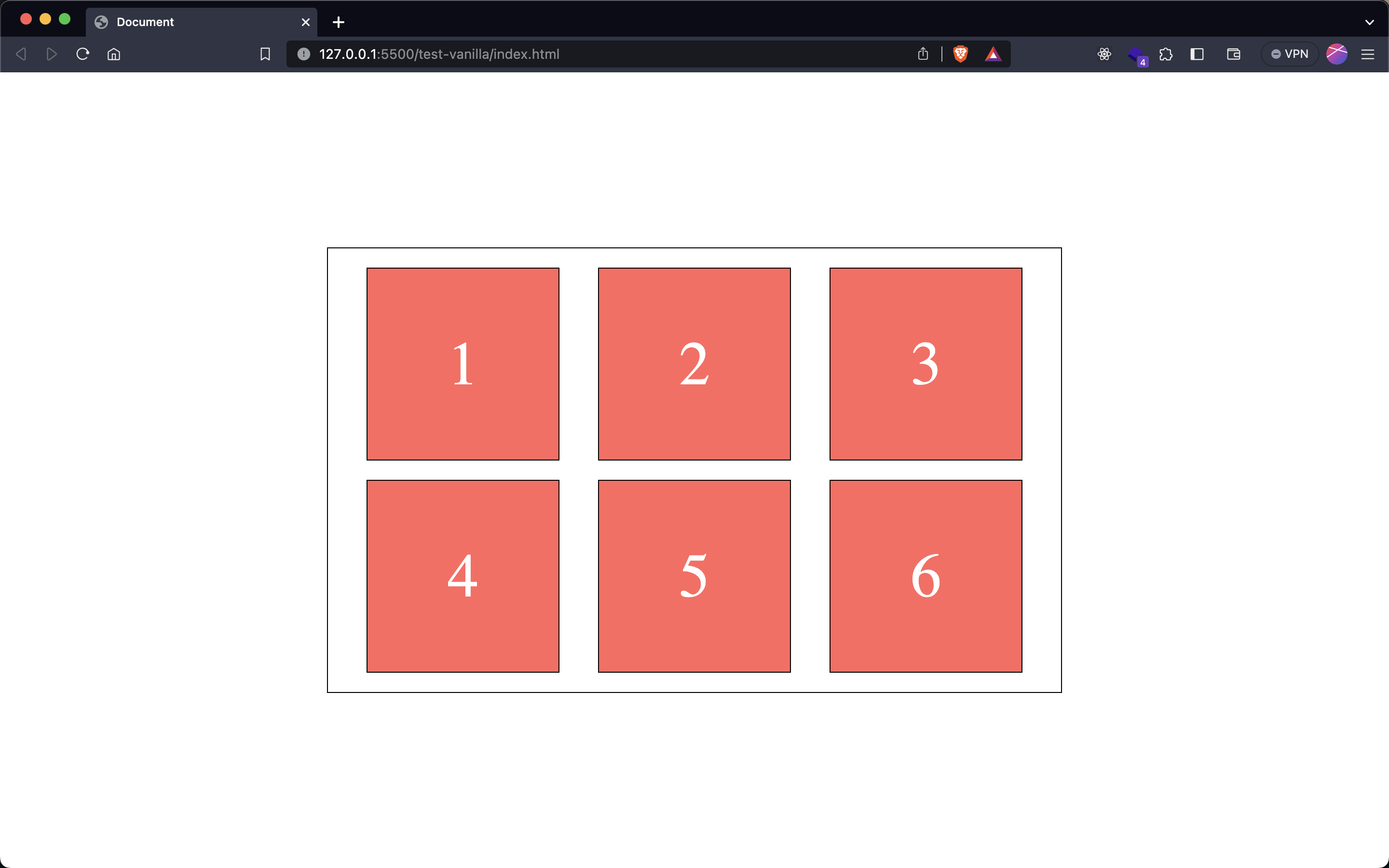
And you are now able to re-order these boxes by dragging and placing in the desired position in the list
MORE INFO COMING SOON