cordova-plugin-foxitpdf
Version:
cordova pdf preview plugin with Foxit Pdf sdk
805 lines (485 loc) • 31.8 kB
Markdown
<!--
# license: Licensed to the Apache Software Foundation (ASF) under one
# or more contributor license agreements. See the NOTICE file
# distributed with this work for additional information
# regarding copyright ownership. The ASF licenses this file
# to you under the Apache License, Version 2.0 (the
# "License"); you may not use this file except in compliance
# with the License. You may obtain a copy of the License at
#
# http://www.apache.org/licenses/LICENSE-2.0
#
# Unless required by applicable law or agreed to in writing,
# software distributed under the License is distributed on an
# "AS IS" BASIS, WITHOUT WARRANTIES OR CONDITIONS OF ANY
# KIND, either express or implied. See the License for the
# specific language governing permissions and limitations
# under the License.
-->
# cordova-plugin-foxitpdf [](https://www.npmjs.com/package/cordova-plugin-foxitpdf)
This plugin adds the ability to easily preview any PDF file in your Cordova application
- [Installation](#installation)
- [Integration for iOS](#integration-for-ios)
- [Integration for Android](#integration-for-android)
- [How to use this plugin for cordova developer](#how-to-use-this-plugin-for-cordova-developer)
- [JS API Reference](#js-api-reference)
- [Supported Platforms](#supported-platforms)
- [Quick Example](#quick-example)
- [Attention](#attention)
- [Versions](#versions)
- [Demo manual](/demo/README.md)
## Installation
```bash
cordova plugin add cordova-plugin-foxitpdf
```
It is also possible to install via repo url directly ( unstable )
```bash
cordova plugin add https://github.com/foxitsoftware/cordova-plugin-foxitpdf.git
```
Large files in the plugin may cause your update to fail. If that is the case, please try again following the steps below:
1. Clone this project
2. Add plugin from local using this command :
```bash
cordova plugin add ~/xxx/cordova-plugin-foxitpdf (This address is replaced by your own)
```
## Integration for iOS
The iOS version of the cordova plugin only needs a few simple steps to deploy
1. Unzip Foxit PDF SDK for iOS and copy libs folder into the component’s ios folder.
(`/xxx/platforms/ios/`)
Please use foxitpdfsdk_(version_no)_ios.zip from https://developers.foxitsoftware.com/pdf-sdk/ios/
2. Target -> General -> Embedded Binaries
Add dynamic framework "FoxitRDK.framework" 、"uiextensionsDynamic.framework" and "FoxitPDFScanUI.framework"
to Xcode’s Embedded Binaries
3. Target -> General -> Linked Frameworks and Libraries -> + -> WebKit.framework
> `Note` Do not forget to add pdf files
You can add the PDF to Copy Bundle Resources directly. Just left-click the project, find 'Copy Bundle Resources' in the 'Build Phases' tab, click on the + button, and choose the file to add. You can refer to any PDF file, just add it to the Xcode’s Copy Bundle Resources.
Or,you can use the pdf file under Document directory in sandbox
Now that the preparatory work has been completed,you can use this plugin everywhere in your project.
- [JS API Reference](#js-api-reference)
## Integration for Android
1. Migrating to AndroidX, Add the following configuration to xxx/platforms/android/gradle.propertie:
```xml
android.useAndroidX=true
android.enableJetifier=true
```
2. Download `foxitpdfsdk_(version_no)_android.zip` from [https://developers.foxitsoftware.com/pdf-sdk/android/](https://developers.foxitsoftware.com/pdf-sdk/android/) (Please use the latest version 9.0)
3. Unzip `foxitpdfsdk_(version_no)_android.zip` and copy libs folder into the component’s android folder.
`/xxx/platforms/android/`
- [JS API Reference](#js-api-reference)
## How to use this plugin for cordova developer
> 1. Initialize
```javascript
var sn = 'foxit_sn';
var key = 'foxit_key';
window.FoxitPdf.initialize(sn,key);
```
> 2. Open Pdf File
```javascript
var path = 'Your file path';
var password = 'password'; // If the PDF document is not encrypted by password, just pass an empty string.
window.FoxitPdf.openDocument(path, password);
```
## How to change the UI of PDF viewer control?
For Foxit PDF SDK for iOS. The UI is handled within the "FoxitRDK.framework" and "uiextensionsDynamic.framework." The files that comes with the evaluation package, however, they also comes with the source, which you can compile and replace accordingly. The UI source can be located at "libs\uiextensions_src" You can find the uiextensions.xcodeproj in the same directory. Just open this project with xcode, modified it to your needs, build, and replace them accordingly in step 2 of the instruction at https://github.com/foxitsoftware/cordova-plugin-foxitpdf#integration-for-ios.
For Android, the UI is located at the binary at libs\FoxitRDKUIExtensions.aar. You can find the source for this binary in the package at foxitpdfsdk_XXX_android.zip at libs\uiextensions_src. You can open this project with Android Studio, modified it, and replaced the FoxitRDKUIExtensions.aar file accordingly. Step 2 of https://github.com/foxitsoftware/cordova-plugin-foxitpdf#integration-for-android is where the instructions on the github page indicates that it is being used.
## JS API Reference
### window.FoxitPdf.initialize
> window.FoxitPdf.initialize(sn,key);
- __options__: Initialization options.
- __foxit_sn__: the `foxit_sn` string
- __foxit_key__: the `foxit_key` string
`foxit_sn` and `foxit_key` are required, otherwise the initialization will fail. `rdk_key` and `rdk_sn` can be found in the libs folder of `foxitpdfsdk_(version_no)_ios.zip`.
```javascript
var sn = 'foxit_sn';
var key = 'foxit_key';
window.FoxitPdf.initialize(sn,key);
```
### window.FoxitPdf.enableAnnotations
> window.FoxitPdf.enableAnnotations(enable);
- __enable__: A boolean value whether to enable or disable annotation modules.
` Note: To make it work, this function should be called before opening a document.`
```js
var enable = false;
window.FoxitPdf.enableAnnotations(enable);
```
### window.FoxitPdf.openDocument
> window.FoxitPdf.openDocument(path, password);
- __path__: Document path you wish to open
- __password__: The password used to load the PDF document content. It can be either user password or owner password.
If the PDF document is not encrypted by password, just pass an empty string.
`Note: The document can only be opened if the initialization is successful.`
```javascript
var path = 'Your file path';
var password = 'password'; // If the PDF document is not encrypted by password, just pass an empty string.
window.FoxitPdf.openDocument(path, password);
```
### window.FoxitPdf.setSavePath
> window.FoxitPdf.setSavePath(savePath);
- __savePath__: Document path that prevents overwriting on the preview file _(if set)_
```js
var savePath = 'Your file path';// Document path that prevents overwriting on the preview file _(if set)_
window.FoxitPdf.setSavePath(savePath);
```
### window.FoxitPdf.importFromFDF
> window.FoxitPdf.importFromFDF(fdf_doc_path, data_type, page_range);
- __`fdf_doc_path`__: A valid fdf file path, from which form fields and annotations will be imported.
- __`data_type`__: Used to decide which kind of data will be imported. this can be one or a combination of as following values:
1. `0x0001` : Form fields are imported from or exported to FDF/XFDF document.
2. `0x0002` : Annotations (except Movie, Widget, Screen, PrinterMark and TrapNet, link) are imported from or exported to FDF/XFDF document.
3. `0x0004` : links are imported from or exported to XFDF document.**Not supported** right now
- __`page_range`__: A integer range array that specifies some pages. Data (in specified types) from FDF/XFDF document will be imported to these specified pages range for importing. In this array, 2 numbers are a pair: the first integer is the starting page index, and the second integer is the page count. Default value: an empty range by default and not set any value.It only support annotations.
```js
var fdf_doc_path = 'Your file path';// FDF file path
var data_type = 0x0002;
var page_range = [[0,1],[2,3]]//[[start1, count1], [start2, count2]....]
window.FoxitPdf.importFromFDF(fdf_doc_path, data_type, page_range);
```
### window.FoxitPdf.exportToFDF
> window.FoxitPdf.exportToFDF(export_path, data_type, fdf_doc_type, page_range);
- __`export_path`__: A valid path to which form fields and annotations will be exported.
- __`data_type`__: Used to decide which kind of data will be imported. this can be one or a combination of as following values:
1. `0x0001` : Form fields are imported from or exported to FDF/XFDF document.
2. `0x0002` : Annotations (except Movie, Widget, Screen, PrinterMark and TrapNet, link) are imported from or exported to FDF/XFDF document.
3. `0x0004` : links are imported from or exported to XFDF document.**Not supported** right now
- __`fdf_doc_type`__: FDF document type. `0 means FDF, and 1 means XFDF`.
- __`page_range`__: A integer range array that specifies some pages. Data (in specified types) from FDF/XFDF document will be imported to these specified pages range for importing. In this array, 2 numbers are a pair: the first integer is the starting page index, and the second integer is the page count. Default value: an empty range by default and not set any value.It only support annotations.
```js
var fdf_doc_type = 0;
var export_path = '/Documents/annot_export.fdf';
var page_range = [[0,1],[2,3]]//[[start1, count1], [start2, count2]....]
var data_type = 0x0002;
window.FoxitPdf.exportToFDF(export_path, data_type, fdf_doc_type, page_range);
```
### window.FoxitPdf.addEventListener
> window.FoxitPdf.addEventListener(eventname,callback);
- __eventname__: The name of the event to listen for _(String)_
- __onDocWillSave__: This event fires when the document will be saved.
- __onDocSaved__: This event fires when the document is saved.
- __onDocOpened__: This event fires when the document is Opened.
- __callback__: This function is executed when the event fires. The function is passed an object as a parameter.
Add a listener for an event
```javascript
window.FoxitPdf.addEventListener('onDocSaved',function(data){
console.log('onDocSaved callback ',data);
});
window.FoxitPdf.addEventListener('onDocOpened',function(data){
console.log('onDocOpened callback ',data);
});
```
### window.FoxitPdf.setTopToolbarItemVisible
> window.FoxitPdf.setTopToolbarItemVisible(index, visible);
Set top toolbar item hide/show, and it only works for the default top toolbat item.
NOTE:It should be called before opening document.
- __`index`__: the item index of the top toolbar. Valid range: from 0 to (<b>count</b> -1), now, the top bar can have a maximum of 6 items, and it may differ between phone and tablet
`0` - **Back**
`1` - **Panel**
`2` - **Thumbnail**
`3` - **Bookmark**
`4` - **Search**
`5` - **More**
- __`visible`__: <b>true</b> means to show the specified item, <b>false</b> means to hide the specified item.
```js
window.FoxitPdf.setTopToolbarItemVisible(0, false);
```
### window.FoxitPdf.setBottomToolbarItemVisible
> window.FoxitPdf.setBottomToolbarItemVisible(index, visible);
Set bottom toolbar item hide/show, and it only works for the default bottom toolbat item.
NOTE:It should be called before opening document.
- __`index`__: the item index of the bottom toolbar.Valid range: from 0 to (<b>count</b> -1),now, the bottom bar can have a maximum of 4 items, and it may differ between phone and tablet
`0` - **Panel**
`1` - **View**
`2` - **Thumbnail**
`3` - **Bookmark**
- __`visible`__: <b>true</b> means to show the specified item, <b>false</b> means to hide the specified item.
```js
window.FoxitPdf.setBottomToolbarItemVisible(0, false);
```
### window.FoxitPdf.setToolbarItemVisible
> window.FoxitPdf.setToolbarItemVisible(index, visible);
Set show/hide tool items on the top/bottom, including the tabs.
NOTE:It should be called before opening document.
- __`index`__: the item index of the toolbar.
`0` - **Back**
`1` - **More**
`2` - **Search**
`3` - **Panel**
`4` - **View** `It has the same effect as setting 11 because the view behaves differently on phones and tablets. If this is set, it will hide the view item on the bottom bar on phones and the view tab on tablets. `
`5` - **Thumbnail**
`6` - **Bookmark**
`7` - **Home Tab**
`8` - **Edit Tab**
`9` - **Comment Tab**
`10` - **Drawing Tab**
`11` - **View Tab** `Reference index 4`
`12` - **Form Tab**
`13` - **Fill & Sign Tab**
`14` - **Protect Tab**
- __`visible`__: <b>true</b> means to show the specified item, <b>false</b> means to hide the specified item.
Remove Home Tab
```js
window.FoxitPdf.setToolbarItemVisible(7, false);
```
### window.FoxitPdf.setPrimaryColor
> window.FoxitPdf.setPrimaryColor(light, dark);
Sets the primary color.
NOTE:It should be called before opening document.
- __`light`__: The primary color for the light theme.
- __`dark`__: The primary color for the dark theme.
__`Supported formats are`__:
- __`0xAARRGGBB`__:
- __`0xRRGGBB`__:
- __`#AARRGGBB`__:
- __`#RRGGBB`__:
- __`rgb()`__:
- __`rgba()`__:
```js
window.FoxitPdf.setPrimaryColor("#ff0000", "#ff0000");
```
### window.FoxitPdf.setAutoSaveDoc
> window.FoxitPdf.setAutoSaveDoc(enable);
Sets whether the document should be automatically saved.
NOTE:It should be called before opening document.
- __`enable`__: `true` to enable auto-save, `false` to disable it.
```js
window.FoxitPdf.setAutoSaveDoc(true);
```
### Form.getAllFormFields
> Form.getAllFormFields();
Return: An array of dictionaries will be returned, which contains all the form fields in the document, each field is represented as a dictionary, the following are the key/value pairs for the dictionary. Please refer to https://developers.foxitsoftware.com/resources/pdf-sdk/cplusplus_api_reference/index.html for more detail information about parameters such as fieldType, fieldFlag.... (Use keyword "Field" to search)
- __alignment__: Alignment is a property for variable text and it is only useful for text field and list box,which may contain variable text as their content.
- __alternateName__: An alternate field name to be used in place of the actual field name wherever the field must be identified in the user interface (such as in error or status messages referring to the field).
- __defValue__: The default value of form field.
- __value__: The value of form field.
- __fieldFlag__: Field flags specifies various characteristics of a form field.
- __fieldIndex__: The index of form field in the document.
- __fieldType__: The Form field type, 0 for Unknown, 1 for PushButton, 2 for CheckBox, 3 for RadioButton, 4 for ComboBox, 5 for ListBox, 6 for TextField, 7 for Signature...
- __mappingName__: The mapping name is to be used when exporting interactive form field data from the document.
- __maxLength__: The maximum length of the field's text, in characters.
- __name__: Get field name.
- __topVisibleIndex__: Get top index of option for scrollable list boxes.
- __choiceOptions__: Get the options array of list box or combo box. Return an array of dictionaries, which key/value pairs for the dictionary are:
- __defaultSelected__:Used to indicate whether the option would be selected by default or not.
- __optionLabel__ : The displayed string value for the option.
- __optionValue__ : The option string value.
- __selected__ : Used to indicate whether the option is selected or not.
- __defaultAppearance__: An dictionary will be returned, The following are the key/value pairs for the dictionary.
- __flags__:Flags to indicate which properties of default appearance are meaningful.Please refer to values starting from @link DefaultAppearance::e_FlagFont @endlink and this can be one or a combination of these values.
- __textColor__:Text color for default appearance. Format: 0xRRGGBB.
- __textSize__: Font size for default appearance. Please ensure this is above 0 when parameter <i>flags</i> includes @link DefaultAppearance::e_FlagFontSize @endlink.
### Form.getForm
> Form.getForm();
Return: An dictionary will be returned, which contains the form related info. The following are the key/value pairs for the dictionary.
- __alignment__: Get the alignment value which is used as document-wide default value. Left alignment:0, Center alignment:1, Right alignment:2
- __needConstructAppearances__: Check whether to construct appearance when loading form controls.
- __defaultAppearance__: Return an dictionary, which key/value pairs for the dictionary are the following: (Please refer to https://developers.foxitsoftware.com/resources/pdf-sdk/cplusplus_api_reference/index.html for more details.)
- __flags__: Flags to indicate which properties of default appearance are meaningful.
- __textSize__: Font size for default appearance. Please ensure this is above 0 when parameter <i>flags</i> includes @link DefaultAppearance::e_FlagFontSize @endlink.
- __textColor__: Text color for default appearance. Format: 0xRRGGBB.
### Form.updateForm
> Form.updateForm(formInfo);
Parameters:The parameter for this API is a dictionary, and following are the key/value pairs for the dictionary.
- __alignment__: Get the alignment value which is used as document-wide default value, it's only valid for text field and list box. Left alignment:0, Center alignment:1, Right alignment:2
- __needConstructAppearances__: Check whether to construct appearance when loading form controls.
- __defaultAppearance__: Return an dictionary, which key/value pairs for the dictionary are the following: (Please refer to https://developers.foxitsoftware.com/resources/pdf-sdk/cplusplus_api_reference/index.html for more details.)
- __flags__: Flags to indicate which properties of default appearance are meaningful.
- __textSize__: Font size for default appearance. Please ensure this is above 0 when parameter <i>flags</i> includes @link DefaultAppearance::e_FlagFontSize @endlink.
- __textColor__: Text color for default appearance. Format: 0xRRGGBB.
### Form.validateFieldName
> Form.validateFieldName(fieldType,fieldName);
Parameters:
- __fieldType__: Field type, for which the input field name will be validated. 0 for Unknown, 1 for PushButton, 2 for CheckBox, 3 for RadioButton, 4 for ComboBox, 5 for ListBox, 6 for TextField, 7 for Signature...
- __fieldName__: A string value. It should not be an empty string.<br>
Return: <b>true</b> means the input field name is valid for the specified field type, <b>false</b> means not.
### Form.renameField
> Form.renameField(fieldIndex,newFieldName);
Parameters:
- __fieldIndex__: The index of form field in the document.
- __newFieldName__: A new field name. It should not be an empty string.
Return: <b>true</b> means success, while <b>false</b> means failure.
### Form.removeField
> Form.removeField(fieldIndex);
Parameters:
- __fieldIndex__: The index of form field in the document.
### Form.reset
> Form.reset();
Reset data of all fields (except signature fields) to their default value.
Return <b>true</b> means success, while <b>false</b> means failure.
### Form.exportToXML
> Form.exportToXML(filePath);
Export the form data to an XML file.
Parameters:
- __filePath__: The xml file path.
Return <b>true</b> means success, while <b>false</b> means failure.
### Form.importFromXML
> Form.importFromXML(filePath);
Import the form data from an XML file.
Parameters:
- __filePath__: The xml file path.
Return <b>true</b> means success, while <b>false</b> means failure.
### Form.getPageControls
> Form.getPageControls(pageIndex);
Parameters:
- __pageIndex__: The page index, which start from 0 for the first page.
Return: An array of dictionaries will be returned, each dictionary contains the form related info. The following are the key/value pairs for the dictionary.
- __controlIndex__: The index of current form control among all the controls of the specified page.
- __exportValue__: export mapping name when related form field is check box or radio button.
- __isChecked__: Check if the current form control is checked when related form field is check box or radio button.
- __isDefaultChecked__: Check if the current form control is checked by default when related form field is check box or radio button.
### Form.removeControl
> Form.removeControl(pageIndex, controlIndex);
Parameters:
- __pageIndex__: The page index, which start from 0 for the first page.
- __controlIndex__: The index of current form control among all the controls of the specified page.
### Form.addControl
> Form.addControl(pageIndex,fieldName,fieldType,rect);
Parameters:
- __pageIndex__: The page index, which start from 0 for the first page.
- __fieldName__: The name of the form field.
- __fieldType__: The type of the form field. 0 for Unknown, 1 for PushButton, 2 for CheckBox, 3 for RadioButton, 4 for ComboBox, 5 for ListBox, 6 for TextField, 7 for Signature...
- __rect__: Rectangle of the new form control which specifies the position in PDF page.It should be in [PDF coordinate system]
Return: An dictionary will be returned, which contains the form related info. The following are the key/value pairs for the dictionary.
- __controlIndex__: The index of current form control among all the controls of the specified page.
- __exportValue__: export mapping name when related form field is check box or radio button.
- __isChecked__: Check if the current form control is checked when related form field is check box or radio button.
- __isDefaultChecked__: Check if the current form control is checked by default when related form field is check box or radio button.
### Form.updateControl
> Form.updateControl(pageIndex,controlIndex, control);
This API is only valid for field type of checkbox and radiobutton.
Parameters:
- __pageIndex__: The page index, which start from 0 for the first page.
- __controlIndex__: The index of current form control among all the controls of the specified page.
- __control__: An dictionary contains the control info. The following are the key/value pairs for the dictionary.
- __exportValue__: export mapping name when related form field is check box or radio button.
- __isChecked__: Check if the current form control is checked when related form field is check box or radio button.
- __isDefaultChecked__: Check if the current form control is checked by default when related form field is check box or radio button.
### Form.getFieldByControl
> Form.getFieldByControl(pageIndex,controlIndex);
Parameters:
- __pageIndex__: The page index, which start from 0 for the first page.
- __controlIndex__: The index of current form control among all the controls of the specified page.
Return: Please refer to the return info of [Form.getAllFormFields](#form.getallformfields)
### Field.updateField
> Field.updateField(fieldIndex,field);
Parameters:
- __fieldIndex__: The index of form field in the document.
- __field__: Please refer to the return info of [Form.getAllFormFields](#form.getallformfields)
### Field.reset
> Field.reset(fieldIndex);
Parameters:
- __fieldIndex__: The index of form field in the document.
### Field.getFieldControls
> Field.getFieldControls(fieldIndex);
Parameters:
- __fieldIndex__: The index of form field in the document.
Return: An array of dictionaries will be returned, each dictionary contains the form related info. The following are the key/value pairs for the dictionary.
- __controlIndex__: The index of current form control among all the controls of the specified field.
- __exportValue__: export mapping name when related form field is check box or radio button.
- __isChecked__: Check if the current form control is checked when related form field is check box or radio button.
- __isDefaultChecked__: Check if the current form control is checked by default when related form field is check box or radio button.
### ScanPdf.initializeScanner
> ScanPdf.initializeScanner(serial1,serial2);
Initialize the scan module with additional parameters.
This function must be called before any App Framework SDK object can be instantiated.
Successful initialization of the SDK requires a valid serial number.
- __serial1__: First part of the serial number.
- __serial2__: Second part of the serial number.
### ScanPdf.initializeCompression
> ScanPdf.initializeCompression(serial1,serial2);
Initialize the Mobile Compression SDK.
- __serial1__: First part of the serial number.
- __serial2__: Second part of the serial number.
### ScanPdf.createScanner
> ScanPdf.createScanner();
Show scan file list
`Note: The scan list can only be create if the initializeScanner & initializeCompression successful.`
### ScanPdf.addEventListener
> ScanPdf.addEventListener(eventname,callback);
- __eventname__: The name of the event to listen for _(String)_
- __onDocumentAdded__: This event fires when the scan doc added successed.
- __callback__: This function is executed when the event fires. The function is passed an object as a parameter.
Add a listener for an event
```javascript
ScanPdf.addEventListener('onDocumentAdded',function(data){
console.log('onDocumentAdded callback ',data);
var errorCode = data.error;
if(errorCode == 0){
var filePath = data.info;
window.FoxitPdf.openDocument(filePath, null);
}
});
```
## PPT
Please see our forum for more detailed information:
[PPTX - How to use cordova-plugin-foxitpdf](http://forums.foxitsoftware.com/forum/portable-document-format-pdf-tools/foxit-cloud/cordova-plugin-foxitpdf/162972-ppt-how-to-use-cordova-plugin-foxitpdf)
## YOUTUBE
[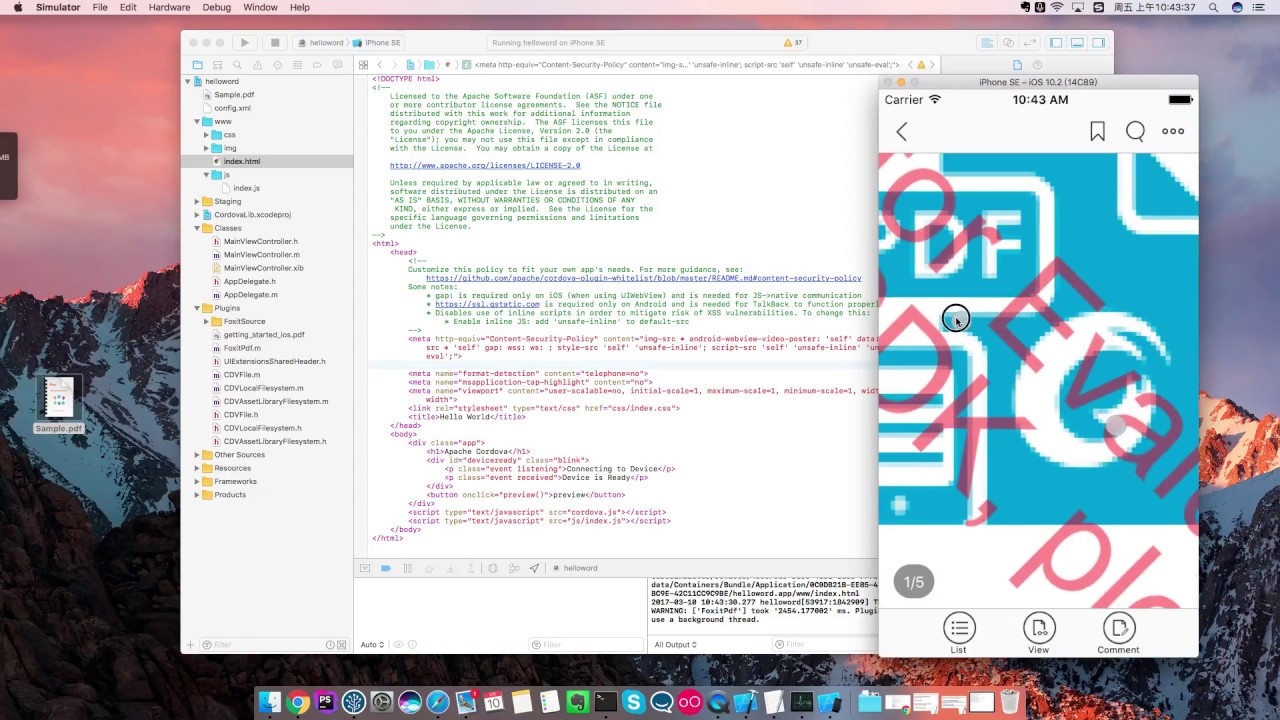](https://youtu.be/3stdbwcm68k)
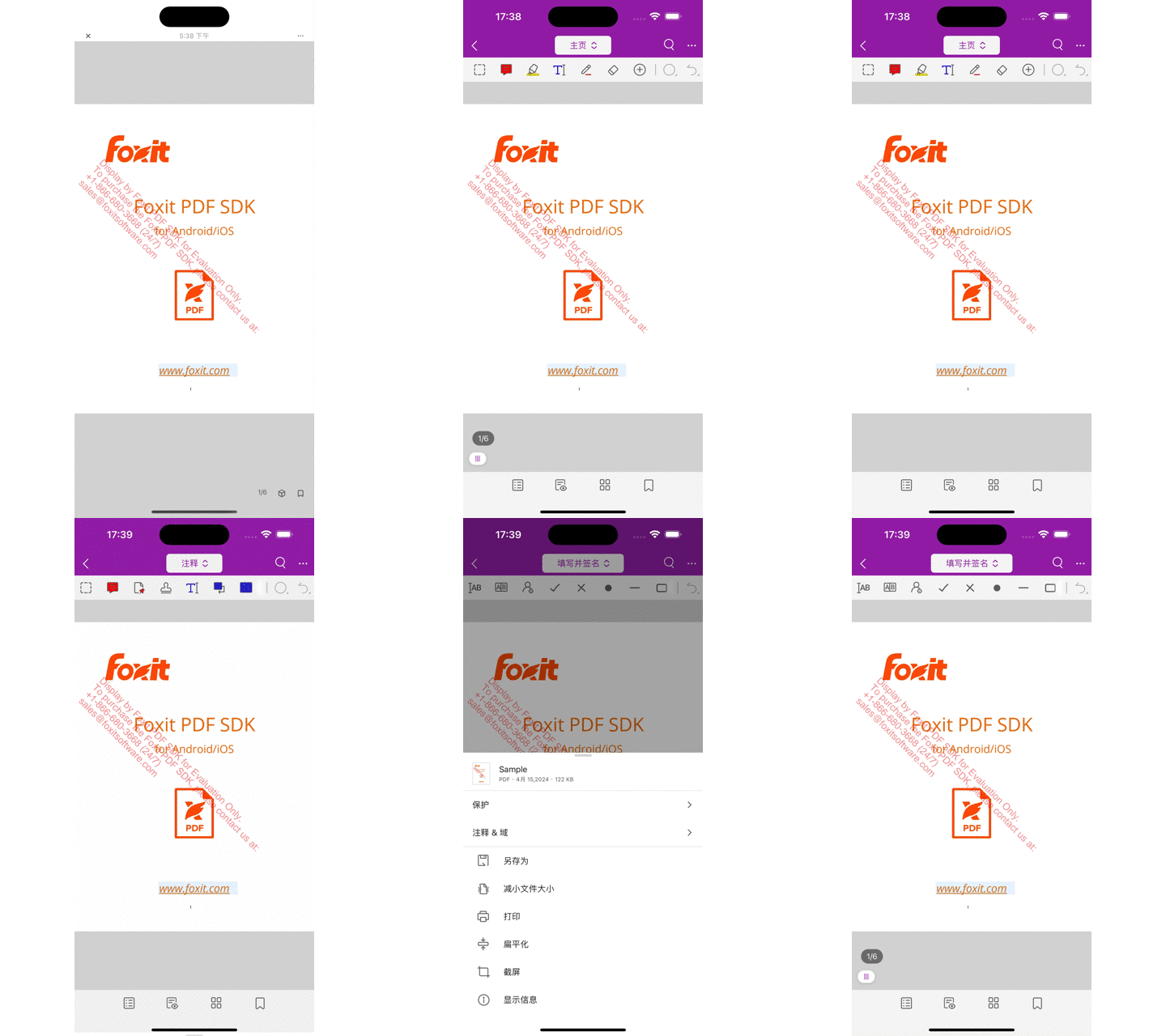
## iOS Screen Shot
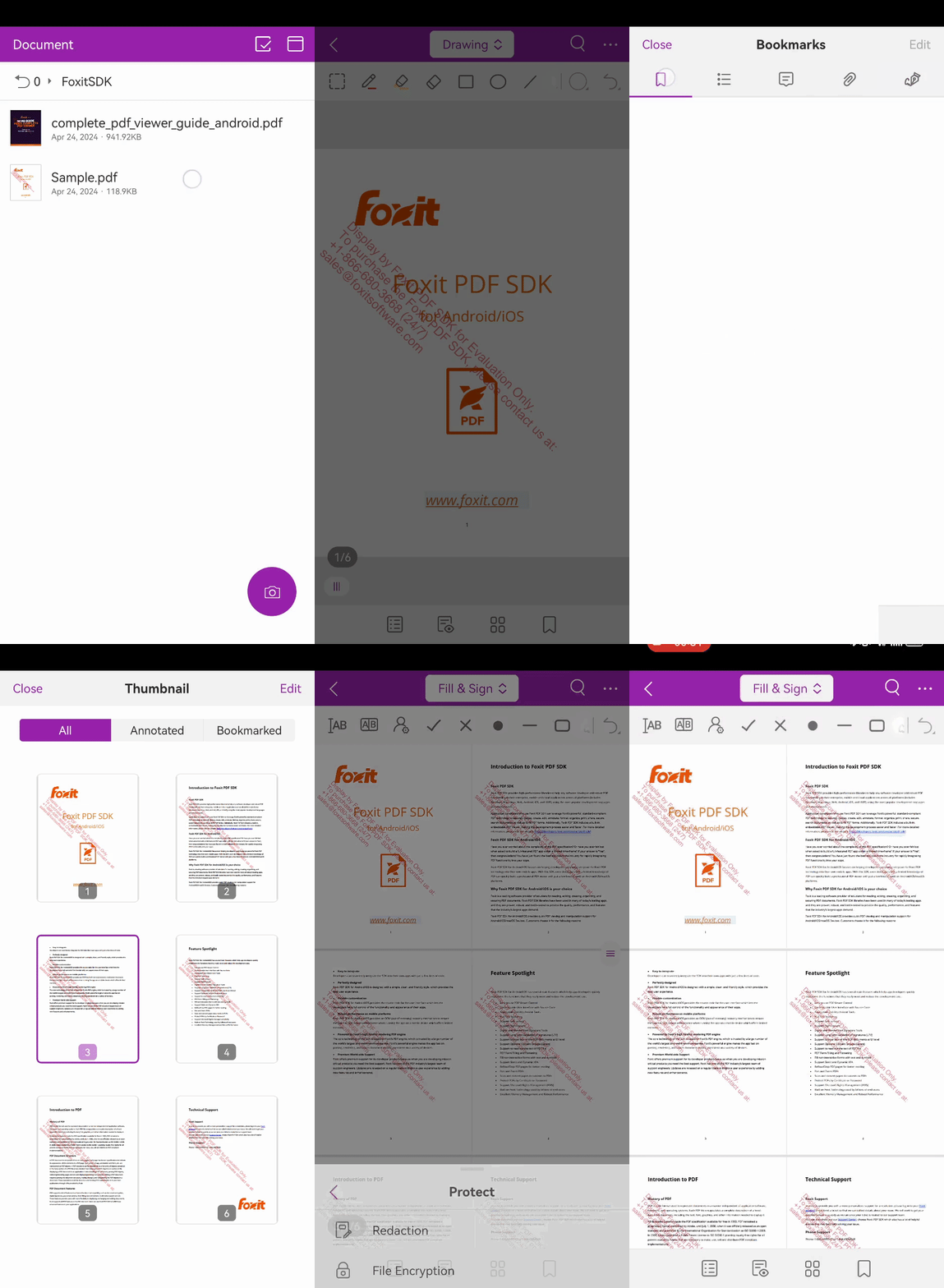
## Android Screen Shot
## Supported Platforms
- iOS
- Android
## iOS Quicks
1. The first argument in the preview method currently only supports absolute paths for incoming files.
You can obtain the absolute path to the file using the method provided by the [cordova-plugin-file] (https://github.com/apache/cordova-plugin-file) plugin.
Use the following command to add the [cordova-plugin-file] (https://github.com/apache/cordova-plugin-file) plugin to your project
```bash
cordova plugin add cordova-plugin-file
```
2. Note: in some cases the resource folders are not added correctly and the number of items is the same because of XCode bug.(e.g. Xcode 8.3.3)
In that case, remove the added reference from the project tree and add the Resource using the project tree - Add files to "YourProjectName". Remember to enable the option of "copy items if needed" and "create groups" when using this method.
If an error similar to the one in the following picture appears, try the method in step 2

## Quick Example
A PDF file needs to be placed in the project beforehand. The location is in the project root by default
```javascript
var filePathSaveTo = cordova.file.documentsDirectory + 'getting_started_ios_2.pdf'
window.FoxitPdf.setSavePath(filePathSaveTo);
var filePath cordova.file.applicationDirectory + 'getting_started_ios.pdf';
window.FoxitPdf.openDocument(filePath,'');
window.FoxitPdf.addEventListener('onDocOpened',function(data){
console.log('onDocOpened callback ',data);
console.log('onDocOpened callback info',data.info);
if (data.error == 0){
var data_type = 0x0002;
window.FoxitPdf.importFromFDF(cordova.file.documentsDirectory + 'Annot_all.fdf',data_type, [[0, 1]]);
}
});
```
## Attention
1. The product is still in its early stage of development. We will continue to focus on refining and improving this project.
2. If your cordova version is 7.0.0, you might encounter this problem:
no such file or directory, open 'xxxx/platforms/android/AndroidManifest.xml'
this is a cordova bug, and the solution is provided in the link below:
https://cordova.apache.org/announcements/2017/12/04/cordova-android-7.0.0.html
>However this a major breaking change for people creating standalone Cordova Android projects. This also means that the locations of files have changed and have been brought in line to the structure used by Android Studio.
This may affect plugin.xml files and config.xml files that use edit-config, and make it so plugins that use edit-config will not be able to be compatible with both Android 6.x and Android 7.x. To fix this issue, please do the following in your XML files
## Versions
>[v9.0.0](https://github.com/foxitsoftware/cordova-plugin-foxitpdf/tree/V9.0.0)
>[v8.4.0](https://github.com/foxitsoftware/cordova-plugin-foxitpdf/tree/V8.4.0)
>[v8.3.0](https://github.com/foxitsoftware/cordova-plugin-foxitpdf/tree/V8.3.0)
>[v8.2.0](https://github.com/foxitsoftware/cordova-plugin-foxitpdf/tree/V8.2.0)
>[v8.1.0](https://github.com/foxitsoftware/cordova-plugin-foxitpdf/tree/V8.1.0)
>[v8.0.0](https://github.com/foxitsoftware/cordova-plugin-foxitpdf/tree/V8.0.0)
>[v7.4.0](https://github.com/foxitsoftware/cordova-plugin-foxitpdf/tree/V7.4.0)
>[v7.3.0](https://github.com/foxitsoftware/cordova-plugin-foxitpdf/tree/V7.3.0)
>[v7.2.1](https://github.com/foxitsoftware/cordova-plugin-foxitpdf/tree/V7.2.1)
>[v7.2.0](https://github.com/foxitsoftware/cordova-plugin-foxitpdf/tree/V7.2.0)
>[v7.1.0](https://github.com/foxitsoftware/cordova-plugin-foxitpdf/tree/V7.1.0)
>[v7.0.0](https://github.com/foxitsoftware/cordova-plugin-foxitpdf/tree/V7.0.0)
>[v6.4.0](https://github.com/foxitsoftware/cordova-plugin-foxitpdf/tree/V6.4.0)
>[v6.3.0](https://github.com/foxitsoftware/cordova-plugin-foxitpdf/tree/V6.3.0)
>[v6.2.1](https://github.com/foxitsoftware/cordova-plugin-foxitpdf/tree/V6.2.1)
>[v6.2](https://github.com/foxitsoftware/cordova-plugin-foxitpdf/tree/V6.2)
>[v6.1](https://github.com/foxitsoftware/cordova-plugin-foxitpdf/tree/V6.1)
## Feedback or contribution code
You can ask us questions or report bugs in [here](https://github.com/foxitsoftware/cordova-plugin-foxitpdf/issues).
You can also send email **huang_niu@foxitsoftware.com** to explain your problem.
If you have a better code implementation, please fork this project and launch your Pull-Request, we will promptly deal with. Thanks!
## Request a Quote
If you encounter “Invalid license” tips, please go to the following URL for official trial license key:
https://developers.foxitsoftware.com/support
## More Support
http://forums.foxitsoftware.com/forum/portable-document-format-pdf-tools/foxit-cloud/cordova-plugin-foxitpdf