chimee-player
Version:
A complete set of H5 player
123 lines (90 loc) • 5.04 kB
Markdown
# ChimeePlayer
这是基于[chimee](https://github.com/Chimeejs/chimee)集成的一套您可以直接使用的HTML5播放器,提供有了默认样式,此时要避免CSS中给video写死宽高值---以避免全屏不能正常使用。
> 注意:当前文档适用于PC端,如果是移动端使用Chimee,您可以参考 [Chimee-mobile-player](https://github.com/Chimeejs/chimee-mobile-player/blob/master/README.md) 文档,移动端插件开发和注意事项可以参考[Chimee 移动端插件开发](https://github.com/Chimeejs/chimee-mobile-player/blob/master/doc/dev.md) 这篇文章。
并集成了以下官方UI插件:
> 1. [chimee-plugin-controlbar](https://github.com/Chimeejs/chimee-plugin-controlbar)
> 2. [chimee-plugin-center-state](https://github.com/Chimeejs/chimee-plugin-center-state)
> 3. [chimee-plugin-contextmenu](https://github.com/Chimeejs/chimee-plugin-contextmenu)
> 4. [chimee-plugin-log](https://github.com/Chimeejs/chimee-plugin-log)
也默认包含FLV&HLS解码器:
> 1. [chimee-kernel-flv](https://github.com/Chimeejs/chimee-kernel-flv)
> 2. [chimee-kernel-hls](https://github.com/Chimeejs/chimee-kernel-hls)
## 安装
首先根据您的业务场景,你可以直接将lib目录下适合的打包文件引入您的业务代码中,比如直接引用JS。
或者您的项目基于nodejs环境构建的话,直接执行 `npm install chimee-player --save`,然后再在代码中`import ChimeePlayer from 'chimee-player';`即可。
## 基本用法
基于点播场景,可以这样使用:
> 需要先给要放置播放器的DOM容器增加一个class `chimee-container`,或者您自己有对容器写position非static的值的话,可以省掉这步。
```javascript
new ChimeePlayer({
wrapper: '#wrapper', // video dom容器
src: 'http://cdn.toxicjohann.com/lostStar.mp4',
autoplay: true,
controls: true
});
```
如果您需要的是直播场景场景,可以根据您的媒体容器类型,参考以下配置:
```javascript
// HLS 直播
new ChimeePlayer({
wrapper: '#wrapper', // video dom容器
src: 'http://chimee.org/xxx/fff.m3u8',
box: 'hls',
isLive: true,
autoplay: true,
controls: true
});
// FLV 直播
new ChimeePlayer({
wrapper: '#wrapper', // video dom容器
src: 'http://chimee.org/xxx/fff.flv',
box: 'flv',
isLive: true,
autoplay: true, // 注:flv直播中autoplay设置false无效
controls: true
});
```
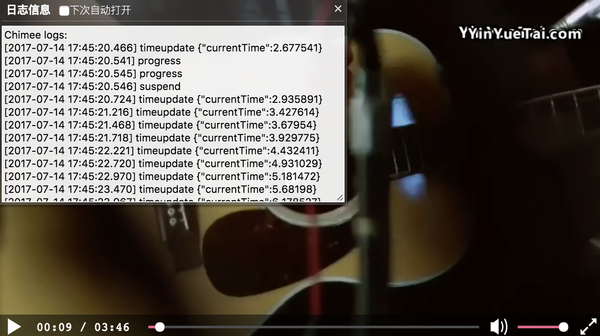
效果示例(本截图是已经点击右键“查看日志”开启日志输出之后的效果):
## 修改插件配置
> 通常我们需要将关键环节的日志信息上传到服务端,以生成观看报表、异常报表等数据分析内容,这里我们就以日志插件为例,了解怎么使用插件的属性配置。
你可以参考以下代码配置实现日志上报:
```javascript
new ChimeePlayer({
wrapper: '#wrapper', // video dom容器
src: 'http://cdn.toxicjohann.com/lostStar.mp4',
autoplay: true,
controls: true,
plugins: [{
name: 'chimeeLog',
// 告诉 chimeeLog 插件你有一个可以接受日志上报的服务端接口
logPostUrl: 'https://myDomain.xx/log_push'
}]
});
```
更详细的日志说明、上报字段控制等,请参考[chimee-plugin-log 插件说明](https://github.com/Chimeejs/chimee-plugin-log/blob/master/README.md)。
ChimeePlayer 打包的控制条插件也提供了很多定制化配置,具体请先考[chimee-plugin-controlbar 插件说明](https://github.com/Chimeejs/chimee-plugin-controlbar#chimee-plugin-controlbar).
## 添加自定义插件
> 这里以使用 ChimeePlayer.popupFactory 工厂方法创建插件为例。
```javascript
Chimee.install(ChimeePlayer.popupFactory({
name: 'my_popup',
title: '这是一个居中信息框',
body: '这里是信息内容',
offset: '50% 50%',
width: '200px'
}));
new ChimeePlayer({
wrapper: '#wrapper', // video dom容器
src: 'http://cdn.toxicjohann.com/lostStar.mp4',
autoplay: true,
controls: true,
plugins: ['my_popup']
});
```
这样就可以非常方便的创建自己的UI组件了,更多插件开发相关说明,请参考[如何编写一个UI插件](https://github.com/Chimeejs/chimee/blob/master/doc/zh-cn/how-to-write-a-popup-plugin.md)。
## 二次开发
当前播放器因为包含了几乎全量的官方插件,打包后体积偏大(打包文件 1.4M,uglify 处理后 514KB, [gzip后 136KB](https://s2.ssl.qhres.com/!1f6e9263/index.browser.js)),如果您希望使用更符合业务场景体积更小的代码量(比如你可能不需要FLV或HLS解码器),那可以适当删减 `src/index.js` 中的代码后,重新 `npm run build` 得到想要的打包代码。
## 兼容 IE
Chimee 本身的设计是兼容 IE 的, 但是需要 [babel-polyfill](https://babeljs.io/docs/usage/polyfill/) 的支持。因此如果你确实需要在 IE 中使用 chimee, 请确保你已引入 babel-polyfill。
*希望您用着方便,有相应问题请随时反馈。*