chatskills
Version:
Run Alexa apps on the command-line. Run them in Slack. Run them anywhere! Supports Amazon Alexa skills and intents.
451 lines (337 loc) • 16.5 kB
Markdown
Chatskills
----------
Run [Alexa](https://developer.amazon.com/public/solutions/alexa/alexa-skills-kit/getting-started-guide) apps on the command-line. Run them in Slack. Run them anywhere! Supports Amazon Alexa skills and intents.
```bash
$ npm install chatskills
```
Chatskills is a quick and easy way to run Alexa apps outside of Amazon. Easily create your skills and intents and run them right on the command-line!
Chatskills does not require a server and can run directly in the console. It can also run on the web, or Slack, or anywhere. It handles requests from multiple users and maintains session memory. When a user starts a conversation with one of the skills, the skill continues to execute within a session context, until the skill terminates.
Here's what an Amazon Alexa app looks like, running on the command-line.
## Example
```
> chatskills, ask hello to say hi.
Hello, World!
> chatskills, ask horoscope for Scorpio.
Things are looking up today for Scorpio.
> chatskills, ask funny to tell me a joke
Knock knock.
> who's there?
Banana.
> banana who
Knock knock.
> whos there
Orange.
> orange who?
Orange you glad I didn't say banana?
```
In this example, the user accesses three different skills: [hello](https://github.com/primaryobjects/chatskills/blob/master/test.js#L4-L15), [horoscope](https://github.com/primaryobjects/chatskills/blob/master/horoscope.js), and [funny](https://github.com/primaryobjects/chatskills/blob/master/funny.js).
## Usage
Using chatskills is easy. Use the Alexa syntax to add a new skill, then create some intents. Here's a simple example.
```javascript
var chatskills = require('chatskills');
// Create a skill.
var hello = chatskills.app('hello');
// Create an intent.
hello.intent('helloWorld', {
'slots': {},
'utterances': [ '{to |}{say|speak|tell me} {hi|hello|howdy|hi there|hiya|hi ya|hey|hay|heya}' ]
},
function(req, res) {
res.say('Hello, World!');
}
);
// Respond to input.
chatskills.respond('chatskills, ask hello to say hi', function(response) {
console.log(response);
});
```
In the above example, the utterances grammar automatically expands to match on the following phrases:
```
helloWorld to say hi
helloWorld say hi
helloWorld to speak hi
helloWorld speak hi
helloWorld to tell me hi
helloWorld tell me hi
helloWorld to say hello
helloWorld say hello
helloWorld to speak hello
helloWorld speak hello
helloWorld to tell me hello
helloWorld tell me hello
helloWorld to say howdy
...
```
To interact with the chatbot using this skill, say any of the target phrases. In the above example, we've used the phrase "to say hi", but you can match against any of the generated phrases. For example:
```
> chatskills, ask hello to tell me hi
Hello, World!
> chatskills, ask hello to say hello
Hello, World!
> chatskills, ask hello to say howdy
Hello, World!
```
## Reading from the Console
To create a chatbot that runs locally on the console, just include a loop for reading input.
```javascript
var readlineSync = require('readline-sync');
// Console client.
var text = ' ';
while (text.length > 0 && text != 'quit') {
text = readlineSync.question('> ');
// Respond to input.
chatskills.respond(text, function(response) {
console.log(response);
});
}
```
If you're using async calls in your skills (such as request, etc) then you'll want to use an async loop, instead of the while loop above. Here's an [example](https://github.com/primaryobjects/chatskills/blob/master/chatbot.js#L39).
## Reading from Slack
You don't have to use just the console! You can run your chatbot anywhere, like Slack. See [here](https://gist.github.com/primaryobjects/e1a182c7ef2f8d33731e) for full example.
```javascript
var SlackBot = require('slackbots');
var bot = new SlackBot({ token: token, name: 'awesome' });
// Listen to slack messages.
bot.on('message', function(message) {
// Reply to humans.
if (message.type == 'message' && message.text && message.subtype != 'bot_message') {
var author = getUserById(message.user);
var channel = getChannelById(message.channel);
// Respond to input, use author.name as the session id.
chatskills.respond(message.text, author.name, function(response) {
if (channel) {
// Public channel message.
bot.postMessageToChannel(channel.name, response);
}
else {
// Private message.
bot.postMessageToUser(author.name, response);
}
});
}
});
```
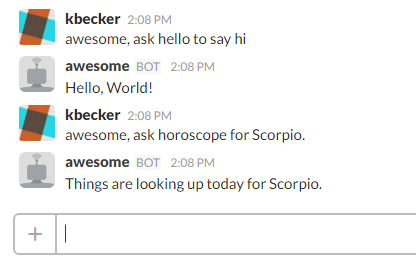
## Creating a Skill
Skills are programs that your chatbot can run. They consist of intents, which are composed of utterances (phrases to match from the user input), responses, and session memory. Each skill can access session memory, so you can store and retrieve variables to help with responding intelligently to the user.
Here's an example of creating a new skill, named "horoscope".
```javascript
var horoscope = chatskills.app('horoscope');
```
## Creating an Intent
Skills are made up of intents. This is where input from the user is matched against an array of utterances. When a match is found, that intent is executed. An intent can get/set variables in the user session by calling ```req.get('variable')``` and ```req.set('variable', value)```. An intent can output a response by calling ```res.say('hello')```.
Here's an example of creating a new intent for the skill "horoscope".
```javascript
horoscope.intent('predict', {
'slots': {'SIGN':'LITERAL'},
'utterances': [ 'for {signs|SIGN}' ]
},
function(req, res) {
res.say('Things are looking up today for ' + req.get('SIGN') + '.');
}
);
```
This intent can be interacted with like this:
```
> chatskills, ask horoscope for Scorpio
Things are looking up today for Scorpio.
```
## Launching a Skill
There are two ways to begin running a skill.
#### Using an Intent to "Run"
The first way to launch a skill is to create an intent such as, "run". This would let you enter: "chatskills, ask [skillname] to run.". Provided the intent has a return value of true (to keep the session alive), your skill will now be running.
An example of a "run" skill can be found in [guessinggame](https://github.com/primaryobjects/chatskills/blob/master/guessinggame.js).
```javascript
app.intent('run', {
"slots": {},
"utterances": ["{to|} {run|start|go|launch}"]
}, function(req, res) {
var prompt = "Guess a number between 1 and 100!";
res.say(prompt).reprompt(prompt).shouldEndSession(false);
}
);
```
#### Using the Launch Method
The second way to launch a skill is to create a launch method to automatically run upon starting your app. Then simply call `chatskills.launch(app)` to start your skill. You can pass the skill or the name of the skill. You can also provide an optional unique sessionId.
Example: `chatskills.launch(app)` or `chatskills.launch('horoscope')` or `chatskills.launch('horoscope', 'some-unique-id')`.
Here's a complete [example](https://github.com/primaryobjects/chatskills/blob/master/hello.js).
```javascript
var chatskills = require('./lib/chatskills');
var readlineSync = require('readline-sync');
// Create a skill.
var hello = chatskills.app('hello');
// Launch method to run at startup.
hello.launch(function(req,res) {
res.say("Ask me to say hi!");
// Keep session open.
res.shouldEndSession(false);
});
// Create an intent.
hello.intent('helloWorld', {
'slots': {},
'utterances': [ '{to |}{say|speak|tell me} {hi|hello|howdy|hi there|hiya|hi ya|hey|hay|heya}' ]
},
function(req, res) {
res.say('Hello, World!');
}
);
// Start running our skill.
chatskills.launch(hello);
// Console client.
var text = ' ';
while (text.length > 0 && text != 'quit') {
text = readlineSync.question('> ');
// Respond to input.
chatskills.respond(text, function(response) {
console.log(response);
});
}
```
## Starting and Ending a Session
When a user provides input, the input is matched against each skill and their list of intents. When a match is found, a new session starts, and the skill begins executing.
When a session has started for a user, the activated skill's intent can get/set variable values within the session. This allows you to store and retrieve data.
While a session is open for a user, all input from the user is directed to the activated skill. In this manner, the user does not need to re-request a skill ("chatskills, ask hello to say hi"). Instead, the user can simply provide text, which will be matched against the currently executing skill's intents.
An intent can keep a session open by returning `true` or by calling `res.shouldEndSession(false)` and end a session by returning `false` or by calling `res.shouldEndSession(true)`. An intent may also omit a return statement, which is the same as returning false.
For an example using session, see the [horoscope](https://github.com/primaryobjects/chatskills/blob/master/horoscope.js#L31) skill. Notice, the intent asks the user a question and then returns true to keep the session going. The intent only returns false once a valid response is given, thus, ending the session.
In summary, when a user session is open, all input from the user is directed to the skill. When a user session is ended, input from the user must be received in the format, "chatskills, ask [SKILL] text", to execute a new skill.
## Session Timeout
The default session timeout is 1 hour of no input from the user. To change the session timeout, set ```chatskills.timeout = 3600```, where the value is specified in seconds. To disable session timeout, set the value to 0.
## Changing the Chatbot Name
The default chatbot name is "chatskills". All requests to execute a skill must begin with the chatbot name. For example, "chatskills, ask hello to say hi". To customize the chatbot name, use the following:
```javascript
chatskills.name('awesome');
```
## Verbose Output
To display warnings and errors, set ```chatskills.verbose = true```.
## Schema and Utterances
Chatskills uses [alexa-app](https://www.npmjs.com/package/alexa-app) to generate many sample utterances from your intents. For a more detailed description of utterances, see [here](https://www.npmjs.com/package/alexa-app#schema-and-utterances).
### Schema Syntax
Pass an object with two properties: slots and utterances.
```javascript
app.intent('sampleIntent',
{
"slots":{"NAME":"LITERAL","AGE":"NUMBER"},
"utterances":[ "my {name is|name's} {names|NAME} and {I am|I'm} {1-100|AGE}{ years old|}" ]
},
function(request,response) { ... }
);
```
#### Slots
The slots object is a simple Name:Type mapping. The type must be one of Amazon's supported slot types: LITERAL, NUMBER, DATE, TIME, DURATION
#### Custom Slot Types
As a replacement for the `LITERAL` slot type, which is no longer being supported by Amazon, it is recommended to use custom slot types in its place. Here is an example of defining a custom slot type for `DragonType`.
```javascript
app.intent('attack',
{
'slots': { 'DragonType': 'DRAGONTYPE' },
'utterances': ['{attack|fight|hit|use} {sword|dagger|wand} on {-|DragonType} dragon']
}, function(request,response) {
response.say('You are attacking the ' + request.slot('DragonType') + ' dragon!');
}
);
```
You can include custom slot types within utterances by using the syntax `{-|CustomTypeName}`. This indicates that the term should come from a list of values for the custom slot type. In the example above, the utterance uses the term `{-|DragonType}`, indicating a term should come from the list of values (shown below). For chatskills, a list of values does not need to be provided - any word will be accepted for a custom slot type and used as its value.
If publishing to the Amazon Alexa service, you would provide the custom slot types for `DragonType` by specifying the type name and a list of values. For example:
Type:
`DRAGONTYPE`
Values:
```
golden
fire
ice
water
snow
```
Note, chatskills and Amazon Alexa will actually accept any word for the custom slot value. It doesn't have to match a word from the list of values. In this manner, custom slot types are similar to `LITERAL`.
#### Utterances
The utterances syntax allows you to generate many (hundreds or even thousands) of sample utterances using just a few samples that get auto-expanded. Any number of sample utterances may be passed in the utterances array. Below are some sample utterances macros and what they will be expanded to.
#### Multiple Options mapped to a Slot
```
"my favorite color is {red|green|blue|NAME}"
=>
"my favorite color is {red|NAME}"
"my favorite color is {green|NAME}"
"my favorite color is {blue|NAME}"
```
#### Generate Multiple Versions of Static Text
This lets you define multiple ways to say a phrase, but combined into a single sample utterance
```
"{what is the|what's the|check the} status"
=>
"what is the status"
"what's the status"
"check the status"
```
#### Auto-Generated Number Ranges
When capturing a numeric slot value, it's helpful to generate many sample utterances with different number values
```
"buy {2-5|NUMBER} items"
=>
"buy {two|NUMBER} items"
"buy {three|NUMBER} items"
"buy {four|NUMBER} items"
"buy {five|NUMBER} items"
```
Number ranges can also increment in steps
```
"buy {5-20 by 5|NUMBER} items"
=>
"buy {five|NUMBER} items"
"buy {ten|NUMBER} items"
"buy {fifteen|NUMBER} items"
"buy {twenty|NUMBER} items"
```
#### Optional Words
```
"what is your {favorite |}color"
=>
"what is your color"
"what is your favorite color"
```
#### Using a Dictionary
Several intents may use the same list of possible values, so you want to define them in one place, not in each intent schema. Use the app's dictionary.
```
app.dictionary = {"colors":["red","green","blue"]};
...
"my favorite color is {colors|FAVEORITE_COLOR}"
"I like {colors|COLOR}"
```
## Displaying Home Cards
You can display Amazon Alexa Home [Cards](https://developer.amazon.com/public/solutions/alexa/alexa-skills-kit/docs/providing-home-cards-for-the-amazon-alexa-app#Creating%20a%20Home%20Card%20to%20Display%20Text%20and%20an%20Image) by handling the card [object](https://www.npmjs.com/package/alexa-app#card-examples) returned in the response method. When using alexa-app, the home card will be displayed in the Amazon Alexa App on your mobile device. When using chatskills, the home card can be handled in the `chatskills.respond()` callback method, which returns two arguments: `response` and `card`.
Using the card object, you can display the card's text and image in any manner you wish. For example, if hosting your chatskills app in Slack, you may want to show the image as embedded media. Likewise, if hosting as a text chatbot on the console, you may simply want to output the card as text.
Below is an example.
```javascript
app.intent('example', {
"slots": {},
"utterances": ["show a card"]
}, function(req, res) {
// Show home card in Alexa app.
res.card({
type: 'Standard',
title: 'My Awesome Card', // this is not required for type Simple or Standard
text: 'This is an example of an Alexa home card.',
image: { // image is optional
smallImageUrl: 'http://www.yoursite.com/image.jpg', // required
largeImageUrl: null
}
});
});
// Respond to input.
chatskills.respond(text, function(response, card) {
if (!card) {
// Text response from res.say() method.
console.log(response);
}
else {
// Home card response from res.card() method.
console.log('[DISPLAYING CARD: Title=' + card.title + ', Text=' + card.text + ']');
}
});
```
License
----
MIT
Author
----
Kory Becker
http://www.primaryobjects.com/kory-becker