chameleons-vue
Version:
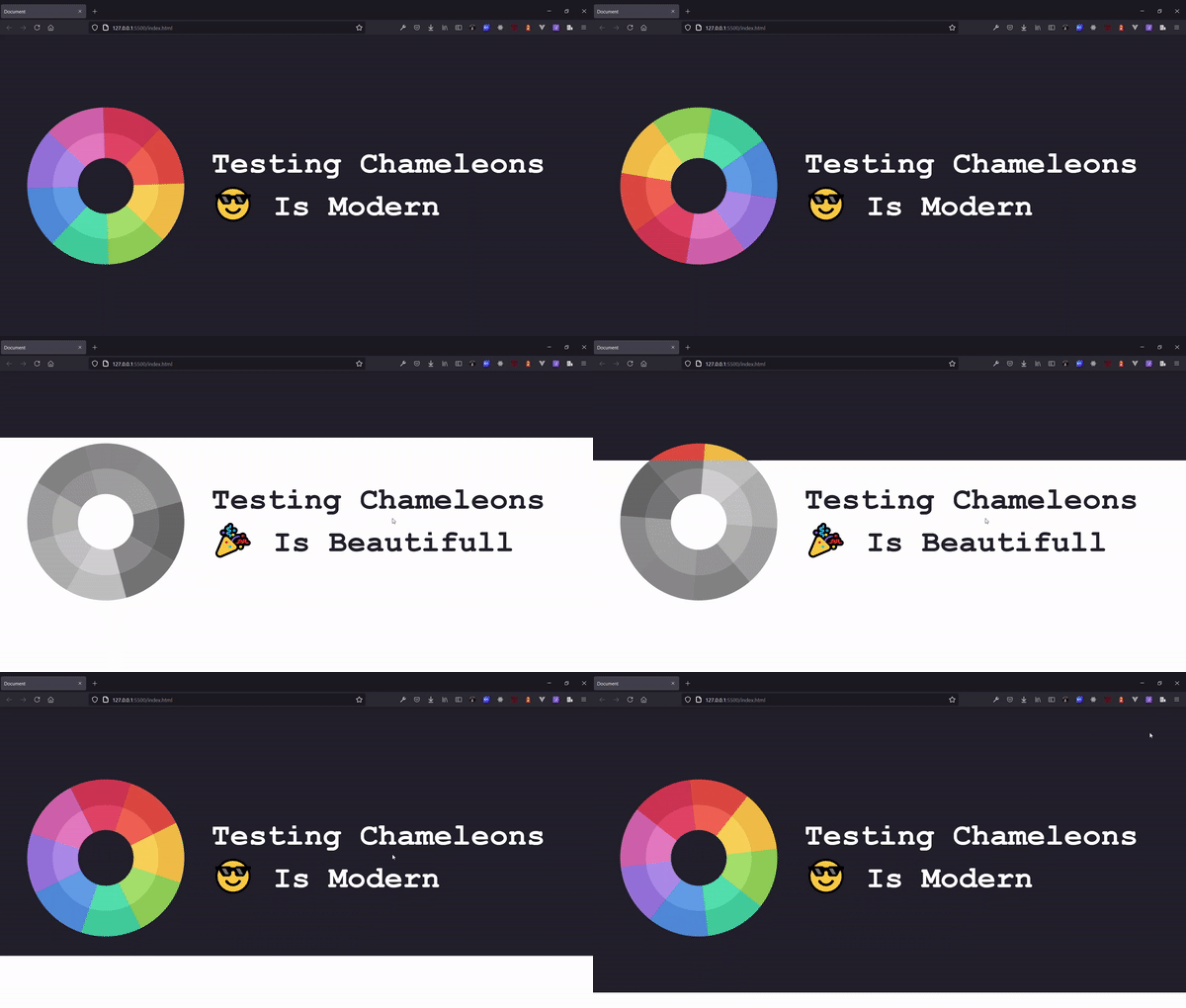
Create a beautiful cut effect to your fixed element and change its color with cut effect when scrolling
131 lines (101 loc) • 3.16 kB
Markdown
# Chameleons for Vue.JS (BETA)
Create a beautiful cut effect to your fixed element and change its color with cut effect when scrolling. Zero dependecy.
# Install
```bash
npm install chameleons-vue
```
# Usage
### Required Attributes
- Apply the attribute `chameleons` to the parent element of your fixed element, to apply the effect.
- Add `chameleons-tag` to activate your section element
### Option Atributtes
- Use `chameleons-apply="your_class"` to apply these styles to your fixed element when this element passes below in the scroll
- Use `chameleons-data='{"fixedName":"your_class"}'` to add a class to a specific fixed element.
- The attribute `chameleons-name="fixedName"` is used for adding a name to your fixed element's parent, so you can use the next atributte for applying a class.
- If you want to keep a class in the container where you applied chameleons just put your CSS class in the attribute ```chameleons-ignore ="myClass otherClass"```
### NavBar.vue
```html
<template>
<!--The parent of the fixed element -->
<header chameleons chameleons-name="MyFixedNav">
<nav class="fixed">
<!-- Your elements or content here -->
</nav>
</header>
</template>
```
### App.vue
```html
<template>
<!-- Vue Component - Fixed Element -->
<NavigationBar />
<!-- Your Content Sections -->
<section chameleons-tag chameleons-apply="your_class">
<!-- Your Content Here -->
</section>
<section chameleons-tag chameleons-data='{"MyFixedNav":"your_class"}'>
<!-- Your Content Here -->
</section>
</template>
<script>
import Vue from "vue";
import Chameleons from "chameleons-vue";
import NavigationBar from "./components/NavigationBar";
export default {
name: "MyComponent",
components: {
NavigationBar,
},
updated(){
Chameleons(Vue, NavigationBar);
},
}
</script>
<style>
.your_class{
background-color: #21212C;
color: white;
}
.your_other_class{
background-color: white;
color: #21212C;
}
</style>
```
> If for some reason you have problems applying `z-index` use the CSS class `non-index` or `chameleons-visible` to fix default `overflow-hidden` in your section.
>Chameleons require `Vue` and `VueComponent` as params to work.
# Reactivity
> If you want to maintain the reactivity of your fixed element you can create a global state
# How to use with TailwindCSS
You can do it by adding '@apply' inside the class you set using `chameleons-apply="your_class"`
### CSS File:
```css
.your_class{
@apply bg-dark-700 rounded;
}
.your_class h1{
@apply text-xl font-bold;
}
.your_class p{
@apply text-justify;
}
```
### In your HTML or Template:
```html
<template>
<!-- Your fixed parent -->
<header chameleons>
<nav class="fixed">
<!-- Your elements or content here -->
</nav>
</header>
<!-- Your Content Sections -->
<section chameleons-apply="your_class_with_tailwind">
<!-- Your Content Here -->
</section>
<section chameleons-apply="your_class_with_tailwind">
<!-- Your Content Here -->
</section>
</template>
```