bun-types
Version:
Type definitions and documentation for Bun, an incredibly fast JavaScript runtime
607 lines (420 loc) • 21.7 kB
text/mdx
---
title: "bun install"
description: "Install packages with Bun's fast package manager"
---
import Install from "/snippets/cli/install.mdx";
## Basic Usage
```bash terminal icon="terminal"
bun install react
bun install react@19.1.1 # specific version
bun install react@latest # specific tag
```
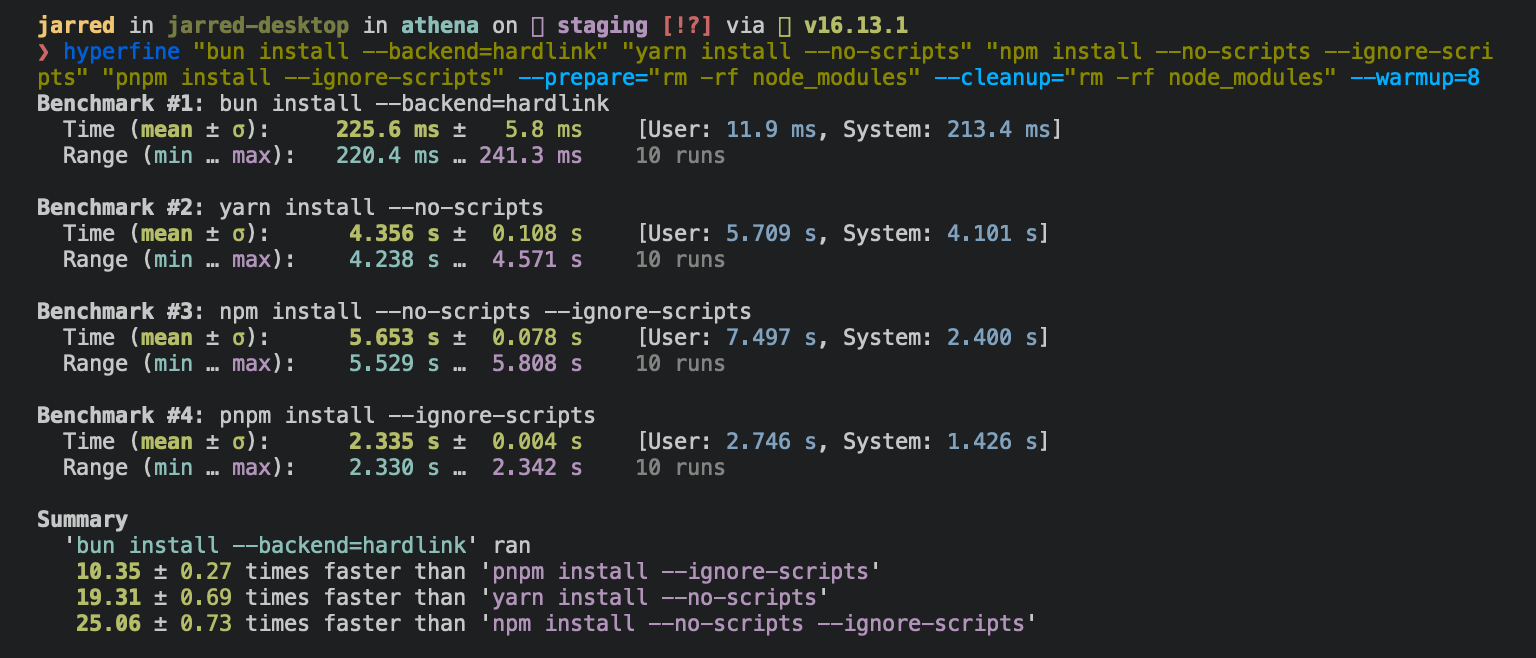
The `bun` CLI contains a Node.js-compatible package manager designed to be a dramatically faster replacement for `npm`, `yarn`, and `pnpm`. It's a standalone tool that will work in pre-existing Node.js projects; if your project has a `package.json`, `bun install` can help you speed up your workflow.
<Note>
**⚡️ 25x faster** — Switch from `npm install` to `bun install` in any Node.js project to make your installations up to 25x faster.
<Frame>
</Frame>
</Note>
<Accordion title="For Linux users">
The recommended minimum Linux Kernel version is 5.6. If you're on Linux kernel 5.1 - 5.5, `bun install` will work, but HTTP requests will be slow due to a lack of support for io_uring's `connect()` operation.
If you're using Ubuntu 20.04, here's how to install a [newer kernel](https://wiki.ubuntu.com/Kernel/LTSEnablementStack):
```bash terminal icon="terminal"
# If this returns a version >= 5.6, you don't need to do anything
uname -r
# Install the official Ubuntu hardware enablement kernel
sudo apt install --install-recommends linux-generic-hwe-20.04
```
</Accordion>
To install all dependencies of a project:
```bash terminal icon="terminal"
bun install
```
Running `bun install` will:
- **Install** all `dependencies`, `devDependencies`, and `optionalDependencies`. Bun will install `peerDependencies` by default.
- **Run** your project's `{pre|post}install` and `{pre|post}prepare` scripts at the appropriate time. For security reasons Bun _does not execute_ lifecycle scripts of installed dependencies.
- **Write** a `bun.lock` lockfile to the project root.
---
## Logging
To modify logging verbosity:
```bash terminal icon="terminal"
bun install --verbose # debug logging
bun install --silent # no logging
```
---
## Lifecycle scripts
Unlike other npm clients, Bun does not execute arbitrary lifecycle scripts like `postinstall` for installed dependencies. Executing arbitrary scripts represents a potential security risk.
To tell Bun to allow lifecycle scripts for a particular package, add the package to `trustedDependencies` in your package.json.
```json package.json icon="file-json"
{
"name": "my-app",
"version": "1.0.0",
"trustedDependencies": ["my-trusted-package"] // [!code ++]
}
```
Then re-install the package. Bun will read this field and run lifecycle scripts for `my-trusted-package`.
Lifecycle scripts will run in parallel during installation. To adjust the maximum number of concurrent scripts, use the `--concurrent-scripts` flag. The default is two times the reported cpu count or GOMAXPROCS.
```bash terminal icon="terminal"
bun install --concurrent-scripts 5
```
Bun automatically optimizes postinstall scripts for popular packages (like `esbuild`, `sharp`, etc.) by determining which scripts need to run. To disable these optimizations:
```bash terminal icon="terminal"
BUN_FEATURE_FLAG_DISABLE_NATIVE_DEPENDENCY_LINKER=1 bun install
BUN_FEATURE_FLAG_DISABLE_IGNORE_SCRIPTS=1 bun install
```
---
## Workspaces
Bun supports `"workspaces"` in package.json. For complete documentation refer to [Package manager > Workspaces](/docs/pm/workspaces).
```json package.json icon="file-json"
{
"name": "my-app",
"version": "1.0.0",
"workspaces": ["packages/*"], // [!code ++]
"dependencies": {
"preact": "^10.5.13"
}
}
```
---
## Installing dependencies for specific packages
In a monorepo, you can install the dependencies for a subset of packages using the `--filter` flag.
```bash terminal icon="terminal"
# Install dependencies for all workspaces except `pkg-c`
bun install --filter '!pkg-c'
# Install dependencies for only `pkg-a` in `./packages/pkg-a`
bun install --filter './packages/pkg-a'
```
For more information on filtering with `bun install`, refer to [Package Manager > Filtering](/docs/pm/filter#bun-install-and-bun-outdated)
---
## Overrides and resolutions
Bun supports npm's `"overrides"` and Yarn's `"resolutions"` in `package.json`. These are mechanisms for specifying a version range for _metadependencies_—the dependencies of your dependencies. Refer to [Package manager > Overrides and resolutions](/docs/pm/overrides) for complete documentation.
{/* prettier-ignore */}
```json package.json icon="file-json"
{
"name": "my-app",
"dependencies": {
"foo": "^2.0.0"
},
"overrides": { // [!code ++]
"bar": "~4.4.0" // [!code ++]
} // [!code ++]
}
```
---
## Global packages
To install a package globally, use the `-g`/`--global` flag. Typically this is used for installing command-line tools.
```bash terminal icon="terminal"
bun install --global cowsay # or `bun install -g cowsay`
cowsay "Bun!"
```
```txt
______
< Bun! >
------
\ ^__^
\ (oo)\_______
(__)\ )\/\
||----w |
|| ||
```
---
## Production mode
To install in production mode (i.e. without `devDependencies` or `optionalDependencies`):
```bash terminal icon="terminal"
bun install --production
```
For reproducible installs, use `--frozen-lockfile`. This will install the exact versions of each package specified in the lockfile. If your `package.json` disagrees with `bun.lock`, Bun will exit with an error. The lockfile will not be updated.
```bash terminal icon="terminal"
bun install --frozen-lockfile
```
For more information on Bun's lockfile `bun.lock`, refer to [Package manager > Lockfile](/docs/pm/lockfile).
---
## Omitting dependencies
To omit dev, peer, or optional dependencies use the `--omit` flag.
```bash terminal icon="terminal"
# Exclude "devDependencies" from the installation. This will apply to the
# root package and workspaces if they exist. Transitive dependencies will
# not have "devDependencies".
bun install --omit dev
# Install only dependencies from "dependencies"
bun install --omit=dev --omit=peer --omit=optional
```
---
## Dry run
To perform a dry run (i.e. don't actually install anything):
```bash terminal icon="terminal"
bun install --dry-run
```
---
## Non-npm dependencies
Bun supports installing dependencies from Git, GitHub, and local or remotely-hosted tarballs. For complete documentation refer to [Package manager > Git, GitHub, and tarball dependencies](/docs/pm/cli/add).
```json package.json icon="file-json"
{
"dependencies": {
"dayjs": "git+https://github.com/iamkun/dayjs.git",
"lodash": "git+ssh://github.com/lodash/lodash.git#4.17.21",
"moment": "git@github.com:moment/moment.git",
"zod": "github:colinhacks/zod",
"react": "https://registry.npmjs.org/react/-/react-18.2.0.tgz",
"bun-types": "npm:@types/bun"
}
}
```
---
## Installation strategies
Bun supports two package installation strategies that determine how dependencies are organized in `node_modules`:
### Hoisted installs
The traditional npm/Yarn approach that flattens dependencies into a shared `node_modules` directory:
```bash terminal icon="terminal"
bun install --linker hoisted
```
### Isolated installs
A pnpm-like approach that creates strict dependency isolation to prevent phantom dependencies:
```bash terminal icon="terminal"
bun install --linker isolated
```
Isolated installs create a central package store in `node_modules/.bun/` with symlinks in the top-level `node_modules`. This ensures packages can only access their declared dependencies.
### Default strategy
The default linker strategy depends on whether you're starting fresh or have an existing project:
- **New workspaces/monorepos**: `isolated` (prevents phantom dependencies)
- **New single-package projects**: `hoisted` (traditional npm behavior)
- **Existing projects (made pre-v1.3.2)**: `hoisted` (preserves backward compatibility)
The default is controlled by a `configVersion` field in your lockfile. For a detailed explanation, see [Package manager > Isolated installs](/docs/pm/isolated-installs).
---
## Minimum release age
To protect against supply chain attacks where malicious packages are quickly published, you can configure a minimum age requirement for npm packages. Package versions published more recently than the specified threshold (in seconds) will be filtered out during installation.
```bash terminal icon="terminal"
# Only install package versions published at least 3 days ago
bun add @types/bun --minimum-release-age 259200 # seconds
```
You can also configure this in `bunfig.toml`:
```toml bunfig.toml icon="settings"
[install]
# Only install package versions published at least 3 days ago
minimumReleaseAge = 259200 # seconds
# Exclude trusted packages from the age gate
minimumReleaseAgeExcludes = ["@types/node", "typescript"]
```
When the minimum age filter is active:
- Only affects new package resolution - existing packages in `bun.lock` remain unchanged
- All dependencies (direct and transitive) are filtered to meet the age requirement when being resolved
- When versions are blocked by the age gate, a stability check detects rapid bugfix patterns
- If multiple versions were published close together just outside your age gate, it extends the filter to skip those potentially unstable versions and selects an older, more mature version
- Searches up to 7 days after the age gate, however if still finding rapid releases it ignores stability check
- Exact version requests (like `package@1.1.1`) still respect the age gate but bypass the stability check
- Versions without a `time` field are treated as passing the age check (npm registry should always provide timestamps)
For more advanced security scanning, including integration with services & custom filtering, see [Package manager > Security Scanner API](/docs/pm/security-scanner-api).
---
## Configuration
### Configuring `bun install` with `bunfig.toml`
`bunfig.toml` is searched for in the following paths on `bun install`, `bun remove`, and `bun add`:
1. `$XDG_CONFIG_HOME/.bunfig.toml` or `$HOME/.bunfig.toml`
2. `./bunfig.toml`
If both are found, the results are merged together.
Configuring with `bunfig.toml` is optional. Bun tries to be zero configuration in general, but that's not always possible. The default behavior of `bun install` can be configured in `bunfig.toml`. The default values are shown below.
```toml bunfig.toml icon="settings"
[install]
# whether to install optionalDependencies
optional = true
# whether to install devDependencies
dev = true
# whether to install peerDependencies
peer = true
# equivalent to `--production` flag
production = false
# equivalent to `--save-text-lockfile` flag
saveTextLockfile = false
# equivalent to `--frozen-lockfile` flag
frozenLockfile = false
# equivalent to `--dry-run` flag
dryRun = false
# equivalent to `--concurrent-scripts` flag
concurrentScripts = 16 # (cpu count or GOMAXPROCS) x2
# installation strategy: "hoisted" or "isolated"
# default depends on lockfile configVersion and workspaces:
# - configVersion = 1: "isolated" if using workspaces, otherwise "hoisted"
# - configVersion = 0: "hoisted"
linker = "hoisted"
# minimum age config
minimumReleaseAge = 259200 # seconds
minimumReleaseAgeExcludes = ["@types/node", "typescript"]
```
### Configuring with environment variables
Environment variables have a higher priority than `bunfig.toml`.
| Name | Description |
| ---------------------------------- | ------------------------------------------------------------- |
| `BUN_CONFIG_REGISTRY` | Set an npm registry (default: https://registry.npmjs.org) |
| `BUN_CONFIG_TOKEN` | Set an auth token (currently does nothing) |
| `BUN_CONFIG_YARN_LOCKFILE` | Save a Yarn v1-style yarn.lock |
| `BUN_CONFIG_LINK_NATIVE_BINS` | Point `bin` in package.json to a platform-specific dependency |
| `BUN_CONFIG_SKIP_SAVE_LOCKFILE` | Don’t save a lockfile |
| `BUN_CONFIG_SKIP_LOAD_LOCKFILE` | Don’t load a lockfile |
| `BUN_CONFIG_SKIP_INSTALL_PACKAGES` | Don’t install any packages |
Bun always tries to use the fastest available installation method for the target platform. On macOS, that’s `clonefile` and on Linux, that’s `hardlink`. You can change which installation method is used with the `--backend` flag. When unavailable or on error, `clonefile` and `hardlink` fallsback to a platform-specific implementation of copying files.
Bun stores installed packages from npm in `~/.bun/install/cache/${name}@${version}`. Note that if the semver version has a `build` or a `pre` tag, it is replaced with a hash of that value instead. This is to reduce the chances of errors from long file paths, but unfortunately complicates figuring out where a package was installed on disk.
When the `node_modules` folder exists, before installing, Bun checks if the `"name"` and `"version"` in `package/package.json` in the expected node_modules folder matches the expected `name` and `version`. This is how it determines whether it should install. It uses a custom JSON parser which stops parsing as soon as it finds `"name"` and `"version"`.
When a `bun.lock` doesn’t exist or `package.json` has changed dependencies, tarballs are downloaded & extracted eagerly while resolving.
When a `bun.lock` exists and `package.json` hasn’t changed, Bun downloads missing dependencies lazily. If the package with a matching `name` & `version` already exists in the expected location within `node_modules`, Bun won’t attempt to download the tarball.
## CI/CD
Use the official [`oven-sh/setup-bun`](https://github.com/oven-sh/setup-bun) action to install `bun` in a GitHub Actions pipeline:
```yaml .github/workflows/release.yml icon="file-code"
name: bun-types
jobs:
build:
name: build-app
runs-on: ubuntu-latest
steps:
- name: Checkout repo
uses: actions/checkout@v4
- name: Install bun
uses: oven-sh/setup-bun@v2
- name: Install dependencies
run: bun install
- name: Build app
run: bun run build
```
For CI/CD environments that want to enforce reproducible builds, use `bun ci` to fail the build if the package.json is out of sync with the lockfile:
```bash terminal icon="terminal"
bun ci
```
This is equivalent to `bun install --frozen-lockfile`. It installs exact versions from `bun.lock` and fails if `package.json` doesn't match the lockfile. To use `bun ci` or `bun install --frozen-lockfile`, you must commit `bun.lock` to version control.
And instead of running `bun install`, run `bun ci`.
```yaml .github/workflows/release.yml icon="file-code"
name: bun-types
jobs:
build:
name: build-app
runs-on: ubuntu-latest
steps:
- name: Checkout repo
uses: actions/checkout@v4
- name: Install bun
uses: oven-sh/setup-bun@v2
- name: Install dependencies
run: bun ci
- name: Build app
run: bun run build
```
## Platform-specific dependencies?
bun stores normalized `cpu` and `os` values from npm in the lockfile, along with the resolved packages. It skips downloading, extracting, and installing packages disabled for the current target at runtime. This means the lockfile won't change between platforms/architectures even if the packages ultimately installed do change.
### `--cpu` and `--os` flags
You can override the target platform for package selection:
```bash
bun install --cpu=x64 --os=linux
```
This installs packages for the specified platform instead of the current system. Useful for cross-platform builds or when preparing deployments for different environments.
**Accepted values for `--cpu`**: `arm64`, `x64`, `ia32`, `ppc64`, `s390x`
**Accepted values for `--os`**: `linux`, `darwin`, `win32`, `freebsd`, `openbsd`, `sunos`, `aix`
## Peer dependencies?
Peer dependencies are handled similarly to yarn. `bun install` will automatically install peer dependencies. If the dependency is marked optional in `peerDependenciesMeta`, an existing dependency will be chosen if possible.
## Lockfile
`bun.lock` is Bun’s lockfile format. See [our blogpost about the text lockfile](https://bun.com/blog/bun-lock-text-lockfile).
Prior to Bun 1.2, the lockfile was binary and called `bun.lockb`. Old lockfiles can be upgraded to the new format by running `bun install --save-text-lockfile --frozen-lockfile --lockfile-only`, and then deleting `bun.lockb`.
## Cache
To delete the cache:
```bash
bun pm cache rm
# or
rm -rf ~/.bun/install/cache
```
## Platform-specific backends
`bun install` uses different system calls to install dependencies depending on the platform. This is a performance optimization. You can force a specific backend with the `--backend` flag.
**`hardlink`** is the default backend on Linux. Benchmarking showed it to be the fastest on Linux.
```bash
rm -rf node_modules
bun install --backend hardlink
```
**`clonefile`** is the default backend on macOS. Benchmarking showed it to be the fastest on macOS. It is only available on macOS.
```bash
rm -rf node_modules
bun install --backend clonefile
```
**`clonefile_each_dir`** is similar to `clonefile`, except it clones each file individually per directory. It is only available on macOS and tends to perform slower than `clonefile`. Unlike `clonefile`, this does not recursively clone subdirectories in one system call.
```bash
rm -rf node_modules
bun install --backend clonefile_each_dir
```
**`copyfile`** is the fallback used when any of the above fail, and is the slowest. on macOS, it uses `fcopyfile()` and on linux it uses `copy_file_range()`.
```bash
rm -rf node_modules
bun install --backend copyfile
```
**`symlink`** is typically only used for `file:` dependencies (and eventually `link:`) internally. To prevent infinite loops, it skips symlinking the `node_modules` folder.
If you install with `--backend=symlink`, Node.js won't resolve node_modules of dependencies unless each dependency has its own node_modules folder or you pass `--preserve-symlinks` to `node` or `bun`. See [Node.js documentation on `--preserve-symlinks`](https://nodejs.org/api/cli.html#--preserve-symlinks).
```bash
rm -rf node_modules
bun install --backend symlink
bun --preserve-symlinks ./my-file.js
node --preserve-symlinks ./my-file.js # https://nodejs.org/api/cli.html#--preserve-symlinks
```
## npm registry metadata
Bun uses a binary format for caching NPM registry responses. This loads much faster than JSON and tends to be smaller on disk.
You will see these files in `~/.bun/install/cache/*.npm`. The filename pattern is `${hash(packageName)}.npm`. It’s a hash so that extra directories don’t need to be created for scoped packages.
Bun's usage of `Cache-Control` ignores `Age`. This improves performance, but means bun may be about 5 minutes out of date to receive the latest package version metadata from npm.
## pnpm migration
Bun automatically migrates projects from pnpm to bun. When a `pnpm-lock.yaml` file is detected and no `bun.lock` file exists, Bun will automatically migrate the lockfile to `bun.lock` during installation. The original `pnpm-lock.yaml` file remains unmodified.
```bash terminal icon="terminal"
bun install
```
**Note**: Migration only runs when `bun.lock` is absent. There is currently no opt-out flag for pnpm migration.
The migration process handles:
### Lockfile Migration
- Converts `pnpm-lock.yaml` to `bun.lock` format
- Preserves package versions and resolution information
- Maintains dependency relationships and peer dependencies
- Handles patched dependencies with integrity hashes
### Workspace Configuration
When a `pnpm-workspace.yaml` file exists, Bun migrates workspace settings to your root `package.json`:
```yaml pnpm-workspace.yaml icon="file-code"
packages:
- "apps/*"
- "packages/*"
catalog:
react: ^18.0.0
typescript: ^5.0.0
catalogs:
build:
webpack: ^5.0.0
babel: ^7.0.0
```
The workspace packages list and catalogs are moved to the `workspaces` field in `package.json`:
```json package.json icon="file-json"
{
"workspaces": {
"packages": ["apps/*", "packages/*"],
"catalog": {
"react": "^18.0.0",
"typescript": "^5.0.0"
},
"catalogs": {
"build": {
"webpack": "^5.0.0",
"babel": "^7.0.0"
}
}
}
}
```
### Catalog Dependencies
Dependencies using pnpm's `catalog:` protocol are preserved:
```json package.json icon="file-json"
{
"dependencies": {
"react": "catalog:",
"webpack": "catalog:build"
}
}
```
### Configuration Migration
The following pnpm configuration is migrated from both `pnpm-lock.yaml` and `pnpm-workspace.yaml`:
- **Overrides**: Moved from `pnpm.overrides` to root-level `overrides` in `package.json`
- **Patched Dependencies**: Moved from `pnpm.patchedDependencies` to root-level `patchedDependencies` in `package.json`
- **Workspace Overrides**: Applied from `pnpm-workspace.yaml` to root `package.json`
### Requirements
- Requires pnpm lockfile version 7 or higher
- Workspace packages must have a `name` field in their `package.json`
- All catalog entries referenced by dependencies must exist in the catalogs definition
After migration, you can safely remove `pnpm-lock.yaml` and `pnpm-workspace.yaml` files.
---
<Install />