ai.videokit.videokit
Version:
The cross-platform media solution for Unity Engine.
152 lines (117 loc) • 4.93 kB
Markdown
# VideoKit
VideoKit is the only full feature user-generated content solution for Unity Engine. VideoKit allows:
- **Video recording**. Record MP4 videos, animated GIF images, WEBM videos, ProRes videos, waveform audio, JPEG image sequences, and more to come!
- **Camera streaming**. Stream the camera preview with fine-grained control over focus, exposure, zoom, and more.
- **Microphone streaming**. Stream microphone audio with control over the audio format and with echo cancellation.
- **Social Sharing**. Share images and videos with the native share sheet, and save to the camera roll.
- **Conversational Interfaces**. Build user interfaces with text-to-speech, speech-to-text, and more.
- **Cross-platform**. Build once, deploy on Android, iOS, macOS, WebGL, and Windows.
- **Source Available**. VideoKit is distributed with its C# source code available for inspection.
## Installing VideoKit
Add the following items to your Unity project's `Packages/manifest.json`:
```json
{
"scopedRegistries": [
{
"name": "VideoKit",
"url": "https://registry.npmjs.com",
"scopes": ["ai.videokit"]
},
{
"name": "Muna",
"url": "https://registry.npmjs.com",
"scopes": ["ai.muna"]
}
],
"dependencies": {
"ai.videokit.videokit": "1.0.10",
}
}
```
> [!IMPORTANT]
> VideoKit is still in alpha. As such, the C# API is expected to change a lot between releases.
## Retrieving your Access Key
To use VideoKit, you will need to generate an access key. First, head over to [videokit.ai](https://videokit.ai) to create an account by logging in. Once you do, generate an access key:

Then add the key to your Unity project in `Project Settings > VideoKit`:
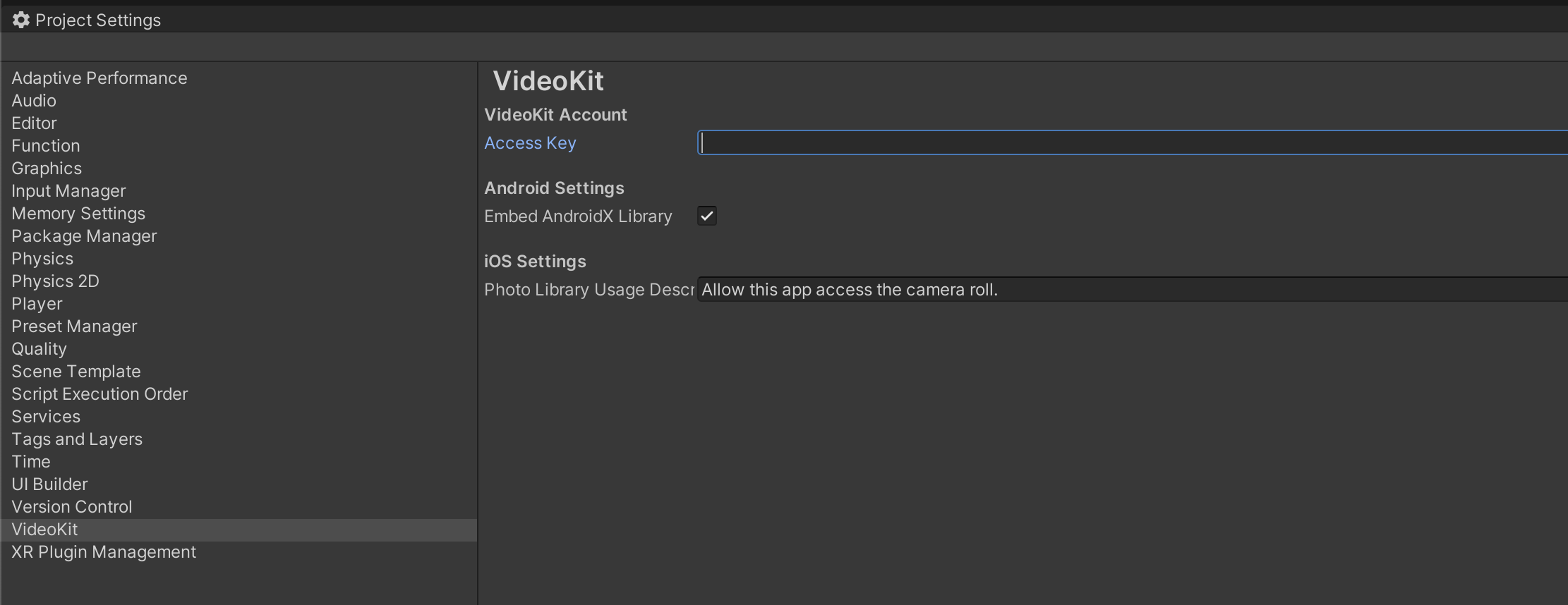
> [!CAUTION]
> If your Unity project is open-source, make sure to add `ProjectSettings/VideoKit.asset` to your `.gitignore` file to keep your VideoKit access key private.
## Using VideoKit
Here are a few things you can do with VideoKit:
### Social Sharing
Share images, audio, and video files with the native share sheet with the `MediaAsset.Share` method:
```csharp
Texture2D image = ...
ImageAsset asset = await MediaAsset.FromTexture(image);
string receiverAppId = await asset.Share();
```
### Saving to the Camera Roll
Save images and videos to the camera roll with the `MediaAsset.SaveToCameraRoll` method:
```csharp
Texture2D image = ...
ImageAsset asset = await MediaAsset.FromTexture(image);
bool saved = await asset.SaveToCameraRoll();
```
### Picking from the Camera Roll
Pick images and videos from the camera roll with the `MediaAsset.FromCameraRoll<T>` method:
```csharp
// This will present the native gallery UI
var asset = await MediaAsset.FromCameraRoll<ImageAsset>() as ImageAsset;
Texture2D image = await asset.ToTexture();
// Do stuff with `image`...
```
### Camera Streaming
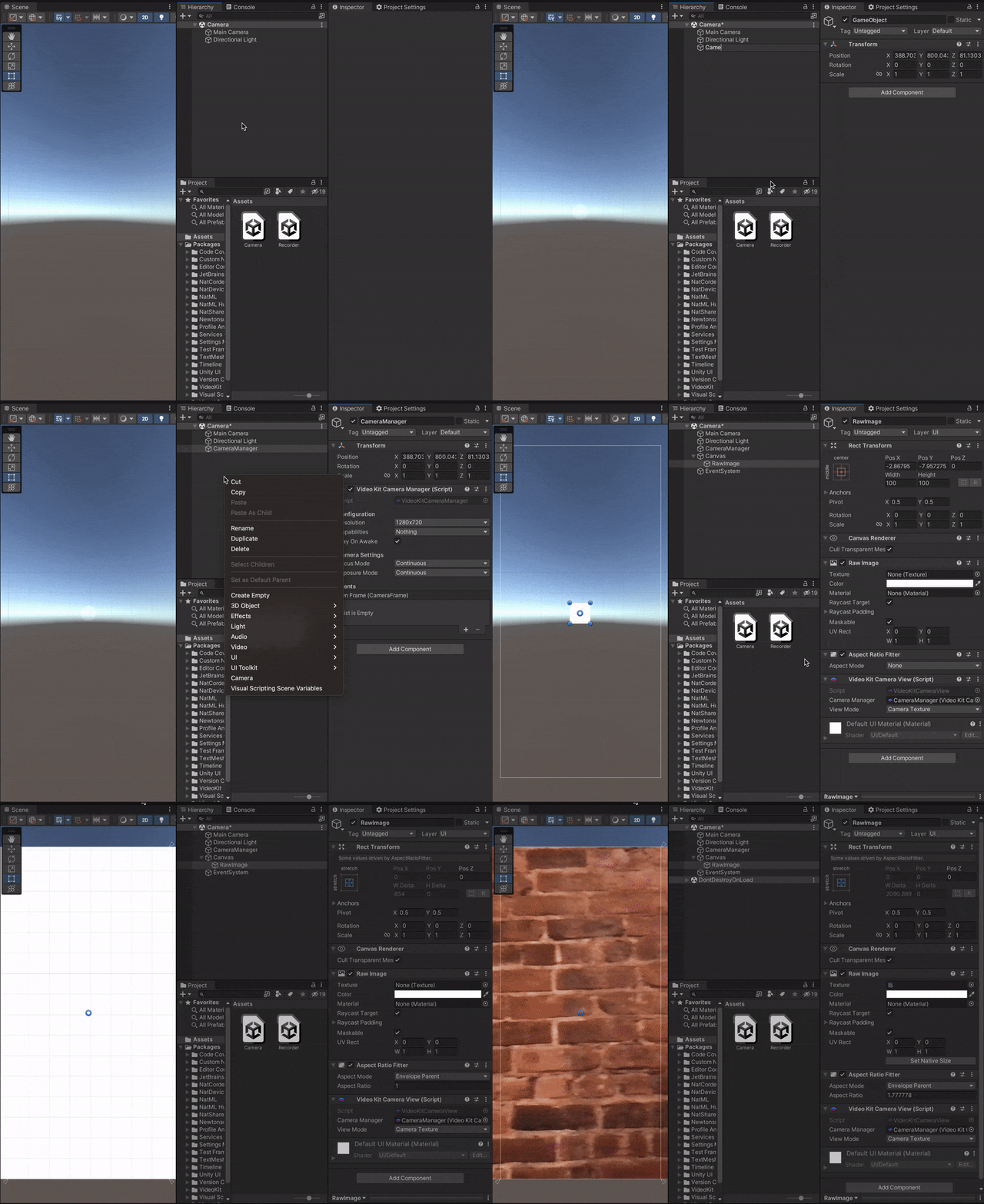
Stream the camera preview with the `VideoKitCameraManager` component:
### Record Videos
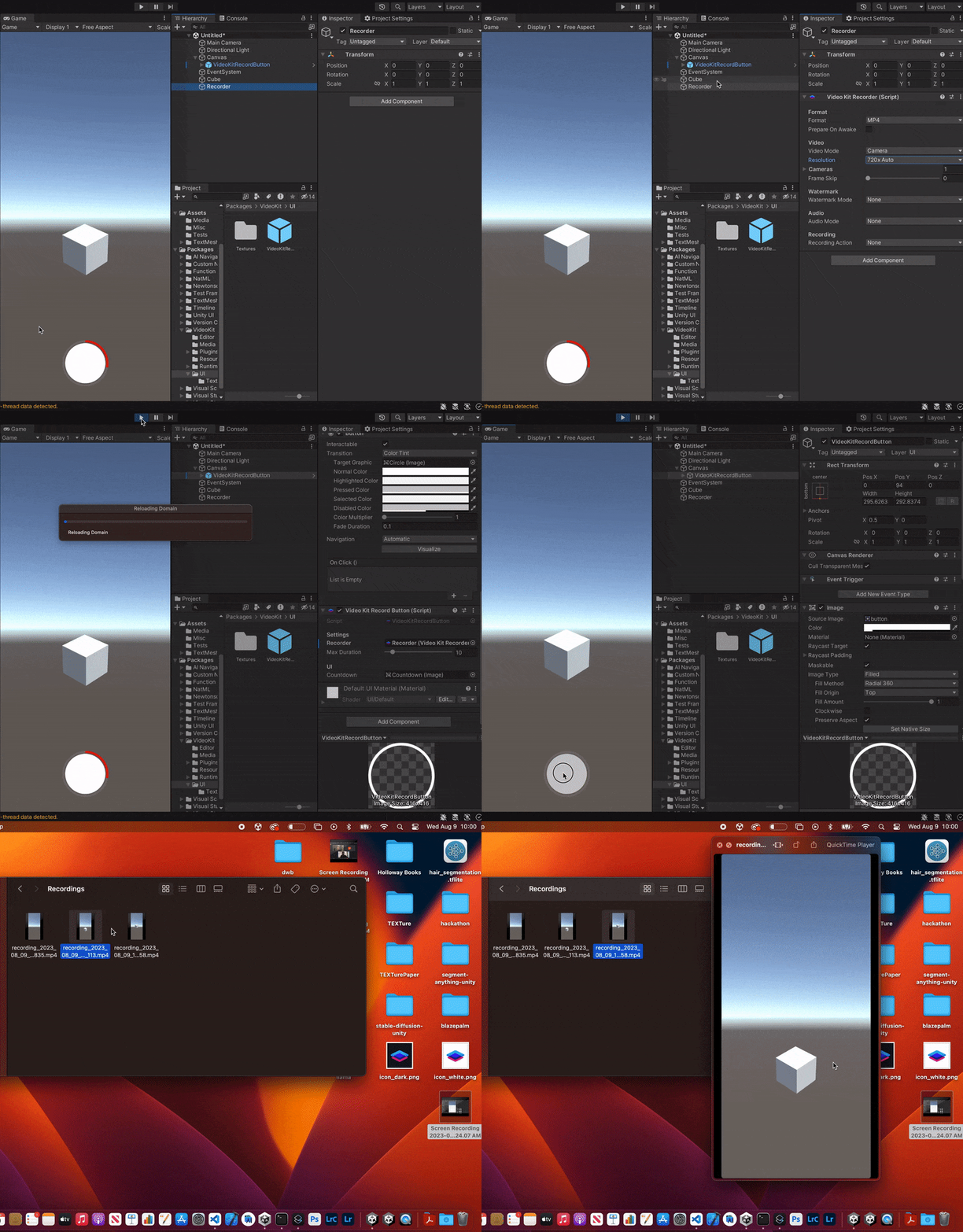
Record MP4, HEVC, WEBM videos; animated GIF images; JPEG image sequences; and WAV audio files with the `VideoKitRecorder` component:
### Human Texture
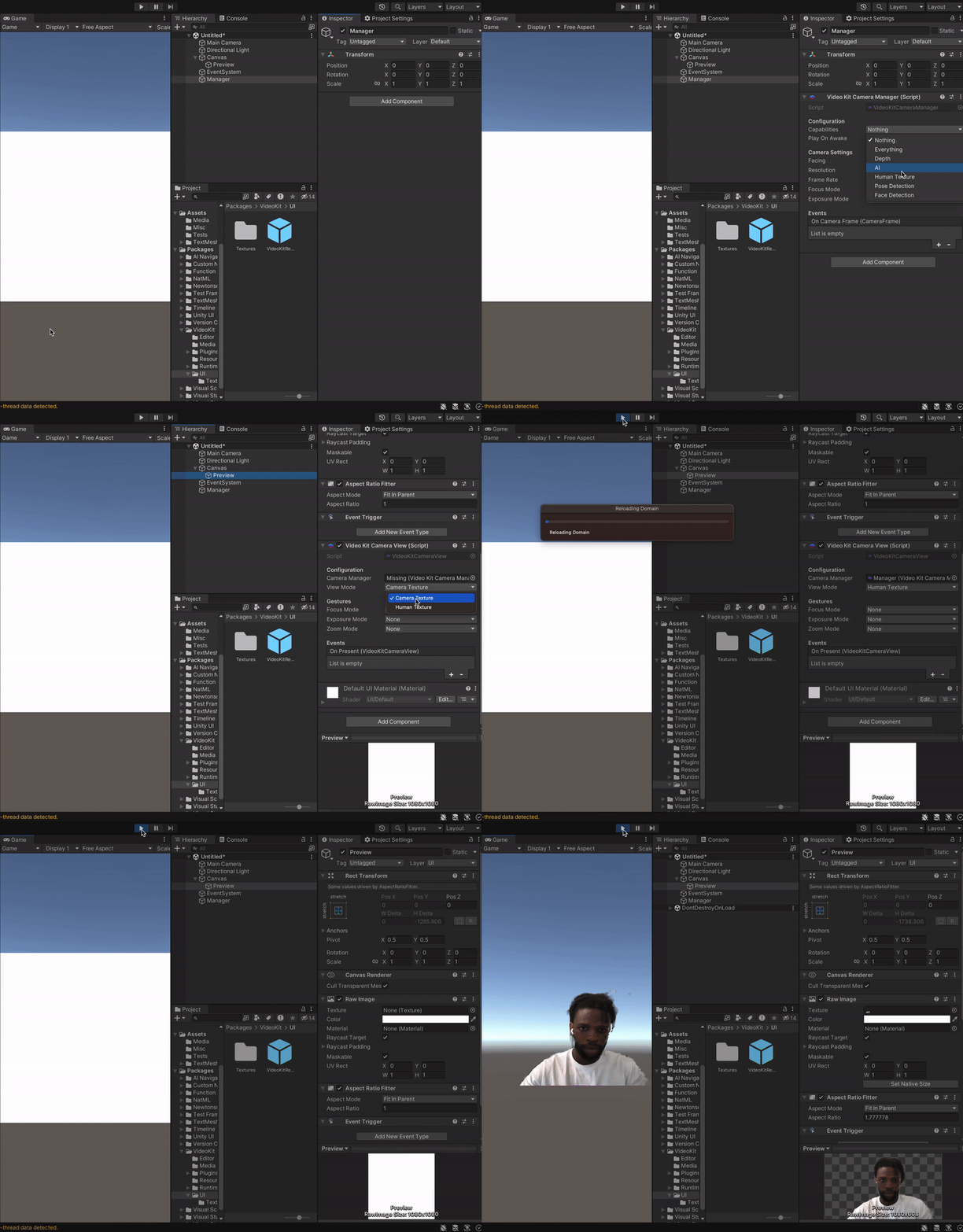
Remove the background from the camera preview with the `VideoKitCameraManager` component:
### Speech-to-Text
Caption audio with the `AudioAsset.Caption` method:
```csharp
AudioClip clip = ...;
var asset = await MediaAsset.FromAudioClip(clip);
var caption = await asset.Caption();
Debug.Log(caption);
```
### Text Commands
Convert a natural language prompt into a `struct` with the `TextAsset.To<T>` method. This enables features like text commands, and can be combined with audio captioning for voice control:
```csharp
using System.ComponentModel; // for `DescriptionAttribute`
using VideoKit.Assets;
struct Command { // Define this however you want
[Description(@"The user's name")]
public string name;
[Description(@"The user's age")]
public int age;
}
async void ParseCommand() {
var prompt = "My name is Jake and I'm thirteen years old.";
var asset = await MediaAsset.FromText(prompt);
var command = await asset.To<Command>();
// command = { "name": "Jake", "age": 13 }
}
```
___
## Requirements
- Unity 2022.3+
## Supported Platforms
- Android API Level 24+
- iOS 14+
- macOS 12+ (Apple Silicon and Intel)
- visionOS 2.1+
- Windows 10+ (64-bit only)
- WebGL:
- Chrome 91+
- Firefox 90+
- Safari 16.4+
## Resources
- Join the [VideoKit community on Discord](https://www.videokit.ai/community).
- See the [VideoKit documentation](https://www.videokit.ai).
- Check out [VideoKit on GitHub](https://github.com/videokit-ai).
- Contact us at [hi.ai](mailto:hi.ai).
Thank you very much!