@pdftron/webviewer-bim-client
Version:
Addon for WebViewer that allows you to view, annotate, and collaborate on 3D models.
108 lines (70 loc) • 3.69 kB
Markdown
# WebViewer BIM Client
WebViewer is a powerful JavaScript-based library that's part of the PDFTron SDK. It allows you to view and annotate various file formats (PDF, MS Office, images, videos) on your web app with a fully customizable UI.
This sample uses the BIM addon for WebViewer. It allows you to view, annotate, and collaborate on 3D models.
Request a [trial license key](https://www.pdftron.com/form/trial-support/) to try for free.
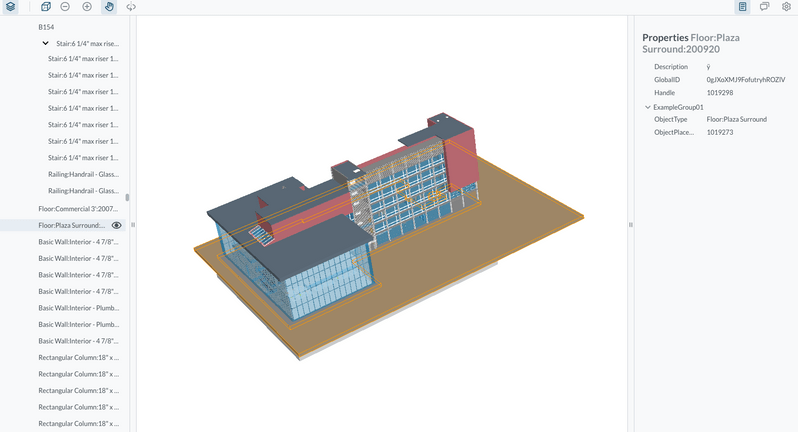
## Architecture
There are two components to WebViewer BIM:
1. Server-side file conversion that supports 3D streaming to the client.
2. Client-side 3D viewer that renders BIM models and allows navigation entirely encapsulated in our familiar WebViewer UI.
## Initial setup
Before you begin, make sure your development environment includes [Node.js](https://nodejs.org/en/download/) and [npm](https://www.npmjs.com/get-npm).
## Usage
### 1. Install WebViewer and WebViewer BIM Client
```
npm i /webviewer --save
npm i /webviewer-bim-client --save
```
This will also download all the assets that need to be included for WebViewer BIM to work.
### 2. Copy assets to public/ folder
These assets need to be served with your application. For example, if your project is built into a dist folder, you could copy these assets into dist/public.
The two folders you need to copy are:
- node_modules/@pdftron/webviewer/public
- node_modules/@pdftron/webviewer-bim/dist
```
cp -R ./node_modules/@pdftron/webviewer/public public/webviewer/lib
cp -R ./node_modules/@pdftron/webviewer-bim/dist public/webviewer-bim
```
Afterwards the folder structure will look something like:
```
public/
webviewer/
lib/
ui/
core/
webviewer-bim/
compress/
oda/
webviewer-bim-min.js
```
We recommend using a module bundler like [Webpack](https://webpack.js.org/) to automatically do this for you. There is a nice plugin called [copy-webpack-plugin](https://github.com/webpack-contrib/copy-webpack-plugin) that does just this.
### 3. Import and instantiate WebViewer and WebViewer BIM Client
```js
import Webviewer from '/webviewer';
import { initializeBimViewer, unmountBimViewer } from '/webviewer/bim-client'
Webviewer({
path: '/webviewer/lib',
}, document.getElementById('viewer')).then(instance => {
const license = `---- Insert commercial license key here after purchase ----`;
const serverURL = `---- Insert server URL after setup ----`;
const options = {
license: license,
// dataSchema omitted for clarity.
// See documentations for details: https://www.pdftron.com/documentation/web/guides/BIM/api/#initializebimviewer
dataSchema: {}
};
const webviewerBim = await initializeBimViewer(instance, serverURL, options);
webviewerBim.File.load3dAsset('Add URL to your 3D asset here');
// Call unmountBimViewer when you're ready to unmount.
// unmountBimViewer(instance);
}
```
### 4. Setup WebViewer BIM Server
See [Setting up WebViewer BIM Server](https://www.pdftron.com/documentation/web/guides/BIM/setup-server/).
## Documentation
https://www.pdftron.com/documentation/web/guides/BIM/
## WebViewer BIM APIs
- [WebViewer BIM Client APIs](https://www.pdftron.com/documentation/web/guides/BIM/api/#webviewer-bim-client-apis)
- [WebViewer BIM Server APIs](https://www.pdftron.com/documentation/web/guides/BIM/api/#webviewer-bim-server-apis)
## License
WebViewer BIM will run in trial mode until a license is provided. For more information on licensing, please visit [our website](https://www.pdftron.com/licensing).