@objectivity/angular-schematic-ide
Version:
Configures IDE, adds common extensions and configurations
102 lines (60 loc) • 5.07 kB
Markdown
# Angular schematic ide
Configures IDE, adds common extensions and configurations.
## Overview
```bash
ng add @objectivity/angular-schematic-ide
```
## Options
<details>
<summary>vscode</summary>
<p>
<code>--vscode</code> (alias: <code>-vsc</code>) <em>default value: true</em>
</p>
<p>
When true, adds common extensions and configurations for VSCode.
</p>
</details>
## VSCode
### Getting Started
```sh
ng add @objectivity/angular-schematic-ide --vscode
```
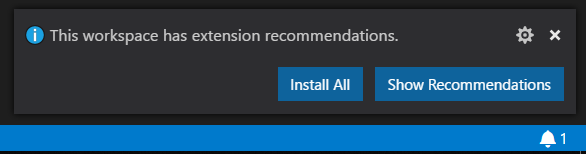
- Restart VS Code. It prompts a user to install the recommended extensions when a workspace is opened for the first time. The user can also review the list with the Extensions: Show Recommended Extensions command.
### Extensions Included
- [Debugger for Chrome](https://marketplace.visualstudio.com/items?itemName=msjsdiag.debugger-for-chrome) - Must have extension for Angular development. You can debug using chrome and add your breakpoints in VSCode. Tutorial on how to use can be found [on VSCode docs](https://code.visualstudio.com/docs/nodejs/angular-tutorial#_debugging-angular).
- [TSLint](https://marketplace.visualstudio.com/items?itemName=ms-vscode.vscode-typescript-tslint-plugin) - linter for the TypeScript language, help fixing error in TS code. By default auto fixing tslint errors on save is enabled.
- [Angular Language Service](https://marketplace.visualstudio.com/items?itemName=Angular.ng-template) - provides a rich editing experience for Angular templates, very useful when working on Angular HTML template.
- [Angular 8 Snippets](https://marketplace.visualstudio.com/items?itemName=mikael.angular-beastcode) - Angular with TypeScript snippets.
- [Vscode-icons](https://marketplace.visualstudio.com/items?itemName=vscode-icons-team.vscode-iconse) - provides lots of icons for Visual Studio Code.
- [EditorConfig for VS Code](https://marketplace.visualstudio.com/items?itemName=EditorConfig.EditorConfig) - EditorConfig Support for Visual Studio Code.
- [angular2-switcher](https://marketplace.visualstudio.com/items?itemName=infinity1207.angular2-switcher) - Easily navigate to typescript(.ts)|template(.html)|style(.scss/.sass/.less/.css) in angular projects.
- `alt+o` (Windows) or `shift+alt+o` (macOS)
- by default VSCode opens file not opened from file explorer in 'preview' mode. When using this extension, I also recommend the following setting: `workbench.editor.enablePreview": false`
- [Auto Import](https://marketplace.visualstudio.com/items?itemName=steoates.autoimport) - Automatically finds, parses and provides code actions and code completion for all available imports.
- [Auto Rename Tag](https://marketplace.visualstudio.com/items?itemName=formulahendry.auto-rename-tag) - Auto rename paired HTML/XML tag.
- [Bracket Pair Colorizer](https://marketplace.visualstudio.com/items?itemName=coenraads.bracket-pair-colorizer) - allows matching brackets to be identified with colours.
- [Sass Lint](https://marketplace.visualstudio.com/items?itemName=glen-84.sass-lint) - integrates the sass-lint linter into VS Code.
- [Sort Typescript Imports](https://marketplace.visualstudio.com/items?itemName=miclo.sort-typescript-imports) - integrates the sass-lint linter into VS Code.
- [Code Spell Checker](https://marketplace.visualstudio.com/items?itemName=streetsidesoftware.code-spell-checker) - A basic spell checker that works well with camelCase code.
### Debugging
#### Start Debugging
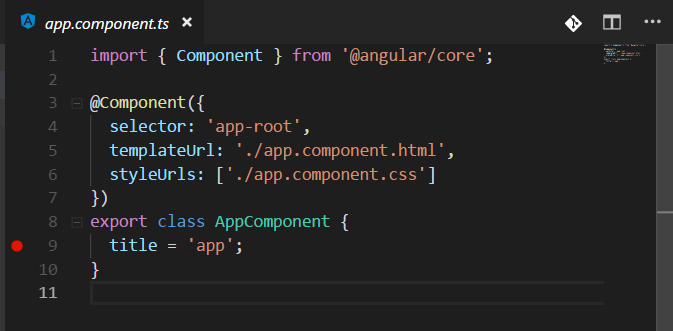
- Set a breakpoint in **app.component.ts** on the line that sets the `title` property of `AppComponent`. To set a breakpoint, click on the gutter to the left of the line numbers. This will set a breakpoint which will be visible as a red circle.
- Open a terminal at the root folder and serve the app using Angular CLI:
```bash
npm start
```
- Go to the Debug view, select the **'ng serve'** configuration, then press F5 or click the green play button.
- The app will be shown in a browser, but in order to hit the breakpoint you'll need to _refresh_ the browser.
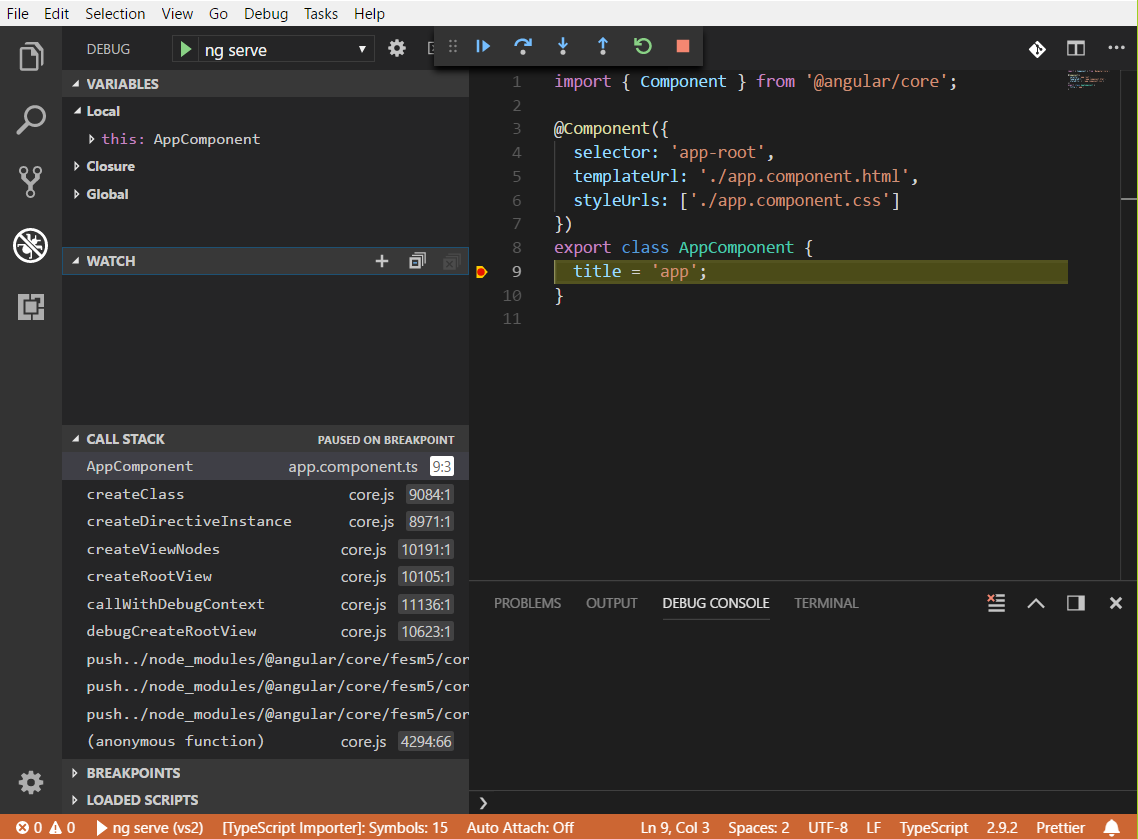
- You can step through your source code (_F10_), inspect variables such as AppComponent, and see the call stack of the client side Angular application.
#### Debug Unit Tests
- Set a breakpoint in **app.component.spec.ts** on a line in one of the unit tests.
- Open a terminal at the root folder and run the tests using Angular CLI:
```bash
npm run test
```
- After the test run, go to the Debug view, select the **'ng test'** configuration, then press F5 or click the green button.
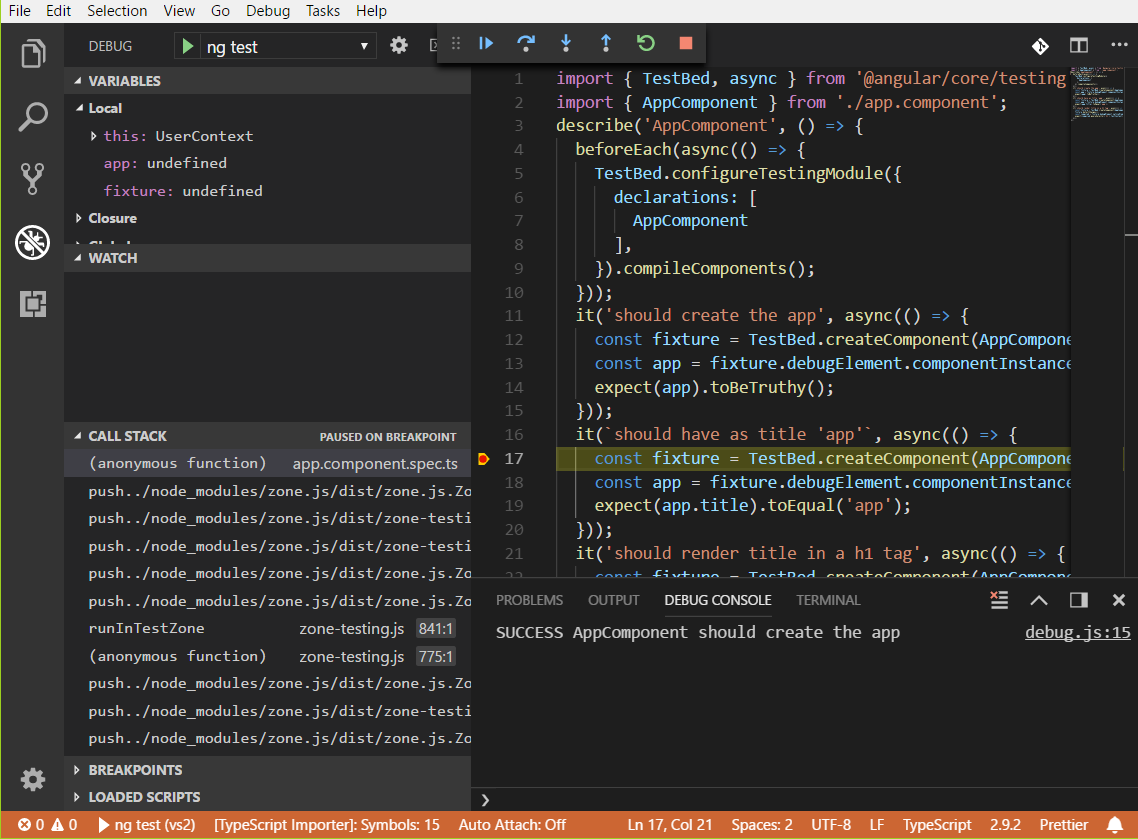
- When a browser opens with the test list, click the link for the test in which you placed the breakpoint. You should then hit the breakpoint: