@noe_rls/cm-chessboard
Version:
A JavaScript chessboard which is lightweight, ES6 module based, responsive, SVG rendered and without dependencies.
333 lines (228 loc) • 12.4 kB
Markdown
# Fork of cm-chessboard
[original](https://github.com/shaack/cm-chessboard)
# cm-chessboard
A JavaScript chessboard which is lightweight, ES6 module based, responsive, SVG rendered and **without dependencies**.
It works on desktop (current versions of Chrome, Firefox, Safari, Edge), and mobile (Android and iOS).
cm-chessboard is the main chessboard of
[chessmail.eu](https://www.chessmail.eu) and [chessmail.de](https://www.chessmail.de). It is also used
in [chess-console](https://shaack.com/projekte/chess-console/examples/load-pgn.html) and in
[cm-fen-editor](https://shaack.com/projekte/cm-fen-editor/). They are all nice written ES6 Modules to handle different
aspects of chess games.
## Features
- [Mobile friendly and responsive](https://shaack.com/projekte/cm-chessboard/examples/responsive-board.html)
- [Can handle moves input via click or drag](https://shaack.com/projekte/cm-chessboard/examples/validate-moves.html)
- [Styleable via css](https://shaack.com/projekte/cm-chessboard/examples/different-styles.html)
- [Supports multiple piece sets](https://shaack.com/projekte/cm-chessboard/examples/different-styles.html)
- Uses SVG for rendering
- Vanilla JavaScript modules in ECMAScript 6 syntax
- **No dependencies**
## Demo and repository
- **Demo: [http://shaack.com/projekte/cm-chessboard/](https://shaack.com/projekte/cm-chessboard/)**
- **Repository: [https://github.com/shaack/cm-chessboard](https://github.com/shaack/cm-chessboard)**
## Install
**Option 1:** Install the [npm package](https://www.npmjs.com/package/cm-chessboard) with `npm install cm-chessboard`.
**Option 2:** Download the code from [GitHub](https://github.com/shaack/cm-chessboard).
After installation, copy the sprite in `cm-chessboard/assets/images/` to your projects `assets/images/`
folder. If you put the sprite somewhere else you have to configure the location with `{sprite.url: "./url/of/chessboard-sprite.svg"}`
(see section 'Configuration' below).
To run the unit tests in `/test` you first have to `npm install` the dev dependencies. Without tests there are no
dependencies.
## Example usage
Preconditions for using cm-chessboard in a web page:
1. **include the css:** `assets/styles/cm-chessboard.css`
2. **import the ES6 module:** `import {Chessboard} from "PATH/TO/src/cm-chessboard/Chessboard.js"`
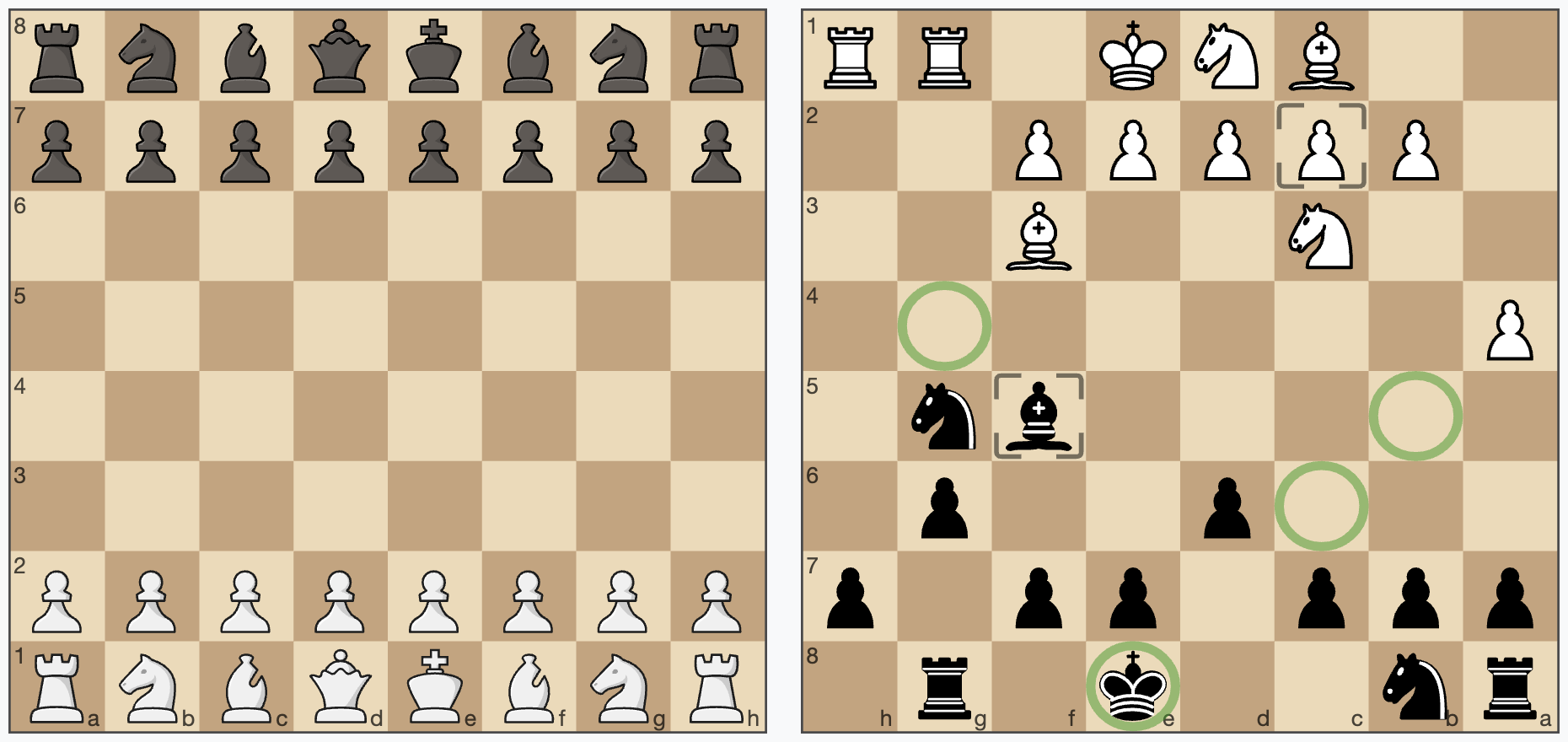
Example, showing a FEN:
```html
<script type="module">
import {Chessboard} from "./src/cm-chessboard/Chessboard.js"
new Chessboard(document.getElementById("containerId"),
{position: "rn2k1r1/ppp1pp1p/3p2p1/5bn1/P7/2N2B2/1PPPPP2/2BNK1RR"})
</script>
```
Take a look at the [/examples](https://github.com/shaack/cm-chessboard/tree/master/examples) folder for more simple
examples.
## Configuration
Below is the default configuration
```javascript
props = {
position: "empty", // set as fen, "start" or "empty"
orientation: COLOR.white, // white on bottom
style: {
cssClass: "default",
showCoordinates: true, // show ranks and files
borderType: BORDER_TYPE.thin, // thin: thin border, frame: wide border with coordinates in it, none: no border
aspectRatio: 1, // height/width. Set to `undefined`, if you want to define it only in the css.
moveFromMarker: MARKER_TYPE.frame, // the marker used to mark the start square
moveToMarker: MARKER_TYPE.frame // the marker used to mark the square where the figure is moving to
},
responsive: true, // resizes the board based on element size
animationDuration: 300, // pieces animation duration in milliseconds
sprite: {
url: "./assets/images/chessboard-sprite-staunty.svg", // pieces and markers are stored as svg sprite
size: 40, // the sprite size, defaults to 40x40px
cache: true // cache the sprite inline, in the HTML
}
}
```
## API
### constructor
`new Chessboard(containerElement, props = {})`
- **`containerElement`**: a HTML DOM element being the container of the widget
- **`props`**: The board configuration (properties)
### setPiece(square, piece)
Sets a piece on a square. Example: `board.setPiece("e4", PIECE.blackKnight)` or
`board.setPiece("e4", "bn")`. Remove a Piece with `board.setPiece("e4", null)`.
### getPiece(square)
Returns the piece on a square or `undefined` if the square is empty.
### movePiece(squareFrom, squareTo, animated = true)
Move a piece from `squareFrom` to `squareTo`. Returns a **Promise**, which is resolved, when the animation finished.
[Example for **movePiece**](https://shaack.com/projekte/cm-chessboard/examples/pieces-animation.html)
### setPosition(fen, animated = true)
Sets the position as `fen`. Special values are `"start"`, sets the chess start position and
`"empty"`, sets an empty board. When `animated` is set `false`, the new position will be shown instant.
Returns a **Promise**, which is resolved, when the animation finished.
[Example for **setPosition**](https://shaack.com/projekte/cm-chessboard/examples/pieces-animation.html)
### getPosition()
Returns the board position as `fen`.
### addMarker(square, type)
Adds a marker on a square.
Default types are: `MARKER_TYPE.frame`, `MARKER_TYPE.square`, `MARKER_TYPE.dot`, `MARKER_TYPE.circle` exportet by `Chessboard.js`.
#### You can create your own marker types:
Just create an object like `const myMarker = {class: "markerCssClass", slice: "markerSliceId"}`, where `class` is the css class of the marker for styling
and `slice` is the `id` in `sprite.svg`. See also [Create your own custom markers](#create-your-own-custom-markers)
below.
[Example for **addMarker**, **getMarkers** and
**removeMarkers**](https://shaack.com/projekte/cm-chessboard/examples/context-input.html)
### getMarkers(square = undefined, type = undefined)
Returns the board's markers as an array.
Set square to `undefined`, to get all markers of a type on the board. Set type to `undefined`, to get all types.
Set `both` to undefined to get all markers on the board.
### removeMarkers(square = undefined, type = undefined)
Removes markers from the board.
Set `square` to `undefined` to remove markers of `type` from all squares. Set `type` to `undefined`, to remove all types
from a square. Set both to `undefined` to remove all markers from the board.
### setOrientation(color)
Sets the board orientation (color at bottom). Allowed values are `COLOR.white` or `COLOR.black`.
[Example for **setOrientation**](https://shaack.com/projekte/cm-chessboard/examples/enable-input.html)
### getOrientation()
Returns the board orientation.
### destroy()
Removes the board from the DOM.
[Example for **destroy**](https://shaack.com/projekte/cm-chessboard/examples/destroy-many-boards.html)
### enableMoveInput(eventHandler, color = undefined)
Enables moves via user input (mouse or touch). Set optional `color`, if you want to enable the move input for a specific
side, `COLOR.white` or `COLOR.black`.
`eventHandler` is called on specific events of the user interaction. Receives the parameter `event`.
```javascript
board.enableMoveInput((event) => {
// handle user input here
}, COLOR.white)
```
[Example for **enableMoveInput**](http://shaack.com/projekte/cm-chessboard/examples/enable-input.html)
The event has the following **`event.type`**:
- **`INPUT_EVENT_TYPE.moveStart`**: User started the move input, `event.square` contains the coordinates
- **`INPUT_EVENT_TYPE.moveDone`**: User finished the move input, `event.squareFrom` and `event.squareTo` contain the
coordinates
- **`INPUT_EVENT_TYPE.moveCanceled`**: User canceled the move with clicking again on the start square or clicking
outside of the board
```javascript
chessboard.enableMoveInput((event) => {
switch (event.type) {
case INPUT_EVENT_TYPE.moveStart:
console.log(`moveStart: ${event.square}`)
// return `true`, if input is accepted/valid, `false` aborts the interaction, the piece will not move
return true
case INPUT_EVENT_TYPE.moveDone:
console.log(`moveDone: ${event.squareFrom}-${event.squareTo}`)
// return true, if input is accepted/valid, `false` takes the move back
return true
case INPUT_EVENT_TYPE.moveCanceled:
console.log(`moveCanceled`)
}
}, COLOR.white)
```
### disableMoveInput()
Disables moves via user input.
### enableSquareSelect(eventHandler)
Enables primary and secondary pointer events on squares.
On desktop devices this means left and right click on squares.
```javascript
board.enableSquareSelect((event) => {
switch (event.type) {
case SQUARE_SELECT_TYPE.primary:
// left click
case SQUARE_SELECT_TYPE.secondary:
// right click
}
})
```
[Example for **enableSquareSelect**](https://shaack.com/projekte/cm-chessboard/examples/input-callbacks.html)
**`event.square`** contains the coordinates of the user input.
### disableSquareSelect()
Disables the square select.
## Piece sets
cm-chessboard supports alternative piece sets. A piece set is defined in an SVG sprite. cm-chessboard is shipped with
two sets, the default [staunty](https://github.com/ornicar/lila/tree/master/public/piece/staunty) (
chessboard-sprite-staunty.svg) and a sprite of the
[Wikimedia standard pieces](https://commons.wikimedia.org/wiki/Category:SVG_chess_pieces/Standard)
(chessboard-sprite.svg).
Sprites must be 40x40px in size where the piece elements must have ids like
"bp" (black pawn) or "wq" (white queen). Just open the sprite in a text editor, SVG is readable like HTML. Also the
markers are defined in the sprite.
## Create your own custom markers
The ability to add custom markers is build in. You can use the existing
marker shapes in the SVG sprite and create your own markers with just css or create
your own custom SVG shapes. With a program like InkScape or Sketch this should be relatively easy.
Example: The markerCircle is defined in the SVG like this.
```svg
<g id="markerCircle" transform="translate(2.000000, 2.000000)" fill="#000000" fill-opacity="0">
<circle cx="18" cy="18" r="18"/>
</g>
```
It's a circle with the radius 18 and its center at 20/20.
Important is the id "markerCircle". You can set the marker
with `board.addMarker("e4", {class: "markerSquare", slice: "markerSquare"})`
"emphasize" is the css class, which defines the color and opacity of the marker. "slice" is the id of the marker in the SVG. This is
also demonstrated in the [mark squares example](https://shaack.com/projekte/cm-chessboard/examples/input-callbacks.html)
.
The color and stroke-width of the marker is defined in the css (or scss). You could also define your marker completely
in the sprite, but then that is not so flexible.
These are the css styles of the markers "markerSquare" and "markerCircleRed".
```css
marker.markerSquare {
fill: black;
opacity: 0.11;
}
marker.markerCircleRed {
stroke: #aa0000;
stroke-width: 3px;
opacity: 0.4;
}
```
So you can simply add a marker with the id `myMarkerIdInSvg` to the SVG, and add the class `myMarkerCssClass` to the
css. Then you can show it on the field "e4" with
`addMarker("e4", {class: "myMarkerCssClass", slice: "myMarkerIdInSvg"})`
To allow easy removing of the marker, you have to define the marker type in your code.
```js
const myMarkerType = {class: "myMarkerCssClass", slice: "myMarkerIdInSvg"}
// add
chessboard.addMarker("e4", myMarkerType)
// remove
chessboard.removeMarkers("e4", myMarkerType)
// remove all "myMarkerType"
chessboard.removeMarkers(undefined, myMarkerType)
```
## Usage with React
There exists a ticket from someone who is using cm-chessboard with react:
https://github.com/shaack/cm-chessboard/issues/20
## Licenses
- License for the code: [MIT](https://github.com/shaack/cm-chessboard/blob/master/LICENSE)
- License for the Staunty SVG-pieces (
chessboard-sprite-staunty.svg): [CC BY-NC-SA 4.0](https://creativecommons.org/licenses/by-nc-sa/4.0/)
- License for the Wikimedia SVG-pieces (
chessboard-sprite.svg): [CC BY-SA 3.0](https://creativecommons.org/licenses/by-sa/3.0/)
## cm-chess
You may also be interested in [cm-chess](https://github.com/shaack/cm-chess), it is like
[chess.js](https://github.com/jhlywa/chess.js), but in ES6 and can handle games and PGNs with variants, NAGs and
comments.