@needle-tools/engine
Version:
Needle Engine is a web-based runtime for 3D apps. It runs on your machine for development with great integrations into editors like Unity or Blender - and can be deployed onto any device! It is flexible, extensible and networking and XR are built-in.
375 lines (374 loc) • 16.6 kB
TypeScript
import { Object3D, Quaternion, Vector3 } from "three";
import { AssetReference } from "../../engine/engine_addressables.js";
import { type NeedleXREventArgs } from "../../engine/xr/api.js";
import { Behaviour } from "../Component.js";
/**
* Represents a tracked image detected during a WebXR session.
* Contains position, rotation, and tracking state information for a detected marker image.
*
* **Properties:**
* - Access image URL and physical dimensions
* - Get current position and rotation in world space
* - Check tracking state (tracked vs emulated)
* - Apply transform to 3D objects
*
* @summary Runtime data for a detected marker image in WebXR
* @category XR
*/
export declare class WebXRTrackedImage {
/** URL of the tracked marker image */
get url(): string;
/** Physical width of the marker in meters */
get widthInMeters(): number;
/** The ImageBitmap used for tracking */
get bitmap(): ImageBitmap;
/** The {@link WebXRImageTrackingModel} configuration for this tracked image */
get model(): WebXRImageTrackingModel;
/**
* The measured size of the detected image in the real world.
* May differ from `widthInMeters` if the physical marker doesn't match the configured size.
*/
readonly measuredSize: number;
/**
* Current tracking state of the image:
* - `tracked` - Image is currently being tracked by the system
* - `emulated` - Tracking is being emulated (less accurate)
*/
readonly state: "tracked" | "emulated";
/**
* Copy the current world position of the tracked image to a Vector3.
* @param vec The vector to store the position in
* @returns The input vector with the position copied to it
*/
getPosition(vec: Vector3): Vector3;
/**
* Copy the current world rotation of the tracked image to a Quaternion.
* @param quat The quaternion to store the rotation in
* @returns The input quaternion with the rotation copied to it
*/
getQuaternion(quat: Quaternion): Quaternion;
/**
* Apply the tracked image's position and rotation to a 3D object.
* Optionally applies smoothing to reduce jitter.
*
* @param object The 3D object to update
* @param t01 Interpolation factor (0-1) for smoothing. If undefined or >= 1, no smoothing is applied. When smoothing is enabled, larger position/rotation changes will automatically reduce the smoothing to prevent lag.
*/
applyToObject(object: Object3D, t01?: number | undefined): void;
private static _positionBuffer;
private static _rotationBuffer;
private _position;
private _rotation;
private ensureTransformData;
private readonly _trackingComponent;
private readonly _trackedImage;
private readonly _bitmap;
private readonly _pose;
constructor(context: WebXRImageTracking, trackedImage: WebXRImageTrackingModel, bitmap: ImageBitmap, measuredSize: number, state: "tracked" | "emulated", pose: any);
}
/**
* Configuration model for a tracked image marker.
* Defines which image to track, its physical size, and which 3D content to display when detected.
*
* **Important:** The physical size (`widthInMeters`) must match your printed marker size for accurate tracking.
* Mismatched sizes cause the tracked object to appear to "float" above or below the marker.
*
* **Best practices for marker images:**
* - Use high-contrast images with distinct features
* - Avoid repetitive patterns or solid colors
* - Test images at intended viewing distances
* - Ensure good lighting conditions
*
* @summary Configuration for a single trackable image marker
* @category XR
* @see {@link WebXRImageTracking} for the component that uses these models
* @link https://engine.needle.tools/docs/xr.html#image-tracking
* @link https://engine.needle.tools/samples/image-tracking
*/
export declare class WebXRImageTrackingModel {
/**
* Creates a new image tracking configuration.
*
* @param params Configuration parameters
* @param params.url URL to the marker image to track
* @param params.widthInMeters Physical width of the printed marker in meters (must match real size!)
* @param params.object The 3D object or AssetReference to display when this image is detected
* @param params.createObjectInstance If true, creates a new instance for each detection (useful for tracking multiple instances of the same marker)
* @param params.imageDoesNotMove Enable for static markers (floor/wall mounted) to improve tracking stability
* @param params.hideWhenTrackingIsLost If true, hides the object when tracking is lost; if false, leaves it at the last known position
*/
constructor(params: {
url: string;
widthInMeters: number; /** Object to track */
object: AssetReference | Object3D;
createObjectInstance?: boolean;
imageDoesNotMove?: boolean;
hideWhenTrackingIsLost?: boolean;
});
/**
* URL to the marker image to track.
* **Important:** Use images with high contrast and unique features to improve tracking quality.
* Avoid repetitive patterns, solid colors, or low-contrast images.
*/
image?: string;
/**
* Physical width of the printed marker in meters.
* **Critical:** This must match your actual printed marker size!
* If mismatched, the tracked object will appear to "float" above or below the marker.
*
* @default 0.25 (25cm)
* @example
* ```ts
* // For a business card sized marker (9cm wide)
* widthInMeters = 0.09;
*
* // For an A4 page width (21cm)
* widthInMeters = 0.21;
* ```
*/
widthInMeters: number;
/**
* The 3D object or prefab to display when this marker is detected.
* The object will be positioned and rotated to match the tracked image in the real world.
*
* **Note:** Scale your 3D content appropriately relative to `widthInMeters`.
*/
object?: AssetReference;
/**
* When enabled, creates a new instance of the referenced object each time this image is detected.
* Enable this if you want to track multiple instances of the same marker simultaneously,
* or if the same object is used for multiple different markers.
*
* @default false
*/
createObjectInstance: boolean;
/**
* Enable for static markers that don't move (e.g., posters on walls or markers on the floor).
* When enabled, only the first few tracking frames are used to position the object,
* resulting in more stable tracking by ignoring subsequent minor position changes.
*
* **Use cases:**
* - Wall-mounted posters or artwork
* - Floor markers for persistent AR content
* - Product packaging on shelves
*
* **Don't use for:**
* - Handheld cards or objects
* - Moving markers
*
* @default false
*/
imageDoesNotMove: boolean;
/**
* Controls visibility behavior when tracking is lost.
* - When `true`: Object is hidden when the marker is no longer visible
* - When `false`: Object remains visible at its last tracked position
*
* @default true
*/
hideWhenTrackingIsLost: boolean;
/**
* Extracts the filename from the marker image URL.
* @returns The filename (last part of the URL path), or null if no image URL is set
* @example
* ```ts
* // URL: "https://example.com/markers/business-card.png"
* // Returns: "business-card.png"
* ```
*/
getNameFromUrl(): string | null;
}
/**
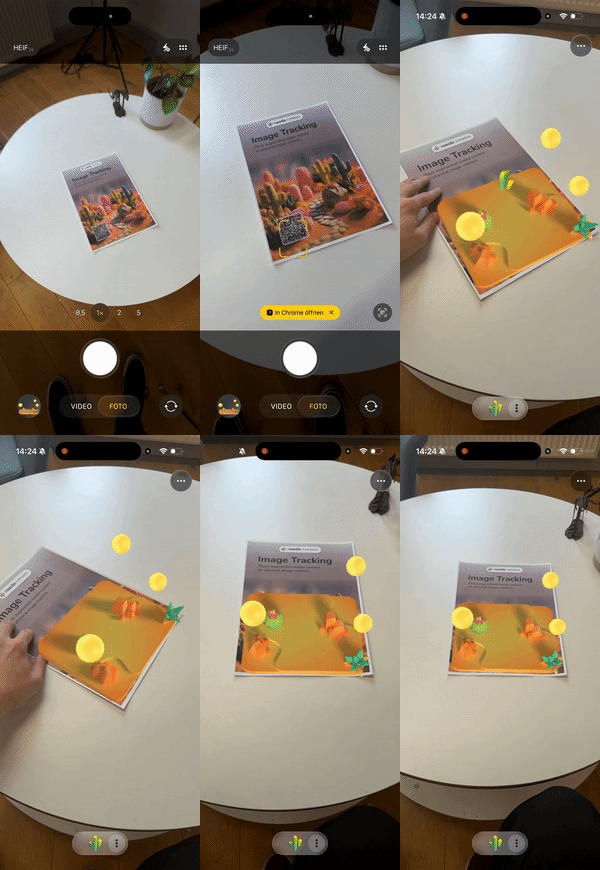
* Create powerful AR image tracking experiences with just a few lines of code!
* WebXRImageTracking makes it incredibly easy to detect marker images in the real world and anchor 3D content to them.
* Needle Engine automatically handles all the complexity across different platforms and fallback modes for you.
*
* [](https://engine.needle.tools/samples/image-tracking)
*
* **What makes Needle Engine special:**
* - **Write once, run everywhere**: The same code works across iOS, Android, and visionOS
* - **Automatic platform optimization**: Seamlessly switches between WebXR, ARKit, and QuickLook
* - **Flexible deployment options**: From full WebXR with unlimited markers to QuickLook fallback
* - **Production ready**: Battle-tested tracking with adaptive smoothing and stability features
*
* **Platform Support & Options:**
* - **iOS (WebXR via AppClip)**: Full WebXR support - track unlimited markers simultaneously via native ARKit!
* - **iOS (QuickLook mode)**: Instant AR without app installation - perfect for quick demos (tracks first marker)
* - **Android (WebXR)**: Native WebXR Image Tracking API - unlimited markers (requires browser flag during early access)
* - **visionOS (QuickLook)**: Spatial image anchoring with Apple's AR QuickLook
*
* **Simple 3-Step Setup:**
* 1. Add this component to any GameObject in your scene
* 2. Configure your markers in the `trackedImages` array:
* - `image`: URL to your marker image
* - `widthInMeters`: Physical size of your printed marker
* - `object`: The 3D content to display
* 3. Export and test - Needle handles the rest!
*
* **Pro Tips for Best Results:**
* - Use high-contrast markers with unique features for reliable tracking
* - Match `widthInMeters` to your actual physical marker size for accurate positioning
* - Enable `imageDoesNotMove` for wall posters or floor markers - significantly improves stability
* - Use `smooth` (enabled by default) for professional-looking, jitter-free tracking
* - Test with different marker sizes and lighting - Needle's adaptive tracking handles various conditions
*
* 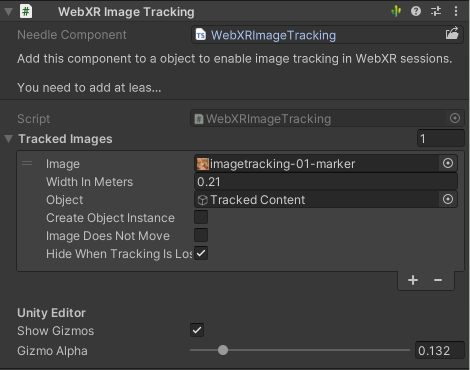
* *WebXRImageTracking component in Unity Editor*
*
* 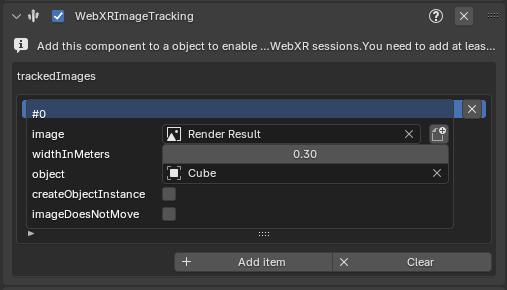
* *WebXRImageTracking panel/component in Blender*
*
* @example Getting started - it's this easy!
* ```ts
* // Just add markers and Needle handles everything else
* const imageTracking = myObject.addComponent(WebXRImageTracking);
* const marker = new WebXRImageTrackingModel({
* url: "https://example.com/my-poster.png",
* widthInMeters: 0.3, // 30cm poster
* object: my3DContent
* });
* imageTracking.addImage(marker);
* // Done! Works on iOS, Android, and visionOS automatically
* ```
*
* @example Track multiple markers (WebXR mode)
* ```ts
* const imageTracking = myObject.addComponent(WebXRImageTracking);
*
* // In WebXR mode (iOS AppClip, Android), all markers work simultaneously!
* const productBox = new WebXRImageTrackingModel({ url: "product-box.png", widthInMeters: 0.15, object: productInfo });
* const businessCard = new WebXRImageTrackingModel({ url: "business-card.png", widthInMeters: 0.09, object: contactCard });
* const poster = new WebXRImageTrackingModel({ url: "poster.png", widthInMeters: 0.5, object: videoPlayer });
*
* imageTracking.addImage(productBox);
* imageTracking.addImage(businessCard);
* imageTracking.addImage(poster);
*
* // For QuickLook fallback mode, optionally set which marker is primary
* imageTracking.setPrimaryImage(poster); // This will be used in QuickLook
* ```
*
* @example Professional setup for static markers
* ```ts
* // Perfect for museums, retail displays, or permanent installations
* const wallArt = new WebXRImageTrackingModel({
* url: "gallery-painting.png",
* widthInMeters: 0.6,
* object: interactiveExplanation,
* imageDoesNotMove: true, // Rock-solid tracking for static markers!
* hideWhenTrackingIsLost: false // Content stays visible even if temporarily occluded
* });
* ```
*
* **Why developers love Needle's image tracking:**
* - Zero platform-specific code required
* - Automatic graceful degradation across deployment modes
* - Built-in jitter reduction and stability features
* - Works with any image - posters, packaging, business cards, artwork
* - Export once, deploy everywhere
*
* @summary The easiest way to create cross-platform AR image tracking experiences
* @category XR
* @group Components
* @see {@link WebXRImageTrackingModel} for marker configuration options
* @see {@link WebXRTrackedImage} for runtime tracking data and events
* @see {@link WebXR} for general WebXR setup and session management
* @link https://engine.needle.tools/docs/xr.html#image-tracking - Full Documentation
* @link https://engine.needle.tools/samples/image-tracking - Try Live Demo
* @link https://github.com/immersive-web/marker-tracking/blob/main/explainer.md - WebXR Marker Tracking Specification
*/
export declare class WebXRImageTracking extends Behaviour {
/**
* Set which marker should be primary (first in the list).
* Useful when deploying to QuickLook mode where one marker is tracked at a time.
* In full WebXR mode (iOS AppClip, Android), all markers track simultaneously regardless of order.
*
* **Note:** Needle Engine automatically adapts - in WebXR all markers work, in QuickLook the primary is used.
*
* @param image The marker model to set as primary
*
* @example
* ```ts
* // Great for offering different AR experiences from one deployment
* imageTracking.setPrimaryImage(businessCardMarker); // Use this for QuickLook
* // In WebXR mode, all markers still work simultaneously!
* ```
*/
setPrimaryImage(image: WebXRImageTrackingModel): void;
/**
* Add a marker to track - it's that simple!
* Needle Engine handles all the platform differences automatically.
*
* **Tip:** Add all your markers upfront. In WebXR mode they all work simultaneously.
* In QuickLook mode, the first (primary) marker is used.
*
* @param image The marker configuration to add
* @param asPrimary Set to true to make this the primary marker (for QuickLook fallback)
*
* @example
* ```ts
* // Super simple - works across all platforms
* const marker = new WebXRImageTrackingModel({
* url: "https://mysite.com/poster.png",
* widthInMeters: 0.42, // A3 poster width
* object: cool3DModel
* });
* imageTracking.addImage(marker);
* // That's it! Needle does the rest.
* ```
*/
addImage(image: WebXRImageTrackingModel, asPrimary?: boolean): void;
/**
* Your list of markers to track. Add as many as you need!
*
* **How it works across platforms:**
* - **WebXR mode** (iOS AppClip, Android): All markers are tracked simultaneously - amazing for multi-marker experiences!
* - **QuickLook mode** (iOS fallback, visionOS): First marker is used - perfect for quick demos without app installation
*
* **Needle's smart deployment:** Configure all your markers once, and Needle automatically uses the best
* tracking mode available on each platform. No platform-specific code needed!
*
* @see {@link WebXRImageTrackingModel} for marker configuration
* @see {@link addImage} and {@link setPrimaryImage} for runtime management
*/
readonly trackedImages: WebXRImageTrackingModel[];
/**
* Enable Needle's professional-grade adaptive smoothing for rock-solid tracking.
* Automatically reduces jitter while staying responsive to real movement.
*
* **Pro tip:** Keep this enabled (default) for production experiences!
*
* @default true
*/
smooth: boolean;
private readonly trackedImageIndexMap;
/**
* Check if image tracking is available on this device right now.
*
* **Note:** On Android Chrome, WebXR Image Tracking is currently behind a flag during the early access period.
* Needle automatically falls back to other modes when needed, so your experience keeps working!
*/
get supported(): boolean;
private _supported;
/** @internal */
awake(): void;
/** @internal */
onEnable(): void;
/** @internal */
onDisable(): void;
private onBeforeUSDZExport;
/** @internal */
onBeforeXR(_mode: XRSessionMode, args: XRSessionInit & {
trackedImages: Array<any>;
}): void;
/** @internal */
onEnterXR(_args: NeedleXREventArgs): void;
/** @internal */
onLeaveXR(_args: NeedleXREventArgs): void;
private readonly imageToObjectMap;
private readonly currentImages;
private readonly webXRIncubationsWarning;
/** @internal */
onUpdateXR(args: NeedleXREventArgs): void;
private onImageTrackingUpdate;
}