@needle-tools/engine
Version:
Needle Engine is a web-based runtime for 3D apps. It runs on your machine for development with great integrations into editors like Unity or Blender - and can be deployed onto any device! It is flexible, extensible and networking and XR are built-in.
163 lines (162 loc) • 7.9 kB
TypeScript
import { Behaviour } from "../Component.js";
/**
* Defines how the {@link ViewBox} component applies camera framing adjustments.
*
* - `"continuous"`: Camera framing is continuously updated while the ViewBox is active. Use for animated or dynamic ViewBoxes.
* - `"once"`: Camera framing is applied once when the ViewBox becomes active, then updates stop. Use for initial framing with subsequent user control.
*/
export type ViewBoxMode = "continuous" | "once";
/**
* [ViewBox](https://engine.needle.tools/docs/api/ViewBox) automatically fits a defined box area into the camera view regardless of screen size or aspect ratio.
* This component is useful for framing characters, objects, or scenes in the center of the view while ensuring they remain fully visible.
* You can animate or scale the viewbox to create dynamic zoom effects, cinematic transitions, or responsive framing.
*
* [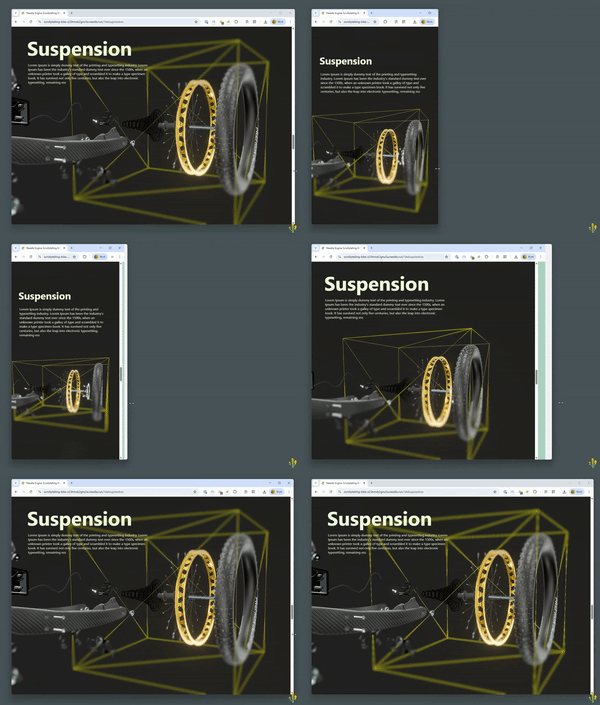](https://engine.needle.tools/samples/bike-scrollytelling-responsive-3d)
*
* The ViewBox component works by adjusting the camera's focus rect settings (offset and zoom) to ensure that the box defined by the
* GameObject's position, rotation, and scale fits perfectly within the visible viewport. It supports different modes for one-time
* fitting or continuous adjustment, making it versatile for both static compositions and animated sequences.
*
* **Key Features:**
* - Automatically adjusts camera framing to fit the box area
* - Works with any screen size and aspect ratio
* - Supports one-time fitting or continuous updates
* - Can be animated for dynamic zoom and framing effects
* - Multiple ViewBoxes can be active, with the most recently enabled taking priority
* - Handles camera positioning to ensure the box is visible (moves camera if inside the box)
*
* **Common Use Cases:**
* - Character framing in cutscenes or dialogue
* - Product showcases with guaranteed visibility
* - Scrollytelling experiences with animated camera movements
* - Responsive layouts that adapt to different screen sizes
* - UI-driven camera transitions
*
* - [Example on needle.run](https://viewbox-demo-z23hmxbz2gkayo-z1nyzm6.needle.run/)
* - [Scrollytelling Demo using animated Viewbox](https://scrollytelling-bike-z23hmxb2gnu5a.needle.run/)
* - [Example on Stackblitz](https://stackblitz.com/edit/needle-engine-view-box-example)
*
* @example Basic setup - Add a ViewBox component to frame an object
* ```ts
* const viewBox = new Object3D();
* viewBox.position.set(0, 1, 0); // Position the viewbox center
* viewBox.scale.set(2, 2, 2); // Define the box size
* viewBox.addComponent(ViewBox, { debug: true });
* scene.add(viewBox);
* ```
*
* @example Animated ViewBox for zoom effects
* ```ts
* const viewBox = new Object3D();
* viewBox.addComponent(ViewBox, { mode: "continuous" });
* scene.add(viewBox);
*
* // Animate the viewbox scale over time
* function update() {
* const scale = 1 + Math.sin(Date.now() * 0.001) * 0.5;
* viewBox.scale.setScalar(scale);
* }
* ```
*
* @example One-time fitting with user control afterwards
* ```ts
* const viewBox = new Object3D();
* viewBox.addComponent(ViewBox, {
* mode: "once", // Fit once, then allow free camera control
* referenceFieldOfView: 60
* });
* scene.add(viewBox);
* ```
*
* @see {@link CameraComponent} - The camera component that ViewBox controls
* @see {@link OrbitControls} - Camera controls that work alongside ViewBox
* @see {@link DragControls} - Alternative camera controls compatible with ViewBox
* @see {@link LookAtConstraint} - Another way to control camera targeting
* @see {@link SceneSwitcher} - Can be combined with ViewBox for scene transitions
* @see {@link Context.setCameraFocusRect} - The underlying focus rect API used by ViewBox
* @see {@link Context.focusRectSettings} - Manual control of focus rect settings
* @see {@link ViewBoxMode} - The mode type for controlling ViewBox behavior
*
* @summary Automatically fits a box area into the camera view
* @category Camera and Controls
* @group Components
* @component
*/
export declare class ViewBox extends Behaviour {
/**
* Array of all active ViewBox instances in the scene.
* When multiple ViewBoxes are enabled, the last one in the array (most recently enabled) takes priority and controls the camera.
* Other ViewBoxes remain registered but inactive, displayed with a dimmed gizmo color when debug visualization is enabled.
*/
static readonly instances: ViewBox[];
/**
* The reference field of view (in degrees) used to calculate how the box should fit within the camera view.
* This determines the baseline camera FOV for fitting calculations.
*
* **Behavior:**
* - If set to `-1` (default), the component will automatically use the camera's FOV on the first frame
* - Should typically match your camera's FOV for predictable framing
* - Can be set to a different value to create specific framing effects
*
* **Example:**
* If your camera has an FOV of 60° and you set `referenceFieldOfView` to 60, the ViewBox will fit objects
* as they would appear with that field of view. Setting it to a wider FOV (e.g., 90) makes objects appear
* smaller, while a narrower FOV (e.g., 30) makes them appear larger.
*
* @see {@link CameraComponent} for the camera component and its FOV property
* @default -1 (automatically uses the camera's FOV on the first frame)
*/
referenceFieldOfView: number;
/**
* Controls how the ViewBox applies camera adjustments.
*
* **Modes:**
* - `"once"`: Applies the framing adjustment once when the ViewBox becomes active, then stops updating.
* This is ideal when you want to frame the view initially but allow users to freely zoom, pan, or orbit afterwards.
* Perfect for interactive scenes where you want a good starting view but full user control.
*
* - `"continuous"`: Continuously updates the camera framing while this ViewBox is active.
* Use this when animating or scaling the ViewBox over time, or when you need the framing to constantly adjust.
* Great for cutscenes, scrollytelling, or any scenario with animated ViewBoxes.
*
* **Example Use Cases:**
* - Set to `"once"` for: Initial scene framing, product showcases where users explore freely after initial framing
* - Set to `"continuous"` for: Animated zoom effects, scrollytelling sequences, dynamic camera movements tied to ViewBox transforms
*
* @see {@link ViewBoxMode} for the type definition
* @default "continuous"
*/
get mode(): ViewBoxMode;
set mode(v: ViewBoxMode);
private _mode;
/**
* Enables debug visualization and logging for this ViewBox instance.
*
* **When enabled, you will see:**
* - A yellow wireframe box showing the active ViewBox bounds in 3D space
* - Gray wireframe boxes for inactive ViewBox instances
* - A red dashed outline on screen showing the projected box in 2D (when using `?debugviewbox` URL parameter)
* - Console logs for mode changes, FOV settings, and camera adjustments
*
* **Tip:** You can also enable debug visualization globally for all ViewBoxes by adding `?debugviewbox` to your URL.
*
* @see {@link Gizmos} for the gizmo rendering system used for debug visualization
* @default false
*/
debug: boolean;
/** @internal */
onEnable(): void;
/** @internal */
onDisable(): void;
private removeUpdateCallback;
private static readonly _tempProjectionMatrix;
private static readonly _tempProjectionMatrixInverse;
private _applyCount;
private internalUpdate;
/**
* Cover fit
*/
private fit;
private projectBoxIntoCamera;
private _projectedBoxElement;
}